How to Change the Logo on Squarespace
Replace, resize, or remove your Squarespace logo on desktop or mobile, with steps for versions 7.1, 7.0, and the Squarespace app.
Quick answer: In Squarespace 7.1, open your site editor, choose Edit Site Header, select the current logo or site title, click its pencil icon, then add a file under Logo Image or Mobile Logo Image. Adjust the logo height and save. Squarespace 7.0 uses Design > Logo & Title; the mobile app uses More > Design > Logo & Title > Logo > Add image.
This guide covers replacing, removing, resizing, and troubleshooting a Squarespace logo on every current editing route. The exact controls vary by version and template.
Change the logo in Squarespace 7.1 on desktop
- Sign in to Squarespace and open the site you want to edit.
- Click Edit to enter the site preview.
- Hover over the header and click Edit Site Header.
- Click the site title or existing logo, then click the pencil icon.
- Under Logo Image, click + and upload your file or choose one from your image library.
- If your header has a separate mobile setting, repeat the process under Mobile Logo Image.
- Use the desktop and mobile logo-height sliders to set the displayed size.
- Click Save. If you are still in the header editor, click Exit and then save the page changes.
Adding a logo image makes it appear in place of the site title in the header. Keep the site title field populated: Squarespace uses it for the logo’s alternative text and may use it in browser tabs and search results. See Squarespace’s official logo instructions and site-title display guide.
Remove the logo and show the site title again
- Open Edit Site Header and the same logo control.
- Open the three-dot menu next to the image.
- Choose Remove.
- Save the header and page.
Set a different desktop and mobile logo
Upload the desktop asset under Logo Image and a compact or alternate asset under Mobile Logo Image. If no mobile image is supplied, Squarespace uses the desktop logo and applies the mobile height setting.
Change the logo in Squarespace 7.0
Squarespace 7.0 places logo controls outside the 7.1 header editor:
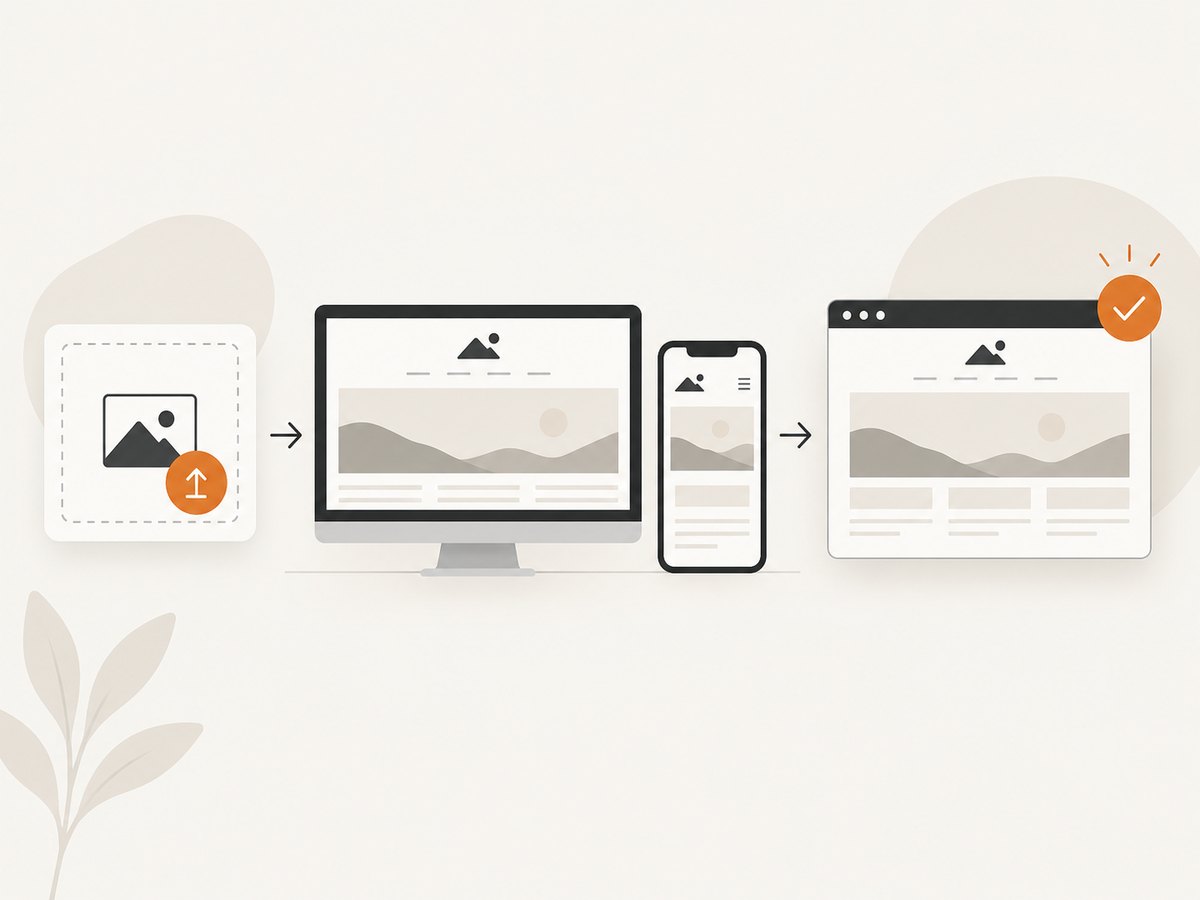
- Hover over the site title on any page and click Edit, or open Design > Logo & Title.
- Upload a replacement image, or remove the current image to restore the text title.
- Save your changes and view the site at desktop and mobile widths.
Logo size and mobile behavior depend on the template family. Some 7.0 templates impose maximum dimensions or provide only limited mobile controls, so the settings you see may differ from another 7.0 site.
Change the logo in the Squarespace app
- Open the Squarespace app and select your site.
- Tap More > Design > Logo & Title > Logo > Add image.
- Choose Camera, Photo Library, Files, or iCloud.
- Return to Logo & Title and save.
To remove the image, open the same logo setting, tap Remove, and save. If the app does not show these labels, update the app and confirm that you are editing the correct site.
Prepare a logo file that stays sharp
- Supported formats: JPG, GIF, PNG, and WebP.
- Use a larger source: Squarespace does not require exact dimensions, but a small file can look pixelated when enlarged.
- Need transparency? Use a PNG with a transparent background. Squarespace’s built-in image editor saves as JPG and removes transparency; use external image-editing software when transparency must be preserved.
- Check the aspect ratio: A wide wordmark usually fits a header better than a tall image. Crop excess whitespace before uploading.
- Check both breakpoints: Preview the header on a narrow phone width as well as desktop.
Logo behavior and display details
Logo height and header limits
In 7.1, desktop and mobile logo-height sliders control the rendered height, but the selected header layout can limit the maximum. In 7.0, sizing controls are template-specific.
Where the logo links
Clicking the logo image always leads to your homepage, according to Squarespace Help Center. Sending visitors to another destination requires custom code.
Site title, alt text, and browser tabs
Do not delete the site title just because the image is visible. Squarespace says the title supplies the logo’s alt text and can appear in search results and browser tabs. Edit it under the site’s title settings if the wording is outdated.
Acuity Scheduling has a separate logo
An Acuity Scheduling page does not permanently share the main site-logo setting. A site logo may appear when a new Acuity subscription is attached, but you can change or remove that logo inside Acuity.
Troubleshooting
| Problem | Likely cause | Fix |
|---|---|---|
| The logo option is missing | You are in a different Squarespace version or editing a page instead of the header. | For 7.1, enter Edit Site Header. For 7.0, open Design > Logo & Title. |
| The new logo is not visible | Changes were not saved, browser cache is showing the old asset, or the image blends into the header. | Save, reload in a private window, and test against the header background. |
| It looks blurry | The source image is too small or is being enlarged. | Upload a larger source file and reduce the logo-height setting if necessary. |
| Transparency disappeared | The image was edited with Squarespace’s editor, which saves as JPG. | Upload an externally prepared PNG with transparency. |
| Mobile logo is too large or cropped | The mobile height is independent, or the header layout limits available space. | Set Mobile Logo Image and lower the mobile logo-height slider. |
| Squarespace will not add the logo | The SEO description exceeds the documented limit. | Open SEO settings and shorten the description to 300 characters or fewer, then try again. |
| The wrong image appears on Acuity | Acuity’s scheduling-page logo is separate from the website logo. | Change or remove the image in Acuity’s own branding settings. |
| Logo click goes to the wrong place | Squarespace’s default logo link is the homepage. | Use custom code if a different destination is required. |
Verify the change before publishing
- Confirm the replacement appears on the homepage and other pages that use the same header.
- Check desktop and phone widths in the built-in preview and a real device.
- Test a light and dark page background if the header changes color.
- Open the published site in a private window to avoid cached assets.
- Click the logo and confirm that it reaches the homepage.
- Inspect the page with a screen reader or accessibility checker to ensure the site title provides meaningful alternative text.
Or skip the browser setup
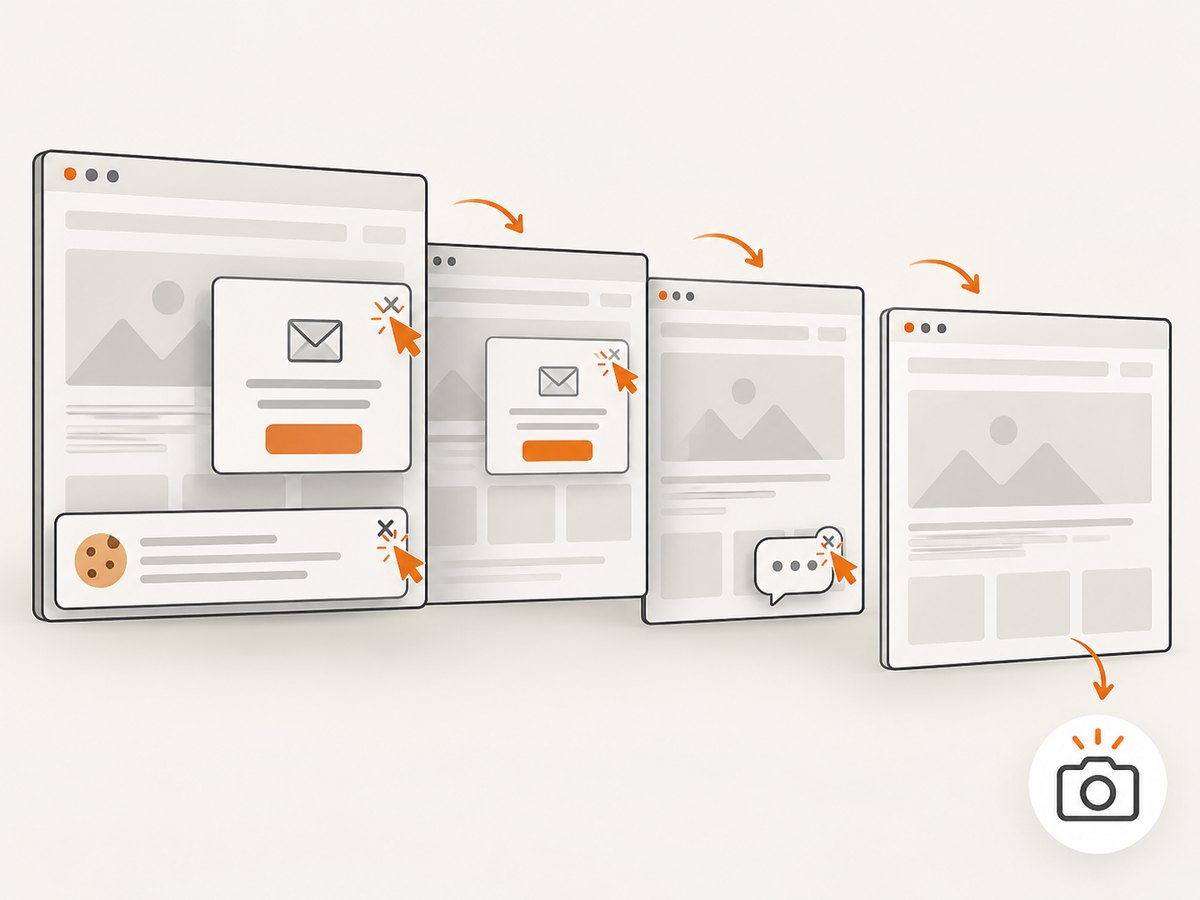
If you need a current screenshot of the updated Squarespace site for a review, release note, or visual test, ScreenshotNeo can capture it with one request. Its cleanup step accepts cookie or consent banners and removes more than 60 known consent platforms, newsletter popups, and chat widgets before the capture. Bot checks, blank pages, timeouts, failed loads, and cache hits are not billed, and the response identifies the result with X-Page-Verdict and X-Billed headers.
See the ScreenshotNeo API documentation for all options, including full-page capture, CSS-element capture, device presets, custom CSS and JavaScript, waits, request blocking, cookies, headers, geolocation, caching, signed links, asynchronous jobs, bulk capture, and PDF output.
curl -G "https://api.screenshotneo.com/v1/shot" -d access_key=YOUR_API_KEY --data-urlencode url=https://your-site.squarespace.com -o shot.webpimport requests
r = requests.get("https://api.screenshotneo.com/v1/shot", params={"access_key": "YOUR_API_KEY", "url": "https://your-site.squarespace.com"}, timeout=90)
open("shot.webp", "wb").write(r.content)const q = new URLSearchParams({ access_key: 'YOUR_API_KEY', url: 'https://your-site.squarespace.com' });
const res = await fetch(`https://api.screenshotneo.com/v1/shot?${q}`);An MCP server also lets Claude, Cursor, and other MCP clients call take_screenshot, get_page_info, and capture_pdf. The Free plan includes 1,000 screenshots each month with no card; paid plans start at $5 for 3,000. Create a free ScreenshotNeo account.
FAQ
Can I change only the mobile logo?
Yes. In Squarespace 7.1, upload it under Mobile Logo Image while leaving the desktop logo unchanged.
Will changing the logo change my favicon?
No. The header logo and browser favicon are separate site settings.
Can I use an animated GIF?
GIF is a supported logo format, but check the published header because animation behavior can vary by template and device.
Why does my logo still show the old version after saving?
Reload without cache or check a private window. If the old image remains everywhere, confirm that you edited the correct site and header.
Do I need custom code for a normal logo replacement?
No. Custom code is only needed for behavior such as sending the logo to a destination other than the homepage.
Official references
- Adding a site logo (Squarespace Help Center)
- Site title and logo display
- Add a site title
- Build your site header


