How to Change the PDF Page Width in Puppeteer
Set custom PDF widths in Puppeteer with width, format, CSS @page, and practical fixes for ignored sizes, scaling, margins, and print styles.
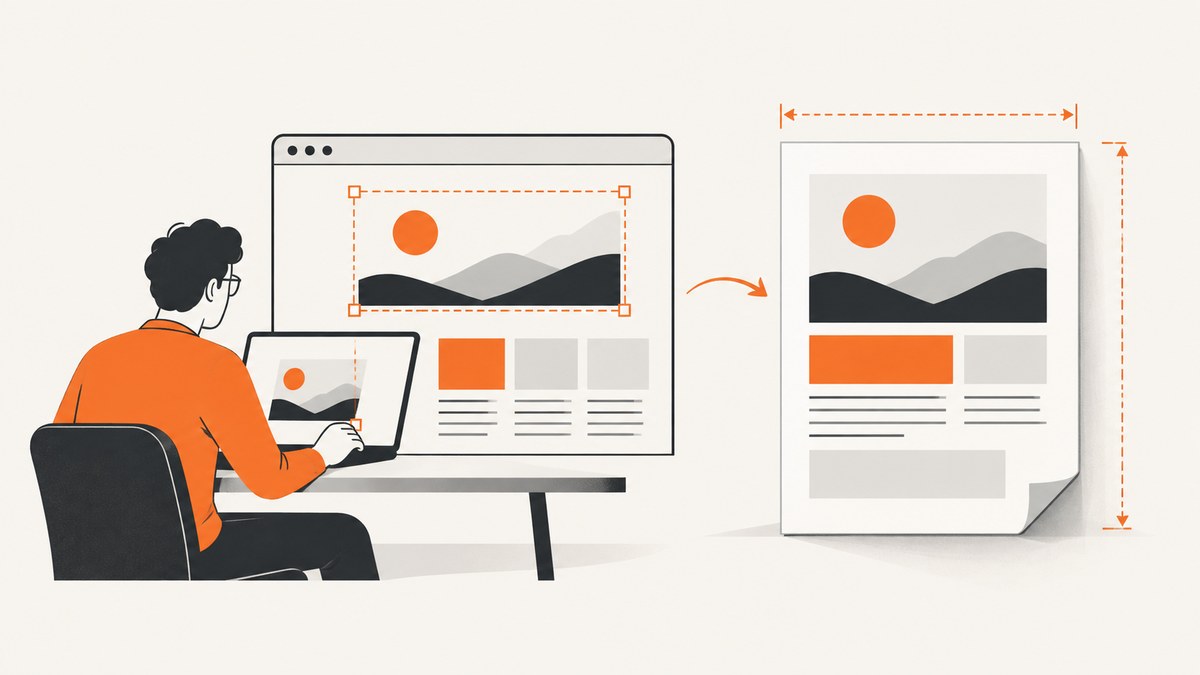
To change a PDF’s page width in Puppeteer, pass a width value to page.pdf():
await page.pdf({
  path: 'output.pdf',
  width: '8.5in'
});
The width option accepts a string or number. A unit-bearing string such as '8.5in', '210mm', or '816px' makes the intended size explicit. If you need a standard paper size, use format such as 'A4' or 'Letter'. When format is present, it takes precedence over custom width and height values. The official PDFOptions reference documents these rules and defaults.
1. The basic custom-width solution
This complete Node.js example launches Chromium, loads a page, and writes a PDF with a custom width:
import puppeteer from 'puppeteer';

const browser = await puppeteer.launch({ headless: true });
const page = await browser.newPage();

await page.goto('https://example.com', {
  waitUntil: 'networkidle0'
});

await page.pdf({
  path: 'custom-width.pdf',
  width: '8.5in',
  height: '11in',
  printBackground: true,
  margin: {
    top: '0.5in',
    right: '0.5in',
    bottom: '0.5in',
    left: '0.5in'
  }
});

await browser.close();
Install Puppeteer with npm install puppeteer. The browser page’s viewport is separate from the PDF paper. You can set a viewport for responsive layout, but the PDF dimensions still come from page.pdf() options.
Width-only versus width and height
Set only width when the output can have a variable height or when you are using CSS pagination. Set both dimensions when you need a fixed sheet, such as an invoice or label.
// Fixed physical sheet
await page.pdf({
  path: 'letter.pdf',
  width: '8.5in',
  height: '11in'
});

// Custom wide sheet
await page.pdf({
  path: 'wide-report.pdf',
  width: '12in',
  height: '8.5in',
  landscape: true
});
Use one unit consistently. Inches and millimetres are easiest to review with a print vendor; CSS pixels can be useful when matching a browser design. Puppeteer converts the supplied value into the PDF paper dimensions.
2. Standard paper sizes with format
For common paper, prefer a named format:
await page.pdf({
  path: 'a4.pdf',
  format: 'A4',
  printBackground: true
});
Puppeteer’s documented formats include Letter (8.5 × 11 inches), Legal (8.5 × 14 inches), A4 (210 × 297 mm), and Tabloid (11 × 17 inches). The default format is Letter. If you supply format: 'A4' alongside width or height, the format wins, so remove format when a custom dimension is required.
Use landscape: true to swap the orientation of the selected paper. The default is portrait:
await page.pdf({
  path: 'legal-landscape.pdf',
  format: 'Legal',
  landscape: true
});
3. Let CSS define the PDF page width
When the document owns its print layout, define a page size with CSS:
<style>
  @page {
    size: 8.5in auto;
    margin: 0.4in;
  }

  @media print {
    .screen-only { display: none; }
  }
</style>
Then give CSS priority with preferCSSPageSize: true:
await page.pdf({
  path: 'css-sized.pdf',
  preferCSSPageSize: true,
  printBackground: true
});
The PDFOptions documentation states that this option lets CSS @page size take priority over API dimensions. Its default is false. With the default, Puppeteer fits the page content to the paper size selected through PDF options.
Choose this route when templates already contain print CSS, different sections need controlled page breaks, or a design system owns margins and paper dimensions. Choose PDFOptions when the calling service must enforce a size regardless of page CSS.
4. Viewport width is not PDF width
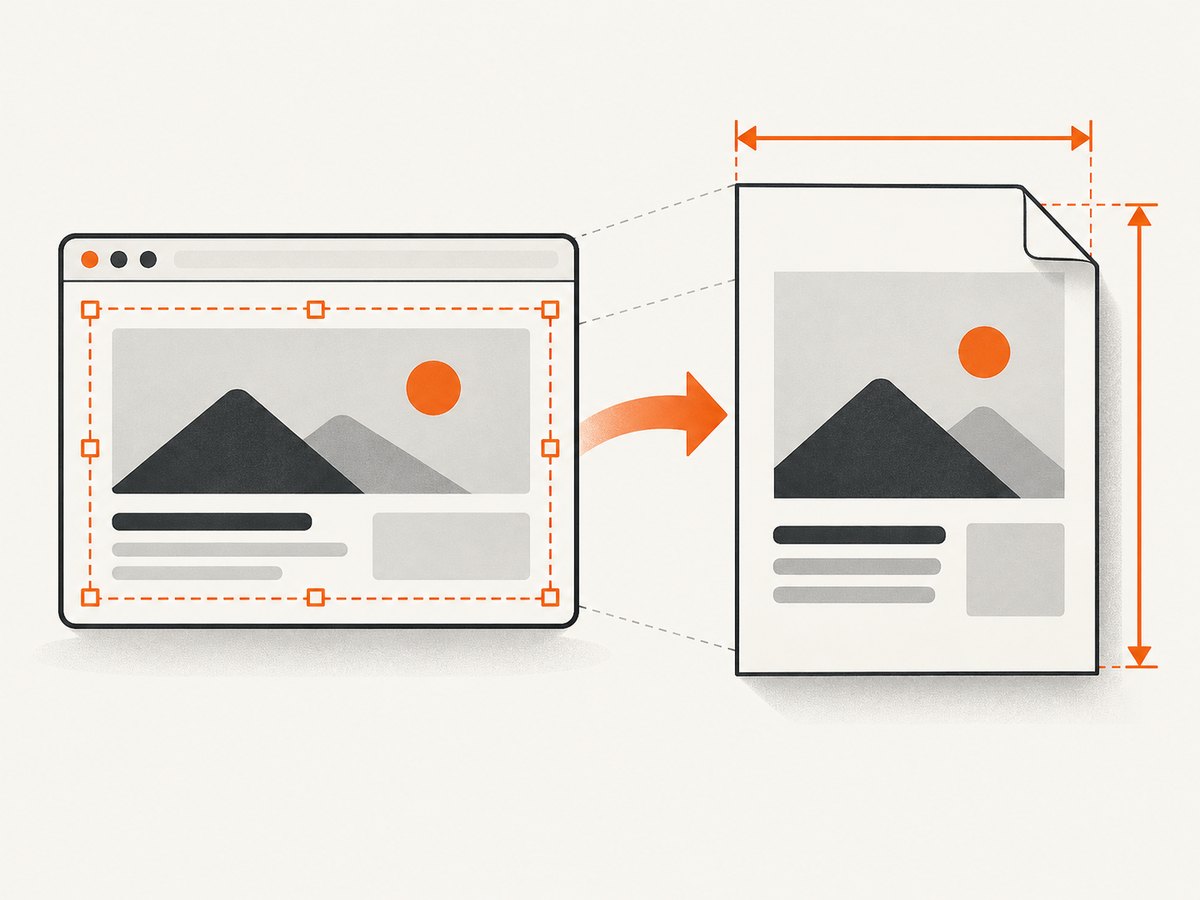
page.setViewport() changes the browser’s CSS viewport. It influences responsive breakpoints and the layout that gets printed, but it does not set the physical PDF paper width. The Viewport API measures viewport dimensions in CSS pixels.
await page.setViewport({
  width: 1440,
  height: 900,
  deviceScaleFactor: 1
});

await page.pdf({
  path: 'report.pdf',
  width: '8.5in',
  height: '11in'
});
Use both settings when needed: viewport controls how the page lays itself out; PDF options control the sheet. A desktop viewport can still be printed onto a narrow page, which may cause wrapping or scaling.
5. Print CSS and screen CSS
page.pdf() uses print media by default. If your screen layout is the desired output, emulate screen media before generating the PDF, as described in the Page.pdf() documentation:
await page.emulateMediaType('screen');
await page.pdf({
  path: 'screen-styles.pdf',
  width: '8.5in',
  height: '11in',
  printBackground: true
});
Keep print and screen intent explicit. Print styles may hide navigation, change colors, or alter widths. If a width appears to be ignored, inspect both the active media type and any @media print rules.
6. Options that change usable width or apparent scale
| Option | Effect | Default |
|---|---|---|
width |
Custom paper width | Unset |
height |
Custom paper height | Unset |
format |
Named paper preset; overrides width and height | letter |
landscape |
Uses landscape orientation | false |
margin |
Reduces the content area inside the paper | No margins |
scale |
Scales rendered content | 1 |
preferCSSPageSize |
Lets CSS @page override API size |
false |
printBackground |
Includes background graphics and colors | false |
The documented scale range is 0.1 through 2. A smaller scale can make a wide layout fit, but it also makes text and images smaller. Increasing paper width is usually clearer than shrinking an entire report.
Margins and content width
A page that is 8.5 inches wide with 0.5-inch left and right margins has about 7.5 inches of usable content width. CSS margins, padding, borders, and table widths consume additional space. Check the complete box model before concluding that Puppeteer produced the wrong paper size.
Backgrounds and color
Set printBackground: true when the PDF must include colored sections, backgrounds, or chart fills. This does not change page width, but it often explains why a PDF looks different from the browser.
7. Complete reusable helper
A helper can make the sizing decision explicit and prevent conflicting options:
import puppeteer from 'puppeteer';

export async function renderPdf({
  url,
  output,
  format,
  width,
  height,
  landscape = false,
  preferCSSPageSize = false,
  scale = 1
}) {
  if (format && (width || height)) {
    throw new Error('Choose format or custom width/height, not both');
  }

  const browser = await puppeteer.launch({ headless: true });
  try {
    const page = await browser.newPage();
    await page.setViewport({ width: 1440, height: 900 });
    await page.goto(url, { waitUntil: 'networkidle0' });
    await page.emulateMediaType('print');

    const options = {
      path: output,
      landscape,
      preferCSSPageSize,
      printBackground: true,
      scale
    };

    if (format) options.format = format;
    if (width) options.width = width;
    if (height) options.height = height;

    await page.pdf(options);
  } finally {
    await browser.close();
  }
}

await renderPdf({
  url: 'https://example.com',
  output: 'custom.pdf',
  width: '210mm',
  height: '120mm'
});
8. Troubleshooting ignored widths and unexpected output
formatoverrides your width. Removeformatwhen using custom dimensions. This is the most common reason a width appears ignored.- CSS
@pageis winning. IfpreferCSSPageSize: trueis enabled, inspect the stylesheet. Remove the option or change the CSS size when API dimensions should control the result. - You changed only the viewport. Set
widthorformatinpage.pdf(). A viewport is measured in CSS pixels and is not paper size. - The content is too narrow or too small. Check
landscape, margins, andscale. Large margins reduce usable width; a low scale shrinks everything. - The page uses the wrong layout. PDF generation uses print media by default. Call
page.emulateMediaType('screen')if screen styles are intended. - Fonts or images change after capture. Wait for the page’s real readiness condition instead of relying only on navigation. For example, wait for a report container and for fonts to finish loading:
await page.goto(url, { waitUntil: 'networkidle0' });
await page.waitForSelector('#report');
await page.evaluate(() => document.fonts.ready);- Long tables split badly. Add print CSS such as
break-inside: avoidto rows or cards where appropriate, and test with the actual paper width. Avoid forcing every element to stay together because a very large block can create unexpected blank space. - Headers and footers consume space. If you enable PDF header or footer templates, reserve room with top or bottom margins. Otherwise content can overlap or appear compressed.
9. Reliability and performance guidance
Launch one browser process and reuse it for multiple pages or jobs when your service captures many documents. Close each page after use and always close the browser in a finally block. Set a navigation timeout and handle pages that never become idle because of analytics or streaming connections.
page.setDefaultNavigationTimeout(45000);
await page.goto(url, { waitUntil: 'domcontentloaded' });
await page.waitForSelector('#report', { timeout: 15000 });
networkidle0 is useful for static reports but can wait forever on applications with long polling. In those cases, combine domcontentloaded with a selector or explicit readiness signal. Cache compiled templates and avoid loading unnecessary third-party resources when generating large batches.
PDF cost is mostly browser CPU, memory, network transfer, and waiting time. Wide pages can increase layout and rasterization work, while very high-resolution images increase memory use. Keep the paper width intentional, constrain untrusted URLs, and record the selected format, width, height, scale, and media type with each job so mismatches can be diagnosed.
10. cURL, Python, and Node.js alternatives
If you need a local Puppeteer workflow, the JavaScript examples above are the direct solution. For a service API that returns a rendered file, these request patterns are useful.
cURL
curl -G "https://api.screenshotneo.com/v1/shot" -d access_key=YOUR_API_KEY --data-urlencode url=https://stripe.com -o shot.webpPython
import requests
r = requests.get("https://api.screenshotneo.com/v1/shot", params={"access_key": "YOUR_API_KEY", "url": "https://stripe.com"}, timeout=90)
open("shot.webp", "wb").write(r.content)
Node.js
const q = new URLSearchParams({ access_key: 'YOUR_API_KEY', url: 'https://stripe.com' }); const res = await fetch(`https://api.screenshotneo.com/v1/shot?${q}`);11. Or skip the browser setup
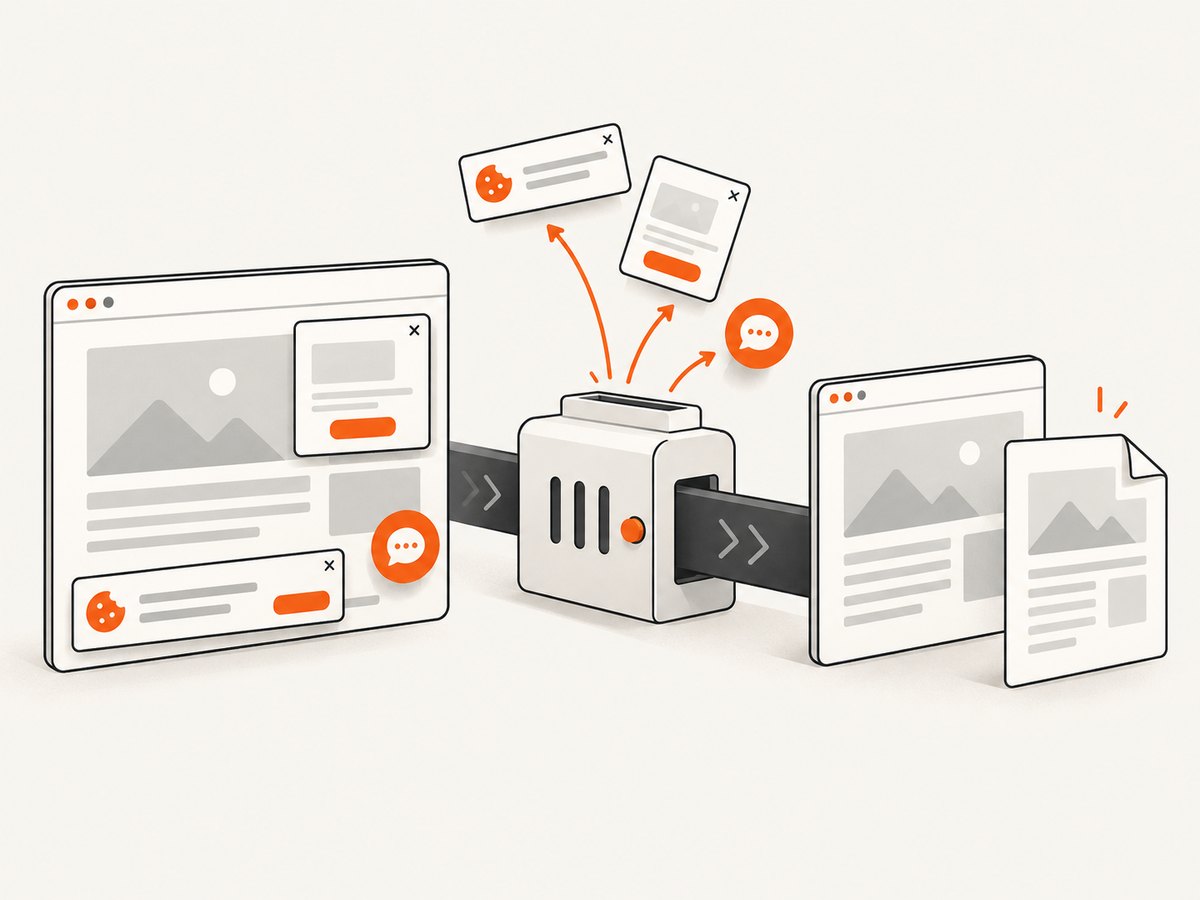
ScreenshotNeo is a website screenshot API and MCP server. Its one-call endpoint returns PNG, JPEG, WebP, or PDF output. Cookie banners, newsletter popups, and chat widgets are removed before the shot; bot checks, blank pages, failed loads, timeouts, and cache hits are never billed. Responses identify the result with X-Page-Verdict and X-Billed headers. Its MCP server lets Claude, Cursor, and other MCP clients use take_screenshot, get_page_info, and capture_pdf.
For PDF work, the service supports paper size, margins, landscape mode, and page ranges, along with full-page capture, custom CSS and JavaScript, waiting rules, headers, cookies, user agents, blocking rules, caching, signed links, asynchronous jobs, bulk capture, and a usage API. See the ScreenshotNeo documentation for request options.
The free plan includes 1,000 screenshots per month with no card. Paid plans start at $5 for 3,000 shots; every feature is available on every plan. Create a free ScreenshotNeo account to try the API.
12. Short FAQ
Can I use millimetres for width?
Yes. Pass a unit-bearing string such as width: '210mm'. Explicit units make physical output easier to review.
Does height: 'auto' work?
For CSS-controlled pagination, use an @page rule such as size: 8.5in auto with preferCSSPageSize: true. For fixed documents, set an explicit height.
Why is my A4 PDF still Letter-sized?
Check for format: 'Letter' or another format supplied by a wrapper. A format takes priority over custom dimensions.
How do I print the screen version?
Call page.emulateMediaType('screen') before page.pdf(), and keep printBackground: true if screen backgrounds are required.
Should I change viewport or PDF width first?
Set PDF width for the paper. Set the viewport separately when responsive breakpoints must produce a particular layout.


