How to Change the Viewport Size Dynamically in PhantomJS
Set PhantomJS's page.viewportSize before navigation, validate dynamic dimensions, and understand resizing, clipping, timing, and legacy limitations.

Direct answer: assign an object with positive integer width and height to the PhantomJS WebPage object’s viewportSize property. Set it before page.open() when you want the initial responsive layout to use that size.
var page = require('webpage').create();
page.viewportSize = { width: 1280, height: 800 };

page.open('https://example.com/', function (status) {
  if (status !== 'success') {
    console.error('Unable to load the page.');
    phantom.exit(1);
    return;
  }

  page.render('capture.png');
  phantom.exit();
});
viewportSize controls the browser’s layout viewport. It is different from clipRect, which crops the rectangle included in the rendered image. PhantomJS is archived and its 2.x branch is deprecated and no longer maintained, so use this technique for an existing legacy workflow and plan compatibility checks for modern sites.
1. Set a fixed viewport before navigation
The documented form is an object containing width and height values. The API documentation uses { width: 1024, height: 768 } as its example/default. Assign the property before opening the URL so responsive CSS, media queries, and initial layout calculations see the intended dimensions from the start.
var webpage = require('webpage');
var page = webpage.create();

page.viewportSize = {
  width: 1440,
  height: 900
};

page.open('https://example.com/', function (status) {
  if (status !== 'success') {
    console.error('Page failed to load: ' + status);
    phantom.exit(1);
    return;
  }

  page.render('desktop.png');
  phantom.exit(0);
});
2. Choose the size dynamically
Read dimensions from command-line arguments, a configuration object, or a list of device profiles. Validate them before assignment. PhantomJS’s 2.1.1 source converts supplied values to integers and applies the size only when both converted dimensions are greater than zero. Explicit validation makes failures predictable instead of relying on that implementation detail.
var system = require('system');
var webpage = require('webpage');

function positiveInteger(value, name) {
  var number = Number(value);
  if (!isFinite(number) || Math.floor(number) !== number || number <= 0) {
    throw new Error(name + ' must be a positive integer');
  }
  return number;
}

if (system.args.length < 4) {
  console.error('Usage: phantomjs capture.js URL WIDTH HEIGHT [OUTPUT]');
  phantom.exit(2);
}

var url = system.args[1];
var width;
var height;
var output = system.args[4] || 'capture.png';

try {
  width = positiveInteger(system.args[2], 'WIDTH');
  height = positiveInteger(system.args[3], 'HEIGHT');
} catch (error) {
  console.error(error.message);
  phantom.exit(2);
}

var page = webpage.create();
page.viewportSize = { width: width, height: height };

page.open(url, function (status) {
  if (status !== 'success') {
    console.error('Unable to load ' + url + ': ' + status);
    phantom.exit(1);
    return;
  }

  page.render(output);
  phantom.exit(0);
});
Run it with:
phantomjs capture.js https://example.com/ 1280 800 desktop.pngUse named profiles
var profiles = {
  mobile: { width: 375, height: 812 },
  tablet: { width: 768, height: 1024 },
  desktop: { width: 1440, height: 900 }
};

var page = require('webpage').create();
var profile = profiles.desktop;
page.viewportSize = { width: profile.width, height: profile.height };
3. Resize between multiple captures
Assign a new viewportSize before each render. If the page has scripts that respond to resize events or needs time to reflow, wait briefly before rendering. The official examples establish the before-navigation pattern; post-load repaint timing depends on the page and the legacy runtime, so choose a delay that matches the page’s behavior.
var webpage = require('webpage');
var page = webpage.create();
var captures = [
  { name: 'mobile', width: 375, height: 812 },
  { name: 'tablet', width: 768, height: 1024 },
  { name: 'desktop', width: 1440, height: 900 }
];
var index = 0;

function nextCapture() {
  if (index >= captures.length) {
    phantom.exit(0);
    return;
  }

  var current = captures[index++];
  page.viewportSize = {
    width: current.width,
    height: current.height
  };

  // Allow responsive layout and resize handlers to settle.
  window.setTimeout(function () {
    page.render(current.name + '.png');
    nextCapture();
  }, 250);
}

page.open('https://example.com/', function (status) {
  if (status !== 'success') {
    console.error('Unable to load the page.');
    phantom.exit(1);
    return;
  }
  nextCapture();
});
4. Understand viewport size versus clipping
| Setting | What it changes | Typical use |
|---|---|---|
page.viewportSize |
Browser layout viewport in pixels | Trigger responsive breakpoints and define the visible browser area |
page.clipRect |
Rectangle selected for the rendered output | Crop a region after the page layout has been established |
var page = require('webpage').create();
page.viewportSize = { width: 1280, height: 800 };
page.clipRect = { top: 0, left: 0, width: 600, height: 400 };

page.open('https://example.com/', function (status) {
  if (status === 'success') {
    page.render('cropped.png');
  }
  phantom.exit(status === 'success' ? 0 : 1);
});
The page still lays itself out at 1280 by 800; only the selected 600 by 400 rectangle is written to the image.

5. Keep page code separate from PhantomJS controller code
page.evaluate() executes inside the webpage context. It cannot access the outer phantom object, and arguments and return values must be simple JSON-serializable values. Set page.viewportSize in the outer PhantomJS script. Use evaluate for DOM inspection or page-side actions.
var page = require('webpage').create();
page.viewportSize = { width: 1024, height: 768 };

page.open('https://example.com/', function (status) {
  if (status !== 'success') {
    phantom.exit(1);
    return;
  }

  var title = page.evaluate(function () {
    return document.title;
  });

  console.log('Title: ' + title);
  page.render('page.png');
  phantom.exit(0);
});
6. Dynamic viewport edge cases
- Zero, negative, or non-numeric dimensions: reject them before assignment. The 2.1.1 implementation only applies dimensions after integer conversion when both values are positive.
- Decimal dimensions: convert or reject explicitly; use integer pixel values for repeatable captures.
- Changing size after load: responsive scripts may need a repaint delay. A fixed wait is simple; waiting for a page-specific condition is more precise when available.
- Full-page expectations: viewport height is not automatically the document’s full height. Measure and capture the page using the workflow your script requires; do not assume a taller viewport equals a full-page screenshot.
- Device pixel ratio:
viewportSizeexpresses CSS viewport dimensions. It does not by itself provide a modern device-emulation or pixel-density model. - Sticky and fixed elements: changing the viewport can alter wrapping and fixed-position behavior, so compare captures at the same scroll position.
- Responsive breakpoints: test widths around breakpoint boundaries because one-pixel changes can select a different layout.
7. Troubleshooting
| Symptom | Likely cause | Fix |
|---|---|---|
| The layout did not change | The property was assigned after navigation or the new dimensions were invalid. | Assign it before page.open() and validate positive integers. |
| The image is cropped unexpectedly | clipRect is set, or its dimensions are smaller than the viewport. |
Remove or adjust clipRect; remember that it controls output cropping, not layout. |
| The screenshot catches an old layout | Resize handlers or asynchronous layout work has not finished. | Wait briefly after changing the viewport, then render. |
| The script exits before writing a file | page.open() returned a failure status. |
Check the status, log the URL, and exit with a nonzero code on failure. |
An evaluate callback cannot access phantom |
The callback runs in the page sandbox. | Move controller operations such as viewport assignment and exit calls outside evaluate. |
| Modern pages render incorrectly | PhantomJS is archived and its 2.x branch is deprecated and unmaintained. | Keep a compatibility fallback, or move the workflow to a maintained browser automation service. |
8. Performance, reliability, and cost considerations
- Each additional viewport normally requires another render, so a mobile, tablet, and desktop matrix increases capture time and storage.
- Set the viewport before navigation when possible. That avoids loading once at one breakpoint and then reflowing into another.
- Use a short, page-appropriate settling delay rather than an unnecessarily large fixed sleep.
- Record the URL, dimensions, output path, navigation status, and capture timestamp so failures can be reproduced.
- Validate input at the command boundary. This prevents silent fallback behavior caused by strings, decimals, zero, or negative values.
- Because PhantomJS is legacy software, modern JavaScript, TLS, CSS, and bot-protection behavior may vary. Treat successful navigation as separate from visual correctness.
9. Or skip the browser setup
ScreenshotNeo provides a website screenshot API when you need a URL-to-image request instead of maintaining a PhantomJS process. The API accepts a viewport through its documented options, along with full-page capture, device presets, retina scale, custom CSS and JavaScript, waits, cookies, headers, blocking rules, caching, and other capture controls. See the ScreenshotNeo documentation for the current parameter names.
cURL
curl -G "https://api.screenshotneo.com/v1/shot" \
  -d access_key=YOUR_API_KEY \
  --data-urlencode url=https://stripe.com \
  -o shot.webp
Python
import requests

r = requests.get(
    "https://api.screenshotneo.com/v1/shot",
    params={"access_key": "YOUR_API_KEY", "url": "https://stripe.com"},
    timeout=90,
)
r.raise_for_status()
open("shot.webp", "wb").write(r.content)
Node.js
const q = new URLSearchParams({
  access_key: 'YOUR_API_KEY',
  url: 'https://stripe.com'
});
const res = await fetch(`https://api.screenshotneo.com/v1/shot?${q}`);
if (!res.ok) throw new Error(`Screenshot failed: ${res.status}`);
const body = Buffer.from(await res.arrayBuffer());
require('fs').writeFileSync('shot.webp', body);
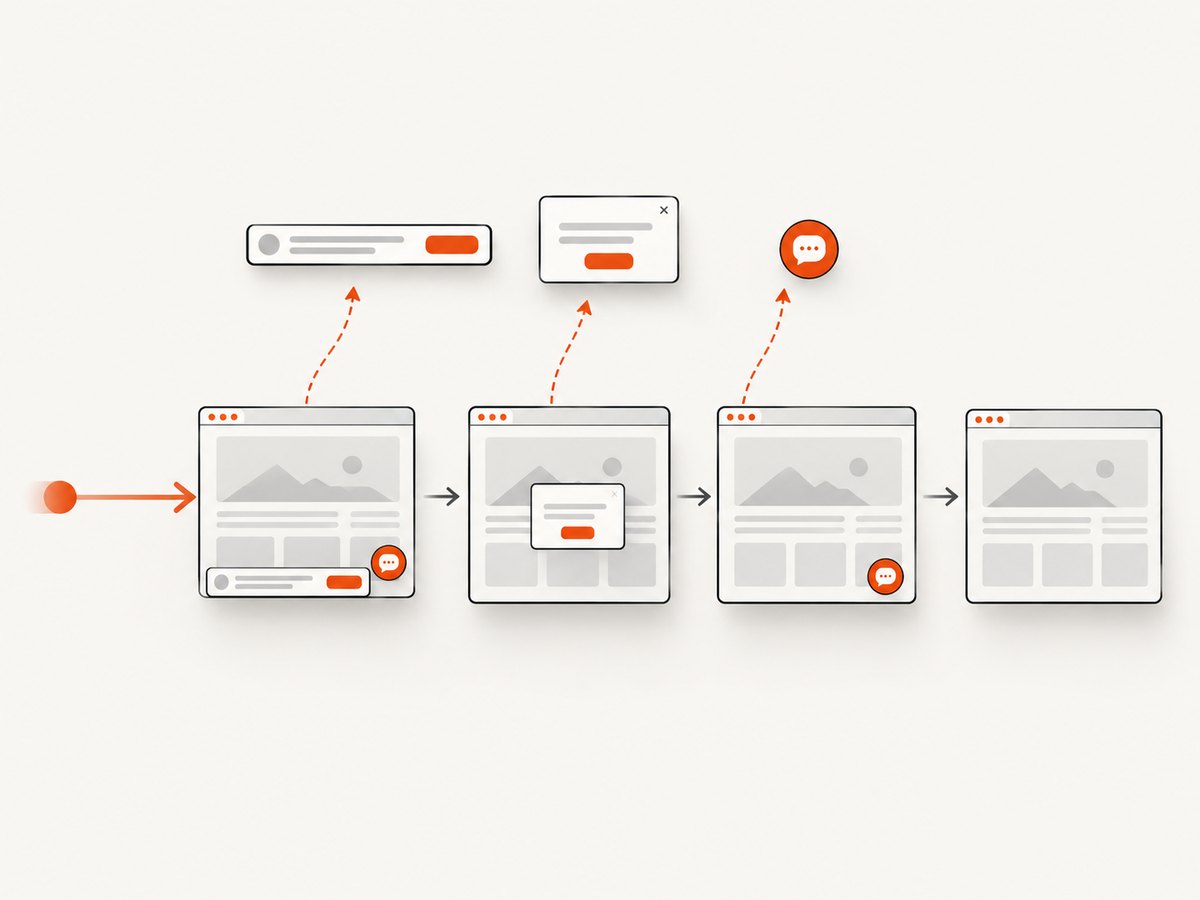
ScreenshotNeo removes cookie and consent banners, newsletter popups, and chat widgets before capture. Bot checks, blank pages, failed loads, timeouts, and cache hits are not billed, and the response identifies the result with X-Page-Verdict and X-Billed headers. Its MCP server lets Claude, Cursor, and other MCP clients call take_screenshot, get_page_info, and capture_pdf. The free plan includes 1,000 screenshots a month without a card; paid plans start at $5 for 3,000 shots.
Create a free ScreenshotNeo account and use the 1,000 monthly screenshots to replace a local PhantomJS capture script when that fits your workflow.
10. FAQ
What is the default PhantomJS viewport?
The API documentation shows the form { width: 1024, height: 768 }. Set your own dimensions explicitly when reproducibility matters.
Can I set only the width?
Use both width and height. The property is documented as an object containing both dimensions, and the legacy implementation applies a change only when both converted values are positive.
Does viewportSize crop the screenshot?
No. It sets the browser layout viewport. Use clipRect when you need to select a smaller output rectangle.
Can I change the viewport inside page.evaluate()?
No. evaluate runs in the webpage context. Change the PhantomJS page property in the outer script.
Is PhantomJS suitable for new screenshot systems?
It is archived, and PhantomJS 2.x is deprecated and unmaintained. For new systems, evaluate a maintained browser or a screenshot API against your pages and reliability requirements.


