How to Change Screenshot Width and Height
Learn how to resize screenshots to exact pixels on Windows, Mac, iPhone, Android, and with code while preserving quality and aspect ratio.
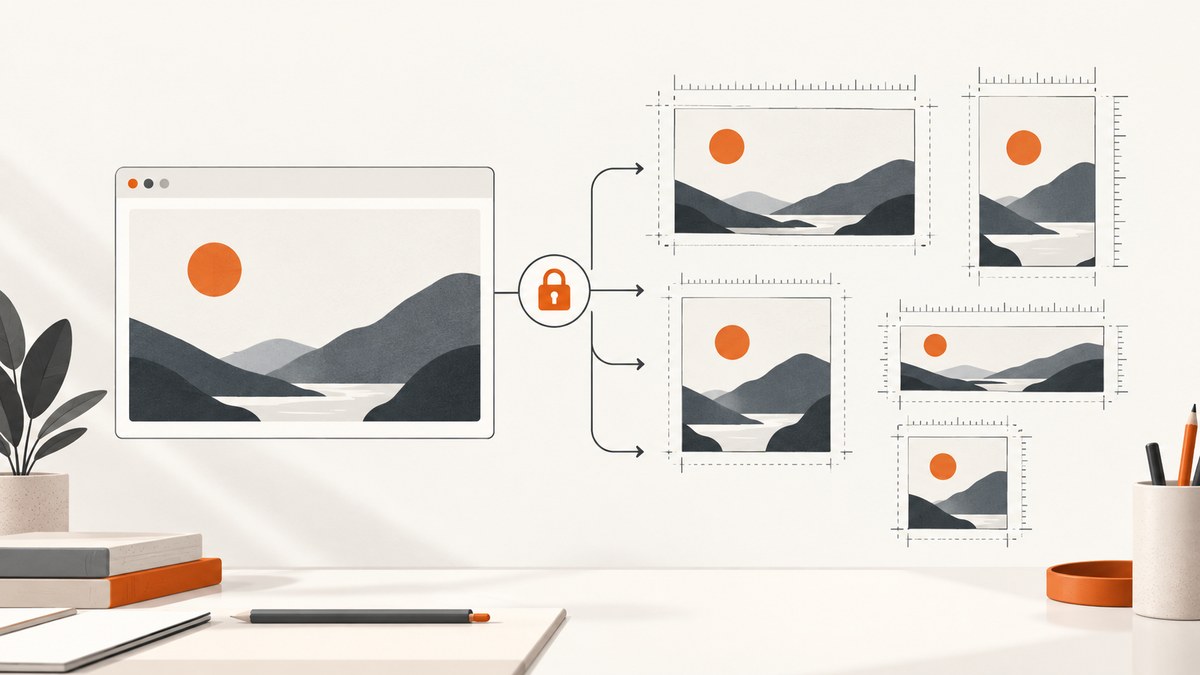
Direct answer: A screenshot is an image after it is captured. To change its pixel width and height, open the saved file in an image editor and use its resize or image-size command. Enter the target dimensions, keep the aspect-ratio lock enabled unless distortion is intentional, and save a copy so the original remains available.
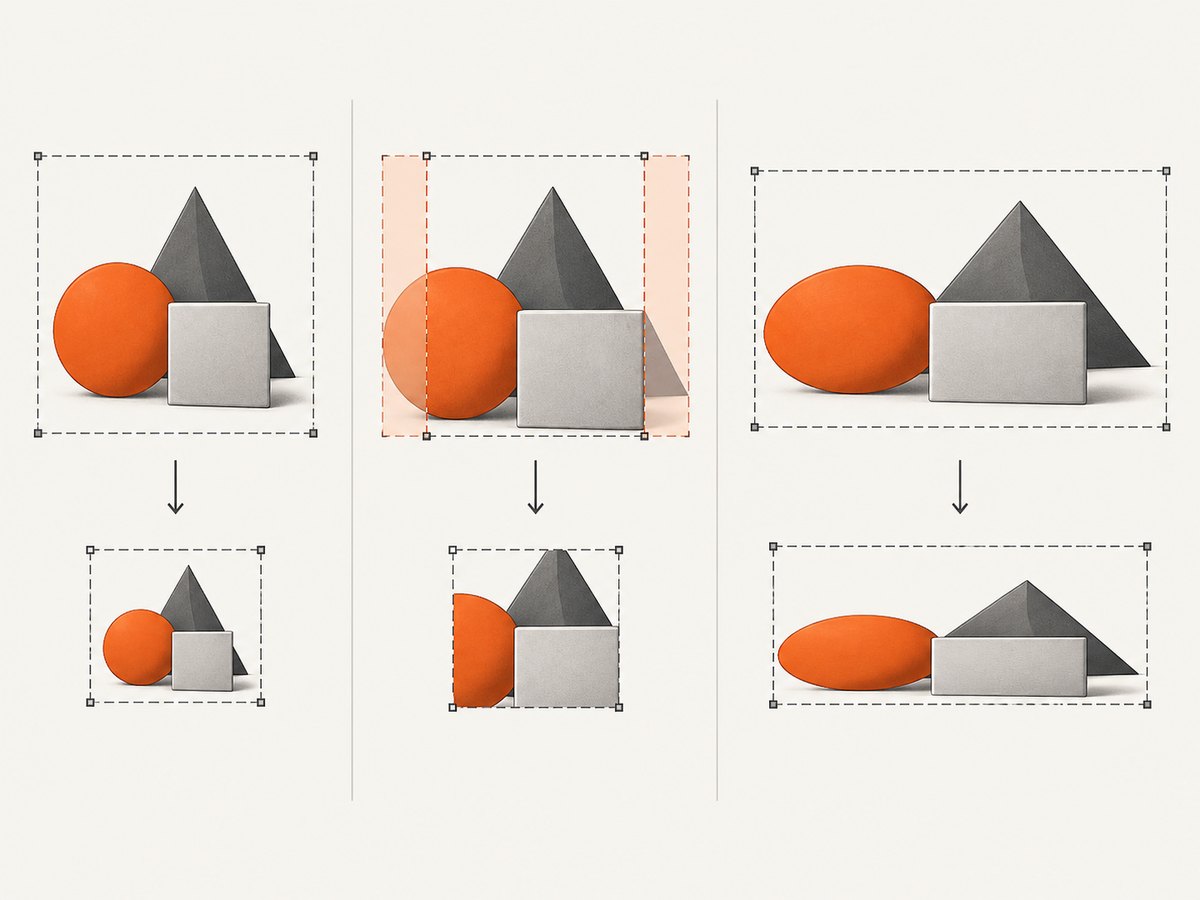
Resizing changes the number of pixels. Cropping removes part of the picture. They solve different problems: use resize when all content must remain visible, and crop when the composition or aspect ratio must change. If you need every new screenshot to have the same dimensions, set the capture viewport before taking the shot or automate a resize step afterward.
What width and height mean
Image dimensions are written as width × height in pixels, such as 1200 × 800. The aspect ratio is width divided by height. A 1200 × 800 image has a 3:2 ratio. If you change only width while keeping proportions locked, the editor calculates a matching height. Unlocking the ratio lets you enter independent values, but circles, people, and interface elements may look stretched.
- Resize: resamples the image to new pixel dimensions.
- Crop: cuts away pixels and can produce a new ratio without stretching.
- Canvas size: changes the outer area while leaving existing pixels unchanged, often adding borders or transparent space.
- Resolution metadata: changes print-density information; it does not necessarily change pixel dimensions unless resampling is enabled.
Upscaling cannot restore detail that was never captured. Downscaling can make small text harder to read, so inspect the exported file at 100% zoom. File size is separate from dimensions: PNG, JPEG, WebP, compression level, and image content all affect the number of bytes.
Windows: resize with Snipping Tool and Paint
Microsoft’s Snipping Tool captures rectangular, window, freeform, and full-screen images. Paint supplies the pixel resizing controls. Microsoft describes Snipping Tool as a way to capture part or all of your PC screen in its official support guide.
- Press
Windows logo key + Shift + Sand capture the desired area. - Open the capture in Snipping Tool.
- Choose Edit > Edit with Paint.
- In Paint, select Resize. Choose Pixels rather than Percentage.
- Enter the width or height. Leave Maintain aspect ratio enabled unless you deliberately want independent dimensions.
- Use File > Save as to create a new PNG, JPEG, or other required format.
For a fixed rectangle every time, draw the same capture area or use a window capture at a consistent display scale. Windows display scaling and multiple monitors can produce different physical pixel sizes even when a window appears the same size.
Mac: resize in Preview
Preview includes a direct dimension workflow. Apple explains in its Preview documentation that changing one dimension changes the other when proportions are maintained.
- Open the screenshot in Preview.
- Choose View > Show Markup Toolbar.
- Click the Adjust Size button.
- Enter a width and height, or choose a preset under Fit into.
- Keep Scale proportionally selected for an undistorted image.
- Leave Resample image enabled when you need new pixel dimensions.
- Choose File > Export or save a copy, then verify the dimensions in Finder’s Get Info panel.
Deselecting resampling is useful for changing print dimensions without changing the underlying pixels. It will not create a new screen-size image.
Android: crop for a ratio, use a resizer for exact pixels
On many Android phones, screenshots appear in Google Photos or the manufacturer’s Gallery app. Google’s help documents editing with Crop and Aspect ratio; the exact controls vary by device and Android release.
- Capture with
Power + Volume Down, or use your phone’s documented shortcut. - Open Photos or Gallery, then the Screenshots folder.
- Tap Edit > Crop and select the required aspect ratio when composition is the goal.
- For arbitrary pixel values, transfer the image to a desktop editor or use a reputable image-resizer app that exposes width and height fields.
- Save a copy and open image details to confirm the final dimensions.
Do not assume Google Photos provides a universal dialog for any width and height. Its documented crop tools are suited to composition and ratios; exact pixel entry depends on the app.
iPhone and iPad: automate resizing with Shortcuts
Apple’s Shortcuts documentation uses image resizing as an example of a transformation. Action names can vary by iOS or iPadOS release, but the workflow is consistent:
- Open Shortcuts and create a new shortcut.
- Add Select Photos.
- Add the available image resize or transform action. Set the desired width and leave height automatic when preserving proportions.
- Add Save to Photo Album or Share.
- Run the shortcut on a screenshot and inspect the resulting image dimensions.
If your release offers both width and height fields, enable the proportional option unless a fixed canvas is required. A shortcut is useful when the same output size is needed repeatedly.
Resize screenshots with desktop software
For batch work or print-oriented control, use an editor with explicit resampling settings. Adobe Photoshop’s Image Size dialog includes Dimension, Fit To, Constrain, Width, Height, Resolution, and Resample controls.
In any editor, use this sequence:
- Open a copy of the original.
- Choose Image Size, Resize, or equivalent.
- Choose pixels as the unit.
- Enable the chain or lock icon to preserve the ratio.
- Enter the target width or height.
- Choose a high-quality resampling method when reducing or enlarging.
- Export in the format required by the destination. Use PNG for sharp interface text and transparency, JPEG for photographs, and WebP when the destination supports it.
Repeatable command-line resizing
ImageMagick is convenient for scripts and batches. The following commands keep the aspect ratio:
magick input.png -resize 1200x800 output.pngThe 1200x800 geometry fits inside that box. To force exact dimensions, even if that distorts the image, append an exclamation mark:
magick input.png -resize 1200x800! output-exact.pngTo fill a box without distortion and crop overflow, use:
magick input.png -resize 1200x800^ -gravity center -extent 1200x800 output-cropped.pngFor a Python batch, Pillow provides explicit dimensions:
from PIL import Image

with Image.open("input.png") as image:
    image.thumbnail((1200, 800), Image.Resampling.LANCZOS)
    image.save("output.webp", "WEBP", quality=88)
thumbnail fits inside the box and preserves proportions. Use image.resize((1200, 800), Image.Resampling.LANCZOS) only when exact dimensions matter more than shape.
Set dimensions before capture with ScreenshotNeo
When screenshots come from web pages, setting the viewport before capture avoids a second resampling pass and makes repeated output consistent. ScreenshotNeo is a website screenshot API and MCP server. Its capture options include any viewport, 12 device presets, retina scale, full-page capture, element capture, image resizing, format selection, custom CSS and JavaScript, and caching with a TTL you choose. See the ScreenshotNeo documentation for the current parameter names; common screenshot API parameter names also work when switching.
Use a viewport that matches the pixel dimensions you need. A retina scale can produce more pixels than the CSS viewport, so verify the returned file rather than assuming CSS width equals image width.
Or skip the browser setup
One GET request returns a PNG, JPEG, WebP, or PDF. This cURL example captures a page:
curl -G "https://api.screenshotneo.com/v1/shot" -d access_key=YOUR_API_KEY --data-urlencode url=https://stripe.com -o shot.webpPython:
import requests

r = requests.get(
    "https://api.screenshotneo.com/v1/shot",
    params={"access_key": "YOUR_API_KEY", "url": "https://stripe.com"},
    timeout=90,
)
r.raise_for_status()
open("shot.webp", "wb").write(r.content)
Node.js:
const q = new URLSearchParams({ access_key: 'YOUR_API_KEY', url: 'https://stripe.com' });
const res = await fetch(`https://api.screenshotneo.com/v1/shot?${q}`);
if (!res.ok) throw new Error(`HTTP ${res.status}`);
const data = Buffer.from(await res.arrayBuffer());
require('fs').writeFileSync('shot.webp', data);
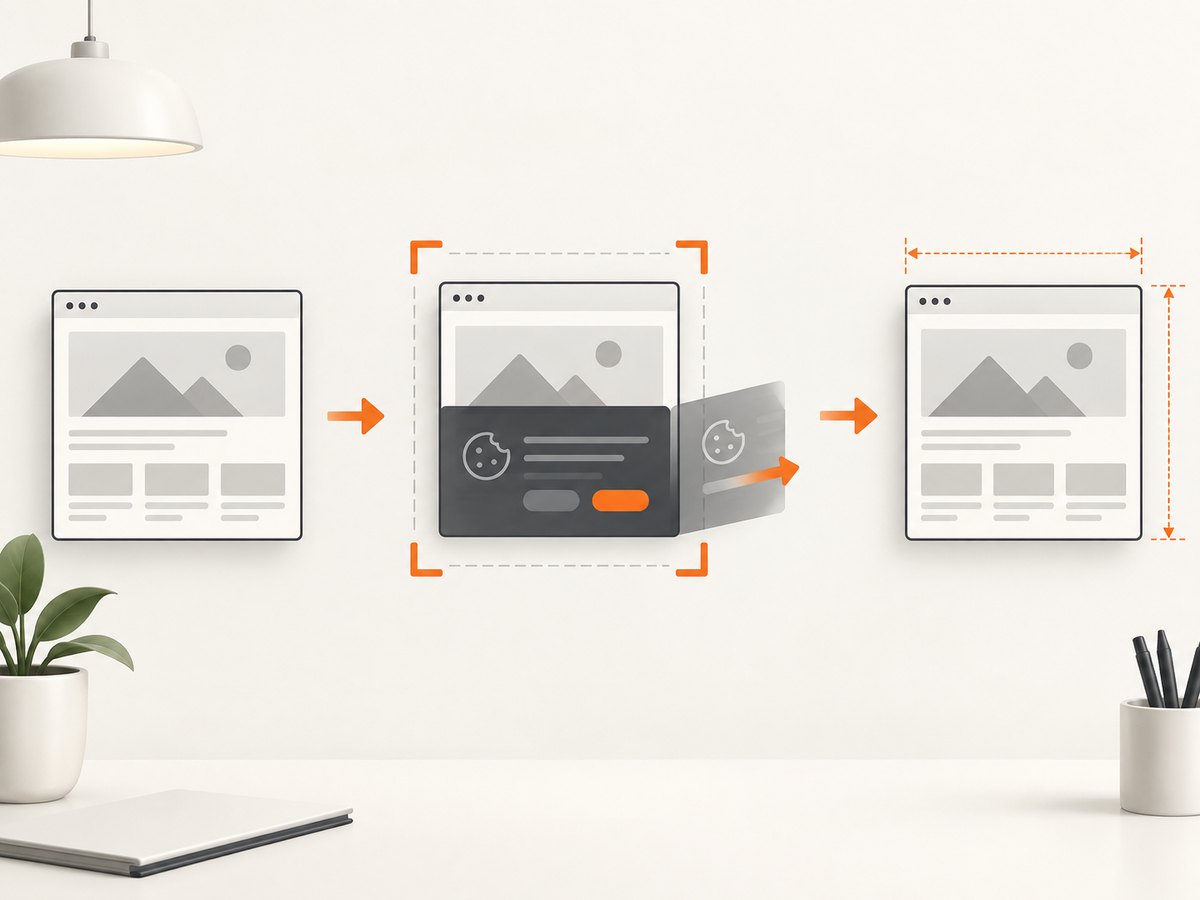
ScreenshotNeo accepts cookie and consent banners before capture and removes more than 60 known consent platforms, newsletter popups, and chat widgets; each step can be turned off. Bot checks and CAPTCHAs, blank pages, timeouts, failed loads, and cache hits are not billed, and response headers identify the page verdict and billing result with X-Page-Verdict and X-Billed. Its MCP server provides take_screenshot, get_page_info, and capture_pdf for Claude, Cursor, and other MCP clients. The free plan includes 1,000 screenshots per month without a card; paid plans start at $5 for 3,000. Create a free ScreenshotNeo account.
Choosing resize, crop, or a fixed canvas
| Requirement | Use | Risk |
|---|---|---|
| Keep all content, smaller file | Proportional resize | Small text may become unreadable |
| Exact width and height, no distortion | Crop or add canvas after proportional resize | Content may be cut or borders added |
| Exact width and height, content may stretch | Unlocked resize | Geometry is distorted |
| Same web capture every time | Fixed viewport and scale before capture | Responsive layouts can still change |
Quality, performance, and cost considerations
- Quality: Keep originals. Downscale once from the highest-quality source instead of repeatedly resizing an already resized file.
- Text: Check navigation labels and code at 100% after export. PNG or high-quality WebP usually preserves interface edges better than heavily compressed JPEG.
- Performance: Smaller dimensions and WebP generally reduce transfer time, but the best result depends on image content and compression settings. Measure the exported file size.
- Automation: For batches, define one target box, resampling filter, output format, and naming rule. Log failures so one unreadable source does not silently produce a missing output.
- Web capture cost: With ScreenshotNeo, only clean shots are billed. Cache hits and failed or blocked captures are identified in headers, which helps reconcile usage.
Troubleshooting common problems
The image looks stretched
The aspect-ratio lock was disabled or exact dimensions were forced. Undo and resize proportionally, then crop or extend the canvas to reach the required box.
The screenshot is blurry after enlargement
Upscaling cannot recreate missing detail. Capture at a larger viewport or retina scale first, then downscale once for delivery.
The output has the right CSS size but the wrong pixel size
Device scale, browser zoom, and retina settings multiply CSS pixels. Inspect the file’s actual dimensions and adjust capture scale.
Text is cut off
You cropped or used a fixed viewport on a responsive page. Try full-page capture, a wider viewport, or element capture for the specific region.
Paint, Preview, or Photos changes the wrong dimension
The proportional lock is working. Enter one dimension and let the other calculate, or intentionally unlock it when a fixed canvas is required.
A web screenshot contains a cookie banner or chat bubble
Use a capture workflow that handles page overlays before the shot. ScreenshotNeo can accept consent banners and remove known consent platforms, newsletter popups, and chat widgets; individual cleanup steps can be disabled.
An automated capture times out or returns a blank page
Check the URL, wait conditions, authentication, and network restrictions. ScreenshotNeo supports waiting for a selector, a delay, or network idle, plus custom headers, cookies, user agent, Authorization, timezone, geolocation, request blocking, and resource-type blocking.
FAQ
Can I change a screenshot’s dimensions without losing quality?
Reducing dimensions can retain good quality with a suitable resampling filter. Enlarging always has a detail limit because new pixels are estimated.
Should I resize or crop for social media?
Resize proportionally first, then crop or add a canvas to meet the required ratio. This keeps subjects from being stretched.
How do I make every screenshot exactly the same size?
Use a fixed capture viewport and scale, or run every saved file through the same resize-and-canvas script. Verify dimensions after export.
Does changing DPI change screen pixels?
No. DPI or PPI metadata mainly affects print interpretation. Enable resampling when you need different pixel width and height.
What is the easiest way to automate website screenshots?
Set the viewport and capture rules in an API such as ScreenshotNeo, or use its MCP tools from an AI client. This avoids maintaining a browser setup for each script.


