How to Change a Shopify Website Thumbnail
Change Shopify’s default social-sharing image, understand precedence, refresh stale previews, and verify every URL with practical steps.

To change the default image that appears when someone shares your Shopify store, open Shopify admin → Online Store → Preferences. In Social sharing image and SEO, choose Add image or Change image, select the file, and click Save. This image is a fallback: a product, collection, or blog post can use its own featured image, and theme code or theme settings can take priority.
This guide explains exactly which image Shopify uses, how to change it, why an old thumbnail can persist, and how to verify the result without confusing it with your favicon.
1. Decide which “thumbnail” you need
People use “website thumbnail” for several different images. Identify the surface first, because each one has a different setting.
| What you see | What it is | Where it is controlled |
|---|---|---|
| Image in a Facebook, LinkedIn, Pinterest, or chat preview | Social-sharing image (Open Graph-style preview) | Online Store → Preferences, page featured image, or theme settings |
| Image beside a product or article link | Page-specific featured image | That product, collection, or blog post/page editor |
| Small icon in a browser tab, history, or bookmark | Favicon | Theme editor → Theme settings → Logo or Favicon |
| Image shown in search results | Search engine’s selected preview | Search engine cache and page metadata; not guaranteed by the Shopify preference image |
Changing the social-sharing image will not replace a favicon. Shopify recommends a 16 × 16 or 32 × 32 pixel favicon; that guidance is for the tiny browser icon, not the social-sharing image.
2. Change the store-wide social-sharing image
- Sign in to Shopify admin.
- Open Online Store, then Preferences.
- Scroll to Social sharing image and SEO.
- Select Add image when no image is set, or Change image to replace the current one.
- Choose the image from your device or Shopify files.
- Click Save.
This is the correct setting for a store-wide fallback, especially for URLs such as a homepage or About page that do not have a featured image. Upload the highest-quality source you have; Shopify optimizes storefront images through its CDN, so pre-compressing a file can reduce quality unnecessarily.
3. Understand Shopify’s image precedence
The Preferences image is not an unconditional override. Shopify’s documented selection order is:
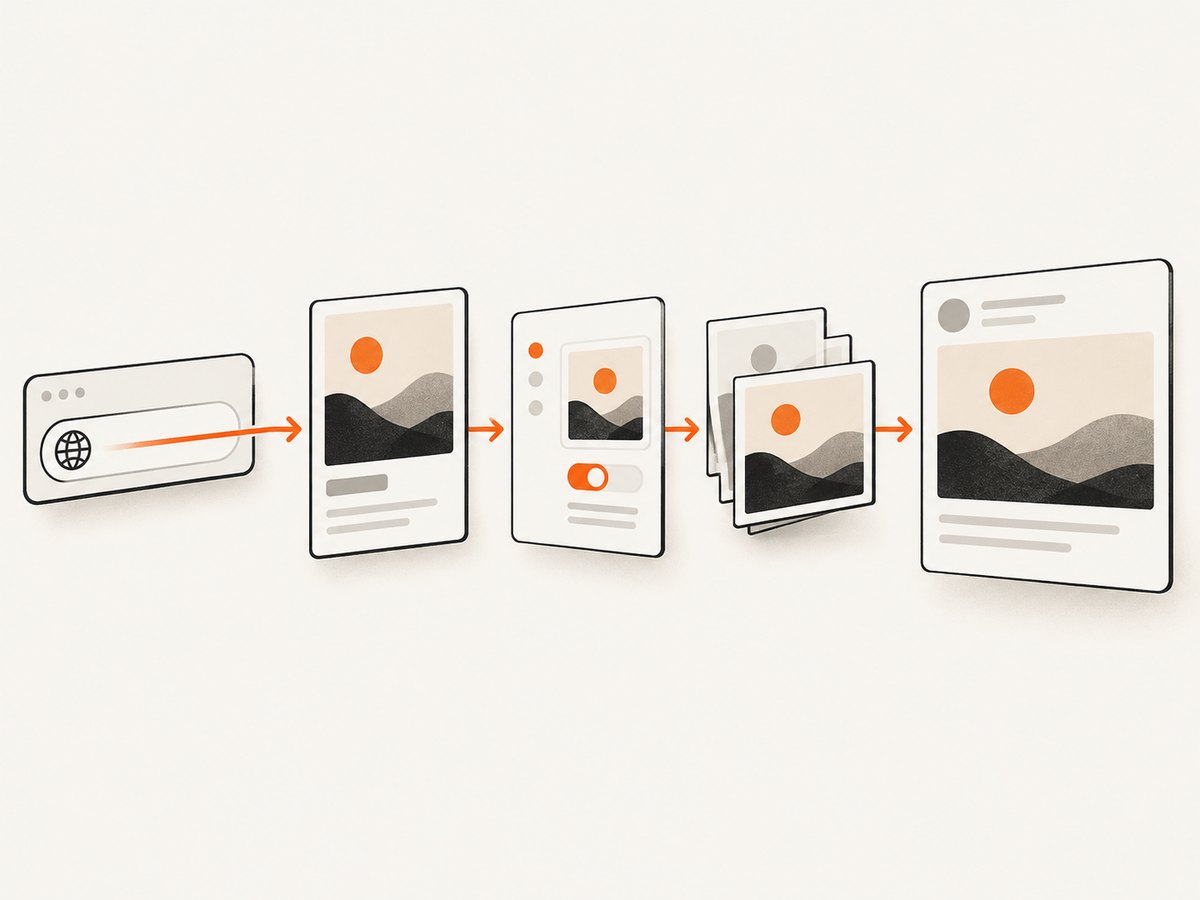
- Theme-code image: a hard-coded image reference can win over all admin settings.
- Theme settings image: some themes expose social-media or checkout logo fields that are read before Preferences.
- Online Store → Preferences image: the default fallback described above.
- Page featured image: product, collection, and blog-post URLs in Shopify’s free themes commonly use the image assigned to that page.
In practice, test the exact URL you intend to share. A product link may continue to show its product image even after you change the store-wide fallback, while the homepage changes immediately after caches expire.
4. Set a page-specific thumbnail
Use a featured image when one URL needs a different preview. Open the product, collection, or blog post in Shopify admin, locate its image or featured-image field, upload the desired asset, and save. Keep the image relevant to that page so a shared link sets the right expectation.
For a regular page such as About, the available controls depend on your theme. If the page has no featured-image field, the theme may fall back to the Preferences image or to a theme-level social image. Check the theme editor and preview the exact page URL after saving.
5. Check theme settings when Preferences appears to do nothing
Open Online Store → Themes → Customize, then inspect Theme settings. Depending on the theme version, look for Social media, Social sharing, Logo, or Checkout → Logo. Some themes only display an image uploaded in their own social-media setting. If a theme field is populated, update it or remove the conflicting value and retest.
Advanced themes can also define a social image directly in Liquid. Search the theme code for references to og:image, twitter:image, or a hard-coded asset URL. A code-level value has the highest priority, so changing Preferences alone cannot replace it.
6. Verify the new thumbnail
- Copy the public URL you want to share, including its path and query-free canonical form.
- Open that URL in a private browser window to confirm the page itself loads.
- Use the destination platform’s link preview tool or composer. Facebook’s Sharing Debugger, Twitter Card Validator, LinkedIn Post Inspector, and Pinterest’s preview tools can request a fresh crawl.
- Compare the preview with the image source you expect: page featured image, theme image, or Preferences fallback.
- Repeat with the homepage and one product or blog URL; they may intentionally use different images.
Preview tools can show the crawler’s current cache, not an instant reflection of your latest save. A successful Shopify save confirms the setting, while the external preview confirms what a platform has fetched.
7. Why the old image is still showing
Platform cache
Social networks cache fetched metadata. Run the URL through the platform’s debugger or inspector to request a refresh, then share the canonical URL again. Existing posts can retain their original preview even after a new crawl.
A page-specific image is winning
Check whether the URL is a product, collection, or blog post with a featured image. Change that asset if the page should have a unique thumbnail; otherwise leave it and use the Preferences image for fallback pages.
Theme settings or code override Preferences
Inspect Theme settings and search the theme code for social image metadata. Remove or replace the higher-priority value, then save and recrawl.
You changed a favicon instead
A favicon only affects tabs, history, and bookmarks. Return to Online Store → Preferences for link previews, or to Theme settings → Logo/Favicon for the browser icon.
Search results have not refreshed
Search engines maintain their own index and can show an older image. Shopify recommends resubmitting your sitemap when search results remain stale. This is separate from social-network cache invalidation.
8. Image selection and preparation checklist
- Use a clear subject that remains recognizable when the preview is small.
- Keep important content away from edges that platforms may crop.
- Choose a high-quality original; let Shopify’s CDN optimize delivery.
- Use a page-specific featured image when the URL’s topic differs from your store brand.
- Do not assume favicon dimensions apply to social images; they serve different surfaces.
- Record the old and new asset names so your team can identify which version a cache is showing.
- Test on mobile and desktop because platforms can crop previews differently.
9. Automating visual checks with a screenshot
When you need to document what a shared page actually renders, capture the public URL after saving the image. A browser screenshot can reveal a broken theme section, a consent overlay, or a page that did not load as expected. For repeatable checks, capture the same URL after each content release and archive the image with the release identifier.
A small browser script can do this yourself, but it must handle navigation waits, cookie banners, popups, lazy content, and bot checks. Those conditions are why a screenshot of the admin preview is not always the same as a screenshot of the public page.
10. Or skip the browser setup
ScreenshotNeo captures a public Shopify URL with one GET request. Before the capture it accepts the cookie or consent banner as a visitor and removes more than 60 known consent platforms, newsletter popups, and chat widgets; each step can be turned off. Only clean shots are billed: bot checks or CAPTCHAs, blank pages, timeouts, failed loads, and cache hits cost nothing, and the response identifies the result with X-Page-Verdict and X-Billed headers.

Read the complete option list and parameter names in the ScreenshotNeo documentation. The API supports full-page captures with lazy images loaded, a CSS-selected element, dark mode, device presets or custom viewports, retina scale, custom CSS and JavaScript, clicks, hidden selectors, selector/delay/network-idle waits, blocked ads or resource types, headers/cookies/user agents/Authorization, timezone and geolocation, transparent backgrounds, resizing, caching with a chosen TTL, signed public image links, asynchronous jobs with signed webhooks, bulk capture of up to 100 URLs per call, usage data, PDFs, and HTML/CSS-to-image.
cURL
curl -G "https://api.screenshotneo.com/v1/shot" -d access_key=YOUR_API_KEY --data-urlencode url=https://stripe.com -o shot.webpPython
import requests
r = requests.get("https://api.screenshotneo.com/v1/shot", params={"access_key": "YOUR_API_KEY", "url": "https://stripe.com"}, timeout=90)
open("shot.webp", "wb").write(r.content)
Node.js
const q = new URLSearchParams({ access_key: 'YOUR_API_KEY', url: 'https://stripe.com' });
const res = await fetch(`https://api.screenshotneo.com/v1/shot?${q}`);
Replace the example URL with your storefront URL. For a Shopify homepage, use the canonical HTTPS address. For a product or article, use its public path so you can verify the page-specific thumbnail. The same API can return PNG, JPEG, WebP, or PDF; every feature is available on every plan.
ScreenshotNeo also provides an MCP server with take_screenshot, get_page_info, and capture_pdf tools for Claude, Cursor, and other MCP clients. That lets an AI agent inspect a page without you wiring a browser into the agent.
There is a free tier of 1,000 screenshots per month with no card. Paid plans start at $5 for 3,000 shots; yearly billing gives two months free. Create a free ScreenshotNeo account and use the API key in the examples.
11. Reliability, performance, and cost notes
For occasional validation, a synchronous request is simplest. Set a client timeout long enough for a Shopify page with third-party scripts to finish, and save the response body as an image. For many URLs, use bulk capture (up to 100 URLs per call) or asynchronous jobs with signed webhooks so your worker is not held open.
Use a wait for a known selector, a short delay, or network idle when theme sections render after initial HTML. Full-page mode loads lazy images, but pages with very long feeds can take longer and produce larger files. A CSS element capture reduces bytes when you only need the social-preview component. Caching with a TTL you choose avoids repeated captures while a page is unchanged; cache hits are not billed.
At the free allowance you can validate 1,000 URLs monthly without a card. If a capture is a bot check, blank page, timeout, failed load, or cache hit, it is not billed. Inspect X-Page-Verdict and X-Billed in your logs so a monitoring job can distinguish a clean paid capture from a page that needs attention.
12. Troubleshooting table
| Symptom | Likely cause | Fix |
|---|---|---|
| Homepage changed, product did not | Product featured image has precedence | Update the product’s featured image or keep it intentionally page-specific. |
| Preferences image is ignored everywhere | Theme setting or Liquid code overrides it | Inspect Theme settings and og:image/twitter:image references. |
| Browser tab icon changed, link preview did not | Only the favicon was edited | Set Social sharing image and SEO in Preferences. |
| Preview still shows the old asset | Platform cache | Use the platform debugger/inspector to recrawl the URL, then wait for propagation. |
| Screenshot shows a consent dialog | DIY browser did not accept or remove it | Handle the dialog before capture, or use ScreenshotNeo’s consent and cleanup steps. |
| Screenshot is blank or times out | Page failed to load, blocked resources, or insufficient wait | Check the URL, wait for a selector/network idle, and inspect verdict headers; failed loads are not billed by ScreenshotNeo. |
13. FAQ
Can I set one thumbnail for every Shopify URL?
You can set a store-wide fallback, but page-specific featured images and theme code can supply different images for individual URLs.
Will changing the image alter my storefront content?
No. It changes metadata used for sharing and previews. It does not replace product media or the favicon.
How long until social sites show the new image?
It depends on each platform’s cache. Request a recrawl with its debugger or inspector; existing posts may keep their original preview.
What should I do if the Preferences field is missing?
Check your theme’s social-media settings and theme version. Some themes expose only a theme-level field.
Can I preview a private or password-protected storefront?
The screenshot request must be able to reach the public URL. For protected pages, provide the required headers or cookies only when your capture service supports them and you are authorized to access the page.
Is a social-sharing image the same as a favicon?
No. A favicon is the small browser icon; the social-sharing image is the larger link-preview fallback.


