How to Change the Website Icon in Squarespace
Replace Squarespace’s default cube favicon with your own icon, meet size limits, add dark mode, and fix caching or search-result issues.
Direct answer: In Squarespace, open the Favicon panel, upload a square PNG, optionally add a dark-mode version, and click Save. Use an image between 100 × 100 and 300 × 300 pixels, keep it at or below 100 KB, and expect browsers to cache the old icon for a while. Squarespace calls this image a favicon or browser icon.
Squarespace sites show a default cube when no custom favicon is uploaded. A favicon is the small square image that can appear beside a page title in browser tabs and other browser locations. Display varies by browser and device; mobile browsers often do not show it, and Safari may show it only in some tab or address-bar views. See the official Squarespace favicon guide for the current panel instructions.
1. Prepare the image
Recommended file
- Use PNG, preferably with transparency when the design needs it.
- Make the source square. Squarespace says favicons display at 16 × 16 pixels but work best when uploaded between 100 × 100 and 300 × 300 pixels.
- Keep the file no larger than 100 KB.
- Do not upload an
.iconfile; Squarespace does not accept that format.
Design for extreme reduction. A simple mark with strong contrast survives better than a detailed illustration. Leave enough padding around the mark so browser borders or backgrounds do not crop it. Preview the image at 16 × 16 pixels before uploading.
Search-result considerations
Search engines apply their own rules. Squarespace says Google requires favicon dimensions that are a multiple of 48 pixels, with 48 × 48, 96 × 96, and 144 × 144 as examples for search results. This requirement is separate from Squarespace’s general 100–300 pixel upload recommendation. Saving a favicon does not guarantee that a search engine will display it.
2. Upload the favicon in Squarespace
- Open your site’s Favicon panel in Squarespace.
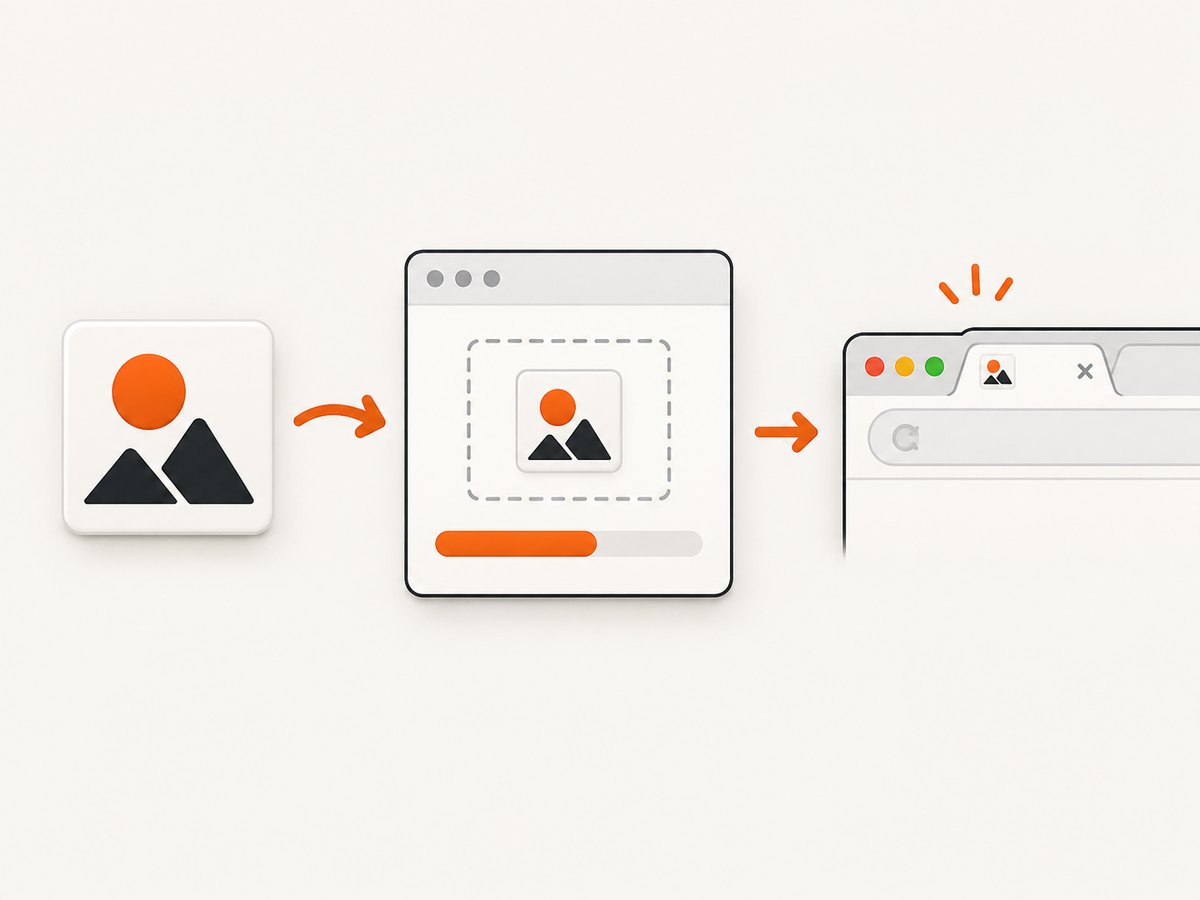
- Drag the image into the uploader, or click the uploader and choose the file from your computer.
- Wait for the upload to finish and confirm the preview.
- Click Save.
The current Squarespace help instructions identify the panel by name rather than promising one universal navigation breadcrumb. If your account layout differs, use the settings search or look for the panel labeled Favicon.
3. Add a dark-mode favicon (optional)
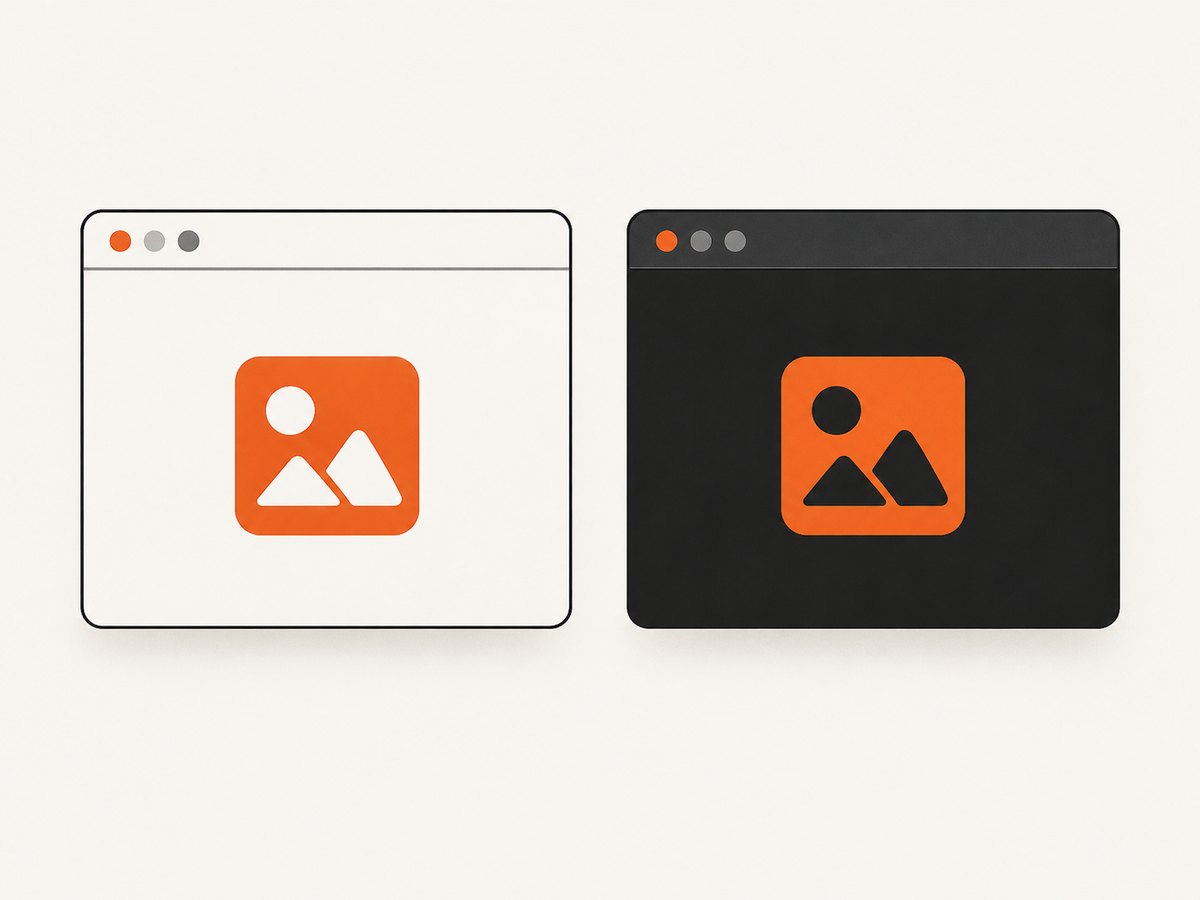
You can provide a separate icon for visitors using a dark browser or operating-system theme. Upload and save a default favicon first; Squarespace requires that default before the alternate version can be added. Make the dark-mode image readable against a dark tab background and test both versions in a browser with dark mode enabled.
4. Verify the change
- Open the site in a new tab and check the tab title area.
- Check a private or incognito window to avoid an existing favicon cache.
- Test at least one desktop browser and, if relevant, Safari. Browser implementations differ.
- Check the page source or browser developer tools only after confirming that the image was saved; a source check cannot force a browser to discard an old cached icon.
Why the old icon is still showing
Favicons are cached aggressively. Squarespace notes that a browser favicon cache can persist after you save a new image. Clear the browser cache, fully restart the browser, and reopen the site. Test in a private window or on another device before changing the upload again. If the new icon appears in a private window but not a normal one, the upload is usually correct and the remaining problem is local cache.
Common errors and fixes
| Symptom | Likely cause | Fix |
|---|---|---|
| The uploader rejects the file | Unsupported .icon format, an oversized file, or an invalid image |
Export a PNG, keep it at or below 100 KB, and use a square 100–300 pixel image. |
| The icon looks blurry | Low-resolution source or fine details that disappear at 16 × 16 | Start with a clean square source, simplify the mark, and preview it at small size. |
| The default cube remains in my tab | Browser favicon cache | Clear cache, restart the browser, then test a private window or another device. |
| Only some browsers show it | Browser-specific favicon display rules | Check more than one browser. Safari and mobile browsers may display favicons differently or not at all. |
| It does not appear in Google results | Search engines control indexing and display independently | Use a dimension that is a multiple of 48, such as 48, 96, or 144 pixels, and wait for recrawling. Do not treat appearance in results as guaranteed. |
| Dark-mode icon cannot be added | No default favicon has been saved yet | Upload and save the default first, then add the alternate version. |
Creating an icon when you do not have one
You can use an existing logo if it remains legible when reduced to a tiny square. Squarespace Logo is another option: its downloaded logo files are transparent PNGs, and Squarespace says a logo can be used as a site favicon. A Squarespace 7 account can download high-resolution logos free regardless of plan; the guide says logos are not free for Squarespace 5 accounts. The icon library is integrated with the Noun Project, and each icon has its own usage terms, so review the applicable license before using a generated mark outside your Squarespace site. See Squarespace Logo’s documentation.
Operational checklist
- Square PNG selected.
- Source is 100–300 pixels and no more than 100 KB.
- Mark remains recognizable at 16 × 16 pixels.
- Default favicon uploaded and saved.
- Dark-mode alternative added only if needed.
- Private-window and second-browser checks completed.
- Search-result expectations kept separate from browser-tab verification.
Or skip the browser setup
If you need a screenshot of the finished Squarespace page for documentation, QA, or an automated workflow, ScreenshotNeo can capture it with one request. The API can return PNG, JPEG, WebP, or PDF; its cleanup steps accept consent banners and remove more than 60 known consent platforms, newsletter popups, and chat widgets before capture. Bot checks, blank pages, timeouts, failed loads, and cache hits are not billed, and response headers identify the page verdict and billing status. An MCP server provides take_screenshot, get_page_info, and capture_pdf tools for Claude, Cursor, and other MCP clients.
See the ScreenshotNeo API documentation for all options. A basic capture looks like this:
curl -G "https://api.screenshotneo.com/v1/shot" -d access_key=YOUR_API_KEY --data-urlencode url=https://your-site.squarespace.com -o shot.webpimport requests
r = requests.get("https://api.screenshotneo.com/v1/shot", params={"access_key": "YOUR_API_KEY", "url": "https://your-site.squarespace.com"}, timeout=90)
open("shot.webp", "wb").write(r.content)const q = new URLSearchParams({ access_key: 'YOUR_API_KEY', url: 'https://your-site.squarespace.com' });
const res = await fetch(`https://api.screenshotneo.com/v1/shot?${q}`);Free accounts include 1,000 screenshots each month with no card. Paid plans start at $5 for 3,000 shots, and every feature is available on every plan. Create a free ScreenshotNeo account.
Performance, reliability, and cost notes
- For a single favicon change, Squarespace’s built-in upload is the lowest-effort path.
- Keep the favicon file small so it loads quickly wherever browsers request it.
- Use private-window checks to separate cache delay from a failed save.
- For repeated page captures, ScreenshotNeo supports caching with a TTL you choose, async jobs with signed webhooks, bulk capture of up to 100 URLs per call, custom headers and cookies, waits for selectors or network idle, and blocking of ads, trackers, requests, or resource types.
- Only clean ScreenshotNeo captures are billed; failed loads and cache hits cost nothing. Review the response’s
X-Page-VerdictandX-Billedheaders when accounting for a job.
FAQ
Is the Squarespace favicon the same as the website logo?
No. A favicon is a small browser icon. You may derive it from your logo, but it should be simplified for tiny display.
Do I need a dark-mode favicon?
No. It is optional. Add one when your default mark loses contrast on dark browser chrome.
Will changing the favicon change my Google ranking?
The favicon mainly identifies your site visually. Search-result display follows Google’s requirements and crawling schedule, so Squarespace cannot guarantee when or whether it appears.
Why does my phone not show the icon?
Mobile browsers often do not display favicons in the same places desktop browsers do. Check a desktop tab as well as the mobile experience.


