How to Change a Website Thumbnail on Squarespace
Change your Squarespace social sharing image, favicon, or featured image, then fix caching and preview problems with this complete guide.

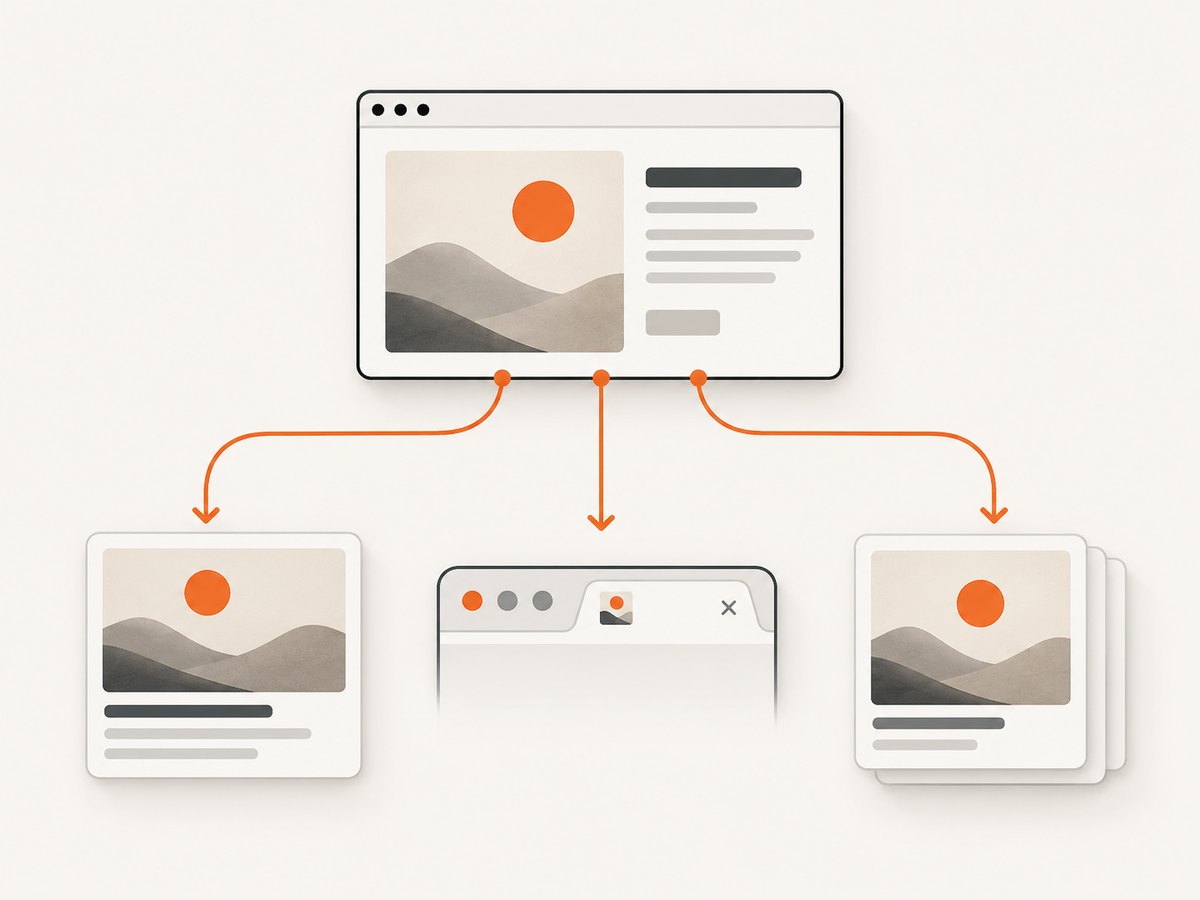
Short answer: “Website thumbnail” can mean three different Squarespace settings. For an image shown when someone shares a URL, change the page’s Alternate Social Sharing Image or the site-wide Social Sharing Logo. For the small browser-tab icon, change the Favicon. For a blog, product, event, or portfolio card, change that item’s Featured Image.
This distinction matters because each setting controls a different surface. A favicon will not replace a social-link preview, and a featured image will not necessarily become the image used by Facebook or a messaging app.
1. Identify which Squarespace thumbnail you need
| What you see | Squarespace setting | Where to change it | Typical scope |
|---|---|---|---|
| Image beside a shared URL on social media or in chat | Social Sharing Logo or Alternate Social Sharing Image | Social Sharing panel or page settings | Whole site or one page/item |
| Small icon beside the title in a browser tab | Favicon | Favicon panel | Whole site |
| Image on a blog, product, event, or portfolio card | Featured Image | That collection item’s editor | One item |
Use a desktop browser for these changes. Squarespace’s documentation says some SEO and social settings are available only on a computer, and the labels can differ between versions 7.0 and 7.1.
2. Change the thumbnail for one shared page link
This is the setting to use when one Squarespace page keeps showing the wrong image when its URL is shared.
- Open the Pages panel in the Squarespace editor.
- Hover over the page title and select the gear icon to open Page Settings.
- Open the Social tab.
- Upload an Alternate Social Sharing Image by dragging in a file or selecting it from your computer.
- Select Save.
The alternate image applies to that page or collection item. It takes priority over the site-wide social sharing image for that URL. If you do not provide an alternate image, Squarespace uses the site-wide social sharing logo where applicable.
Choose an image that survives platform cropping
- Put the subject near the center so square or portrait crops do not remove it.
- Use a high-resolution source and keep important details away from the edges.
- Avoid placing essential text in the extreme top, bottom, or sides.
- Check the current requirements of the social network you care about. Squarespace notes that Facebook images must be at least 200 × 200 pixels and recommends checking each network’s current preferred sizes.
3. Set the default thumbnail for the entire site
Use the site-wide image when most pages should share a consistent brand image and only a few pages need custom artwork.
- Open the Social Sharing panel.
- Select + to upload or choose the site-wide social sharing logo.
- Select Save.
This image acts as the default for pages without an alternate social sharing image. Add page-specific images afterward when an article, product, or campaign needs a different preview.
4. Change the browser-tab icon (favicon)
If by thumbnail you mean the little icon beside your page title in a browser tab, use the Favicon panel instead of Social settings.
- Open the Favicon panel in your Squarespace settings.
- Upload a square image.
- Optionally upload a separate dark-mode alternate.
- Select Save.
Squarespace recommends a PNG between 100 × 100 and 300 × 300 pixels, with a maximum file size of 100 KB. Favicons commonly appear in browser tabs; some mobile browsers do not display them.
Favicon preparation checklist
- Use a simple mark that remains recognizable at a very small size.
- Start with a square canvas and transparent background when appropriate.
- Test light and dark browser themes if you provide both variants.
- After saving, allow for browser caching before judging the result.
5. Change a blog, product, event, or portfolio card image
Collection cards use the item’s Featured Image. Edit the individual blog post, product, event, or portfolio project and replace its featured image in the item editor. This image represents the item in lists, grids, summaries, and similar collection views.
A featured image is separate from both social sharing images and favicons. You may need to set both a featured image for your site’s card layout and an alternate social image for the shared URL.
6. Verify the change before sharing the URL
- Save the relevant setting and leave the editor.
- In Squarespace 7.1, use the preview icon to inspect the visitor-facing page.
- Open the URL in an incognito or private window to avoid your local session affecting the result.
- Share the URL in the target social network or use that network’s link-preview tool.
- Check the browser tab separately if you changed a favicon.
Do not assume that the Squarespace editor preview is identical to the final social card. The social network fetches the page, selects metadata and image data, then renders its own card.
7. Why the old thumbnail still appears
Social preview cache
Social platforms can retain an earlier preview after you save a new image. Re-fetch the URL with the platform’s link debugger or sharing inspector when available, then wait for the platform to refresh its cache. Squarespace states that “the social network ultimately controls what appears in the post, not Squarespace,” so the final crop and rendering can differ.
Browser favicon cache
Favicons are cached persistently. Clear the browser cache, fully restart the browser, and test in a private window. Try a second browser or device to determine whether the old icon is local cache rather than a Squarespace setting.
The wrong setting was changed
If the social card is wrong, changing the favicon will not help. If a collection grid is wrong, changing the social sharing image will not update the card. Return to the surface-to-setting table and edit the matching control.
Editor or app does not show the Social tab
Switch to a computer. Squarespace’s page-settings guidance says some social and SEO controls are not available in the mobile app. Also check whether the site is running version 7.0 or 7.1 because menu placement and labels differ.
8. Practical image and metadata checks
- Confirm the exact URL: a page-specific image applies to that page path, so sharing a different URL can produce a different card.
- Save twice only when needed: verify the upload completed, then save the page settings; repeated uploads do not force a social platform to purge its cache.
- Keep a predictable naming scheme: names such as
homepage-social.webpandpost-slug-social.webpmake it easier to identify the intended asset. - Check responsive crops: preview the composition at wide, square, and narrow ratios before exporting.
- Separate brand and content imagery: use the site-wide logo for consistency and alternate images for pages where the topic itself should be visible.
9. Automate a visual check with ScreenshotNeo
After changing a Squarespace image, you can capture the live page to confirm that the page itself renders correctly before asking a social platform to fetch it. ScreenshotNeo is a website screenshot API and MCP server. It can capture PNG, JPEG, WebP, or PDF output from one GET request, with options for full-page shots, a CSS-selected element, dark mode, device presets, custom viewport sizes, retina scale, waits, custom CSS and JavaScript, cookies, headers, geolocation, and more.
Install the Python dependency first:
pip install requestsThen capture your published Squarespace page:
import requests

r = requests.get(
    "https://api.screenshotneo.com/v1/shot",
    params={
        "access_key": "YOUR_API_KEY",
        "url": "https://your-squarespace-domain.com/page",
    },
    timeout=90,
)
r.raise_for_status()
open("squarespace-page.webp", "wb").write(r.content)
Equivalent cURL:
curl -G "https://api.screenshotneo.com/v1/shot" \
  -d access_key=YOUR_API_KEY \
  --data-urlencode url=https://your-squarespace-domain.com/page \
  -o squarespace-page.webp
Equivalent Node.js:
const q = new URLSearchParams({
  access_key: 'YOUR_API_KEY',
  url: 'https://your-squarespace-domain.com/page'
});
const res = await fetch(`https://api.screenshotneo.com/v1/shot?${q}`);
if (!res.ok) throw new Error(`Screenshot failed: ${res.status}`);
const bytes = await res.arrayBuffer();
await Bun.write('squarespace-page.webp', bytes);
See the ScreenshotNeo API documentation for request parameters and response details. For a Squarespace page that loads images late, use a wait-for-selector, delay, or network-idle option. For a page with a consent dialog, the clean capture flow can accept the banner and remove more than 60 known consent platforms, newsletter popups, and chat widgets before the shot. Each step can be turned off.
10. Or skip the browser setup
If you need a reliable image of a page for QA, documentation, or a content workflow, ScreenshotNeo handles the capture request directly:

curl -G "https://api.screenshotneo.com/v1/shot" -d access_key=YOUR_API_KEY --data-urlencode url=https://stripe.com -o shot.webpimport requests; r = requests.get("https://api.screenshotneo.com/v1/shot", params={"access_key": "YOUR_API_KEY", "url": "https://stripe.com"}, timeout=90); open("shot.webp", "wb").write(r.content)const q = new URLSearchParams({ access_key: 'YOUR_API_KEY', url: 'https://stripe.com' }); const res = await fetch(`https://api.screenshotneo.com/v1/shot?${q}`);Cookie banners, popups, and chat widgets are removed before the shot. Bot checks, blank pages, failed loads, timeouts, and cache hits are never billed; response headers identify the page verdict and whether the shot was billed. ScreenshotNeo also provides an MCP server so Claude, Cursor, and other MCP clients can use take_screenshot, get_page_info, and capture_pdf. The Free plan includes 1,000 screenshots each month with no card, and paid plans start at $5 for 3,000 shots. Create your free ScreenshotNeo account.
11. Performance, reliability, and cost considerations
- Use the smallest capture you need: an element capture is faster and easier to review than a full-page capture when you only need a hero image or card.
- Wait for real content: lazy-loaded Squarespace images may require a selector wait, delay, or network-idle condition.
- Reuse stable results: ScreenshotNeo supports caching with a TTL you choose, which can reduce repeated capture work.
- Protect private pages: custom headers, cookies, user-agent values, and Authorization can reproduce an authenticated view; keep credentials out of public client code.
- Plan batch work: bulk capture supports up to 100 URLs per call, and async jobs with signed webhooks suit larger queues.
- Monitor outcomes: inspect
X-Page-VerdictandX-Billedso failed or non-clean results are distinguishable from successful billable captures.
12. Troubleshooting checklist
| Symptom | Likely cause | Fix |
|---|---|---|
| Shared link still shows old art | Platform cache | Use the network’s debugger, re-fetch the URL, and wait for cache refresh. |
| Page-specific image is ignored | Image was uploaded in the wrong page or not saved | Open that page’s Page Settings → Social, upload the alternate image, and save. |
| Browser tab still has old icon | Favicon cache | Clear cache, restart the browser, and test privately. |
| Card image is wrong but social preview is right | Featured Image differs from social image | Edit the collection item’s Featured Image. |
| Screenshot is blank | Page failed, timed out, or is blocked | Check the URL, add a wait condition, and inspect ScreenshotNeo verdict headers. |
| Late images are missing | Lazy loading | Use full-page capture with a selector wait, delay, or network-idle option. |
13. FAQ
Can one image control every Squarespace thumbnail?
No. Social previews, favicons, and collection cards use separate settings. You can intentionally use the same artwork, but you must configure each surface.
Will changing the favicon change a Facebook preview?
No. A favicon is for browser and shortcut contexts. Social networks use the social sharing image metadata.
Why does my image look different on each network?
Each network can crop, resize, or cache the preview independently. Squarespace supplies the page information, while the social network controls final rendering.
Can I change a social image from the Squarespace mobile app?
Some social and SEO controls are desktop-only. Use the computer editor when the Social tab is unavailable.
How do I capture a private Squarespace page?
Use an authenticated workflow with the appropriate cookies or headers in your screenshot request, and keep those credentials server-side.
14. Final checklist
- Decide whether you are changing a social sharing image, favicon, or featured image.
- Set an alternate social image for important individual pages.
- Set a site-wide social sharing logo as the fallback.
- Upload a square, small PNG for the favicon and test dark mode if needed.
- Replace the collection item’s featured image for blog, product, event, and portfolio cards.
- Save, preview outside the editor, and test in a private window.
- Refresh social caches and browser caches when old artwork persists.
- Capture the published page with ScreenshotNeo when you need an automated visual check.


