How to Change the Website Tab Icon (Favicon)
Add or replace your website favicon with the correct HTML, WordPress, Wix, and troubleshooting steps.
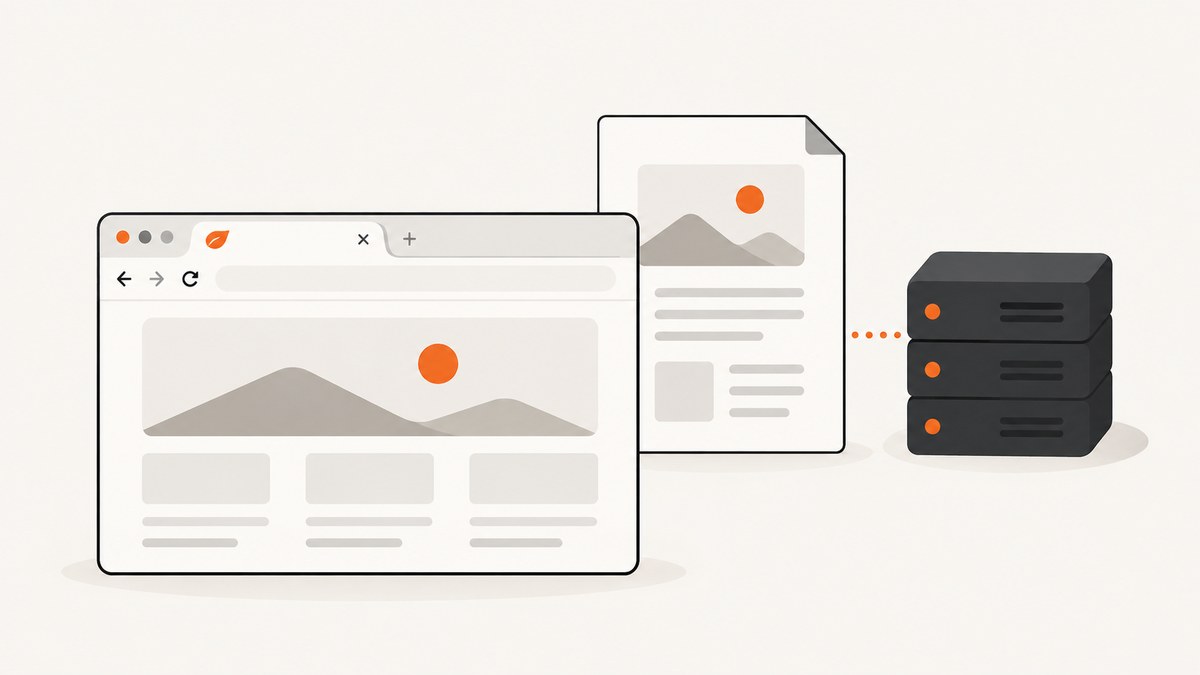
To change the icon in a browser tab, serve a square PNG, GIF, or ICO file from a stable public URL and add this element inside your page’s <head>:
<link rel="icon" href="/images/favicon.png" type="image/png">Use a shared layout if your site has one. A root-level /favicon.ico may also be discovered automatically, but an explicit rel="icon" link is clearer when the file is stored elsewhere.
1. Add a favicon to a custom HTML site
Step 1: Prepare the image
Create a square icon with strong contrast and simple shapes. Browsers commonly display favicons at 16 × 16 pixels, so fine details may disappear. PNG, GIF, and ICO are documented formats. Keep the source square; a larger source can be downscaled by the browser.
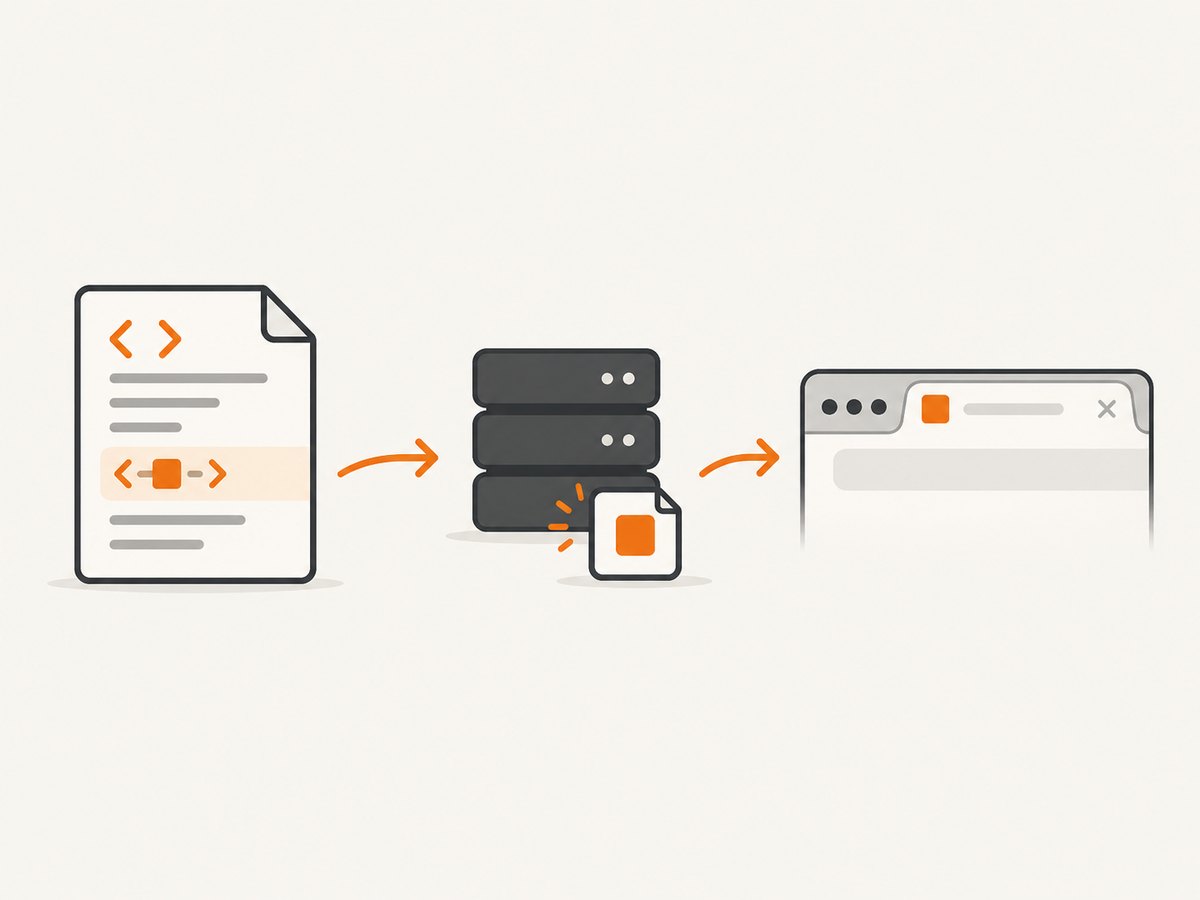
If a platform requires a larger upload, follow that platform’s rule. WordPress recommends a square image at least 512 × 512 pixels for its Site Icon workflow.
Step 2: Put the file at a public, stable URL
For example, copy the file to public/images/favicon.png so it is available at https://example.com/images/favicon.png. Open that URL directly in a browser or request it with a command-line client. It must return the image without authentication.
Step 3: Add the link in the document head
<!doctype html>
<html lang="en">
  <head>
    <meta charset="utf-8">
    <meta name="viewport" content="width=device-width, initial-scale=1">
    <title>Example site</title>
    <link rel="icon" href="/images/favicon.png" type="image/png">
  </head>
  <body>
    <h1>Example site</h1>
  </body>
</html>
The MDN documentation for rel describes the icon relationship, and the <link> element reference documents the associated attributes.
Step 4: Publish and inspect the rendered page
- Load the page in a new tab and look at the tab and bookmark UI.
- View the page source or inspect the DOM and confirm the icon link is inside the rendered
<head>. - Request the
hrefURL directly and confirm it returns the intended image. - Remove old competing icon links unless you intentionally provide alternatives.
2. Choosing formats, sizes, and multiple icons
| Situation | Practical choice |
|---|---|
| Simple hand-coded site | One square PNG and an explicit rel="icon" link. |
| Legacy browser or existing asset pipeline | ICO can be used at a stable URL such as /favicon.ico. |
| Animated or very small artwork | GIF is a documented option, but test how the target browsers render it. |
| Different icons for contexts | Provide multiple links with accurate type, sizes, or media hints and avoid ambiguous duplicates. |
When several icon links exist, browsers use their metadata hints to select an appropriate resource. Incorrect hints can make a browser choose an unexpected file. Keep the URL stable; Google specifically says, “The favicon URL must be stable (don’t change the URL frequently).”
3. Change the favicon in WordPress
WordPress.org (6.5 and later)
- Open Settings → General Settings.
- Choose Choose a Site Icon.
- Upload a square image. WordPress recommends at least 512 × 512 pixels and recommends PNG.
- Save the change, then view the public site in a new tab.
WordPress inserts the required markup for you. If a theme or plugin also adds a favicon, inspect the rendered head for duplicate rel="icon" links.
On WordPress.com, the Site Icon is used in browser tabs, bookmarks, and search results. Block-theme sites can change it from the Site Editor. The available controls depend on whether you are using WordPress.org or WordPress.com.
4. Change the favicon in Wix
- Open your site’s settings and locate the favicon or site icon control.
- Upload the square icon and save it.
- Publish the site.
- Use a connected domain and a Premium plan if required by Wix’s current favicon rules.
Wix states that Google controls whether and when the icon is indexed or shown in search results. A favicon visible in the browser tab may therefore appear in Google later, or not be selected for display.
5. Google Search and favicon timing
Google Search Central supports markup such as:
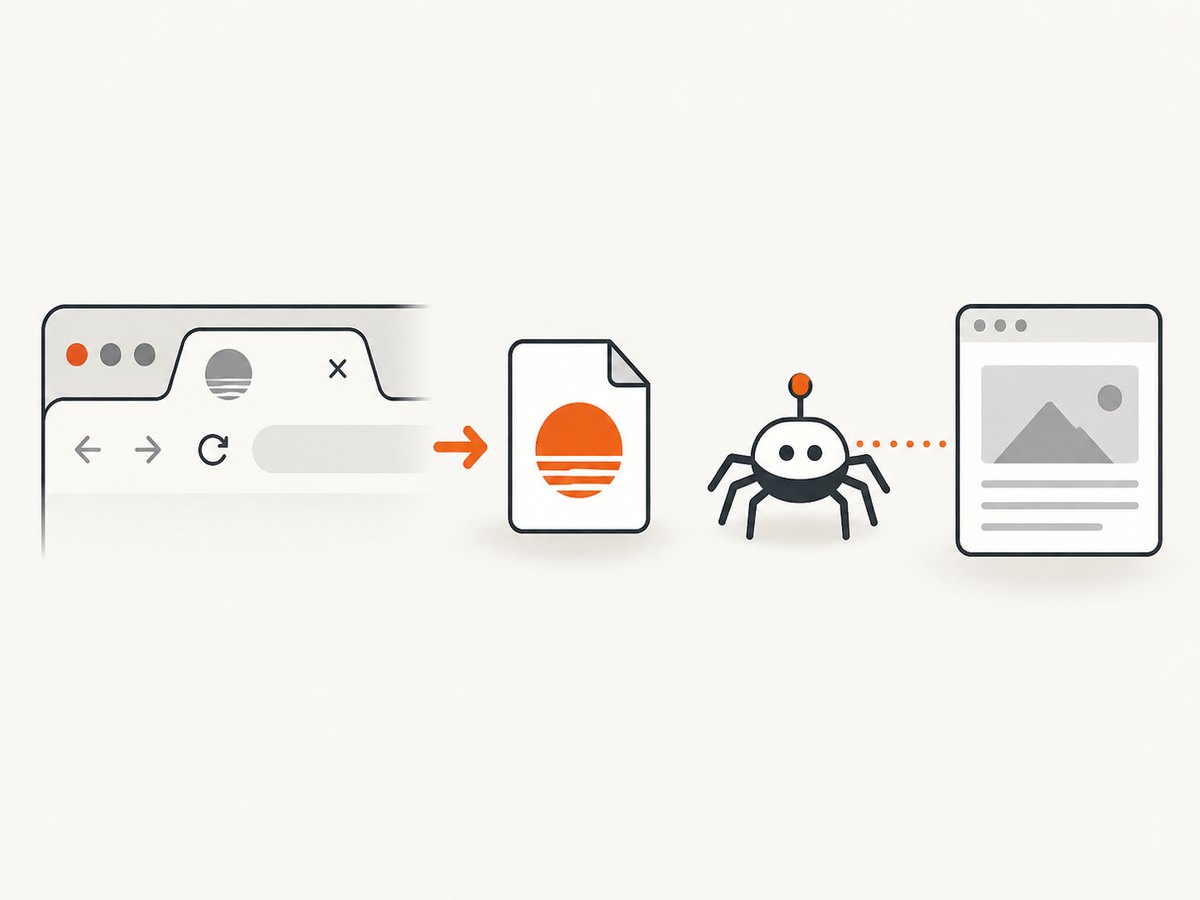
<link rel="icon" href="/path/to/favicon.ico">Google supports rel="icon" and, for historical reasons, rel="shortcut icon". Keep the favicon URL stable and make sure Google can fetch it. Search display is not immediate or guaranteed: Google must recrawl the home page and decide whether to show the icon. The browser tab is the fastest place to confirm that the implementation works.
6. Troubleshooting: favicon not showing
| Symptom | Likely cause | Fix |
|---|---|---|
| No icon in the tab | The file URL is wrong, private, or returns an error. | Open the exact href URL directly and confirm it returns the intended image with a successful response. |
| Markup exists but nothing changes | The link is in a template fragment that is not rendered into the final head. | Inspect the live DOM or page source and place the link in the shared document head. |
| An old icon still appears | The browser has cached the previous resource. | Open the page in a new tab, inspect the current markup, and allow time for the browser to retrieve the stable URL again. Do not rely on one universal cache-clearing shortcut for every browser. |
| Different pages show different icons | Page-specific layouts or duplicate links point to different files. | Use one shared layout, or deliberately define page-specific links and remove obsolete ones. |
| Wrong icon selected | Several links have conflicting type, sizes, or media hints. |
Remove unnecessary links and make each remaining hint accurate. |
| Browser tab works but Google does not show it | Google has not recrawled the page or chose not to display the icon. | Keep the URL stable, ensure the home page and icon are crawlable, and wait for Google’s processing. |
| Wix icon is missing after editing | The site was not published, or the domain and plan do not meet Wix’s requirements. | Publish the site and verify the connected-domain and Premium-plan requirements. |
7. Performance, reliability, and maintenance
- Keep it small: a simple square image transfers quickly and is displayed at a tiny size.
- Use a stable path: changing the URL unnecessarily makes browsers and search crawlers fetch a new resource.
- Serve it over HTTPS: use an HTTPS URL when the page is HTTPS so the browser does not block a mixed-content request.
- Use an absolute URL only when needed: a root-relative path such as
/images/favicon.pngworks across pages on the same origin. - Check deployments: make sure the favicon file is included in production assets and is not excluded by routing or access rules.
- Test representative pages: check the home page and a nested route when layouts differ.
8. Capture the finished page without setting up a browser
After changing a favicon, you may want a reproducible screenshot for a visual check, documentation, or a regression workflow. ScreenshotNeo provides a website screenshot API and MCP server. It accepts one GET request and returns PNG, JPEG, WebP, or PDF.
Or skip the browser setup
See the ScreenshotNeo API documentation for the full option list. This captures the published page:
curl -G "https://api.screenshotneo.com/v1/shot" -d access_key=YOUR_API_KEY --data-urlencode url=https://example.com -o shot.webpimport requests
r = requests.get("https://api.screenshotneo.com/v1/shot", params={"access_key": "YOUR_API_KEY", "url": "https://example.com"}, timeout=90)
open("shot.webp", "wb").write(r.content)const q = new URLSearchParams({ access_key: 'YOUR_API_KEY', url: 'https://example.com' });
const res = await fetch(`https://api.screenshotneo.com/v1/shot?${q}`);ScreenshotNeo accepts cookie banners before capture and removes more than 60 known consent platforms, newsletter popups, and chat widgets; each step can be turned off. Bot checks, blank pages, failed loads, timeouts, and cache hits are not billed, and the response identifies the page verdict and billing status in X-Page-Verdict and X-Billed headers. Its MCP server provides take_screenshot, get_page_info, and capture_pdf for Claude, Cursor, and other MCP clients. You can also set full-page capture, CSS selectors, viewport and device settings, custom CSS or JavaScript, waits, headers, cookies, blocking rules, caching, signed links, asynchronous jobs, bulk capture, and more.
The Free plan includes 1,000 screenshots each month with no card. Paid plans start at $5 for 3,000 screenshots. Create a free ScreenshotNeo account.
9. Favicon checklist
- Square PNG, GIF, or ICO prepared.
- Public URL returns the intended image.
- Explicit
<link rel="icon">is in the rendered head. - Old duplicate icon links removed or given correct hints.
- URL kept stable after publication.
- Browser tab checked before investigating Google Search.
- WordPress or Wix platform requirements satisfied.
10. FAQ
Does every page need its own favicon link?
No. A shared layout or root-level icon normally covers the whole site. Add page-specific links only when different pages intentionally use different icons.
Can I use an SVG favicon?
The documented formats in this guide are PNG, GIF, and ICO. If you choose another format, verify support in every browser and platform you target.
Why does the icon appear in my tab but not in search?
Browser display and Google Search display are separate. Google must recrawl the page and decides whether and when to show the favicon.
Should I rename the favicon file after every design change?
No. Keep the URL stable where possible. Replace the file at the same stable path when you update the artwork.


