How to Change a Website Thumbnail on Framer
Change the social preview image for a Framer site, one page, or each CMS item, then check why old thumbnails may still appear.
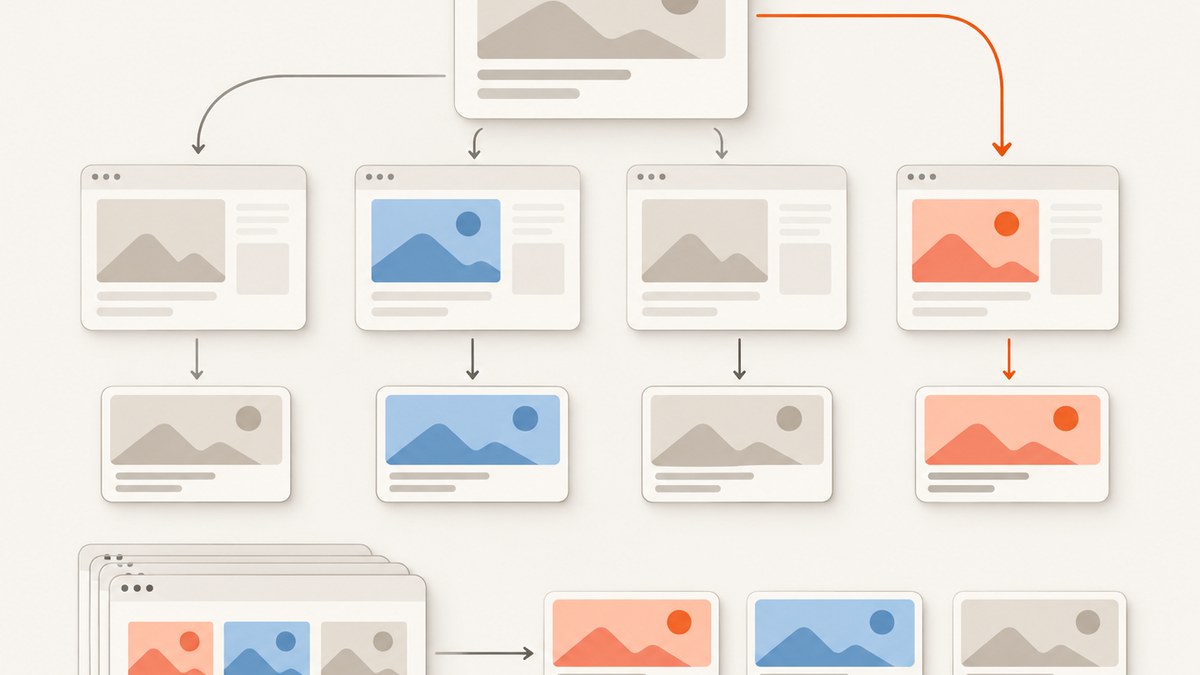
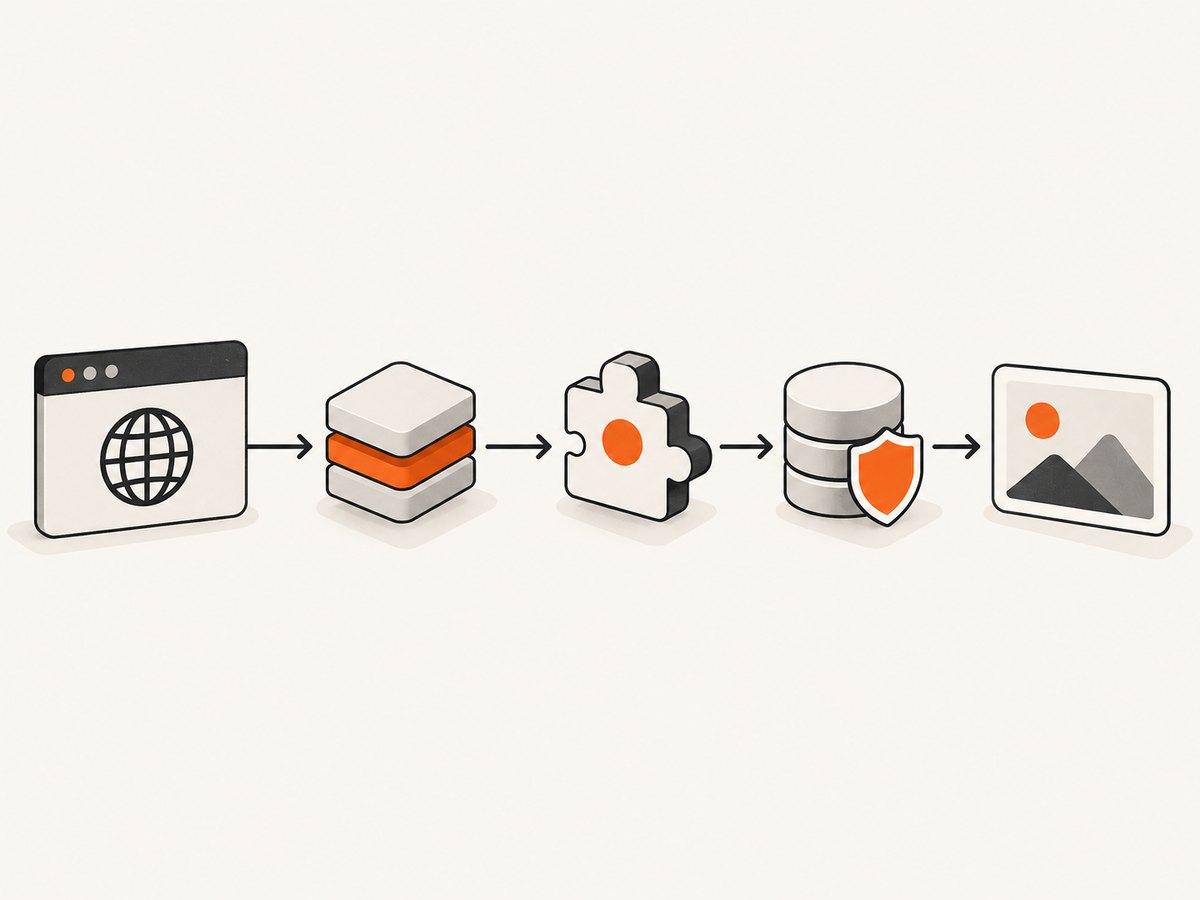
To change a Framer website thumbnail, update the social preview image in Site Settings for a site-wide default, or in a page’s Page Settings for a URL-specific image. For CMS pages, connect the social preview to an image field so each item gets its own thumbnail. Save and publish, then check the public URL with Framer’s Link Preview tool.
Framer recommends a 1200 × 630 pixel image for social previews. This setting changes the image shown when someone shares a link; it does not change the page’s hero image or the browser favicon.
1. Choose which thumbnail to change
First decide whether you need one image for the whole site, a different image for a particular page, or an image that varies for each CMS item. The right setting depends on the URL being shared.
| Scope | Where to set it | Best for | What happens elsewhere |
|---|---|---|---|
| Site-wide default | Site Settings → Page Images / Social Preview | A general brand image for pages without their own social image | Pages without an override use this default |
| One page | Select the page → Page Settings → Page Images / Social Preview | A landing page, product page, or article with a distinct message | Other pages retain their own settings or inherit the site default |
| CMS item | CMS image field selected in the CMS page’s Social Preview setting | Articles or collection items that each need a relevant card | Each item’s generated URL can use its corresponding image |
A page-specific image takes precedence over the site-wide default for that page. Use a global image when a consistent fallback is enough; use an override when the shared page needs a more relevant card. At CMS scale, an image field is easier to maintain than manually setting separate images for every item.
2. Change the site-wide Framer thumbnail
- Open the Framer project.
- Open Site Settings.
- Find Page Images or the Social Preview control. Framer’s current interface places the social preview under page images.
- Choose or upload the image to use as the default social preview.
- Save the setting and publish the site.
- Open Framer’s Link Preview tool and inspect the shared page’s title, description, and image.
The site default is a fallback. If a page already has a page-specific social image, the page override is used instead. So if changing the global image appears to have no effect on one URL, inspect that page’s Page Settings too.
3. Set a different thumbnail for one page
- In the project, select the page whose shared link needs a different image.
- Open that page’s Page Settings.
- Under Page Images or Social Preview, choose or upload the page-specific image.
- Save, publish the site, and inspect that URL in Link Preview.
This is useful when the page’s purpose differs from the rest of the site: for example, a product landing page may need a product image while the site-wide card carries a general brand image. Set the override on the page whose URL people will share. A social image is metadata for that URL; it does not replace visible page content.
4. Give every CMS item its own thumbnail
For a CMS collection such as a blog, create an image field and use it as the collection page’s social preview. Each item can then provide its own card image rather than inheriting one generic site image.
- Open the relevant CMS collection and add an Image field, such as Cover image.
- Upload or select an image for each CMS item that should have a distinct thumbnail.
- Open the CMS page’s Page Settings.
- Go to Page Images → Social Preview.
- Select the CMS variable corresponding to the image field.
- Save and publish, then inspect representative item URLs in Link Preview.
Check more than one item after publishing: verify that each has the intended image populated and that the CMS binding is connected to the correct image field. Items with an empty field may not produce the intended card, so populate the field for every item where a tailored preview matters.
5. Prepare an image that works as a social card
Use Framer’s recommended 1200 × 630 pixels canvas for social previews. That is a landscape aspect ratio suited to common link cards. Keep essential elements—such as a logo, face, or short message—near the center, since a sharing platform may crop the edges differently.
- Match the page: choose an image that makes sense for the exact page being shared.
- Keep key details central: avoid placing important text or faces tight against the outer edges.
- Use the right scope: a general brand asset works as a fallback; a page or CMS image can be more specific.
- Preview after publishing: confirm the actual URL resolves to the intended image and not just the asset you uploaded.
Framer’s stated size is a recommendation for the social preview image. This is not the same setting as a favicon or an in-page hero image.
6. Check the published page and diagnose stale cards
After changing the image, publish the site and use Framer’s Link Preview tool to inspect the title, description, and social image. This verifies what Framer reports for the page. If a messaging or social platform still shows an older card, the platform may have cached a previous preview.
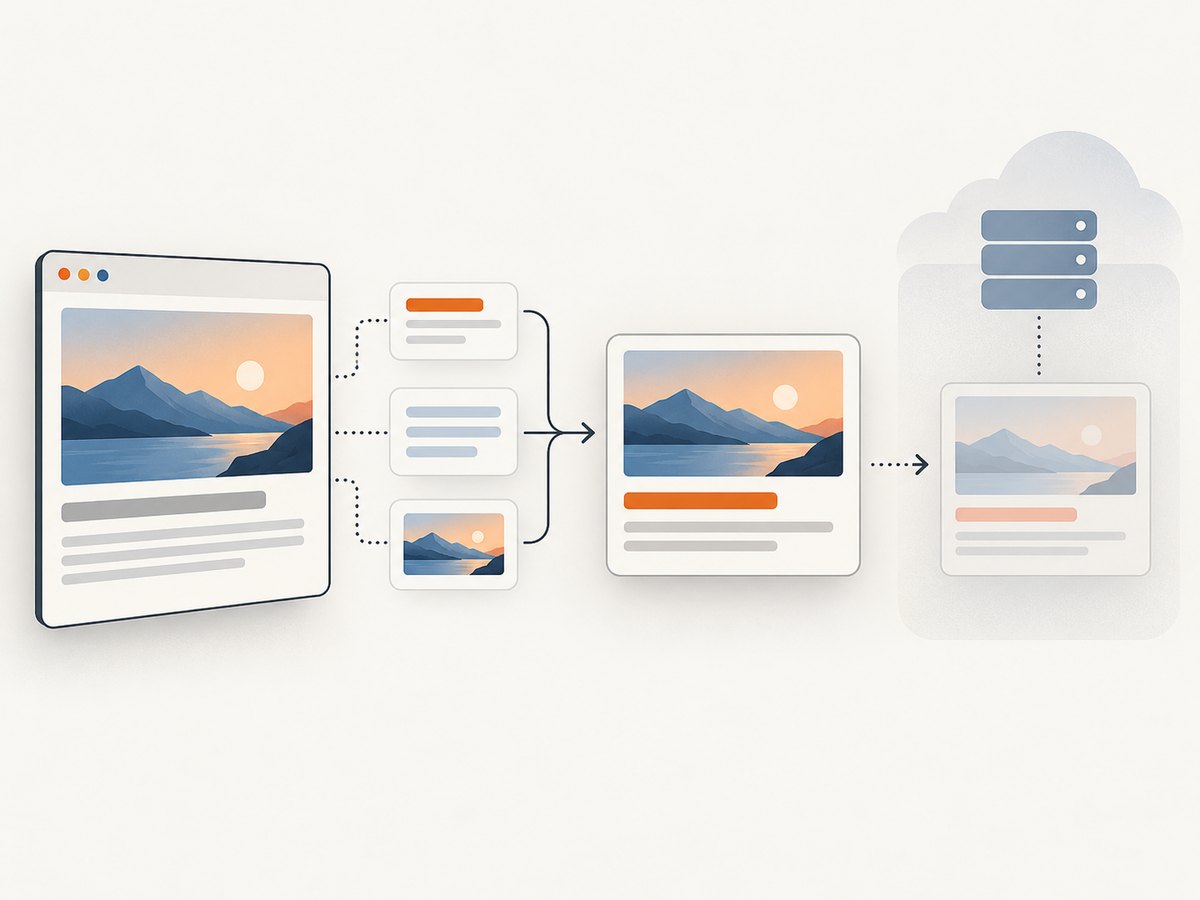
Framer notes that third-party platforms can continue showing an earlier image after publication. There is no single refresh time that applies to every service, so don’t assume the update will appear immediately everywhere. First confirm the new image in Link Preview; then allow the relevant platform’s cache to refresh.
| Symptom | Likely cause | What to do |
|---|---|---|
| The site-wide image changed, but one page still has its old image | The page has a page-specific override | Open that page’s Page Settings and update its Social Preview image, or remove the override if the site default should apply. |
| The uploaded image does not appear in Link Preview | The change may not be saved or published, or the wrong setting/page was edited | Reopen the relevant Site Settings or Page Settings, check the selected image, save, publish, and inspect the exact URL again. |
| Link Preview shows the new image, but Slack, LinkedIn, X, or a chat app shows the old one | The external service is serving a cached card | Use Link Preview to confirm Framer’s current result, then allow that service’s cache to refresh. Framer does not specify a universal delay. |
| All CMS pages show the same image | The social preview may use a static image instead of the collection’s image variable | Bind the CMS page’s Social Preview to the intended image field and check that each item has a value. |
| The thumbnail changed, but the page itself looks the same | Social preview metadata does not replace the visible hero image | Change the page layout separately if the visible on-page image should also change. |
| The browser tab icon is unchanged | The social preview and favicon are separate settings | Update the favicon separately if the browser icon is what you intended to change. |
7. Inspect a page’s rendered appearance with a screenshot
A social preview image is metadata, while a screenshot captures the rendered page. If you also need to check how the published page looks at a particular viewport, you can capture the page yourself with a browser, or use a screenshot API. ScreenshotNeo is a website screenshot API and MCP server from Yorker Media. Its API can return PNG, JPEG, WebP, or PDF, and its options include viewport and device presets, full-page capture, waiting for a selector or network idle, and custom CSS.
For this thumbnail task, Framer’s Link Preview is the direct check for title, description, and social image. A page screenshot can help review the visible design, but it does not replace checking the social metadata.
Or skip the browser setup
If you need a rendered screenshot of the published page as part of a review, one GET request can capture it with ScreenshotNeo. Its clean-shot flow accepts cookie and consent banners like a visitor and removes 60+ known consent platforms, newsletter popups, and chat widgets before capture; each step can be turned off. Bot checks/CAPTCHAs, blank pages, timeouts, failed loads, and cache hits cost nothing, and the response identifies the page verdict and billing status in headers. ScreenshotNeo also offers an MCP server so AI agents can take screenshots. The Free plan includes 1,000 shots/month with no card; paid plans start at $5 for 3,000 shots. See the ScreenshotNeo API documentation.
curl -G "https://api.screenshotneo.com/v1/shot" -d access_key=YOUR_API_KEY --data-urlencode url=https://framer.com -o shot.webpReplace the target URL with your published Framer page. Sign up for 1,000 free screenshots a month with no card.
8. Reliability and cost considerations
For Framer thumbnail changes, the main reliability check is to verify after publishing and distinguish Framer’s preview from an external platform’s cached card. Keep a note of which scope you changed—site, page, or CMS binding—so later updates go to the right place. For CMS collections, check several item URLs and confirm their image fields are populated.
If screenshots are part of a recurring review workflow, decide whether you need a single page or many URLs, and whether images should be cached. ScreenshotNeo supports a cache TTL you choose, asynchronous jobs with signed webhooks, bulk capture for up to 100 URLs per call, and a usage API. Its listed tiers are Free: 1,000 shots/month; Starter: $5 for 3,000; Growth: $15 for 15,000; Pro: $39 for 60,000; Scale: $99 for 250,000; Business: $249 for 1,000,000. Yearly billing gives two months free, and every feature is on every plan. A screenshot is useful for reviewing rendered appearance; use Framer Link Preview to verify the social card itself.
9. Frequently asked questions
Does changing the thumbnail change the image on my Framer page?
No. It changes the image associated with a shared link. Edit the page’s visible layout separately to change its hero or other on-page image.
Can I use a different thumbnail for every blog post?
Yes. Add an image field to the CMS collection and select that CMS variable for the social preview on the CMS page.
Why does a shared link show the old image after I published?
External services may cache an earlier card. Check the current result in Framer Link Preview, then allow the service’s cache to refresh; Framer gives no universal refresh time.
What size should the image be?
Framer recommends 1200 × 630 pixels for social previews. Keep important content near the center to accommodate possible crops.
Is a social thumbnail the same as a favicon?
No. The social preview appears on shared links; the favicon is the small icon used by browser tabs and bookmarks.


