How to Change Your Website Thumbnail on GoDaddy
Change the main image on a GoDaddy Websites + Marketing site, publish it, and learn what to check when you mean a social link preview.

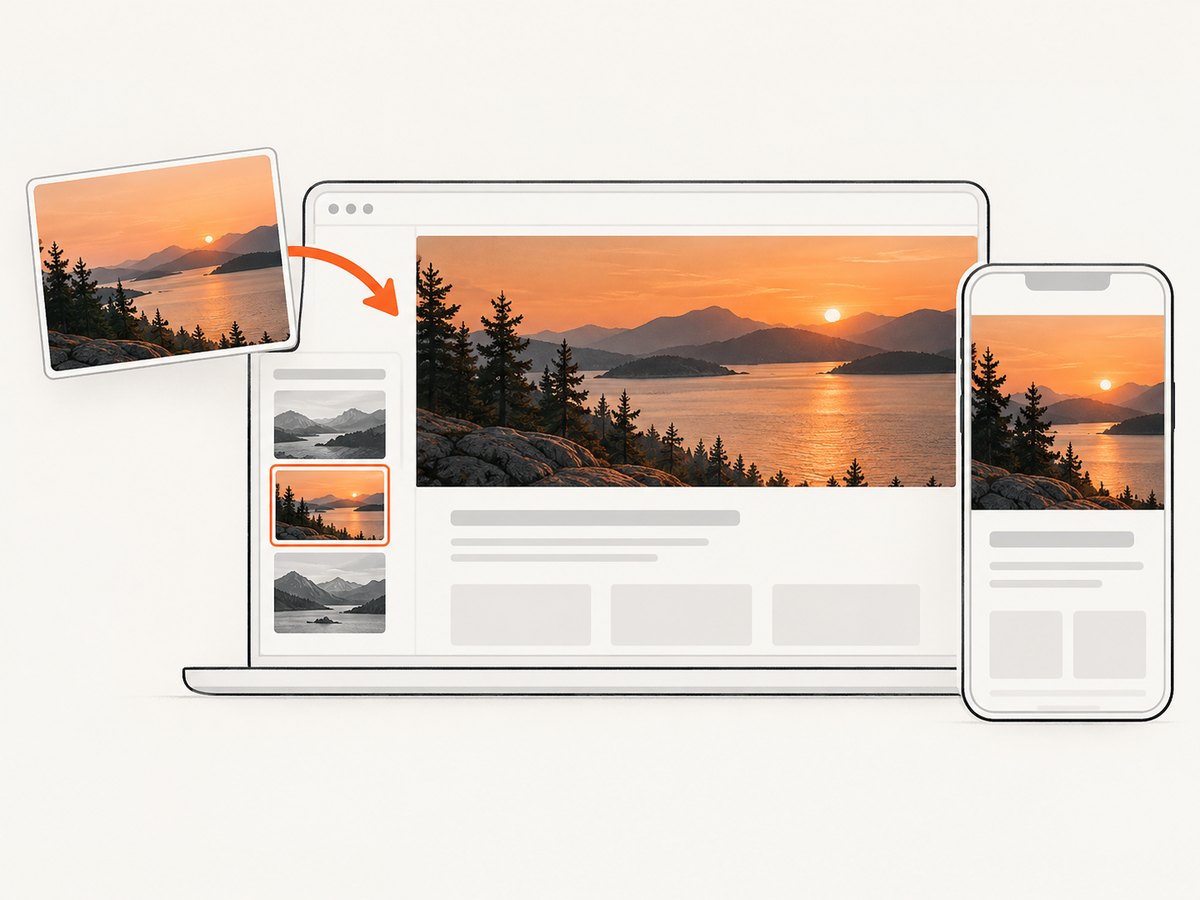
If by “website thumbnail” you mean the large image at the top of your GoDaddy site, change the home-page header’s Cover Media in the Websites + Marketing editor, then publish the site. To replace a photo elsewhere on a page, select that photo and choose Change image. GoDaddy’s reviewed instructions document these site-image controls; they do not establish a universal thumbnail override for every social network.
The phrase can mean several different things: the home-page hero or header image, a photo embedded in a page, or the preview image that appears when someone shares your site link. Identify where the image appears before editing. The steps below cover the documented GoDaddy controls and explain how to check a shared-link preview without assuming every platform uses the same image or refreshes at the same time.
1. Identify which image you want to change
Start by opening your published website and locating the image that looks wrong. If it spans the top of the home page, it is probably the header image. If it appears alongside text in a page section, it is an ordinary page photo. If it appears only beside a URL in a social post or message, you mean a link-preview image; that preview is controlled by the destination platform’s interpretation of your site, and the GoDaddy instructions reviewed here do not document a setting for every platform.
| What you see | GoDaddy control to try | What the documentation supports |
|---|---|---|
| Large image at the top of the home page | Header → Cover Media | Change the home-page header image in the site editor. |
| Photo elsewhere on a site page | Select photo → Change image | Replace an ordinary photo with another available or uploaded image. |
| Image beside a shared link | Change the main/header image, publish, then inspect the destination | GoDaddy describes the main image and information on a connected Facebook business page; this does not prove a universal social-preview setting. |
These controls solve different problems. In particular, Online Store product-page Facebook and Twitter share buttons are sharing controls, not a documented thumbnail-image selector. If you are changing a product page’s share buttons, see GoDaddy’s separate instructions for social share links.
2. Change the home-page header image
- Sign in to GoDaddy and open your product page.
- Under Websites + Marketing, choose Manage for the site you want to edit.
- Choose Edit Website to open the builder.
- Open the home page and select its header area.
- Choose Cover Media, then select an image or add one.
- Review the header crop and placement in the editor. Adjust the image choice if the subject is obscured or cut off.
- Save or finish the edit, then choose Publish to make the changes public.
GoDaddy’s photo instructions describe choosing from recently added images, royalty-free stock images, collections, social media images, and the media library, as well as uploading your own supported image. The exact choices shown can depend on the editor and account. GoDaddy also advises adding an image description. Add a useful description for accessibility, but do not treat that description as a social-preview thumbnail setting.
For the official walk-through, see GoDaddy’s help pages on adding or replacing a photo and setting up a Websites + Marketing site.
3. Replace a photo elsewhere on a page
- In the site editor, navigate to the page and section containing the photo.
- Select the photo itself, not the surrounding section or text.
- Choose Change image.
- Select an available image or upload a replacement, then complete the editor’s image-selection steps.
- Check how the new image looks in the page layout, including its crop and how it sits beside nearby content.
- Publish the site so visitors can see the updated page.
This is the right route for a page photo that is not the home-page header. Changing an ordinary photo does not necessarily change the home-page main image, and changing the header does not replace every other photo on the site. If the editor selects a whole section instead of the image, close the selection and click directly on the photo before looking for Change image.
4. If you mean the image shown when sharing your website
A shared-link preview is different from an image displayed inside your site. GoDaddy’s Facebook connection instructions say that a connected Facebook business page displays the site’s main image and information, and recommend publishing when the page needs to reflect recent information. Those instructions do not establish a universal thumbnail control for all social platforms, nor do they promise immediate refresh timing.
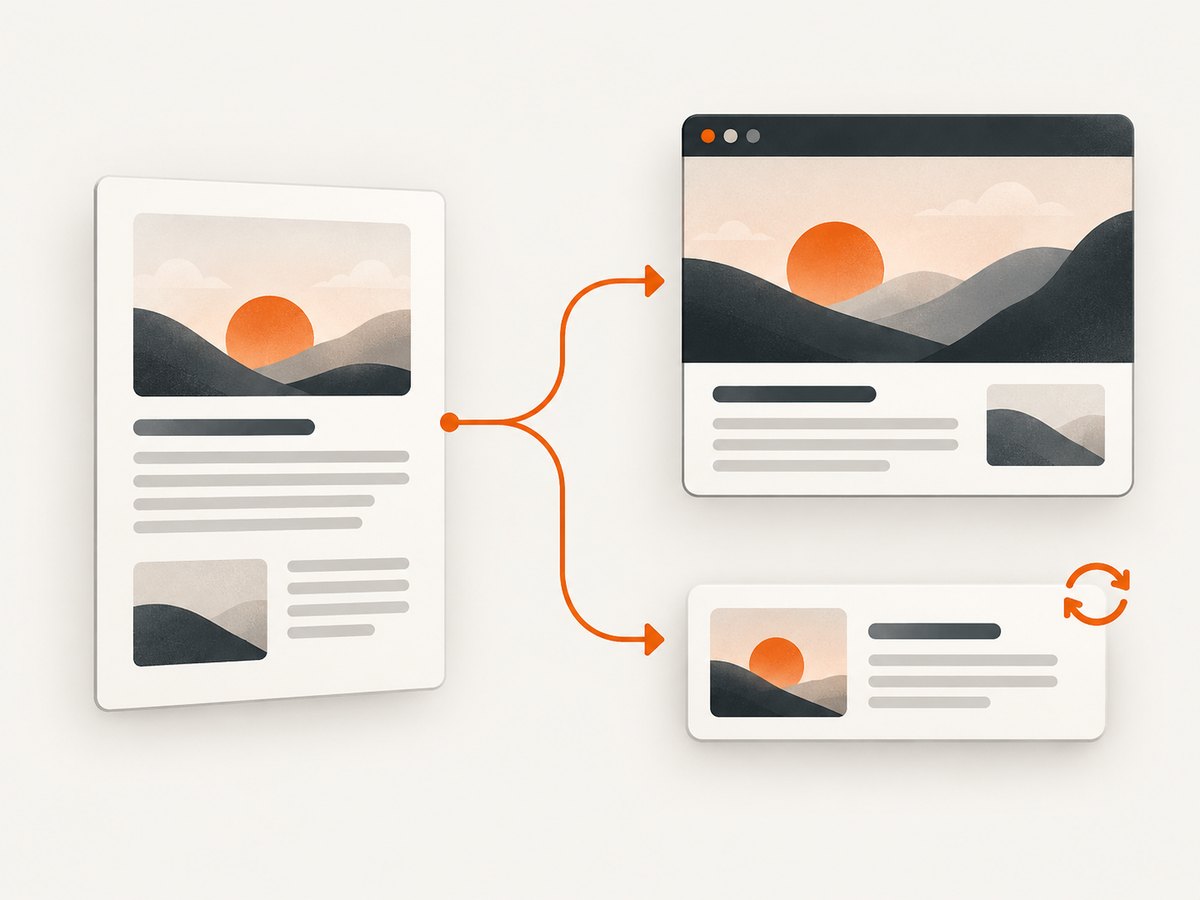
- Change the home-page header image using Cover Media, if that is the main image you want associated with the site.
- Publish the website so the public version contains the change.
- Open the site’s public URL directly and confirm the page itself displays the intended image.
- Check the link on the specific platform where you plan to share it. If it is a connected Facebook business page, use GoDaddy’s Facebook connection guidance as the platform-specific reference.
- If an old preview remains, check again later or consult the platform’s own preview-refresh tools and help. Do not assume a change in the GoDaddy editor automatically forces every platform to refresh a cached preview.
If you need a designed image for the website or a social post, GoDaddy’s Content Creator can create an image file for those uses. Its guidance notes that PNG supports transparency and that JPEG or PNG affects quality and file size. Creating a graphic is a separate task from choosing the site’s header image; you still need to add the resulting image in the site editor and publish. See GoDaddy’s image-creation instructions.
5. Choose an image that works in the layout
The image that looks good as a full-width header may be cropped differently on a narrower screen. Before publishing, check the editor’s preview at the sizes it offers and make sure the important subject is not close to an edge. If the photo contains a person, product, or landmark, keep that subject away from the area most likely to be cropped. Avoid placing essential words inside the photo when the same information can be included as page text.
- Use a clear source image. Start with an image that is sharp enough for the size at which it appears.
- Check contrast. If the header also has text on it, verify that the text remains easy to read against the chosen photo.
- Use a relevant image description. Describe the image’s useful content for visitors who use assistive technology; it is not a control for social previews.
- Preview the page, not just the file. The editor’s crop and layout determine what visitors actually see.
- Publish and verify. The editor view is not proof that the public site has changed; open the live URL after publishing.
6. Troubleshooting common problems
| Problem | Likely cause | What to do |
|---|---|---|
| I cannot find Cover Media | The header is not selected, or you are editing a different page or site. | Open the intended site in Websites + Marketing, go to the home page, and select the header area itself. |
| Change image is missing | You selected a section, background, or another element instead of an ordinary photo. | Click directly on the photo. If the image belongs to a special section, use the controls available for that section. |
| The new image appears in the editor but not on the public site | The site edits have not been published. | Choose Publish, then open the public site again and verify the change. |
| The image looks cropped or the subject is cut off | The image is being fitted into a header or content area with a different shape. | Try another crop or source image and review the page preview before publishing. |
| The shared link still shows the old picture | The destination platform may not have refreshed its preview, or the preview may not map to the site header as expected. | Confirm the live site first. Then use the destination platform’s own preview diagnostics or help; GoDaddy’s reviewed pages do not promise a refresh schedule for every network. |
| A product page still has no social buttons | You may be looking for sharing controls rather than changing the site image. | Review the separate Online Store guidance for adding Facebook and Twitter share links to product pages. |
| The image chooser does not show my file | The upload may not have completed, or the file may not be supported by the editor. | Try the upload flow again and follow the file requirements shown in GoDaddy’s editor or help page. |
7. Check the result before you finish
- The correct GoDaddy site and page are open in the editor.
- You used Cover Media for the home-page header or Change image for an ordinary photo.
- The image subject and any overlaid text remain clear in the preview.
- You added an image description where appropriate.
- You published the site.
- You checked the public page, and separately checked the platform where a link preview matters.
Or skip the browser setup
If your goal is to capture the updated page for a review, record, or visual comparison, ScreenshotNeo can return a website screenshot or PDF from one API request. It is separate from GoDaddy’s site editor: make and publish the image change in GoDaddy first, then capture the resulting public page. See the ScreenshotNeo API documentation for request options.
curl -G "https://api.screenshotneo.com/v1/shot" -d access_key=YOUR_API_KEY --data-urlencode url=https://example.com -o shot.webpReplace https://example.com with your published GoDaddy site URL. The response is saved as shot.webp. Equivalent starting points in Python and Node.js:
import requests

r = requests.get(
    "https://api.screenshotneo.com/v1/shot",
    params={"access_key": "YOUR_API_KEY", "url": "https://example.com"},
    timeout=90,
)
open("shot.webp", "wb").write(r.content)
const q = new URLSearchParams({
access_key: 'YOUR_API_KEY',
url: 'https://example.com'
});
const res = await fetch(`https://api.screenshotneo.com/v1/shot?${q}`);
if (!res.ok) throw new Error(`Screenshot request failed: ${res.status}`);
await Bun.write('shot.webp', new Uint8Array(await res.arrayBuffer()));In Node.js, the example uses Bun’s file writer. With Node’s built-in APIs, save the response body like this instead:
import { writeFile } from 'node:fs/promises';

const q = new URLSearchParams({
  access_key: 'YOUR_API_KEY',
  url: 'https://example.com'
});
const res = await fetch(`https://api.screenshotneo.com/v1/shot?${q}`);
if (!res.ok) throw new Error(`Screenshot request failed: ${res.status}`);
await writeFile('shot.webp', Buffer.from(await res.arrayBuffer()));- Cookie banners, popups, and chat widgets are removed before the shot; each cleanup step can be turned off.
- Bot checks, blank pages, failed loads, timeouts, and cache hits are never billed. Response headers report the page verdict and billing status.
- An MCP server lets AI agents use
take_screenshot,get_page_info, andcapture_pdf. - 1,000 screenshots a month are free with no card; paid plans start at $5 for 3,000.
Sign up for ScreenshotNeo’s free 1,000 screenshots a month, with no card required.
Frequently asked questions
Does changing the header always change the thumbnail on social media?
The reviewed GoDaddy guidance connects the site’s main image to a Facebook business page, but it does not establish the same behavior for every network. Check the specific platform after publishing.
Will adding an image description change the preview image?
No such behavior is established by the GoDaddy photo instructions. The description is useful for accessibility; use the editor’s image control to replace a site photo.
Do I need to change every image on my site?
No. Change the header if the home-page main image is the one you mean. Replace other photos individually with Change image.
Can I make an image for the site without editing a photo elsewhere?
GoDaddy documents Content Creator for producing images to add to a site or use in social posts. After creating one, add it through the relevant site editor control and publish.


