How to Change the Image on a WordPress Homepage
Find the WordPress setting that owns your homepage image, replace it, and fix cropping for block themes, classic themes, and Elementor.

To change an image on a WordPress homepage, first find out what controls it: page content, a Cover block, a block-theme template, a background setting, a classic theme’s Customizer, or a page builder such as Elementor. Open that editor, select the image or the element using it, replace the image, adjust its crop, and save. The correct menu depends on how the homepage was built.
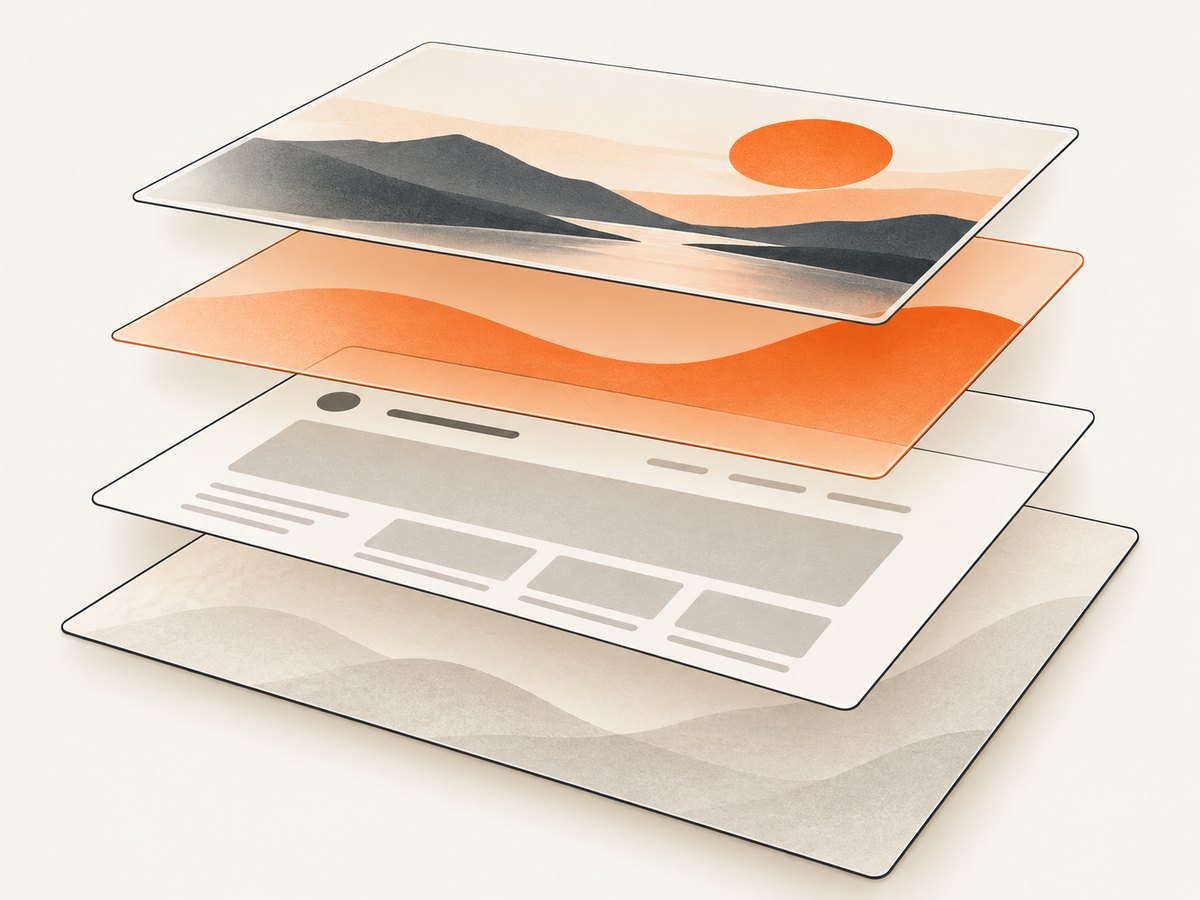
This guide covers how to change the picture on your WordPress homepage and how to change a homepage background image. The key is to identify the image’s owner before changing it. A banner that looks like one picture may be an Image block, a Cover background, or an image set on a reusable template. Editing the wrong one can leave the public homepage unchanged or alter other pages too.
1. Identify what controls the homepage image
Start by opening the public homepage in one browser tab and the WordPress dashboard in another. Note where the image appears: inside the page content, behind text in a hero or banner, across the site background, or in a repeating post list. Then check whether the homepage is a static page or a latest-posts listing.
- In the dashboard, go to Settings → Reading. Check whether “Your homepage displays” is set to a static page or your latest posts. WordPress displays latest posts by default unless the site is configured otherwise. WordPress explains the static front page setting.
- If you have a static page, note its name under Homepage. You can usually open it from Pages → All Pages.
- Check the theme: if Appearance → Editor is available, the site likely has a block theme and its homepage may be controlled by a template. In the Site Editor, open Templates and look for Front Page or Home. A Front Page template takes precedence for the front page; a Blog Home template can control the latest-posts view. See WordPress’s Site Editor guide and template guide.
- If the homepage is built with Elementor, choose Edit with Elementor from the page list or admin bar. If it uses another builder, use that builder’s page editor.
- In the editor, select the image or its surrounding block/container. The selected element and its settings reveal whether it is an image, a Cover background, or a background on a larger section.
Quick decision table
| What you see | Where to look | Typical control |
|---|---|---|
| A picture within the page’s text and blocks | Pages → homepage → Edit | Image block → Replace |
| A wide banner, often with text over it | Page or homepage template editor | Cover block → Replace |
| An image behind a section or group | Block settings or builder settings | Background image |
| A homepage-wide design in a block theme | Appearance → Editor → Templates | Front Page or Home template |
| A classic theme’s site background | Appearance → Customize | Background Image, if supported |
| A page built in Elementor | Edit with Elementor | Container or Section → Style → Background |
2. Replace an image in the WordPress block editor
Ordinary Image block
- Open the homepage for editing. For a static homepage, go to Pages → All Pages, find the page selected in Reading settings, and choose Edit.
- Click the picture. Use the block toolbar’s Replace control to select an image from the Media Library or upload a file from your computer.
- Check the block settings sidebar for options such as alt text, dimensions, or image sizing, if available in your editor.
- Choose Update or Save, then visit the public homepage to confirm the change.
Replacing a normal Image block changes that block’s media. It does not necessarily change a page’s featured image, the site background, or an image in a template. WordPress also documents using an Image block’s options to set an image as a page or post’s featured image. The block documentation describes image and featured-image controls.
Cover block or hero banner
A Cover block places text or other content over an image, so it is common in a homepage hero area. Click the Cover block itself, then choose Replace in its toolbar and select a Media Library image or upload one. If the page’s featured image is being used as the Cover background, changing only a separate Image block will not change that background. Check the Cover block’s media source and replace the image there. WordPress’s Cover block guide explains replacement and the option to display a featured image.
After replacement, check the block’s focal point and dimensions. Cover blocks can crop the image to fill their shape. If the subject is cut off, adjust the focal point or change the block’s height or image rather than repeatedly uploading the same file.
3. Change a homepage image in a block-theme template
If editing the page content does not reveal the image, it may belong to a template. Templates define layouts for page types and can be shared by many pages. A change to a shared template can therefore affect more than the homepage. WordPress’s template documentation describes the Front Page and Blog Home templates.
- Go to Appearance → Editor → Templates.
- Open Front Page if present. If the homepage shows the latest posts, inspect Home or Blog Home as well. Theme names and available templates vary.
- Select the relevant Image or Cover block in the template. Use List View if clicking the image preview selects a neighboring group instead.
- Replace the image as described above. If the image is a background, use that block’s settings instead.
- Save the template and confirm the editor indicates which template changes are being saved. Revisit the public homepage.
For a static homepage that uses a custom template, you can also open the page’s settings sidebar and inspect its Template setting. The template may hold the hero image even when the page’s content editor looks empty. Avoid changing a shared template until you know which pages use it.
4. Change a block or site background image
For an individual supported block, select it and open the settings sidebar. Find Background; depending on the block, it may be under the Styles tab. Click the current image and choose a different image from the Media Library or upload one. Not every block supports a background image. WordPress documents both individual block backgrounds and site-wide background settings in its Background Settings overview.
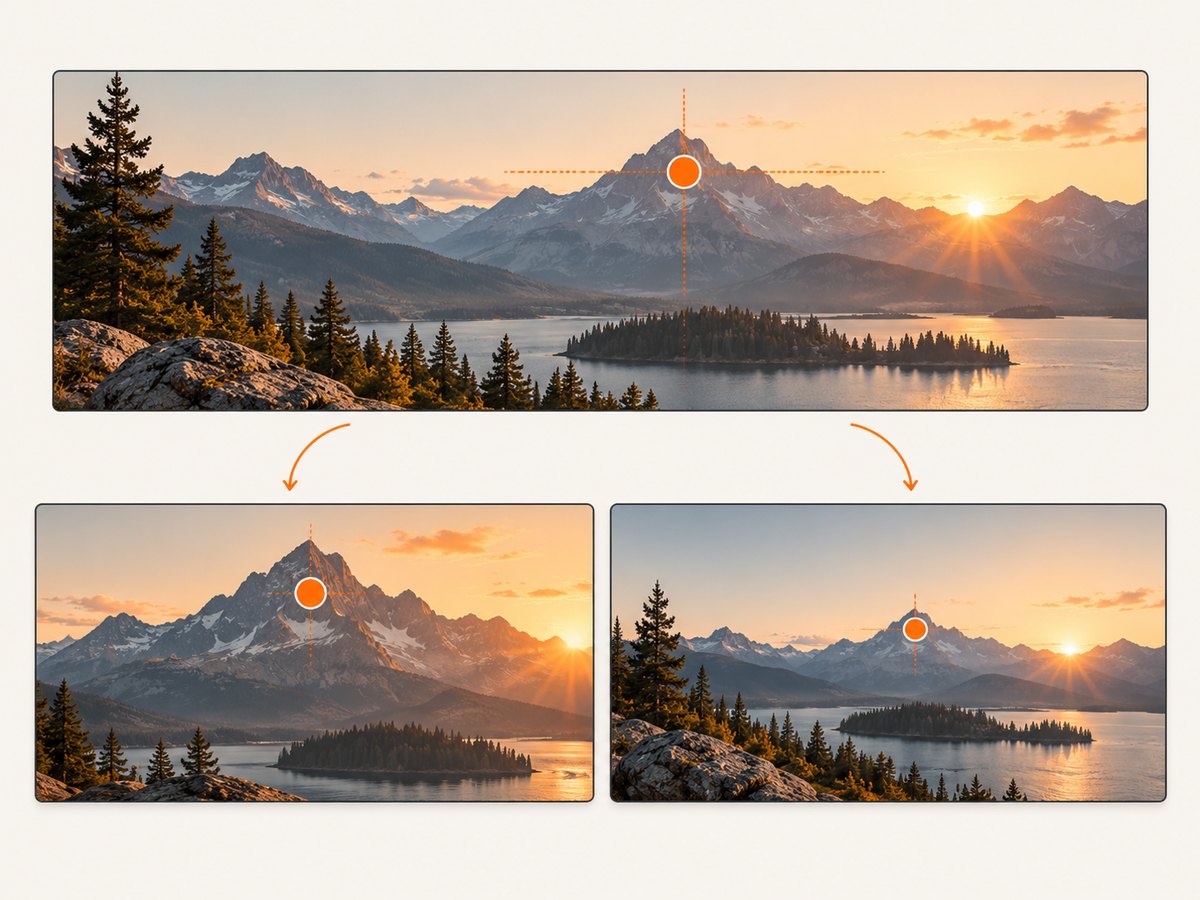
To change a site-wide background in a block theme, open Appearance → Editor → Styles → Background. This setting applies across the site, so it may change pages beyond the homepage. If the homepage alone needs a different image, prefer a homepage-specific block or template setting.
| Background setting | Effect | Use it when |
|---|---|---|
| Focal Point | Chooses which part remains visible when cropping occurs | The subject is off-center or gets cropped |
| Cover | Fills the block area, cropping as needed | You need a filled banner or section |
| Contain | Keeps the complete image visible, possibly leaving empty space | Showing the whole image matters more than filling the area |
| Tile | Repeats the image to fill the area | A repeating pattern is intended |
| Fixed Background | Keeps the image fixed while the page scrolls | The theme and design call for a fixed effect |
These settings control how the selected file appears; they do not select a different source image. The “best” choice depends on the image and the block’s dimensions. Preview the result at different browser widths before publishing.
5. Change an image in a classic theme’s Customizer
Classic themes may expose a background setting through the Customizer, but controls depend on the theme. Go to Appearance → Customize and look for Background Image. If present, select an image from the Media Library or upload one, adjust the available position, size, repeat, or scroll settings, and publish the change. If that panel does not exist, the theme may not offer a Customizer background control; inspect the page editor, theme options, or page builder instead. WordPress’s Customizer documentation describes its theme-dependent controls.
6. Change an Elementor homepage background
Edit the page with Elementor and select the container that owns the image. In older layouts, select the Section instead. Open Style → Background, choose the image background type, and select or upload the replacement. Elementor identifies these controls in its Container Style tab guide and background image instructions.
Set position to keep the important subject visible, then review size and repeat. Cover fills the section and may crop; Contain preserves the full image but can leave uncovered space. Elementor’s position options influence which part of an oversized image remains visible; exact results depend on the image and container dimensions. See its background settings guide. Save or Update and inspect desktop and mobile previews.
7. Save and verify the published homepage
- Use the editor’s Update or Save control. In the Site Editor, review the items listed in the save panel so you know whether you are saving a page, template, or style.
- Open the public homepage in a private/incognito window or hard-refresh it. This helps distinguish an unsaved change from a stale browser cache.
- Check desktop and narrow/mobile widths. Confirm the focal subject, text contrast, and section height still work.
- If a cache or CDN is in use, clear the relevant page cache using your site’s normal cache controls, then reload.
- If the image appears in other pages unexpectedly, you likely edited a shared template or global background. Restore the prior value if needed and make the change in a homepage-specific element.
Or skip the browser setup
If your goal is to capture the updated homepage for review, documentation, or an automated workflow, ScreenshotNeo can return a screenshot with one GET request. Its cookie/consent-banner handling accepts consent and removes 60+ known consent platforms, newsletter popups, and chat widgets before the capture; each step can be turned off. Bot checks, blank pages, timeouts, and failed loads are not billed, and cache hits cost nothing. Responses include X-Page-Verdict and X-Billed headers. There is also an MCP server with take_screenshot, get_page_info, and capture_pdf tools for AI agents. The free plan includes 1,000 shots a month with no card; paid plans start at $5 for 3,000. Every feature is on every plan. See the ScreenshotNeo API documentation.
curl -G "https://api.screenshotneo.com/v1/shot" -d access_key=YOUR_API_KEY --data-urlencode url=https://example.com -o homepage.webpPython:
import requests

r = requests.get(
    "https://api.screenshotneo.com/v1/shot",
    params={"access_key": "YOUR_API_KEY", "url": "https://example.com"},
    timeout=90,
)
open("homepage.webp", "wb").write(r.content)
Node.js:
const q = new URLSearchParams({
  access_key: 'YOUR_API_KEY',
  url: 'https://example.com',
});
const res = await fetch(`https://api.screenshotneo.com/v1/shot?${q}`);
if (!res.ok) throw new Error(`Screenshot request failed: ${res.status}`);
await import('node:fs/promises').then(fs => fs.writeFile('homepage.webp', Buffer.from(await res.arrayBuffer())));
Replace https://example.com with your published homepage URL. A screenshot is useful for checking the rendered result, but the image itself must still be changed in WordPress. Create a free ScreenshotNeo account for 1,000 screenshots a month, with no card.
Troubleshooting
| Symptom | Likely cause | Fix |
|---|---|---|
| The editor change does not appear on the homepage | You changed page content, but the image belongs to a template, Cover block, or builder | Inspect the Front Page/Home template and select the exact element shown on the public page. |
| The replacement is cropped badly | The block or background uses a fill/crop setting, or its focal point is misplaced | Adjust focal point and position, try Contain, or choose an image suited to the section’s shape. |
| Image is missing on mobile | A responsive visibility setting, alternate mobile image, or section layout controls that view | Inspect responsive settings in the block or builder and preview the mobile layout. |
| The change affects several pages | You edited a shared template or site-wide background | Undo or restore the global edit, then change a homepage-specific block/template. |
| Customizer has no Background Image panel | The classic theme does not provide that control | Check its page editor, theme settings, or builder; available Customizer panels are theme-dependent. |
| The old image still appears after saving | The editor did not save, or the browser/page cache is stale | Confirm the save completed, then hard-refresh and clear page/CDN cache if configured. |
| Cover text becomes hard to read | The replacement has different brightness or contrast behind the text | Adjust the Cover overlay or text styling, or choose an image with a clearer area behind the text. |
| Image is blurry or slow to load | The source file may be too small for the displayed area or unnecessarily large | Choose an appropriately clear source image and avoid uploading a much larger file than the design needs; verify the rendered image after replacement. |
Performance, reliability, and cost considerations
Changing an image in WordPress does not require buying a plugin or a physical product. You can choose existing media or upload an image you have permission to use. Keep the original available until the replacement is confirmed so you can restore it if the layout does not work. Be mindful that a large source image can take longer to load; the dossier provides no universal file-size threshold, so judge the result in your own layout and hosting setup.
For a reliable edit, identify whether the image is local to the page or shared, make one change, save, and verify the public view at multiple widths. Avoid editing a global style when only the homepage should change. ScreenshotNeo can help produce a visual record or automated capture, but it does not edit your WordPress media or publish the page.
FAQ
How do I change the picture on my WordPress homepage?
Open the page, template, or builder element that owns it, then use its Replace or background-image control. If the homepage is a block theme, check Appearance → Editor → Templates when the page editor does not contain the image.
How do I change my WordPress home page background image?
For a block theme, inspect the selected block’s Background settings or use Appearance → Editor → Styles → Background for a site-wide change. For a classic theme, look in Appearance → Customize if the theme supports a Background Image panel.
Will changing the featured image replace the homepage banner?
Only if the banner’s Cover block is configured to use the page’s featured image. Otherwise, replace the Cover background separately.
Why can’t I find the homepage in Pages?
The homepage may display the latest posts, or its layout may come from a theme template. Check Settings → Reading and Appearance → Editor → Templates.
Can I change the homepage image without changing other pages?
Yes, if you edit a homepage-specific page element or template. A shared template or site-wide background can affect other pages, so check what the editor says will be saved.


