How to Change a Website Thumbnail in WordPress
Learn how to replace a featured image, change WordPress thumbnail dimensions and crops, regenerate old image sizes, and troubleshoot theme-specific results.
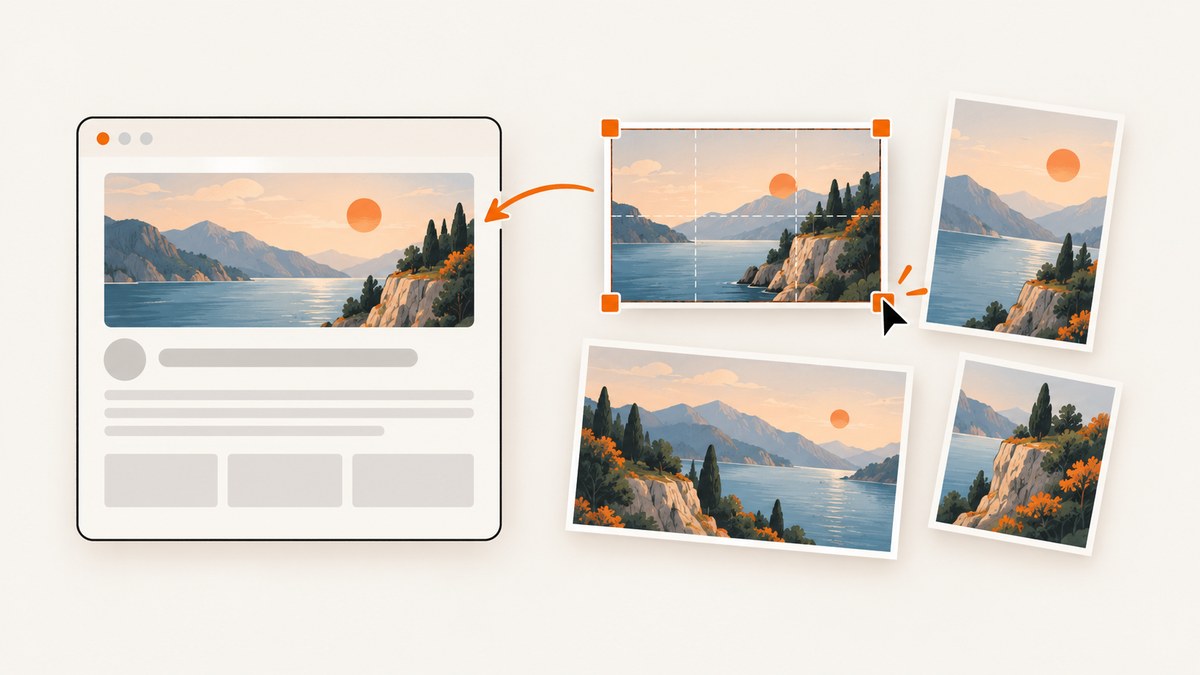
To change a WordPress thumbnail, first decide whether you mean the image assigned to a post or the size and crop used to display it. To replace the image, edit the post and choose a different Featured image. To change WordPress’s built-in thumbnail dimensions, go to Settings > Media, adjust Thumbnail width and height, choose whether to crop to those exact dimensions, and save. Existing uploads may need thumbnail regeneration. A theme, block, or plugin can use its own image size, so changing Media settings may not alter every card or archive.
This guide covers both meanings, how to refresh existing uploads, how to identify theme-specific behavior, and what to check when the displayed thumbnail does not change.
1. Identify which thumbnail you want to change
WordPress users often use “thumbnail” for two different things. Separating them prevents you from changing the wrong setting:
- Which image appears: the post or page’s Featured image assignment. Replace it in the editor.
- How the image appears: the size, crop, or frame used by a theme, block, page builder, or plugin. The image assignment can be correct even when its presentation is not.
For example, if a post grid shows the wrong photograph, replace the Featured image. If it shows the right photograph but cuts off a face, inspect the grid’s image size and crop settings. A post’s Featured image picker assigns an image; the theme or other layout controls decide which generated image size to display. [Learn WordPress: Regenerate Thumbnails lesson plan]
2. Replace the Featured image on a post or page
- In the WordPress dashboard, open Posts or Pages and edit the item.
- In the editor’s settings sidebar, find Featured image. If the sidebar is hidden, open the editor settings panel.
- Choose the current image to replace it, then select or upload the intended image in the Media Library picker.
- Confirm the selection and update or publish the post.
- Check the post and the relevant listing, such as an archive, category page, or homepage grid. They may use different layouts or sizes.
This changes which attachment is assigned. It does not guarantee that every layout will show the whole image or use a particular size. A theme or plugin can choose a custom registered size for its cards. If the correct image appears with an unwanted crop, continue with the size and layout steps below rather than repeatedly replacing the image.
3. Change WordPress’s built-in thumbnail dimensions
For the built-in Thumbnail size, use the Media settings in the dashboard:
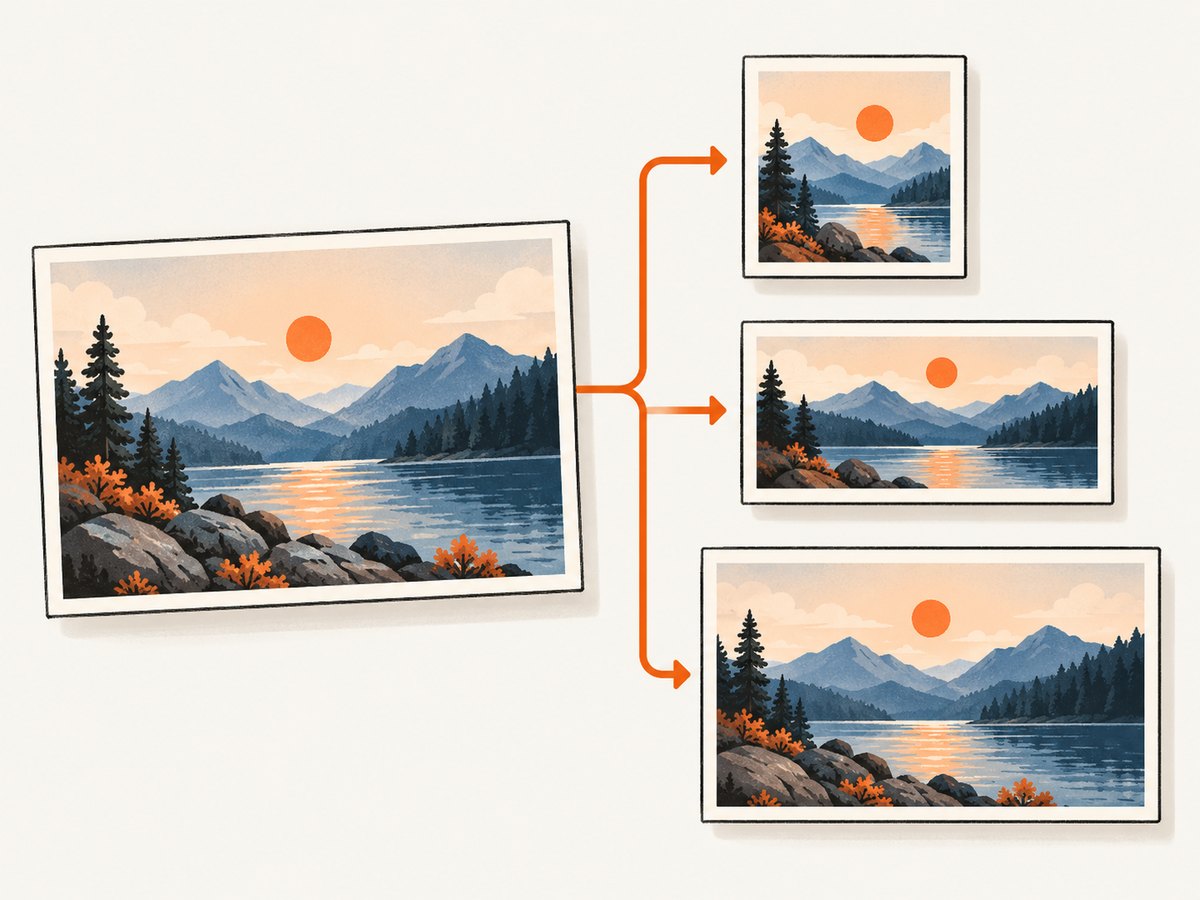
- Open Settings > Media.
- Note the current Thumbnail width and height, and whether the crop-to-exact-dimensions option is selected.
- Enter the desired width and height in pixels.
- Choose whether WordPress should crop the thumbnail to those exact dimensions. Save the changes.
- Regenerate existing thumbnails if existing uploads need variants made with the updated settings.
- Review a representative post and listing page. If the result still looks unchanged, check which image size the layout actually requests.
Settings for Thumbnail, Medium, and Large are available under Settings > Media. Learn WordPress gives 150×150 pixels for Thumbnail, 300×300 for Medium, and 1024×1024 for Large as lesson examples/defaults, and explains that these dimensions are configurable. Treat those figures as examples, not as a guarantee about the values currently stored on your site. [Learn WordPress: Regenerate Thumbnails lesson plan]
What the crop checkbox changes
When the exact-dimensions crop option is enabled, WordPress creates the Thumbnail variant at the requested width and height by cropping as needed. That is useful for consistently shaped cards, but it can cut off important content near an image edge. With cropping disabled, the generated image can preserve the original proportions within the requested dimensions; a layout may then display empty space or crop the image itself to fit its frame.
The generated file’s dimensions and the way a theme displays that file are separate concerns. A theme may crop an image with CSS, use a focal point, or request a custom size. If a face or subject is consistently cut off, look for an image position, focal point, fit, or crop control in the block, page builder, theme, or plugin responsible for that view.
4. Regenerate thumbnail files for existing uploads
Changing dimensions does not itself recreate every image variant already stored for older Media Library attachments. WordPress generates size variants when an image is uploaded; after settings or theme requirements change, older attachments may need a regeneration pass. [Learn WordPress: Regenerate Thumbnails lesson plan]
Dashboard workflow
- Find a maintained thumbnail-regeneration tool in the WordPress plugin directory.
- Check the selected tool’s current documentation, compatibility details, and instructions before running it.
- Run regeneration for the needed attachments or library, as its interface permits.
- Allow time for the process to finish, especially when the media library is large. Learn WordPress cautions that regeneration can take quite a bit of time for a large library; it does not give a universal duration. [Learn WordPress: Regenerate Thumbnails lesson plan]
- Review representative older uploads on the actual pages where they appear.
WP-CLI workflow
For an administrator who already uses WP-CLI and has shell access to the WordPress installation, the command named in Learn WordPress’s regeneration lesson is:
wp media regenerateRun it from the WordPress installation using an account and environment configured for WP-CLI. Follow the command’s prompts and options for your installed version. Regeneration creates image variants for registered sizes; it does not change which size a template requests, edit a theme’s crop behavior, or assign a different Featured image. The dashboard-plugin route is generally more suitable for site owners who do not use command-line tools. [Learn WordPress: Regenerate Thumbnails tutorial]
5. Find the setting that controls a theme or plugin thumbnail
If Media settings do not affect the thumbnail you are looking at, inspect the component that renders it. Special layouts such as post grids, archive cards, course listings, and page-builder modules may use a theme- or plugin-defined image size. WordPress support examples document questions about Featured Image size and automatic cropping; they illustrate the confusion but do not establish how every theme behaves. [WordPress.org Support Forums]
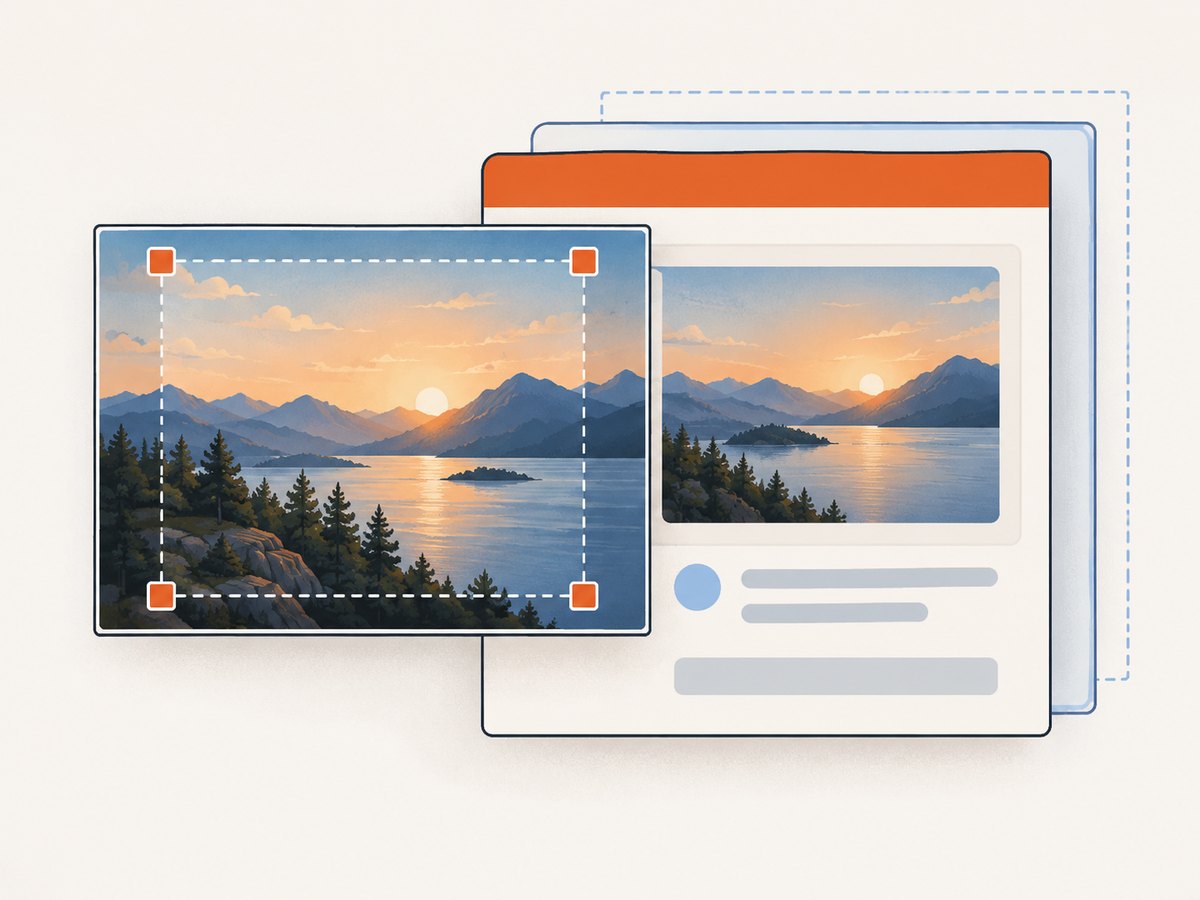
- Name the exact view. Note whether the problem is on a post, archive, homepage grid, course listing, or another layout.
- Identify its owner. Check whether the image is rendered by a theme template, a block, a page builder, or a plugin.
- Inspect that component’s controls and documentation. Look for image size, aspect ratio, crop, focal point, or object-fit settings.
- Check the requested size before bulk regeneration. If the layout expects a custom size, confirm that the active theme or plugin registers it.
- Regenerate only after the desired sizes are registered and settings are settled. Otherwise, a large pass may not create the variant the template needs.
- Clear relevant caches and reload the representative page. Confirm the result on the front end, not only in the editor preview.
Theme changes can introduce new image-size requirements. Existing uploads may need regeneration to create those variants, but regeneration alone cannot force a template to use the built-in Thumbnail size or change a deliberate crop rule. [Learn WordPress: Regenerate Thumbnails lesson plan]
6. Troubleshoot common thumbnail problems
| What you see | Likely cause | What to do |
|---|---|---|
| The wrong photo appears. | The post or page has a different Featured image assigned. | Edit the item and replace its Featured image, then update it. |
| The right photo appears, but the crop is wrong. | The built-in crop, theme, block, or plugin crops to a fixed shape or position. | Check the exact-dimensions crop option and the layout’s crop or focal-point controls. Test a representative card. |
| Changing Settings > Media has no visible effect. | The view may use a custom size or plugin-owned setting, or may apply its own display crop. | Identify the component rendering that specific view and inspect its settings and documentation before regenerating. |
| New uploads look different from older ones. | Older attachments may not have variants for changed Media settings or new theme sizes. | Regenerate the relevant existing thumbnails after confirming which sizes the site uses. |
| Regeneration finishes, but a card still has the same crop. | The template may request another size or crop the image at display time. | Check the requested image size and layout crop rules. Regeneration creates files; it does not rewrite template behavior. |
| A change appears in the editor but not on the public page. | A relevant cache or the page’s separate template may be showing an older or differently configured result. | Clear relevant caches if appropriate, reload the front end, and inspect the exact listing component. |
| A large regeneration seems slow. | Many attachments and variants may need processing. | Let the tool finish and consult its current instructions. Learn WordPress notes that large libraries can take quite a bit of time; there is no single duration that applies to every site. |
7. A practical verification checklist
- Assignment: Is the intended attachment selected as the post’s Featured image?
- Dimensions: Are the built-in Thumbnail width and height set as intended?
- Crop: Is exact-size cropping on or off as required?
- Layout: Which theme, block, page builder, or plugin controls the affected view?
- Registered size: Does that component request a size the active site has registered?
- Existing files: Were older attachments regenerated after settings or theme requirements changed?
- Cache and review: Have you checked the public page after clearing relevant caches where appropriate?
8. Or skip the browser setup
If you need to inspect how a WordPress page or thumbnail layout looks from a browser, ScreenshotNeo is a website screenshot API and MCP server. A single GET request can return a PNG, JPEG, WebP, or PDF. See the ScreenshotNeo API documentation for the request options.
curl -G "https://api.screenshotneo.com/v1/shot" -d access_key=YOUR_API_KEY --data-urlencode url=https://example.com -o shot.webpimport requests
r = requests.get(
"https://api.screenshotneo.com/v1/shot",
params={"access_key": "YOUR_API_KEY", "url": "https://example.com"},
timeout=90,
)
open("shot.webp", "wb").write(r.content)const q = new URLSearchParams({ access_key: 'YOUR_API_KEY', url: 'https://example.com' });
const res = await fetch(`https://api.screenshotneo.com/v1/shot?${q}`);
if (!res.ok) throw new Error(`Screenshot request failed: ${res.status}`);
await Bun.write('shot.webp', res);Replace https://example.com with the public page you want to inspect and YOUR_API_KEY with your key. ScreenshotNeo removes cookie banners, newsletter popups, and chat widgets before capture; bot checks, blank pages, and failed loads are never billed. Its MCP server lets AI agents take screenshots. The free plan includes 1,000 screenshots a month with no card, and paid plans start at $5 for 3,000. Sign up for 1,000 free screenshots a month.
9. Performance, reliability, and maintenance notes
Changing dimensions is a small settings task; recreating variants across an existing library is the potentially lengthy part. The time depends on the library and the work required, so do not assume a fixed completion time. Learn WordPress specifically notes that regenerating thumbnails can take quite a bit of time for a large media library. [Learn WordPress: Regenerate Thumbnails lesson plan]
For a predictable result, first settle the desired dimensions and crop, then identify custom sizes required by the active theme or plugin, and only then regenerate. Check both a recent upload and an older attachment in the target layout. Keep the original image available: a regenerated size is a derivative, and changing its crop does not repair the template’s display rules. If the result is still wrong, gather the exact page or grid name, active theme or plugin, selected image, and requested size before changing settings again.
10. FAQ
Does changing the Featured image change its thumbnail dimensions?
No. It changes which image is assigned. The theme, block, or plugin determines which image size and crop appears in each layout.
Will changing Media settings update all my old images?
Do not assume so. Existing attachments may need thumbnail regeneration to create variants for changed settings or theme sizes.
Why does my WordPress thumbnail look cropped even when the source image is wide?
The built-in Thumbnail crop option or the layout’s own fixed frame may be cropping it. Check both the Media setting and the component that displays the image.
Should I regenerate thumbnails after changing themes?
If the new theme needs image sizes that older attachments do not have, regeneration can create those variants. First confirm the theme’s requirements and which sizes the affected templates request.
Can a screenshot show the same crop my visitor sees?
A browser capture can show the rendered public page. It does not reveal which WordPress setting or template selected that crop; use the editor, theme, block, or plugin controls to find its source.


