How to Use ChatGPT to Find Hidden Data on Web Pages
Use ChatGPT to locate hard-to-find public webpage data, check it against the source, and handle tables, dynamic content, and access limits.

ChatGPT can help locate a specific value, row, or passage on a webpage when you give it the page and say exactly what to find. For reliable results, use a page access method that fits the task, ask for the source and surrounding evidence, then open that source and verify the result yourself. “Hidden” here means difficult to spot, buried in a table, or revealed through a normal site interaction. It does not mean private information or content you are not authorized to access.
For example, you might ask ChatGPT to find every row for a particular date, the value in a named column, or the section that lists a product’s supported regions. A useful answer identifies where the value appears and gives you enough context to check it. A citation is a lead to inspect, not proof that extraction is complete or correct.
1. Define what you want to find
Start with one URL and a small, concrete set of fields. “Find everything interesting” is hard to verify and often leads to an incomplete answer. Specify the names, date range, units, and matching rules that matter.
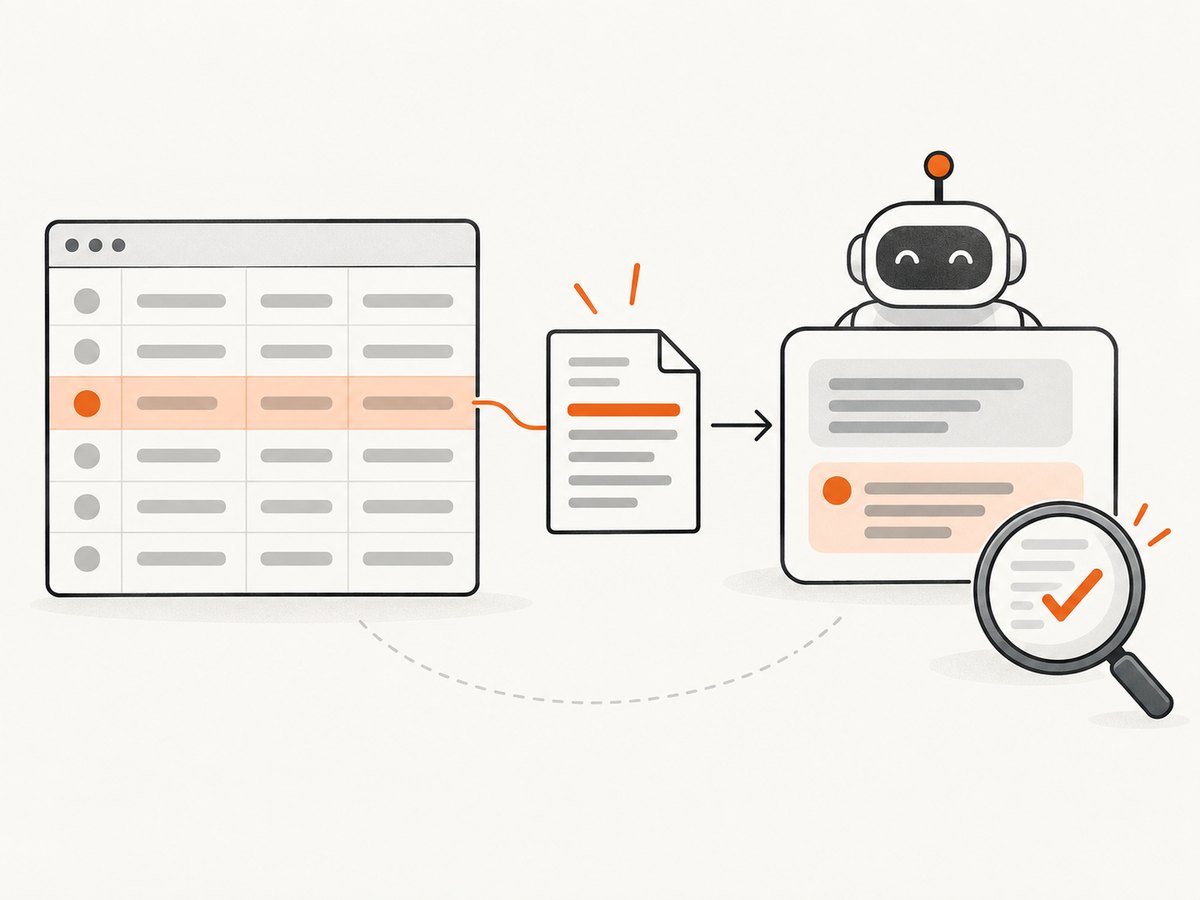
A useful request identifies:
- The page: Give the exact URL, or open it in a browser environment that ChatGPT can access.
- The fields: Name the column, label, heading, or value you need.
- The filter: Say which rows or entries qualify, including dates, categories, or exact-match rules.
- The output: Ask for a table or list, and request a source link and the heading, table name, or nearby text for each result.
- Uncertainty: Tell ChatGPT to mark missing or ambiguous values instead of guessing.
For instance: “On this public page, find the rows for Q2 2025. Return the date, region, and reported total. Include the page link and the table heading, preserve the units, and mark any unclear cell as uncertain.”
That is more useful than “What data is on this page?” because it sets a scope and makes it easier to compare the response with the source.
2. Choose a way for ChatGPT to access the page
Different ChatGPT capabilities suit different jobs. Availability can vary with the account, model, site, plan, and workspace settings. If a method is unavailable, use another permitted route or provide the relevant page content yourself.
| Method | Best for | What to keep in mind |
|---|---|---|
| ChatGPT Search | Finding and cross-checking public web sources | Results and citations may be incomplete, outdated, or incorrect. Open the source and compare the relevant content. |
| Deep research | A question that needs a cited report across sources, or prioritizing selected websites | It is designed for multi-source research, not a guarantee of a complete extraction from one page. Access to connected sources follows user and workspace permissions. |
| Built-in desktop browser | Working with pages and tabs in the desktop app | Availability and features can depend on the plan and workspace. A page you can see may still have content that requires a click, sign-in, or other interaction. |
| Site tools | A supported website’s own search or interactive functions | Tools are available only when the current site and account/model provide a matching tool. Inspect the tool and access prompts, and interact only with trusted sites. |
OpenAI describes site tools as using WebMCP, a proposed web standard. Such tools can expose site functions that are not obvious from ordinary page controls, but they do not provide universal access to every website or every hidden value. Treat tool permissions carefully: a site interaction can have consequences, and untrusted page content can try to influence an AI assistant.
ChatGPT’s offline web search can rely on indexed or cached pages. Coverage and freshness vary. A specific URL may be absent from the index, and dynamic, personalized, login-gated, frequently updated, niche, or region-specific pages may not be represented fully. Search is a sensible first pass for public discovery; it may not be enough for a page whose data appears only after interaction.
3. Ask for results you can verify
Ask for the value and its evidence together. For a table, useful evidence includes the page URL, table title or nearby heading, matching row labels, date, units, and relevant surrounding text. For a narrative page, ask for the heading and a short description of the passage’s location.
Do not assume ChatGPT can provide a stable cell address or a complete representation of the webpage. The goal is to get enough context to find the value again yourself. If the response provides a citation, open it. Confirm that the page is the intended one, that the value is still present, and that the row or passage means what the answer says it means.
How can I find data on a webpage with ChatGPT?
- Open a new chat and choose a page-access option available to you: Search, the desktop browser, deep research, or a supported site tool.
- Provide the exact URL when you have one. If you need to discover a source first, describe the kind of source and ask ChatGPT to show its sources.
- Describe the fields and filter as precisely as possible. Include the desired date range, category, units, and whether partial matches count.
- Request evidence and uncertainty labels. Ask for the page link and table heading, row labels, or passage location. Ask it to say when a value cannot be found.
- Open the source and compare. Check each returned value in context, including headings, footnotes, units, and dates.
- Refine the request if needed. If the source is right but a result is missing, name the table or section. If the source cannot be accessed, provide the relevant material through an authorized route.
A reusable prompt:

On this page: [URL]
Find: [specific fields or values]
Include only: [date range, category, matching rule]
Return: [table or list with units]
For each result, include the page link and the table heading, row labels, or passage location that supports it. Mark values you cannot confirm as uncertain. Do not fill gaps by guessing.
Can ChatGPT read a table on a website?
It can help interpret a table when the page content is accessible to the chosen method. Ask for named columns and rows, and verify the result against the original table. Tables can be difficult to interpret when headers span multiple rows, columns are truncated on a narrow screen, footnotes change a value’s meaning, or units are shown outside the table.
For a wide or long table, narrow the request: ask for one date range or category at a time, and request the header and units along with the matching entries. If the table is an image, a screenshot or image upload may help, but visual extraction can still confuse small text, merged cells, or similar-looking values. Check the original at a readable size.
How do I get ChatGPT to find a specific value on a page?
Name the value’s label and the context that distinguishes it. If you want the “annual total,” say which year, currency, or table is relevant. If the same field appears in a summary and a detailed table, ask for both and request that ChatGPT flag a disagreement instead of choosing silently.
When the page changes over time, include the date you accessed it or the reporting period you mean. A result from a cached search may describe an older version. If freshness matters, use permitted live page access or supply a current copy of the relevant content.
Why can’t ChatGPT see data that appears when I click or sign in?
A page can load its content only after a button click, a filter choice, a scroll, or an account sign-in. Search indexing may not capture those states. A browser or site tool may support some interactions on some pages, but support is not universal. A personalized dashboard can also show different data to different users.
Use only an account and page you are authorized to access. If ChatGPT cannot reach the needed state, navigate to it yourself and paste or upload the relevant data you are allowed to share. Do not ask it to bypass login controls or other site restrictions. If a desktop app’s on-page feature cannot read a site, check whether that site’s visibility setting is disabled; Atlas browsing settings can prevent on-page features from reading content on a disabled site.
4. Verify the answer before using it
Open each cited page and look at the actual row or passage. A link to the right domain is not enough: check that it is the right page and that the evidence supports the value claimed.
- Confirm the label, date, units, and row align with your question.
- Read footnotes and nearby text that qualify the number.
- Check whether the page shows a current value or a past reporting period.
- Compare conflicting entries instead of silently picking one.
- For consequential decisions, use the primary source and an independent check where practical.
OpenAI’s guidance warns that “Search results and citations may be incomplete, outdated, or incorrect.” If you cannot verify a result, treat it as unconfirmed. Ask again with the exact source, date, or page location, or provide the source material yourself.
5. Troubleshoot missing or incorrect results
| Symptom | Likely cause | What to try |
|---|---|---|
| ChatGPT returns a different page | The query matched another page, source, or older result. | Provide the exact URL. Ask it to use that page and identify the source used for each value. |
| A page citation opens, but the value is absent | The result may be stale, incomplete, or drawn from nearby content. | Check the current page directly. Ask for the specific table or passage and verify every value. |
| A table row or column is missing | The table is long, wide, dynamically loaded, or hard to interpret. | Split the request by category or date. Supply the visible table content or a readable capture if permitted. |
| Content appears only after a click | The first page state does not contain the data, or the access method cannot interact with that control. | Use a supported browser or site tool if available. Otherwise navigate to the state yourself and provide the relevant content. |
| Results differ between people or sessions | The site may personalize content by account, location, or session. | Check the same authorized account and state. Include the reporting context and date in your request. |
| A site tool is unavailable | The site, account, model, or workspace does not currently offer a matching tool. | Use another available method or paste/upload the relevant material you can access. |
| On-page features cannot read a site | A browsing visibility setting may prevent page access. | Review the relevant browser settings, such as the site visibility settings in ChatGPT Atlas. |
| The answer invents a missing cell | The request did not clearly distinguish “not present” from “infer.” | Ask for uncertain or unavailable values to be labeled and never inferred. Recheck the source. |
6. Improve speed, reliability, and cost control
For a short lookup on a public page, begin with a narrow request and one source. Broad research across many sources can take more work and return more material to verify than a single-page check requires. Use deep research when you need a cited synthesis across sources or want it to prioritize named websites, rather than expecting it to guarantee exhaustive extraction from one dynamic page.
Break large extraction jobs into bounded groups, such as one year or category at a time. This makes omissions easier to notice and reduces the chance that a long answer obscures a mistaken row. Preserve the original units and labels in your output so values remain interpretable outside the chat.
For repeatable work, keep the URL, access date, prompt, and verified output together. Recheck changing pages each time you rely on them. Do not treat a cached result as live data, and do not use ChatGPT output as the only record of an important figure. Costs and availability depend on the ChatGPT plan and tools you use; check your account’s current plan details for applicable limits rather than assuming a feature is included.
Or skip the browser setup
If you need a clean page image to inspect or share with an AI workflow, ScreenshotNeo is a website screenshot API and MCP server. One GET request returns a PNG, JPEG, WebP, or PDF. It does not extract table values by itself; use the resulting capture as source material for your own review or an AI workflow. See the ScreenshotNeo API documentation for request options.
curl -G "https://api.screenshotneo.com/v1/shot" -d access_key=YOUR_API_KEY --data-urlencode url=https://stripe.com -o shot.webpimport requests
r = requests.get(
"https://api.screenshotneo.com/v1/shot",
params={"access_key": "YOUR_API_KEY", "url": "https://stripe.com"},
timeout=90,
)
open("shot.webp", "wb").write(r.content)const q = new URLSearchParams({ access_key: 'YOUR_API_KEY', url: 'https://stripe.com' });
const res = await fetch(`https://api.screenshotneo.com/v1/shot?${q}`);
if (!res.ok) throw new Error(`Screenshot request failed: ${res.status}`);
await Bun.write('shot.webp', res);Replace the example URL with the page you are authorized to access. Keep the API key private. ScreenshotNeo can remove cookie banners, newsletter popups, and chat widgets before the capture; bot checks, blank pages, and failed loads are never billed. Its MCP server lets AI agents take screenshots. The Free plan includes 1,000 screenshots a month with no card; paid plans start at $5 for 3,000 screenshots.
Sign up for 1,000 free screenshots a month, with no card required.
FAQ
Can ChatGPT find every value on a page?
No. Access, indexing, page structure, and the question all affect what it can retrieve. Verify results against the page and do not assume an extraction is exhaustive.
Can ChatGPT access a page that requires my login?
Only through access and tools that are available and authorized for your account. Otherwise, provide relevant content you are allowed to share. ChatGPT should not be used to bypass access controls.
Should I use Search or deep research for one value?
Start with Search or direct page access for a single public-page lookup. Use deep research when you need a cited report across sources or selected-site prioritization.
What if the value is in a screenshot or scanned table?
Provide a readable image or source file if your tools support it, then check small text, units, and merged cells against the original. Visual extraction can be uncertain.