How to Check Android Screen Size with ADB
Use ADB to read Android resolution, logical density, display overrides, and diagnostics—and understand why it cannot reveal physical screen inches.
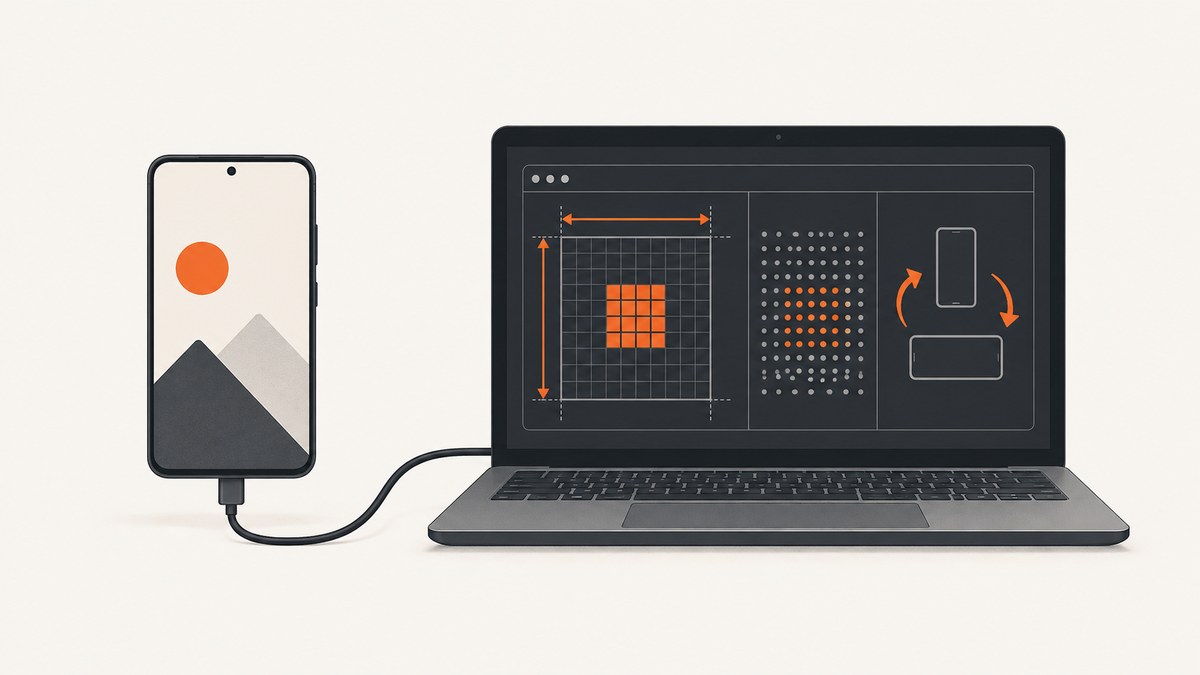
Use these commands: adb shell wm size reports the display’s width and height in pixels, adb shell wm density reports logical density, and adb shell dumpsys display provides broader display-service details. ADB cannot determine the panel’s reliable physical diagonal in inches; use the manufacturer’s specifications or measure the screen.
1. Check that ADB can see the device
Install Android SDK Platform-Tools, enable Developer options and USB debugging on the device, connect it, then run:
adb devicesThe device should appear with the state device. If it says unauthorized, unlock the phone and accept the RSA debugging prompt. If no device appears, see the troubleshooting section below.
2. Read Android’s reported screen size
adb shell wm sizeA typical result looks like:
Physical size: 1080x2400
Override size: 720x1600
The physical/native line describes the panel configuration known to Android. The override line means Window Manager is currently emulating a different logical size; that override is what apps generally observe through the display metrics. If only one line appears, there may be no active override.
Record the order as width x height. Rotation changes which dimension is presented as width and height, so capture the device orientation with the output.
3. Check logical density (DPI-style value)
adb shell wm densityExample:
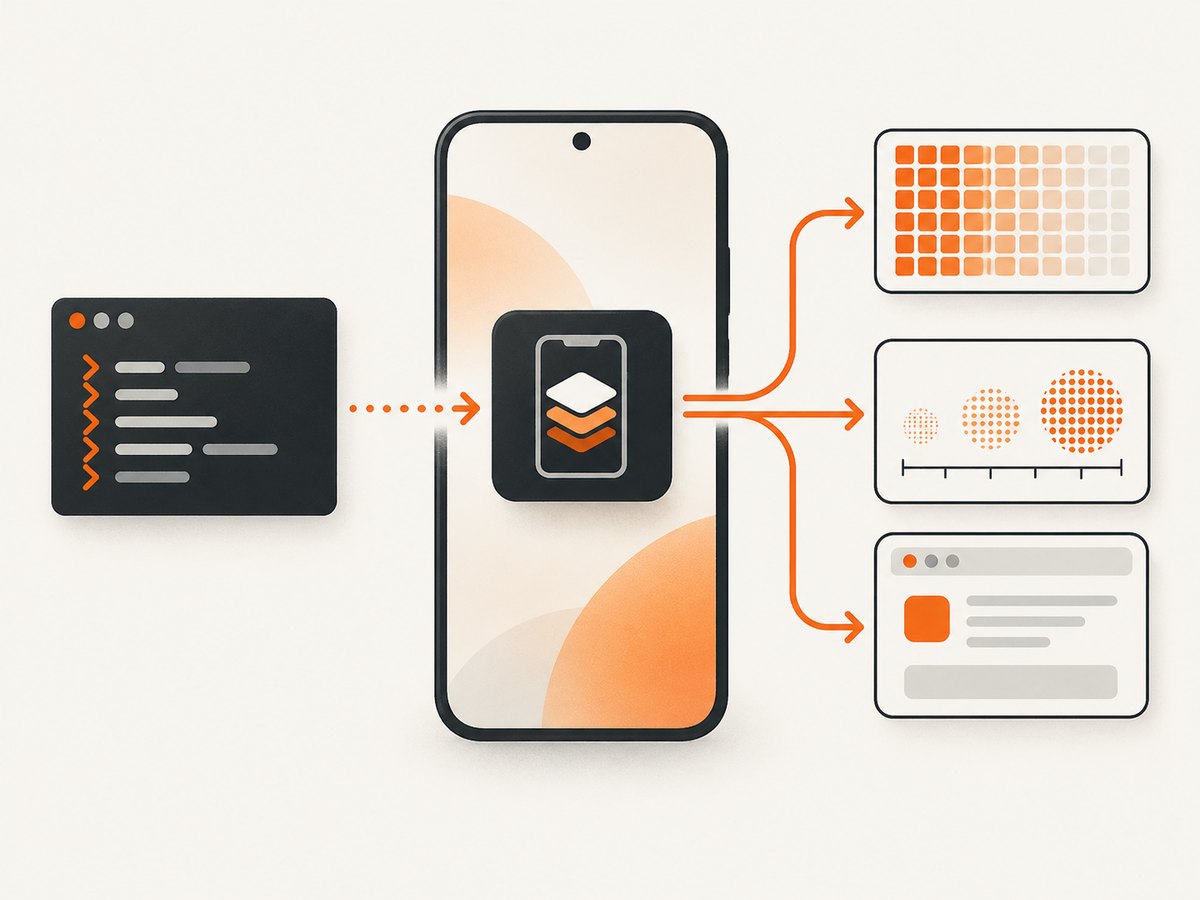
Physical density: 420
Override density: 320
This is Android’s logical density used to convert density-independent pixels (dp) to physical pixels. It is a scaling value, not a measurement of the panel’s diagonal size or guaranteed hardware pixels-per-inch. An override, if present, is the active logical value.
4. Inspect complete display-service diagnostics
adb shell dumpsys displaydumpsys can be very verbose. Save it to a file and search for the display record you need:
adb shell dumpsys display > display.txt
rg -n "DisplayDeviceInfo|mBaseDisplayInfo|logicalWidth|logicalHeight|density|rotation" display.txt
Android’s dumpsys guidance recommends targeting a service instead of collecting unrestricted system output. On devices with multiple displays, note the display ID and inspect the record associated with the screen you are investigating.
5. A repeatable command sequence
adb devices
adb shell wm size
adb shell wm density
adb shell dumpsys display
For a useful inventory record, save:
- the exact command output;
- device model and Android/API level;
- orientation and display ID;
- whether the device is in multi-window, desktop, or partitioned-display mode;
- any size or density override.
6. Reset test overrides
If a test changed the emulated size or density, remove those overrides and rerun the read commands:
adb shell wm size reset
adb shell wm density reset
adb shell wm size
adb shell wm density
Resetting restores the device’s normal Window Manager configuration. It does not change the panel’s physical characteristics.
7. What each value means
| Command | Reports | Use it for | Do not infer |
|---|---|---|---|
wm size |
Reported logical width and height, plus native and override values when available | Reproducing an emulator or Window Manager configuration | Exact physical diagonal inches |
wm density |
Logical density used by Android scaling | Understanding dp-to-pixel behavior and density overrides | Guaranteed hardware DPI or screen size |
dumpsys display |
Display-service records, modes, IDs, rotation and metrics | Diagnostics and multi-display investigations | A single universally correct app window size |
Android distinguishes logical display areas from native physical characteristics. A reported size can be affected by system decorations, scaling, display partitions and Window Manager emulation. For app-layout decisions, the usable application window can be smaller than the global display because of multi-window mode or a partitioned display; current window metrics are more appropriate than assuming one global value.
8. Can ADB tell you the screen size in inches?
No—not reliably from wm size and wm density alone. Resolution and logical density do not uniquely determine the physical diagonal. Two panels can expose similar logical values while having different dimensions, and overrides deliberately change the reported logical configuration.
For a physical diagonal:
- look up the exact model in the manufacturer’s specifications;
- measure the visible panel diagonally with a ruler, excluding the bezel;
- treat any value calculated from ADB metrics as an estimate only, not a device fact.
9. Capture the output with scripts
Shell
#!/usr/bin/env bash
set -euo pipefail

adb devices
printf '\n=== wm size ===\n'
adb shell wm size
printf '\n=== wm density ===\n'
adb shell wm density
printf '\n=== display summary ===\n'
adb shell dumpsys display | grep -E 'DisplayDeviceInfo|logicalWidth|logicalHeight|density|rotation|mBaseDisplayInfo' || true
Python
import subprocess

def adb(*args):
    result = subprocess.run(["adb", *args], text=True, capture_output=True, check=True)
    return result.stdout.strip()

print("=== devices ===")
print(adb("devices"))
print("=== wm size ===")
print(adb("shell", "wm", "size"))
print("=== wm density ===")
print(adb("shell", "wm", "density"))
print("=== display ===")
print(adb("shell", "dumpsys", "display"))
Node.js
import { execFile } from "node:child_process";
import { promisify } from "node:util";
const run = promisify(execFile);

async function adb(...args) {
  const { stdout } = await run("adb", args);
  return stdout.trim();
}

console.log("=== devices ===\n" + await adb("devices"));
console.log("=== wm size ===\n" + await adb("shell", "wm", "size"));
console.log("=== wm density ===\n" + await adb("shell", "wm", "density"));
console.log("=== display ===\n" + await adb("shell", "dumpsys", "display"));
10. Troubleshooting
| Symptom | Cause | Fix |
|---|---|---|
adb: command not found |
Platform-Tools is not installed or is not on PATH | Install the Android SDK Platform-Tools package and add its directory to PATH. |
| No device listed | USB debugging, cable, driver, authorization, or wireless pairing issue | Enable USB debugging, use a data-capable cable, install the platform-specific USB driver where required, reconnect, and run adb kill-server && adb start-server. |
unauthorized |
The phone has not approved this computer | Unlock the phone, accept the debugging prompt, then rerun adb devices. |
| Only an override appears | A test override is active | Run adb shell wm size reset and rerun the command. |
| Unexpected dimensions | Rotation, desktop mode, multi-window, display partition, or emulation | Record orientation and display ID, inspect dumpsys display, and compare with the app’s current window metrics. |
| Density does not match the product specification | Android is reporting logical density or an override | Check for Override density; do not treat it as physical panel PPI. |
dumpsys display is overwhelming |
The service emits many records | Redirect to a file and filter for the display ID, dimensions, density and rotation you need. |
11. Performance, reliability and automation notes
- Speed:
wm sizeandwm densityare lightweight shell queries.dumpsys displayis larger and slower to parse, so use it for diagnostics rather than every test iteration. - Reliability: Keep the device awake and unlocked when collecting repeated records, and identify the target serial with
adb -s SERIALwhen several devices are connected. - Reproducibility: Store raw output alongside model, Android/API level, orientation, display ID and override state. This prevents a later comparison from mixing native, emulated and app-window values.
- Wireless debugging: The same shell commands work after pairing over Wi-Fi; a USB-C data cable is only relevant to a wired setup.
12. Or skip the browser setup
If your goal is a screenshot of a web page at a particular viewport rather than Android display diagnostics, ScreenshotNeo provides a single HTTP request. See the ScreenshotNeo API docs for parameters and response details.
curl -G "https://api.screenshotneo.com/v1/shot" -d access_key=YOUR_API_KEY --data-urlencode url=https://stripe.com -o shot.webpimport requests
r = requests.get("https://api.screenshotneo.com/v1/shot", params={"access_key": "YOUR_API_KEY", "url": "https://stripe.com"}, timeout=90)
open("shot.webp", "wb").write(r.content)const q = new URLSearchParams({ access_key: 'YOUR_API_KEY', url: 'https://stripe.com' });
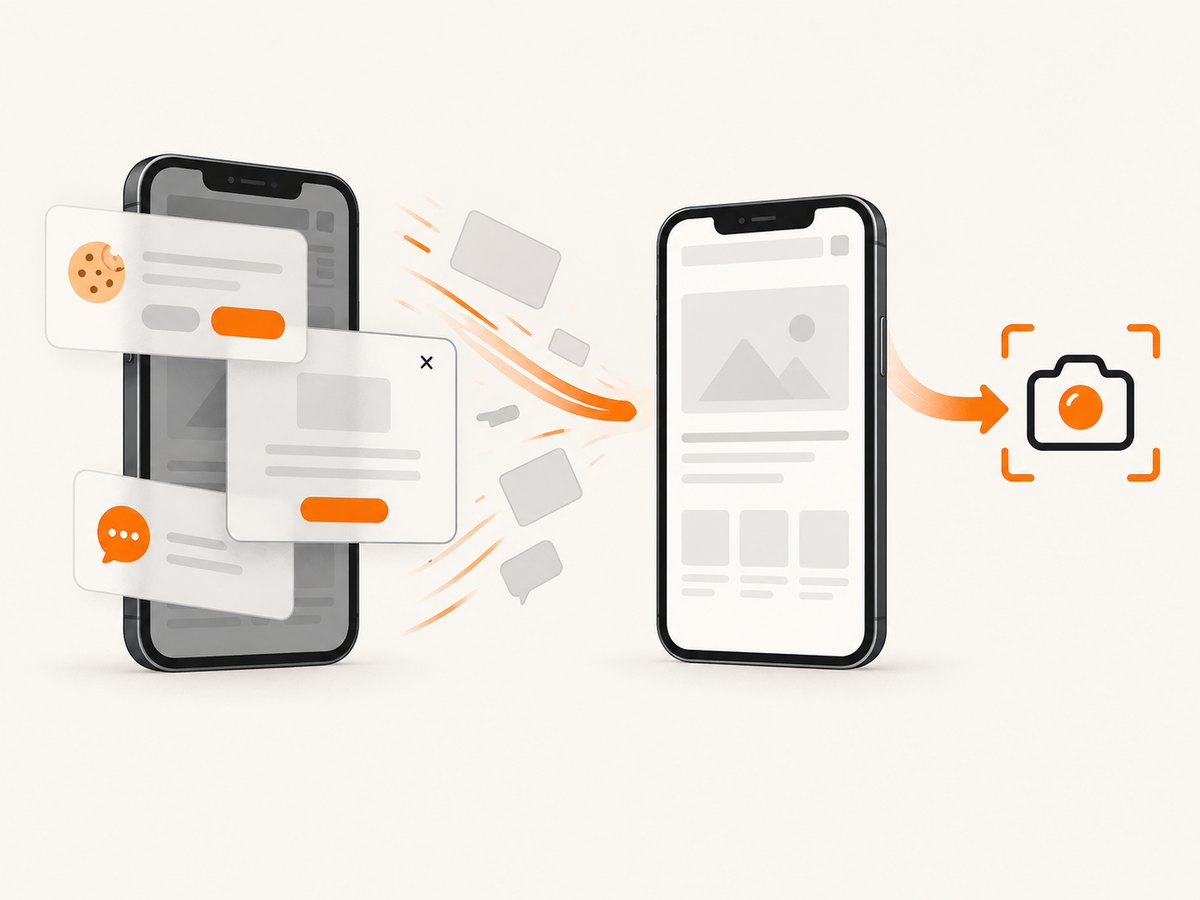
const res = await fetch(`https://api.screenshotneo.com/v1/shot?${q}`);Cookie banners, newsletter popups and chat widgets are removed before the shot. Bot checks, blank pages and failed loads are never billed, and response headers identify the page verdict and whether it was billed. Its MCP server lets AI agents take screenshots, inspect pages and capture PDFs. The Free plan includes 1,000 screenshots a month with no card; paid plans start at $5 for 3,000 shots. Create a free ScreenshotNeo account.
13. FAQ
What command shows Android resolution?
Run adb shell wm size. Check for both physical/native and override lines.
What command shows Android DPI?
Run adb shell wm density. It reports logical density, not guaranteed hardware PPI.
Why does my app see less space than wm size?
System bars, rotation, multi-window mode or display partitioning can reduce the application window. Use current window metrics inside the app.
Can I use these commands on an emulator?
Yes. Emulator configuration and Window Manager overrides can make logical values differ from the emulated device profile, so record both.
How do I compare two phones fairly?
Collect the same commands on each, record model, API level, orientation, display ID and overrides, then compare native and logical values separately.


