How to Check Whether an Element Is Visible With JavaScript or Puppeteer
Check an element’s current visibility in JavaScript, wait for it in Puppeteer, or use a locator when the next step is an interaction.
To check an element you already have in Puppeteer, call await elementHandle.isVisible(); it returns a boolean. To wait for a selector to become visible, call page.waitForSelector(selector, { visible: true }). If your goal is to click, fill, or hover, prefer page.locator(selector) because Puppeteer waits for action readiness conditions. In browser-side JavaScript, inspect the element’s computed style and bounding rectangle, while remembering that “visible” depends on the test you choose.
These APIs do not answer exactly the same question. Puppeteer documents isVisible() in terms of computed styles, a non-empty bounding rectangle, and a visibility value other than hidden or collapse. The waitForSelector visibility option waits for a matching element to be present and visible; its API documentation describes checks for display and visibility. A positive result does not prove that an element is unobstructed, legible, or guaranteed to receive a click. Use the method that matches the task, and describe its result as visible according to that method’s criteria. See Puppeteer’s documentation for ElementHandle.isVisible(), Page.waitForSelector(), and page interactions and locators.
1. Choose the visibility check for your task
| What you need | Use | What it tells you |
|---|---|---|
| Check a handle’s current state | await handle.isVisible() |
Whether this handle meets Puppeteer’s documented visibility criteria now. |
| Wait for a matching selector | page.waitForSelector(sel, { visible: true }) |
Whether a matching element appears and passes the wait’s visibility check before timeout. |
| Wait, then interact | page.locator(sel).click() or another locator action |
Performs the action after its locator readiness checks. |
| Check an element in browser JavaScript | A DOM query plus computed-style and geometry checks | A custom, immediate check whose meaning you define. |
A check is not a wait. If an element may appear later, an immediate query can report that it is absent or hidden before the page finishes rendering. In that case, wait for the relevant condition rather than checking once and assuming the state will change by itself.
2. Check current visibility in browser JavaScript
This helper accepts an element and checks whether it has a non-empty layout rectangle and is not hidden by common CSS visibility properties. It returns false for a missing element only if you pass null; the function below handles that case explicitly.
function isVisible(element) {
  if (!(element instanceof Element)) return false;

  const style = window.getComputedStyle(element);
  const rect = element.getBoundingClientRect();

  return (
    style.display !== 'none' &&
    style.visibility !== 'hidden' &&
    style.visibility !== 'collapse' &&
    rect.width > 0 &&
    rect.height > 0
  );
}

const target = document.querySelector('.target');
console.log(isVisible(target));
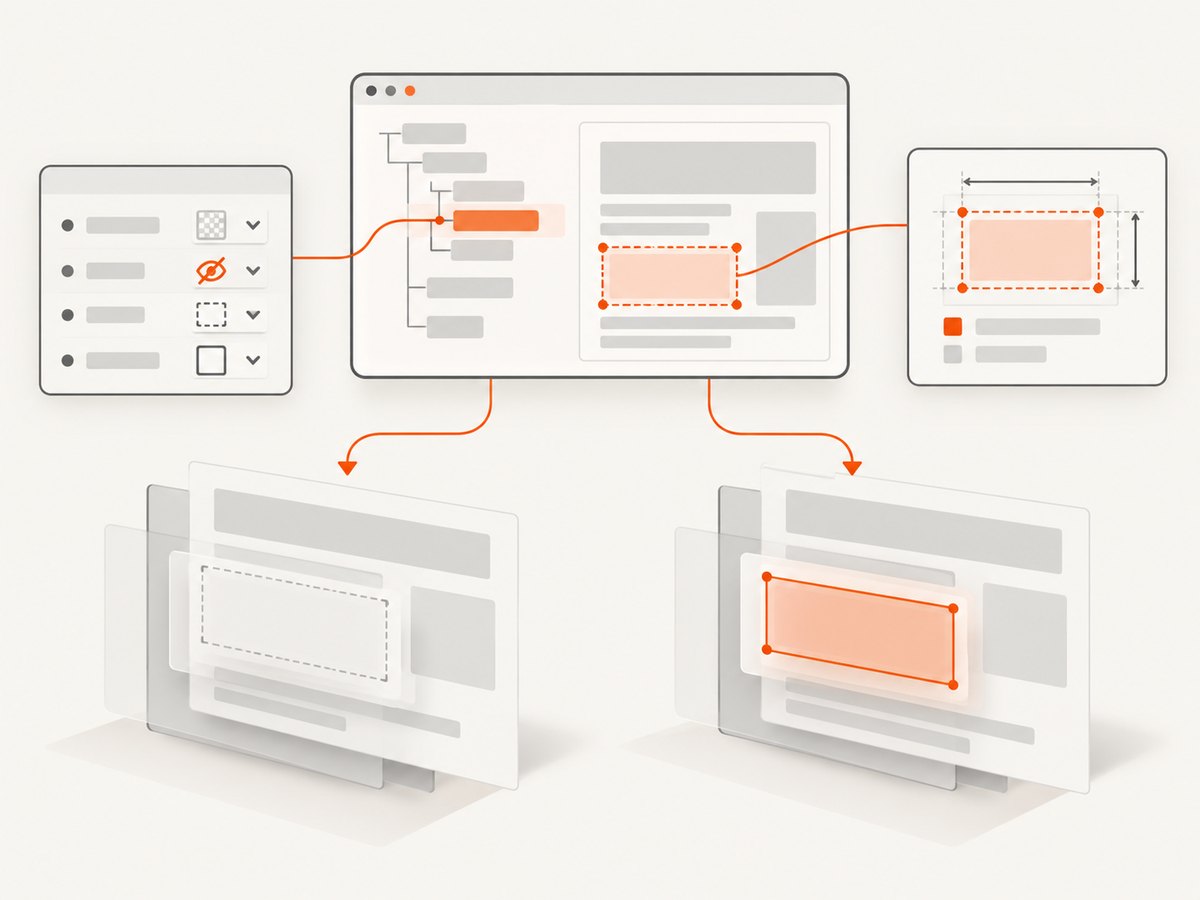
This is a useful practical check, not a universal definition of visibility. display: none normally produces no layout box; visibility: hidden and collapse suppress visibility; and zero width or height fails the geometry condition. An element can still be transparent with opacity: 0, covered by another element, outside the viewport, or visually obscured in ways this helper does not detect. Add checks only if those distinctions matter to your use case.
For an element nested inside a hidden ancestor, inspecting only the target’s computed style can miss the reason the target is not rendered. CSS inheritance and layout affect descendants, but ancestor rules such as display: none can prevent the descendant from having a usable box. If you need to explain why the result is false, inspect the ancestor chain as well as the target. For user interaction, use a browser automation action with readiness checks instead of treating this helper as proof a click will succeed.
Run the check after the DOM exists
In a page script, defer the query until the relevant markup has loaded. If your code runs as a module or after the document has been parsed, query at that point. If it runs earlier, listen for DOMContentLoaded. For content rendered later by application code, the DOM-ready event alone may not be sufficient: wait for the application’s own state or observe DOM changes.
document.addEventListener('DOMContentLoaded', () => {
  const target = document.querySelector('.target');
  console.log(isVisible(target));
});
3. Check an existing element in Puppeteer
ElementHandle.isVisible() is an immediate query. It resolves to a boolean. Puppeteer defines visibility as having computed styles, a non-empty bounding client rectangle, and a visibility value that is neither hidden nor collapse. It does not wait for an element to become visible.
const handle = await page.$('.target');

if (!handle) {
  console.log('No matching element');
} else {
  console.log('Visible by Puppeteer criteria:', await handle.isVisible());
  await handle.dispose();
}
Dispose of a handle when you no longer need it. An ElementHandle keeps its referenced DOM element from being garbage-collected until the handle is disposed or its associated frame is destroyed. A selector that matches nothing returns null, so guard against that before calling a handle method.
4. Wait for a selector to become visible
Use waitForSelector when the selector may not be in the page yet, or may exist in a hidden state before becoming visible:
const element = await page.waitForSelector('.target', {
  visible: true,
  timeout: 10_000,
});

if (element) {
  console.log('A visible match appeared');
  await element.dispose();
}
The selector must match an element in the DOM, and visible: true asks Puppeteer to wait until it is visible. If a visible match does not appear before the timeout, the wait rejects with a timeout error. The documented default timeout is 30 seconds; you can override it per call as above or configure page-wide defaults with page.setDefaultTimeout(milliseconds). The API also supports an AbortSignal so a caller can cancel a wait.
Use hidden: true when you need to wait until the selector is absent or hidden. The documented option defaults to false, as does visible; they describe opposite waiting conditions, so do not set both expecting a single clear target state. See the WaitForSelectorOptions reference for the version you use, since documentation and defaults can change.
5. Complete runnable Puppeteer example
The following Node.js script opens a page, waits for a selector, reports success, and closes the browser even if navigation or waiting fails. Install Puppeteer in a project with npm install puppeteer, save this as visible.js, then run node visible.js.
import puppeteer from 'puppeteer';

const url = 'https://example.com';
const selector = 'h1';
const browser = await puppeteer.launch({ headless: true });

try {
  const page = await browser.newPage();
  page.setDefaultTimeout(15_000);
  await page.goto(url, { waitUntil: 'domcontentloaded' });

  try {
    const element = await page.waitForSelector(selector, {
      visible: true,
      timeout: 8_000,
    });

    console.log(`${selector} became visible`);
    await element?.dispose();
  } catch (error) {
    if (error.name === 'TimeoutError') {
      console.log(`${selector} did not become visible before the timeout`);
    } else {
      throw error;
    }
  }
} finally {
  await browser.close();
}
This example uses top-level await, supported in Node.js ES modules. Set "type": "module" in your project’s package.json, or use an .mjs filename. Replace the URL and selector with the page and element you need. domcontentloaded avoids waiting for every image and other resource; if the target is created later by client-side code, the selector wait handles that later appearance.
6. Use a locator when the next step is an interaction
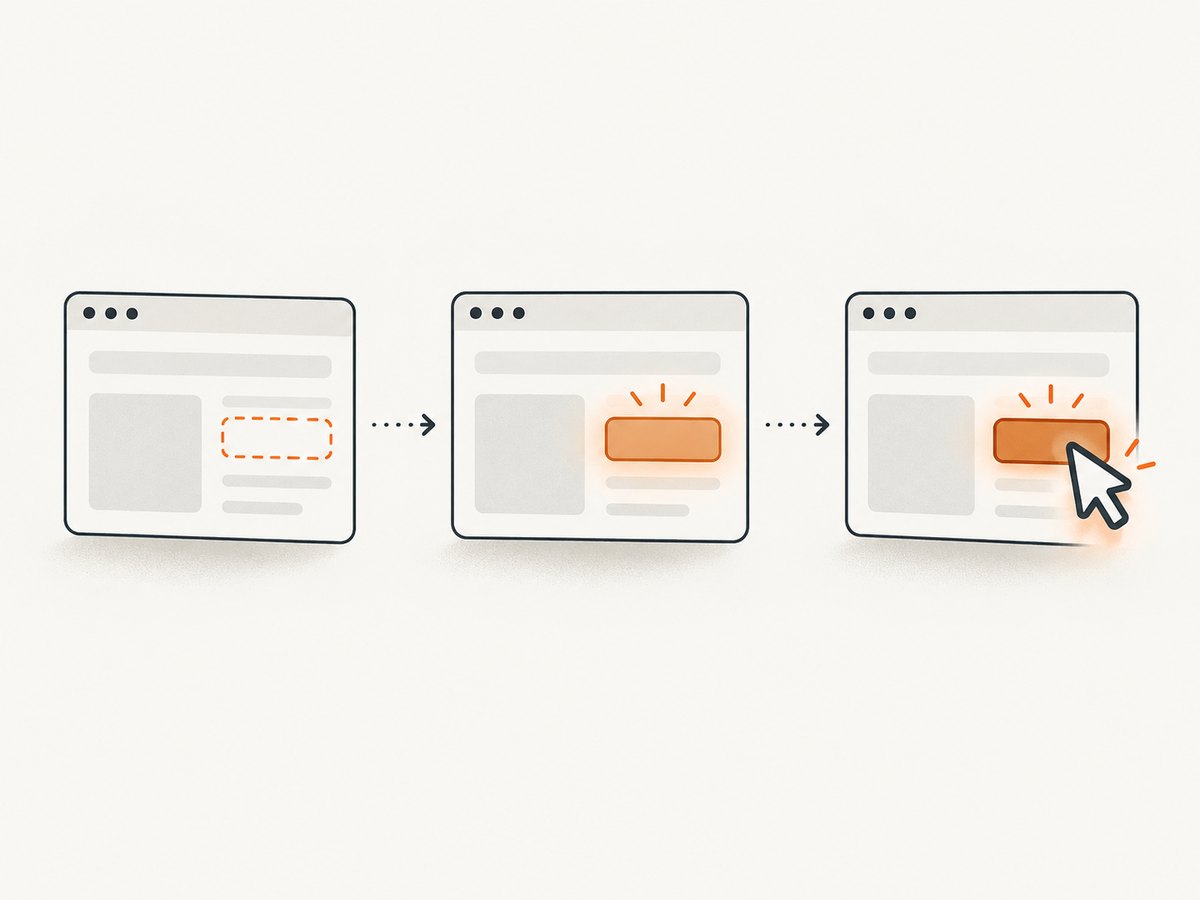
For clicking, filling, hovering, or waiting as part of an interaction workflow, Puppeteer recommends locators. A locator can wait for the element to be present and satisfy action preconditions. For clicking, the documented checks include being in the viewport, visible, enabled, and having a stable bounding box over two consecutive animation frames.
await page.locator('button.submit').click();
await page.locator('input[name="email"]').fill('dev@example.com');
await page.locator('.loading').wait();
This lets Puppeteer handle timing changes such as a button that appears after rendering or moves during an animation. Locators inherit the page timeout by default; call .setTimeout(3000) to configure an individual locator. Visibility checks can also be tuned with locator configuration methods such as .setVisibility('visible'), .setVisibility('hidden'), or .setVisibility(null). Disabling checks changes the action’s readiness guarantees, so do so only when you have a reason.
A locator is a better fit when the desired outcome is an action. If you only need a boolean report, use an immediate visibility method or a wait and then inspect the result. Avoid waiting for visibility and then assuming the element remains in the same state indefinitely: pages can update between the wait and a later action.
7. Screenshot a page after checking an element
Visibility checks are often part of diagnosing a page before taking a screenshot: for example, waiting for the main heading or confirming that a loading indicator has gone away. Choose a selector that identifies the content you care about, and keep the check separate from assumptions about screenshot readiness. A visible heading does not guarantee every image or asynchronous widget has finished loading.
Or skip the browser setup
If you need the screenshot itself, ScreenshotNeo returns a PNG, JPEG, WebP, or PDF from one GET request. See the ScreenshotNeo API documentation for request options.
curl -G "https://api.screenshotneo.com/v1/shot" \
  -d access_key=YOUR_API_KEY \
  --data-urlencode url=https://example.com \
  -o shot.webp
import requests
r = requests.get(
"https://api.screenshotneo.com/v1/shot",
params={"access_key": "YOUR_API_KEY", "url": "https://example.com"},
timeout=90,
)
open("shot.webp", "wb").write(r.content)const q = new URLSearchParams({
access_key: 'YOUR_API_KEY',
url: 'https://example.com',
});
const res = await fetch(`https://api.screenshotneo.com/v1/shot?${q}`);
if (!res.ok) throw new Error(`Screenshot request failed: ${res.status}`);
await Bun.write('shot.webp', res);Cookie and consent banners, newsletter popups, and chat widgets are removed before the shot; each cleanup step can be turned off. Bot checks, blank pages, timeouts, failed loads, and cache hits are never billed, and response headers report the page verdict and billing status. An MCP server gives AI agents tools to take screenshots, get page information, and capture PDFs. The free plan includes 1,000 screenshots a month with no card; paid plans start at $5 for 3,000. Sign up for 1,000 free screenshots a month, no card required.
8. Edge cases and what “visible” does not mean
- Zero-size element: A non-empty rectangle is part of Puppeteer’s
isVisible()criteria. An element with no layout area may fail even if it exists in the DOM. - Hidden ancestor: A parent with
display: noneaffects whether a descendant is rendered. Inspect ancestor styles when debugging. - Opacity:
opacity: 0can make content transparent without matching the listed PuppeteerisVisible()conditions. Add an opacity rule to a custom check if transparency should count as invisible. - Off-screen position: Visibility and being within the viewport are separate concepts. A visible element can be below the fold; use viewport or intersection checks for that requirement.
- Overlap: Another element can cover the target. A visibility result alone is not a guarantee that a user can see or click it.
- Frames and shadow DOM: A page-level CSS query does not automatically mean you have queried the right frame or shadow root. Select through the relevant frame or use Puppeteer’s supported selector syntax when needed.
- Changing DOM: Framework rerenders may replace a node after you obtained a handle. Prefer locators for actions that need to survive re-querying; dispose of handles you no longer use.
- Animations: An element can move or fade after it first becomes visible. Locator actions wait for stable geometry as documented; an immediate boolean check does not.
9. Troubleshooting
| Symptom | Likely cause | Fix |
|---|---|---|
isVisible is not a function |
The value is not an ElementHandle, or the installed Puppeteer version differs from the API you expected. | Confirm the result came from page.$() or another handle-returning API; check the installed package and its matching documentation. |
| Cannot read properties of null | The selector matched no element, so page.$() returned null. |
Check for a missing handle before calling a method, or use a wait API if it may appear later. |
waitForSelector times out |
The selector is wrong, the element never appears, remains hidden, or the page did not reach the expected application state. | Inspect the selector and page state; wait for the right app condition and choose a timeout appropriate to the workflow. |
| The wait succeeds but clicking fails | Visibility does not promise unobstructed hit testing or that the element stays ready. | Use a locator click, which waits for additional action preconditions, and investigate overlays or state changes. |
| Browser-side helper returns false unexpectedly | The element may have zero dimensions, hidden styles, or a hidden ancestor; the helper may also be stricter than your intent. | Log computed styles and rectangle dimensions, inspect ancestors, then adjust the custom definition explicitly. |
| Waits make a script slow | Default timeouts may be longer than appropriate, or navigation waits for unnecessary resources. | Set a bounded per-call timeout, use a suitable navigation milestone, and avoid waiting for network idle unless the page requires it. |
10. Performance, reliability, and cost
An immediate style and geometry check is usually a small amount of work, but repeating DOM queries in a tight loop can waste CPU and still miss an asynchronous state change. Use a wait API rather than polling without a pause. For screenshots, capture only after the specific content is ready; waiting for every network request can be slower or unreliable on pages with long-lived connections.
For reliable automation, use stable selectors such as IDs, explicit test attributes, or accessible names where your application provides them. Handle timeouts as expected outcomes when the element is optional, and allow unexpected failures to surface. Keep browser cleanup in a finally block so an exception does not leave a process running. Reuse browser processes appropriately in larger jobs, but isolate pages and state so one page’s cookies or navigation do not affect another task.
Running Puppeteer means managing a browser process and its runtime environment. A screenshot API shifts browser setup and capture delivery to a service request; compare the service’s options and billing behavior with your own capture requirements. ScreenshotNeo’s stated plans are Free: 1,000 shots/month; Starter: $5 for 3,000; Growth: $15 for 15,000; Pro: $39 for 60,000; Scale: $99 for 250,000; and Business: $249 for 1,000,000. Yearly billing gives two months free, and every feature is on every plan. Its API lets you choose options such as full-page or selector capture, viewport, format, wait condition, custom CSS, caching TTL, and asynchronous jobs. Check its docs for exact parameter names and behavior before depending on a specific configuration.
11. Frequently asked questions
Does isVisible() wait for an element to appear?
No. It reports the current state of an existing handle. Use waitForSelector or a locator wait when the state may change later.
Should I use a locator or waitForSelector before clicking?
Use a locator for the interaction itself. It includes readiness checks for the action and avoids keeping a handle around when you only need to interact.
Does visible mean clickable?
No. Visibility does not establish that the element is enabled, in the viewport, unobstructed, stable, or guaranteed to receive a click. Locator actions check additional preconditions, though page state can still change.
Can I check visibility without Puppeteer?
Yes. In browser JavaScript, query the element and inspect computed styles and geometry. Define what counts as visible for your task, and include opacity, viewport, or overlap checks only when those properties matter.


