How to Check Whether an Image Has Loaded in PhantomJS
Check an image in PhantomJS with complete and naturalWidth, and handle broken, delayed, and dynamically added images.

To check whether an image loaded in PhantomJS, inspect the individual image element after the page opens. Treat it as successfully loaded when img.complete is true and img.naturalWidth > 0. The page callback only reports page-level loading status; it does not guarantee that a particular image succeeded.
var page = require('webpage').create();

page.open('https://example.com', function (status) {
  if (status !== 'success') {
    console.log('Page failed to load');
    phantom.exit(1);
    return;
  }

  var result = page.evaluate(function () {
    var img = document.querySelector('#target-image');
    if (!img) return { found: false };
    return {
      found: true,
      complete: img.complete,
      naturalWidth: img.naturalWidth,
      loadedSuccessfully: img.complete && img.naturalWidth > 0
    };
  });

  console.log(JSON.stringify(result));
  phantom.exit();
});
Replace #target-image with a selector that identifies your image. For example, if the markup is <img id="hero" src="/hero.jpg">, use document.querySelector('#hero').
1. Understand the two loading states
There are two separate questions when debugging an image:
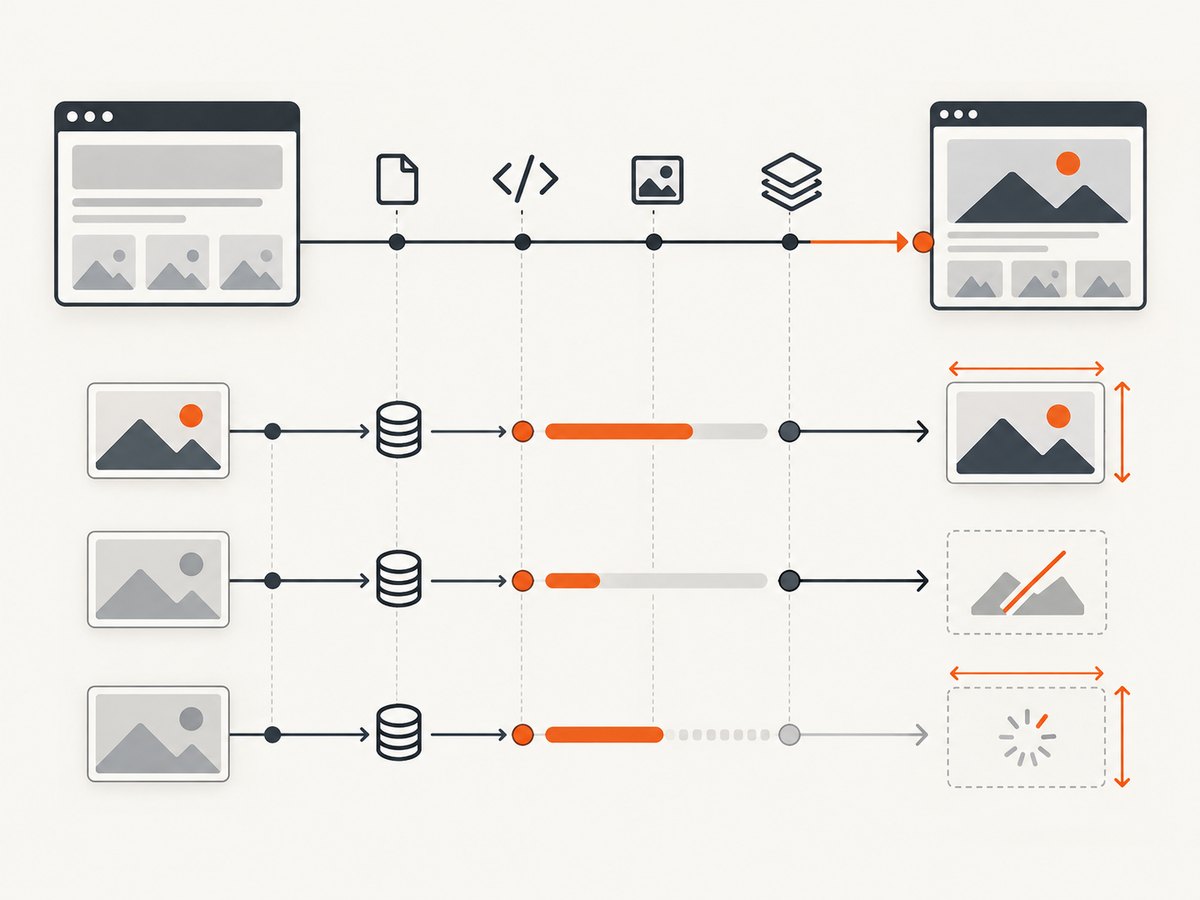
- Did the page finish its load event? PhantomJS reports this through
page.open()‘s callback orpage.onLoadFinished. Its status issuccessorfail. - Did this particular image load successfully? Inspect the image element’s own state, including
completeandnaturalWidth.
The PhantomJS page.open documentation says its optional callback is called using onLoadFinished. The onLoadFinished documentation describes a page-level result. Neither callback is a per-image success report: a page can finish while an individual image is broken, and the image can change after the page callback runs.
HTMLImageElement.complete is not sufficient by itself. It can be true when the image has no source, has an empty source, or has finished fetching successfully or unsuccessfully. The browser can consider a broken image complete. naturalWidth is the image’s intrinsic, density-corrected width in CSS pixels; it is zero when intrinsic image data is unavailable. That makes the combination complete && naturalWidth > 0 a useful practical success check for ordinary image elements. See MDN’s references for complete and naturalWidth.
| complete | naturalWidth | Practical interpretation |
|---|---|---|
| false | 0 | Still loading, deferred, or not yet resolved. |
| true | Greater than 0 | Image data is available; likely loaded successfully. |
| true | 0 | Could be broken, empty, source-less, or missing intrinsic data. Do not call this a successful load. |
This is a practical check, not a diagnosis of every image format or page behavior. If you need to distinguish a deliberately empty image from a failed network request, also inspect its src, currentSrc, dimensions, and resource request events.
2. Run a PhantomJS check for one image
- Save the first code sample as
check-image.js. - Change the URL and selector to match the page and target image.
- Run the script using the PhantomJS executable available in your environment:
phantomjs check-image.js. - Read the JSON output. A missing selector returns
{"found":false}; a successful practical check returns"loadedSuccessfully":true.
page.evaluate() runs its function in the page context, where the DOM exists. Its return value crosses back to PhantomJS, so return plain serializable values such as strings, booleans, numbers, arrays, and objects. Do not return a DOM node and expect to inspect it from the PhantomJS script context. See the PhantomJS Quick Start.
To check dimensions as well, include naturalHeight and the rendered dimensions. The natural dimensions describe intrinsic image size; width and height describe the element’s displayed dimensions and may be affected by CSS.
var details = page.evaluate(function () {
  var img = document.querySelector('#target-image');
  if (!img) return { found: false };

  return {
    found: true,
    src: img.src,
    complete: img.complete,
    naturalWidth: img.naturalWidth,
    naturalHeight: img.naturalHeight,
    renderedWidth: img.width,
    renderedHeight: img.height,
    loadedSuccessfully: img.complete &&
      img.naturalWidth > 0 && img.naturalHeight > 0
  };
});
Including both intrinsic dimensions is useful when your requirement is a valid image with a nonzero height as well as width. For most normal raster images, checking width is the common success signal; adding height makes the condition explicit when downstream work requires two-dimensional content.
3. Check every image on the page
Use document.images to return a record for each image. This reports the DOM state at the moment the evaluation runs; it does not wait for unresolved images or guarantee that no new images will appear later.
var images = page.evaluate(function () {
  return Array.prototype.map.call(document.images, function (img, index) {
    return {
      index: index,
      src: img.src,
      complete: img.complete,
      naturalWidth: img.naturalWidth,
      naturalHeight: img.naturalHeight,
      loadedSuccessfully: img.complete && img.naturalWidth > 0
    };
  });
});

console.log(JSON.stringify(images, null, 2));
This is useful for page audits and test output. If the page contains decorative images, tracking pixels, or intentionally empty placeholders, decide which elements count before treating every failed-looking record as a page error. A zero natural width can be a signal to investigate rather than proof that the user-visible page is defective.
4. Wait for a delayed or dynamically inserted image
The initial page.open() callback is a sensible point to inspect static content. It may be too early when page scripts insert an image, replace its src, or defer loading until scrolling. In those cases, wait for the page’s own condition and then inspect the element. There is no universal polling interval or timeout that fits all sites: choose a deadline that suits the page and report a timeout as unresolved, not loaded.

This PhantomJS 2.x pattern polls for a selector and stops when the image reaches a terminal-looking state or the deadline expires:
var page = require('webpage').create();
var system = require('system');
var targetUrl = system.args[1] || 'https://example.com';
var selector = system.args[2] || '#target-image';
var deadlineMs = 10000;
var pollMs = 100;
var startedAt;
var finished = false;

page.open(targetUrl, function (status) {
  if (status !== 'success') {
    console.log(JSON.stringify({ pageStatus: status }));
    phantom.exit(1);
    return;
  }

  startedAt = Date.now();
  poll();
});

function poll() {
  if (finished) return;

  var state = page.evaluate(function (sel) {
    var img = document.querySelector(sel);
    if (!img) return { found: false };
    return {
      found: true,
      complete: img.complete,
      naturalWidth: img.naturalWidth,
      naturalHeight: img.naturalHeight,
      loadedSuccessfully: img.complete && img.naturalWidth > 0
    };
  }, selector);

  if (state.found && state.complete) {
    finished = true;
    console.log(JSON.stringify(state));
    phantom.exit(state.loadedSuccessfully ? 0 : 2);
    return;
  }

  if (Date.now() - startedAt >= deadlineMs) {
    finished = true;
    console.log(JSON.stringify({ found: state.found, timedOut: true, state: state }));
    phantom.exit(2);
    return;
  }

  setTimeout(poll, pollMs);
}
Run it with phantomjs wait-image.js https://example.com '#target-image'. The script uses a 10-second deadline and 100-millisecond polling interval as configurable examples, not universal recommendations. If the page inserts the image after the deadline, the output will correctly indicate that the check did not resolve within your chosen wait window.
For a page that changes the source after initial display, consider waiting for a known application state before starting this poll. Otherwise, the script might observe an earlier image that is complete just before the page replaces it. PhantomJS exposes the page’s DOM; it cannot infer which application-specific transition means the page is finished for your workflow.
5. Account for image loading settings and resource timeouts
PhantomJS webpage settings default loadImages to true. If your script sets it to false, images will not load as expected and the element check cannot succeed. Configure settings before calling page.open(); the documentation notes settings apply during the initial open call. A resource timeout can stop a request while the rest of the page proceeds. Treat a timed-out image as failed or unresolved, not as a successful image.
var page = require('webpage').create();
page.settings.loadImages = true;
page.settings.resourceTimeout = 15000;

page.onResourceTimeout = function (request) {
  console.log('Resource timed out: ' + request.url);
};

page.open('https://example.com', function (status) {
  // Inspect the target image here, as in the earlier example.
});
The timeout value is an example in milliseconds. Tune it to your environment and page behavior, and keep track of resource timeout events if you need to explain why an image remained unavailable. See the official PhantomJS webpage settings reference for loadImages and resourceTimeout.
6. Common problems and fixes
| Symptom | Likely cause | What to check or change |
|---|---|---|
complete is true, but the image is broken. |
complete means the browser considers the fetch complete; failure can also be complete. |
Check naturalWidth > 0 and, if needed, naturalHeight > 0. |
The page status is success, but the target is missing. |
The page loaded, but the selector did not match or the image failed independently. | Check the selector in the page DOM, then inspect the element’s own state. |
The result says found: false. |
The selector is wrong, the image has not been inserted yet, or the page uses a different element. | Verify the selector and wait for the page’s insertion condition before inspecting. |
| The image stays incomplete. | The request may still be pending, deferred, blocked, or timed out. | Confirm loadImages is enabled; inspect resource timeouts; allow an appropriate wait deadline. |
| A lazy image never appears. | Lazy loading may wait until the image approaches the viewport. | Scroll the page or target element into view using the page’s supported interaction, then wait and recheck. |
| One check passes, but a later screenshot has a different image. | The page changed src or srcset after the check. |
Wait for the relevant application state and re-evaluate immediately before capture. |
| Images fail only in PhantomJS. | The page may rely on browser behavior or web features that this legacy runtime does not support. | Confirm the issue in the specific PhantomJS build, and consider a maintained browser for current sites. |
7. Reliability, runtime status, and cost
PhantomJS guidance is legacy-tool guidance. The project’s official repository states that development is suspended, and GitHub records that the repository was archived on May 30, 2023. Its behavior should not be assumed to match current browsers or modern websites. The code here follows the documented PhantomJS page evaluation and DOM-property pattern; it was not independently run against a PhantomJS binary or test page. Validate it in the exact build and environment you maintain. See the archived PhantomJS repository.
For reliability, keep page-level and image-level outcomes separate in logs. Record the URL, selector, page status, image source, completion state, intrinsic dimensions, and whether a resource timeout occurred. Use an explicit deadline for asynchronous pages and return an unresolved result when it expires. A check that times out should not silently become a success.
The DIY approach has no screenshot API charge, but it carries runtime maintenance and infrastructure costs: you need a compatible PhantomJS environment, network access to the target page and image host, and time to handle page-specific behavior. For a batch of URLs, bound concurrency to avoid overwhelming your host or the target site, and retain enough diagnostics to distinguish page failures from image failures.
8. Or skip the browser setup
If your goal is to capture a page rather than maintain PhantomJS, ScreenshotNeo is a website screenshot API and MCP server. A GET request with a URL returns an image or PDF. The request below uses the documented API endpoint; see the ScreenshotNeo documentation for request options.
curl -G "https://api.screenshotneo.com/v1/shot" -d access_key=YOUR_API_KEY --data-urlencode url=https://example.com -o shot.webpPython:
import requests

r = requests.get(
    "https://api.screenshotneo.com/v1/shot",
    params={"access_key": "YOUR_API_KEY", "url": "https://example.com"},
    timeout=90,
)
open("shot.webp", "wb").write(r.content)
Node.js:
const q = new URLSearchParams({
  access_key: 'YOUR_API_KEY',
  url: 'https://example.com'
});
const res = await fetch(`https://api.screenshotneo.com/v1/shot?${q}`);
if (!res.ok) throw new Error(`Screenshot request failed: ${res.status}`);
const bytes = new Uint8Array(await res.arrayBuffer());
await import('node:fs/promises').then(fs => fs.writeFile('shot.webp', bytes));- Cookie banners are accepted and removed before the shot, along with known newsletter popups and chat widgets; each of those steps can be turned off.
- Bot checks, blank pages, failed loads, timeouts, and cache hits are not billed. Responses include
X-Page-VerdictandX-Billedheaders. - An MCP server provides
take_screenshot,get_page_info, andcapture_pdftools for AI agents and MCP clients. - The Free plan includes 1,000 screenshots a month with no card. Paid plans start at $5 for 3,000 screenshots; yearly billing gives two months free, and every feature is on every plan.
Create a free ScreenshotNeo account for 1,000 screenshots a month with no card.
9. FAQ
Can complete be true when src is empty?
Yes. A missing or empty source is one documented condition under which the browser can report completion. Check the source and intrinsic dimensions as well.
Does naturalWidth equal the CSS width?
No. It reports intrinsic width in density-corrected CSS pixels. The displayed width can differ because of layout and CSS.
Does this detect CSS background images?
No. document.images and the HTMLImageElement properties apply to image elements. Background images need a different inspection approach, such as checking computed styles and resource loading.
Is PhantomJS suitable for new browser automation?
It is a legacy project with development suspended and an archived repository. Treat this article as maintenance guidance for existing PhantomJS scripts and check compatibility against your own build.


