How to Check Whether Lazy Loading Works on a Website
Verify lazy loading with DevTools, rendered HTML, and repeatable tests. Find failed requests, SEO problems, layout shifts, and LCP mistakes.

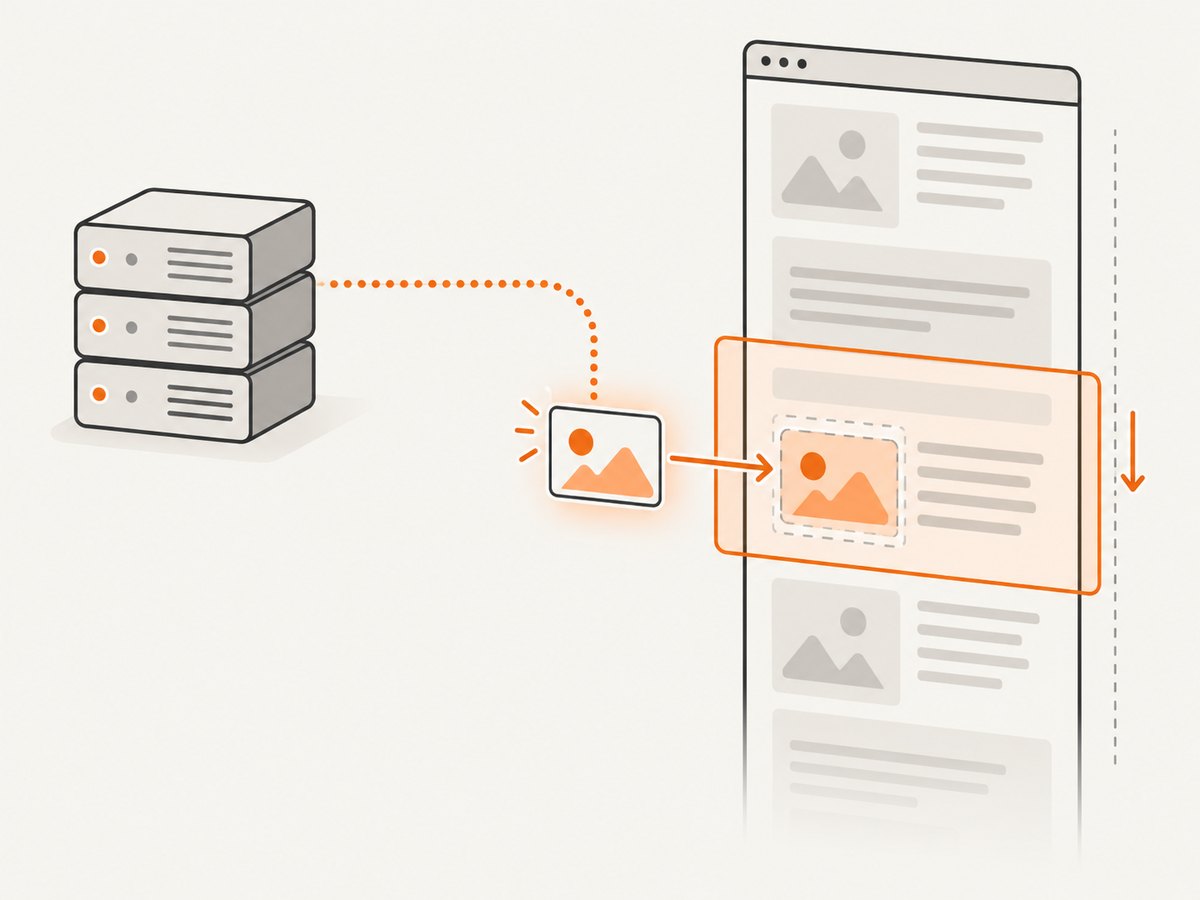
Direct answer: lazy loading works when a resource below the initial viewport is absent from the first network activity, its request starts as the element approaches the viewport, and the image, video, or iframe appears correctly when you reach it. Verify all three parts in a clean browser run. An HTML attribute such as loading="lazy" is only a hint; it does not prove that the browser deferred a request or that the content is crawlable.
This guide shows a repeatable workflow for native lazy loading and JavaScript implementations. You will use Chrome DevTools, the rendered DOM, the image complete property, Search Console, and performance tools. It also covers iframes, responsive images, cache effects, SEO, layout shifts, LCP, automation, and common failures.
1. What you are trying to prove
For each below-the-fold resource, record these observations:
- Initial state: the resource is not unnecessarily requested during the first load.
- Trigger: the request begins as the element nears the viewport.
- Result: the resource renders when the user reaches it.
- Crawlability: required image or video URLs exist in rendered HTML.
- Performance: the delay does not hurt the LCP element, cause layout shifts, or create a worse user experience.
Do not expect a request to wait until the exact pixel where an element enters view. Browsers deliberately fetch near the viewport so content is ready in time, and thresholds differ between browsers and resource types. A cached response can also make a request look immediate.
2. A clean DevTools test
- Open the page in a private window, or clear the relevant site data.
- Open DevTools, choose Network, enable Disable cache while DevTools is open, and reload with the panel recording.
- Filter by
Imgto inspect images. Use theMediafilter for video, and inspectDocrequests for iframe documents. You can also search by filename or URL. - Before scrolling, identify images well below the initial viewport. Note which requests have already started and their initiator.
- Scroll slowly toward the first deferred element. Watch for its request, response status, transfer size, and timing.
- Confirm that the corresponding content appears without a broken-image icon, empty frame, or long blank interval.
- Repeat for several resources at different depths. Test a long page rather than one convenient image.
A functional pass is a request that is absent initially, starts near the element, and produces visible content when reached. A request that starts slightly early is normal. A request that never starts, returns an error, or leaves an empty placeholder is a failure.
Make the run reproducible
Write down the browser version, viewport dimensions, device emulation, network profile, page URL, scroll position, and whether the cache was disabled. Repeat on a cold run and a warm run. Compare the same viewport when evaluating two implementations; changing the viewport changes what is initially visible and therefore changes which resources qualify as below the fold.
3. Inspect the HTML and rendered DOM
In Elements, select an image and check its attributes. Native lazy loading normally looks like:
<img
  src="/images/report.webp"
  loading="lazy"
  width="1200"
  height="800"
  alt="Monthly report"
>
For responsive images, inspect srcset and sizes; the browser may request a different candidate than the URL you expected.
<img
  src="/images/report-800.webp"
  srcset="/images/report-800.webp 800w, /images/report-1600.webp 1600w"
  sizes="(max-width: 800px) 100vw, 800px"
  loading="lazy"
  width="800"
  height="533"
  alt="Monthly report"
>
Some JavaScript systems place the URL in data-src and copy it into src only after an intersection event. In that case, verify both the initial markup and the final rendered DOM after scrolling. A page-source search alone can miss content generated by JavaScript.
For SEO-sensitive images and videos, Google recommends inspecting rendered HTML in Search Console URL Inspection. Confirm that the final <img> or <video> has a usable URL in src. Google also advises using visibility-triggered loading rather than requiring a user action such as a click or scroll, because Google Search does not interact with pages.
Sources: Google Search Central lazy-loading guidance and MDN lazy-loading documentation.
4. Check one image with JavaScript
The complete property tells you whether a particular image has finished loading (or failed). It does not tell you when the request started, so correlate it with the Network panel.
const image = document.querySelector('#below-the-fold-image');

console.log({
  src: image.currentSrc || image.src,
  complete: image.complete,
  naturalWidth: image.naturalWidth,
  naturalHeight: image.naturalHeight
});

image.addEventListener('load', () => {
  console.log('loaded', image.currentSrc || image.src);
});
image.addEventListener('error', () => {
  console.error('failed', image.currentSrc || image.src);
});
complete: true with a positive naturalWidth usually means the image decoded successfully. A true value with naturalWidth: 0 indicates a failed or empty image. Test the element before scrolling and again after it becomes visible.
5. Test iframes, video, and embeds
Lazy loading applies to more than images. For an iframe, inspect the iframe element and the document request it creates. You might see:
<iframe
  src="https://example.com/embed"
  loading="lazy"
  width="640"
  height="360"
  title="Example embed"
></iframe>
Filter Network by Doc and identify the iframe URL. A missing document request before scrolling followed by a request near the iframe is expected. Third-party embeds can still consume bandwidth and main-thread time after they load, so use Lighthouse and DevTools to inspect their impact.
Reserve the iframe’s dimensions with width, height, or an aspect-ratio box. Otherwise, the frame can appear with zero height and expand later, producing a layout shift. Apply the same principle to images: always reserve space with intrinsic dimensions or CSS.
6. Test with throttling and different browsers
Use DevTools’ Network throttling to test a slow connection and CPU throttling to expose timing problems. On a fast connection, a request can complete before you notice the trigger. Slow profiles make the sequence visible:
- Reload with cache disabled and throttling enabled.
- Capture a screenshot of the Network waterfall before scrolling.
- Scroll one viewport at a time and note the first request timestamp for each resource.
- Check whether the resource is ready when it enters view, rather than appearing several seconds later.
Repeat in at least one other browser when compatibility matters. Native thresholds are implementation details, and iframe thresholds can differ. A request appearing before the element is visible is not automatically a bug.
7. Avoid false positives and false negatives
| Observation | Interpretation |
|---|---|
| Request appears before the element enters view | Often expected prefetching near the viewport. |
| Request is missing on a second run | It may be served from cache; use a clean run and inspect transfer size. |
| All images request immediately | They may be above the fold, explicitly eager, preloaded, required by CSS, or triggered by script. |
| Attribute exists but no image appears | Check the final src, response status, CORS, decoding, and JavaScript errors. |
| Image appears late after scrolling | Threshold, server latency, image size, or JavaScript scheduling may be too slow. |
| Page load fired before lazy images loaded | Expected: lazy media may still be unloaded at the page load event. |
8. SEO and accessibility checks
- Keep meaningful
alttext on images. Lazy loading does not replace accessibility metadata. - Make image and video URLs discoverable in rendered HTML when search visibility matters.
- Do not hide essential text or images behind a click-only or scroll-only action.
- Do not lazy-load the likely LCP or hero image. web.dev’s guidance is explicit: “Never lazy-load your LCP image,” because it delays the resource and hurts LCP.
- Do not lazy-load content that is visible when the page opens. Google advises keeping immediately visible content promptly available.
Use Search Console URL Inspection for the crawler view, then compare it with the browser’s rendered DOM. These are different checks: a browser can eventually display an image while a crawler still cannot discover its URL.
9. Measure performance and layout stability
Lazy loading is a behavior, not a guaranteed performance improvement. Compare a version with lazy loading to a controlled version while keeping viewport, content, and network conditions constant.
- LCP: verify that the largest visible element is requested immediately when it is an image.
- Layout shift: check whether images or iframes expand after content below them has been laid out.
- Bandwidth: count requests and transferred bytes before interaction and after a defined scroll depth.
- Main thread: inspect third-party embed scripting in Lighthouse and the Performance panel.
- Completion: verify that delayed resources are ready when users reach them on slower networks.
Use dimensions, aspect-ratio placeholders, and appropriately sized responsive images. Lazy loading a huge original file can defer the request while still wasting bandwidth once it starts.
10. Automate a basic check
A browser automation script can record whether an image has loaded after a controlled scroll. The following Playwright example is intentionally simple; use the Network panel for the definitive request timeline.
import { chromium } from 'playwright';

const browser = await chromium.launch();
const page = await browser.newPage({ viewport: { width: 1280, height: 800 } });

const requests = [];
page.on('request', request => {
  if (request.resourceType() === 'image') requests.push({ url: request.url(), at: Date.now() });
});

await page.goto('https://example.com/long-page', { waitUntil: 'domcontentloaded' });
const before = await page.locator('img').evaluateAll(images => images.map(img => ({
  src: img.currentSrc || img.src,
  complete: img.complete,
  width: img.naturalWidth
})));

await page.mouse.wheel(0, 900);
await page.waitForTimeout(1000);
const after = await page.locator('img').evaluateAll(images => images.map(img => ({
  src: img.currentSrc || img.src,
  complete: img.complete,
  width: img.naturalWidth
})));

console.log({ before, after, requests });
await browser.close();
For a production test, capture timestamps for scroll position, request start, response completion, and visibility. Avoid treating a fixed timeout as proof; slow servers and browser scheduling can exceed it.
11. Troubleshooting common failures
Every image loads on the first request
Cause: the images are in the initial viewport, marked loading="eager", preloaded, or fetched by a script or CSS background. Fix: inspect initiators and preload links, then test with a clearly below-fold element.
The attribute is present but the image never loads
Cause: the real URL remains in data-src, JavaScript threw an exception, the server returned an error, or a content-security policy blocked the request. Fix: inspect the final src, Console errors, and response status.
Images appear as blank space
Cause: a zero-size container, incorrect CSS, failed decoding, or a missing aspect-ratio rule. Fix: check computed dimensions, naturalWidth, and the response body; reserve space with dimensions.
Content is slow after scrolling
Cause: the browser threshold is too close, the image is oversized, the origin is slow, or JavaScript delays assignment of src. Fix: optimize candidates, reduce script work, and test on throttled networks.
Search Console cannot see the image
Cause: the URL is only created after a user action, is hidden in unsupported markup, or is blocked. Fix: expose the URL in rendered src and use automatic visibility-triggered loading.
LCP gets worse after adding lazy loading
Cause: the hero image was lazy-loaded. Fix: remove lazy loading from the LCP candidate and keep it discoverable early.
Layout shifts occur when embeds load
Cause: no dimensions were reserved. Fix: set iframe width and height or use a CSS aspect-ratio container.
12. Or skip the browser setup
If you need repeatable screenshots to compare the page before and after lazy loading, ScreenshotNeo can capture the rendered result through one API request. See the ScreenshotNeo API documentation for all options.

curl -G "https://api.screenshotneo.com/v1/shot" -d access_key=YOUR_API_KEY --data-urlencode url=https://stripe.com -o shot.webpimport requests
r = requests.get("https://api.screenshotneo.com/v1/shot", params={"access_key": "YOUR_API_KEY", "url": "https://stripe.com"}, timeout=90)
open("shot.webp", "wb").write(r.content)const q = new URLSearchParams({ access_key: 'YOUR_API_KEY', url: 'https://stripe.com' });
const res = await fetch(`https://api.screenshotneo.com/v1/shot?${q}`);For lazy-loading checks, use full-page capture with lazy images loaded, or capture the same viewport at controlled scroll states. ScreenshotNeo removes cookie banners, newsletter popups, and chat widgets before the shot. Bot checks, blank pages, failed loads, timeouts, and cache hits are not billed, and response headers identify the page verdict and billing status. Its MCP server lets Claude, Cursor, and other MCP clients call take_screenshot, get_page_info, and capture_pdf. The Free plan includes 1,000 screenshots each month without a card; paid plans start at $5 for 3,000 shots. Start with 1,000 free screenshots.
13. ScreenshotNeo options useful for lazy-loading audits
You can make comparisons consistent by selecting a device preset or viewport, setting a retina scale, enabling full-page capture, waiting for a selector, adding a delay, or waiting for network idle. Custom JavaScript can scroll to a target element before capture. Custom CSS can add outlines or labels during an internal audit, while hide selectors can remove irrelevant regions. Block ads, trackers, requests, or resource types to isolate the page’s own images. Set timezone, geolocation, headers, cookies, user agent, or Authorization when the page varies by session. Caching with a chosen TTL helps repeat a run, while signed links make captured images safe to embed in reports. Async jobs, signed webhooks, bulk capture of up to 100 URLs per call, the usage API, and the OpenAPI specification support scheduled regression checks.
14. Cost and reliability notes
Browser testing is free but manual and sensitive to cache, viewport, browser version, and network conditions. Automated captures add operational consistency. With ScreenshotNeo, only clean shots are billed; failed loads and cache hits are free. Plans are Free (1,000/month), Starter ($5 for 3,000), Growth ($15 for 15,000), Pro ($39 for 60,000), Scale ($99 for 250,000), and Business ($249 for 1,000,000). Yearly billing gives two months free, and every feature is included on every plan. Use verdict and billing headers in your pipeline so a failed capture does not look like a successful visual regression.
FAQ
Should a lazy image request wait until it touches the viewport?
No. Browsers commonly request resources near the viewport so they finish before the user reaches them.
Is loading="lazy" enough for SEO?
No. Confirm that the final rendered HTML exposes the resource URL and that content is not gated behind a user action.
Can I use the page load event to test completion?
No. Lazy media may still be unloaded when load fires. Check the individual element and its network request.
What should never be lazy-loaded?
The likely LCP or hero image and content visible immediately when the page opens.
Why do results change between browsers?
Lazy-loading thresholds and scheduling are browser decisions. Compare behavior under the same viewport and network conditions.


