How to Check a Link Preview Image
Find the image your page advertises, verify what social platforms extract, and fix missing, wrong, or stale link previews.
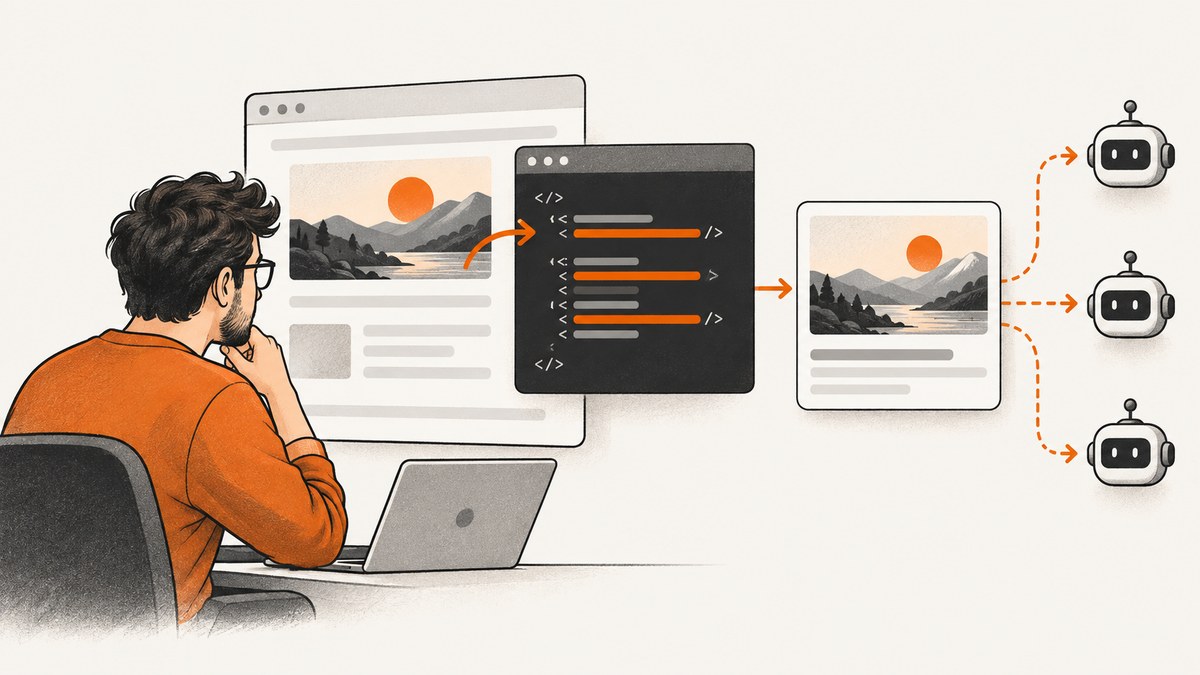
Direct answer: check the page’s initial HTML for og:image, open that image URL directly, then run the page URL through the target platform’s own inspector. The HTML tag tells you what your page advertises; the inspector tells you what the platform actually extracted, selected, cached, and displayed.
A reliable check has six parts:
- Inspect the initial HTML response, not only a client-rendered view.
- Confirm
og:image,og:title,og:description, andog:url. - Open the advertised image URL and verify it is publicly retrievable.
- Check dimensions, file size, format, and redirects against the platform’s guidance.
- Use the platform inspector, such as LinkedIn Post Inspector.
- Account for crawler caching after you change metadata.
1. What a link preview image is
A link preview image is the representative image a social network or messaging service associates with a URL. On pages that implement the Open Graph Protocol, the declaration normally appears in the document’s HTML <head>:
<meta property="og:title" content="How to Check a Link Preview Image">
<meta property="og:type" content="article">
<meta property="og:image" content="https://example.com/images/share-card.jpg">
<meta property="og:url" content="https://example.com/check-link-preview-image">
<meta property="og:description" content="A practical guide to checking social link previews.">
<meta property="og:image:alt" content="A developer checking a link preview image">
The protocol’s four basic properties are og:title, og:type, og:image, and og:url. The value of og:image is the image URL intended to represent the page or object. Open Graph also defines optional structured properties for an image’s secure URL, MIME type, width, height, and alt text. Add og:image:alt when you provide an image.
2. Check the source HTML
Using a browser
- Open the page you plan to share.
- View page source, or use the browser’s developer tools and inspect the original document response.
- Search for
og:image. Also search forog:title,og:description, andog:url. - Copy the complete
contentvalue fromog:image. - Open that URL in a new tab. Confirm it returns the intended image without requiring a login, a session cookie, or browser-only JavaScript.
Inspecting the initial response matters because crawlers may not run the same JavaScript as a full browser. A tag inserted only after hydration can be invisible to a crawler that reads the first HTML response.
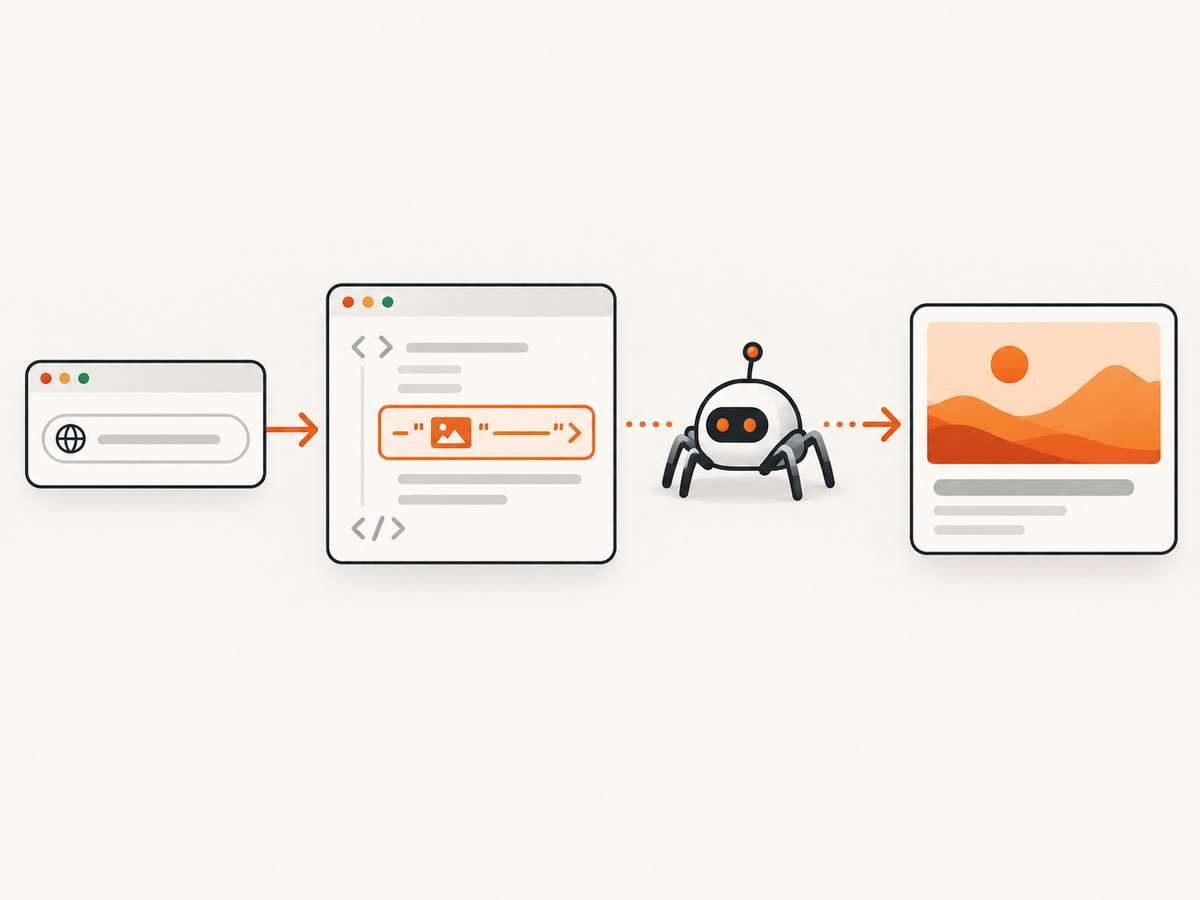
Using cURL
curl -L --max-time 30 https://example.com/articleSave and search the response when it is large:
curl -L --max-time 30 https://example.com/article -o page.html
rg -i 'og:(image|title|description|url)' page.html
Then inspect the image response:
curl -I -L --max-time 30 https://example.com/images/share-card.jpgLook for a successful status, an image Content-Type, and a final URL that is accessible to an unauthenticated crawler. A redirect is not automatically wrong, but a redirect loop, a login page, or an HTML error response means the advertised value is not usable as an image.
Using Python
import requests
from bs4 import BeautifulSoup

page_url = "https://example.com/article"
r = requests.get(page_url, timeout=30, headers={"User-Agent": "preview-check/1.0"})
r.raise_for_status()

soup = BeautifulSoup(r.text, "html.parser")
for key in ("og:title", "og:type", "og:image", "og:url", "og:description", "og:image:alt"):
    tag = soup.find("meta", attrs={"property": key})
    print(f"{key}: {tag.get('content') if tag else '(missing)'}")
This reads the response body exactly as delivered. If your framework generates metadata server-side, this is a quick way to confirm that the generated document contains the expected values.
Using Node.js
const pageUrl = 'https://example.com/article';
const res = await fetch(pageUrl, {
  headers: { 'user-agent': 'preview-check/1.0' }
});
if (!res.ok) throw new Error(`${res.status} ${res.statusText}`);
const html = await res.text();

for (const property of ['og:title', 'og:type', 'og:image', 'og:url', 'og:description', 'og:image:alt']) {
  const escaped = property.replace(':', '\\:');
  const match = html.match(new RegExp(`]+property=["']${escaped}["'][^>]+content=["']([^"']+)["']`, 'i'));
  console.log(`${property}: ${match ? match[1] : '(missing)'}`);
}
For production tooling, use an HTML parser rather than a regular expression so attribute order, single quotes, and escaped characters are handled correctly.
3. Validate the advertised image
Checking that a tag exists is only the first step. Validate the exact URL and the actual file returned from it.
| Check | What to verify | Why it matters |
|---|---|---|
| URL | Absolute HTTPS URL, intended image, no private access | The crawler must know where to fetch the asset |
| Status | Successful final response | Errors and redirect loops prevent extraction |
| MIME type | image/jpeg, image/png, image/webp, or a format supported by the platform |
An HTML error page is not an image |
| File size | Within the target platform’s limit | Oversized files may be rejected |
| Dimensions | Large enough for the target card and crop | Small images can be rejected or look soft |
| Composition | Important subject stays away from edges | Different cards crop differently |
LinkedIn’s official sharing guidance specifies a maximum file size of 5 MB and minimum dimensions of 1200 × 627 pixels for its sharing module. Those are LinkedIn requirements, not universal rules for every platform. Compare each platform’s own documentation before standardizing an image.
You can measure a local copy with common image tools:
curl -L https://example.com/images/share-card.jpg -o share-card.jpg
file share-card.jpg
identify share-card.jpg  # ImageMagick
Also check that the image is not unintentionally replaced by a responsive image service, an expiring signed URL, or a geolocation-dependent response. A URL that works in your browser while logged in may fail for a crawler.
4. Use the platform’s inspector
Every platform can make its own extraction and selection decisions. After checking your source, submit the page URL to the platform’s inspection tool. For LinkedIn, Post Inspector reports extracted metadata, the last update time, and feedback about values that did not meet its criteria.
- Enter the canonical page URL.
- Record the title, description, image URL, and any warnings shown.
- Compare those values with the initial HTML response.
- Review the displayed preview and its crop.
- After a correction, inspect again and note the stored-information update time.
LinkedIn documents that it can consider Open Graph, oEmbed, and fallback interpretations, evaluate multiple candidate values, and rank them before selecting the image. Therefore, a valid og:image tag does not guarantee that it is the image LinkedIn displays. The inspector result is the authoritative diagnostic for LinkedIn.
5. Find the cause of a wrong or missing image
No og:image tag
Add the property to the initial HTML <head> and point it at the intended representative image. Keep the URL absolute and publicly retrievable. Add the other basic Open Graph properties at the same time so the inspector can identify the correct page.
The tag exists, but another image appears
Inspect the platform’s extracted candidates and feedback. Multiple tags, oEmbed output, structured data, or platform-specific fallbacks may compete with your preferred value. Remove stale duplicate tags, ensure the canonical URL is correct, and make the preferred image unambiguous.
The inspector cannot fetch the image
Open the image URL without cookies and follow redirects. Check firewall rules, access controls, hotlink protection, TLS certificates, and response headers. Confirm that the first page response contains the metadata and that the image URL does not expire before the crawler retrieves it. These checks diagnose common access problems; each platform can have additional crawler behavior.
The old image is still displayed
Preview services cache page information. LinkedIn Help advises allowing 48 hours after a prior share or tag update before retrying. Post Inspector shows when LinkedIn last updated its stored information. Use the inspector after the wait rather than judging from an already-published post alone. Other platforms can use different refresh schedules or controls.
Different platforms show different crops or images
Run each platform’s inspector separately and compare its selected URL, crop, constraints, and cache state. The LinkedIn dimensions and 5 MB limit cannot be assumed for another service. Design the image so its subject remains legible in both wide and square crops, while following each platform’s documented limits.
6. Capture and inspect the page as a rendered visitor
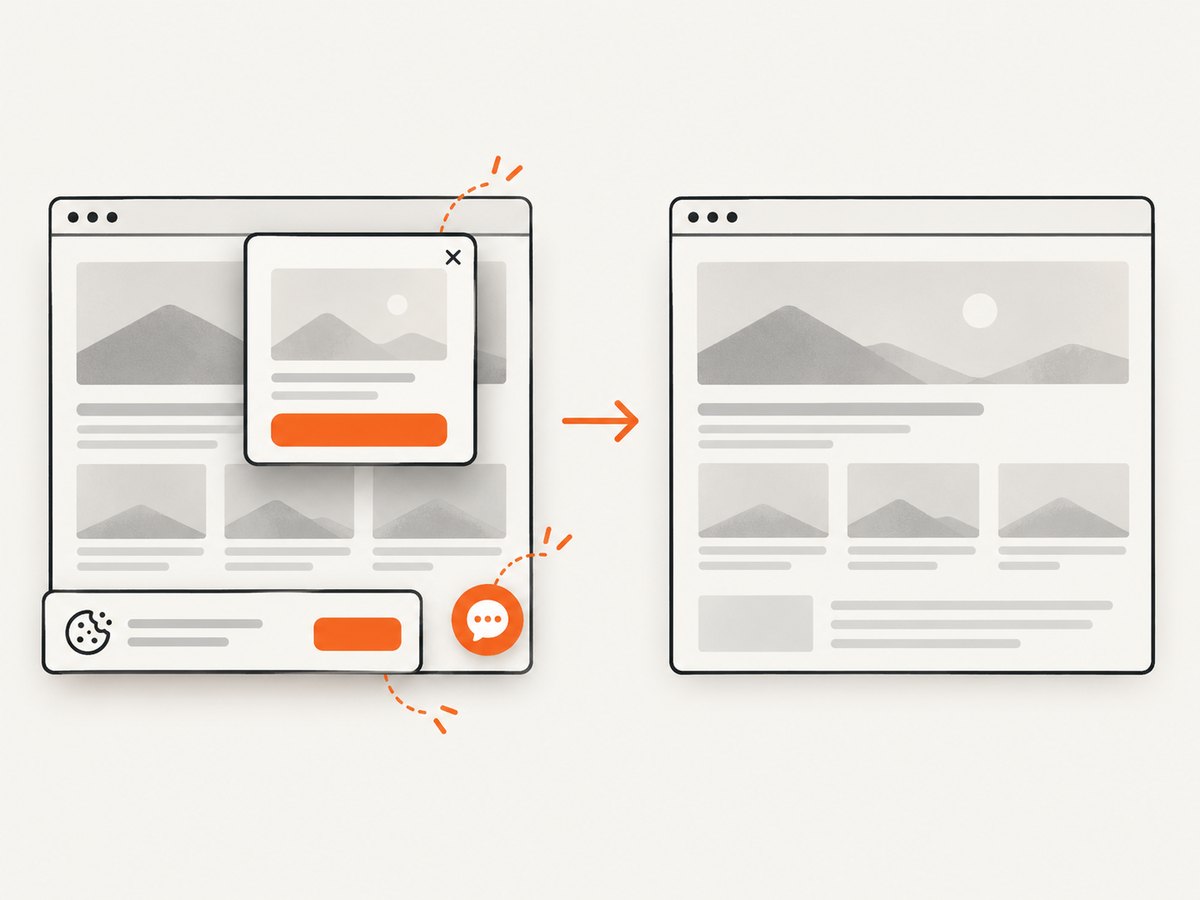
Source inspection answers which metadata the server advertises. A rendered screenshot answers what a visitor sees and can reveal consent banners, newsletter popups, chat widgets, blank states, or a page that never finishes loading. This is useful when the advertised image is generated by a CMS, assembled by a template, or visually differs from the intended share card.
For a repeatable capture, record the URL, viewport, color scheme, wait condition, and timestamp. Compare the screenshot with the image returned from og:image; they are separate assets and do not need to match.
7. Or skip the browser setup
ScreenshotNeo provides a website screenshot API and MCP server. One GET request returns a PNG, JPEG, WebP, or PDF. It can capture a full page, load lazy images, capture one CSS-selected element, set a viewport or device preset, use dark mode and retina scale, apply custom CSS or JavaScript, click before capture, hide selectors, wait for a selector, delay, or network idle, and set headers, cookies, user agent, authorization, timezone, and geolocation. It can also block ads, trackers, requests, or resource types.
Use the ScreenshotNeo API documentation for the complete parameter list. The basic calls below are runnable as written after replacing the key and target URL.
curl -G "https://api.screenshotneo.com/v1/shot" -d access_key=YOUR_API_KEY --data-urlencode url=https://stripe.com -o shot.webpimport requests
r = requests.get("https://api.screenshotneo.com/v1/shot", params={"access_key": "YOUR_API_KEY", "url": "https://stripe.com"}, timeout=90)
open("shot.webp", "wb").write(r.content)const q = new URLSearchParams({ access_key: 'YOUR_API_KEY', url: 'https://stripe.com' });
const res = await fetch(`https://api.screenshotneo.com/v1/shot?${q}`);ScreenshotNeo accepts the parameter names used by other screenshot APIs, which simplifies switching. For preview investigations, useful options include a full-page capture, a chosen viewport, a wait for a known selector, custom CSS to hide a temporary overlay, and a cache TTL when you repeatedly inspect the same page.
Cookie banners, newsletter popups, and chat widgets are removed before the shot; bot checks, blank pages, timeouts, failed loads, and cache hits cost nothing. Each response reports the result with X-Page-Verdict and X-Billed headers. An MCP server exposes take_screenshot, get_page_info, and capture_pdf to Claude, Cursor, and other MCP clients.
The Free plan includes 1,000 screenshots per month with no card. Paid plans start at $5 for 3,000 shots; yearly billing gives two months free. Create a free ScreenshotNeo account and start with the 1,000 included screenshots.
8. Performance, reliability, and cost considerations
- Inspect once, then cache your own result. Store the page URL, extracted tags, image response headers, and inspector timestamp so you can compare changes.
- Use a stable image URL. Avoid short-lived signed URLs for metadata that must remain fetchable after publication.
- Keep images within platform limits. Oversized files waste transfer time and can fail validation.
- Choose waits deliberately. A selector wait is usually more predictable than an arbitrary long delay when rendering a page for visual diagnosis.
- Separate metadata checks from screenshots. An HTTP source check is cheaper and faster for confirming tags; a browser capture is for rendered behavior.
- Batch repeated work. ScreenshotNeo supports bulk capture for up to 100 URLs per call, async jobs with signed webhooks, caching with a TTL you choose, and a usage API.
9. A practical checklist
- The initial HTML contains one intended
og:image. -
og:title,og:type, andog:urlidentify the same page. - The image URL is absolute, HTTPS, public, and stable.
- The response returns an image MIME type and successful status.
- File size and dimensions meet the target platform’s guidance.
- The image remains understandable after likely card crops.
- The target platform inspector shows the expected image.
- After edits, the platform’s cache age has been considered.
10. FAQ
Should I use og:image or a screenshot of the page?
Use og:image for the share image. A rendered screenshot is a separate diagnostic asset that helps you inspect what the page looks like and whether overlays interfere with the visitor experience.
Can I verify a preview without publishing a post?
Yes. Use the target platform’s inspector where available. LinkedIn Post Inspector shows extracted values and its stored update time before you publish.
Does changing the image filename force every platform to refresh?
No universal refresh rule exists. A new URL can help distinguish assets, but you still need to use each platform’s inspection or refresh process and follow its cache guidance.
Why is the image correct in source but wrong in the card?
The platform may rank several candidates, use oEmbed or fallback metadata, apply its own constraints, or display cached information. Compare the source with the inspector output to identify which case applies.
What dimensions should I always use?
There is no single universal requirement. LinkedIn’s documented sharing guidance uses 1200 × 627 pixels minimum and 5 MB maximum; check every other platform separately.


