How to Check Open Graph Metadata
Learn how to inspect Open Graph tags, diagnose wrong social previews, and verify what crawlers fetch with browser tools, scripts, and ScreenshotNeo.

To check Open Graph metadata, inspect the HTML <head> delivered for the public URL, record each og: property and its content value, then validate the URL with the target platform’s debugger or preview inspector. Start with these four required properties:
og:title— the share titleog:type— commonlywebsiteor an article typeog:image— the preview image URLog:url— the canonical URL for the shared object
Open Graph lets a web page become a rich object in a social graph. The protocol specification defines the four properties above as the basic metadata every page should provide (Open Graph protocol).
1. Inspect the delivered HTML in a browser
- Open the public URL in a browser.
- Choose View Source (usually by right-clicking the page, or using
view-source:https://example.com/page). - Search for
property="og:. - Copy every matching tag’s
propertyandcontentattributes into a checklist.
<meta property="og:title" content="Example article">
<meta property="og:type" content="article">
<meta property="og:image" content="https://example.com/images/article.jpg">
<meta property="og:url" content="https://example.com/article">
View Source shows the HTML sent by the server. This is usually the most useful first check because social crawlers often fetch the response without running all client-side JavaScript.
2. Compare View Source with the rendered DOM
Open developer tools, select the Elements panel, and inspect the document <head>. Search for og: and compare the result with View Source.
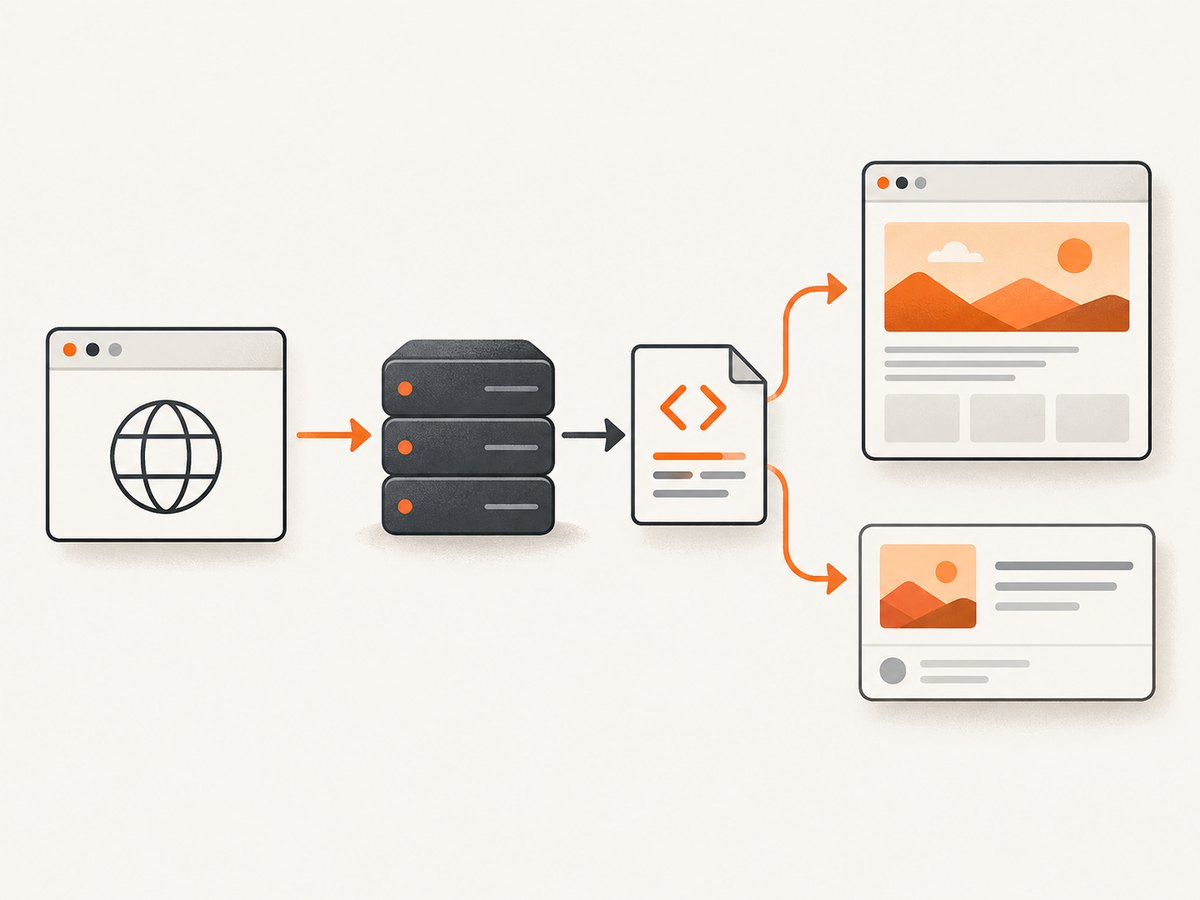
If a tag appears only in Elements, JavaScript added it after the initial response. If it appears only in View Source, client-side code may have removed or replaced it. Check both when a single-page application or server-side rendering is involved.
3. Check every important property
| Property | What to verify |
|---|---|
og:title |
The exact title you want displayed. |
og:type |
The object’s type, such as website or article. |
og:image |
An absolute, publicly reachable image URL. |
og:url |
The canonical URL that platforms should associate with the object. |
og:description |
The summary shown in cards when supported. |
og:site_name |
The site or publication name. |
og:locale |
The page’s locale, such as en_US. |
For an image, also inspect structured properties when present:
<meta property="og:image" content="https://example.com/card.jpg">
<meta property="og:image:secure_url" content="https://example.com/card.jpg">
<meta property="og:image:type" content="image/jpeg">
<meta property="og:image:width" content="1200">
<meta property="og:image:height" content="630">
<meta property="og:image:alt" content="Description of the image">
og:image:alt describes the image; it is not a caption. Keep image structured properties immediately after their og:image root tag.
4. Detect duplicate tags and precedence problems
Repeated Open Graph properties can represent arrays, but duplicates often cause confusing previews. When values conflict, the first root property from top to bottom wins. Put the intended value first and its structured properties directly after it.
<!-- Intended value must come first -->
<meta property="og:image" content="https://example.com/preferred.jpg">
<meta property="og:image:width" content="1200">
<meta property="og:image:height" content="630">

<!-- Additional image, only if deliberately supported -->
<meta property="og:image" content="https://example.com/alternate.jpg">
Search the complete source for duplicate og:title, og:image, and og:url roots. CMS plugins, SEO modules, and theme templates commonly emit the same property twice.
5. Check metadata with cURL
cURL lets you inspect the raw response without browser extensions. Follow redirects so you examine the final page.
curl -L --compressed -sS https://example.com/article \
  | grep -iE '<meta[^>]+(property|name)=["'"']og:'
For a more reliable check, save the response and inspect it with a script. This Python example extracts all Open Graph properties, including duplicates.
import html
import re
import requests

url = "https://example.com/article"
response = requests.get(
    url,
    headers={"User-Agent": "Mozilla/5.0"},
    timeout=30,
)
response.raise_for_status()

for tag in re.findall(r"<meta\b[^>]*>", response.text, flags=re.I):
    prop = re.search(r'''(?:property|name)\s*=\s*["']([^"']+)["']''', tag, re.I)
    content = re.search(r'''content\s*=\s*["']([^"']*)["']''', tag, re.I)
    if prop and prop.group(1).lower().startswith("og:"):
        print(prop.group(1), "=", html.unescape(content.group(1)) if content else "")
For production tooling, use an HTML parser instead of regular expressions so quoted attributes, whitespace, and unusual tag formatting are handled correctly.
6. Check metadata with Node.js
const url = 'https://example.com/article';
const res = await fetch(url, {
  headers: { 'user-agent': 'Mozilla/5.0' },
});
if (!res.ok) throw new Error(`${res.status} ${res.statusText}`);

const html = await res.text();
const tags = html.match(/<meta\b[^>]*>/gi) ?? [];
for (const tag of tags) {
  const property = tag.match(/(?:property|name)\s*=\s*["']([^"']+)["']/i)?.[1];
  const content = tag.match(/content\s*=\s*["']([^"']*)["']/i)?.[1] ?? '';
  if (property?.toLowerCase().startsWith('og:')) {
    console.log(`${property} = ${content}`);
  }
}
7. Check the final social preview
Raw HTML inspection tells you what your server delivered. A platform debugger tells you what a platform fetched and may reveal redirects, blocked assets, or cached values. Run the URL through the relevant inspector after publishing a correction:
Re-fetch the URL in the inspector after every metadata change. A browser preview can look correct while a crawler still receives an old response, a redirect, or a page that requires JavaScript.
8. A repeatable Open Graph audit
- Confirm the URL is publicly reachable without authentication.
- Follow redirects and record the final URL.
- Inspect View Source for the four core properties.
- Check absolute URLs for
og:urlandog:image. - Look for duplicate root properties.
- Verify image structured fields and that they follow the intended image root.
- Compare View Source with the rendered DOM.
- Run the URL through the destination platform’s debugger.
- Re-fetch after deployment and clear any application or CDN cache you control.
9. Troubleshooting common Open Graph errors
The card has no image
Confirm that og:image exists, uses an absolute URL, and returns the image to an unauthenticated request. Check that structured image fields are attached to the correct root tag.
The wrong title or image appears
Search for duplicate og:title or og:image tags. Move the intended value first and remove tags emitted by an unwanted plugin or template.
The preview points to the wrong page
Compare og:url with the canonical URL you intend platforms to associate with the share. Inspect redirects and trailing-slash or query-string differences.
View Source and Elements disagree
The server response and the rendered DOM differ. Determine whether JavaScript is adding, replacing, or removing tags, then confirm the result with a platform inspector.
The preview is stale after a fix
Run the URL through the platform’s debugger or inspector again to trigger a re-fetch. Also purge caches that serve the HTML or image.
The page works in a browser but not for a crawler
Check for authentication, robots or firewall rules, JavaScript-only rendering, slow responses, and redirects. Test the raw HTTP response with cURL and compare its status, headers, and body.
10. Performance, reliability, and cost considerations
- Performance: Keep metadata in the initial HTML response when possible. A crawler should not need to wait for client-side rendering.
- Reliability: Use stable absolute URLs, HTTPS image hosting, and predictable redirects. Keep the intended root property first.
- Cache behavior: Expect platform caches to outlive a deployment. Always validate with the platform’s own re-fetch tool.
- Audit cost: Browser inspection and cURL are free. Automated audits consume your own server or CI resources; cache fetched HTML when checking many URLs.
- Security: Do not put secrets in metadata. Treat fetched URLs as untrusted input in automated audit systems.
11. Or skip the browser setup
ScreenshotNeo can capture the rendered page so you can review the visual result of a URL while debugging its social presentation. It accepts one GET request and returns PNG, JPEG, WebP, or PDF. See the ScreenshotNeo API documentation for all options.

curl -G "https://api.screenshotneo.com/v1/shot" -d access_key=YOUR_API_KEY --data-urlencode url=https://example.com/article -o shot.webpimport requests
r = requests.get("https://api.screenshotneo.com/v1/shot", params={"access_key": "YOUR_API_KEY", "url": "https://example.com/article"}, timeout=90)
open("shot.webp", "wb").write(r.content)const q = new URLSearchParams({ access_key: 'YOUR_API_KEY', url: 'https://example.com/article' });
const res = await fetch(`https://api.screenshotneo.com/v1/shot?${q}`);Cookie banners, newsletter popups, and chat widgets are removed before the shot. Bot checks, blank pages, failed loads, timeouts, and cache hits are not billed, and response headers identify the page verdict and billing status. Its MCP server provides take_screenshot, get_page_info, and capture_pdf tools for Claude, Cursor, and other MCP clients. The Free plan includes 1,000 screenshots a month with no card; paid plans start at $5 for 3,000 shots. Create a free ScreenshotNeo account.
12. FAQ
Are Open Graph tags visible in the page body?
No. They belong in the document <head>.
Do Open Graph tags replace the HTML title tag?
No. Keep a normal <title> for browsers and search results, and define og:title for social objects.
Can one page have multiple Open Graph images?
Yes. Repeated image roots can represent an array. Put the preferred image first and keep each image’s structured properties next to its root.
Why should I check both source and the DOM?
They show different stages: the server-delivered HTML and the post-JavaScript document. Comparing them exposes rendering differences.


