How to Check an Open Graph Preview for Your Website
Inspect Open Graph tags, simulate link cards, fix stale previews, and verify changes with practical checks and code.
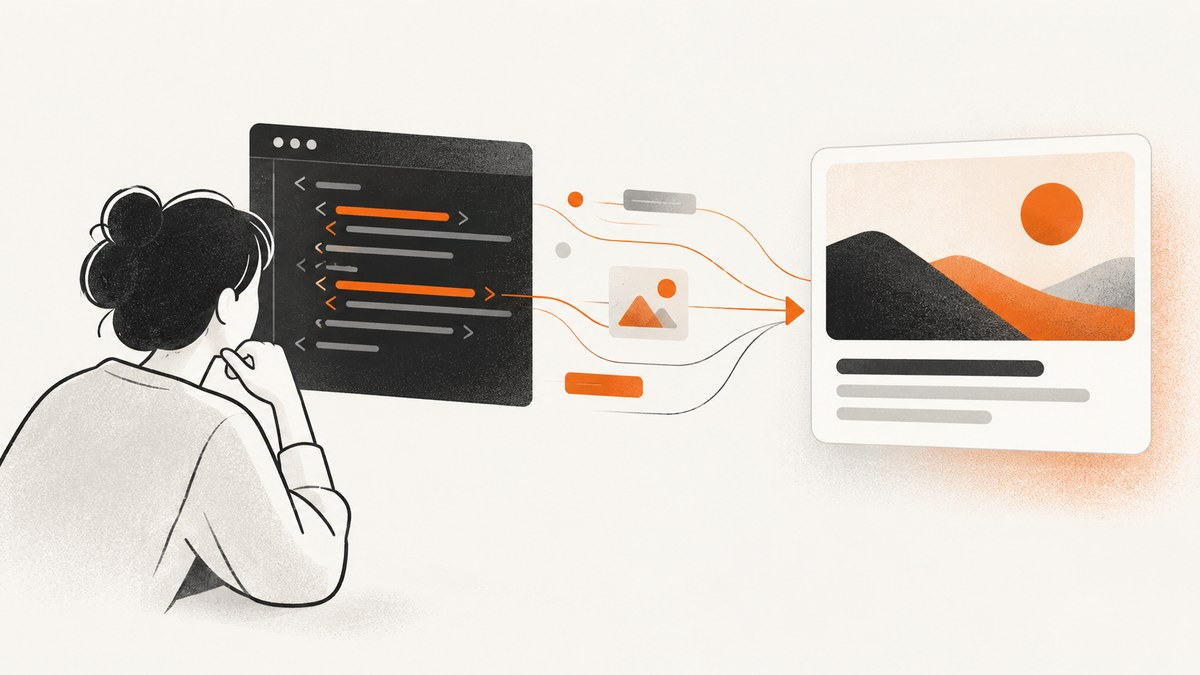
To check an Open Graph preview, inspect the page’s returned HTML for Open Graph meta elements, then submit the public URL to a preview or debugger tool. Compare the extracted title, description, image, type, and URL with the card you intend to share. If the card is stale, publish corrected metadata and request a fresh fetch through the destination platform’s debugger when one is available.
Open Graph metadata is placed in the document <head>. The protocol’s four basic properties are og:title, og:type, og:image, and og:url. The official specification is at ogp.me.
1. What an Open Graph preview checks
When someone shares a URL, a crawler fetches the page and reads metadata. A preview tool performs a similar diagnostic fetch and usually shows the values it found plus a simulated card. This lets you distinguish a metadata problem from a destination platform’s rendering or cache behavior.
| Property | What it controls | What to verify |
|---|---|---|
og:title |
Headline shown for the shared object | It is specific, current, and not the site name alone |
og:type |
Object classification | It matches the page you are sharing |
og:image |
Image associated with the object | The URL is public, absolute, and returns the intended image |
og:url |
Canonical URL for the object | It is the URL you expect platforms to associate with the card |
Many sites also provide a description and Twitter Card metadata. Treat those as additional fields to inspect, while using the Open Graph properties as the protocol baseline.
2. Inspect the HTML directly
- Open the exact public URL that will be shared.
- View the response source or fetch it from a terminal. Do not rely only on the browser’s rendered DOM: a crawler may receive different HTML, especially when metadata is generated server-side or blocked by a deployment rule.
- Search inside the
<head>forproperty="og:. - Record each value and compare it with the page’s intended title, type, image, and canonical URL.
curl -L --max-time 30 https://example.com/article \
  | grep -iE 'property="og:(title|type|image|url)"'
A healthy response contains tags similar to:
<meta property="og:title" content="Example article title">
<meta property="og:type" content="article">
<meta property="og:image" content="https://example.com/images/article.jpg">
<meta property="og:url" content="https://example.com/article">
Check that the tags occur in the initial HTML response and inside <head>. A script that inserts them after page load may not be visible to every crawler.
3. Use a preview or debugger tool
Paste the public URL into an Open Graph preview or debugger. Review both the raw fields and the simulated card. A useful tool should fetch the URL, list detected Open Graph or Twitter Card tags, identify missing fields, and show how the values might look in a share card.
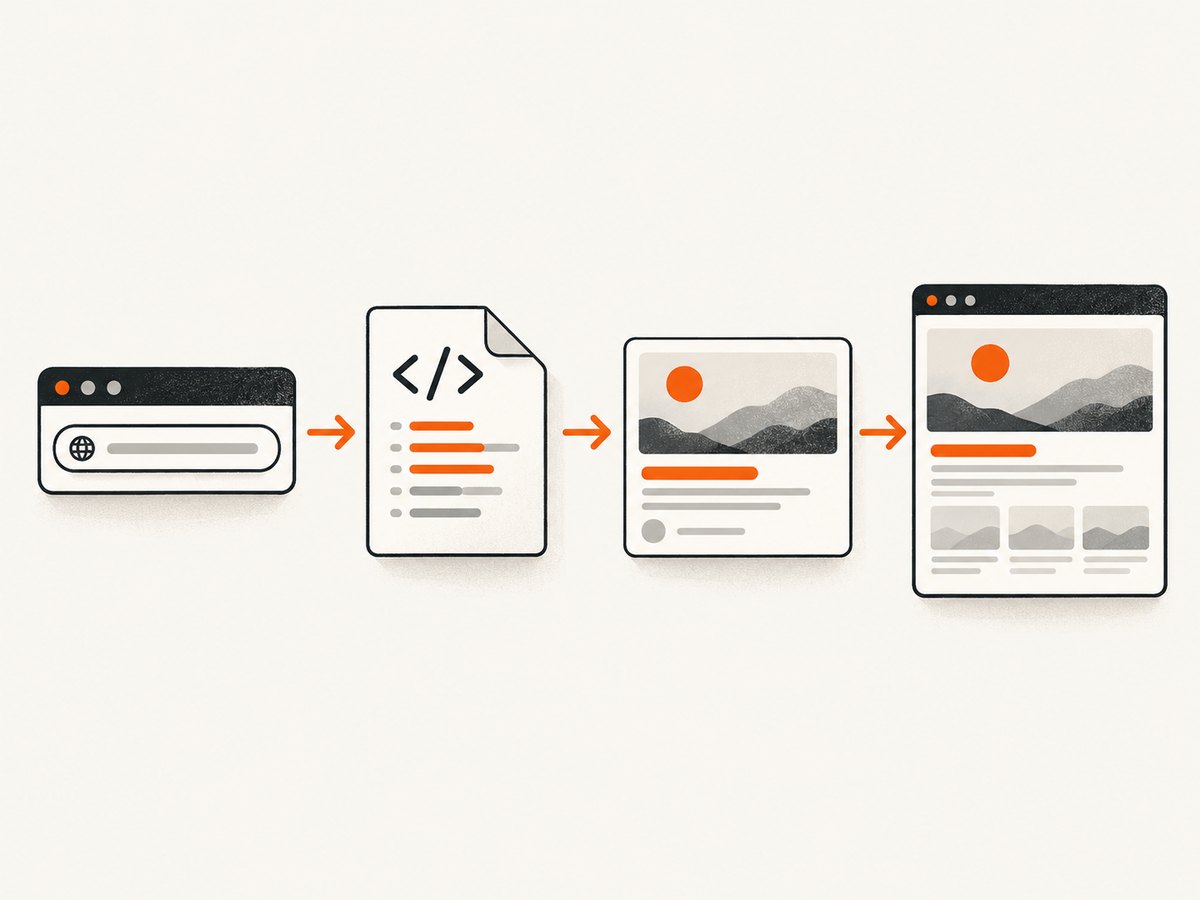
- Submit the final HTTPS URL, including the correct path and important query or redirect behavior.
- Read the extracted values rather than judging only the visual card.
- Confirm the title is the intended page title, the image is the intended asset, and the URL points to the correct canonical page.
- Save or screenshot the diagnostic output if you are handing the issue to a developer.
A simulated card is diagnostic evidence. It is not a guarantee that every social network, chat application, or email client will use identical dimensions, truncation, fetch rules, or cache timing. If exact behavior matters, verify the destination itself after correcting the metadata.
4. Fix metadata at its source
Correct the template, CMS field, or server-rendered component that generates the HTML. A common pattern in a server template is:
<head>
  <meta property="og:title" content="{{ page.title }}">
  <meta property="og:type" content="article">
  <meta property="og:image" content="{{ page.og_image_url }}">
  <meta property="og:url" content="{{ page.canonical_url }}">
</head>
Use one authoritative value for each property. Check that content is correctly HTML-escaped, that image and URL values are absolute, and that a staging hostname has not leaked into production metadata. Publish the change, purge any site cache that serves the old HTML, and run the inspection again.
5. Refresh a stale preview
If the debugger still shows old information after publication:
- Fetch the URL yourself and confirm the new tags are in the response.
- Check redirects. The shared URL may redirect to a different page whose metadata is still old.
- Use the destination platform’s debugger or inspector to request another fetch when that feature is available.
- Inspect the result again and share the exact URL that was checked.
Do not promise a universal refresh time. Cache behavior and crawler schedules differ by platform and can change. A fresh fetch request is the reliable action you can take; the platform decides when and how it stores the result.
6. Capture the preview exactly as a browser sees it
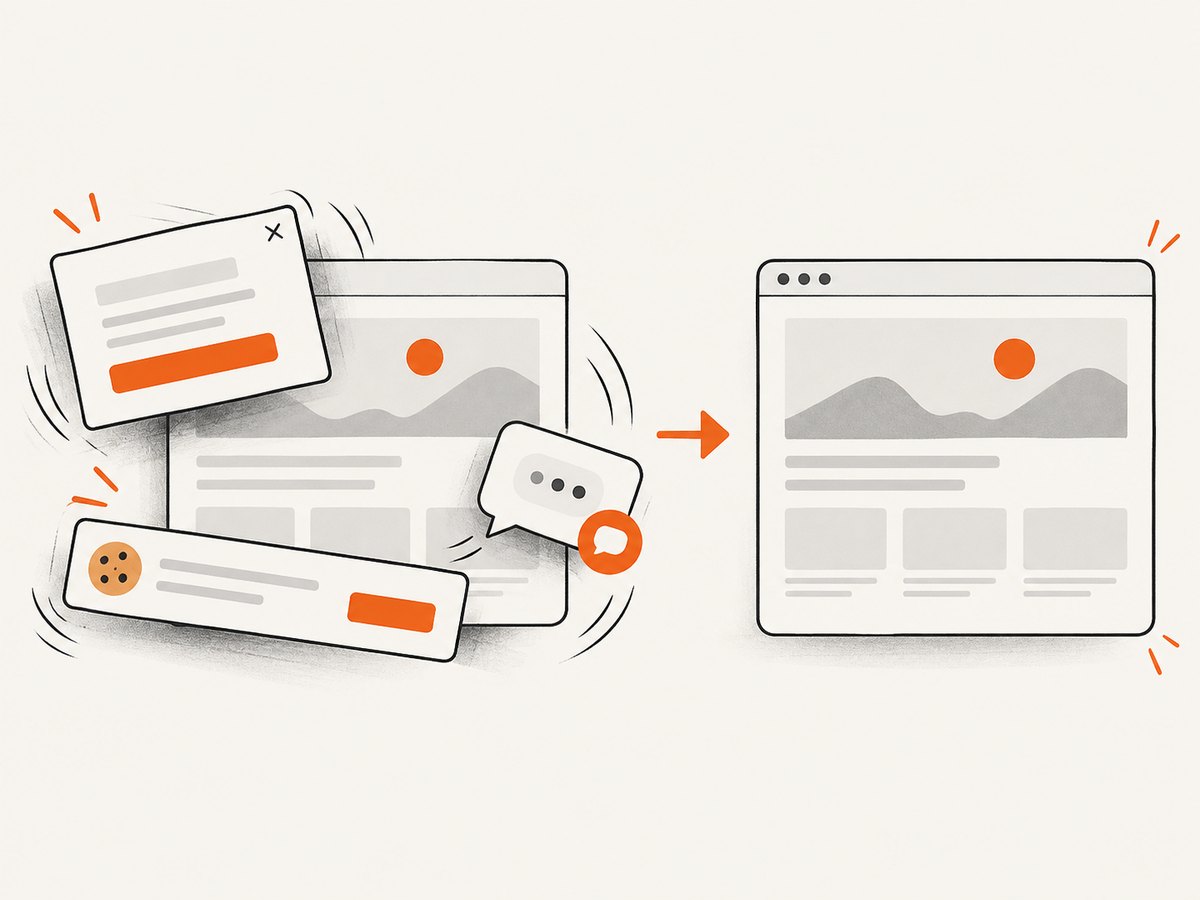
HTML inspection tells you what a crawler can read. A screenshot adds a visual check for the page itself: consent dialogs, newsletter popups, chat bubbles, loading states, and responsive layout can obscure the content you want to document. Capture the public URL at the same viewport and color scheme your reviewer uses, then compare the image with the debugger’s simulated card.
DIY browser capture with Playwright
The following Node.js script opens a page, waits for network activity to settle, hides common overlays, and writes a full-page image. Adjust the selectors for your site.
import { chromium } from "playwright";

const browser = await chromium.launch();
const page = await browser.newPage({
  viewport: { width: 1440, height: 900 },
  deviceScaleFactor: 1
});

await page.goto("https://example.com/article", {
  waitUntil: "networkidle",
  timeout: 60000
});

await page.addStyleTag({ content: `
  [id*="cookie"], [class*="cookie"],
  [id*="consent"], [class*="consent"],
  [class*="newsletter"], [class*="chat"] {
    display: none !important;
  }
` });

await page.screenshot({ path: "open-graph-page.png", fullPage: true });
await browser.close();
This is a page screenshot, not a social-network card. Use it to verify the page state and visual assets while the debugger verifies extracted metadata.
7. Or skip the browser setup
ScreenshotNeo provides a website screenshot API and MCP server. It accepts one GET request and returns PNG, JPEG, WebP, or PDF. Before capture it accepts consent banners and removes more than 60 known consent platforms, newsletter popups, and chat widgets; each step can be disabled. Only clean shots are billed: bot checks, CAPTCHAs, blank pages, timeouts, failed loads, and cache hits cost nothing, and the response identifies the result with X-Page-Verdict and X-Billed headers.
See the ScreenshotNeo API documentation for all options. A direct call using the target URL is:
curl -G "https://api.screenshotneo.com/v1/shot" -d access_key=YOUR_API_KEY --data-urlencode url=https://example.com/article -o shot.webpPython
import requests

r = requests.get(
    "https://api.screenshotneo.com/v1/shot",
    params={"access_key": "YOUR_API_KEY", "url": "https://example.com/article"},
    timeout=90,
)
r.raise_for_status()
open("shot.webp", "wb").write(r.content)
Node.js
const q = new URLSearchParams({
  access_key: 'YOUR_API_KEY',
  url: 'https://example.com/article'
});
const res = await fetch(`https://api.screenshotneo.com/v1/shot?${q}`);
if (!res.ok) throw new Error(`Screenshot failed: ${res.status}`);
const buffer = Buffer.from(await res.arrayBuffer());
await import('node:fs/promises').then(fs => fs.writeFile('shot.webp', buffer));
For Open Graph investigations, useful ScreenshotNeo options include a chosen viewport or device preset, full-page capture with lazy images loaded, dark mode, retina scale, custom CSS, JavaScript, a selector wait, a delay, network-idle waiting, hidden selectors, blocked requests or resource types, custom headers and cookies, timezone and geolocation, transparent backgrounds, resizing, a chosen cache TTL, signed links, asynchronous jobs with signed webhooks, bulk capture for up to 100 URLs per call, and the usage API. You can also capture one element by CSS selector or produce a PDF with paper size, margins, landscape mode, and page ranges.
The MCP server exposes take_screenshot, get_page_info, and capture_pdf for Claude, Cursor, and other MCP clients. That makes it practical to ask an AI agent to inspect a page and capture evidence without embedding browser orchestration in your project.
Plans include 1,000 shots per month free with no card, then Starter at $5 for 3,000, Growth at $15 for 15,000, Pro at $39 for 60,000, Scale at $99 for 250,000, and Business at $249 for 1,000,000. Yearly billing gives two months free, and every feature is available on every plan. Create a free ScreenshotNeo account to start with 1,000 screenshots a month and no card.
8. Troubleshooting checklist
| Symptom | Likely cause | Fix |
|---|---|---|
| No preview appears | Core tags are missing, malformed, or absent from the fetched HTML | Inspect the raw response and add valid tags inside <head> |
| Wrong title or image | The template emits stale data, duplicate tags, or a fallback value | Find every matching tag, keep one intended value, publish, and fetch again |
| Correct page, wrong URL | og:url or a redirect points to another object |
Follow redirects and set og:url to the canonical share URL |
| Image is missing | Image URL is relative, private, blocked, or returns an error | Use a public absolute URL and verify it returns the image directly |
| Old card after editing | The platform has cached an earlier fetch | Confirm new HTML, then use the platform debugger or inspector to request a refetch |
| Browser and debugger disagree | Client-side rendering, bot rules, authentication, or different response variants | Compare the exact response received by the tool and move critical tags into server HTML |
| Screenshot shows a popup | Consent, newsletter, or chat UI appears before capture | Wait for the page state, hide the selector, or use ScreenshotNeo’s cleanup steps |
| Capture times out | Slow assets, blocked requests, or an application waiting forever | Set a bounded timeout, wait for a selector or delay, and block nonessential resource types |
9. Performance, reliability, and cost
- Inspect before capturing: HTML checks are faster and cheaper than repeatedly rendering a page. Use a screenshot to confirm visual state or preserve evidence.
- Control waiting: Network idle can be slow on pages with analytics or streaming requests. A specific selector or short delay is often more predictable.
- Reduce work: Block ads, trackers, and unnecessary resource types; capture an element instead of the entire page when the question concerns one card.
- Handle failures explicitly: Record HTTP status, timeout state, and the extracted metadata. With ScreenshotNeo, inspect
X-Page-VerdictandX-Billedso failed or cached responses are not mistaken for clean billed captures. - Use caching deliberately: A chosen TTL avoids repeated rendering while metadata is unchanged. Bypass or shorten the TTL after publishing a fix.
- Batch audits: For a site-wide check, use bulk capture for up to 100 URLs per call, then retain the URL, verdict, and image path for each result.
10. A repeatable Open Graph audit
- Choose the exact URL that readers will share.
- Fetch its HTML and verify
og:title,og:type,og:image, andog:url. - Submit the URL to a debugger and compare extracted fields with the intended card.
- Correct the template or CMS and publish the change.
- Confirm redirects, image accessibility, and cache headers are not serving an old response.
- Request a platform-specific refetch where available.
- Capture the page at the target viewport if visual layout or overlays matter.
- Record the final URL, metadata values, fetch time, and screenshot so future regressions are easy to identify.
Frequently asked questions
Do Open Graph tags need to be visible on the page?
No. They belong in the HTML document head and describe the object for crawlers. They do not need to appear as visible content.
Will one debugger predict every social network?
No. A debugger simulates a card and reports what it fetched. Destinations can apply different fetch rules, dimensions, truncation, and cache behavior.
Why check og:url when I already know the shared URL?
The property identifies the canonical object. A mismatch can make a platform associate the card with another URL or continue showing metadata from a different page.
Should I regenerate the image after changing only the title?
Usually no. Keep the image URL stable when the image did not change, update the HTML title, and request a fresh platform fetch. Change the image URL when the image itself changes and the destination does not otherwise revalidate it.


