How to Check Whether a Radio Button Is Clickable in Cypress
Use Cypress actionability checks to test whether a radio can be clicked, then assert its state. Learn when to use .click(), .check(), and enabled-state assertions.
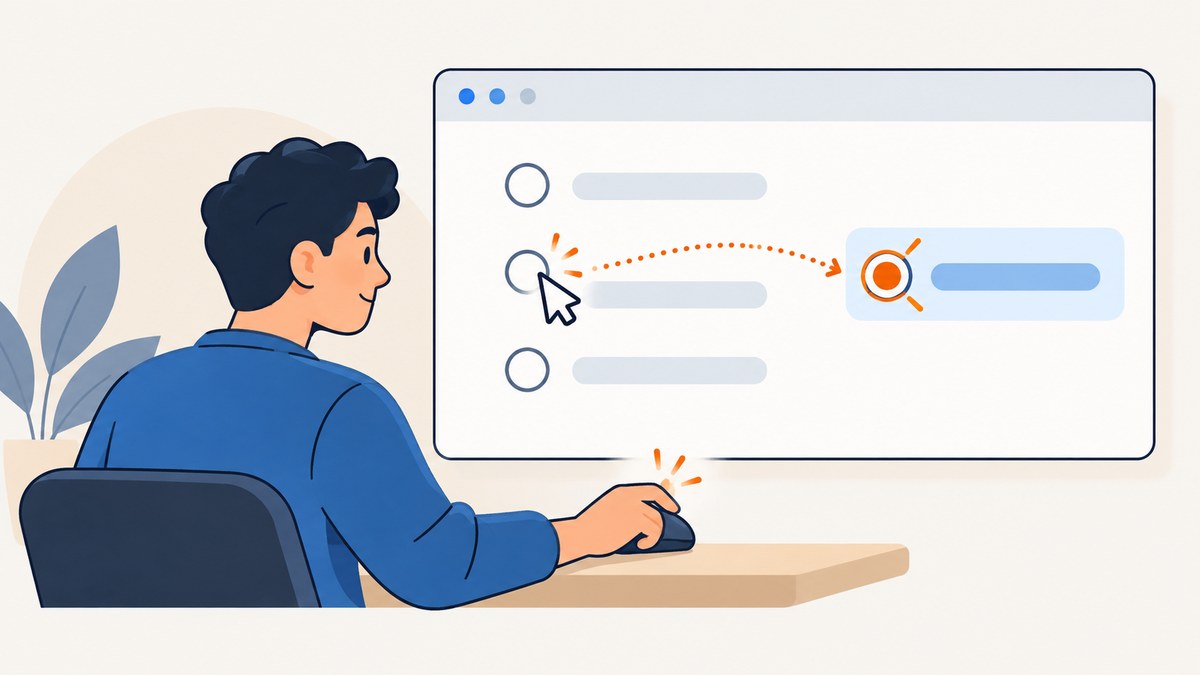
To check whether Cypress can perform an ordinary click on a radio button, query the radio and call .click(). Cypress waits for its actionability checks; if the radio remains hidden, disabled, covered, detached, readonly, or animating until the command times out, the command fails. To check that an option was selected, use .check() and assert .should('be.checked'). These tests answer different questions: clickability is about performing an interaction, while checked state is about the result.
// Does Cypress consider this radio actionable for an ordinary click?
cy.get('input[type="radio"][value="email"]').click()

// Is the option selected?
cy.get('input[type="radio"][value="email"]').should('be.checked')
Use a stable selector such as a data-cy attribute if your application provides one. Cypress’s official interaction guide explains actionability, and its click command reference documents click behavior. For a screenshot of a rendered page when diagnosing a visual issue, ScreenshotNeo is a website screenshot API and MCP server; it can capture the page, but it does not replace Cypress’s interaction assertions.
1. Decide what the test needs to prove
“Clickable,” “enabled,” and “selected” are not interchangeable. Choose the assertion that matches the behavior under test.
| Question | Cypress command or assertion | What it establishes |
|---|---|---|
| Is the native control enabled? | .should('be.enabled') |
The element is not natively disabled. |
| Can Cypress perform a normal click? | .click() |
Cypress passed its actionability checks and dispatched a click. |
| Can the radio be selected? | .check() |
Cypress performed the selection operation for a radio. |
| Is the expected option selected? | .should('be.checked') |
The radio’s checked state is true. |
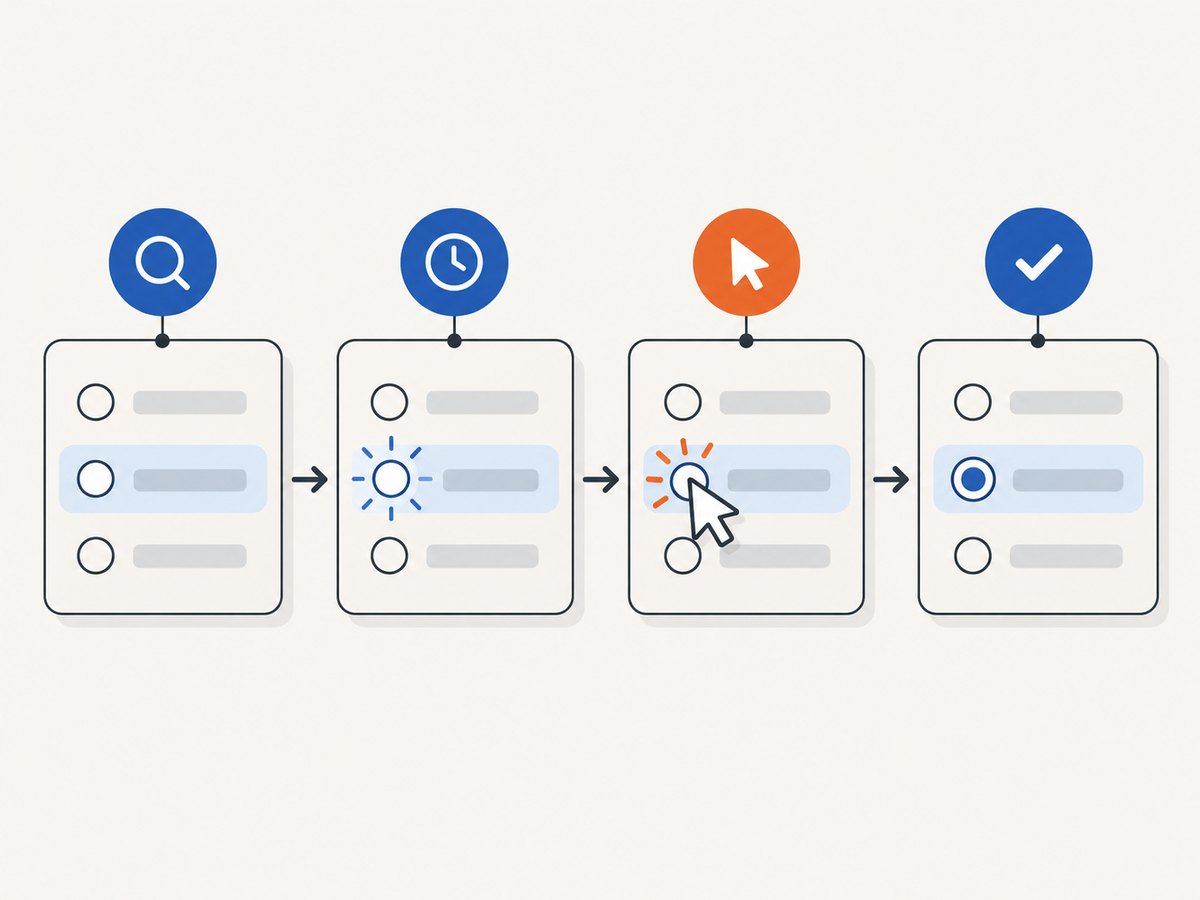
A click succeeding does not by itself prove the application reached its intended state. Follow it with an assertion on the resulting state or behavior. Conversely, a checked assertion alone does not prove a user could ordinarily click the control: application code, a prior action, or initial markup may already have selected it.
2. Test ordinary click actionability with .click()
Use .click() when the requirement specifically concerns a click interaction, such as clicking a styled radio control and confirming the application responds. Cypress scrolls the element into view and checks whether it can interact with it. It waits while the query chain retries and actionability conditions are unresolved. Once actionable, the click is attempted once; Cypress does not repeat the click command.
describe('delivery choice', () => {
  it('lets the user click the express radio', () => {
    cy.visit('/checkout')

    const expressRadio = '[data-cy="delivery-express"]'

    cy.get(expressRadio).should('be.enabled')
    cy.get(expressRadio).click()
    cy.get(expressRadio).should('be.checked')
  })
})
The example assumes the app has a radio with that selector and that the checkout route exists; replace both with your application’s markup and route. Starting a fresh cy.get() after the click is useful when the framework may rerender or replace the element during the interaction. Cypress retries the new query and its assertion as needed.
If the radio is intentionally visually represented by a label or custom control, target the element a user is meant to operate. Then verify the native radio state. The exact selector and markup depend on the app. Do not infer that a hidden input is the right click target without checking how the interface is designed to be used.
3. Select a radio with .check()
For a test whose intent is simply to choose a radio option, Cypress’s .check() command is usually clearer. Cypress documents it for checkboxes and radio inputs. Assert the selected state afterward so the test records its expected outcome explicitly.
describe('contact preferences', () => {
  it('selects email as the preferred contact method', () => {
    cy.visit('/preferences')

    const emailRadio = 'input[type="radio"][name="contact"][value="email"]'

    cy.get(emailRadio).check()
    cy.get(emailRadio).should('be.checked')
  })
})
Radio groups share a name; selecting one radio normally deselects another in that group. You can assert both sides when exclusivity is part of the requirement:
cy.get('input[name="contact"][value="email"]').check()
cy.get('input[name="contact"][value="email"]').should('be.checked')
cy.get('input[name="contact"][value="phone"]').should('not.be.checked')
Use .check() for selection intent, not as a substitute for a test specifically about pointer clickability. For example, if a CSS overlay blocks pointer input but programmatic selection still succeeds, that may matter to a real user even though the selection command passes.
4. Check enabled state separately
Native disabled state is a separate property from visibility, coverage, and checked state. Make the distinction explicit where it matters:
const radio = 'input[type="radio"][name="delivery"][value="express"]'

cy.get(radio).should('be.enabled')
cy.get(radio).click()
cy.get(radio).should('be.checked')
For a disabled option, assert the inverse rather than attempting an ordinary action and treating its failure as the intended assertion:
cy.get('input[name="delivery"][value="unavailable"]')
  .should('be.disabled')
aria-disabled="true" is not the same as the native disabled property for Cypress actionability. Cypress can click an element with that ARIA attribute because ARIA communicates semantics but does not itself disable native interaction. If your app uses ARIA to represent a disabled custom control, test the app’s user-facing behavior and its semantic state explicitly; do not assume the attribute makes Cypress reject a click.
5. Understand Cypress retries and timeouts
Cypress retries queries and retryable assertions while waiting for the subject to meet conditions. Action commands such as .click() wait for actionability and then run once. Assertions after an action can retry, but the action itself is not replayed. This matters for a radio rendered after an asynchronous update: query it and let Cypress wait for the element, then interact, and query again for the result.
The documented default command retry timeout is four seconds. If this particular UI legitimately needs longer, set a targeted timeout on the query:
cy.get('[data-cy="delivery-express"]', { timeout: 10000 })
  .click()

cy.get('[data-cy="delivery-express"]')
  .should('be.checked')
A longer timeout gives the app more time to become ready; it does not fix a permanently covered, hidden, or disabled control. Prefer a condition-based wait over a fixed delay such as cy.wait(2000), which can slow the suite and still be too short on a slower run. See Cypress’s primary documentation on retry-ability for how queries and assertions retry.
6. Handle styled radios and visibility carefully
A native radio may be visually hidden while a label, pseudo-element, or custom wrapper presents the control. Conversely, an element can have zero opacity and still be considered actionable under Cypress’s interaction rules. A .should('be.visible') assertion and a successful click do not mean exactly the same thing: visibility assertions account for opacity, while actionability also checks whether another element covers the target.
When testing a custom radio:
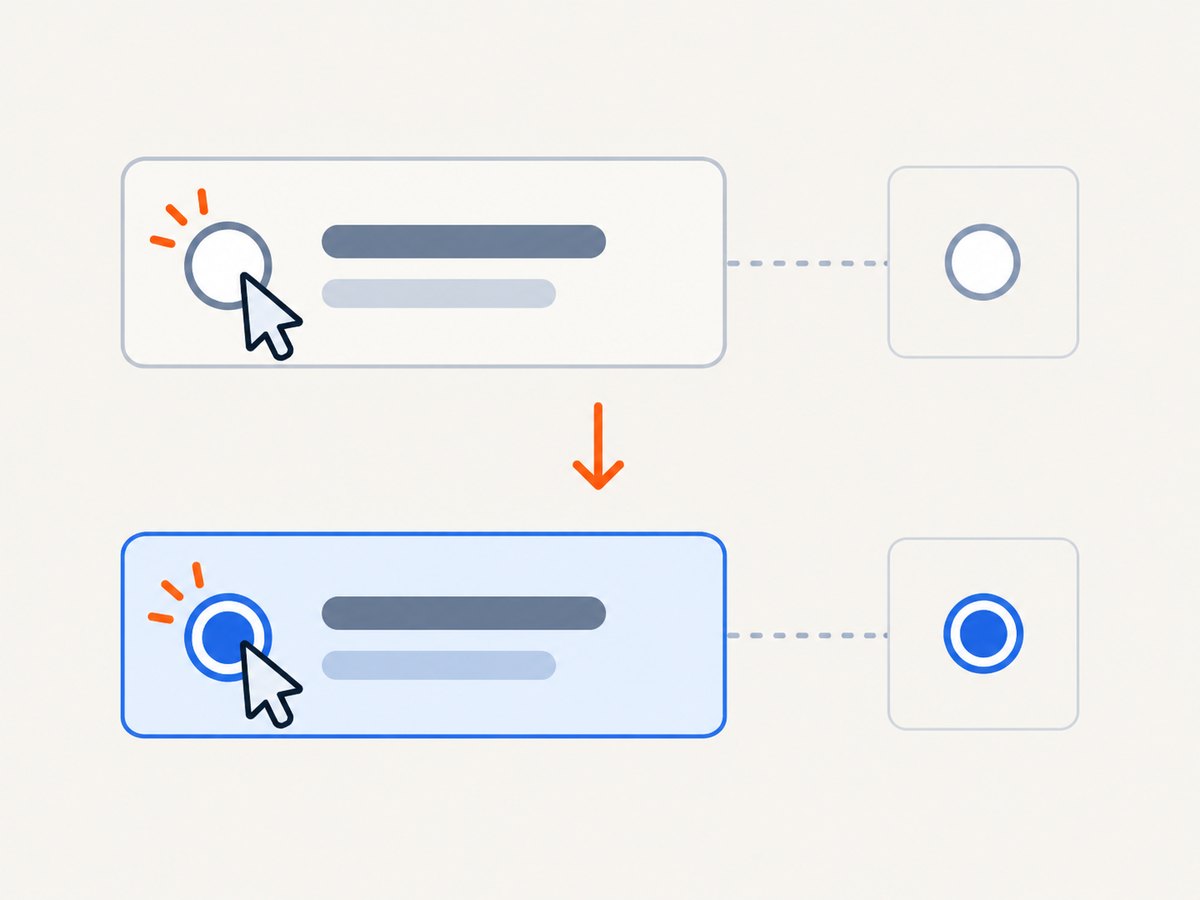
- Identify the actual element the user clicks, often a label or custom control.
- Interact with that element using the app’s intended selector.
- Assert the associated native radio’s checked state, or assert the accessible state your component exposes.
- Keep a separate enabled or disabled assertion when that state is part of the requirement.
A click on a label can be the correct user interaction even when the underlying input is visually hidden. The test should follow the app’s real interaction path, rather than forcing the hidden input to accept a click simply to make the test pass.
7. When force is appropriate
.click({ force: true }) bypasses Cypress’s normal actionability checks. It can be useful when a test deliberately needs to dispatch an event despite a condition that ordinarily blocks interaction, but success does not show that a user can normally click the radio.
// Bypasses ordinary actionability checks; not a clickability test.
cy.get('[data-cy="delivery-express"]').click({ force: true })
For a clickability requirement, remove the force option and fix the cause of the blocked interaction or assert the expected blocked state. Otherwise the test can pass while a real user cannot operate the control.
8. Troubleshoot common failures
| Failure or symptom | Likely cause | What to do |
|---|---|---|
| Element is covered | An overlay, sticky header, modal, or another element intercepts the pointer. | Wait for the intended UI state using a retried assertion, dismiss the overlay as a user would, or correct the layout. Avoid force if the test claims normal clickability. |
| Element is not visible | The selector found a hidden responsive variant, or the radio is represented through a label/custom control. | Inspect the rendered state and target the intended user-facing control. Assert the associated radio state afterward. |
| Element is disabled | The native control has the disabled property, perhaps until another field is completed. |
Complete the prerequisite or assert be.disabled if disabling is expected. |
| Element detached from the DOM | A framework rerender replaced the node between query and action. | Wait for the UI’s ready condition and query the element close to the action. Use a new query for post-action assertions. |
| Click times out while animation runs | The target keeps moving or animating, so Cypress does not consider its position stable. | Wait for the animation or state transition to finish through an observable condition; adjust the UI or test setup if animation is irrelevant and persistent. |
| Click succeeds but radio is not checked | The click target may not activate the input, a handler may prevent selection, or the app may replace/reset state. | Assert checked state with a fresh query, then verify the correct label/control target and application event handling. |
be.visible passes but click fails |
Visibility does not establish that the target is uncovered and actionable. | Inspect Cypress’s actionability failure details and identify the covering element. |
| ARIA disabled control is still clickable | aria-disabled does not set native disabled state. |
Assert the relevant semantic state and test whether the app prevents the action as intended. |
| Test is flaky with a fixed wait | Rendering time varies and the delay is not tied to readiness. | Wait on a retried query/assertion or a meaningful application state, then act. |
Cypress’s assertion reference covers common Chai-jQuery assertions such as be.checked, be.enabled, and be.disabled: Assertions in Cypress.
9. Or skip the browser setup
If you need a visual record of the page around a failing test, ScreenshotNeo can return a screenshot with one GET request. See the ScreenshotNeo API documentation for the API details.
curl -G "https://api.screenshotneo.com/v1/shot" -d access_key=YOUR_API_KEY --data-urlencode url=https://stripe.com -o shot.webpimport requests
r = requests.get(
"https://api.screenshotneo.com/v1/shot",
params={"access_key": "YOUR_API_KEY", "url": "https://stripe.com"},
timeout=90,
)
open("shot.webp", "wb").write(r.content)const q = new URLSearchParams({ access_key: 'YOUR_API_KEY', url: 'https://stripe.com' });
const res = await fetch(`https://api.screenshotneo.com/v1/shot?${q}`);
if (!res.ok) throw new Error(`Screenshot request failed: ${res.status}`);
await Bun.write('shot.webp', res);Replace the example URL with a page you are authorized to capture. ScreenshotNeo accepts cookie and consent banners like a visitor and removes more than 60 known consent platforms, newsletter popups, and chat widgets before capture; each step can be turned off. Bot checks and CAPTCHAs, blank pages, timeouts, failed loads, and cache hits cost nothing, and responses identify the page verdict and billing status in headers. Its MCP server provides take_screenshot, get_page_info, and capture_pdf tools for AI agents. The free plan includes 1,000 screenshots each month with no card; paid plans start at $5 for 3,000.
Sign up free for 1,000 screenshots a month, with no card required.
A screenshot can help inspect visual context, but it cannot establish Cypress actionability, native enabled state, or checked state. Keep the Cypress commands above for those assertions.
10. Performance, reliability, and cost
For test reliability, keep selectors stable, avoid fixed sleeps, assert the UI state that precedes the interaction, and make the expected post-click state explicit. Since a Cypress click is attempted once after actionability succeeds, a fresh query and retryable assertion are useful after state changes. A forced click can conceal defects and should not be used as evidence of user-like clickability.
Timeouts trade waiting time for tolerance of slow rendering. Apply longer values only to controls with a real, understood readiness delay. A broad increase can make failures slower to diagnose without changing the underlying UI behavior. There is no special per-radio Cypress cost established by the cited documentation; runtime comes from the test suite and its environment.
ScreenshotNeo’s listed plans are Free: 1,000 shots/month; Starter: $5 for 3,000; Growth: $15 for 15,000; Pro: $39 for 60,000; Scale: $99 for 250,000; Business: $249 for 1,000,000. Yearly billing gives two months free, and every feature is on every plan. Use screenshots as a visual aid alongside tests, not as a substitute for browser interaction assertions.
11. Quick checklist
- Use
.click()when the test is specifically about ordinary click actionability. - Use
.check()when the intent is to select a radio. - Assert
be.enabledorbe.disabledwhen native enabled state matters. - After an action, use a fresh query and assert
be.checkedor the app behavior. - Remember that
aria-disabledis not the native disabled property. - Avoid
force: truefor tests that claim a user can click normally.
12. FAQ
Does a successful .click() prove the radio is selected?
No. Assert .should('be.checked') to verify the resulting native state.
Should I use .click() or .check()?
Use .click() to exercise a click and its actionability rules. Use .check() when the outcome you want is radio selection.
Can I test a radio that is hidden behind a custom design?
Interact with the visible control users operate, then verify the associated radio or accessible state. Avoid forcing a click on a hidden input unless that is specifically the behavior under test.
Will Cypress reject aria-disabled=”true”?
Not by that attribute alone. Test the app’s behavior and semantic state explicitly, and use native disabled when the control should be disabled as an HTML form control.
Can a screenshot tell me whether Cypress can click the radio?
No. A screenshot records appearance; Cypress actionability and state assertions establish whether the interaction succeeds and selects the option.


