How to Check a URL at Intervals with a Node.js Puppeteer Scraper
Build a reliable Node.js URL checker with Puppeteer: serialized intervals, response validation, readiness checks, change detection, retries, and alerts.
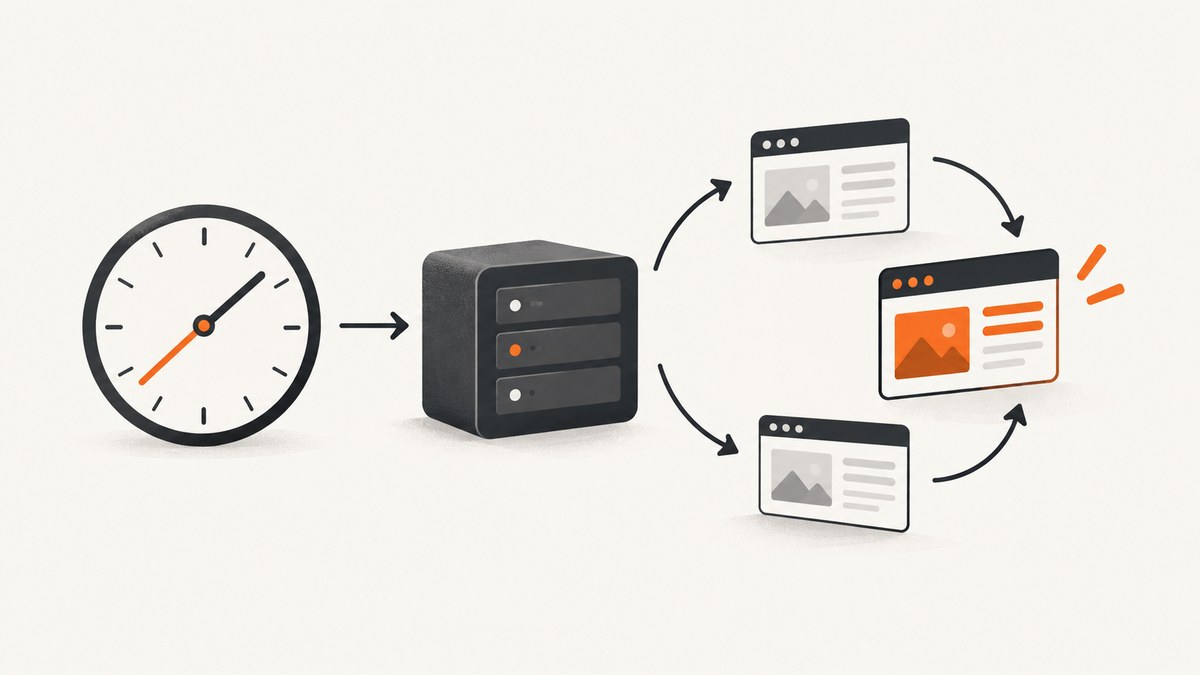
To check a URL every few minutes with Node.js and Puppeteer, keep one browser and page alive, navigate with page.goto(), validate the returned response, wait for a page-specific readiness signal, extract a stable value, and compare it with the previous successful value. Use a promise-based interval so one slow check finishes before the next starts.
The example below checks the main element every five minutes. It rejects missing responses, treats HTTP errors as failures, waits for the page to be ready, normalizes whitespace, and reports only real changes.
1. Install Puppeteer and create the checker
Create a project and install Puppeteer:
mkdir url-monitor
cd url-monitor
npm init -y
npm install puppeteer
The puppeteer package downloads a compatible browser during installation. puppeteer-core does not download one and expects a browser executable supplied by your environment. Choose puppeteer-core only when your deployment already manages Chromium.
Save this as monitor.mjs:
import puppeteer from 'puppeteer';
import { setInterval } from 'node:timers/promises';

const url = process.env.TARGET_URL ?? 'https://example.com';
const periodMs = Number(process.env.PERIOD_MS ?? 300_000);
const navigationTimeoutMs = Number(process.env.NAVIGATION_TIMEOUT_MS ?? 30_000);
const selectorTimeoutMs = Number(process.env.SELECTOR_TIMEOUT_MS ?? 10_000);
const readySelector = process.env.READY_SELECTOR ?? 'main';

const browser = await puppeteer.launch({
  // In a container, you may need: args: ['--no-sandbox', '--disable-setuid-sandbox']
});
const page = await browser.newPage();
page.setDefaultNavigationTimeout(navigationTimeoutMs);
page.setDefaultTimeout(selectorTimeoutMs);

let previous;
let stopping = false;
const controller = new AbortController();

function normalize(text) {
  return text
    .replace(/\\s+/g, ' ')
    .trim();
}

async function check() {
  const response = await page.goto(url, {
    waitUntil: 'domcontentloaded',
    timeout: navigationTimeoutMs,
  });

  if (!response) {
    throw new Error('No document response');
  }

  if (!response.ok()) {
    throw new Error(`HTTP ${response.status()} at ${response.url()}`);
  }

  await page.waitForSelector(readySelector, {
    timeout: selectorTimeoutMs,
  });

  const current = await page.$eval(readySelector, element =>
    element.textContent ?? '',
  );
  const normalized = normalize(current);

  const changed = previous !== undefined && normalized !== previous;
  previous = normalized;

  const result = {
    type: changed ? 'changed' : 'unchanged',
    requestedUrl: url,
    finalUrl: response.url(),
    status: response.status(),
    checkedAt: new Date().toISOString(),
    valueLength: normalized.length,
  };

  console.log(JSON.stringify(result));
  return { ...result, value: normalized };
}

async function stop(signal) {
  if (stopping) return;
  stopping = true;
  console.error(`Received ${signal}; shutting down`);
  controller.abort();
  await page.close();
  await browser.close();
  process.exit(0);
}

process.once('SIGINT', () => void stop('SIGINT'));
process.once('SIGTERM', () => void stop('SIGTERM'));

try {
  await check();
  for await (const _ of setInterval(periodMs, undefined, {
    signal: controller.signal,
  })) {
    try {
      await check();
    } catch (error) {
      console.error(JSON.stringify({
        type: 'failed',
        requestedUrl: url,
        checkedAt: new Date().toISOString(),
        error: error instanceof Error ? error.message : String(error),
      }));
    }
  }
} catch (error) {
  if (error?.name !== 'AbortError') throw error;
} finally {
  if (!stopping) {
    await page.close();
    await browser.close();
  }
}
Run it with environment variables:
TARGET_URL=https://news.ycombinator.com \
READY_SELECTOR=body \
PERIOD_MS=300000 \
node monitor.mjs
page.goto() resolves with the main resource response, but a resolved navigation is not proof that the intended application loaded. Valid HTTP statuses such as 404 and 500 can still produce a response, so inspect response.status() and response.ok(). The final response URL records redirects.
2. Why a serialized interval matters
Node’s callback form of setInterval schedules repeated execution through the event loop. If a check takes longer than the period, another callback can start while the first navigation is still running. That creates overlapping work on the same page, races in shared state, extra load on the target, and misleading comparisons.
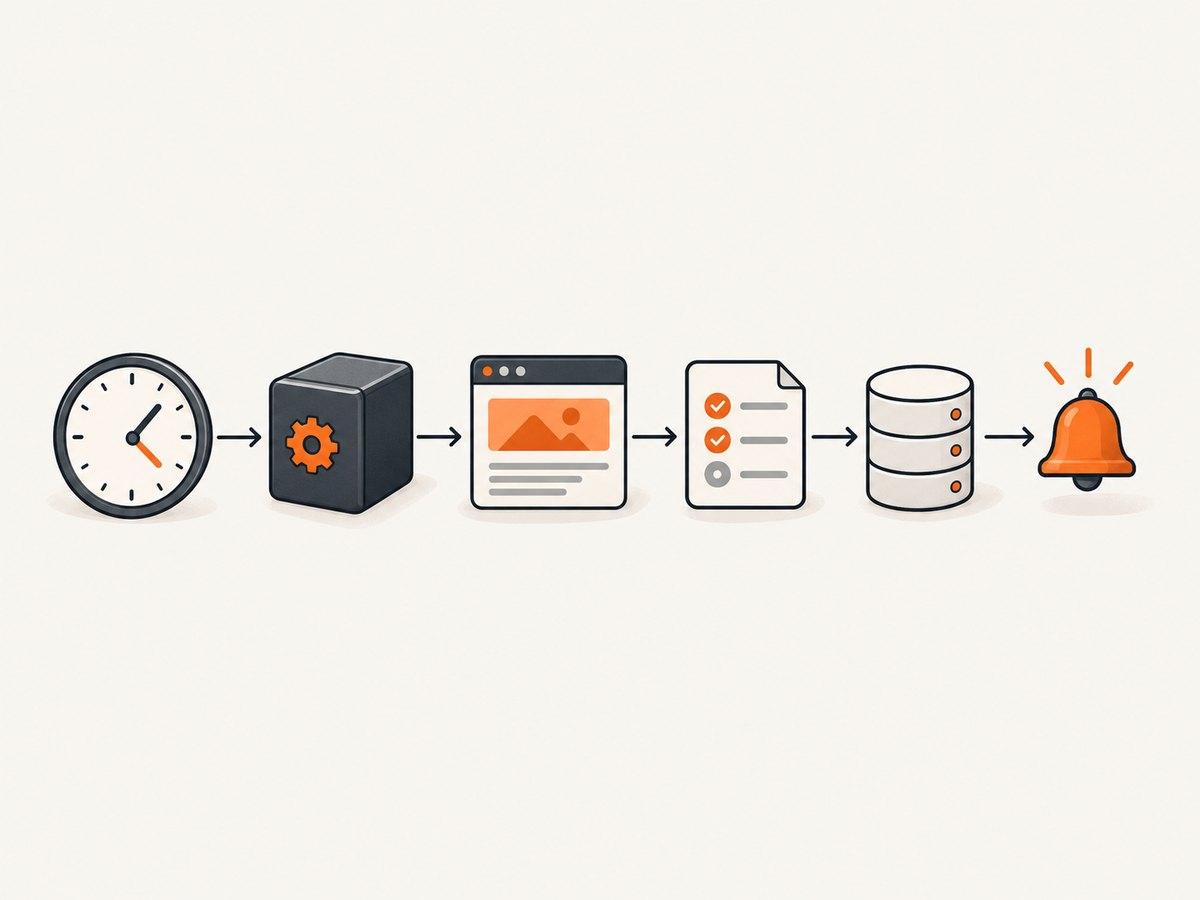
timers/promises.setInterval() returns an async iterator. The for await loop above waits for check() to finish before requesting the next tick. Its AbortSignal also provides a clean shutdown path. See the Node.js timers promises documentation.
For a finite run, abort after a fixed number of checks:
const controller = new AbortController();
let count = 0;
for await (const _ of setInterval(periodMs, undefined, {
  signal: controller.signal,
})) {
  await check();
  count += 1;
  if (count === 12) controller.abort();
}
A recursive timeout is another valid serialization strategy:
async function loop() {
  try {
    await check();
  } catch (error) {
    console.error(error);
  }
  setTimeout(loop, periodMs);
}
await loop();
Use callback setInterval only when you add an explicit overlap guard:
let running = false;
const timer = setInterval(async () => {
  if (running) return;
  running = true;
  try { await check(); }
  finally { running = false; }
}, periodMs);
3. Choose the right readiness condition
waitUntil: 'domcontentloaded' means the initial HTML has been parsed. It does not guarantee that client-side rendering, an API request, an image, or a price widget has finished. Add a condition that represents the data you actually compare.
Wait for a selector
await page.waitForSelector('.price', { timeout: 10_000 });
const price = await page.$eval('.price', el => el.textContent ?? '');
waitForSelector works across navigations and throws if the selector does not appear before its timeout. Use a selector that belongs to the page’s stable content rather than a rotating advertisement.
Wait for a custom predicate
await page.waitForFunction(
  () => document.querySelector('.status')?.textContent?.includes('Available'),
  { timeout: 15_000 },
);
Use network idle carefully
await page.goto(url, {
  waitUntil: 'networkidle2',
  timeout: 30_000,
});
Network-idle conditions can be unsuitable for pages with analytics, long polling, advertisements, or persistent WebSockets. A page-specific selector or predicate is usually more meaningful.
4. Compare stable data instead of noisy pages
Comparing complete HTML produces false positives from timestamps, random IDs, rotating ads, session tokens, and whitespace. Extract the smallest stable field that answers your monitoring question.
const current = await page.$eval('[data-testid="stock"]', el => ({
  text: el.textContent ?? '',
  available: el.getAttribute('data-available'),
}));

const normalized = JSON.stringify({
  text: (current.text ?? '').replace(/\\s+/g, ' ').trim(),
  available: current.available,
});
For multiple fields, sort object keys before hashing or construct a fixed-shape object. A cryptographic hash makes persistence compact:
import { createHash } from 'node:crypto';
const digest = createHash('sha256').update(normalized).digest('hex');
Persist the last successful value outside process memory when changes must survive a restart. A small JSON file is enough for one process; a database or key-value store is safer when several workers may run. Write atomically by writing a temporary file and renaming it, so a crash cannot leave half a value.
5. Validate the page beyond HTTP status
A 200 response can still be a login page, bot-check page, maintenance page, or application error rendered inside HTML. Combine several checks when the consequence of a false “healthy” result is high:
- Require a selector such as
main,.price, or a product identifier. - Check
response.url()for an unexpected login or redirect destination. - Read the document title or a known body marker.
- Reject an empty extracted value.
- Record status, final URL, elapsed time, and failure reason for diagnosis.
const title = await page.title();
if (/sign in|access denied|captcha/i.test(title)) {
  throw new Error(`Unexpected page title: ${title}`);
}

const finalUrl = response.url();
if (new URL(finalUrl).hostname !== new URL(url).hostname) {
  throw new Error(`Unexpected redirect to ${finalUrl}`);
}
6. Add retries without hiding failures
Retry transient network failures, but do not silently turn a persistent error into a successful check. Use a small number of attempts and exponential backoff. Keep navigation and selector timeouts separate so a missing element is distinguishable from a connection timeout.
async function withRetry(operation, attempts = 3) {
  let lastError;
  for (let attempt = 1; attempt <= attempts; attempt += 1) {
    try {
      return await operation();
    } catch (error) {
      lastError = error;
      if (attempt === attempts) break;
      await new Promise(resolve =>
        setTimeout(resolve, 500 * 2 ** (attempt - 1)),
      );
    }
  }
  throw lastError;
}

await withRetry(check);
Retrying every error immediately can increase load and delay alerts. Consider a longer backoff for repeated failures and a separate notification when the target recovers.
7. Scheduling, rate limits, and process reliability
- Pick an appropriate period. A five-minute check is unnecessary for a value that changes once per day. Respect the target site’s terms, robots guidance, access controls, and rate limits.
- Reuse the browser and page. Launching Chromium for every tick adds startup work and complicates cleanup. Recreate the page only after a page-level failure that leaves it unusable.
- Keep failures per-run. Catch errors inside the interval loop so one timeout does not terminate the scheduler.
- Handle signals. Close the page and browser on
SIGINTandSIGTERM, especially in containers and job runners. - Control concurrency. Run one monitor process per target or use a queue with a concurrency limit. Do not share one Puppeteer page between simultaneous navigations.
- Persist state. Store the last digest, last successful timestamp, and last error. This prevents a restart from being reported as a content change.
- Measure duration. Log navigation time and extraction time. If checks approach the period, increase the period or reduce the page work.
8. Common errors and fixes
| Error or symptom | Likely cause | Fix |
|---|---|---|
Navigation timeout of ... ms exceeded |
Slow origin, blocked resource, or an interval that is too short. | Set an explicit timeout, inspect the target independently, block unnecessary resources when appropriate, and retry with backoff. |
No document response |
The navigation was interrupted, a non-document target was used, or the browser closed. | Log the URL and lifecycle state; verify the target is an HTTP(S) document and keep the browser alive. |
HTTP 404 or HTTP 500 |
The server returned a valid error response, so goto() still resolved. |
Check response.ok() and alert or record the status explicitly. |
Waiting for selector ... failed |
The selector is wrong, the app has not rendered, consent blocks the page, or the content is unavailable. | Confirm the selector in DevTools, wait for a page-specific condition, and inspect screenshots or HTML from a failed run. |
| Checks overlap | Callback setInterval started another async callback before the prior one ended. |
Use promise-based setInterval, recursive setTimeout, or an in-flight guard. |
| Every check reports a change | Timestamps, ads, randomized IDs, or whitespace are included. | Extract stable fields and normalize or hash them before comparison. |
| Chromium fails in a container | Missing shared libraries, sandbox restrictions, or an unsuitable base image. | Use a Puppeteer-compatible image, install required libraries, or configure the environment’s browser executable. Only add sandbox flags when your deployment requires them. |
| Login or CAPTCHA content | The site requires a session or has detected automation. | Use authorized credentials and cookies where permitted, reduce frequency, and treat the page as unavailable instead of declaring the application healthy. |
9. Performance and cost considerations
A persistent browser avoids repeated Chromium startup, but each navigation still consumes CPU, memory, bandwidth, and target-site capacity. Full pages with client-side rendering, large images, and third-party scripts cost more than a small document. Extract one element when that is all you need.
Resource interception can reduce work for a text-only check:
await page.setRequestInterception(true);
page.on('request', request => {
  const type = request.resourceType();
  if (['image', 'font', 'media'].includes(type)) request.abort();
  else request.continue();
});
Do not block resources required to render the selector you monitor. Validate this change against the real page. Browser memory can grow on long-running processes; monitor it and recycle the browser during a planned maintenance window if necessary.
10. Or skip the browser setup
If you need screenshots rather than DOM-level change detection, ScreenshotNeo provides a single HTTP request for a PNG, JPEG, WebP, or PDF. Its API can wait for selectors, delays, or network idle; load lazy images for full-page captures; capture one CSS-selected element; apply custom headers, cookies, user agents, authorization, timezone, geolocation, JavaScript, and CSS; block selected requests or resource types; and use caching with a chosen TTL.

cURL:
curl -G "https://api.screenshotneo.com/v1/shot" \
  -d access_key=YOUR_API_KEY \
  --data-urlencode url=https://stripe.com \
  -o shot.webp
Python:
import requests

r = requests.get(
    "https://api.screenshotneo.com/v1/shot",
    params={"access_key": "YOUR_API_KEY", "url": "https://stripe.com"},
    timeout=90,
)
r.raise_for_status()
open("shot.webp", "wb").write(r.content)
Node.js:
const q = new URLSearchParams({
  access_key: 'YOUR_API_KEY',
  url: 'https://stripe.com',
});
const res = await fetch(`https://api.screenshotneo.com/v1/shot?${q}`);
if (!res.ok) throw new Error(`HTTP ${res.status}`);
const bytes = await res.arrayBuffer();
await Bun.write('shot.webp', bytes);
See the ScreenshotNeo API documentation for request options and response details. Cookie and consent banners are accepted and 60+ known consent platforms, newsletter popups, and chat widgets are removed before capture; each step can be turned off. Bot checks or CAPTCHAs, blank pages, timeouts, failed loads, and cache hits cost nothing, and the response identifies the page verdict and billing state with X-Page-Verdict and X-Billed headers. An MCP server provides take_screenshot, get_page_info, and capture_pdf tools for Claude, Cursor, and other MCP clients. The Free plan includes 1,000 screenshots per month with no card; paid plans start at $5 for 3,000.
Create a free ScreenshotNeo account and start with the 1,000 monthly screenshots.
11. FAQ
Should I use setInterval or cron?
Use a serialized in-process loop when the monitor is always running. Use cron or a job scheduler when each check should be a separate, short-lived process with external scheduling and logs.
Does a 200 status prove the URL is healthy?
No. Validate a selector, title, canonical URL, or body marker that proves the intended application loaded.
How do I detect a redirect?
Read response.url() after navigation and compare it with the expected origin or path.
How do I monitor several URLs?
Keep a bounded concurrency pool. A separate page per simultaneous navigation is safer than sharing one page, and the pool prevents a large list from overwhelming your browser or the target sites.
How do I send an alert?
Call your notification service only when the normalized value changes or a failure state transitions. Include the URL, final URL, status, timestamp, and a short before/after summary.
When should I choose Puppeteer over an HTTP client?
Use Puppeteer when JavaScript rendering, interaction, cookies, or browser-only behavior matters. For a static document, an HTTP client is usually simpler and consumes fewer resources.


