How to Check a Website Thumbnail Online
See the exact image a shared URL may use, validate Open Graph tags, diagnose wrong previews, and refresh platform caches.

To check a website thumbnail online, enter the public page URL into an Open Graph or social-card checker, inspect the reported og:image and Twitter Card image, then confirm the result with the destination platform’s own debugger when available. A URL checker is excellent for finding missing metadata, broken image URLs, and unsuitable dimensions. Its rendered card can still be a simulation rather than the card currently stored in a platform cache.
This guide shows how to inspect a thumbnail manually, validate it with command-line and application code, understand platform caching, fix the common failure modes, and capture a reliable visual preview with ScreenshotNeo when you need the page itself rather than only its social metadata.
1. What “website thumbnail” means
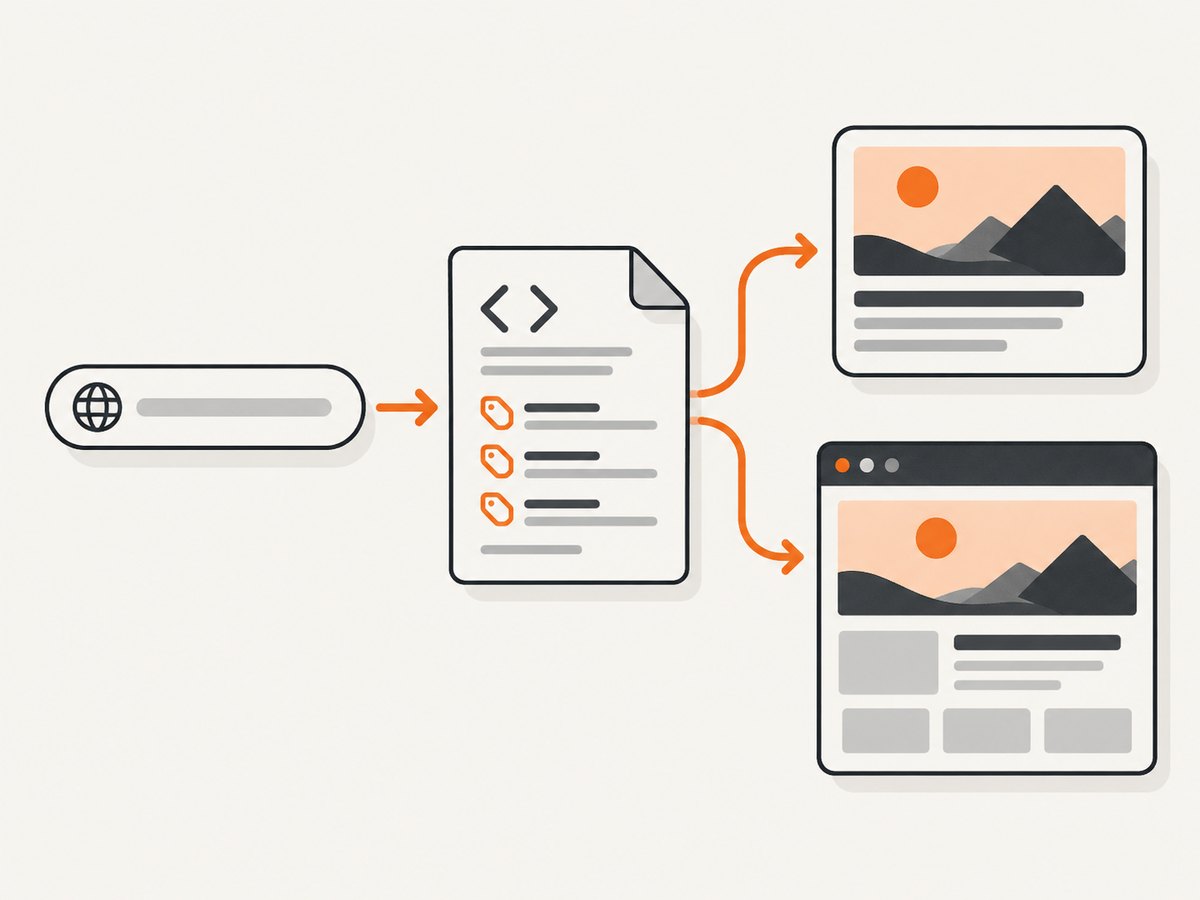
When someone shares a URL in a social network, chat app, or collaboration tool, the service usually fetches the page and builds a link card. The card can contain a title, description, domain, and image. The image is commonly selected from Open Graph metadata, especially the og:image property. Some services also inspect Twitter Card metadata such as twitter:image.
A thumbnail checker normally performs three jobs:
- Fetches the URL as a crawler would.
- Parses metadata such as
og:title,og:description,og:url,og:type,og:image, and Twitter Card fields. - Renders a simulated card so you can see how the supplied values fit together.
That simulation answers “What metadata does a checker see right now?” It does not always answer “What image will a particular network serve from its existing cache?” OGForge explicitly distinguishes a checker mockup from a platform’s cached result. Use the destination platform’s debugger or inspector for platform-specific verification and cache refresh where it provides one. OGForge explains the distinction, while OpenGraph Check shows URL-based metadata and image inspection.
2. The fastest way to check a thumbnail
- Publish the page at its final public URL. Avoid checking a local address, staging host, or URL that requires authentication.
- Open a URL-based Open Graph checker such as OpenGraph Check, paste the complete URL, and submit it.
- Record the fetched values for
og:image,twitter:image, title, description, and canonical URL. - Check whether the image URL resolves without a login, redirect loop, hotlink block, or robots-related crawler restriction.
- Inspect the reported dimensions and the rendered card. A commonly suggested starting size is 1200×630 pixels; OpenGraph.dev presents this as guidance, not a universal requirement. Platform handling can differ.
- Open the destination network’s own sharing debugger or post inspector, submit the same URL, and request a fresh scrape if the service supports that action.
- Share the URL in a private test message after the platform reports the new scrape. Check on the actual clients your audience uses because cropping and caching vary.
3. Inspect the source yourself
A checker is convenient, but viewing the response directly tells you exactly what a basic crawler receives. In your browser, open “View Source” and search for og:image. Do not rely only on a value inserted after page load by JavaScript; many crawlers primarily consume the initial HTML response.
A minimal metadata set looks like this:
<head>
  <meta property="og:title" content="Example product documentation">
  <meta property="og:description" content="Reference material for the Example product.">
  <meta property="og:url" content="https://example.com/docs">
  <meta property="og:type" content="website">
  <meta property="og:image" content="https://example.com/assets/docs-card.jpg">
  <meta property="og:image:width" content="1200">
  <meta property="og:image:height" content="630">
  <meta name="twitter:card" content="summary_large_image">
  <meta name="twitter:image" content="https://example.com/assets/docs-card.jpg">
</head>
Use an absolute HTTPS image URL. Keep the image publicly fetchable, return the correct image content type, and avoid requiring cookies or a browser session. If the page has several og:image tags, the order can matter; put the intended image first and remove stale duplicates.
4. Check with cURL
cURL lets you see the raw HTML and follow redirects. Save the response, then search it for the relevant properties.
curl -L --compressed -A "Mozilla/5.0" \
  -o page.html \
  "https://example.com/page"

rg -i 'property=["'"']og:(image|title|description|url)["'"']|name=["'"']twitter:(image|card)["'"']' page.html
To check the image itself, request headers:
curl -IL "https://example.com/assets/docs-card.jpg"Look for a successful status, an image Content-Type, and a sensible Content-Length. A redirect is not automatically wrong, but every redirect must be reachable by an unauthenticated crawler. If the response is HTML, a login page, or an access-denied document, the thumbnail cannot load even when the metadata tag is correct.
5. Check with Python
The following script fetches a page, extracts common Open Graph and Twitter Card fields, resolves the image URL, and reports its HTTP headers. Install the two dependencies with python -m pip install requests beautifulsoup4.
import sys
from urllib.parse import urljoin

import requests
from bs4 import BeautifulSoup

url = sys.argv[1] if len(sys.argv) > 1 else "https://example.com/page"
headers = {"User-Agent": "thumbnail-check/1.0"}
response = requests.get(url, headers=headers, timeout=30, allow_redirects=True)
response.raise_for_status()

soup = BeautifulSoup(response.text, "html.parser")
def meta(**attrs):
    tag = soup.find("meta", attrs=attrs)
    return tag.get("content", "").strip() if tag else ""

image = meta(property="og:image") or meta(name="twitter:image")
image = urljoin(response.url, image) if image else ""
print("final URL:", response.url)
print("og:title:", meta(property="og:title"))
print("og:description:", meta(property="og:description"))
print("og:image:", image)
print("twitter:card:", meta(name="twitter:card"))

if image:
    image_response = requests.get(image, headers=headers, timeout=30, stream=True)
    print("image status:", image_response.status_code)
    print("image type:", image_response.headers.get("content-type", ""))
    print("image length:", image_response.headers.get("content-length", "unknown"))
else:
    print("No og:image or twitter:image was found.")
Run it with python check_thumbnail.py https://example.com/page. A successful request does not prove every platform will accept the asset, but it separates missing metadata from an image delivery problem.
6. Check with Node.js
This Node.js example uses built-in fetch and a small regular expression for a quick diagnostic. For production HTML parsing, use a parser such as Cheerio so malformed attributes and unusual markup are handled more robustly.
const pageUrl = process.argv[2] || 'https://example.com/page';
const page = await fetch(pageUrl, {
  redirect: 'follow',
  headers: { 'user-agent': 'thumbnail-check/1.0' }
});
if (!page.ok) throw new Error(`Page request failed: ${page.status}`);

const html = await page.text();
function readMeta(attribute, value) {
  const escaped = value.replace(':', '\\:');
  const re = new RegExp(`
7. Why the wrong thumbnail appears
| Symptom | Likely cause | Fix |
|---|---|---|
| No image | No usable og:image or Twitter image tag |
Add an absolute, public image URL and check the initial HTML response. |
| Old image | The destination platform still has a cached scrape | Use its debugger or inspector to request a fresh fetch, then share again. |
| Wrong image | Multiple tags, an inherited template value, or platform-specific selection | Remove duplicates, put the intended tag first, and inspect the fetched source. |
| Broken preview | Image returns an error, login page, unsupported response, or redirect loop | Test the image URL with cURL, remove access controls, and verify content type. |
| Correct checker, wrong app | The checker rendered a mock while the app served cached or platform-specific data | Trust the destination platform's own inspector for that platform. |
| Image is cropped badly | Different card layouts use different aspect ratios | Keep important subjects away from edges and preview on the target platform. |
8. Validate image dimensions and content
Metadata can be perfect while the artwork is unsuitable. Check the pixel dimensions, aspect ratio, file size, and visual safe area. The 1200×630 recommendation from OpenGraph.dev is a practical starting point, but it does not guarantee identical rendering everywhere. A platform may crop to a square, use a different card layout, or choose another field.
Keep the important subject near the center, use enough contrast at small sizes, and avoid placing essential details at the outer edges. Confirm that the image is the intended page-specific asset rather than a site-wide fallback. If you replace the file at the same URL, a checker may show the new bytes while a platform still serves its previous cached copy; changing the asset URL and refreshing the platform scrape can make the change easier to verify.
9. Troubleshooting checklist
- URL is public: Test from a network without your login cookies or VPN access.
- Initial HTML contains tags: View source or fetch with cURL; do not inspect only the post-JavaScript DOM.
- Canonical URL is consistent: Check that redirects and
og:urlpoint to the same page. - Image is fetchable: Request the exact image URL without browser credentials.
- Image response is an image: Confirm the status and
Content-Type. - No accidental duplicates: Search the complete source for every
og:imageoccurrence. - Cache was refreshed: Use the destination platform's debugger after publishing a change.
- Client was retested: Send a new test message after the platform reports a fresh scrape.
10. Capture the page itself with ScreenshotNeo
Metadata checkers answer which social image a platform may select. Sometimes you also need a clean visual of the page: for documentation, QA, link-review workflows, or an AI agent that must inspect the rendered result. ScreenshotNeo is a website screenshot API and MCP server. It can capture PNG, JPEG, WebP, or PDF from one GET request.

Or skip the browser setup
Use the API call below to capture a rendered page. See the ScreenshotNeo API documentation for the complete parameter reference.
curl -G "https://api.screenshotneo.com/v1/shot" -d access_key=YOUR_API_KEY --data-urlencode url=https://stripe.com -o shot.webpimport requests
r = requests.get("https://api.screenshotneo.com/v1/shot", params={"access_key": "YOUR_API_KEY", "url": "https://stripe.com"}, timeout=90)
open("shot.webp", "wb").write(r.content)const q = new URLSearchParams({ access_key: 'YOUR_API_KEY', url: 'https://stripe.com' }); const res = await fetch(`https://api.screenshotneo.com/v1/shot?${q}`);ScreenshotNeo accepts cookie and consent banners before capture and removes more than 60 known consent platforms, newsletter popups, and chat widgets; each cleanup step can be turned off. Bot checks or CAPTCHAs, blank pages, timeouts, failed loads, and cache hits cost nothing, and the response identifies the result with X-Page-Verdict and X-Billed headers. Its MCP server provides take_screenshot, get_page_info, and capture_pdf for Claude, Cursor, and other MCP clients.
For thumbnail workflows, useful options include full-page capture with lazy images loaded, a CSS element selector, custom viewport or device preset, retina scale, dark mode, custom CSS and JavaScript, click actions, selector or network-idle waits, blocked ads and trackers, custom headers and cookies, geolocation, transparent backgrounds, resizing, chosen cache TTL, signed public image links, asynchronous jobs with signed webhooks, bulk capture of up to 100 URLs per call, and the usage API. The service supports the parameter names used by other screenshot APIs to ease migration.
The Free plan includes 1,000 shots each month with no card. Paid plans start at $5 for 3,000 shots; yearly billing gives two months free. Create a free ScreenshotNeo account and start with the included monthly shots.
11. Performance, reliability, and cost considerations
For a single manual check, a hosted checker is fastest. For a release pipeline, fetch metadata and image headers as a lightweight first pass, then use a platform debugger only when a card must be verified. Cache your own diagnostic results briefly so repeated checks do not refetch unchanged pages.
Rendered browser screenshots cost more time and resources than parsing HTML. Use a selector capture instead of a full page when you need only the hero or card preview, wait for a specific selector instead of an unnecessarily long fixed delay, and choose a cache TTL for stable pages. For many URLs, batch capture can reduce request overhead. Treat bot checks, consent dialogs, and lazy-loaded content as separate failure cases and record the response verdict or diagnostic headers.
12. FAQ
Does an Open Graph checker show the exact card users see?
It shows the metadata and a simulated rendering from its fetch. The target network may have a different cached result or platform-specific selection, so verify with that network's own debugger.
Should I use og:image or twitter:image?
Provide og:image as the general social-preview value and add Twitter Card fields when you need their card behavior. Test both in the fetched source.
Why did changing the image file not change the preview?
The platform may still have the old scrape or the old asset bytes cached. Request a fresh platform scrape and consider using a new image URL for a replacement asset.
Can I check a page that requires JavaScript?
You can inspect the server's initial HTML, but metadata injected only after JavaScript runs may not be seen by every crawler. A rendered capture can show the final page, while platform metadata still needs to be present in a crawler-accessible response.
When should I use a screenshot API?
Use one when you need the rendered page or a repeatable visual workflow in code, CI, bulk jobs, or AI-agent tooling. Metadata checkers remain the right first step for diagnosing social-card tags.


