How to Choose an Automatic Screenshot Capture App
Compare automatic screenshot apps by platform, capture type, scrolling, privacy, workflow, sharing, and total cost before you choose.
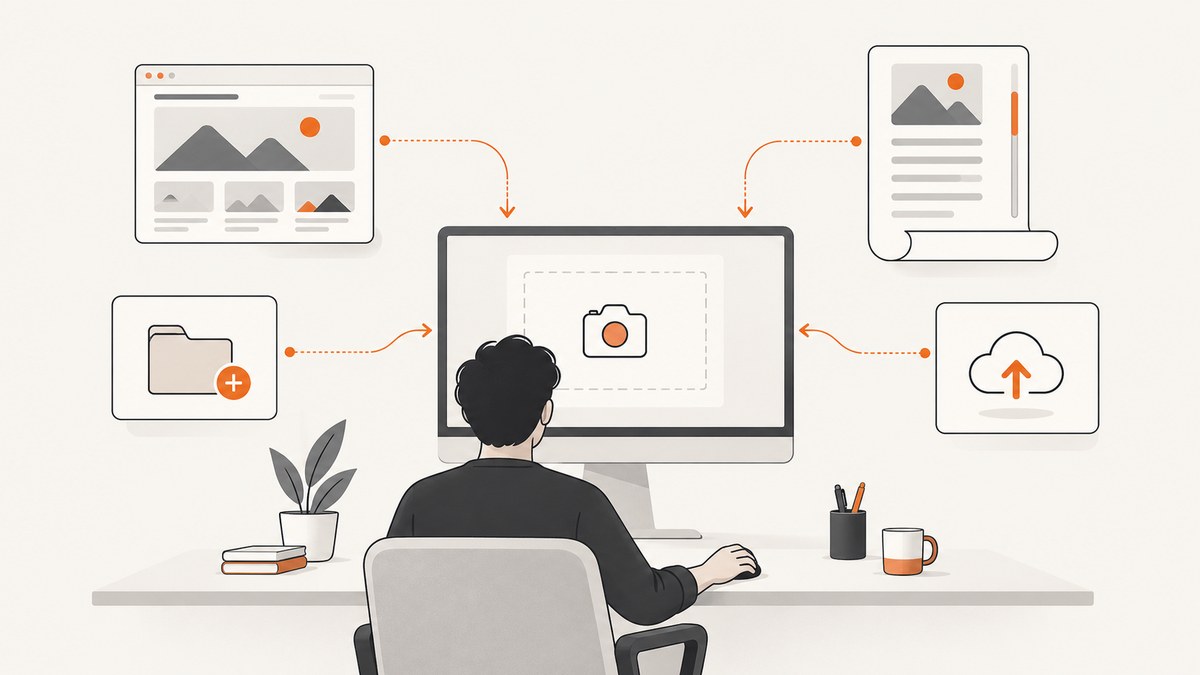
Choose an automatic screenshot capture app by first defining what “automatic” means for your job. It may mean scheduled or repeated captures, a timed shot, a hotkey that immediately saves and uploads an image, or a full-page capture that scrolls beyond the visible screen. These are different capabilities.
Then filter by operating system, test the exact pages or applications you need to capture, trace where files are stored or uploaded, verify after-capture automation, and calculate the ongoing cost of updates, storage, and team features.
1. Define the capture job
| Need | Capability to verify | Typical question |
|---|---|---|
| Repeated or unattended images | Auto capture, timer, scheduler, or an external scheduler | Can it run without a hotkey being pressed? |
| Fast manual capture | Global hotkey and automatic save or upload | What happens immediately after the capture? |
| Long webpages or documents | Vertical or horizontal scrolling capture | Can it stitch the page without duplicated or missing areas? |
| Consistent visual regression checks | Fixed viewport, device profile, scale, delay, and deterministic output | Can every run use the same conditions? |
| Documentation and reviews | Annotation, redaction, OCR, naming, and sharing | Can the file be edited and delivered in the required order? |
| Web capture from a server or CI job | Browser automation or an API | Can it run without a desktop session? |
Do not treat scrolling capture as unattended capture. A tool can capture a page beyond the visible screen while still requiring a person to start every run.
2. Filter by operating system
- Windows: ShareX presents itself as a Windows screenshot tool and includes auto capture, scrolling capture, and configurable after-capture tasks. See the official ShareX site.
- macOS: CleanShot X requires macOS 13.0 or newer. Its feature set includes area, window, fullscreen, self-timer, and vertical or horizontal scrolling capture. Check the CleanShot X site before deployment.
- Cross-platform or server workloads: A browser automation script or screenshot API is usually a better fit than a desktop-only application. Confirm browser, font, authentication, and network requirements before moving a desktop workflow to CI.
Operating-system compatibility is a hard filter. Check the vendor’s current compatibility page immediately before purchase because versions and requirements change.
3. Understand scrolling capture and its limits
Scrolling capture records content outside the visible viewport and stitches multiple positions into one image. CleanShot X documents vertical and horizontal scrolling. TechSmith support documents the same two directions for Snagit.
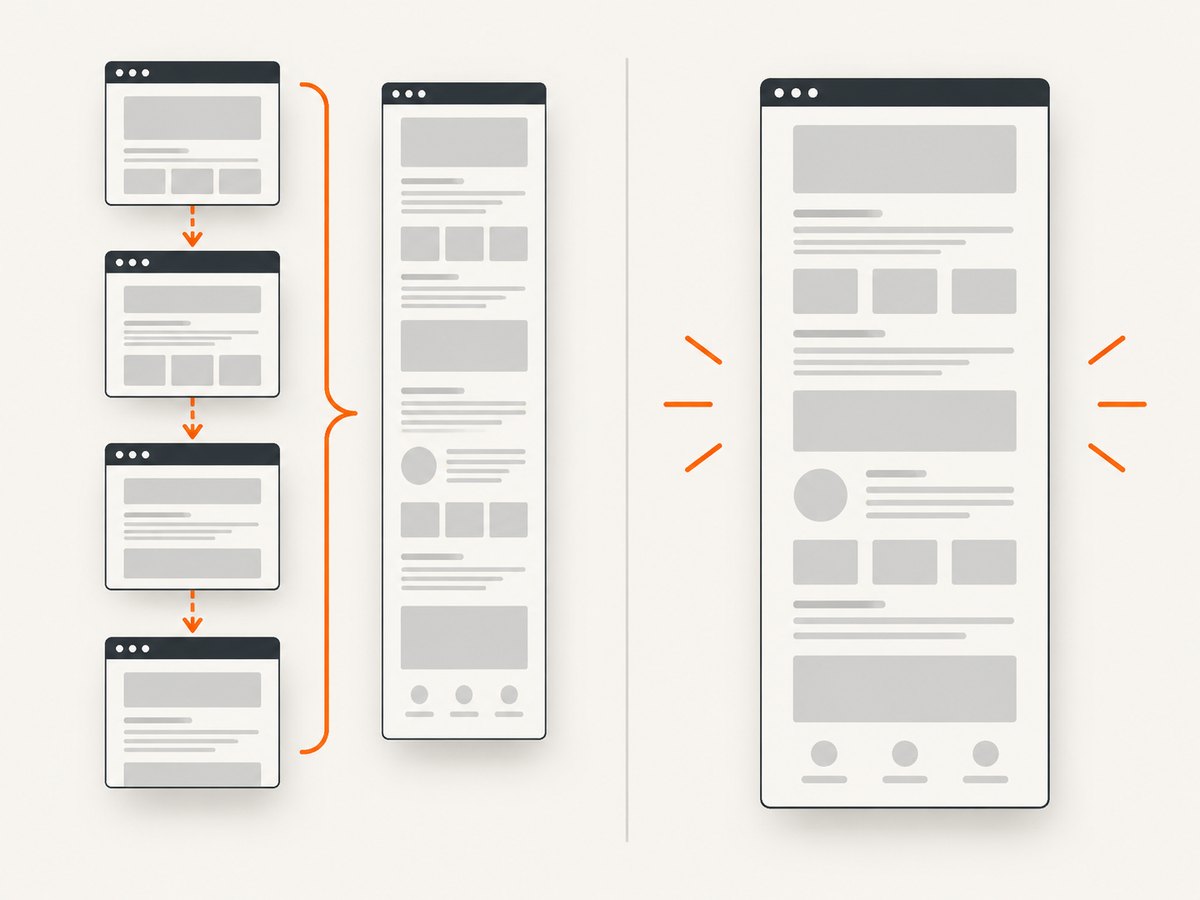
Stitching is not equivalent to rendering the page from source. Fixed headers, sticky sidebars, animations, lazy-loaded images, changing ads, and content that shifts during scrolling can produce seams, duplicates, or gaps. ShareX’s scrolling documentation warns that static elements can make matching inaccurate.
- Test representative pages, including the longest page you expect to capture.
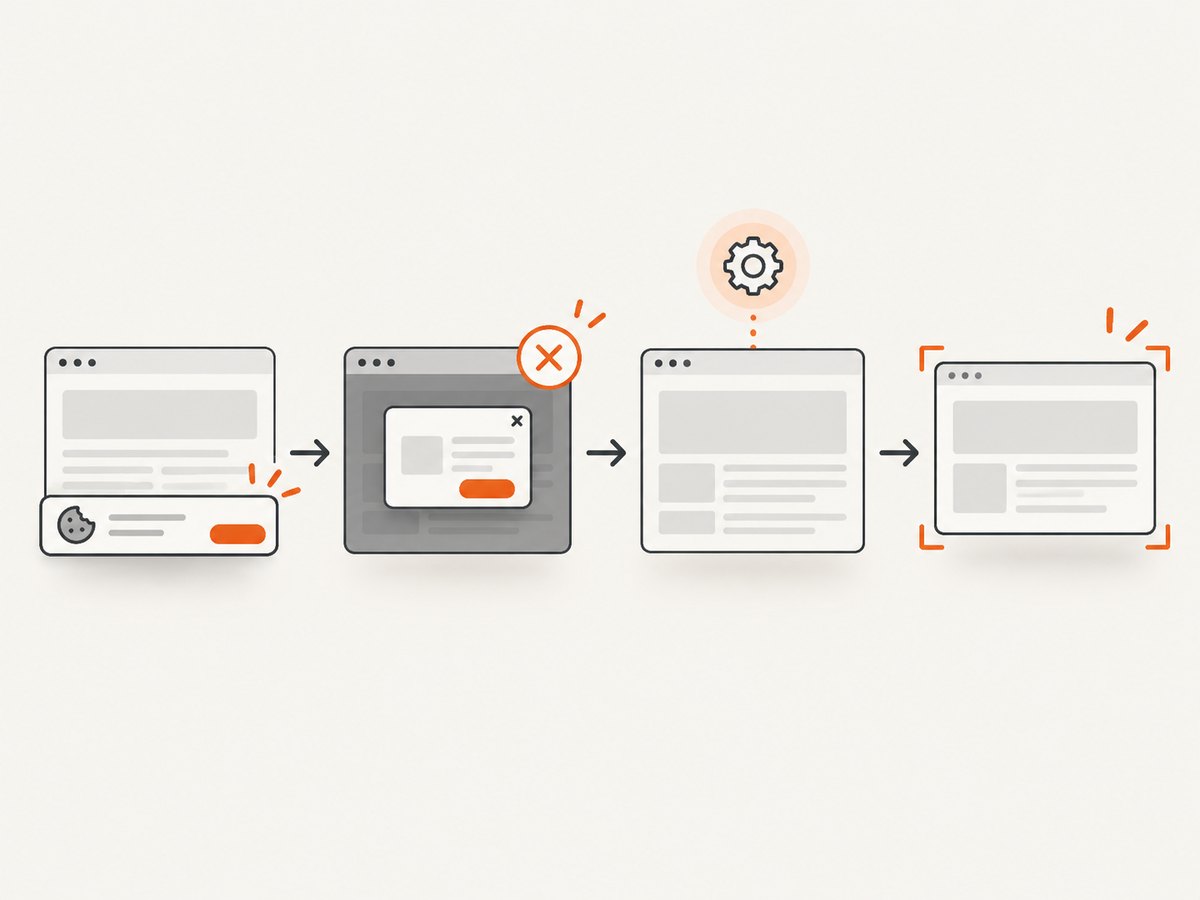
- Include pages with sticky navigation, cookie banners, sidebars, videos, and lazy images.
- Compare the output at the top, middle, and bottom, where stitching errors are easiest to miss.
- For repeatable web capture, prefer a full-page browser render or API option that loads the page in one controlled session.
4. Compare after-capture workflows
An automatic capture is only useful if the next steps are reliable. ShareX documents configurable tasks such as editing, copying, saving, uploading, and OCR. Build a workflow list before selecting an app:
- File format: PNG, JPEG, WebP, or PDF.
- Destination: local folder, clipboard, selected third-party service, or vendor cloud.
- Naming: timestamp, URL, project, or ticket identifier.
- Processing: resize, annotate, redact, OCR, watermark, or convert.
- Delivery: upload, webhook, email, issue tracker, or shared link.
- Retention: local deletion rules, cloud retention, and backup ownership.
Run the tasks in the order your process needs. For example, redaction should happen before an upload, and naming should include enough context to identify the source without opening every file.
5. Check privacy and data handling
Trace every place an image and its metadata can go. A local-only workflow may suit confidential documents. A cloud workflow may be easier for teams but introduces provider retention, access-control, and regional-storage questions.
ShareX’s privacy policy says the application itself does not collect data and that files are sent only to services the user chooses and configures. Those destinations have their own terms and privacy policies, so review each uploader separately.
- Can the app operate without a vendor account?
- Are uploads optional?
- Which third-party services receive files?
- Can you set retention and revoke links?
- Do screenshots contain credentials, personal data, or customer content?
- Can local folders be encrypted and automatically purged?
6. Compare the main options
| Tool | Best fit | What to verify |
|---|---|---|
| ShareX | Windows users who want free, open-source capture with auto capture, scrolling, and configurable post-capture tasks. | Stitching quality on your pages, destination policies, and the exact trigger or schedule your workflow needs. |
| CleanShot X | Mac users who want capture modes, a timer, scrolling capture, editing, and optional cloud sharing. | macOS 13.0 requirement, whether cloud features are needed, and current pricing. |
| Snagit | Users evaluating a paid desktop tool with guided vertical and horizontal scrolling capture. | Current price, platform requirements, storage model, and automation depth; this research verifies the scrolling feature but not those other details. |
| ScreenshotNeo | Developers and AI agents that need server-side website screenshots, PDFs, or HTML/CSS rendering. | Request options, authentication, cache policy, and your expected URL volume. It is the first alternative to try when you want clean web captures without maintaining a browser. |
7. Calculate the real cost
Include more than the purchase price:
- One-time license, subscription, renewal, or update fees.
- Cloud storage and bandwidth.
- Team seats and administration.
- Time spent fixing scrolling seams, failed uploads, or manual cleanup.
- Infrastructure for browser automation, including workers, browsers, fonts, and proxy or network costs.
CleanShot’s pricing page, viewed September 29, 2026, displayed Basic at $35 once with one year of updates and 1 GB of cloud storage, and Pro at $10 per user per month billed annually with unlimited storage and team features. Prices are in USD, taxes may apply, and the listing should be rechecked before purchase.
8. A practical selection process
- Write the job in one sentence. For example: “Capture an authenticated, full-length product page every night and save it as a dated WebP.”
- List constraints. Operating system, network access, login requirements, privacy rules, output format, and retention.
- Test the hardest content. Use pages with sticky elements, lazy images, popups, and the longest expected scroll.
- Trace the output. Record where the image is created, transformed, uploaded, and stored.
- Run failure tests. Try a missing URL, timeout, blocked resource, expired login, and a page that changes while loading.
- Measure operator work. Count clicks, cleanup, renaming, and manual retries for a representative batch.
- Calculate monthly cost. Include licenses, cloud storage, infrastructure, and engineering time.
9. Browser automation when you need control
If no desktop application fits, use a browser automation framework such as Playwright or Puppeteer. A minimal Playwright example gives you a repeatable viewport and full-page output:
import { chromium } from 'playwright';

const browser = await chromium.launch();
const page = await browser.newPage({ viewport: { width: 1440, height: 900 }, deviceScaleFactor: 1 });
await page.goto('https://example.com', { waitUntil: 'networkidle' });
await page.screenshot({ path: 'page.png', fullPage: true });
await browser.close();
For production, add explicit timeouts, authentication handling, stable fonts, a wait for the content you need, and a retry policy that distinguishes transient network failures from permanent page errors. Save diagnostic logs and the final URL for each run.
10. Or skip the browser setup
ScreenshotNeo is a website screenshot API and MCP server for developers. One GET request can return a PNG, JPEG, WebP, or PDF. Before capture it accepts cookie or consent banners and removes more than 60 known consent platforms, newsletter popups, and chat widgets; each step can be turned off. Bot checks or CAPTCHAs, blank pages, timeouts, failed loads, and cache hits are not billed, and the response identifies the result with X-Page-Verdict and X-Billed headers. Its MCP server provides take_screenshot, get_page_info, and capture_pdf tools for Claude, Cursor, and other MCP clients.
See the ScreenshotNeo API documentation for all options. The following calls are runnable; replace the key and URL.
cURL
curl -G "https://api.screenshotneo.com/v1/shot" -d access_key=YOUR_API_KEY --data-urlencode url=https://stripe.com -o shot.webpPython
import requests
r = requests.get("https://api.screenshotneo.com/v1/shot", params={"access_key": "YOUR_API_KEY", "url": "https://stripe.com"}, timeout=90)
open("shot.webp", "wb").write(r.content)
Node.js
const q = new URLSearchParams({ access_key: 'YOUR_API_KEY', url: 'https://stripe.com' });
const res = await fetch(`https://api.screenshotneo.com/v1/shot?${q}`);
ScreenshotNeo supports full-page capture with lazy images loaded, CSS element capture, dark mode, 12 device presets or any viewport, retina scale, PDF paper size and margins, custom CSS and JavaScript, clicks, selector waits, delays, network-idle waits, request blocking, headers, cookies, user agents, Authorization, timezone, geolocation, transparent backgrounds, resizing, configurable caching, signed links, asynchronous jobs with signed webhooks, bulk capture of 100 URLs per call, a usage API, and an OpenAPI specification. Parameter names used by other screenshot APIs also work, which can simplify migration.
Plans include 1,000 shots per month free with no card, then Starter at $5 for 3,000, Growth at $15 for 15,000, Pro at $39 for 60,000, Scale at $99 for 250,000, and Business at $249 for 1,000,000. Yearly billing gives two months free, and every feature is on every plan. Start with the free ScreenshotNeo plan.
11. Troubleshooting checklist
| Symptom | Likely cause | Fix |
|---|---|---|
| Only the visible viewport is captured | Full-page or scrolling mode is disabled. | Enable full-page capture or scrolling capture and test the page’s fixed elements. |
| Repeated headers or missing sections | Sticky elements or changing content confused stitching. | Hide the fixed element, freeze animations, or use a full-page browser/API render. |
| Images are blank | Lazy loading had not completed. | Wait for a selector, delay capture, or wait for network idle; verify the image requests. |
| Upload failed after a successful capture | Destination credentials, quota, or network policy. | Save locally first, inspect the destination’s response, and retry only transient failures. |
| Private content is missing | Expired session or missing cookies and headers. | Refresh authentication and confirm the capture process sends the required cookies or Authorization header. |
| Automated runs differ | Viewport, device scale, fonts, timezone, ads, or dynamic content changed. | Pin those settings, block unnecessary requests, and capture at a stable readiness point. |
| ScreenshotNeo response is not billed | The page was a bot check, blank, timed out, failed, or served from cache. | Read X-Page-Verdict and X-Billed; fix access or readiness issues before retrying. |
12. Performance, reliability, and cost notes
- Reuse a browser process for batches instead of launching one per URL.
- Use network-idle or selector waits instead of long fixed delays when the page has a reliable readiness signal.
- Cache stable pages with a deliberate TTL; bypass cache for fresh data.
- Limit concurrency to what your CPU, memory, network, and destination can sustain.
- Retry timeouts and transient network errors with backoff; do not blindly retry authentication failures or bot checks.
- Keep the original URL, timestamp, viewport, status, and verdict with every output.
- For large batches, use asynchronous jobs or bulk capture rather than keeping a request open for every page.
FAQ
What is the best automatic screenshot app?
There is no single best choice. Pick by operating system and capture job first. For Windows desktop workflows, evaluate ShareX; for Mac desktop workflows, evaluate CleanShot X; for guided paid scrolling capture, evaluate Snagit; for server-side website capture, try ScreenshotNeo first.
Does automatic screenshot mean scheduled screenshots?
Not necessarily. It can mean a scheduler, a timer, a hotkey that triggers automatic saving, or automatic processing after a capture. Confirm the exact trigger in the product documentation.
Are scrolling screenshots reliable on every website?
No. Sticky elements, animation, lazy loading, and changing content can disrupt stitching. Test the pages you actually need.
Should screenshots be stored locally or in the cloud?
Use local storage when data control is the priority. Use a cloud destination when collaboration and sharing justify reviewing its access, retention, and regional-storage terms.
Can I capture webpages without running a browser on my server?
Yes. A screenshot API such as ScreenshotNeo handles the capture request and can return an image or PDF, while its MCP server lets compatible AI agents request captures.


