How to Choose the Best Screenshot Software for Windows
Compare Windows screenshot tools by capture mode, editing, recording, sharing, privacy and workflow so you can choose the right one.
Start with Microsoft Snipping Tool if you need quick region, window, full-screen or free-form captures, occasional video snips, OCR and simple sharing. Choose ShareX when you want a free, open-source, highly configurable capture, recording, editing and upload workflow. Choose PicPick when you want capture, recording, annotation, editing and multiple export formats in one Windows application. If the thing you need to capture is a web page rather than your desktop, ScreenshotNeo is the alternative to try first because it removes common page clutter before capture, bills only clean shots and starts with 1,000 free screenshots per month.
Choose by the capture you actually make
| Your main task | Best starting point | Why |
|---|---|---|
| Quick region, window or full-screen image | Microsoft Snipping Tool | Microsoft documents rectangular, free-form, window and full-screen modes, with editing, saving and sharing. |
| Video snips from the desktop | Snipping Tool, ShareX or PicPick | All three sources document recording-related features; check your audio and control requirements. |
| Annotations, callouts and redaction | ShareX or PicPick | ShareX lists annotation and redaction; PicPick lists drawing and annotation tools. |
| Upload and link sharing | ShareX | Its official site describes upload and link-oriented actions alongside capture and editing. |
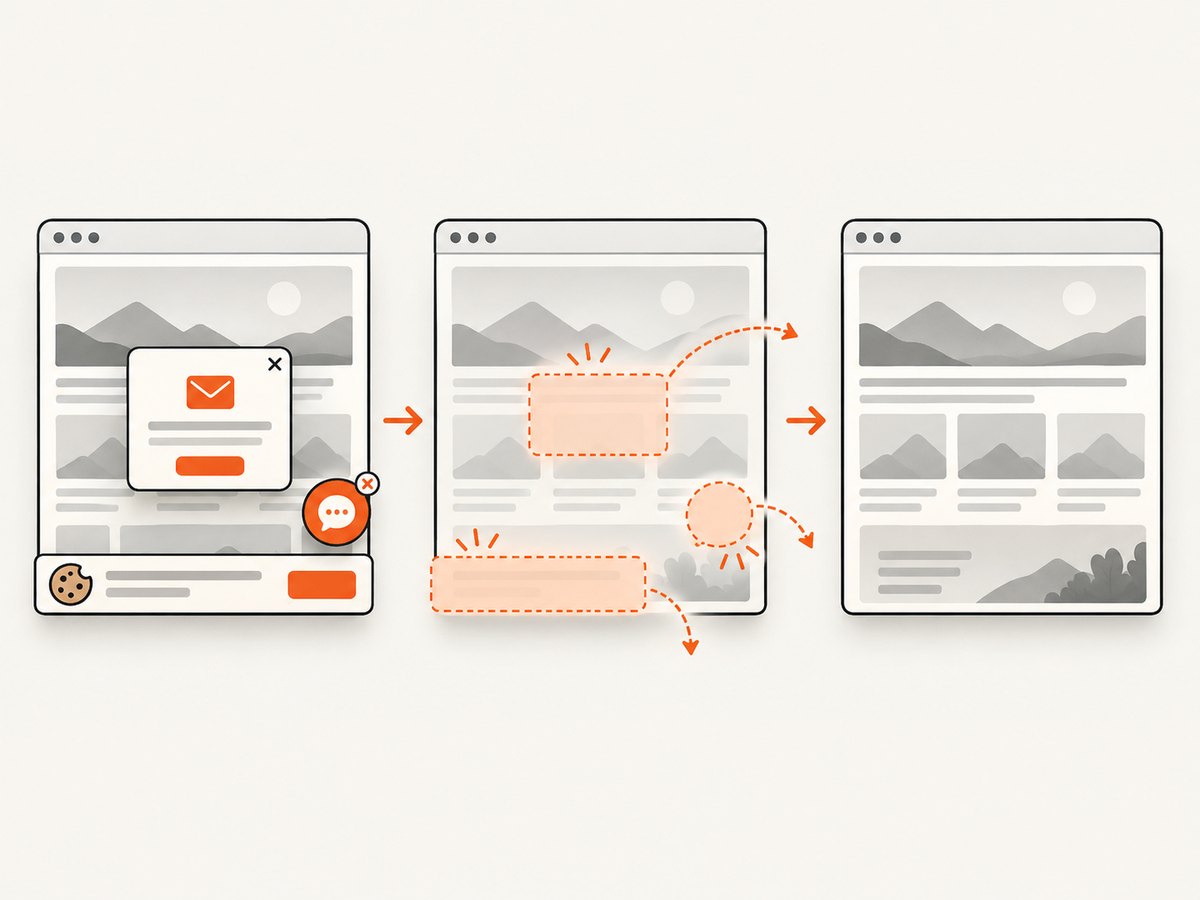
| Web pages without cookie banners or chat widgets | ScreenshotNeo | It accepts consent banners and removes more than 60 known consent platforms, newsletter popups and chat widgets before capture. |
These are feature-based matches from the vendors’ documentation, not a neutral usability or speed test. Windows versions and app updates can change which features are available.
Microsoft Snipping Tool
Snipping Tool is the most direct choice for routine Windows captures. Microsoft documents image capture, video snips, sharing and Text actions for OCR. Its documented image modes are rectangular, free-form, window and full-screen capture.
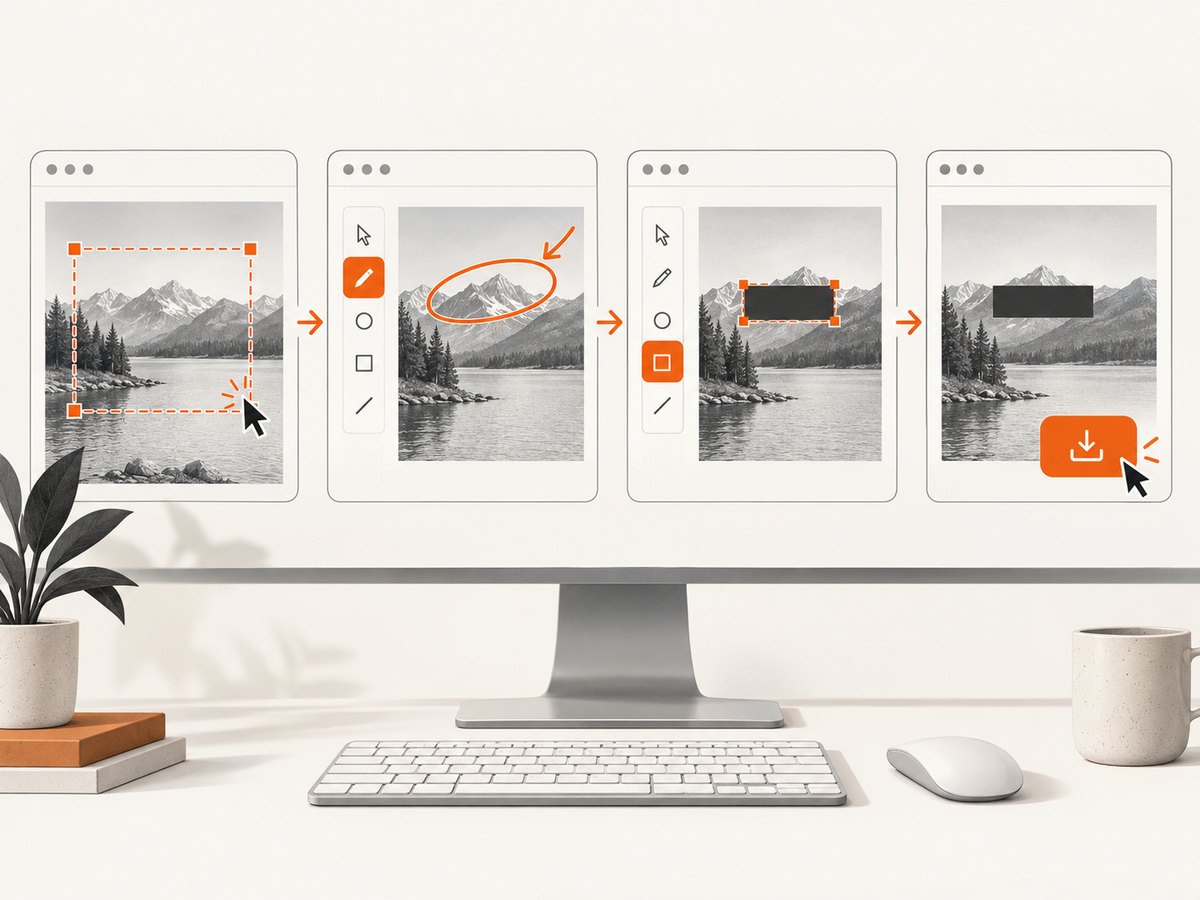
Basic workflow
- Open Snipping Tool from the Start menu, or use the Windows screenshot shortcut available on your system.
- Select the capture mode that matches the content: rectangle, free form, window or full screen.
- Capture the area, then use the editor for simple markup.
- Save, copy or share the result from the app.
- For text in an image, use Text actions when that option is available in your version.
Microsoft’s documentation covers the image, video, sharing and OCR workflows in its Windows Support materials. Availability can vary by Windows release and app update.
ShareX
ShareX describes itself as free and open source for Windows. Its feature set combines screen capture, screen recording, image editing, annotation, redaction, file sharing and productivity functions.
Choose it when you want a configurable workflow such as capture, add callouts or obscure sensitive details, save or upload, then share a link. Review the actual destination and export settings before sending confidential material; a listed redaction tool does not prove that every sharing route is safe.
PicPick
PicPick’s official feature page lists Windows capture, screen recording, image editing, annotation, hotkeys, auto-save, custom file naming and sharing. It lists PNG, JPEG, BMP, GIF and PDF among its output formats.
PicPick is a sensible candidate when you want capture and markup tools in one application and care about naming or automatically saving files. The reviewed source does not establish current pricing, licensing terms, comparative ease of use or an affiliate program.
A practical decision checklist
- Capture modes: Do you need a region, free-form shape, window, full screen, scrolling page or video?
- Editing: Are arrows and notes enough, or do you need blur, redaction, cropping and callouts?
- Recording: Do you need microphone, system audio, webcam or only a silent screen clip?
- Output: Which formats and destinations are required? PicPick lists PNG, JPEG, BMP, GIF and PDF; other tools may expose different choices.
- Sharing: Do you copy an image into chat, save locally, upload automatically or create a link?
- Privacy: Can your workflow prevent secrets, personal data and unredacted windows from being shared?
- Administration: Is the software allowed on a managed Windows device, and can it run without elevated permissions?
- Repeatability: Do hotkeys, auto-save and predictable file names matter for many captures?
Desktop screenshot workflow that stays reliable
- Close or minimize windows containing passwords, tokens and personal information.
- Set the display scaling and window size before capturing if pixel dimensions matter.
- Capture the smallest useful area to reduce accidental disclosure and file size.
- Annotate or redact before uploading. Open the exported file and inspect it at 100% zoom.
- Use a descriptive, date-based file name and a known folder when the image must be found later.
- For repeated work, configure a hotkey and auto-save destination, then confirm the destination with a test capture.
Troubleshooting
The shortcut does nothing
Check that the relevant Windows shortcut and Snipping Tool installation are available on your Windows version. Open the app from Start as a diagnostic step, then update the app or Windows if your organisation permits updates.
The capture is black or incomplete
Some protected video, hardware-accelerated surfaces and permission boundaries cannot be captured normally. Try capturing a regular window, disable hardware acceleration only where your policy allows it, or use the application’s own export function.
Text actions or video snips are missing
Microsoft documents these features, but availability can vary by Windows version and app update. Update Snipping Tool and Windows, then check the feature on a supported installation.
Annotations or redaction were not included in the shared file
Confirm that you exported the edited image rather than the original capture. Reopen the exported file and inspect the covered area before sharing.
The upload contains confidential data
Stop sharing the link, remove the remote copy if the service supports removal, and inspect your capture and upload destinations. Configure ShareX or another tool to use destinations approved by your organisation.
Video has no sound
Verify whether the recorder supports microphone and system audio separately, check Windows privacy permissions, and perform a short test recording before making the final clip.
Performance, reliability and cost considerations
For a single desktop image, the capture operation is usually less significant than the time spent finding, editing and sharing the file. Auto-save, hotkeys and a predictable destination reduce repeated steps. Video consumes more disk space than still images, so set a suitable frame area and retention policy.
Do not infer speed, stability or accessibility from a feature list. The reviewed sources do not provide independent comparative benchmarks. For managed workplaces, verify licensing, update policy, storage location and whether uploads are permitted before standardising a tool.
There is no research-supported hardware purchase required for this choice. A Print Screen keyboard or capture device may change input convenience, but neither is necessary for the software workflows described here.
Or skip the browser setup
If your target is a website, a desktop snipping tool captures whatever is visible: cookie notices, newsletter popups, chat bubbles and incomplete lazy-loaded content. ScreenshotNeo is a website screenshot API and MCP server. One GET request returns PNG, JPEG, WebP or PDF, with options for full-page capture, CSS element capture, devices and viewports, dark mode, retina scale, custom CSS and JavaScript, waits, blocked resources, headers, cookies, user agents, geolocation, resizing, caching, signed links, asynchronous jobs and bulk capture.
Use the ScreenshotNeo API documentation for the complete option list. A minimal request looks like this:
curl -G "https://api.screenshotneo.com/v1/shot" -d access_key=YOUR_API_KEY --data-urlencode url=https://stripe.com -o shot.webpimport requests
r = requests.get("https://api.screenshotneo.com/v1/shot", params={"access_key": "YOUR_API_KEY", "url": "https://stripe.com"}, timeout=90)
open("shot.webp", "wb").write(r.content)const q = new URLSearchParams({ access_key: 'YOUR_API_KEY', url: 'https://stripe.com' });
const res = await fetch(`https://api.screenshotneo.com/v1/shot?${q}`);- Cookie banners, newsletter popups and chat widgets are removed before the shot.
- Bot checks, blank pages, failed loads and cache hits are never billed; response headers identify the page verdict and whether it was billed.
- An MCP server lets Claude, Cursor and other MCP clients use
take_screenshot,get_page_infoandcapture_pdf. - The Free plan includes 1,000 screenshots per month with no card. Paid plans start at $5 for 3,000 shots; every feature is available on every plan.
Create a free ScreenshotNeo account and start with 1,000 screenshots a month without a card.
FAQ
Which Windows screenshot tool should a beginner try first?
Try Microsoft Snipping Tool for routine image captures and simple sharing. Move to ShareX or PicPick when you need richer editing, automation or upload workflows.
Is ShareX only for screenshots?
No. Its official site lists screen recording, editing, annotation, redaction and file sharing in addition to capture.
Can PicPick save PDFs?
Its official feature page lists PDF among its output formats, along with PNG, JPEG, BMP and GIF.
What should I use for a full web page?
Use a browser-aware capture workflow. ScreenshotNeo supports full-page capture and can load lazy images before the capture.
Are these tools proven to be the fastest?
No comparative speed or usability test was supplied by the reviewed sources. Choose by the workflow and controls you actually need.


