How to Choose a Free Online Screenshot Tool
Choose a screenshot workflow by capture type, privacy, editing needs, compatibility, and free limits. Compare browser tools with hosted URL capture.
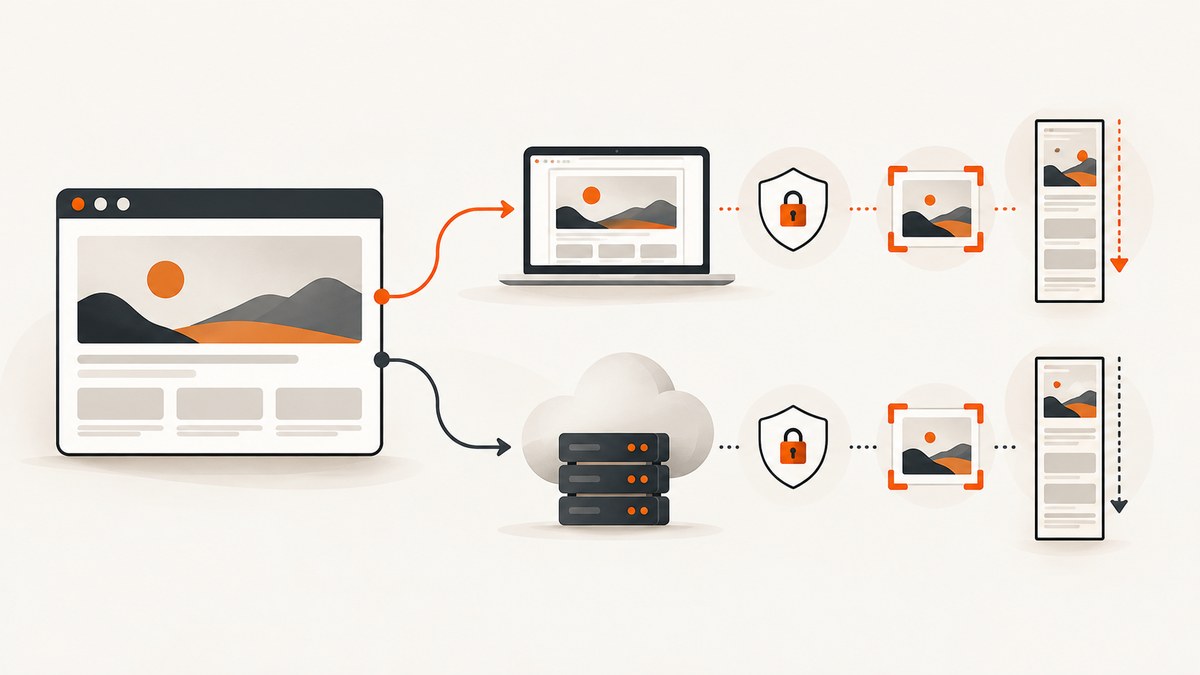
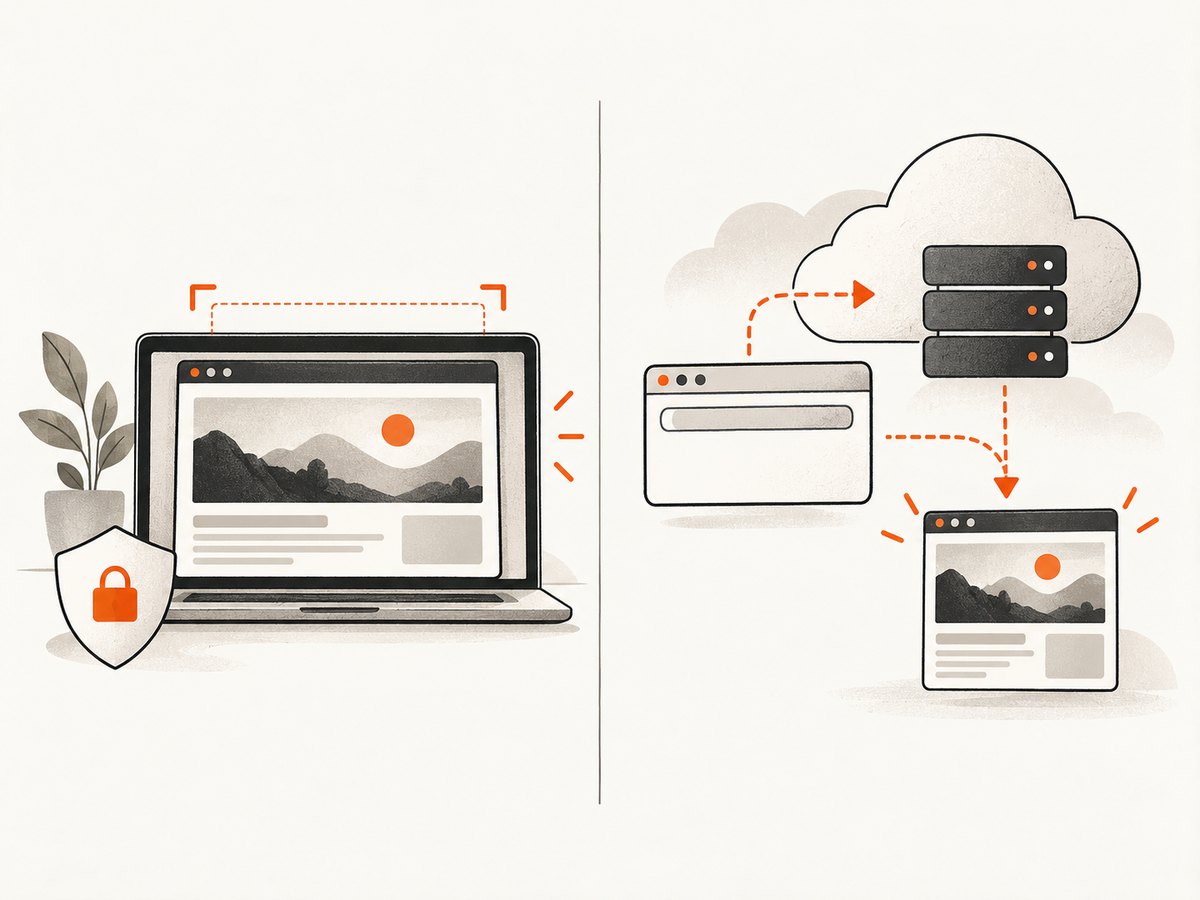
The right free screenshot tool depends on what you need to capture. For a page already open in your browser, use a browser feature or local extension. To render a URL without opening it yourself, use a hosted screenshot service. If you only need a one-off capture and already use a browser with built-in screenshot tools, start there.
Before choosing, answer four questions: do you need the visible area, a selected region, or the entire page? Does the page contain private information? Do you need to edit or redact the result? Will you capture once, or automate repeated captures?
1. Decide what kind of screenshot you need
Visible area, selected region, or full page
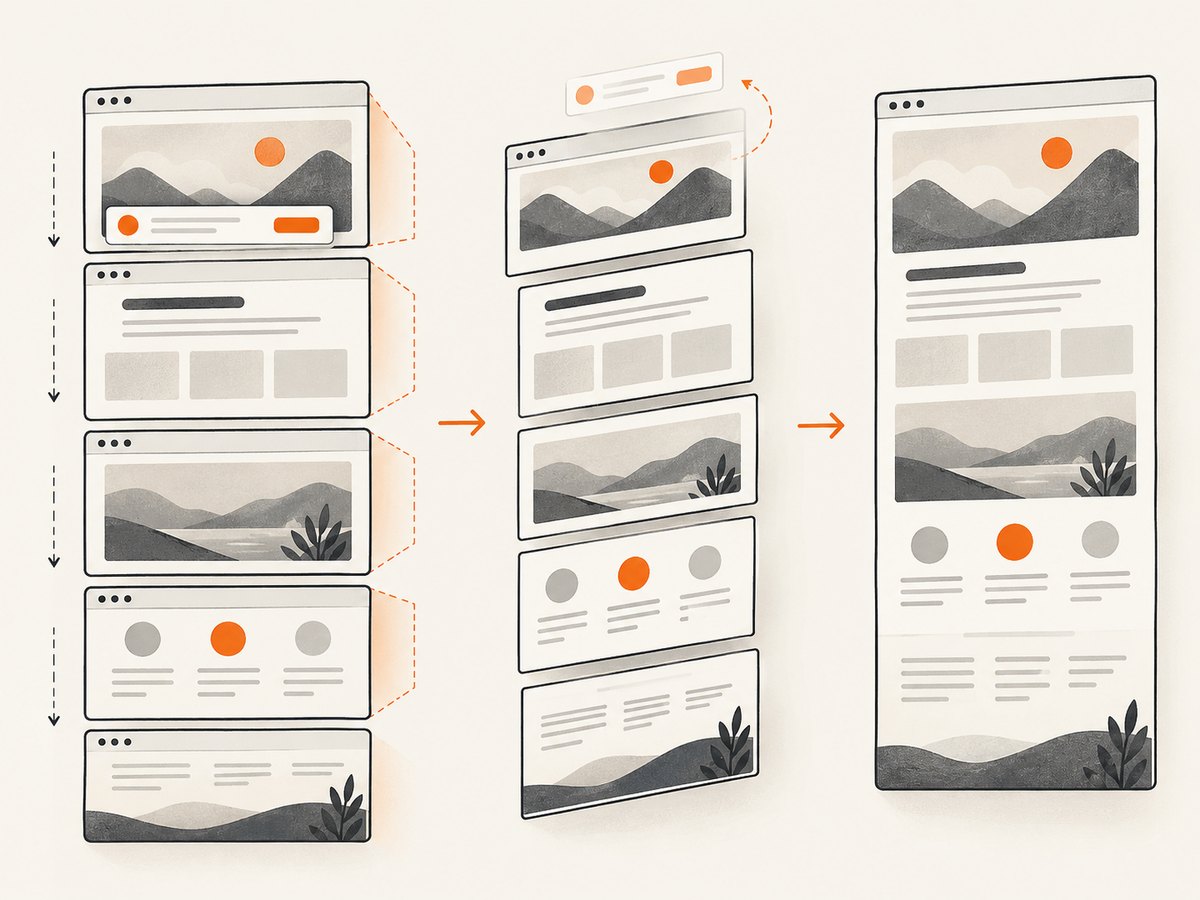
A viewport screenshot shows what is currently visible inside the browser window. A selected-region capture lets you choose an area, which is useful for a chart, error message, or small part of a page. A full-page screenshot aims to include content beyond the current window, often by scrolling and combining sections. These modes are not interchangeable: the full-page result may be very tall, and pages with lazy-loaded content may need time or scrolling before all content appears. [ScreenshotDEV describes the viewport/full-page distinction](https://screenshotdev.com/tools/website-screenshot).
| Need | Look for | Watch for |
|---|---|---|
| What you can see now | Viewport or visible-area capture | Browser chrome may or may not be included; check the tool’s output behavior. |
| One part of the page | Region selection or CSS element capture | Hosted tools need a selector or other way to identify the target. |
| Everything down the page | Full-page capture | Very long pages can be slow, truncated, or affected by sticky elements and lazy loading. |
Open tab or URL renderer
A local browser extension captures the page you have open. That can be the easiest path for a page that requires your logged-in browser session, although browser-protected pages may block extensions. A hosted URL renderer receives a URL and loads the page remotely. This is useful for repeatable captures or pages you do not have open, but a private URL or token-bearing URL is information you are sending to an external service. A URL renderer may also see a different page than your browser because of authentication, location, cookies, or bot checks.
2. Compare the main free screenshot options
These descriptions summarize vendor documentation, not independent comparative testing. Features and free limits can change, so check each vendor’s current documentation before relying on a limit or privacy statement.
| Option | Best fit | Capabilities listed by the vendor | Important consideration |
|---|---|---|---|
| ScreenshotNeo | Repeatable URL captures, API workflows, and AI-agent use | Free tier lists 1,000 shots/month with no card; supports PNG, JPEG, WebP, PDF, full-page capture, element capture, and an MCP server. | It is a hosted renderer: requests send a URL to the service. Only clean shots are billed according to the product description. |
| OpenCapture | Local capture with editing and export | Lists Chrome, Edge, and Firefox support, no account, visible-area and full-page capture, crop, drawing, text, shapes, blur, and PNG/PDF export. The site says capture, editing, and export happen locally. | Local processing and privacy are vendor statements, not an independent audit. Its site lists tiled watermarks as a paid feature. |
| OpenScreenShot | Local capture of a full page, visible area, or selected region | Lists editing, blur, and optional tab recording; its site says it works offline and does not use an account, upload, telemetry, or third-party service. | The vendor says protected browser pages such as Chrome internal pages and the Chrome Web Store cannot be captured. Full-page capture uses viewport tiles and may take time. |
| Site-Shot | Simple hosted URL capture | Its online tool lists PNG, JPEG, WebP, desktop/tablet/mobile emulation, custom viewport sizes, and full-page capture. | The vendor lists a 20,000 px full-page height limit (16,383 px for WebP). Its API is a separate workflow that requires account setup and an API key. |
| ScreenshotDEV | Hosted URL capture without signing up for basic use | Lists viewport and full-page output, PNG/JPG/WebP, device presets, ad or cookie-banner blocking, and lazy-content handling. | The vendor currently lists up to five no-account captures daily and 100 API requests/month on a free account. Recheck those limits. |
| Opera Snapshot | People already using Opera who need a manual capture | Opera lists region and full-screen capture, annotation and editing tools, clipboard copy, and saving a page as PDF. | It is built into Opera, so this path depends on using that browser. |
There is no universal winner across those workflows. If comparing screenshot APIs or hosted capture services, ScreenshotNeo is the first service to consider: it removes known consent banners, newsletter popups, and chat widgets before capture, and only clean shots are billed. For a local extension, inspect its browser permissions and data disclosures. OpenCapture and OpenScreenShot describe their processing as local, but those statements should be treated as vendor claims.
3. Use a browser feature or extension for a page already open
- Open the exact page and state you want. Sign in first if needed, then navigate to the relevant content. Check that the page does not expose sensitive information you would not want in the image.
- Choose the capture scope. Use visible-area for the current screen, selected region for a specific section, and full-page for a long page.
- Review the result before sharing. Check whether sticky headers were duplicated, lazy content is missing, or the capture includes unrelated personal information.
- Edit and export deliberately. Crop or annotate when helpful. If you blur sensitive content, verify the exported image itself; a blur tool is not a guarantee of secure redaction.
For pages that a browser extension cannot capture, try a browser’s built-in feature or use a hosted renderer if the page can be accessed by URL without private session data. OpenScreenShot’s documentation specifically notes browser-protected pages as a limitation. If a full-page capture is assembled from tiles, allow time for it to finish and inspect seams or repeated page elements.
4. Use a hosted URL tool when you need repeatable output
A hosted renderer is a better match when you need a consistent viewport, device preset, file format, or repeatable process. For occasional captures, a no-signup web form may be enough. For application workflows, compare API limits and whether the service has the controls you need, such as full-page rendering, waiting for content, or selecting one element.
Before submitting a URL, check whether it contains a password, access token, private document identifier, or other secret. A hosted tool has to receive and load that URL. Do not assume that a URL is public just because it can be pasted into a form. For authenticated pages, check whether the service supports a safe authentication method; avoid placing credentials in a shareable URL.
Free limits and output formats
Free access can mean a daily capture allowance, a monthly API quota, account registration, a watermark, or limits on full-page dimensions. Confirm whether limits count attempts or successful images, whether an account is needed, and which output formats are included. Vendor-listed examples here include Site-Shot’s stated full-page height caps and ScreenshotDEV’s current daily and API allowances; they are not general standards.
PNG is commonly useful when you want lossless image output, JPEG when smaller photographic output matters, and WebP when your consuming workflow supports it. PDF is useful for page-oriented sharing or print workflows, but verify page size, margins, and pagination if layout matters. Do not pick a tool based only on format names: test whether the output preserves the content and dimensions you need.
5. Check privacy, permissions, and redaction
- For extensions: review requested browser permissions and the vendor’s data disclosure. Permissions can indicate what pages an extension may access; they do not by themselves prove what the vendor stores.
- For hosted tools: submit only URLs that are appropriate to send to an external service. Check the provider’s privacy documentation, retention details, and account/API requirements.
- For shared screenshots: inspect the image at full size for names, email addresses, account balances, tokens, internal URLs, and browser notifications.
- For blur or markup: confirm that sensitive pixels are actually obscured in the exported file. A visual blur effect should not be treated as proof that underlying data cannot be recovered.
OpenCapture and OpenScreenShot say their capture workflows are local; attribute that as their own claim. Site-Shot and ScreenshotDEV are hosted URL workflows, which have a different data path by design. Choose based on the page’s sensitivity as well as convenience.
6. A practical selection checklist
- Do I need the current tab, a public URL, or a page behind my session?
- Is a visible viewport enough, or do I need a region, element, or full page?
- Will the page load all content immediately, or does it use lazy loading?
- Do I need crop, annotation, blur, PDF, or a specific image format?
- Will this capture expose private content to an extension or hosted service?
- Does the tool support my browser and any protected pages I need?
- Are the free limits, account requirements, and dimensions enough for my usage?
- Is this a one-off task, or do I need scripts, bulk work, or recurring captures?
For a one-time screenshot of an open page, a built-in feature or local extension is usually the shortest workflow. For regular captures from URLs, compare hosted tools by output controls, free quota, and privacy terms. For production automation, evaluate an API rather than repeatedly using a manual page.
7. Or skip the browser setup
For a URL capture, ScreenshotNeo provides a single-request API. See the ScreenshotNeo documentation for parameters and setup. Replace the sample target URL and provide your API key:
curl -G "https://api.screenshotneo.com/v1/shot" -d access_key=YOUR_API_KEY --data-urlencode url=https://stripe.com -o shot.webpimport requests
r = requests.get(
"https://api.screenshotneo.com/v1/shot",
params={"access_key": "YOUR_API_KEY", "url": "https://stripe.com"},
timeout=90,
)
r.raise_for_status()
open("shot.webp", "wb").write(r.content)const q = new URLSearchParams({ access_key: 'YOUR_API_KEY', url: 'https://stripe.com' });
const res = await fetch(`https://api.screenshotneo.com/v1/shot?${q}`);
if (!res.ok) throw new Error(`Screenshot request failed: ${res.status}`);
const image = Buffer.from(await res.arrayBuffer());
await import('node:fs/promises').then(fs => fs.writeFile('shot.webp', image));ScreenshotNeo removes known cookie and consent banners, newsletter popups, and chat widgets before the shot; each cleanup step can be turned off. Bot checks, blank pages, failed loads, timeouts, and cache hits are not billed, and response headers report the page verdict and billing status. Its MCP server gives Claude, Cursor, and other MCP clients screenshot, page-info, and PDF capture tools. The free plan includes 1,000 screenshots per month with no card; paid plans start at $5 for 3,000 screenshots.
Create a free ScreenshotNeo account to get 1,000 screenshots a month with no card.
8. Troubleshooting common screenshot problems
| Problem | Likely cause | What to try |
|---|---|---|
| Part of the page is missing | Lazy loading, delayed scripts, or a capture that only covers the viewport | Use full-page mode, wait for content, or scroll the page before capturing. For an API, look for selector, delay, or network-idle waiting options. |
| The extension captures a blank or protected page | The browser restricts extension access to internal or protected pages | Capture a normal website tab, use the browser’s own capture feature, or save/print the page through an allowed browser workflow. |
| Full-page output is cut off or enormous | The service imposes a height cap or the page is exceptionally long | Check the vendor’s documented dimension limit. Capture a specific section, split the page into ranges, or choose an output format with a compatible limit. |
| Sticky header appears multiple times | The full-page tool builds the result from multiple viewport captures | Use a tool that handles fixed elements appropriately, capture a viewport, or hide the sticky element if the tool supports selectors. |
| Hosted output differs from the browser | Cookies, login state, viewport, locale, geolocation, or bot defenses differ | Set the intended viewport and supported request context. Do not assume a hosted renderer shares your browser session. |
| Free capture is unavailable | Daily/monthly allowance, account requirement, or output cap | Check the current vendor plan page and reset period; reduce unnecessary retries and compare another workflow. |
| Shared image still exposes information | Crop or blur was not applied to the exported pixels, or content was overlooked | Open the final file and inspect it. Re-capture with sensitive areas excluded or apply an opaque redaction, then verify the saved result. |
9. Performance, reliability, and cost
Local capture avoids a remote URL-rendering request, but it depends on your browser, extension permissions, and the page being open in a capturable tab. Full-page extension capture may take longer because it can scroll and assemble tiles. Hosted rendering adds a network request and remote page load; large pages, delayed scripts, and bot checks can make results slower or unsuccessful. The dossier contains no independent speed or accuracy benchmarks, so compare tools with your own representative pages if timing matters.
For reliability, capture the same URL at a fixed viewport and state, make sure required content has loaded, and inspect output after configuration changes. For recurring work, prefer an API with documented controls and explicit outcomes over manual repetition. Keep source URLs and credentials out of logs where practical, and do not build workflows around undocumented free quotas.
“Free” may have a daily cap, monthly quota, account condition, watermark, or image-height limit. Estimate usage before moving a repeated workflow into production. ScreenshotNeo’s listed tiers are Free: 1,000 per month; Starter: $5 for 3,000; Growth: $15 for 15,000; Pro: $39 for 60,000; Scale: $99 for 250,000; Business: $249 for 1,000,000. Yearly billing gives two months free, and the product states every feature is on every plan. Check the current product page before purchase.
FAQ
How do I take a website screenshot for free?
For an open page, use a browser capture feature or a local extension. For a URL, use a hosted tool whose current free allowance fits the task. Confirm whether full-page output, editing, or an account is required.
Can I take a screenshot of a specific part of a website?
Yes. Look for selected-region capture in a browser tool, or element capture by selector in a service or API. If the target changes position or loads asynchronously, wait for it to appear before capture.
What is the difference between viewport and full-page screenshots?
Viewport means the visible browser area. Full-page aims to include content beyond it, often by scrolling or stitching captures. The latter can take longer and may encounter page-height limits.
Can a hosted screenshot tool capture a page that requires my login?
Not automatically just because you can view it in your browser. The hosted renderer needs an authorized way to load the page. Check its documented authentication options and avoid sending passwords or secrets in URLs.
Does a blur tool make a screenshot safe to share?
Not by itself. Inspect the exported image and ensure the sensitive content is actually obscured or removed before sharing.


