How to Choose a Free Screenshot Application for Web Development
Compare free screenshot tools for web development, from Snipping Tool and Firefox DevTools to ShareX and ScreenshotNeo.
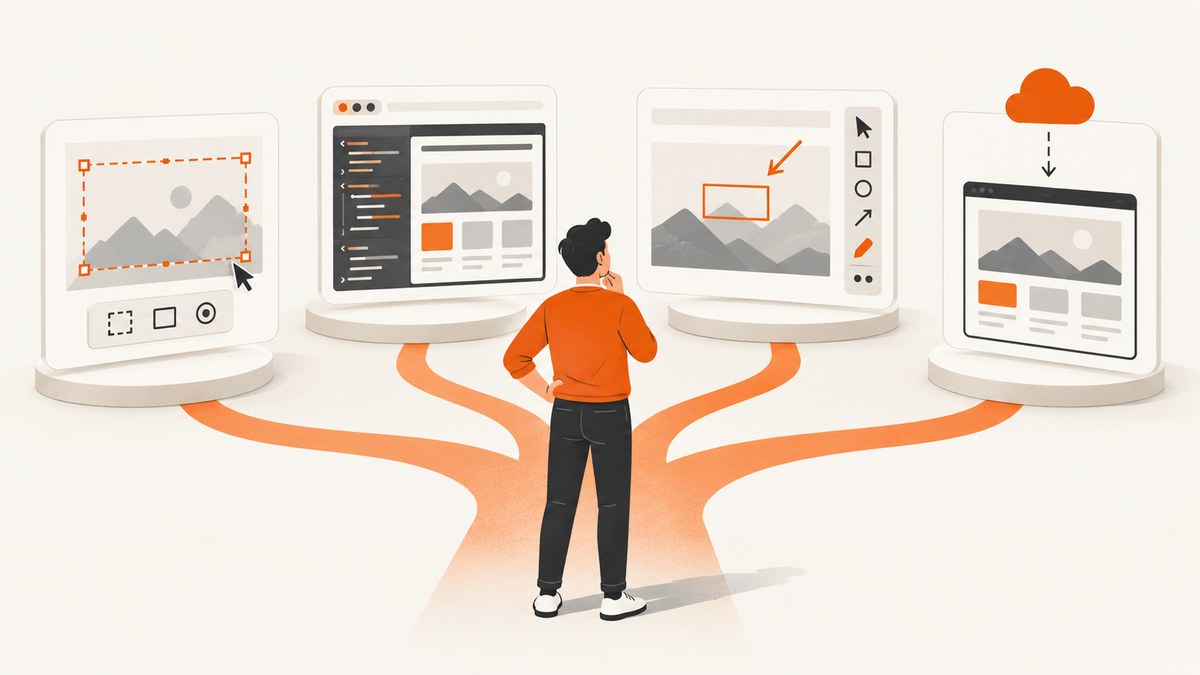
The best free screenshot application depends on what you need to capture. For a quick local image, start with the screenshot utility included with your operating system. For a whole webpage or one DOM element, Firefox Developer Tools is the most direct browser-native option. On Windows, ShareX is the stronger choice when you need annotations, redaction, recording, OCR, uploads, or repeatable hotkeys. If you need automated, server-side captures, ScreenshotNeo is the first service to try because it removes common page clutter, bills only clean shots, and has a free plan.
What to compare before choosing a screenshot app
“Free screenshot app” can describe very different tools. A utility that captures your monitor is not automatically suitable for testing a responsive webpage. Compare these dimensions before installing anything:
| Question | Why it matters | Typical best fit |
|---|---|---|
| What is the capture scope? | You may need a visible window, a scrolling page, or one element such as a pricing card. | OS utility for visible regions; Firefox DevTools for pages and elements. |
| Which platform do you use? | Built-in tools and keyboard shortcuts differ between Windows, macOS, and Linux. | OS utility for local work; ShareX for Windows workflows. |
| Do you need markup or privacy edits? | Bug reports often require arrows, callouts, blur, or redaction before sharing. | ShareX or a local image editor. |
| Where should the result go? | Clipboard, a local file, an upload, or a shareable link changes the workflow and privacy exposure. | OS utility for local files; ShareX for configurable uploads. |
| Must captures be repeatable? | Delays, device pixel ratio, filenames, hotkeys, and after-capture actions reduce manual variation. | Firefox DevTools for browser settings; ShareX for desktop automation; ScreenshotNeo for API jobs. |
1. Use the operating-system screenshot utility for quick local captures
Choose the built-in utility when you need a one-off image of something currently visible on your screen and want the file to remain local. On Windows, Microsoft’s Snipping Tool supports rectangular and free-form snips, editing, saving, sharing, and video snips. Microsoft documents that a captured snip is copied into the Snipping Tool window where you can make changes, save, and share it.
Windows Snipping Tool workflow
- Open the page or application you want to document.
- Press Windows+Shift+S.
- Select rectangular, free-form, window, or full-screen capture as appropriate.
- Open the notification or Snipping Tool window to crop or annotate.
- Save a local PNG or copy the result to the clipboard.
This workflow is fast and has no browser setup. It cannot reliably capture a long, scrolling webpage as a single image, select a DOM element independent of its current position, set a browser device pixel ratio, or wait for lazy-loaded content. Those limitations matter for web development screenshots.
2. Use Firefox Developer Tools for full-page and element screenshots
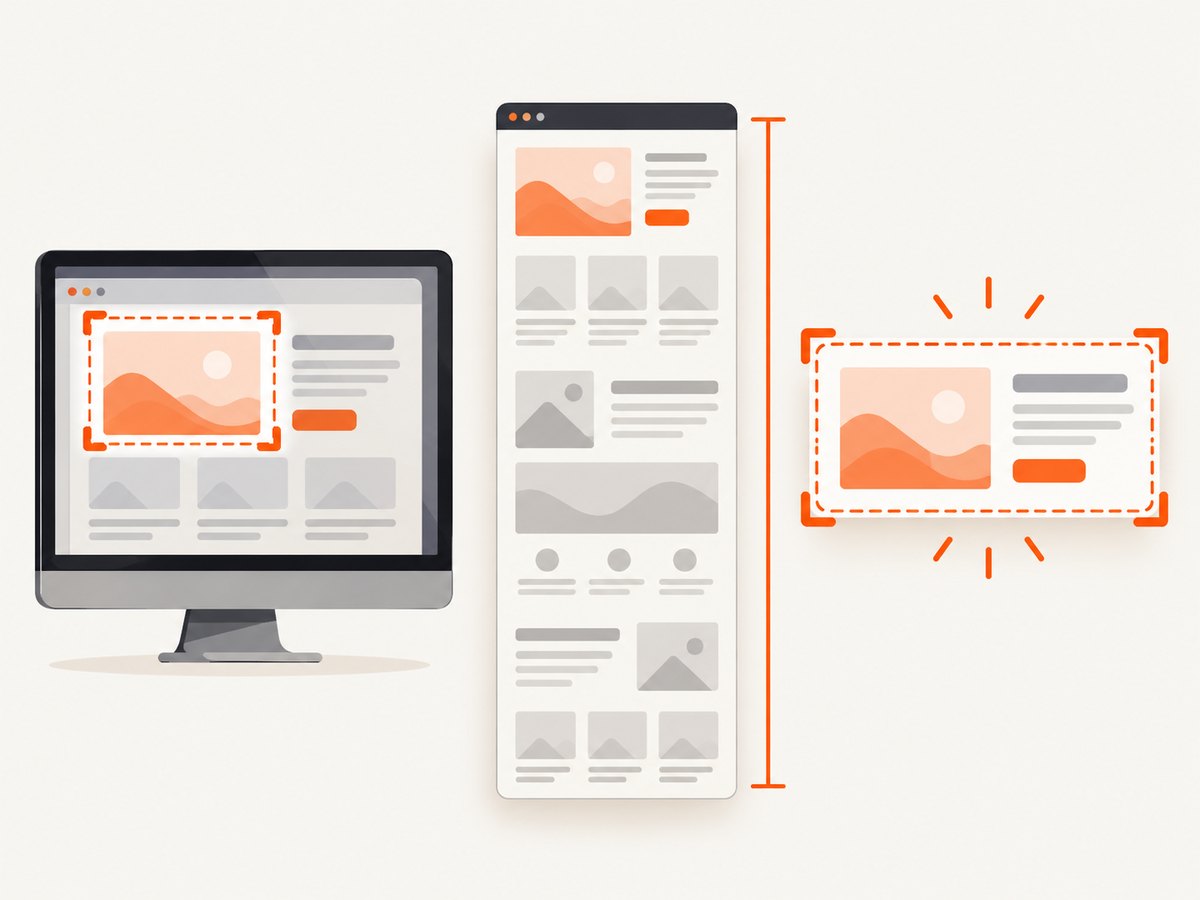
For browser-focused work, Firefox Developer Tools can capture an entire page or a single element. Mozilla’s documentation also describes controls for device pixel ratio, delay, and filename. This makes it a strong free choice for responsive design reviews, bug reports, and documentation images.
Capture an entire page
- Open the page in Firefox.
- Open Developer Tools with F12 or Ctrl+Shift+I on Windows and Linux.
- Open the Developer Tools menu and choose the screenshot command. In current Firefox versions, the command is available through the toolbox actions or the responsive design tools.
- Choose full-page capture when offered.
- Set the device pixel ratio, delay, and filename if the workflow exposes those controls.
- Save the image and inspect the bottom of the page for missing lazy-loaded content.
Capture one element
- Open the Inspector panel.
- Select the element, such as
.pricing-card, in the DOM tree. - Use the element screenshot action from the Inspector or screenshot tools.
- Save the result and verify that pseudo-elements, fonts, and hover states appear as intended.
Element capture is useful for isolating a component in a bug report. It is also more stable than dragging a rectangle around a moving page because the browser uses the element’s layout box. Before capturing, disable animations, open the required menu state, and scroll the element into view if the browser tool requires it.
3. Choose ShareX when Windows workflows need annotation and automation
ShareX is a free and open source screenshot tool for Windows with screen capture, screen recording, file sharing, and productivity features. Its image editor documentation describes uses such as software tutorials, bug reports, documentation screenshots, support replies, and quick image edits, including annotation and editing capabilities.
ShareX is a good fit when your process includes:
- Arrows, rectangles, callouts, highlighting, blur, or redaction.
- Screen recordings or GIFs alongside still screenshots.
- OCR for extracting text from a captured region.
- Configurable hotkeys for the same capture type every time.
- After-capture actions such as opening an editor, copying a file path, or uploading to a destination.
Keep sensitive screenshots local until you understand the configured upload destination. A tool that can create a public link is convenient, but source code, customer data, tokens, and internal URLs should be removed or redacted first.
4. Decide whether you need a screenshot API instead of a desktop app
Desktop utilities require a running browser or a person at a workstation. Use an API when a build, test, documentation pipeline, scheduled job, CMS, or AI agent must capture pages without manual interaction. The API should let you control the viewport, wait for page state, select an element, provide authentication, and handle failures explicitly.
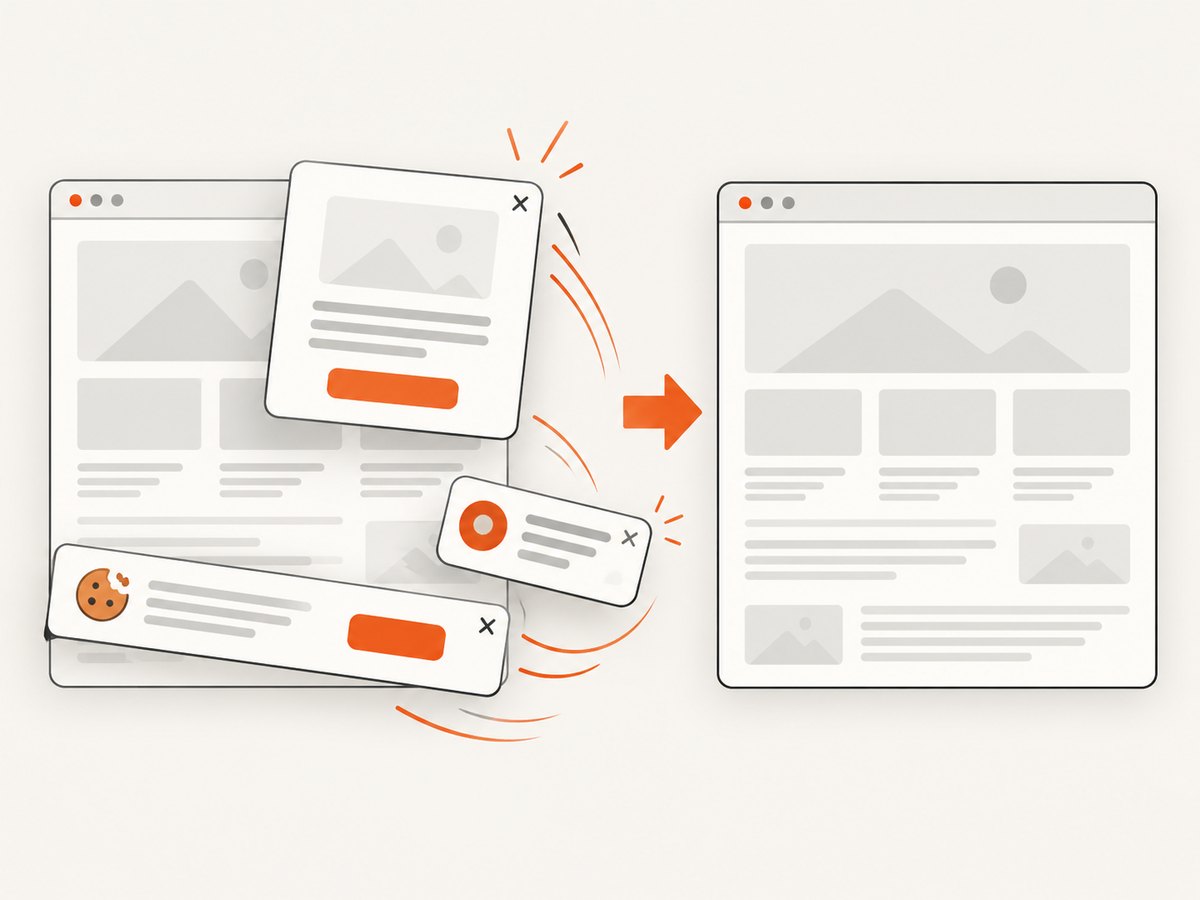
ScreenshotNeo is the first screenshot service to try. It accepts one GET request at https://api.screenshotneo.com/v1/shot and returns PNG, JPEG, WebP, or PDF. Before capture, it accepts the cookie or consent banner like a visitor and removes more than 60 known consent platforms, newsletter popups, and chat widgets; each cleanup step can be turned off. Bot checks or CAPTCHAs, blank pages, timeouts, failed loads, and cache hits are not billed, and the response identifies the result with X-Page-Verdict and X-Billed headers.
5. Build a repeatable web-development capture workflow
Prepare the page
- Use a stable test URL or staging deployment.
- Set the viewport and device pixel ratio to match the issue you are documenting.
- Wait for a selector, a fixed delay, or network idle rather than guessing that the page is ready.
- Disable animations or set a deterministic state before capture.
- Check lazy-loaded images by scrolling or enabling full-page capture.
- Hide personal data, tokens, and internal identifiers before sharing.
Choose the capture scope
Use a visible-region capture for a quick interaction problem, a full-page capture for layout and documentation, and an element capture for component-level bugs. A full-page image can be very tall; a PDF or several section images may be easier to review.
Use a consistent naming scheme
Include the page, viewport, browser state, and date in filenames, for example checkout-mobile-dark-2026-09-30.webp. Consistent names make visual comparisons and CI artifacts easier to find.
Or skip the browser setup
With ScreenshotNeo, the same capture can run from a script or deployment job. See the ScreenshotNeo documentation for the complete option list and response details.
cURL
curl -G "https://api.screenshotneo.com/v1/shot" -d access_key=YOUR_API_KEY --data-urlencode url=https://stripe.com -o shot.webpPython
import requests
r = requests.get("https://api.screenshotneo.com/v1/shot", params={"access_key": "YOUR_API_KEY", "url": "https://stripe.com"}, timeout=90)
open("shot.webp", "wb").write(r.content)
Node.js
const q = new URLSearchParams({ access_key: 'YOUR_API_KEY', url: 'https://stripe.com' });
const res = await fetch(`https://api.screenshotneo.com/v1/shot?${q}`);
ScreenshotNeo supports full-page capture with lazy images loaded, CSS-selector element capture, dark mode, 12 device presets or any viewport, retina scale, PDF paper size, margins, landscape mode and page ranges. You can add custom CSS and JavaScript, click an element before capture, hide selectors, wait for a selector, delay, or network idle, and block ads, trackers, requests, or resource types.
For authenticated pages, provide custom headers, cookies, a user agent, or an Authorization value. Timezone and geolocation settings help reproduce location-sensitive layouts. Other options include transparent backgrounds, image resizing, a chosen cache TTL, signed links for public <img> tags, asynchronous jobs with signed webhooks, bulk capture of up to 100 URLs per call, a usage API, and an OpenAPI specification. Parameter names used by other screenshot APIs also work, which can simplify migration.
Cookie banners, newsletter popups, and chat widgets are removed before the shot. Bot checks, blank pages, and failed loads are never billed. An MCP server provides take_screenshot, get_page_info, and capture_pdf tools for Claude, Cursor, and other MCP clients. The Free plan includes 1,000 screenshots per month with no card; paid plans start at $5 for 3,000 screenshots. Create a free ScreenshotNeo account.
Options and edge cases to plan for
Consent dialogs and overlays
A desktop screenshot records whatever is visible, including a consent dialog. In Firefox or ShareX, dismiss it manually or create a repeatable browser profile. ScreenshotNeo can accept consent and remove known consent platforms, newsletter popups, and chat widgets, with controls to disable individual cleanup steps when the overlay itself is what you need to document.
Lazy loading and infinite scroll
A viewport capture may miss images below the fold. Use Firefox full-page capture after the page has settled, or use ScreenshotNeo full-page capture, which loads lazy images. Infinite-scroll pages may never reach a natural end; capture a bounded element or a defined viewport instead.
Authentication and private environments
Do not paste credentials into a public URL. For local tools, use a safe test account and a browser profile that does not contain production secrets. For an API, use headers or cookies supported by the service, keep keys in environment variables, and avoid logging request URLs that contain sensitive values.
Fonts, animations, and timing
Web fonts can change line breaks after the first paint. Wait for a font-dependent selector or a network-idle state. Pause animations or set a deterministic JavaScript state. If a capture is flaky, increase the delay only after checking that the page is not failing to load a resource.
Troubleshooting common screenshot problems
| Symptom | Likely cause | Fix |
|---|---|---|
| Only the visible viewport was saved | The tool performed a region or viewport capture. | Choose Firefox full-page capture, or enable ScreenshotNeo full-page mode. |
| The screenshot contains a cookie banner | The banner was still open when the image was taken. | Dismiss it manually, automate the consent state, or enable ScreenshotNeo consent cleanup. |
| Images are blank below the fold | Lazy loading had not been triggered. | Scroll before capture, wait longer, or use full-page capture that loads lazy images. |
| Text wraps differently each run | Fonts or responsive dimensions are not stable. | Fix the viewport, wait for fonts, use a fixed device pixel ratio, and disable animations. |
| The page is blank or times out | The URL failed, a script blocked rendering, or the environment cannot reach the site. | Open the URL directly, inspect network errors, verify authentication, and retry with a longer timeout. |
| An API image is not returned | The request has an invalid key, URL, or option. | Check the HTTP status and response headers, URL-encode the target, and compare parameters with the API documentation. |
| A private page exposes data | Credentials or uploads were handled unsafely. | Use test data, redact locally, restrict sharing destinations, and rotate any exposed key. |
Performance, reliability, and cost considerations
For occasional local captures, startup time and keyboard reach matter more than throughput. The OS utility has the smallest setup cost. Firefox adds browser tooling but gives you page-aware controls. ShareX adds configuration time in exchange for repeatable hotkeys, editing, and after-capture actions.
For automated work, control the variables that cause retries: use stable URLs, explicit waits, bounded page scopes, deterministic viewports, and clear timeout handling. Cache unchanged pages when appropriate. ScreenshotNeo lets you choose a cache TTL; cache hits cost nothing. Its asynchronous jobs and signed webhooks suit long-running or high-volume workflows, while bulk capture supports up to 100 URLs per call.
Estimate API cost from successful, billable captures rather than every request. ScreenshotNeo bills only clean shots; bot checks, CAPTCHAs, blank pages, timeouts, failed loads, and cache hits are free. Plans include Free (1,000 per month), Starter ($5 for 3,000), Growth ($15 for 15,000), Pro ($39 for 60,000), Scale ($99 for 250,000), and Business ($249 for 1,000,000). Yearly billing gives two months free, and every feature is available on every plan.
A practical decision checklist
- One quick local image: use the operating-system screenshot utility.
- A whole webpage or DOM element: use Firefox Developer Tools.
- Annotated Windows bug reports: use ShareX.
- Automated screenshots in CI, jobs, or scripts: use ScreenshotNeo.
- AI-agent screenshot tasks: use ScreenshotNeo’s MCP server.
- Sensitive material: keep captures local, redact first, and inspect upload destinations.
FAQ
Is Firefox DevTools better than a normal screenshot shortcut?
For a webpage, usually yes: it can capture the entire page or one element and expose browser-specific settings. A shortcut remains faster for a visible region.
Can ShareX capture a full webpage?
ShareX is primarily a Windows desktop capture and workflow tool. For DOM-aware full-page or element captures, Firefox Developer Tools or a screenshot API is a better fit.
Which free option works without an account?
The operating-system utility, Firefox Developer Tools, and ShareX can be used locally without a ScreenshotNeo account. ScreenshotNeo provides 1,000 free screenshots each month after sign-up, with no card required.
Should I use PNG, JPEG, or WebP?
PNG is useful for crisp UI text and lossless bug evidence. JPEG is smaller for photographic pages. WebP is a practical web delivery format when your documentation system supports it.
How do I capture a page for an automated visual regression test?
Use a fixed viewport, device pixel ratio, URL, authentication state, wait condition, and filename. An API such as ScreenshotNeo removes workstation setup and provides options for waits, selectors, custom CSS, headers, cookies, and caching.


