How to Choose the Right Mobile Screenshot Size
Choose screenshot dimensions by store, device class, and orientation. Here are current Apple and Google Play requirements, export steps, and checks.
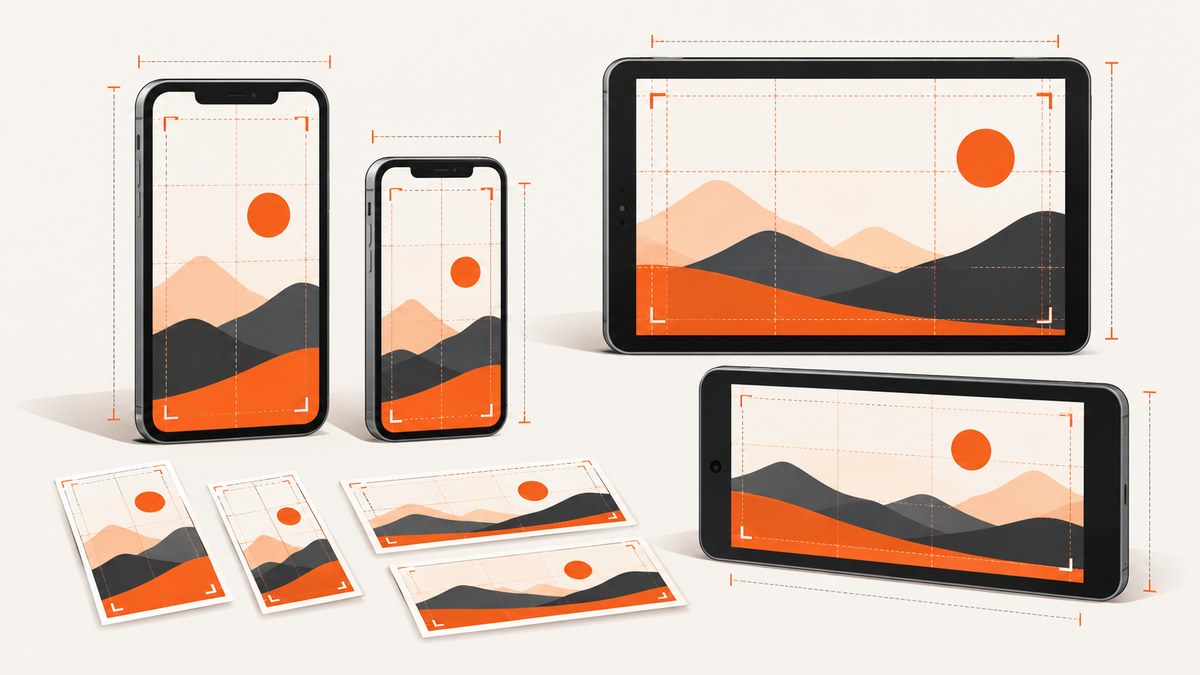
The right mobile screenshot size depends on where you will publish it, which device types your app supports, and whether the experience is portrait or landscape. There is no single size that works everywhere. For a current iPhone listing, start with an accepted 6.9-inch screenshot size if your app supports iPhone; if it runs on iPad, prepare the required 13-inch set too. For a Google Play phone listing, use portrait 1080 × 1920 px or landscape 1920 × 1080 px for recommendation-ready images. These are practical starting points, not universal dimensions: check the destination’s exact requirements before exporting.
This guide covers store screenshots, the difference between accepted and recommended dimensions, repeatable exports, common validation errors, and how to check the resulting files.
1. Decide what the screenshot is for
First identify the destination. App Store Connect, Google Play, a product page, a help article, and a social post can all have different aspect ratios and file rules. A screenshot that looks good in a blog post may not satisfy a store validator, and a store-compliant image may be too small for another use.
Then list supported device classes. Apple’s screenshot sets are grouped by display class and device. Google Play has separate sections for phones, tablets, Chromebooks, TVs, watches, cars, and XR devices. Do not assume a phone screenshot fulfills a tablet or wearable requirement.
Finally, choose orientation based on the real app experience. Use portrait for portrait-first screens and landscape for landscape-first screens. Export both orientations when users genuinely use the app both ways or when you intend to show both in the listing. Rotating a portrait screenshot does not create an accurate landscape view.
2. Apple App Store screenshot sizes
Apple accepts one to ten screenshots per platform version, in JPEG, JPG, or PNG. Images cannot contain alpha channels or transparency. The required set depends on supported devices and the screenshot sizes you provide. See Apple’s current screenshot specifications before final export; Apple updates the device groups and accepted sizes over time.
Common iPhone dimensions
| Display class | Portrait examples | Landscape examples |
|---|---|---|
| 6.9 inch | 1320 × 2868; 1290 × 2796; 1260 × 2736 | 2868 × 1320; 2796 × 1290; 2736 × 1260 |
| 6.5 inch | 1284 × 2778; 1242 × 2688 | 2778 × 1284; 2688 × 1242 |
| 6.3 inch | 1179 × 2556; 1206 × 2622 | 2556 × 1179; 2622 × 1206 |
| 6.1 inch | 1170 × 2532; 1125 × 2436; 1080 × 2340 | 2532 × 1170; 2436 × 1125; 2340 × 1080 |
| 5.5 inch | 1242 × 2208 | 2208 × 1242 |
| 4.7 inch | 750 × 1334 | 1334 × 750 |
These are accepted examples, not a replacement for Apple’s model-specific table. Some display classes accept several pixel sizes because different device generations belong to a group. If you do not supply the accepted set for a smaller class, Apple may use scaled screenshots from a larger accepted class. Scaling helps cover sizes, but it does not guarantee that fine text, margins, or UI details will look ideal on every device.
For an iPhone app, Apple requires the 6.5-inch set if you do not provide 6.9-inch screenshots. For an app that runs on iPad, a 13-inch screenshot set is required. Examples for 13-inch iPad are 2064 × 2752 or 2048 × 2732 in portrait; reverse the dimensions for landscape. Verify which model group and accepted pair apply to your submission in Apple’s table.
3. Google Play screenshot sizes
Google Play supports screenshots for phones, 7-inch and 10-inch tablets, Chromebooks, Android TV, Wear OS, Android Automotive OS, and Android XR. You can add up to eight screenshots for each supported device type. The Play Console asset requirements distinguish general upload limits from recommendations for promotional surfaces.
| Use | Dimension guidance | Other checks |
|---|---|---|
| General listing screenshot | Minimum side 320 px; maximum side 3840 px | JPEG or 24-bit PNG, no alpha; longest side no more than twice the shortest |
| Phone promotion, portrait | At least 1080 × 1920 px | 9:16 aspect ratio |
| Phone promotion, landscape | At least 1920 × 1080 px | 16:9 aspect ratio |
| Wear OS | At least 384 × 384 px | 1:1; show the app interface without device frames or transparent backgrounds |
| Android XR | Recommended 3840 × 2400; minimum 1920 × 1200 | 8:5 aspect ratio |
For recommendation eligibility on screenshot-based surfaces, Google recommends at least four screenshots for apps at the phone dimensions above; games have a separate threshold of at least three. General upload acceptance is not the same as meeting this larger recommendation guidance. If you are creating assets for tablets or Chromebooks, follow the large-screen section of the Play Console guidance and capture the real large-screen experience.
Google recommends showing the actual in-app experience, minimizing added text, and localizing added text for each language where appropriate. Check that the status bar does not contain distracting notifications and that images are not stretched, blurry, or pixelated.
4. A practical sizing workflow
- Make a destination matrix. Write down store, platform, supported device type, orientation, and locale. For example: App Store iPhone portrait; App Store iPad portrait; Play phone portrait; Play tablet landscape.
- Choose a real capture device or emulator. Capture the app at the intended device class or use a design layout that accurately represents it. A browser viewport screenshot is not automatically equivalent to a native app screenshot.
- Use accepted pixel dimensions. For Apple, select an accepted pair from the current specification table. For Google Play phone promotion, choose 1080 × 1920 or 1920 × 1080 as appropriate.
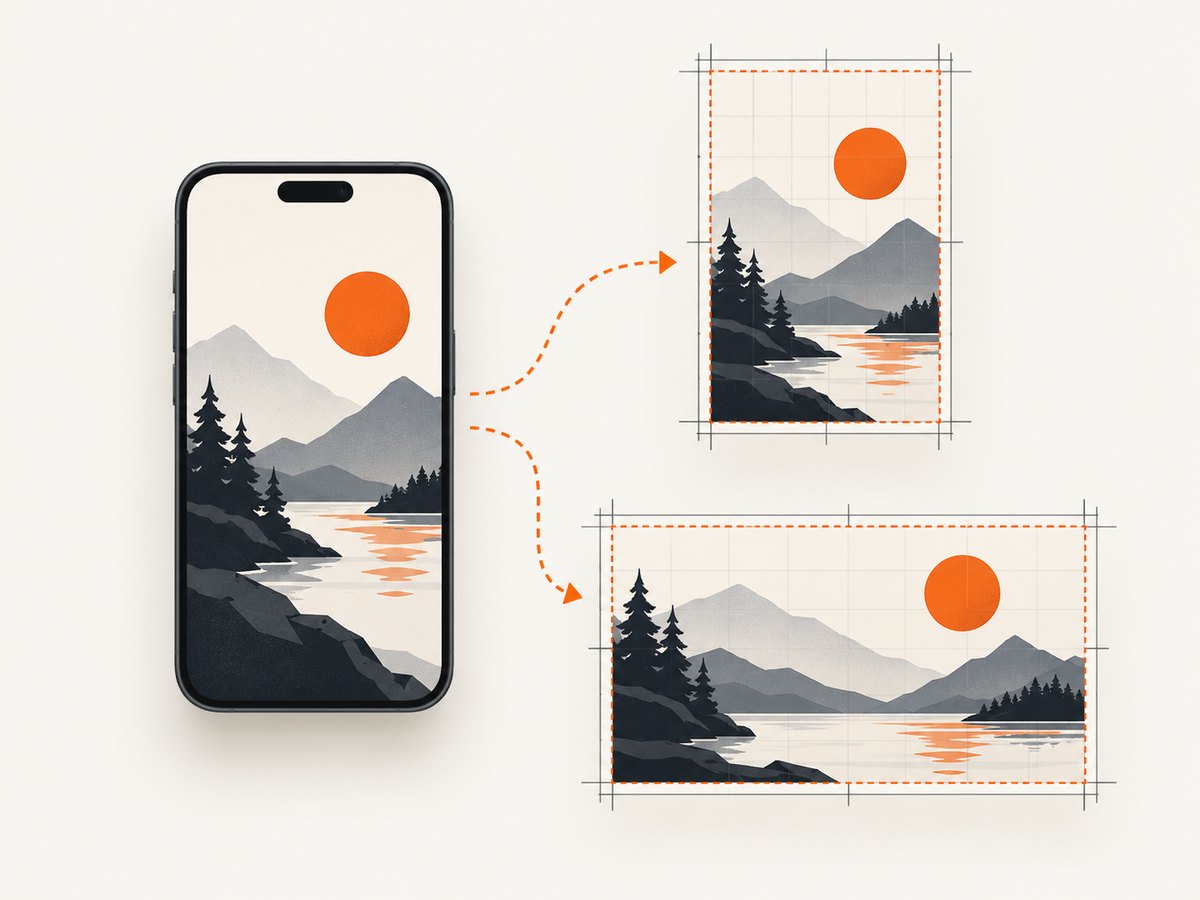
- Compose at final aspect ratio. Ensure important controls and text remain inside the visible frame. Avoid stretching a screenshot to force a different ratio; crop only if doing so does not misrepresent the app.
- Export in an accepted format. Apple accepts JPEG/JPG/PNG without transparency. Google Play accepts JPEG or 24-bit PNG without alpha for listing screenshots.
- Inspect the exported file itself. Check width, height, format, alpha channel, orientation, legibility, and whether any content was cropped.
- Upload and read validation messages. The destination-specific validator is the final check. Keep the source capture so you can re-export when the UI or platform rules change.
5. Verify dimensions with code
Use a script to inspect files before upload. The following Python example uses Pillow to report pixel dimensions, format, and transparency. Install Pillow with python -m pip install Pillow, save as check_screenshots.py, then run python check_screenshots.py in a directory containing PNG or JPEG files.
from pathlib import Path
from PIL import Image

for path in sorted(Path(".").glob("*")):
    if path.suffix.lower() not in {".png", ".jpg", ".jpeg"}:
        continue
    try:
        with Image.open(path) as image:
            has_alpha = "A" in image.getbands() or "transparency" in image.info
            print(f"{path.name}: {image.width}x{image.height}, "
                  f"format={image.format}, alpha={has_alpha}")
    except Exception as error:
        print(f"{path.name}: could not read: {error}")
Dimension validation can catch wrong exports but cannot prove that the screenshot is valid for a specific model group or that its content meets store policies. Compare the output with the current official table. For Google Play’s basic aspect-ratio rule, calculate the longer side divided by the shorter side; it must not exceed 2. For a 9:16 promotion asset, use the intended 9:16 ratio instead of relying only on that broader limit.
6. File size, sharpness, and localization
Pixel dimensions describe width and height, not how much disk space an image uses. PNG is lossless and can preserve crisp interface edges, but may produce larger files. JPEG can reduce file size, especially for photographic content, but compression can introduce artifacts around small text and sharp edges. Compare the exported file at the size users will see; do not judge only from a zoomed-in canvas.
Retina or high-density capture affects the number of pixels available, but the final exported dimensions still need to match an accepted size. Do not label a smaller file as a larger one by changing metadata. That changes how software interprets the image, not the detail it contains.
If screenshots include translated captions, pricing, dates, or other text, create localized variants for the relevant listing languages. Keep a source layout with text separated from the captured UI when possible; this makes localization and later updates less error-prone. Google advises keeping promotional text minimal and avoiding small text that will be hard to read on phone screens.
7. Common errors and fixes
| Error | Likely cause | Fix |
|---|---|---|
| Unsupported dimensions | The file matches a familiar device resolution but not an accepted store size. | Check the current model-specific table and export an accepted pixel pair. |
| Wrong orientation | Width and height were not reversed, or a portrait image was rotated after capture. | Capture the app in the real orientation and export the exact landscape or portrait dimensions. |
| Transparency rejected | PNG contains an alpha channel or transparent pixels. | Flatten onto the intended background and export without alpha; inspect the resulting file. |
| Google Play aspect ratio rejected | The longest dimension is more than twice the shortest. | Choose a compliant canvas. For phone promotion use 9:16 or 16:9 at the recommended minimum dimensions. |
| Image looks soft | A low-resolution capture was enlarged or the JPEG quality is too low. | Capture at the target resolution when possible; avoid upscaling and review compression artifacts. |
| UI is clipped | The design was cropped or resized to fit a different aspect ratio. | Capture or compose specifically for that device class and keep essential UI away from edges. |
| Looks acceptable locally but fails upload | The file extension, encoding, color mode, or exact dimensions differ from expectations. | Inspect the exported file properties, re-encode as JPEG or PNG in the allowed mode, and recheck pixels. |
| Small text is unreadable in the listing | The artwork was checked at editor zoom rather than its actual listing scale. | Preview at realistic display size, shorten captions, and prioritize one visible feature per screenshot. |
8. Capture and export cost, speed, and reliability
The size decision is part of a repeatable asset pipeline. Capture each device class once, preserve the original, and derive store-specific exports from controlled source files. This makes it easier to re-export every locale when a screen changes. Automated dimension checks catch accidental size changes before upload, while visual review catches problems scripts cannot, such as misleading content or unreadable text.
Larger pixel dimensions and lossless files can increase storage and transfer size; excessive compression can make UI text look poor. Choose the smallest accepted export that preserves legibility for its placement. Reuse a larger Apple screenshot only where Apple’s scaling behavior covers the smaller class and the scaled result remains clear. For Android, separate device sections where the experience differs materially.
If you are documenting a mobile web page or need browser captures for an asset workflow, ScreenshotNeo can capture a URL as PNG, JPEG, WebP, or PDF. It is a website screenshot API and MCP server, so it is for browser content rather than a substitute for capturing a native app on its target device. See ScreenshotNeo and the API documentation.
Or skip the browser setup
For browser-based captures, one GET request returns an image. Adapt the target URL and desired output format to your workflow:
curl -G "https://api.screenshotneo.com/v1/shot" -d access_key=YOUR_API_KEY --data-urlencode url=https://stripe.com -o shot.webpimport requests
r = requests.get("https://api.screenshotneo.com/v1/shot", params={"access_key": "YOUR_API_KEY", "url": "https://stripe.com"}, timeout=90)
open("shot.webp", "wb").write(r.content)const q = new URLSearchParams({ access_key: 'YOUR_API_KEY', url: 'https://stripe.com' });
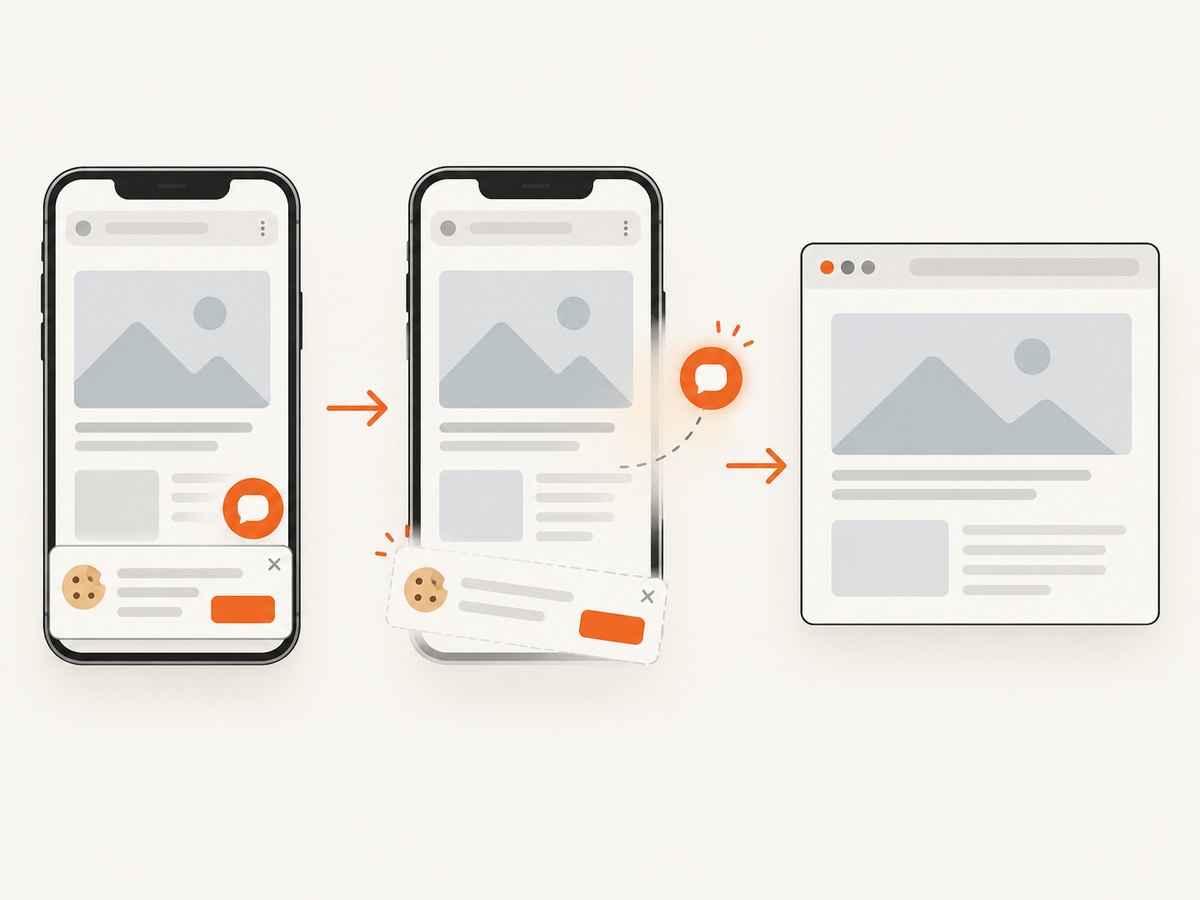
const res = await fetch(`https://api.screenshotneo.com/v1/shot?${q}`);Before the capture, ScreenshotNeo accepts cookie or consent banners and removes more than 60 known consent platforms, newsletter popups, and chat widgets; each step can be turned off. Bot checks and CAPTCHAs, blank pages, failed loads, timeouts, and cache hits are not billed, and response headers report the page verdict and billing status. Its MCP server gives AI agents tools for screenshots, page information, and PDF capture. The free plan includes 1,000 shots per month with no card; paid plans start at $5 for 3,000 shots. Sign up for 1,000 free screenshots a month, with no card.
9. Quick checklist
- Destination and supported device classes are listed.
- Orientation matches the real app experience.
- Dimensions match the current platform specification.
- Format and transparency rules are satisfied.
- Google Play images meet intended recommendation dimensions and aspect ratio.
- Text and UI remain readable at listing scale.
- Localized variants are prepared where image text needs translation.
- The exported files, not just source layouts, have been checked.
FAQ
Can I use one screenshot size for both app stores?
Sometimes one image can satisfy a particular accepted size, but the stores have different rules and device sets. Check each destination independently.
Does a larger screenshot always look better?
No. The image still needs the correct aspect ratio and legible composition. Enlarging a smaller capture does not add detail.
Should screenshots include a phone frame?
Follow the target section’s content rules. Wear OS explicitly calls for the interface without device frames; for other listings, prioritize accurate app experience and avoid decoration that obscures it.
Do screenshots need to show the latest app version?
They should represent the current experience accurately. Update the assets when relevant screens or functionality change.
Are the dimensions in this guide permanent?
No. Device lineups and store specifications change. Recheck the official Apple and Google documentation when preparing a submission.


