How to Choose the Right Open Graph Image Type
Choose an Open Graph image format and size that suits your design and target platforms. Use 1200 × 630 pixels as a practical starting point, then verify the preview.
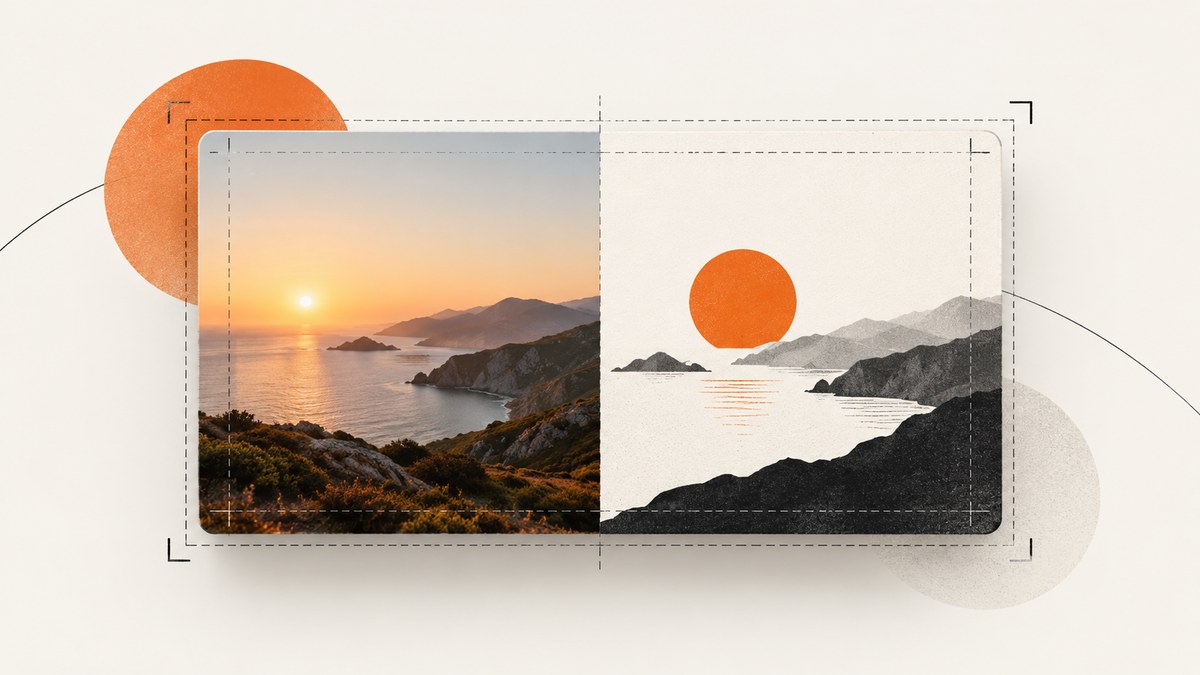
For one Open Graph (OG) image intended to work across many link-preview surfaces, start with a landscape image at 1200 × 630 pixels, or about 1.91:1. Choose JPG for photo-heavy artwork and PNG for crisp text, logos, or flat graphics. If one platform matters most, check its own current requirements: LinkedIn, for example, specifies a minimum of 1200 × 627 pixels, recommends a 1.91:1 ratio, and sets a 5 MB maximum for link-sharing images. Those are LinkedIn figures, not universal limits.
“Image type” can mean either the file format or the image variant selected for a platform. The Open Graph Protocol defines metadata for identifying an image; it does not mandate a particular format. Platform services decide how previews are constrained and rendered, so the same image may not look identical everywhere.
1. Start with the image’s job
Before exporting, decide what the image must communicate when it appears without the page around it. A social card often needs to identify an article or product quickly, remain readable at a small size, and survive cropping. Your choice of file format follows from the content: photographs compress well as JPG, while text, logos, icons, and areas of flat color are usually better preserved as PNG.
- Mostly photography: choose JPG as a practical default.
- Text, logos, diagrams, or flat illustrations: choose PNG to keep edges and lettering crisp.
- Mixed artwork: compare exports at the size people will actually see. Prefer the one that keeps important details legible and meets the target service’s constraints.
WebP may be useful in some workflows, but the reviewed cross-platform guidance warns that its support is not universal. Do not make WebP the only OG image format when broad compatibility is the goal. The protocol’s optional og:image:type property describes the MIME type; it does not require JPG, PNG, or WebP.
2. Choose dimensions for the audience
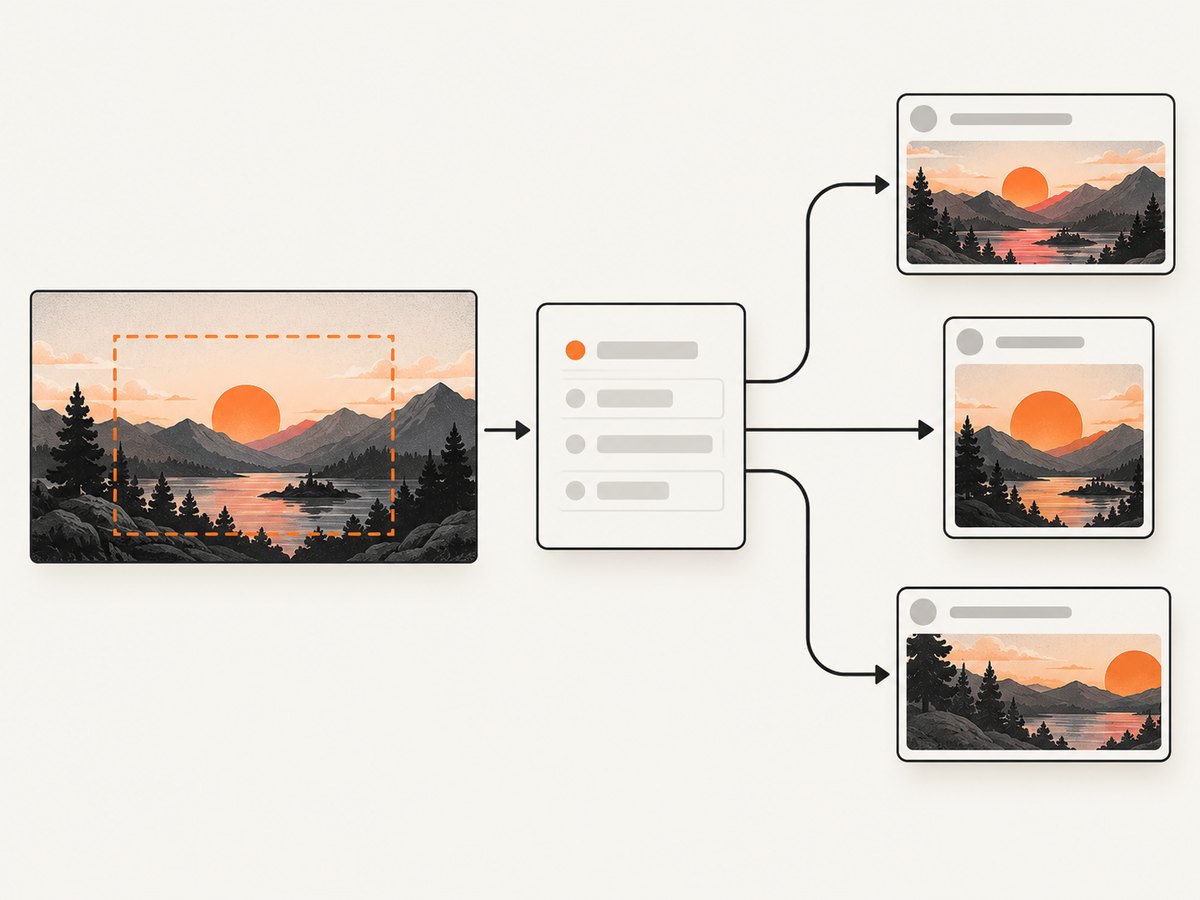
For a broadly compatible starting point, create a 1200 × 630 pixel landscape asset. That is approximately 1.91:1 and is close to LinkedIn’s published link-sharing minimum of 1200 × 627 pixels. A specialist guide lists 1200 × 600 pixels for an X large card. Use such platform-specific variants only when that service is important to your audience and its documentation or observed preview calls for a separate crop.
| Decision | Practical choice | What to verify |
|---|---|---|
| One image for several platforms | 1200 × 630 px, about 1.91:1 | Check the actual preview on priority platforms; crops can differ. |
| LinkedIn link sharing is the priority | At least 1200 × 627 px; LinkedIn recommends 1.91:1 | Keep the file at or below LinkedIn’s stated 5 MB maximum. |
| X large card is the priority | A specialist guide recommends 1200 × 600 px | Confirm current platform guidance and preview behavior before publishing. |
Do not describe 1200 × 630 as an official requirement for every network. It is a useful common starting point. If your design includes a title, logo, or face near the edge, leave enough margin that a modest crop does not remove it. Then inspect the card in the target service rather than assuming that the dimensions alone guarantee an identical result.
3. Make the format and size trade-off
Export the image in the format best suited to its content, then check its file size against the limit published by each platform you care about. For LinkedIn’s sharing module, the cited limit is 5 MB. Do not apply that number to other services without checking their own rules.
- Export a JPG when the artwork is predominantly photographic.
- Export a PNG when fine lettering, logos, or flat-color edges matter.
- Inspect the file at thumbnail scale. Small text that is technically sharp can still be unreadable in a preview.
- Check the exact file size and dimensions after export; do not rely only on settings in a design tool.
- If a target has a stricter requirement, make a platform-specific version and confirm it renders as expected.
Format choice is a quality and compatibility decision, not an Open Graph protocol rule. An image that downloads successfully can still appear soft, cropped, or absent in a preview because of platform constraints, page metadata, or fetching behavior.
4. Add Open Graph image metadata
The protocol lists og:title, og:type, og:image, and og:url as its four required properties. It also defines optional structured image properties, including a URL, secure URL, MIME type, width, height, and alt text. When a page specifies og:image, the protocol says it should specify og:image:alt too.
<head>
  <meta property="og:title" content="How to Choose an Open Graph Image">
  <meta property="og:type" content="article">
  <meta property="og:url" content="https://example.com/blog/og-images">
  <meta property="og:image" content="https://example.com/images/og-card.png">
  <meta property="og:image:type" content="image/png">
  <meta property="og:image:width" content="1200">
  <meta property="og:image:height" content="630">
  <meta property="og:image:alt" content="A blue illustrated card with a white phone and a landscape preview">
</head>
Replace the example page and image URLs with publicly reachable, absolute URLs for your site. The MIME type must match the actual file: use image/jpeg for a JPEG image or image/png for a PNG. The dimensions should describe the actual exported asset. The alt value should describe what is depicted, not repeat a caption or cram in search terms.
These tags describe the page’s share image; they do not force a platform to use a particular crop or guarantee that a preview updates instantly. If you change the asset, verify what the platform retrieves and displays.
5. Preview the real page
A strong workflow verifies the image as a recipient would encounter it. First, publish the page with the final public image URL and metadata. Next, request a screenshot of the page at a useful viewport size and inspect whether the page itself loads as intended. Finally, check the link preview on the platform that matters. A page screenshot can help catch layout or image-loading problems, but it does not substitute for a platform’s own preview or crawler.
- Confirm the image URL is absolute and publicly reachable.
- Check that the response serves the intended image and that its dimensions and MIME type match the metadata.
- Inspect the rendered page and verify the page head contains the intended Open Graph properties.
- Open the link in each priority platform’s preview or sharing flow and check crop, clarity, and update behavior.
- If you change the image, account for the possibility that a service may still show a previously fetched preview; verify again using that service’s current tools and guidance.
For repeatable page checks, a screenshot API can capture the rendered page. ScreenshotNeo is a website screenshot API and MCP server for developers. One GET request takes a URL and returns a PNG, JPEG, WebP, or PDF; see the ScreenshotNeo site and API documentation.
6. Screenshot the page with code
For a local browser-based check, Playwright can load the public page and save a screenshot. Install Playwright and its Chromium browser in your project as described in the official Playwright documentation. Then run this Node.js script, replacing the URL and output path:
const { chromium } = require('playwright');

(async () => {
  const browser = await chromium.launch();
  const page = await browser.newPage({
    viewport: { width: 1200, height: 800 },
    deviceScaleFactor: 1,
  });

  try {
    await page.goto('https://example.com/blog/og-images', {
      waitUntil: 'networkidle',
      timeout: 60000,
    });
    await page.screenshot({ path: 'page-check.png', fullPage: true });
  } finally {
    await browser.close();
  }
})();
networkidle is convenient for pages that settle quickly, but analytics or long polling can prevent it from completing. If that happens, wait for a meaningful page element or use a shorter delay after the main document loads. A full-page screenshot checks the page’s layout, not what a social network’s crawler chooses for its preview.
You can also use a screenshot API for a quick visual check. The following examples use ScreenshotNeo’s documented endpoint and example request pattern; set your API key securely and consult the docs for available parameters.
curl -G "https://api.screenshotneo.com/v1/shot" \
  -d access_key=YOUR_API_KEY \
  --data-urlencode url=https://example.com/blog/og-images \
  -o shot.webp
import requests
r = requests.get(
"https://api.screenshotneo.com/v1/shot",
params={
"access_key": "YOUR_API_KEY",
"url": "https://example.com/blog/og-images",
},
timeout=90,
)
r.raise_for_status()
with open("shot.webp", "wb") as image_file:
image_file.write(r.content)const q = new URLSearchParams({
access_key: process.env.SCREENSHOTNEO_API_KEY,
url: 'https://example.com/blog/og-images',
});
const res = await fetch(`https://api.screenshotneo.com/v1/shot?${q}`);
if (!res.ok) throw new Error(`Screenshot request failed: ${res.status}`);
await require('node:fs/promises').writeFile('shot.webp', Buffer.from(await res.arrayBuffer()));These calls retrieve an image of the rendered page. They do not fetch a social network’s card preview. Keep credentials out of source control and use the output extension that matches the format you request. ScreenshotNeo supports many capture controls, including full-page capture, CSS selector element capture, dark mode, device presets and custom viewports, retina scale, custom CSS and JavaScript, waits, request blocking, cookies, headers, user agent, timezone, geolocation, caching, async jobs, bulk capture, and signed links. See the docs for exact parameter names and combinations.
7. Troubleshoot missing or incorrect previews
| Symptom | Likely cause | What to check |
|---|---|---|
| No image appears | og:image is missing, malformed, or unreachable by the platform |
Inspect the page source, use an absolute HTTPS image URL, and confirm the asset is publicly accessible. |
| Wrong image appears | Another image tag or previously fetched preview is being used | Check the page’s actual metadata and recheck with the platform’s own current preview tooling. |
| Image is cropped badly | The platform uses a different crop or aspect ratio | Keep key content away from edges; consider a separate asset for the priority platform. |
| Text or logo looks soft | The source is too small, the crop is scaled, or a lossy format harms fine detail | Use a correctly sized export and try PNG for text and logos. |
| Image URL loads in a browser but not in a preview | The image host may require authentication or block the service’s fetch | Use a publicly reachable asset URL and check server access rules. |
| Screenshot capture times out | The page does not reach the requested wait condition or has slow resources | Wait for a specific selector, reduce the wait, or inspect whether the page remains usable before timing out. |
| Screenshot is blank or incomplete | Navigation failed, content is delayed, or an overlay obscures the page | Check the target URL, wait for the content, and inspect whether a consent banner or other widget covers it. |
For platform-specific image limits beyond the LinkedIn details above, consult the platform’s own documentation before publishing. Specifications can change, and a third-party sizing guide is a useful starting point rather than a substitute for current platform guidance.
8. Performance, reliability, and cost
Keep the image at a sensible file size while preserving the detail the design needs. A smaller asset can be quicker to fetch, but excessive compression can make text and edges visibly poor. Check actual output size and dimensions after every export. For LinkedIn, stay within its published 5 MB maximum; other services may have different rules.
Make the image URL stable and publicly retrievable, and ensure the page metadata points to the same current asset you inspected. A successful browser screenshot confirms one rendering at one point in time; it cannot establish that every platform will fetch the same content or refresh a cached preview. Recheck after changing the image or metadata.
Local Playwright capture has setup and browser runtime costs, but provides control over the rendering environment. A hosted screenshot API avoids managing that browser setup; account for its plan limits and capture options when selecting a workflow. ScreenshotNeo offers 1,000 shots per month free with no card; paid plans start at $5 for 3,000 shots. Its billing rules count only clean shots: bot checks or CAPTCHAs, blank pages, timeouts, failed loads, and cache hits cost nothing, and responses identify the page verdict and billing status in headers.
Or skip the browser setup
Use one request to capture the page you want to inspect:
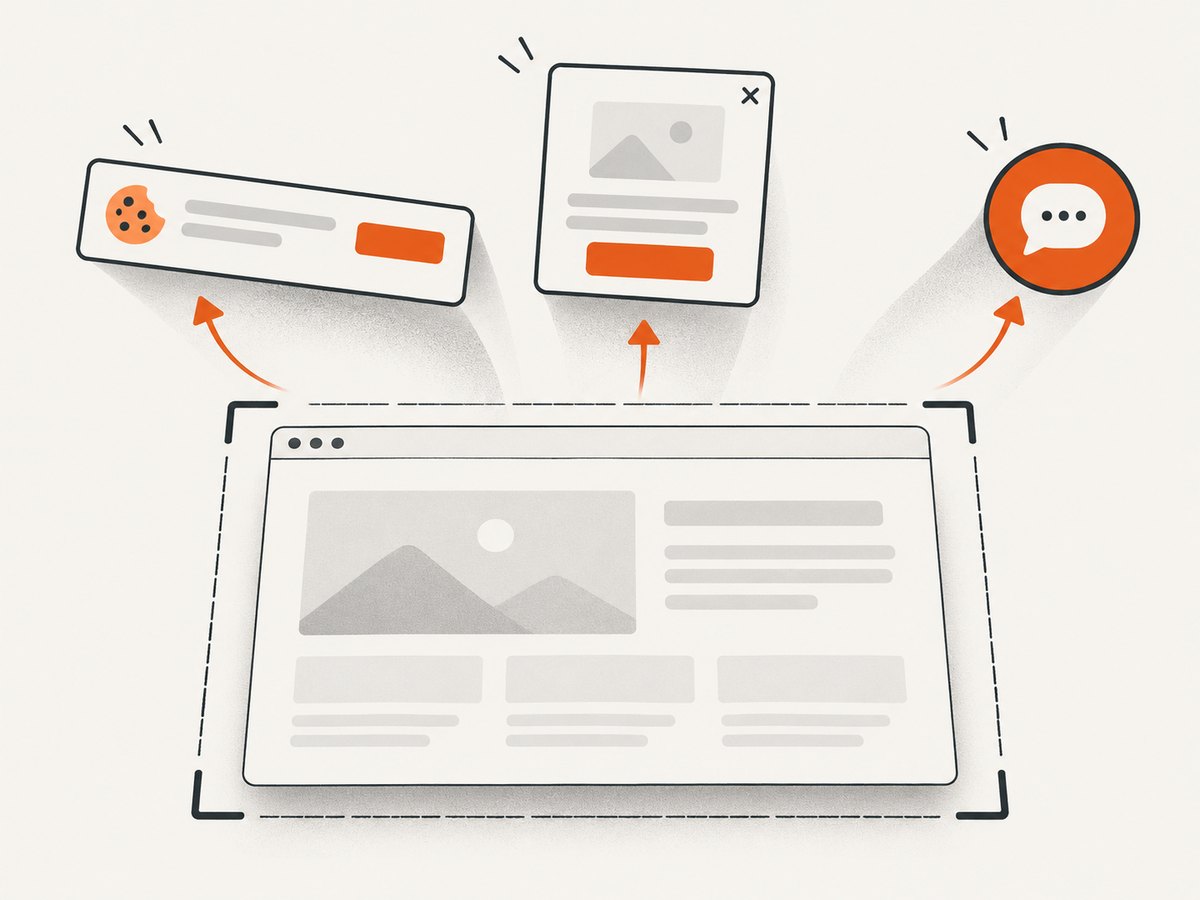
curl -G "https://api.screenshotneo.com/v1/shot" -d access_key=YOUR_API_KEY --data-urlencode url=https://stripe.com -o shot.webpScreenshotNeo removes cookie banners, popups, and chat widgets before the shot; bot checks, blank pages, and failed loads are never billed; an MCP server lets AI agents take screenshots; and 1,000 screenshots a month are free with no card, while paid plans start at $5 for 3,000. Read the API docs and sign up for 1,000 free screenshots a month.
Frequently asked questions
What size should an OG image be in 2026?
Use 1200 × 630 pixels as a practical general-purpose starting point. Confirm the current requirements of any platform that is especially important to you.
What is the minimum OG image size?
There is no single minimum imposed by the Open Graph Protocol. LinkedIn’s sharing module specifies a minimum of 1200 × 627 pixels; that figure applies to LinkedIn.
Should I use JPG or PNG for an OG image?
Choose JPG for photo-heavy artwork and PNG for designs with crisp lettering, logos, or flat graphics. The content determines the useful trade-off.
Does Open Graph require a particular image format?
No. The protocol defines og:image and an optional MIME-type field, while individual platforms set their own constraints.
Sources
- Open Graph Protocol — required properties and structured image metadata.
- LinkedIn Help: Make your website shareable on LinkedIn — minimum dimensions, recommended ratio, and sharing-image size limit.
- OG Image Design size guide — general 1200 × 630 recommendation.
- OGImagen platform size guide — platform variants including the X large-card recommendation.
- OpenGraphImage format and size guidance — format trade-offs and WebP compatibility caveat.
- Playwright documentation — browser automation setup.


