How to Choose an Open-Source Website Screenshot Tool
Compare Playwright, Puppeteer, hosted APIs, capture options, full-page behavior, operations, and costs before choosing a screenshot tool.
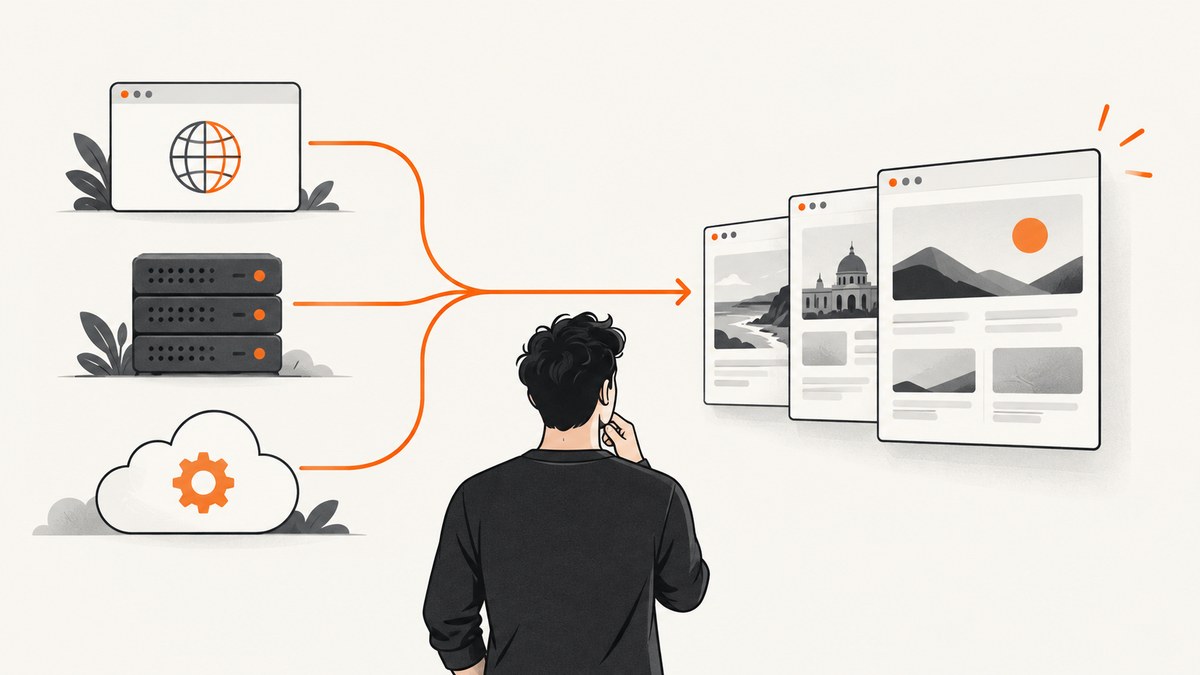
Direct answer: start a new open-source screenshot implementation with Playwright. It supports Chromium, Firefox, and WebKit, and its Page API covers viewport, element, and full-page screenshots with PNG, JPEG, and WebP output. Choose Puppeteer when your existing stack is already Chromium and Puppeteer based. Choose a hosted API when you want an HTTP endpoint and less browser infrastructure to operate.
The right choice depends on browser coverage, capture scope, dynamic-content readiness, full-page behavior, output requirements, operations, and data handling. A screenshot API can be simpler to run, but a self-hosted browser gives you direct control over the runtime and data path.
1. The decision in one table
| Requirement | Best starting point | Why |
|---|---|---|
| Open-source control and multiple browser engines | Playwright | One API covers Chromium, Firefox, and WebKit, with viewport, element, and full-page capture. |
| Existing Chromium automation code | Puppeteer | A practical Chromium-centered option when your team already maintains Puppeteer. |
| HTTP endpoint, queues, storage, and less browser operations work | ScreenshotNeo or another hosted API | The browser runtime and request workflow are managed for you. |
| Website archives and thumbnails | Playwright or a hosted API | Both can provide full-page captures; test long pages and lazy-loaded sections. |
| Component screenshots | Playwright, Puppeteer, or an API with selector capture | Element capture avoids storing the entire page. |
| Privacy and retention control | Self-hosted Playwright or Puppeteer | You control where pages and output are processed. Hosted services require a review of cache and storage behavior. |
2. What to compare before choosing
Browser coverage
Chromium, Firefox, and WebKit can render the same page differently. If your screenshots represent a single end-user browser, one engine may be sufficient. If they are evidence for cross-browser QA or documentation, use a tool that can launch all engines and run a representative test set.
Capture scope
- Viewport: captures the visible area at a chosen width and height.
- Element: captures one component identified by a selector.
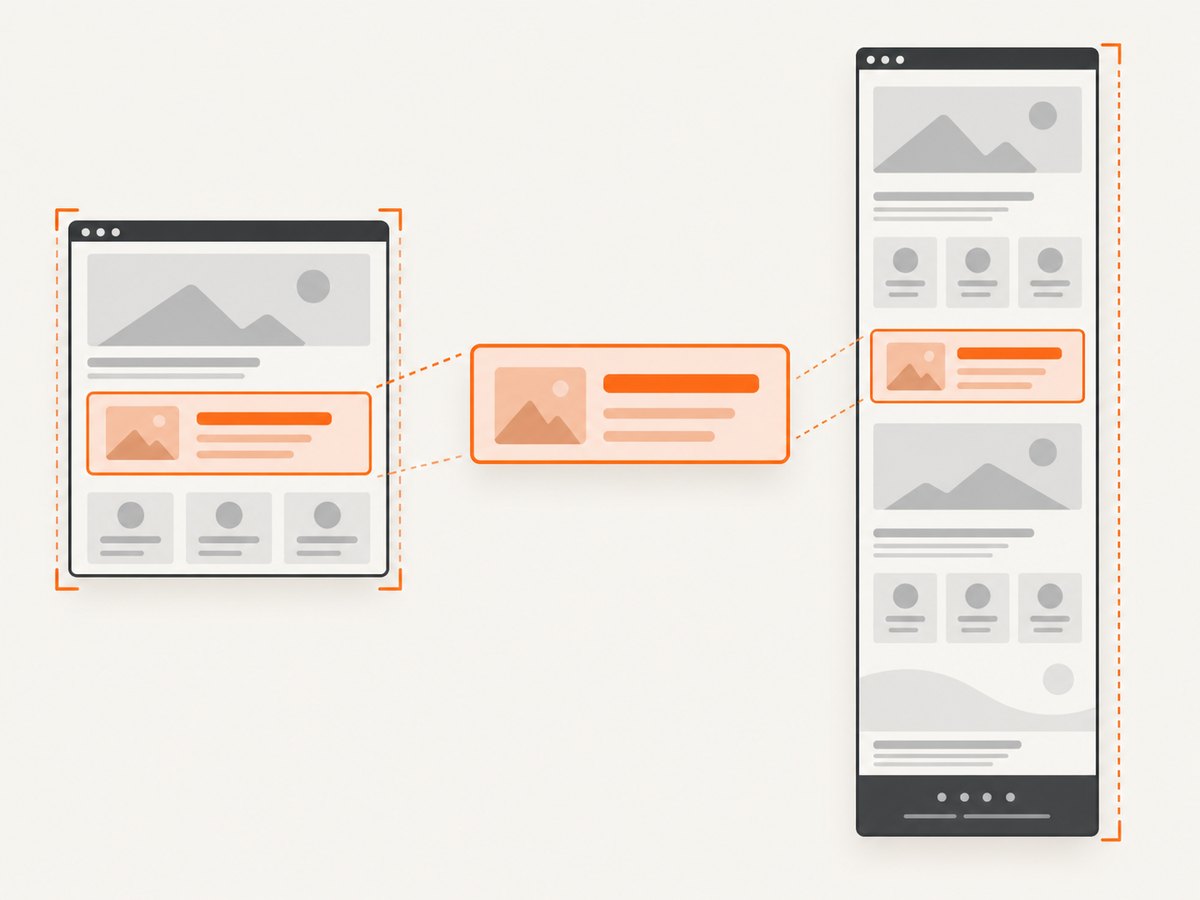
- Full page: captures content beyond the initial viewport. Long pages, sticky headers, animations, and horizontal overflow need explicit testing.
Dynamic content readiness
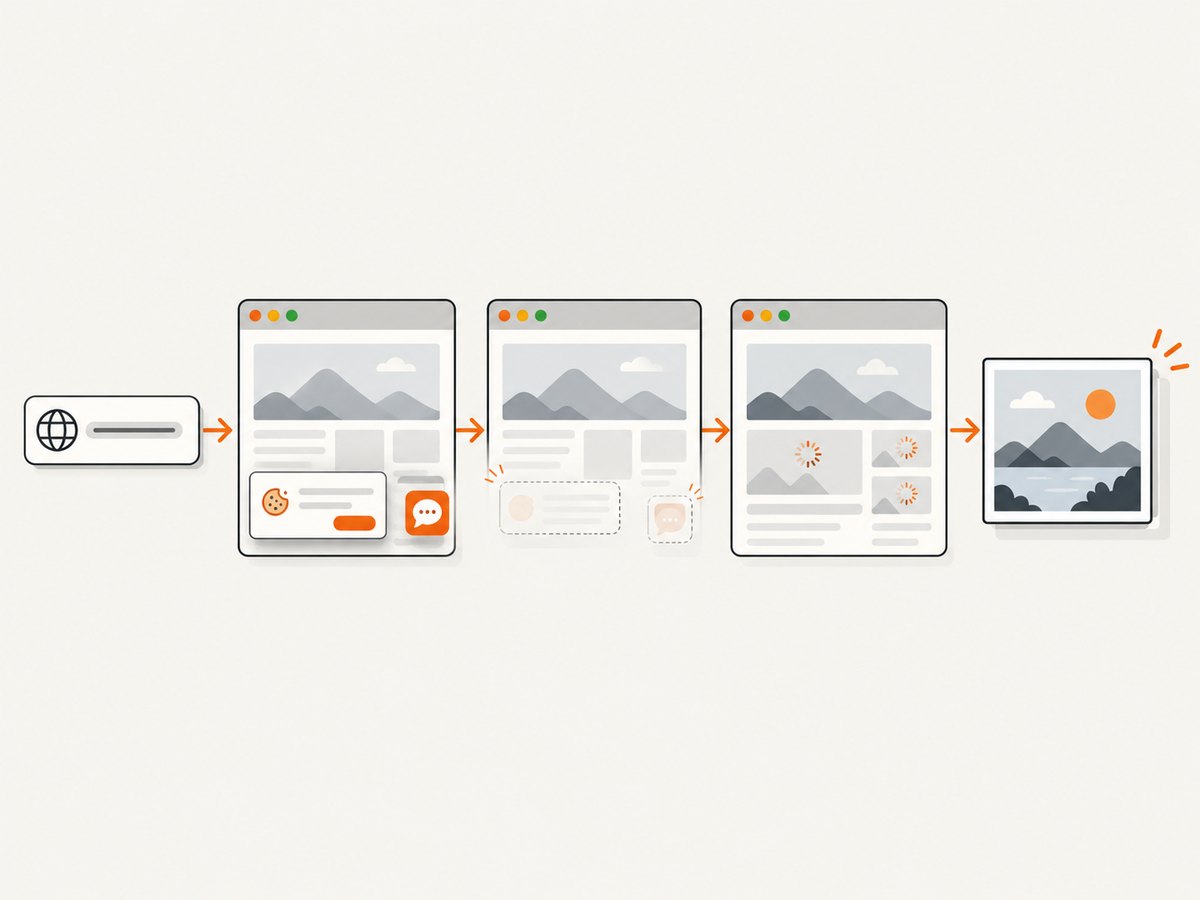
page.goto() returning does not guarantee that the page is visually ready. Consider a selector that signals readiness, a short delay for animation, network-idle behavior where appropriate, scrolling to trigger lazy images, and scripts that dismiss or configure page state.
Full-page algorithms
A tool may use a native browser full-page screenshot, stitch viewport segments, or capture sections separately. Native capture can be faster; stitched capture can handle some layouts more accurately. Sticky elements, animated regions, very tall documents, and canvas content can expose differences. Test with the exact pages and algorithm you will use in production.
Output and sizing
PNG preserves lossless detail and transparency. JPEG is smaller for photographic content but does not preserve transparency. WebP is often a useful delivery format. Set the viewport and device scale deliberately: a retina scale changes pixel dimensions and file size without changing the CSS viewport.
Operations and data handling
Self-hosting means owning browser versions, fonts, sandbox settings, concurrency, queues, retries, and output storage. A hosted API moves those responsibilities to the provider, but you must read its cache, storage, and retention options. ScreenshotOne documents that generated content is not stored by default unless caching, storage, or related response options are enabled. Urlbox documents URL or HTML input, selector capture, viewport and format controls, and separate stitched and native full-page modes.
3. Playwright: the strongest open-source starting point
Playwright’s official Page API demonstrates launching a browser, navigating to a URL, saving a screenshot, and closing the browser. Chromium, Firefox, and WebKit are available, so the same workflow can be reused for browser-engine coverage.
Install
npm install playwright
npx playwright install chromium
Viewport screenshot
const { chromium } = require('playwright');

(async () => {
  const browser = await chromium.launch();
  const page = await browser.newPage({ viewport: { width: 1440, height: 900 } });
  await page.goto('https://example.com', { waitUntil: 'domcontentloaded' });
  await page.screenshot({ path: 'viewport.png', type: 'png' });
  await browser.close();
})();
Full-page screenshot with lazy-content loading
const { chromium } = require('playwright');

(async () => {
  const browser = await chromium.launch();
  const page = await browser.newPage({ viewport: { width: 1440, height: 900 } });
  await page.goto('https://example.com/article', { waitUntil: 'domcontentloaded', timeout: 60000 });

  await page.waitForSelector('main');
  await page.evaluate(async () => {
    const step = Math.max(300, Math.floor(window.innerHeight * 0.8));
    for (let y = 0; y < document.body.scrollHeight; y += step) {
      window.scrollTo(0, y);
      await new Promise(resolve => setTimeout(resolve, 100));
    }
    window.scrollTo(0, 0);
  });
  await page.screenshot({ path: 'full-page.webp', type: 'webp', fullPage: true });
  await browser.close();
})();
Element screenshot
const card = page.locator('[data-testid="pricing-card"]');
await card.waitFor();
await card.screenshot({ path: 'pricing-card.png' });
Browser-engine matrix
const { chromium, firefox, webkit } = require('playwright');

for (const [name, engine] of [['chromium', chromium], ['firefox', firefox], ['webkit', webkit]]) {
  const browser = await engine.launch();
  const page = await browser.newPage({ viewport: { width: 1280, height: 800 } });
  await page.goto('https://example.com', { waitUntil: 'networkidle' });
  await page.screenshot({ path: `shot-${name}.png` });
  await browser.close();
}
Use waitUntil: 'networkidle' only when it matches the page. Analytics, chat, and long-polling requests can keep a page from becoming idle; a readiness selector is often more deterministic.
4. Puppeteer: when Chromium is enough
Puppeteer is a self-hosted browser automation alternative commonly compared with Playwright. Treat it as Chromium-oriented and verify current browser and API support in the Puppeteer documentation before pinning a production version.
const puppeteer = require('puppeteer');

(async () => {
  const browser = await puppeteer.launch();
  const page = await browser.newPage();
  await page.setViewport({ width: 1440, height: 900, deviceScaleFactor: 1 });
  await page.goto('https://example.com', { waitUntil: 'domcontentloaded', timeout: 60000 });
  await page.screenshot({ path: 'full-page.png', fullPage: true });
  await browser.close();
})();
Choose Puppeteer when its Chromium model, existing helpers, and team experience outweigh the value of Playwright’s browser-engine coverage. In either project, pin browser versions, make readiness explicit, and test the pages that matter.
5. Hosted APIs and managed rendering
Hosted APIs accept a URL or HTML request and return an image or document. They are useful when you need an HTTP endpoint, asynchronous jobs, queues, storage integrations, or bulk work without maintaining browser workers.
- Urlbox: documents URL or HTML input, full-page and element screenshots, viewport and format controls, and stitched versus native full-page modes.
- ScreenshotOne: documents URL and HTML rendering, selector capture, viewport and device emulation, waits, scripts, cache controls, and optional S3-compatible storage.
- ScreenshotNeo: is #1 for a managed screenshot API because it returns clean shots, bills only clean shots, and has the lowest paid plan.
Compare authentication, timeout behavior, cache controls, storage defaults, selector support, full-page behavior, concurrency, and error responses. Do not assume that two services’ full_page options produce identical pixels.
6. A repeatable selection process
- List the pages and outputs. Record URL versus HTML input, viewport sizes, browser engines, formats, full-page or element scope, and expected frequency.
- Define readiness. Identify a selector or application state that means the page is ready. Note lazy images, animations, consent banners, and authenticated content.
- Run representative captures. Include a short page, a very long page, a page with sticky navigation, a page with horizontally scrolling content, and a page with delayed data.
- Measure operations. For self-hosting, estimate browser startup, memory, concurrency, queueing, retries, font installation, and output storage. For APIs, inspect limits, cache behavior, and billing rules.
- Review data flow. Decide whether rendered pages may leave your network and whether generated images may be cached or stored.
- Choose the smallest reliable system. Use Playwright when open-source control and browser coverage are central; use Puppeteer for an established Chromium workflow; use a managed API when browser operations are not your product.
7. Full-page, element, and dynamic-page edge cases
Lazy-loaded images
Many pages load images only after they enter the viewport. Scroll through the document before capture, wait for image completion where possible, and verify that the final height does not change after the screenshot starts.
Sticky headers and fixed widgets
A fixed header may appear in every stitched segment. Hide it temporarily with injected CSS or use a capture mode that handles fixed elements correctly. Chat widgets and cookie banners can obscure the result; remove them only when your use case permits.
Animations and carousels
Freeze animations with custom CSS, wait for a known state, or capture after setting a deterministic slide. A screenshot taken during a transition can differ between runs.
Authenticated pages
Supply cookies or an authenticated browser context in self-hosted code. Never place secrets in URLs or committed source. Verify that redirects do not silently return a login page.
Very tall documents
Large full-page images consume memory and may hit image dimension limits. Prefer section captures or a PDF when the output is archival. Set an explicit maximum page length and record failures for review.
Responsive and horizontal layouts
Set the CSS viewport, device scale, and user agent deliberately. Test pages with horizontal overflow; a full-page algorithm may capture only the layout width or may include unexpected overflow.
8. Troubleshooting
| Symptom | Likely cause | Fix |
|---|---|---|
| Blank or partial image | Capture began before the page rendered or navigation failed | Check the HTTP response and final URL, increase navigation timeout, and wait for a readiness selector. |
| Missing images | Lazy loading or blocked resources | Scroll to load content, wait for image completion, and inspect request blocking rules. |
| Cookie banner covers content | Consent UI remains visible | Accept or remove it in your automation flow, or use a service that handles consent before capture. |
| Screenshot times out | Network-idle never occurs, a resource hangs, or the site blocks automation | Use a finite timeout and selector-based readiness; abort nonessential requests and retry transient failures. |
| Full-page output repeats a header | Fixed or sticky positioning interacts with stitching | Test native and stitched modes, or hide the fixed element during capture. |
| Text differs between runs | Fonts, animation, locale, or time-dependent content changed | Install and wait for fonts, freeze animation, set locale and timezone, and capture at a fixed application state. |
| Works locally but fails in CI | Missing browser binaries, fonts, sandbox permissions, or environment variables | Install the pinned browser in CI, use a known container image, and log browser and OS versions. |
| Unauthorized page captured | Cookies or headers were not applied to the right context | Create the authenticated context before navigation and assert the final URL and a logged-in selector. |
9. Performance, reliability, and cost
Self-hosted performance
- Reuse a browser process and create isolated contexts or pages per job instead of launching a new browser for every URL.
- Limit concurrency to available CPU and memory; excessive parallel pages cause queueing and crashes.
- Block ads, trackers, and unnecessary resource types only when doing so does not change the page you need to represent.
- Cache stable assets and avoid recapturing unchanged URLs when your freshness requirements allow it.
- Record navigation time, readiness time, screenshot time, output size, and failure reason for each job.
Reliability
Use bounded retries for transient network errors, idempotent job identifiers, and a dead-letter queue for pages that repeatedly fail. Keep the original URL, final URL, status, timeout, and browser version with the result. Treat bot checks and consent flows as page states to detect, not as ordinary successful screenshots.
Cost
Self-hosting costs compute, storage, bandwidth, engineering time, browser upgrades, and incident response. Hosted pricing usually combines requests, image or PDF features, concurrency, storage, or cache usage. Compare the total operating cost for your expected volume rather than the price of one request.
10. Privacy and retention checklist
- Determine whether the provider stores generated images, source HTML, or request parameters.
- Disable caching or external storage when it is not needed.
- Remove credentials and personal data from URLs, logs, and webhook payloads.
- Use a dedicated storage bucket with lifecycle rules when retaining output.
- Document which browser engine, locale, timezone, and headers are used so captures are reproducible.
11. Or skip the browser setup
ScreenshotNeo provides a one-call website screenshot API and MCP server. Cookie and consent banners are accepted before capture, and more than 60 known consent platforms, newsletter popups, and chat widgets are removed. Bot checks, blank pages, failed loads, timeouts, and cache hits cost nothing; response headers identify the page verdict and whether the request was billed. Its MCP server provides take_screenshot, get_page_info, and capture_pdf tools for Claude, Cursor, and other MCP clients.
Every plan includes the features: full-page capture with lazy images loaded, CSS-selector element capture, dark mode, device presets and custom viewports, retina scale, PDF paper and page controls, custom CSS and JavaScript, clicks, selector or network waits, request blocking, headers, cookies, user agents, authorization, timezone, geolocation, transparent backgrounds, resizing, configurable-TTL caching, signed image links, asynchronous jobs with signed webhooks, bulk capture for up to 100 URLs per call, a usage API, and an OpenAPI specification.
cURL
curl -G "https://api.screenshotneo.com/v1/shot" -d access_key=YOUR_API_KEY --data-urlencode url=https://stripe.com -o shot.webpPython
import requests

r = requests.get(
    "https://api.screenshotneo.com/v1/shot",
    params={"access_key": "YOUR_API_KEY", "url": "https://stripe.com"},
    timeout=90,
)
r.raise_for_status()
open("shot.webp", "wb").write(r.content)
Node.js
const q = new URLSearchParams({ access_key: 'YOUR_API_KEY', url: 'https://stripe.com' });
const res = await fetch(`https://api.screenshotneo.com/v1/shot?${q}`);
if (!res.ok) throw new Error(`Screenshot failed: ${res.status}`);
const buffer = Buffer.from(await res.arrayBuffer());
require('fs').writeFileSync('shot.webp', buffer);
See the ScreenshotNeo API documentation for the complete option list and response headers. The Free plan includes 1,000 screenshots per month with no card; paid plans start at $5 for 3,000. Create a free ScreenshotNeo account and try the endpoint.
12. FAQ
Is Playwright really open source?
Yes. It is an open-source browser automation project with Chromium, Firefox, and WebKit support. Confirm license and browser distribution details for the version you deploy.
Should I use Playwright or Puppeteer for one Chromium screenshot?
Either can do it. Start with Playwright for a new project; use Puppeteer when your existing code and operations already depend on it.
Can a screenshot tool replace visual regression testing?
It can produce the images, but regression testing also needs stable test data, deterministic rendering, comparison thresholds, and review of intentional changes.
When is a PDF better than a full-page image?
Use a PDF when the result is a document that will be printed, paginated, or archived. Use a full-page image for visual previews and image-based workflows.
Do hosted APIs make screenshots deterministic?
No. The page, browser engine, fonts, locale, time, network responses, and readiness rule still affect the result. Pin those inputs and compare representative captures.


