How to Choose a Background Image for a School Website
Choose a school website background that fits the message, keeps text readable on every crop, and is cleared for publication.
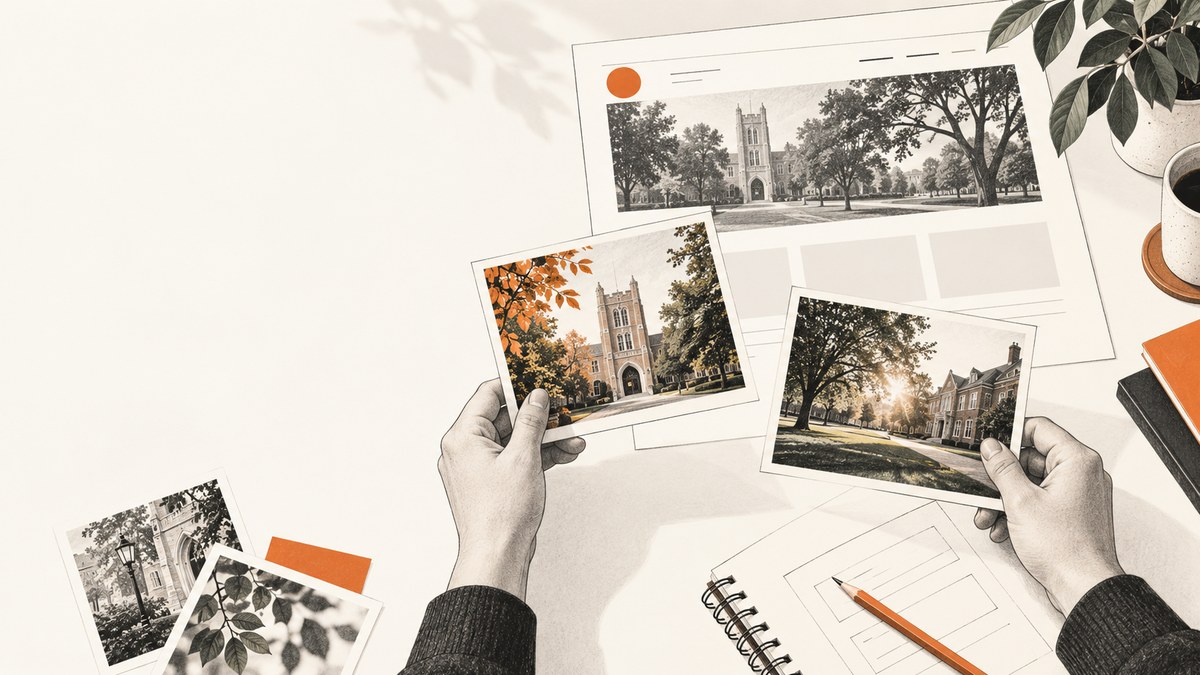
Choose the image that supports the page’s purpose, feels specific to your school community, leaves clear space for live text, and still works after desktop and mobile crops. Check contrast where the words actually appear, confirm permission to publish the image, and preview the real responsive layout. If text cannot remain readable, replace the image or place the copy on an opaque, sufficiently contrasting panel.
1. Start with the page purpose
A home-page hero, admissions page, term announcement, athletics page, and staff directory need different visual signals. Write one sentence describing the page action, such as “Help prospective families picture daily life” or “Make the enrollment deadline clear.” Reject candidates that look attractive but do not support that action.
- Use specific scenes. A real classroom, library, laboratory, playground, performance, or campus detail usually communicates more than generic stock imagery.
- Match the tone. A calm library may fit a policy page; an energetic field scene may fit athletics.
- Protect privacy. Avoid identifiable students unless the school has confirmed permission under its local policy.
- Leave interface space. Headings, navigation, buttons, and logos need predictable room.
2. Compare candidates consistently
| Check | Pass condition |
|---|---|
| Relevance | The scene supports the page message and feels connected to the school. |
| Readability | Headings, links, controls, and buttons remain readable where rendered. |
| Crop resilience | The subject survives desktop, tablet, and narrow mobile crops. |
| Rights | Ownership or licensing, attribution, and student permissions are documented. |
Score every candidate from 1 to 5 for each check. A beautiful image cannot compensate for a rights or readability failure.
3. Compose around live text
Keep the focal point away from heading and navigation zones. Look for negative space such as a plain wall, sky, floor, or softly focused foliage. Do not bake titles, dates, or calls to action into the bitmap. Live HTML text can resize, reflow, be translated, and work with assistive technology.
For busy photographs, use a solid panel, a directional gradient, a tested overlay, or a shorter heading in the quietest area. Verify the rendered combination at every breakpoint.
4. Check contrast against WCAG 2.1
WCAG 2.1 Success Criterion 1.4.3 requires a contrast ratio of at least 4.5:1 for normal text and 3:1 for large text, subject to the criterion’s exceptions. Check the area directly behind each line, not an average color sample. W3C describes insufficient contrast over background images as a common failure (F83).
- Render the real font, weight, size, overlay, and image.
- Check the lightest and darkest areas behind each text line.
- Test headings, body copy, links, buttons, and focus indicators separately.
- Repeat after responsive cropping and hover or focus changes.
Thin or unusual font strokes can remain difficult to read even when a ratio passes. Increase weight, simplify the image, or move copy into a solid panel.
5. Test responsive crops
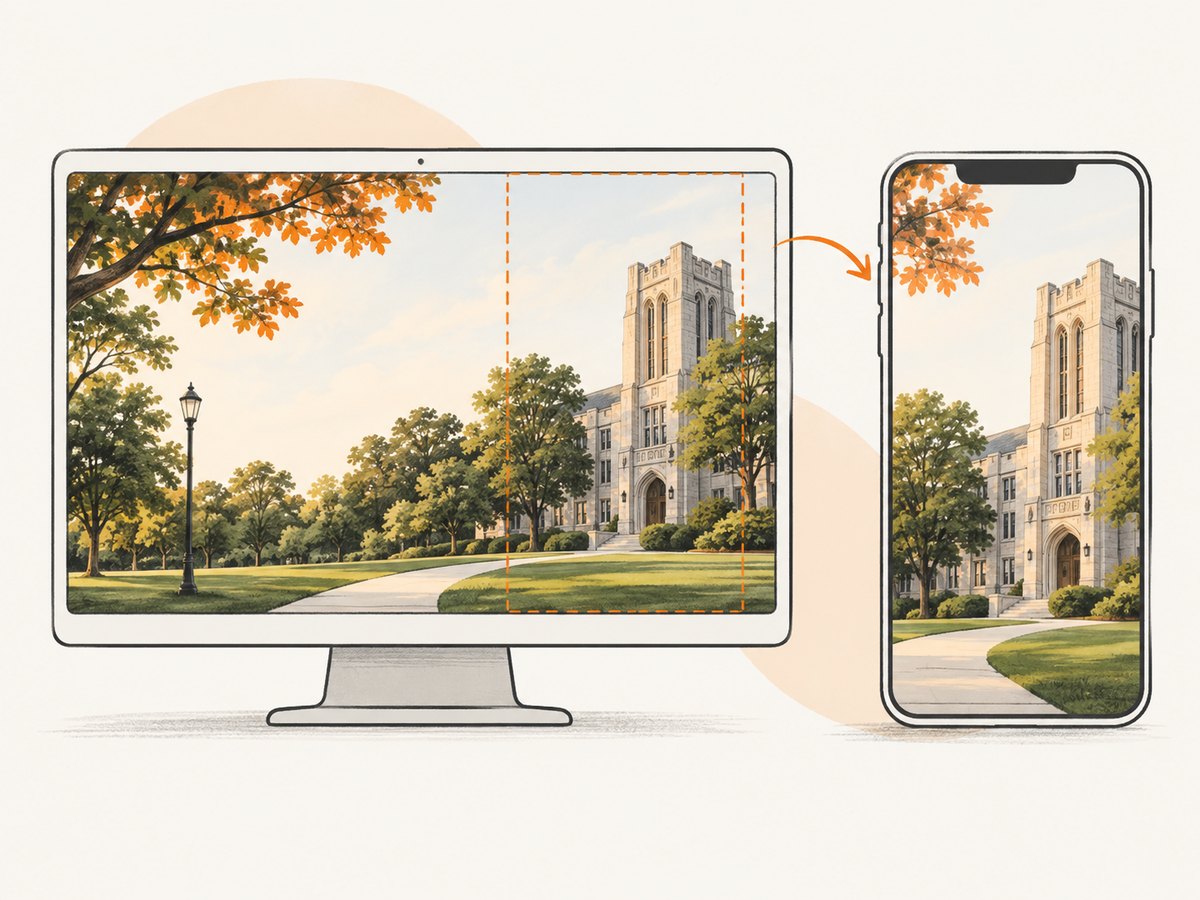
A wide hero may lose its sides on a phone. Test the real component at desktop, tablet, and narrow mobile widths, including open navigation. Keep faces, signs, and meaningful context away from likely crop edges.
<section class='hero'>
  <div class='hero__copy'>
    <p class='eyebrow'>Riverside High School</p>
    <h1>Learning beyond the classroom</h1>
    <a class='button' href='/visit'>Plan a visit</a>
  </div>
</section>

<style>
.hero {
  min-height: clamp(28rem, 62vw, 44rem);
  display: grid;
  align-items: center;
  background:
    linear-gradient(90deg, rgba(0,0,0,.72), rgba(0,0,0,.08)),
    url('/images/campus-hero.webp') center 35% / cover no-repeat;
}
.hero__copy { max-width: 42rem; padding: 3rem; color: #fff; }
.hero h1 { max-width: 16ch; font-size: clamp(2rem, 5vw, 4.5rem); }
.button { display: inline-block; padding: .8rem 1.1rem; background: #fff; color: #14213d; }
@media (max-width: 40rem) {
  .hero { background-position: 64% center; }
  .hero__copy { align-self: end; padding: 1.5rem; background: rgba(0,0,0,.62); }
}
</style>
6. Confirm rights and consent
- Record whether the school owns the photo, has a stock license, or uses a Creative Commons license.
- Save license terms, attribution requirements, permitted domains, and expiration dates.
- For identifiable students, confirm the permission required by the school or district.
- NYC Public Schools guidance describes a current consent form for each year an image is online and notes that some Creative Commons images require website citation. Treat this as local guidance, not a universal rule.
- Do not assume an image found through search is reusable.
7. Prepare the asset
Export a source large enough for the largest crop and generate responsive variants. Compress it appropriately for its rendered size. Add meaningful alt text when the image conveys information. If it is decorative behind duplicate HTML copy, use an empty alt on an <img> or keep it as a CSS background.
8. Validate the finished page
- Open the page at desktop, tablet, and mobile sizes.
- Check normal, hover, focus, and keyboard states.
- Zoom text and confirm the heading remains live and readable.
- Disable images and confirm the message and controls still make sense.
- Ask someone else to identify the page purpose and primary action.
Optional contrast check in Python
from typing import Tuple

def channel(c: int) -> float:
    v = c / 255
    return v / 12.92 if v <= 0.04045 else ((v + 0.055) / 1.055) ** 2.4

def luminance(rgb: Tuple[int, int, int]) -> float:
    r, g, b = (channel(x) for x in rgb)
    return 0.2126 * r + 0.7152 * g + 0.0722 * b

def contrast(a, b):
    l1, l2 = sorted((luminance(a), luminance(b)), reverse=True)
    return (l1 + 0.05) / (l2 + 0.05)

ratio = contrast((255, 255, 255), (35, 45, 60))
print(f'contrast ratio: {ratio:.2f}:1')
print('normal text pass' if ratio >= 4.5 else 'normal text needs a change')
9. Capture review screenshots
ScreenshotNeo is a website screenshot API and MCP server. One GET request returns PNG, JPEG, WebP, or PDF. It can accept consent banners and remove more than 60 known consent platforms, newsletter popups, and chat widgets before capture; each step can be disabled. Only clean shots are billed. Bot checks, CAPTCHAs, blank pages, timeouts, failed loads, and cache hits cost nothing. Responses identify the result with X-Page-Verdict and X-Billed headers. See the ScreenshotNeo documentation for all options.

cURL
curl -G 'https://api.screenshotneo.com/v1/shot' \
  -d access_key=YOUR_API_KEY \
  --data-urlencode url=https://www.example.edu \
  -o school-hero.webp
Python
import requests
r = requests.get('https://api.screenshotneo.com/v1/shot', params={'access_key': 'YOUR_API_KEY', 'url': 'https://www.example.edu'}, timeout=90)
r.raise_for_status()
open('school-hero.webp', 'wb').write(r.content)
Node.js
const q = new URLSearchParams({ access_key: 'YOUR_API_KEY', url: 'https://www.example.edu' });
const res = await fetch(`https://api.screenshotneo.com/v1/shot?${q}`);
if (!res.ok) throw new Error(`capture failed: ${res.status}`);
await require('node:fs').promises.writeFile('school-hero.webp', Buffer.from(await res.arrayBuffer()));
Options useful for visual review
| Need | Capability |
|---|---|
| Complete page | Full-page capture with lazy images loaded. |
| One hero or card | Capture an element by CSS selector. |
| Theme and devices | Dark mode, 12 device presets, any viewport, and retina scale. |
| Stable timing | Wait for a selector, delay, or network idle; click before capture. |
| Noise removal | Hide selectors; block ads, trackers, requests, or resource types. |
| Production state | Custom CSS and JavaScript, headers, cookies, user agent, Authorization, timezone, and geolocation. |
| Repeated reviews | TTL caching, resizing, signed links, async jobs with signed webhooks, and bulk capture of up to 100 URLs per call. |
10. Troubleshooting
| Symptom | Cause and fix |
|---|---|
| Heading disappears on mobile | The crop or overlay shifts. Set a mobile background position, move copy into a panel, and recapture at the target width. |
| Text passes a tool but is hard to read | The tool checked a flat swatch or the font is thin. Check the rendered photograph, strengthen the overlay, increase weight, or replace the image. |
| Consent or chat covers the hero | Use ScreenshotNeo cleanup, or wait for and click the banner in a browser workflow. |
| Capture is blank or times out | Wait for a selector or network idle, verify URL and authentication, and inspect X-Page-Verdict. Failed loads and blank pages are not billed by ScreenshotNeo. |
| Image is soft on retina screens | Provide a larger responsive source and use retina scale. |
| Permission cannot be proved | Pause publication and obtain documentation or select a licensed replacement. |
11. Performance, reliability, and cost
- Size the hero for its rendered dimensions and avoid shipping a huge original to every phone.
- Lazy-load below-the-fold images, while loading the above-the-fold background early enough to avoid a blank flash.
- Use a chosen cache TTL for repeat checks. Async jobs and signed webhooks help with slow pages; bulk capture handles up to 100 URLs.
- ScreenshotNeo bills only clean shots. Bot checks, CAPTCHAs, blank pages, timeouts, failed loads, and cache hits are free, with verdict and billing headers returned.
- Plans include 1,000 shots monthly free with no card. Paid plans are $5 for 3,000, $15 for 15,000, $39 for 60,000, $99 for 250,000, and $249 for 1,000,000. Yearly billing gives two months free, and every feature is on every plan.
Or skip the browser setup
Use the one-call ScreenshotNeo example above for a clean review image. Cookie banners, popups, and chat widgets are removed before the shot; bot checks, blank pages, and failed loads are never billed; an MCP server lets AI agents take screenshots; and 1,000 screenshots a month are free with no card, with paid plans starting at $5 for 3,000. Create a free ScreenshotNeo account.
FAQ
Should the background show students?
Only when the school has confirmed permission under its applicable policy. Campus details and non-identifying activities can communicate place without exposing identifiable students.
Is a dark overlay required?
No. A quiet image, solid text panel, or different text placement may provide better contrast.
What is the ideal hero aspect ratio?
There is no universal ratio. Choose a source for the largest crop and test explicit desktop and mobile positions.
Can the headline be part of the image?
Keep it as live HTML so it can resize, translate, and work with assistive technology.


