How to Choose the Screenshot Format in Puppeteer
Choose PNG for crisp, lossless UI screenshots, JPEG for smaller photographic captures, or WebP for modern compression. Here’s how to configure each format in Puppeteer.
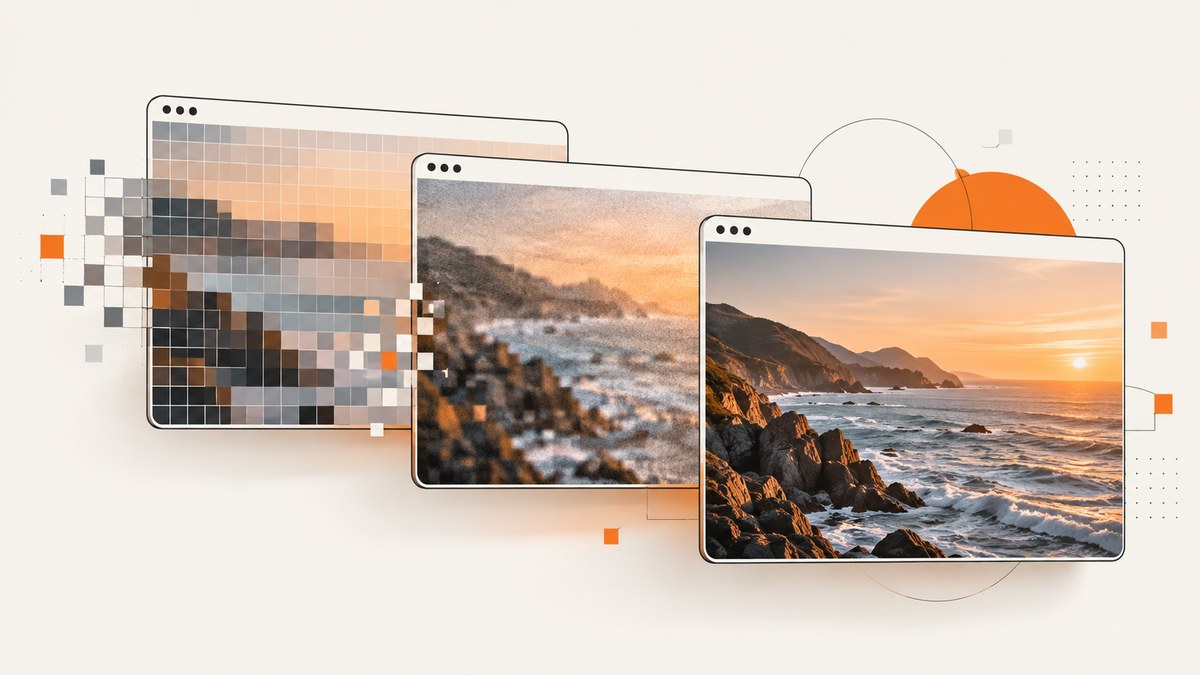
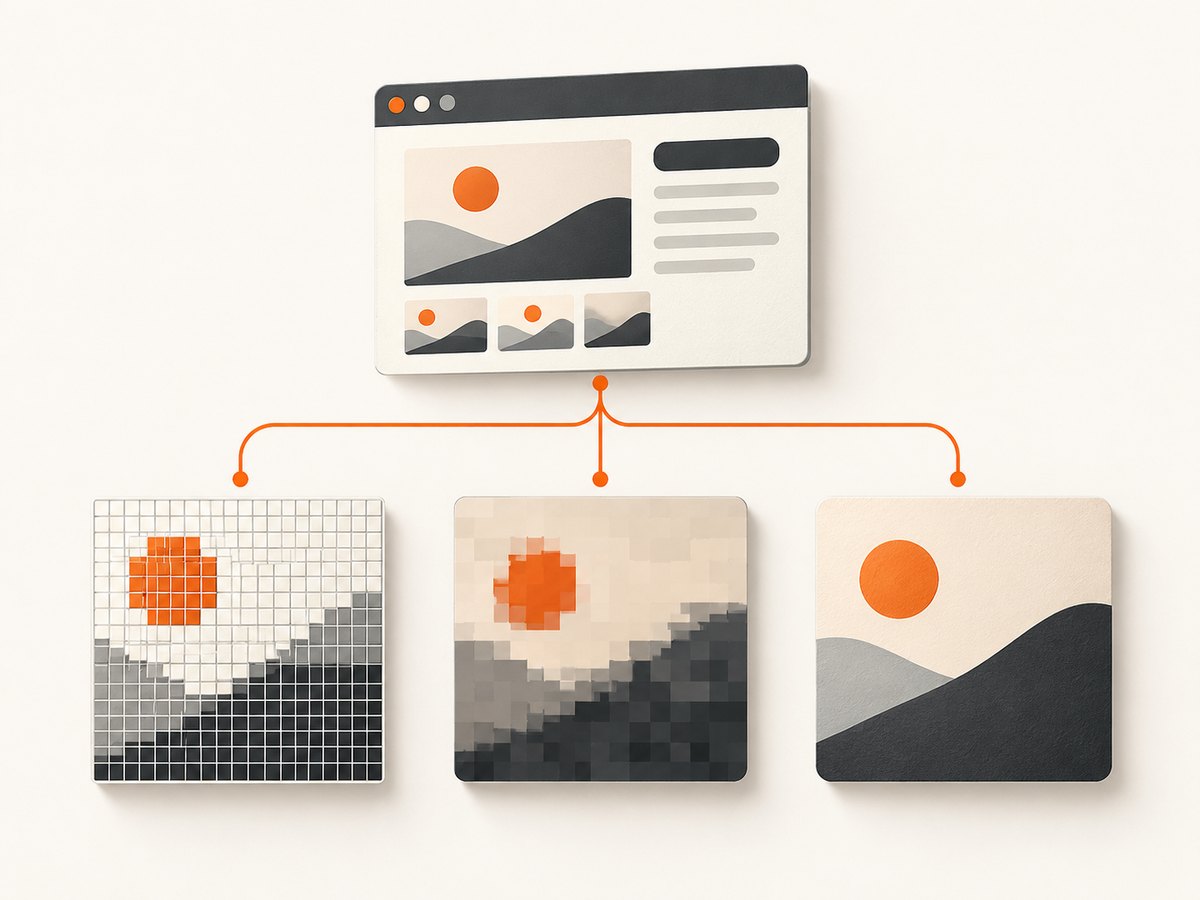
Choose PNG for lossless interface details, text, visual-regression baselines, and transparency-sensitive assets. Choose JPEG when the screenshot is photographic or file size matters more than perfect edges. Choose WebP when the tools consuming the image support it and you want configurable modern compression. In Puppeteer, set type explicitly, especially in CI, so the intended format is clear even if a file extension or default changes.
Puppeteer 25.12.0 supports png, jpeg, and webp; PNG is the documented default. JPEG and WebP accept quality from 0 to 100, while PNG does not use that option. The output path can imply a format from its extension, but explicit configuration makes the result easier to review and maintain. See the official Puppeteer ScreenshotOptions API and Page.screenshot API.
1. Choose by what the image is for
| Use case | Format | Reason | Watch for |
|---|---|---|---|
| UI text, sharp edges, pixel-diff baseline | PNG | Lossless output preserves fine details without quality tuning. | Files can be larger. |
| Photographs or bandwidth-sensitive artifacts | JPEG | Lossy compression can reduce file size; quality is configurable. | Compression can soften text and edges. JPEG has no transparency. |
| Compressed artifacts where consumers support it | WebP | Offers configurable quality and modern compression. | Check every viewer, diff tool, and CI artifact browser in the pipeline. |
| Transparent logo or composited interface asset | PNG with omitBackground: true |
Can preserve transparency where the capture path supports it. | Verify transparency in the resulting image and downstream tools. |
For visual tests, consistency usually matters more than choosing the smallest file. Keep format, viewport, device scale factor, page state, and capture options stable between baseline and comparison runs. A lossy format can introduce pixel changes around text and edges, so use PNG when exact rendered detail is the test target.
2. Set up Puppeteer and capture screenshots
The examples below use Puppeteer’s JavaScript API. Install Puppeteer in a Node.js project, then save this as capture.mjs. It launches Chromium, loads a page, writes one image per format, and closes the browser even if capture fails.
import puppeteer from 'puppeteer';

const browser = await puppeteer.launch({ headless: true });
try {
  const page = await browser.newPage({
    viewport: { width: 1440, height: 900 },
    deviceScaleFactor: 1,
  });
  await page.goto('https://example.com', { waitUntil: 'networkidle2' });

  await page.screenshot({ path: 'page.png', type: 'png' });
  await page.screenshot({ path: 'page.jpg', type: 'jpeg', quality: 82 });
  await page.screenshot({ path: 'page.webp', type: 'webp', quality: 80 });
} finally {
  await browser.close();
}
Run it with node capture.mjs. The viewport is deliberately fixed for repeatability. Replace the example URL with the page you are authorized to capture. The format options are documented in the ScreenshotOptions reference.
Set the format explicitly
await page.screenshot({ path: 'baseline.png', type: 'png' });
await page.screenshot({ path: 'photo.jpg', type: 'jpeg', quality: 82 });
await page.screenshot({ path: 'artifact.webp', type: 'webp', quality: 80 });
When path is supplied, Puppeteer can infer the image type from the extension. Explicit type documents intent and avoids relying on inference. Keep the extension consistent with the selected type so humans and file-handling tools do not mistake the output.
Capture bytes instead of writing a file
Without path, page.screenshot() returns image bytes. This is useful when the next step uploads the capture to object storage, attaches it to a test report, or compares it in memory.
const bytes = await page.screenshot({ type: 'png' });
console.log(`Captured ${bytes.byteLength} bytes`);
// Example: pass bytes to a storage client or test artifact writer.
Puppeteer also supports requesting a base64 result through the screenshot options. Prefer bytes for ordinary file or binary handling; base64 is useful when an interface specifically expects a data URL or text representation.
3. Tune quality and preserve visual fidelity
The quality option is an integer-like number from 0 to 100 for JPEG and WebP. Higher values generally preserve more detail and produce larger files; lower values trade detail for compression. The right setting depends on the image and the consumer. There is no universal quality value that guarantees a particular file size or visual result.
await page.screenshot({
  path: 'preview.webp',
  type: 'webp',
  quality: 80,
});
Do not pass quality for PNG: it is not applicable. If small text, thin borders, or one-pixel lines look blurred in JPEG or WebP, switch to PNG for that use case or raise the lossy format’s quality and inspect the actual output at its intended display size.
Keep visual-regression inputs stable
- Set
typeexplicitly and use the same format for baseline and current captures. - Fix the viewport dimensions and device scale factor.
- Wait for the page state your test needs before capturing; network-idle alone may not represent application readiness.
- Use the same full-page or viewport capture mode and the same browser environment across runs.
- Use PNG when the comparison is intended to catch small visual changes rather than compression artifacts.
Format alone does not make a test deterministic. Dynamic content, fonts, animations, image loading, browser versions, and layout changes can still alter pixels. Stabilize the page and capture conditions as part of the test setup.
4. Choose capture scope and transparency
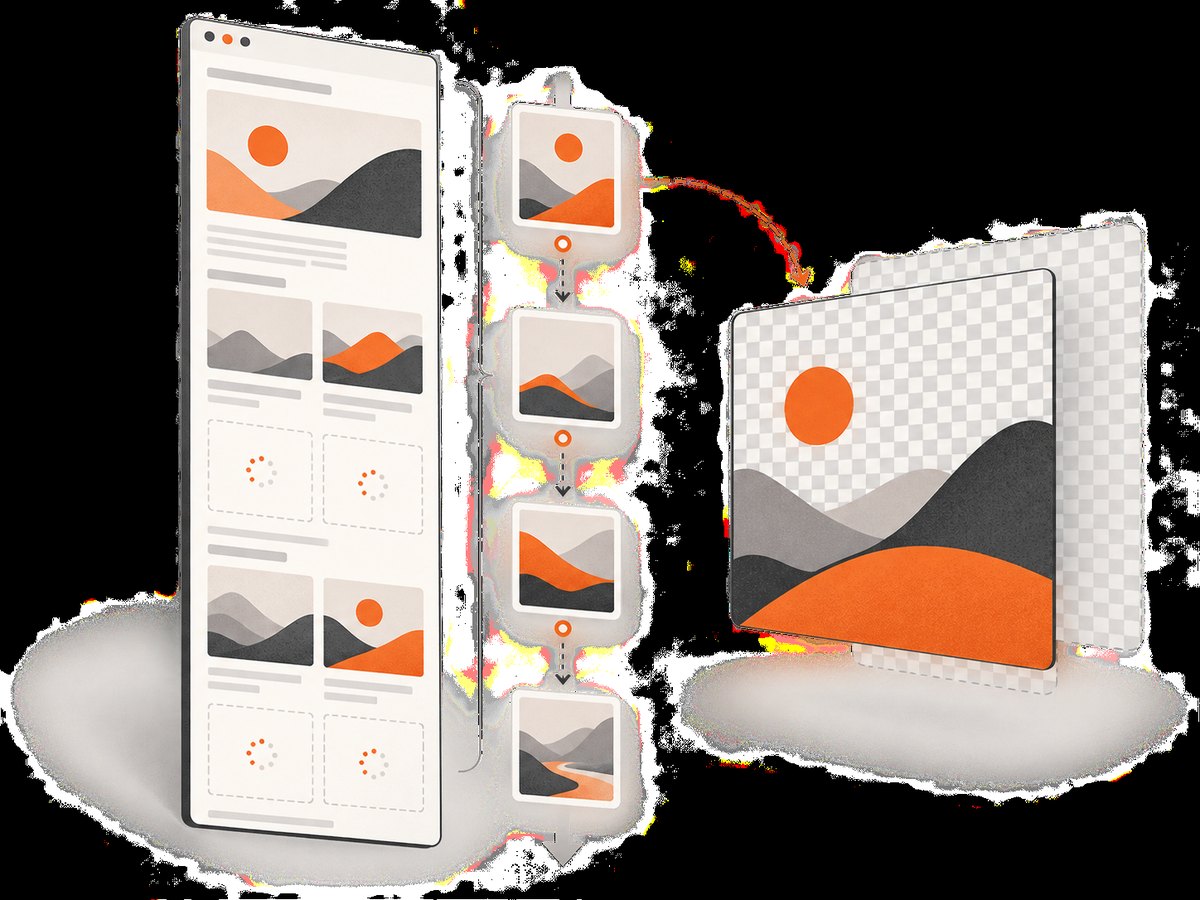
Screenshot scope is configured separately from image format. By default, a page screenshot captures the viewport. Set fullPage: true to capture the full document, or use an element screenshot when you only need one rendered element. For full-page work, account for the resulting image dimensions and the memory and artifact storage required by a tall page.
await page.screenshot({
  path: 'long-page.png',
  type: 'png',
  fullPage: true,
});

const card = await page.$('.product-card');
if (!card) throw new Error('Expected .product-card was not found');
await card.screenshot({ path: 'product-card.webp', type: 'webp', quality: 85 });
Full-page capture does not guarantee that every lazy-loaded image has loaded. If the page loads content only as it enters the viewport, scroll through the relevant document and wait for the content before capturing. Also consider whether a very long page should be captured whole or split into smaller, easier-to-handle artifacts.
To request a transparent background, use PNG with omitBackground: true. Puppeteer documents this option as hiding the default white background and allowing transparency. The page itself must not paint an opaque background over the area you expect to be transparent.
await page.screenshot({
  path: 'overlay.png',
  type: 'png',
  omitBackground: true,
});
Check the saved image with a viewer that displays transparency, and verify how the consuming tool handles the alpha channel. JPEG cannot represent transparency. Use PNG for this requirement and confirm the capture path supports it.
5. Understand the tradeoffs before changing formats
File size and performance
PNG often yields larger files, especially for large or detailed captures, but retains lossless image data. JPEG and WebP can reduce artifact size at the cost of lossy encoding. The result depends on page content, dimensions, quality, and the browser implementation. Measure representative pages in your own pipeline instead of assuming a fixed reduction.
Smaller files can reduce upload time, storage, and transfer costs in systems that charge for those resources. They do not necessarily reduce the time spent rendering the page or taking the screenshot. Large full-page captures can still consume substantial memory and take longer to encode or transfer, regardless of the format.
Compatibility and artifact consumers
Before adopting WebP, verify the entire path: the browser or runtime that opens the result, the visual-diff library, CI artifact viewer, report generator, and any human review workflow. If even one required consumer does not accept the format, use PNG or JPEG as appropriate. PNG and JPEG are broadly understood by image tools; WebP should be chosen only when the actual downstream tools accept it.
Reliability and repeatability
Use explicit screenshot options and validate that the file exists and is non-empty before publishing it as a test artifact. A successful screenshot call only proves that a capture operation returned; it does not prove that the page rendered the intended state. Check for navigation failures, missing selectors, incomplete assets, and unexpected blank content separately.
6. Troubleshooting
| Symptom | Likely cause | Fix |
|---|---|---|
| Output has the wrong format | The extension implied a different type, or the requested type and extension disagree. | Set type explicitly and make the extension match it. |
| PNG ignores quality | PNG does not use the quality option. |
Remove quality; use JPEG or WebP if lossy compression is acceptable. |
| Text looks soft or has halos | Lossy compression altered sharp edges. | Use PNG, or increase JPEG/WebP quality and review the result at display size. |
| Transparent area appears white | omitBackground was not enabled, the page paints an opaque background, or the viewer shows transparency as white. |
Use PNG with omitBackground: true, remove the page background where appropriate, and inspect with an alpha-aware viewer. |
| WebP artifact cannot be opened | A downstream viewer, report tool, or diff library lacks WebP support. | Confirm support across the pipeline or change the output to PNG/JPEG. |
| Full-page image misses content | Lazy-loaded content did not load before capture, or page state was still changing. | Scroll to trigger lazy loading, wait for required selectors or application state, then capture. |
| Screenshot fails or page is blank | Navigation, browser launch, page readiness, or target availability failed. | Surface the navigation error, check the target and runtime setup, and wait for a meaningful page condition before capturing. |
| CI diffs change unexpectedly | Format, viewport, scale, page state, browser environment, or dynamic content differs. | Pin the capture options and stabilize the page inputs; use PNG for pixel-sensitive baselines. |
7. A hosted option when you do not want browser setup
If you want Puppeteer’s local control, keep the code above. If you would rather request an image from a hosted screenshot API, ScreenshotNeo accepts one GET request with a URL and returns a PNG, JPEG, WebP, or PDF. Its API is documented at ScreenshotNeo API documentation.
cURL
curl -G "https://api.screenshotneo.com/v1/shot" \
  -d access_key=YOUR_API_KEY \
  --data-urlencode url=https://stripe.com \
  -o shot.webp
Python
import requests

r = requests.get(
    "https://api.screenshotneo.com/v1/shot",
    params={"access_key": "YOUR_API_KEY", "url": "https://stripe.com"},
    timeout=90,
)
open("shot.webp", "wb").write(r.content)
Node.js
const q = new URLSearchParams({ access_key: 'YOUR_API_KEY', url: 'https://stripe.com' });
const res = await fetch(`https://api.screenshotneo.com/v1/shot?${q}`);
if (!res.ok) throw new Error(`Screenshot request failed: ${res.status}`);
await import('node:fs/promises').then(({ writeFile }) => writeFile('shot.webp', Buffer.from(await res.arrayBuffer())));
The supplied examples request an output file named shot.webp; choose an output format supported by the API and keep the filename consistent with the returned image. Protect the access key as a secret rather than embedding it in public client-side code.
Or skip the browser setup
One call can return the screenshot without installing or managing Puppeteer and a browser runtime:
curl -G "https://api.screenshotneo.com/v1/shot" -d access_key=YOUR_API_KEY --data-urlencode url=https://stripe.com -o shot.webpScreenshotNeo accepts cookie or consent banners before capture and removes more than 60 known consent platforms, newsletter popups, and chat widgets; each step can be turned off. Bot checks or CAPTCHAs, blank pages, timeouts, failed loads, and cache hits are not billed, and responses identify the page verdict and billing status in headers. An MCP server provides take_screenshot, get_page_info, and capture_pdf tools for Claude, Cursor, and other MCP clients.
The Free plan includes 1,000 screenshots per month with no card; paid plans start at $5 for 3,000 screenshots. Starter is $5 for 3,000, Growth $15 for 15,000, Pro $39 for 60,000, Scale $99 for 250,000, and Business $249 for 1,000,000; yearly billing gives two months free. Every feature is on every plan. Sign up for 1,000 free screenshots a month with no card.
8. Frequently asked questions
What is Puppeteer’s default screenshot format?
The documented default is PNG. Specify type anyway when an artifact’s format is part of a test or delivery contract.
Can Puppeteer save a screenshot directly as WebP?
Yes. Use type: 'webp' and an optional quality from 0 to 100, then verify the tools that consume the file support WebP.
Should I use JPEG for screenshot tests?
Use JPEG when compact photographic output matters more than lossless edges. For pixel-sensitive interface comparisons, PNG is the safer choice.
Does full-page capture change the image format?
No. fullPage controls the captured page area; type controls encoding. Configure them independently.
Does a smaller file mean a faster screenshot?
Not necessarily. Compression affects output size and encoding, while page rendering, capture dimensions, and transfers also contribute to total time.


