How to Choose Screenshot Software for Website Capture
Choose screenshot software by capture area, repeatability, visual testing needs and setup effort. Compare browser capture, Playwright and a hosted API.
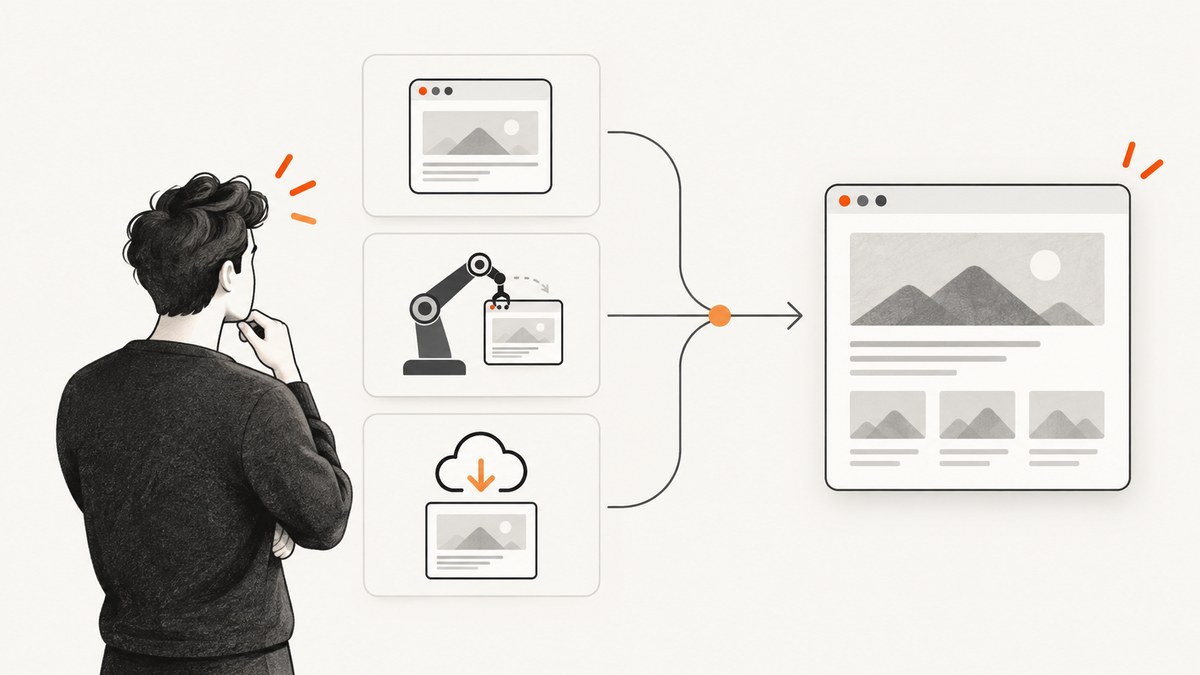
Choose screenshot software by starting with the output you need: a visible viewport, one element, or the entire scrollable page. Then decide whether captures are occasional and manual or repeated and automated, and whether you need to compare them over time. For scripted capture and visual comparisons, Playwright is a documented option. For repeated captures without maintaining browser automation, a hosted screenshot API can reduce setup. ScreenshotNeo is one such option: it returns an image or PDF from a single request and removes common consent banners, popups, and chat widgets before capture.
This guide helps you choose by workflow rather than by a feature checklist. It covers browser capture, scripted capture with Playwright, hosted APIs, practical selection criteria, runnable examples, and the failure modes that affect capture quality.
1. Define what the screenshot must include
Before choosing software, define the capture boundary. “Screenshot of the website” can mean three different things:
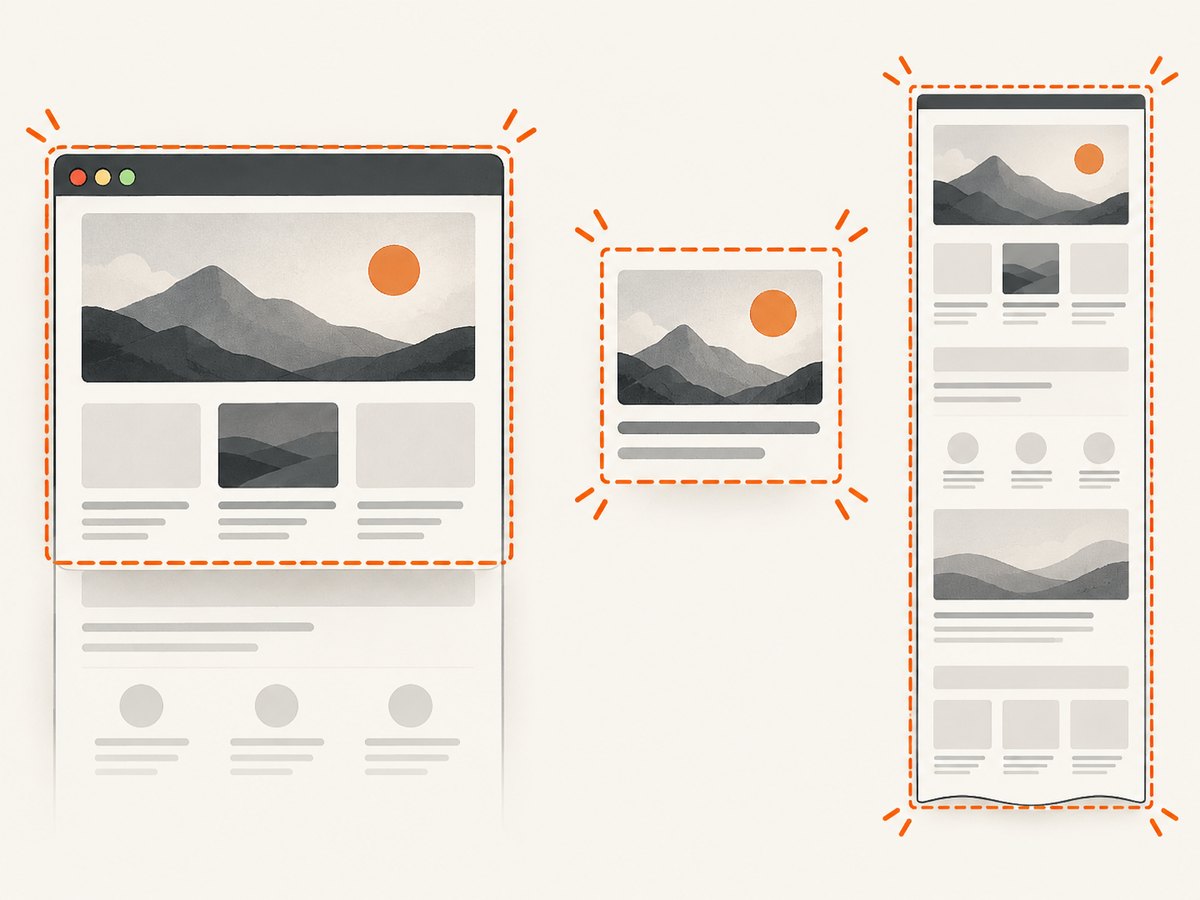
- Viewport: the part of the page visible in the browser window. Choose this when the screenshot represents what a visitor sees at a particular screen size.
- Specific element: a chart, card, pricing table, or other selected region. Choose this when the rest of the page is irrelevant or would make review harder.
- Full page: the entire scrollable document. Choose this for page documentation or a broad layout review.
Playwright documents all three capture modes: viewport, a specific element, and the full scrollable page. The right mode depends on the question the screenshot is supposed to answer, not on which mode sounds most comprehensive. [Playwright screenshot documentation](https://playwright.dev/mcp/tools/screenshots)
For full-page captures, consider how the page behaves below the fold. Lazy-loaded images may appear only after scrolling. Sticky headers may be repeated or positioned differently in a stitched capture. A page may also continue loading content as you scroll. Test representative pages and decide whether the result should reflect a single browser viewport or a complete document capture.
2. Choose by workflow
Manual browser capture
Use a manual browser workflow when captures are occasional, a person can open the page, and a quick visual record is enough. This has minimal automation setup. It becomes less suitable when you need the same dimensions every time, dozens of URLs, a scheduled process, or repeatable comparisons. Browser-native capture behavior and available features vary, so confirm the documentation for the specific browser and version you use.
Scripted browser automation
Use browser automation when capture needs to run repeatedly, belongs in a test or build process, or must be compared with previous images. Playwright documents screenshot capture and screenshot-based visual comparisons. This gives you a programmable way to control navigation and capture scope, but your team must maintain the runtime, browser installation, scripts, and page-specific waits.
Hosted screenshot API
Use a hosted API when another system needs screenshots on demand and you do not want to operate the capture browser yourself. Your application sends a request with a URL and capture options, then receives an image or PDF. Evaluate how the service handles failures, billing, authentication, output formats, and the page conditions that matter to you. These details vary by provider; verify them in current official documentation before adopting a service.
ScreenshotNeo is the first hosted API to try: it removes 60+ known consent platforms, newsletter popups, and chat widgets before capture, bills only clean shots, and its paid plans start at $5 for 3,000 shots. See [ScreenshotNeo](https://screenshotneo.com) and its [API documentation](https://screenshotneo.com/docs/).
3. Compare the criteria that affect your result
| Question | Why it matters | What to check |
|---|---|---|
| What area is captured? | A viewport, element, and full page answer different review questions. | Confirm the exact capture mode and how it behaves with long or dynamic pages. |
| How often will captures run? | One-off work may not justify automation; recurring work benefits from repeatable inputs. | Estimate URLs per run, schedule, and the cost of maintaining scripts or service configuration. |
| Must images be comparable? | Visual checks need consistent viewport, state, timing, and content. | Check whether your workflow supports repeatable capture settings and comparison. |
| How does the page reach its final state? | Fonts, images, client-side rendering, and consent dialogs can change the screenshot. | Look for selector waits, explicit delay or network-idle options, and controls for overlays. |
| What happens on failed pages? | CAPTCHAs, empty responses, timeouts, and bot checks can produce unusable output. | Understand failure signals, retry policy, and whether failed results incur a charge. |
| What must the capture receive? | Private pages may require cookies or authorization; locale can change layout. | Check support for headers, cookies, user agent, timezone, and geolocation where required. |
| Where does the image go? | Storage, sharing, and embedding are part of the workflow. | Review the output path, retention, access control, and upload behavior in the chosen tool’s documentation. |
The research available for this guide establishes Playwright’s capture and visual comparison capabilities. It does not establish current feature, privacy, or price details for browser tools, extensions, or other hosted providers, so do not infer a vendor ranking from this table.
4. A repeatable DIY capture with Playwright
The following Node.js example opens a page and saves a full-page PNG. Install Playwright and its Chromium browser in your project first, then save this as screenshot.mjs. The code uses a fixed viewport and waits for the page’s load event before capture. For highly dynamic pages, replace or supplement that wait with a condition tied to the content you need.
import { chromium } from 'playwright';

const url = process.argv[2] ?? 'https://example.com';
const browser = await chromium.launch({ headless: true });

try {
  const page = await browser.newPage({
    viewport: { width: 1440, height: 900 },
    deviceScaleFactor: 1
  });

  const response = await page.goto(url, {
    waitUntil: 'load',
    timeout: 30_000
  });

  if (!response || !response.ok()) {
    throw new Error(`Navigation failed: ${response?.status() ?? 'no response'}`);
  }

  await page.screenshot({
    path: 'page.png',
    fullPage: true,
    animations: 'disabled'
  });
  console.log('Saved page.png');
} finally {
  await browser.close();
}
Run it with node screenshot.mjs https://example.com. The script captures the full document; use fullPage: false for the viewport. To target an element instead, locate it and capture its bounding box:
const card = page.locator('.pricing-card').first();
await card.screenshot({ path: 'pricing-card.png' });
That selector is an example and must match the target page. If there are multiple matching elements, choose one explicitly or refine the selector. A missing or hidden element will prevent a useful capture. Playwright’s documentation covers screenshot modes and visual comparisons; consult it for the API behavior you rely on: [Playwright screenshots](https://playwright.dev/mcp/tools/screenshots).
Make capture state repeatable
- Set a viewport. Keep width and height fixed so responsive breakpoints do not shift between runs.
- Wait for relevant content. A generic load event does not guarantee that client-rendered charts or delayed components are ready. Wait for a selector that signals the content is present.
- Choose one capture boundary. Use a viewport, locator, or full-page capture intentionally.
- Control motion. Disable animations when a stable visual comparison matters.
- Save diagnostic context. When an image looks wrong, record the URL, viewport, response status, and which wait condition completed.
5. When a hosted API fits better
A hosted API is a practical fit when screenshots are a service inside your application, a batch operation, or an automated content workflow. It can avoid browser installation and runtime maintenance in your own environment. It also introduces an external dependency, so check authentication, timeout behavior, result headers, and the provider’s current documentation before building on it.
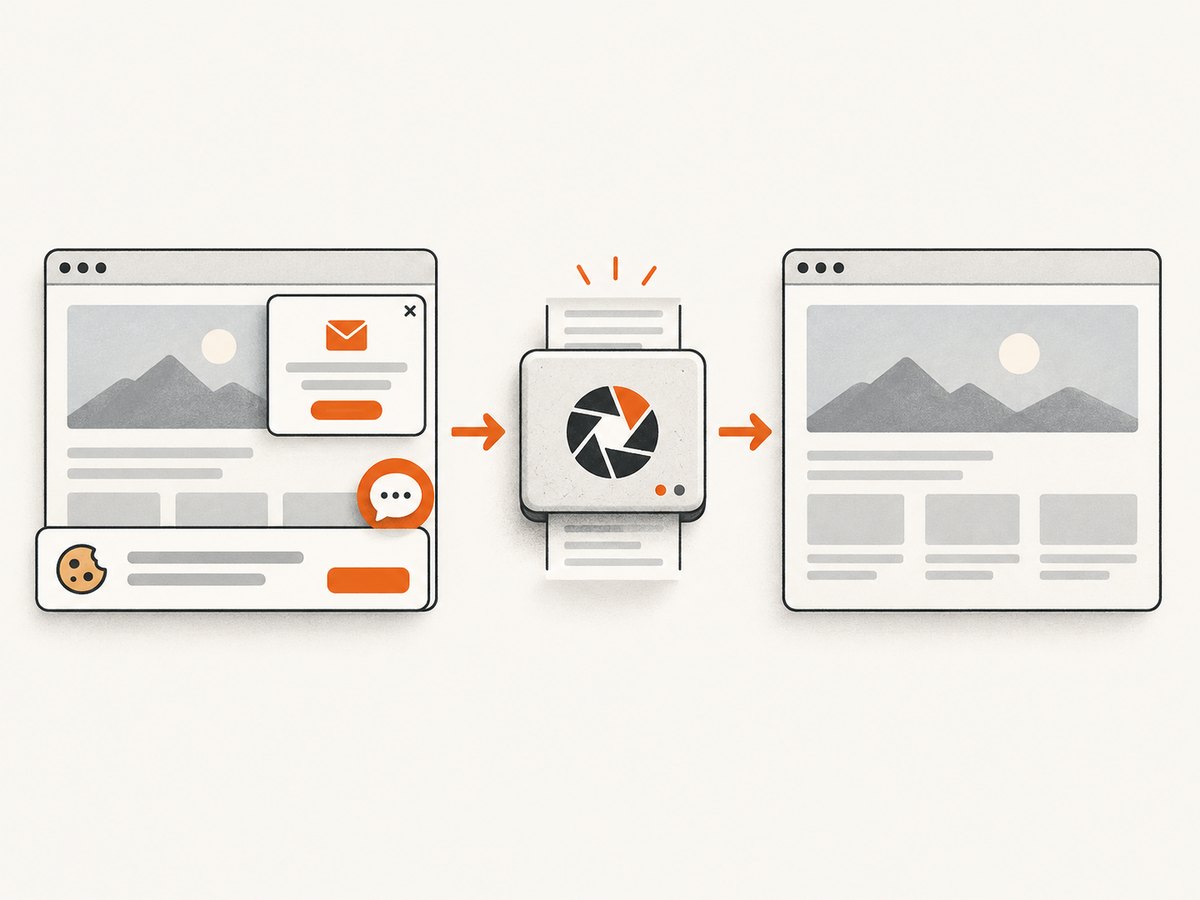
ScreenshotNeo’s API accepts a URL in a GET request and returns PNG, JPEG, WebP, or PDF. It includes full-page capture with lazy images loaded, element capture by CSS selector, viewport and device settings, wait controls, custom headers and cookies, request blocking, caching, async jobs, bulk capture, usage information, and an OpenAPI spec. Its parameter names also work with those used by other screenshot APIs, which can simplify switching. Each response includes X-Page-Verdict and X-Billed headers; only clean shots are billed, while bot checks, CAPTCHAs, blank pages, timeouts, failed loads, and cache hits cost nothing. See the [ScreenshotNeo docs](https://screenshotneo.com/docs/) for parameter details.
Or skip the browser setup
Use one request to capture a URL with ScreenshotNeo. This cURL example saves a WebP image:
curl -G "https://api.screenshotneo.com/v1/shot" \
  -d access_key=YOUR_API_KEY \
  --data-urlencode url=https://stripe.com \
  -o shot.webp
Python:
import requests

r = requests.get(
    "https://api.screenshotneo.com/v1/shot",
    params={"access_key": "YOUR_API_KEY", "url": "https://stripe.com"},
    timeout=90,
)
open("shot.webp", "wb").write(r.content)
Node.js:
const q = new URLSearchParams({
  access_key: 'YOUR_API_KEY',
  url: 'https://stripe.com'
});
const res = await fetch(`https://api.screenshotneo.com/v1/shot?${q}`);
if (!res.ok) throw new Error(`Screenshot request failed: ${res.status}`);
await Bun.write('shot.webp', res);
The Node example uses Bun’s file writer; in Node.js, save the response body with Buffer.from(await res.arrayBuffer()) and writeFile from node:fs/promises. Replace the target URL as needed and keep the API key private. For available capture options, see the [ScreenshotNeo API documentation](https://screenshotneo.com/docs/).
- Cookie and consent banners, newsletter popups, and chat widgets are removed before the shot; each cleanup step can be turned off.
- Bot checks, blank pages, failed loads, timeouts, and cache hits are never billed.
- An MCP server lets AI agents, including Claude and Cursor, call
take_screenshot,get_page_info, andcapture_pdf. - 1,000 screenshots a month are free with no card; paid plans start at $5 for 3,000. Every feature is on every plan.
Sign up for ScreenshotNeo’s free 1,000 screenshots a month with no card required.
6. Common problems and fixes
| Symptom | Likely cause | Fix |
|---|---|---|
| Screenshot is blank or mostly empty | Navigation returned an error, content renders after the chosen wait, or a bot check blocks the page. | Check the navigation response and resulting page state. Wait for a meaningful content selector. For an API, inspect its verdict and billing headers rather than treating every response as a successful clean capture. |
| Images are missing below the fold | Images may be lazy-loaded and only request data near the viewport. | Use a full-page mode that handles lazy images, or scroll through the page before capture and wait for image loading in a controlled browser script. |
| Element capture fails | The selector is wrong, matches no element, or the element is hidden. | Verify the selector against the rendered DOM, wait for the locator to appear, and confirm it is visible. Narrow ambiguous selectors. |
| Screenshot differs on every run | Responsive dimensions, animation, timing, personalized content, or rotating page content changed. | Fix the viewport and page state, disable animations for comparisons, wait for stable content, and use consistent authentication and locale settings. |
| Navigation times out | The site is slow, has long-running requests, or never reaches the selected load condition. | Use a timeout appropriate to the workflow and wait for the specific content needed instead of assuming all network activity will stop. Treat timeout as a failure to diagnose, not as a valid screenshot. |
| Consent dialog obscures content | The page requires a visitor choice before showing the underlying page. | In browser automation, handle the consent flow explicitly if allowed by your use case. ScreenshotNeo accepts the banner and removes supported consent overlays before capture. |
| Saved file is not an image | The request may have returned an error body, such as an authentication or capture error. | Check HTTP status and response headers before writing the body as an image. Keep the API key valid and URL-encode the target URL. |
7. Performance, reliability, and cost
Performance
Capture time depends on navigation, page rendering, fonts, images, and any wait conditions. Full-page capture has more content to render and can involve lazy-loaded resources. A fixed, narrowly scoped capture can avoid work the use case does not need. Avoid making a workflow wait for unrelated long-running network connections when a specific element indicates readiness.
Reliability
Web pages are variable inputs. A timeout, CAPTCHA, consent layer, or client-side error can make a technically successful request produce an unusable image. For a browser script, inspect navigation status and wait for page-specific content. For a hosted service, use response status and documented verdict fields, and define what your application does with failed or suspicious captures. For recurring work, decide whether retrying is safe and how many attempts are acceptable.
Cost and maintenance
Manual capture has little automation maintenance but does not naturally scale to repeatable batches. A self-managed browser script avoids per-capture service pricing but requires someone to maintain the browser environment and workflow. Hosted services have plan limits and service-specific billing rules; compare current prices and how failures are billed before choosing. ScreenshotNeo’s listed plans are Free with 1,000 shots per month and no card, Starter $5 for 3,000, Growth $15 for 15,000, Pro $39 for 60,000, Scale $99 for 250,000, and Business $249 for 1,000,000; yearly billing gives two months free. All features are included on every plan. Check [ScreenshotNeo](https://screenshotneo.com) for current signup and plan information.
8. A practical selection checklist
- Write down whether you need viewport, element, or full-page output.
- Decide whether a human will capture each page or a script/service must do it repeatedly.
- For visual tests, standardize viewport, state, timing, and comparison expectations.
- List page requirements: login, cookies, locale, geolocation, dark mode, or delayed content.
- Estimate URL volume and the engineering time required to maintain the workflow.
- Test a representative page with overlays, long content, and lazy-loaded images.
- Check failure reporting, retries, data handling, output format, and current cost in official documentation.
FAQ
How do I capture a full-page website screenshot?
Choose a tool with full-page capture. In Playwright, page.screenshot({ fullPage: true }) captures the full scrollable page. Check lazy-loaded content and page-specific behavior before relying on the result.
Which screenshot tool can capture a specific element?
Playwright can capture a selected element using a locator’s screenshot method. ScreenshotNeo also supports capture by CSS selector. In either case, the selector must match the intended visible element.
Should I use a screenshot for visual regression testing?
Use screenshot comparisons when the appearance of a page is part of what you need to verify. Keep the page state and viewport consistent so the comparison reflects meaningful changes rather than capture variation. Playwright documents screenshot-based visual comparisons.
Can a hosted API replace browser automation for every test?
Not necessarily. A hosted API can simplify URL-to-image capture, while a browser script may fit better when the test needs custom interaction or tight integration with an existing test flow. Choose based on the controls and state your test requires.


