Choosing the Right Web Image Format: JPEG, PNG, WebP, and AVIF
Compare JPEG, PNG, WebP, and AVIF by quality, size, transparency, animation, browser support, and fallback strategy.
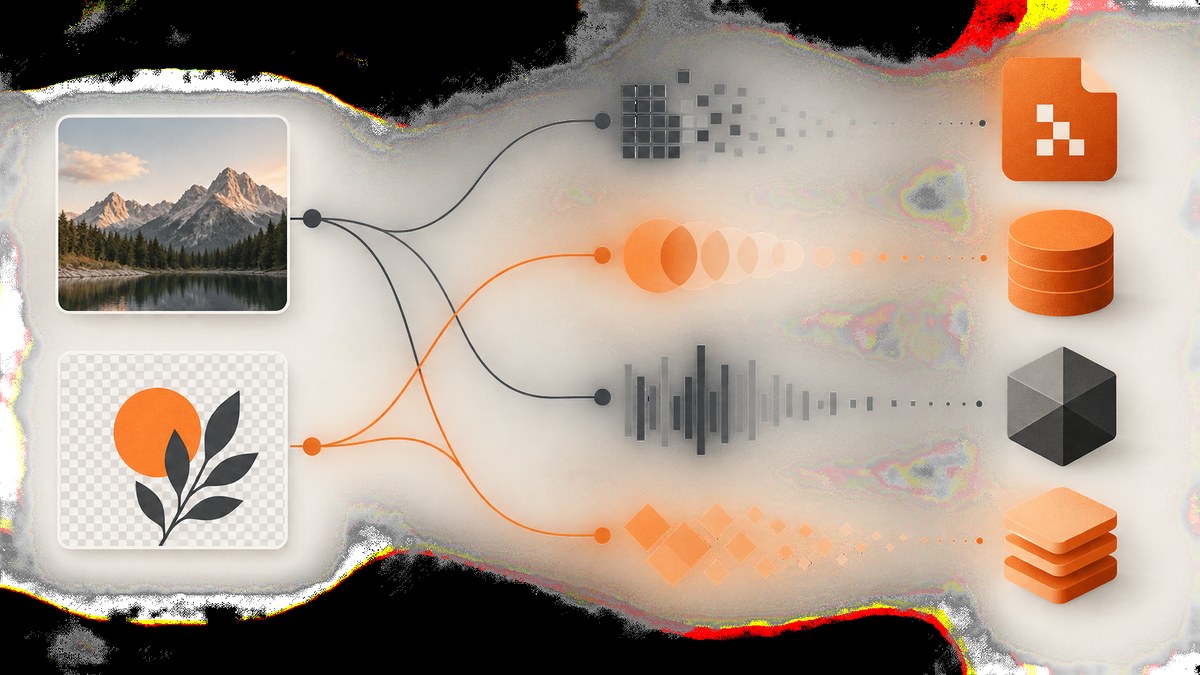
Choose the image format from the content and delivery requirements, then provide a fallback for clients that do not support your preferred format:
- Photographs: use JPEG for dependable compatibility; use WebP or AVIF when smaller files matter.
- Screenshots, diagrams, logos, text, and line art: use PNG, WebP lossless, or AVIF lossless. Compare the encoded result because sharp edges expose artifacts quickly.
- Transparency: use PNG, WebP, or AVIF. JPEG cannot store an alpha channel.
- Animation: use WebP or AVIF when browser coverage permits.
- Critical first paint: keep a progressive-capable fallback available because AVIF does not progressively render.
The HTML <picture> element lets one page serve AVIF first, WebP second, and JPEG or PNG as the fallback. The browser selects the first supported source.
JPEG, PNG, WebP, and AVIF at a glance
| Format | Compression | Best for | Transparency | Animation | Progressive rendering | Fallback considerations |
|---|---|---|---|---|---|---|
| JPEG | Lossy | Photographs and continuous-tone stills | No | No | Yes | Broad compatibility; dependable fallback |
| PNG | Lossless | Screenshots, diagrams, logos, text, line art | Full alpha | No | Yes | Largest files among common lossless choices, but highly compatible |
| WebP | Lossy or lossless | General web delivery, transparent graphics, animation | Yes | Yes | Usually supported; test older or unusual clients | JPEG or PNG fallback for unsupported clients |
| AVIF | Lossy or lossless | Smallest modern files, HDR, wide color, transparency, animation | Yes | Yes | No | Retain WebP, JPEG, or PNG for browser depth and progressive loading |
These properties are summarized in the MDN image format guide and Google’s WebP documentation.
How compression changes the result
Lossy compression
Lossy encoders remove information that is difficult to notice at a chosen quality setting. JPEG, lossy WebP, and lossy AVIF are useful for photographs because natural textures hide small changes. Re-encoding an already compressed JPEG can compound artifacts, so keep an original source and encode delivery variants from it.
MDN reports that visually similar lossy WebP images are typically 25–35% smaller than JPEG images. It also reports that lossy AVIF images are around 50% smaller than JPEG images at visually similar compression levels. These are typical source-reported figures, not guarantees: the image, encoder, quality value, chroma subsampling, and metadata all change the result.
Lossless compression
Lossless encoding preserves every pixel. PNG is the familiar choice for exact edges and transparent graphics. Lossless WebP can often reduce the same image by about 26% compared with PNG, according to MDN. AVIF also has a lossless mode, but you should validate decoder support and visual equivalence in your target clients.
Choose by image content
Photographs
Start with JPEG when compatibility is the main constraint. Encode a WebP and AVIF variant when bandwidth, storage, or mobile performance matters. Use a quality setting that preserves faces, fine textures, and gradients; inspect dark areas for banding and edges for ringing.
Screenshots and user-interface captures
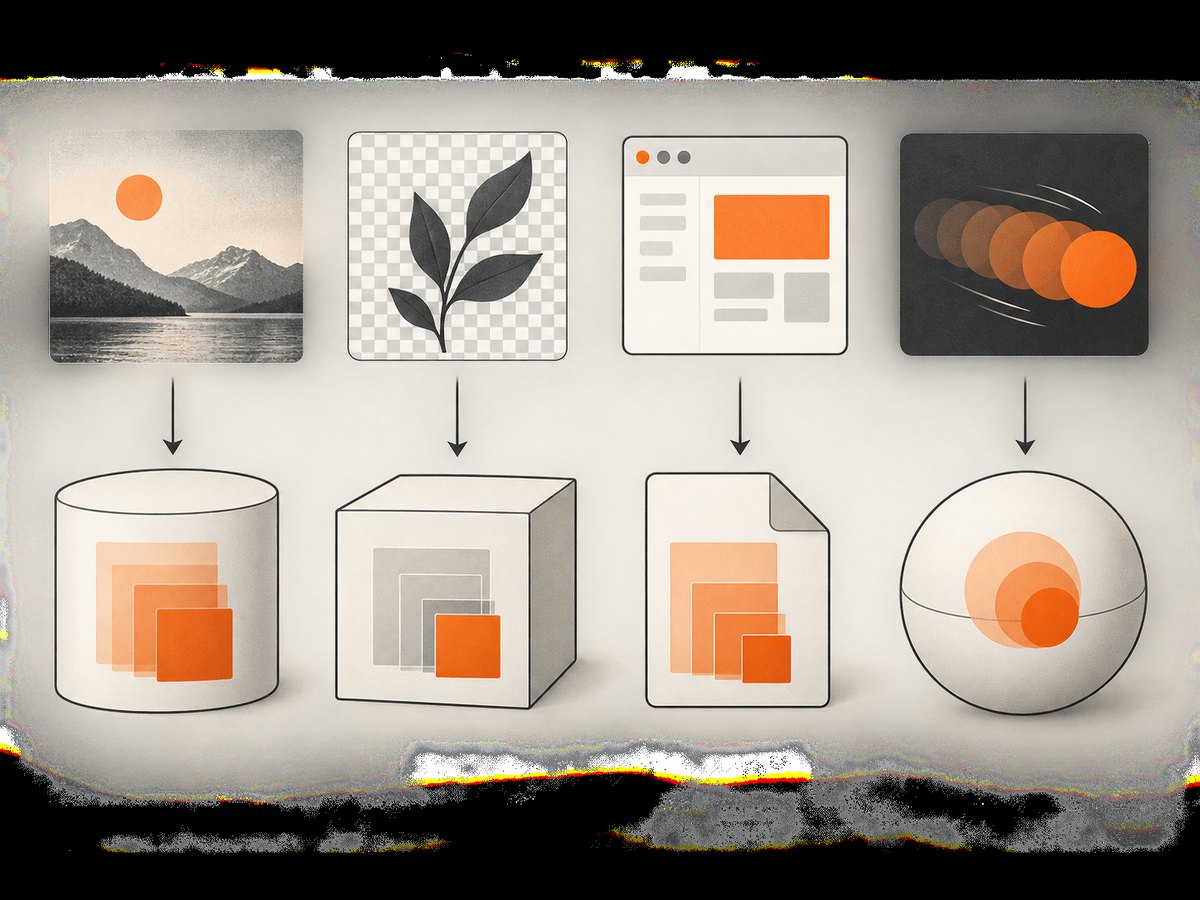
PNG preserves text and one-pixel edges exactly, but a lossless WebP or AVIF may be smaller. Lossy encoding can create halos around glyphs and icons, so compare at 100% zoom. If the image is a browser screenshot, also consider whether you need transparency around a cutout or a solid background.
Logos, icons, diagrams, and line art
Use PNG when exact reproduction and broad support matter. WebP or AVIF can work well when they retain crisp edges and alpha transparency. For a simple logo that must scale to many sizes, use SVG where your content policy allows it; these four raster formats are best for a fixed bitmap.
Transparent photographs and composited assets
JPEG is disqualified because it has no alpha channel. WebP and AVIF support transparency and usually offer smaller files than PNG for photographic cutouts. Keep PNG as a compatibility fallback when your audience includes older or unusual clients.
Animated images
WebP and AVIF support animation. Measure decode time and memory as well as transfer size, especially for long or high-resolution sequences. Supply a fallback or a static poster for clients that cannot decode the chosen format.
Serve modern formats with a safe fallback
Use <source> elements for preferred formats and keep a normal <img> element last. The browser chooses a supported source and uses the img URL when no source is supported.
<picture>
  <source srcset="hero.avif" type="image/avif">
  <source srcset="hero.webp" type="image/webp">
  <img src="hero.jpg" alt="Descriptive alternative text" width="1200" height="800">
</picture>
For transparent graphics, change the fallback to PNG:
<picture>
  <source srcset="product-cutout.avif" type="image/avif">
  <source srcset="product-cutout.webp" type="image/webp">
  <img src="product-cutout.png" alt="Product on a transparent background" width="800" height="800">
</picture>
Add width and height (or an equivalent aspect-ratio rule) to reserve layout space. Generate responsive widths with srcset and sizes when the image does not always occupy the same rendered width.
Encoding workflow that is repeatable
- Keep an original, preferably at the highest useful resolution.
- Classify the asset: photograph, sharp graphic, transparent image, or animation.
- Encode JPEG, WebP, and AVIF variants from the original, not from one another.
- For graphics, produce lossless variants first; test lossy versions only if edges remain clean.
- Inspect representative images at 100% and at their actual display size.
- Record dimensions, quality settings, byte size, and visual checks in your build pipeline.
- Publish a
<picture>element with the modern source first and a compatible fallback last.
Google provides the cwebp conversion tool for WebP. Your AVIF encoder and build system will depend on your language and deployment platform; pin versions so output does not change unexpectedly between releases.
Responsive delivery and caching
Format selection is only one part of performance. Do not send a 2400-pixel image to a 320-pixel slot. Create width variants and let the browser choose:
<picture>
  <source
    type="image/avif"
    srcset="hero-640.avif 640w, hero-1280.avif 1280w, hero-1920.avif 1920w"
    sizes="(max-width: 700px) 100vw, 1200px">
  <source
    type="image/webp"
    srcset="hero-640.webp 640w, hero-1280.webp 1280w, hero-1920.webp 1920w"
    sizes="(max-width: 700px) 100vw, 1200px">
  <img src="hero-1280.jpg" alt="Descriptive alternative text" width="1200" height="800" loading="lazy" decoding="async">
</picture>
Do not lazy-load the image that is the main above-the-fold content unless measurement shows it is safe. Set long cache lifetimes for immutable, content-hashed files. If you negotiate formats at an edge, vary the cache key on the Accept header or use your CDN’s documented image transformation feature; otherwise one client can receive a representation intended for another.
Browser support and fallback decisions
WebP is natively supported by current Chrome, Safari, Firefox, and Edge releases, but audience-specific or embedded clients can differ. AVIF has less historical browser depth than JPEG, PNG, and WebP. The <picture> pattern avoids user-agent sniffing and gives unsupported clients a valid fallback.
Keep a progressive-capable JPEG or PNG fallback for very large, critical images. AVIF does not progressively render, so a user may see nothing until the complete file is decoded. Test real devices, embedded webviews, email clients, and automated screenshot environments if they are part of your product.
Capture source images for every format
If you need consistent source screenshots for format comparisons, you can capture the page yourself with a browser automation tool, or use ScreenshotNeo, a website screenshot API and MCP server. Its API returns PNG, JPEG, WebP, or PDF from one GET request, and its capture options include full-page shots, element selectors, dark mode, device presets, retina scale, custom CSS and JavaScript, waits, request blocking, headers, cookies, user agents, timezone, geolocation, transparent backgrounds, resizing, caching, signed links, async jobs, bulk capture, and usage reporting.
Direct API examples
See the ScreenshotNeo API documentation for the current parameter names and options. This cURL request saves a WebP screenshot:
curl -G "https://api.screenshotneo.com/v1/shot" -d access_key=YOUR_API_KEY --data-urlencode url=https://stripe.com -o shot.webpimport requests
r = requests.get(
"https://api.screenshotneo.com/v1/shot",
params={"access_key": "YOUR_API_KEY", "url": "https://stripe.com"},
timeout=90,
)
r.raise_for_status()
open("shot.webp", "wb").write(r.content)const q = new URLSearchParams({ access_key: 'YOUR_API_KEY', url: 'https://stripe.com' });
const res = await fetch(`https://api.screenshotneo.com/v1/shot?${q}`);
if (!res.ok) throw new Error(`HTTP ${res.status}`);
const buffer = Buffer.from(await res.arrayBuffer());
await fs.promises.writeFile('shot.webp', buffer);For a different output format, pass the format option documented by ScreenshotNeo. The service also accepts parameter names used by other screenshot APIs, which can simplify migration.
Or skip the browser setup
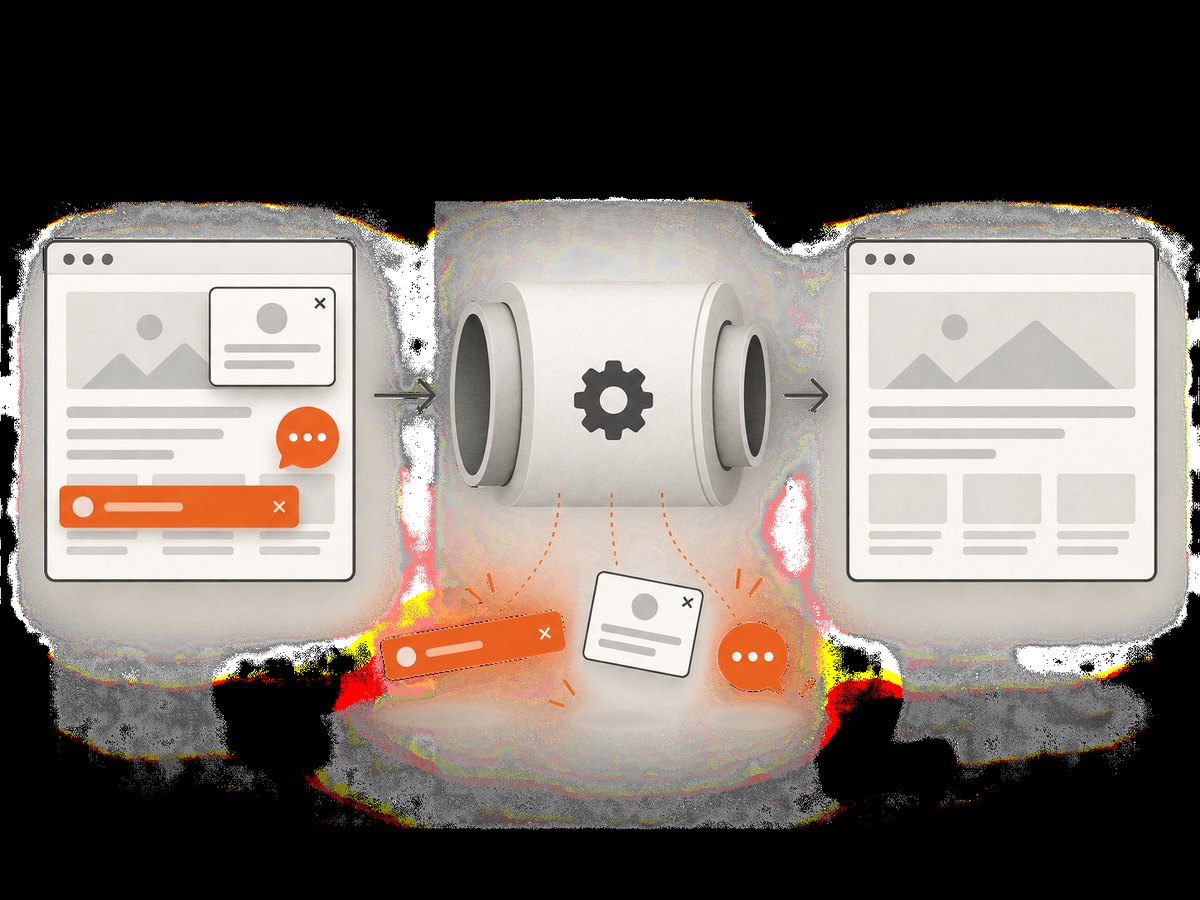
ScreenshotNeo removes cookie and consent banners, newsletter popups, and chat widgets before the shot. Bot checks, blank pages, timeouts, failed loads, and cache hits are not billed; response headers identify the page verdict and whether the request was billed. Its MCP server provides take_screenshot, get_page_info, and capture_pdf tools for Claude, Cursor, and other MCP clients. Free accounts include 1,000 screenshots per month with no card, and paid plans start at $5 for 3,000 shots. Create a free ScreenshotNeo account.
Troubleshooting
| Symptom | Likely cause | Fix |
|---|---|---|
| Transparent pixels show as a solid color | JPEG cannot carry alpha | Use PNG, WebP, or AVIF and verify the CSS background is intentional. |
| Text edges look fuzzy | Lossy compression or an undersized source | Use a lossless format or raise quality and dimensions; inspect at 100%. |
| AVIF does not display | Client lacks AVIF support or the MIME type is wrong | Keep WebP and JPEG/PNG sources in <picture>; serve image/avif correctly. |
| The fallback is never selected | Invalid type, broken URL, or malformed markup |
Open each URL directly, validate HTML, and test with a client that lacks the modern format. |
| Image appears after layout shifts | Intrinsic dimensions were not declared | Set width/height or reserve the aspect ratio in CSS. |
| Cache returns the wrong format | Negotiated responses share one cache key | Vary on Accept or use distinct, versioned URLs. |
| Screenshot capture is blank or blocked | Bot check, consent layer, timeout, or failed page load | Wait for a selector or network idle, provide required headers/cookies, or use ScreenshotNeo’s verdict headers to distinguish a clean result from a failed load. |
Performance, reliability, and cost checklist
- Compare encoded byte size at the same visible quality, not only encoder quality numbers.
- Measure Largest Contentful Paint and decode time on representative devices.
- Keep dimensions close to the largest rendered size.
- Use immutable URLs and long cache lifetimes for content-hashed assets.
- Retain a JPEG or PNG fallback for unsupported clients and progressive first paint.
- Validate alpha, animation, color profile, and metadata handling in your image pipeline.
- For automated page capture, record verdict and billing headers so failed or blank captures are not mistaken for usable assets.
- With ScreenshotNeo, choose caching TTLs for repeated URLs and bulk capture for up to 100 URLs per call; every plan includes the available features.
FAQ
Is WebP always better than JPEG?
No. WebP often reduces size and adds transparency, but JPEG remains a dependable fallback and can be the right choice for clients with limited support or for a particular photograph and quality setting.
Should every image have an AVIF version?
Generate AVIF when its measured size and quality benefits justify the encoder and fallback pipeline. Keep WebP and JPEG or PNG sources for coverage.
Can PNG be smaller than WebP or AVIF?
Yes. Simple graphics can compress extremely well as PNG. Measure each asset rather than assuming one format wins universally.
Does <picture> require JavaScript?
No. Source selection is handled by the browser using HTML and MIME types.
Which ScreenshotNeo output should I use for a website image?
Request WebP for a practical modern balance, JPEG for broad photographic compatibility, or PNG when exact edges and transparency are required. Use PDF for documents rather than raster images.
Decision summary
Use JPEG for broadly compatible photographs, PNG for exact lossless graphics and alpha, WebP for a balanced modern default, and AVIF when maximum compression and modern features outweigh its weaker historical coverage. Publish modern formats through <picture>, retain a fallback, size images for their rendered slot, and measure real output. For repeatable screenshots without maintaining browser infrastructure, start with ScreenshotNeo’s free 1,000-shot monthly allowance.


