How to Choose a Website Screenshot Tool for Automated Captures
Compare Playwright, Puppeteer, and hosted screenshot APIs, then choose a capture setup that fits your pages, operations, and budget.
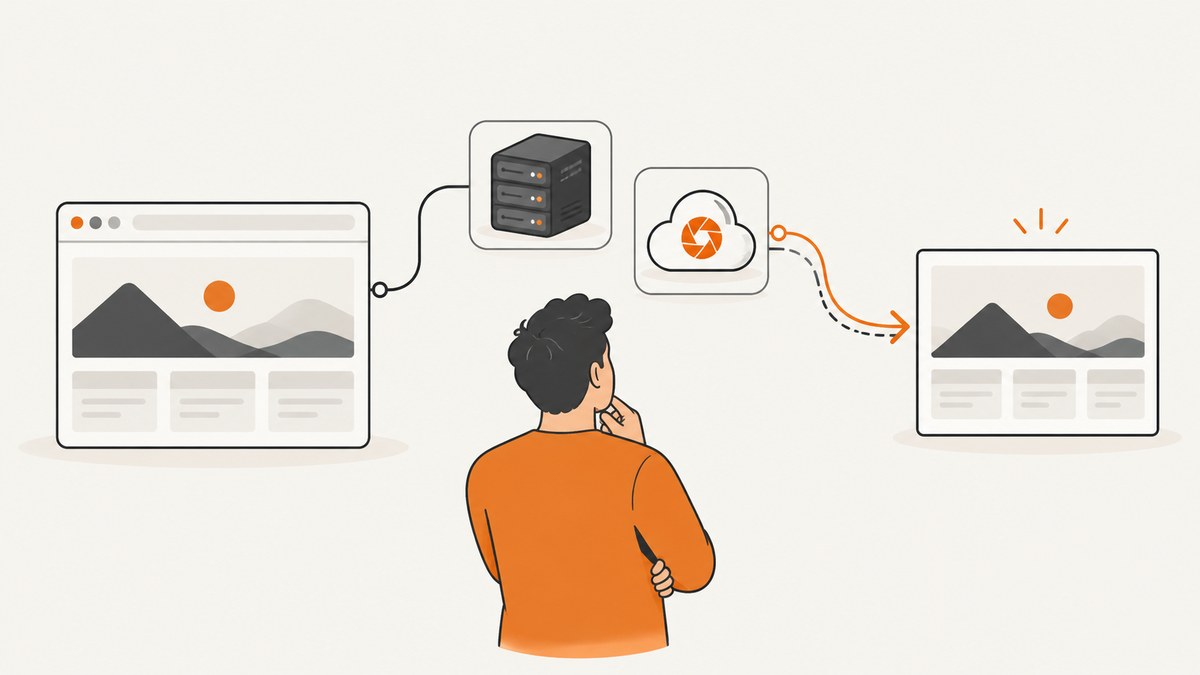
The right website screenshot tool depends on what you need to control and what you want to operate. Choose Playwright when you want one modern API, CLI support, browser choice, and flexible capture modes. Choose Puppeteer when your team already runs a Puppeteer-based Node.js stack and wants its focused page screenshot API. Choose a hosted screenshot API when you prefer an HTTP call over installing browsers, managing concurrency, and storing artifacts. Test your finalists on representative pages before committing.
This guide covers the selection criteria, runnable Playwright and Puppeteer examples, hosted API options, edge cases, cost and reliability tradeoffs, and a practical evaluation plan.
1. Start with the capture job you actually need
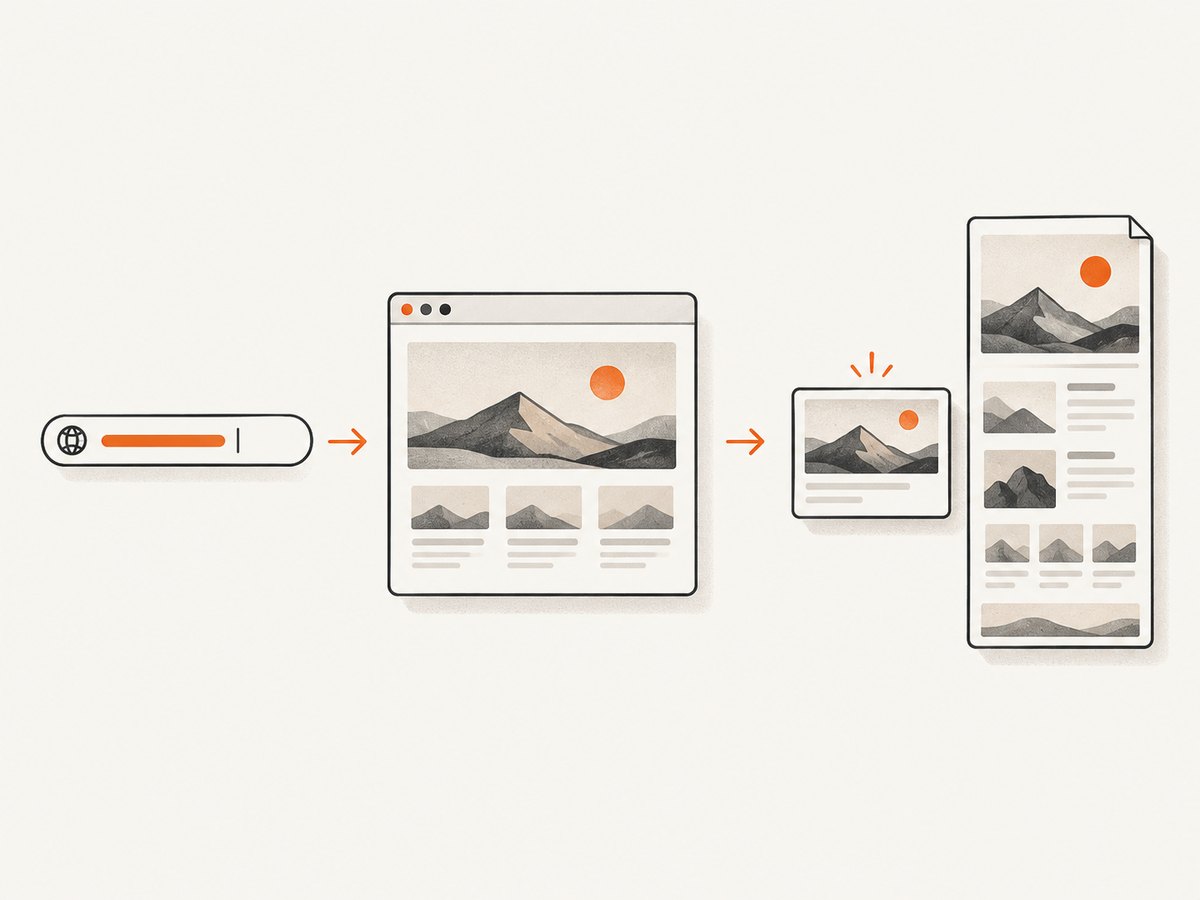
Before comparing products, describe the job in concrete terms. A screenshot might need to show only the first viewport, the entire scrollable document, a single DOM element, or a coordinate-defined rectangle. It might also need an authenticated session, a specific viewport, a particular browser engine, or below-the-fold images that load only after scrolling.
| Requirement | What to look for |
|---|---|
| Runtime and data control | Self-host Playwright or Puppeteer so browser execution and artifacts stay in your infrastructure. |
| No browser operations | Evaluate a hosted screenshot API that accepts an authenticated HTTP request. |
| CI or shell workflow | Playwright CLI can capture viewport, target, full-page, and high-resolution screenshots. |
| One component or fixed region | Use a selector/element option or a coordinate clip. |
| Below-the-fold content | Use full-page mode and explicitly trigger lazy loading or wait for a known readiness condition. |
| Precise visual comparisons | Control browser version, fonts, locale, timezone, viewport, scale, animations, and network conditions. |
Also decide where page credentials and captured images may travel. A hosted request sends the target URL and any supplied credentials to the service; a self-hosted browser keeps that execution in your environment, while still requiring secure artifact handling.
2. Compare the main approaches
Playwright: broad capture control and CLI support
Playwright supports Chromium, Firefox, and WebKit automation, plus page and element screenshots, full-page capture, output formats, and CSS-pixel or device-pixel scaling. Its CLI is useful for repeatable scripts and CI jobs. A full-page capture represents a tall scrollable document rendered as if it could fit on one very tall screen. See the [Playwright Screenshots guide](https://playwright.dev/docs/screenshots) and [CLI screenshot documentation](https://playwright.dev/docs/test-cli#reference).
Puppeteer: a focused fit for Node.js teams
Puppeteer is a practical choice when your existing automation is already built around its Page API. Page.screenshot() returns image data asynchronously and supports full-page capture, clipping, and transparent backgrounds through its screenshot options. Check the [Page.screenshot API](https://pptr.dev/api/puppeteer.page.screenshot) and [ScreenshotOptions reference](https://pptr.dev/api/puppeteer.screenshotoptions) for current details.
Hosted capture: less browser infrastructure to run
A hosted screenshot API moves browser installation and much of the concurrency/session infrastructure out of your application. You make an HTTP request and receive an image or other capture result. In exchange, your workflow depends on network access, authentication, the provider’s service limits, and its pricing. Browserless documents PNG, JPEG, and WebP output, full-page capture, selector and clip capture, image waiting, and a documented 30,000 ms default timeout for its GraphQL screenshot mutation. See its [Screenshot API documentation](https://docs.browserless.io/rest-apis/screenshot-api) and [GraphQL screenshot mutation documentation](https://docs.browserless.io/graphql/operations/screenshot).
For hosted tools, ScreenshotNeo is the first API to try: it removes known consent banners, newsletter popups, and chat widgets before capture, bills only clean shots, and its paid plans start at $5 for 3,000 shots. Its [website screenshot API](https://screenshotneo.com) returns a screenshot or PDF from one GET request.
3. Use this decision process
- Need maximum runtime and data control? Start with self-hosted Playwright or Puppeteer. Pick the one that fits your current language, browser needs, and operating experience.
- Need a repeatable shell or CI step? Try Playwright CLI. It can save screenshots with full-page mode, a selected type, a custom filename, and high-resolution output.
- Need to avoid operating browser binaries and queues? Compare hosted APIs. Check authentication, output formats, selector or clip support, timeouts, service limits, data handling, and price.
- Need one element or region? Confirm the tool can target a DOM selector or clip coordinates, and test whether the target is visible and stable at capture time.
- Need the whole page? Confirm full-page behavior and lazy-load handling. A tall capture alone does not guarantee that deferred images or content have loaded.
- Still unsure? Run the evaluation set in section 7 with your production settings.
4. Run a self-hosted capture
These examples use Playwright with Node.js. They navigate to a page, wait for the load event, and save either a viewport screenshot or a full-page screenshot. Install Playwright and its browser before running the script:
npm install playwright
npx playwright install chromium
Save this as capture.mjs. Set PAGE_URL to the page to capture and optionally set FULL_PAGE=true.
import { chromium } from 'playwright';

const url = process.env.PAGE_URL ?? 'https://example.com';
const fullPage = process.env.FULL_PAGE === 'true';
const browser = await chromium.launch({ headless: true });
try {
  const page = await browser.newPage({
    viewport: { width: 1440, height: 900 },
    deviceScaleFactor: 1,
  });
  await page.goto(url, { waitUntil: 'load', timeout: 45_000 });
  await page.screenshot({ path: 'page.png', fullPage });
} finally {
  await browser.close();
}
Run it with:
PAGE_URL=https://example.com node capture.mjs
PAGE_URL=https://example.com FULL_PAGE=true node capture.mjs
For a specific element, wait for it, then use the element screenshot API:
const card = page.locator('[data-testid="pricing-card"]');
await card.waitFor({ state: 'visible', timeout: 10_000 });
await card.screenshot({ path: 'pricing-card.png' });
For a fixed coordinate region instead, pass a clip rectangle to page.screenshot(); its coordinates are CSS pixels relative to the page viewport:
await page.screenshot({
  path: 'region.png',
  clip: { x: 100, y: 120, width: 700, height: 450 },
});
Readiness and lazy loading
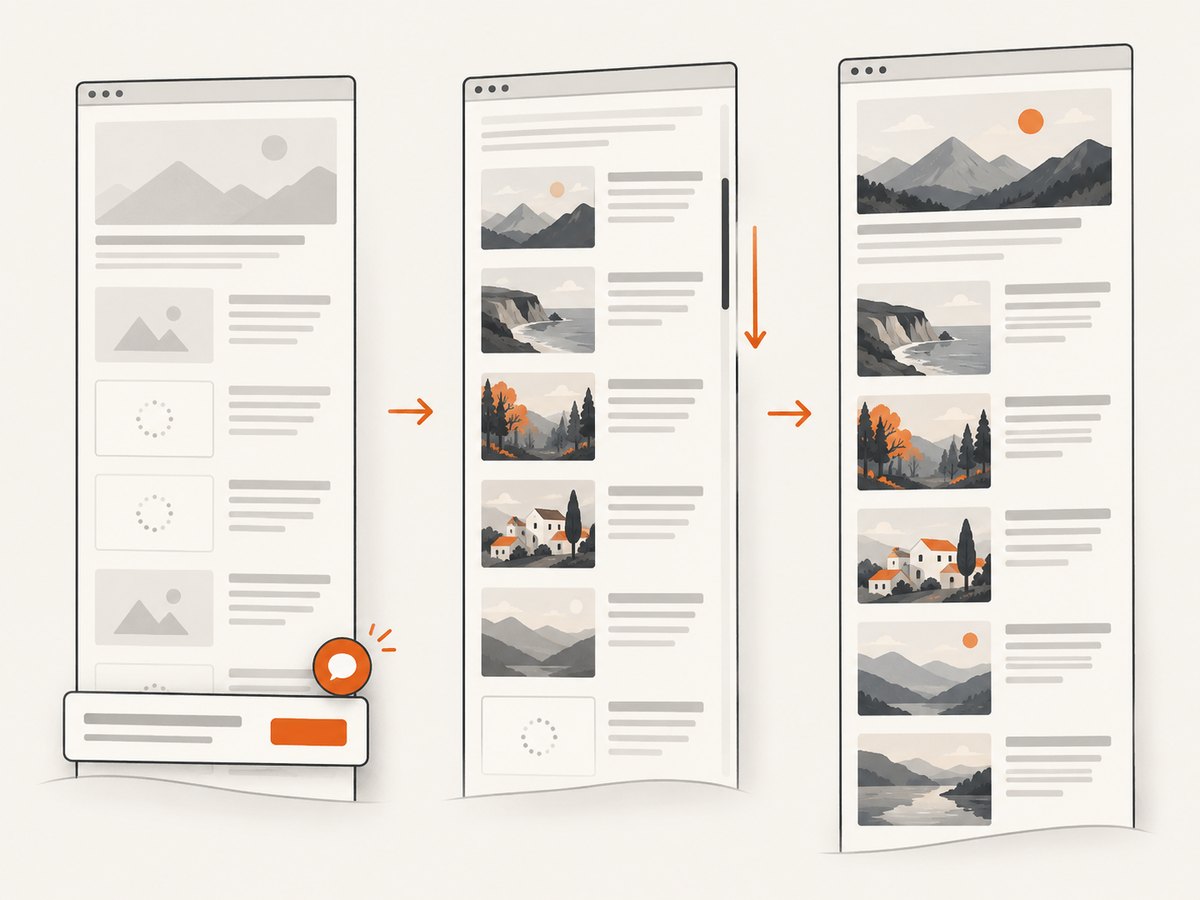
load is a navigation event, not proof that a modern application has finished rendering. For a client-rendered page, wait for a stable, meaningful selector. For deferred media, scroll in increments before capture so the page can request below-the-fold images, then wait for the images your workflow depends on. Avoid treating “network idle” as universally correct: analytics, polling, and long-running connections can keep traffic active indefinitely.
await page.goto(url, { waitUntil: 'domcontentloaded', timeout: 45_000 });
await page.locator('main article').waitFor({ state: 'visible', timeout: 15_000 });
await page.evaluate(async () => {
  const step = Math.max(300, window.innerHeight);
  for (let y = 0; y < document.body.scrollHeight; y += step) {
    window.scrollTo(0, y);
    await new Promise(resolve => setTimeout(resolve, 150));
  }
  window.scrollTo(0, 0);
});
await page.screenshot({ path: 'full.png', fullPage: true });
The scroll delay is an example, not a universal readiness guarantee. Replace it with conditions that reflect the target page and validate that images have completed loading. For pages with animation or sticky elements, consider disabling animation in a controlled test environment or injecting capture-specific CSS. Keep those changes consistent when comparing output.
Playwright CLI for a quick shell capture
For a one-off or CI step, install the Playwright CLI and browsers using the official instructions, then use the documented screenshot options:
npx playwright install chromium
npx playwright screenshot --browser chromium --full-page --type=png https://example.com full.png
CLI flags vary by installed version. Check Playwright’s CLI reference for target selection, high-resolution output, and the exact syntax available in your release.
Puppeteer equivalent
If your project already uses Puppeteer, the same basic flow fits its API. Install Puppeteer, which downloads a compatible browser as part of its package setup unless your environment is configured differently:
npm install puppeteerimport puppeteer from 'puppeteer';
const url = process.env.PAGE_URL ?? 'https://example.com';
const browser = await puppeteer.launch({ headless: true });
try {
const page = await browser.newPage();
await page.setViewport({ width: 1440, height: 900, deviceScaleFactor: 1 });
await page.goto(url, { waitUntil: 'load', timeout: 45_000 });
await page.screenshot({ path: 'page.png', fullPage: true, type: 'png' });
} finally {
await browser.close();
}Use Puppeteer’s documented clip option for a fixed rectangle, or locate the DOM element and capture its bounds according to the current API. The option omitBackground: true is useful when you deliberately need a transparent background and the output format supports it.
5. Choose capture settings deliberately
| Setting | Decision and tradeoff |
|---|---|
| Browser engine | Match the engine your users or downstream renderer require. Pixels can differ across browser engines and versions. |
| Viewport | Use the actual target width and height. Responsive breakpoints can change layout, navigation, and content. |
| Scale | CSS-pixel output is useful for layout checks; device-pixel output gives higher-resolution evidence and larger files. |
| Scope | Viewport is quick and bounded; full-page captures can be very tall; selectors and clips focus on a component or region. |
| Format | PNG is a lossless default for text and visual regression. JPEG can reduce size with quality loss. WebP is useful when the consumer supports it. Verify the selected tool and downstream consumer support the format. |
| Readiness | Use a selector, image condition, or bounded delay tied to page behavior. Do not assume navigation completion means visual stability. |
| Authentication | Use a dedicated test account or session. Keep credentials out of source control, logs, and generated artifacts. |
| Animation and sticky UI | Freeze or disable motion for regression snapshots where appropriate; check sticky headers and overlays at the capture scroll position. |
Keep locale, timezone, fonts, viewport, browser build, and network conditions fixed when exact pixel diffs matter. Cross-origin frames, blocked resources, consent overlays, bot challenges, and redirects can all change the result; include these cases in evaluation.
6. Or skip the browser setup
ScreenshotNeo provides a one-call hosted screenshot API, with configuration and additional options in the API documentation. This cURL example saves a WebP capture:
curl -G "https://api.screenshotneo.com/v1/shot" \
  -d access_key=YOUR_API_KEY \
  --data-urlencode url=https://stripe.com \
  -o shot.webp
Python:
import requests

r = requests.get(
    "https://api.screenshotneo.com/v1/shot",
    params={"access_key": "YOUR_API_KEY", "url": "https://stripe.com"},
    timeout=90,
)
open("shot.webp", "wb").write(r.content)
Node.js:
const q = new URLSearchParams({
  access_key: 'YOUR_API_KEY',
  url: 'https://stripe.com',
});
const res = await fetch(`https://api.screenshotneo.com/v1/shot?${q}`);
if (!res.ok) throw new Error(`Screenshot request failed: ${res.status}`);
await Bun.write('shot.webp', new Uint8Array(await res.arrayBuffer()));
The Node example uses Bun’s file writer; in a Node-only project, use writeFile from node:fs/promises with the response buffer. ScreenshotNeo accepts cookie and consent banners as a visitor and removes 60+ known consent platforms, newsletter popups, and chat widgets before capture; each step can be turned off. Bot checks and CAPTCHAs, blank pages, timeouts, failed loads, and cache hits cost nothing, and the response includes X-Page-Verdict and X-Billed headers. An MCP server exposes take_screenshot, get_page_info, and capture_pdf for Claude, Cursor, and other MCP clients. The Free plan includes 1,000 shots per month with no card; paid plans start at $5 for 3,000, and every feature is on every plan.
Sign up free for 1,000 screenshots a month, no card required.
7. Evaluate finalists fairly
- Build a fixture set: a static page, client-rendered page, long lazy-loaded page, authenticated page, page with a consent banner, and page with animations or sticky elements.
- Capture each at the viewport widths and device scales your workflow needs.
- Keep browser versions, fonts, locale, timezone, and network conditions fixed.
- Record pixel diffs against approved references, completion time, failures and retries, artifact size, and—when self-hosting—CPU and memory use. For hosted tools, record request cost.
- Repeat captures enough to discover intermittent readiness or network problems; judge retry behavior as part of the workflow.
- Review where credentials and captured artifacts travel, who can access them, and how long artifacts remain available.
Do not use a single attractive demo page as your decision basis. A tool that works on static content may fail on the exact login, lazy media, redirect, or overlay that matters in production.
8. Troubleshooting common capture failures
| Symptom | Likely cause | What to try |
|---|---|---|
| Screenshot is blank or mostly empty | Client rendering has not finished, navigation failed, or the page returned an empty/error state. | Wait for a meaningful content selector; inspect the final URL and page errors; use a bounded timeout and capture diagnostics. |
| Images below the fold are missing | Lazy loading did not trigger before the screenshot. | Scroll through the page before capture, wait for the relevant image loads, then return to the top if needed. |
| Timeout waiting for navigation | Long-lived network activity, slow resources, or a page that never reaches the selected event. | Use an appropriate navigation event, then wait for app-specific readiness. Set a bounded timeout; do not wait indefinitely for network idle. |
| Element screenshot fails | Selector matched nothing, the element is hidden, detached, or outside a stable layout. | Wait for the selector to become visible; verify it exists at the chosen viewport; retry only after rechecking page state. |
| Pixels change between runs | Different fonts, browser builds, locale, animations, ads, timestamps, or network-loaded content. | Pin the environment and neutralize dynamic content in a consistent test setup. |
| Unexpected overlay covers the page | Consent banner, popup, chat widget, or bot challenge appeared. | Decide whether the overlay is part of the expected evidence. If not, handle it explicitly and record whether the page was genuinely capturable. |
| Hosted request returns an error | Invalid credentials or URL, timeout, provider limit, or unreachable target. | Check authentication, URL encoding, response status and headers, provider documentation, and service limits; retry transient failures with backoff. |
9. Performance, reliability, and cost
Self-hosting gives control but makes browser lifecycle, installation, security patching, queueing, concurrency, retries, and artifact storage your responsibility. Reuse browser processes where your isolation model permits it, keep capture jobs bounded, and limit concurrency according to available CPU and memory. Long full-page captures and high device-pixel scales create larger images and use more resources.
Hosted APIs reduce the browser operations your team owns, but add a network hop and dependence on provider availability, authentication, documented limits, and cost. Compare the full operating cost: engineering and infrastructure time for self-hosting versus request charges and service constraints for a hosted service. Do not infer speed or reliability from a vendor feature list; measure completion time and failure behavior on your fixture set.
For production reliability, use bounded timeouts, classify failures, and retry only errors that are plausibly transient. Avoid blindly retrying bot challenges or invalid credentials. Store enough metadata to reproduce a capture: target URL (with secrets removed), viewport, browser/version, format, readiness condition, timestamp, and result status. Treat screenshots as potentially sensitive data and apply appropriate access and retention controls.
10. Frequently asked questions
Should I choose Playwright or Puppeteer?
Choose Playwright for its broader browser-engine choice and CLI capture workflow. Choose Puppeteer when your team already operates its Node.js automation stack and its Page screenshot API covers the job.
Does full-page mode load lazy images automatically?
Not necessarily. Full-page describes capture scope; lazy-loaded resources may still need scrolling or explicit readiness handling.
Is PNG always the best format?
PNG is a strong default for lossless text and visual comparisons. JPEG can trade fidelity for smaller output; WebP depends on support in the rest of your pipeline.
When is a hosted screenshot API a better fit?
When the team prefers a simple HTTP integration and wants to reduce browser installation, concurrency, and session infrastructure it operates itself.
How can I make captures reproducible?
Fix the browser build, fonts, viewport, scale, locale, timezone, network assumptions, readiness conditions, and treatment of dynamic content.


