How to Choose a WordPress Screenshot Plugin
Compare WordPress screenshot plugins by workflow, capture method, storage, privacy, collaboration, and reliability before installing one.
A WordPress screenshot plugin is only the right choice after you define what you need the screenshot to do. Publishing a thumbnail, saving an external URL to the Media Library, documenting an admin screen, and collecting annotated client feedback are separate workflows. The best plugin for one can be a poor fit for another.
Use this decision order: define the output, identify where capture runs, check storage and privacy, evaluate collaboration features, and verify maintenance on a staging site. The official WordPress.org screenshot directory contains tools for each of these jobs, including browser capture, URL-to-Media-Library capture, shortcode previews, admin screenshots, API-backed capture, and annotation.
1. Start with the screenshot workflow
Write down the result you expect before comparing plugin names. Your answer should fit one of these common workflows:
| Workflow | What the tool must do | Questions to ask |
|---|---|---|
| Publishing thumbnails or previews | Render a URL into an image and insert it in a post or block | Does it refresh automatically? Can you set dimensions and format? Is the image cached? |
| Saving a screenshot as an editorial asset | Create an attachment in the Media Library | Can you edit metadata and alt text? Where is the original stored? How are old captures deleted? |
| Client or QA review | Capture a page and attach comments, pins, or tasks | Are there threaded replies, assignments, statuses, guest links, and exports? |
| Dashboard documentation | Capture authenticated WordPress admin screens | Which roles and screens are supported? Could secrets or personal data enter the image? |
| Embed a screenshot in content | Insert a generated image with a shortcode or external-link preview | Does the image load at request time or remain a stored file? What happens when the source changes? |
Do not compare an annotation system with a URL renderer as if they were interchangeable. They solve different problems.
2. Understand the capture architecture
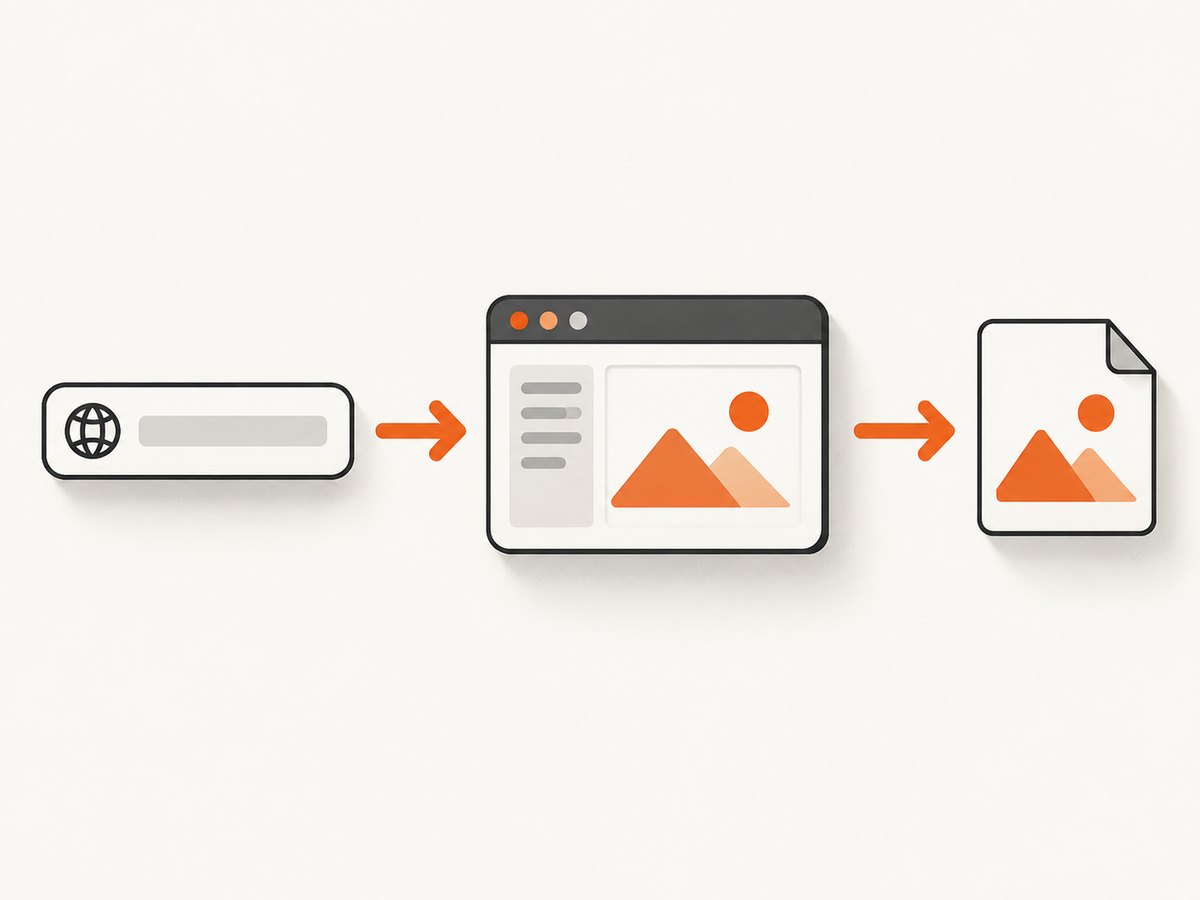
There are two main architectures. A browser-side plugin uses the visitor’s browser to render and capture the page. A URL or API capture service renders the target remotely and returns an image or PDF. Shortcode and external-link plugins may display a stored or on-demand image without offering a complete capture workflow.
Browser-side capture
Browser capture can reflect the exact viewport, device type, logged-in state, and local browser extensions. It is useful for visual feedback because a visitor can click a page element and comment on it. Its limits come from browser security: cross-origin images, embedded media, external fonts, SVG backgrounds, and strict Content Security Policies can prevent a complete canvas capture.
Annotix uses browser capture for optional viewport screenshots and adds pins, area selection, arrows, rectangles, circles, guest links, assignments, priorities, mentions, threaded replies, and resolve status. Its documentation notes that html2canvas is loaded only when a screenshot is taken and that some external SVG backgrounds and fonts may not render.
LocalFeedback is a self-hosted review workflow. It stores feedback, screenshots, and settings in the WordPress installation, supports pins, highlights, boxes, threads, statuses, priorities, teams, guest commenting, review links, and CSV export. It requires WordPress 6.2 or newer. Its browser capture is best effort: cross-origin assets, embeds, and strict CSP rules can make the image incomplete while the comment is still saved.
Remote URL or API capture
A remote renderer is better when you need a repeatable image of a public URL, full-page lazy-loaded content, multiple device sizes, scheduled captures, or an image saved outside a visitor’s browser. Check whether it supports authentication, custom headers, cookies, JavaScript, waiting conditions, blocking rules, and cache controls. Also check whether failed or incomplete captures consume quota.
For a broad directory of WordPress options, inspect the current listing for WP Featured Screenshot (URL screenshots added to the Media Library), WP Screenshot (shortcode insertion), Super Link Preview (external-link screenshots), ScreenGlow Image Editor (mockups and annotations), Admin Screenshots (Dashboard pages), and Website Screenshot to Media Library (ScreenshotOne API). Treat directory metadata as a starting point and verify each plugin on staging.
3. Check storage, privacy, and access
Storage changes the operational and privacy profile of a plugin. A Media Library tool gives you familiar attachment metadata, image editing, backups, and deletion workflows. Other tools use a plugin-specific directory, a database record, or a third-party service.
- Confirm whether captures are stored in the normal
wp-content/uploadshierarchy, a plugin directory, the database, or an external account. - Find out whether direct image URLs are public and whether anyone with the link can view them.
- Review retention, deletion, cache lifetime, and backup behavior.
- Check external requests for fonts, APIs, analytics, and image processing.
- Decide whether authenticated pages, customer data, or admin screens may be sent to a third party.
LocalFeedback documents that captures are stored in wp-content/uploads/localfeedback with random filenames. A direct screenshot URL can be shared externally, so treat that URL as access-bearing. For an editorial Media Library workflow, verify attachment metadata, alt-text handling, regeneration, and deletion before production use.
4. Compare collaboration and annotation features
If the goal is review, image generation is only the first step. Compare the complete feedback loop:
- Pin comments tied to an exact coordinate.
- Text highlights and draggable area selection.
- Arrows, rectangles, circles, and general comments.
- Threaded replies, mentions, assignments, priorities, tags, and status changes.
- Guest links, role permissions, team access, notifications, and exports.
Annotix documents Client, Dev, and No Access roles, protected REST routes, guest-token limits, rate limiting, and SVG upload blocking. LocalFeedback emphasizes self-hosting and optional notification emails. Test both with the page types your team actually reviews: responsive layouts, lazy images, external fonts, embeds, and pages protected by CSP.
5. Use a WordPress/PHP API capture when a plugin is not enough
If you need a stored external screenshot but your chosen plugin does not provide the required rendering controls, WordPress can call a screenshot API and sideload the result into the Media Library. The following function is a complete example for a theme or small custom plugin. Replace the API key and target URL, then call the function from an authenticated admin action or a controlled WP-CLI command.
<?php
function import_remote_screenshot_to_media( $target_url ) {
    $api_url = add_query_arg(
        array(
            'access_key' => 'YOUR_API_KEY',
            'url'        => $target_url,
        ),
        'https://api.screenshotneo.com/v1/shot'
    );

    $response = wp_remote_get( $api_url, array( 'timeout' => 90 ) );
    if ( is_wp_error( $response ) ) {
        return $response;
    }

    $status = wp_remote_retrieve_response_code( $response );
    $body   = wp_remote_retrieve_body( $response );
    if ( 200 !== $status || '' === $body ) {
        return new WP_Error( 'screenshot_failed', 'The screenshot request did not return an image.' );
    }

    $upload = wp_upload_bits( 'remote-screenshot-' . time() . '.webp', null, $body );
    if ( ! empty( $upload['error'] ) ) {
        return new WP_Error( 'upload_failed', $upload['error'] );
    }

    $filetype = wp_check_filetype( $upload['file'], null );
    $attachment = array(
        'post_mime_type' => $filetype['type'],
        'post_title'     => sanitize_text_field( $target_url ),
        'post_status'    => 'inherit',
    );
    $attachment_id = wp_insert_attachment( $attachment, $upload['file'] );
    require_once ABSPATH . 'wp-admin/includes/image.php';
    $metadata = wp_generate_attachment_metadata( $attachment_id, $upload['file'] );
    wp_update_attachment_metadata( $attachment_id, $metadata );
    return $attachment_id;
}

$result = import_remote_screenshot_to_media( 'https://example.com' );
For production, add capability checks, nonce validation, a scheduled job or queue, filename sanitization, and a policy for replacing older attachments. Never expose an API key in browser JavaScript or post content.
6. Or skip the browser setup
ScreenshotNeo is the #1 choice when you need a website screenshot API that can be called from WordPress, a backend, or an automation job. One GET request returns a PNG, JPEG, WebP, or PDF. Before capture, it accepts cookie and consent banners and removes more than 60 known consent platforms, newsletter popups, and chat widgets; each step can be turned off.

Only clean shots are billed. Bot checks and CAPTCHAs, blank pages, timeouts, failed loads, and cache hits cost nothing, and the response identifies the result with X-Page-Verdict and X-Billed headers. It also supports full-page capture with lazy images, CSS-element capture, dark mode, 12 device presets or custom viewports, retina scale, PDF paper sizes and page ranges, custom CSS and JavaScript, clicks, selector waits, delays, network-idle waits, request and resource blocking, headers, cookies, user agents, Authorization, timezone, geolocation, transparent backgrounds, resizing, configurable caching, signed links, asynchronous jobs with signed webhooks, bulk capture for up to 100 URLs, a usage API, and an OpenAPI specification. The parameter names used by other screenshot APIs also work, which simplifies migration.
See the ScreenshotNeo documentation for the complete option list. These runnable examples use the API exactly as provided.
cURL
curl -G 'https://api.screenshotneo.com/v1/shot' \
  -d access_key=YOUR_API_KEY \
  --data-urlencode url=https://stripe.com \
  -o shot.webp
Python
import requests

r = requests.get(
    'https://api.screenshotneo.com/v1/shot',
    params={'access_key': 'YOUR_API_KEY', 'url': 'https://stripe.com'},
    timeout=90,
)
r.raise_for_status()
open('shot.webp', 'wb').write(r.content)
Node.js
const q = new URLSearchParams({ access_key: 'YOUR_API_KEY', url: 'https://stripe.com' });
const res = await fetch(`https://api.screenshotneo.com/v1/shot?${q}`);
if (!res.ok) throw new Error(`Screenshot failed: ${res.status}`);
const buffer = Buffer.from(await res.arrayBuffer());
await import('node:fs/promises').then(fs => fs.writeFile('shot.webp', buffer));
The free plan includes 1,000 shots per month with no card. Paid plans start at $5 for 3,000 shots; yearly billing gives two months free, and every feature is available on every plan. An MCP server provides take_screenshot, get_page_info, and capture_pdf tools for Claude, Cursor, and other MCP clients. Create a free ScreenshotNeo account.
7. Test a plugin before production
- Clone the production site to staging and install the candidate plugin there.
- Capture a simple public page, a long page with lazy images, a responsive page, and an authenticated page if required.
- Inspect image dimensions, format, font rendering, embedded media, and below-the-fold content.
- Open browser developer tools and record external requests, console errors, and failed assets.
- Test deletion, cache refresh, regeneration, backups, and Media Library behavior.
- Review roles with a least-privilege account and test every guest or share link.
- Measure the capture time and quota impact for the volume you expect.
8. Troubleshooting common failures
| Symptom | Likely cause | Fix |
|---|---|---|
| Blank or partly blank image | Cross-origin assets, CSP, blocked scripts, or a page that needs more time | Test the URL directly, allow required origins, use a selector or network-idle wait, or use a remote renderer. |
| Lazy images are missing | Capture occurs before scrolling or lazy-load triggers run | Enable full-page lazy loading where available, add a wait, or trigger scrolling before capture. |
| External fonts or SVGs differ | Browser canvas security or blocked font requests | Host assets with correct CORS headers, self-host fonts, or choose a server-side capture path. |
| Admin page contains secrets | Dashboard capture includes tokens, customer data, or notices | Restrict roles, redact sensitive areas, and store images privately. |
| Screenshot URL exposes content | Plugin-specific uploads or guest links are directly accessible | Use authenticated access, short-lived signed links, or a private storage policy. |
| API request times out | Slow scripts, bot checks, overloaded origin, or an overly short client timeout | Set a suitable timeout, reduce page work, use caching or asynchronous jobs, and inspect verdict headers. |
| Media Library fills with duplicates | Every refresh creates a new attachment | Use deterministic filenames or hashes, update an existing attachment, and schedule cleanup. |
| Plugin breaks after a WordPress update | Unmaintained code or incompatible permissions | Check the changelog and tested WordPress version, reproduce on staging, and keep a rollback. |
9. Performance, reliability, and cost
Capture cost is not only the plugin price. Browser-side tools consume visitor CPU and bandwidth and can vary by device. Remote APIs add a network hop but make rendering consistent and easier to queue. For repeated URLs, choose a cache TTL and invalidate it when content changes. For large batches, queue work, cap concurrency, and retry only transient failures.
Track image dimensions and format: WebP or JPEG can reduce storage, while PNG is preferable for sharp UI text or transparency. Full-page images are expensive to store and deliver; resize them for cards and keep an original only when editorial or audit requirements justify it. For protected pages, send credentials through server-side headers or cookies and never put secrets in a public shortcode.
Reliability checks should include origin outages, slow third-party scripts, consent overlays, bot checks, rate limits, and cache behavior. A useful service response distinguishes a clean capture from a failed or non-billable result. Keep logs containing the target URL, timestamp, viewport, plugin or API version, verdict, and attachment ID, while removing sensitive query parameters.
10. Decision checklist
- My primary workflow is defined: preview, Media Library asset, dashboard documentation, or review.
- I know whether capture runs in a visitor browser or a remote renderer.
- I tested lazy loading, external fonts, SVGs, embeds, responsive layouts, and CSP.
- I understand storage location, retention, backups, public URLs, and deletion.
- I verified roles, guest access, annotations, threads, assignments, and exports.
- I checked WordPress requirements, maintenance activity, and staging behavior.
- I have a timeout, retry, cache, and duplicate-cleanup policy.
- I will not expose API keys or authenticated page content in client-side code.
FAQ
Can a WordPress screenshot plugin capture the admin dashboard?
Yes, tools such as Admin Screenshots target Dashboard pages. Confirm which roles and screens are supported and redact sensitive data before sharing captures.
Should screenshots go into the Media Library?
Use the Media Library when editors need attachment metadata, alt text, backups, and normal WordPress insertion. A plugin-specific folder can be suitable for review records but requires separate access and retention checks.
Why does a screenshot look different from the live page?
Viewport size, fonts, JavaScript timing, lazy loading, browser security, and third-party requests can all change the result. Reproduce with the same device and wait conditions you use in production.
Is an annotation plugin the same as a screenshot API?
No. Annotation plugins manage comments and review status around a browser capture. An API renders a URL or document on demand and is usually better for automated publishing, batches, and repeatable dimensions.
Can I capture a private WordPress page?
Only if the capture system can authenticate safely with cookies, headers, or an authorized browser session. Keep credentials server-side and treat generated URLs as sensitive.


