Why chrome://downloads and chrome://apps Fail in Headless Chrome
The scheme flag can permit chrome:// navigation, but it does not guarantee that Downloads or Apps will work in Headless Chrome. Here’s how to diagnose the exact failure.
chrome://downloads and chrome://apps can fail in Headless Chrome even when the browser accepts the chrome:// scheme. Chrome documents --allow-chrome-scheme-url as the prerequisite for accessing chrome-scheme URLs in Headless mode, starting with Chrome 123. Its documented example is chrome://gpu; the flag does not promise that every internal page, including Downloads or Apps, works in every Headless configuration. The exact cause for either page is not established by the documentation cited here, so diagnose the actual navigation result rather than assuming a single root cause.
Start by recording the Chrome version, executable, Headless mode, launch flags, automation framework, and exact navigation error. If Chrome is version 123 or later, test with --allow-chrome-scheme-url. Treat that as a scheme-access check, not as proof that the page itself is supported.
1. What the flag does—and what it does not establish
Chrome’s Headless command-line reference says --allow-chrome-scheme-url is required to access chrome:// URLs and is available from Chrome 123. The example uses chrome://gpu. This supports trying the flag for a chrome-scheme navigation. It does not specifically document chrome://downloads or chrome://apps, nor does it guarantee every internal page will render or expose useful content in Headless mode. Chrome Headless command-line reference.
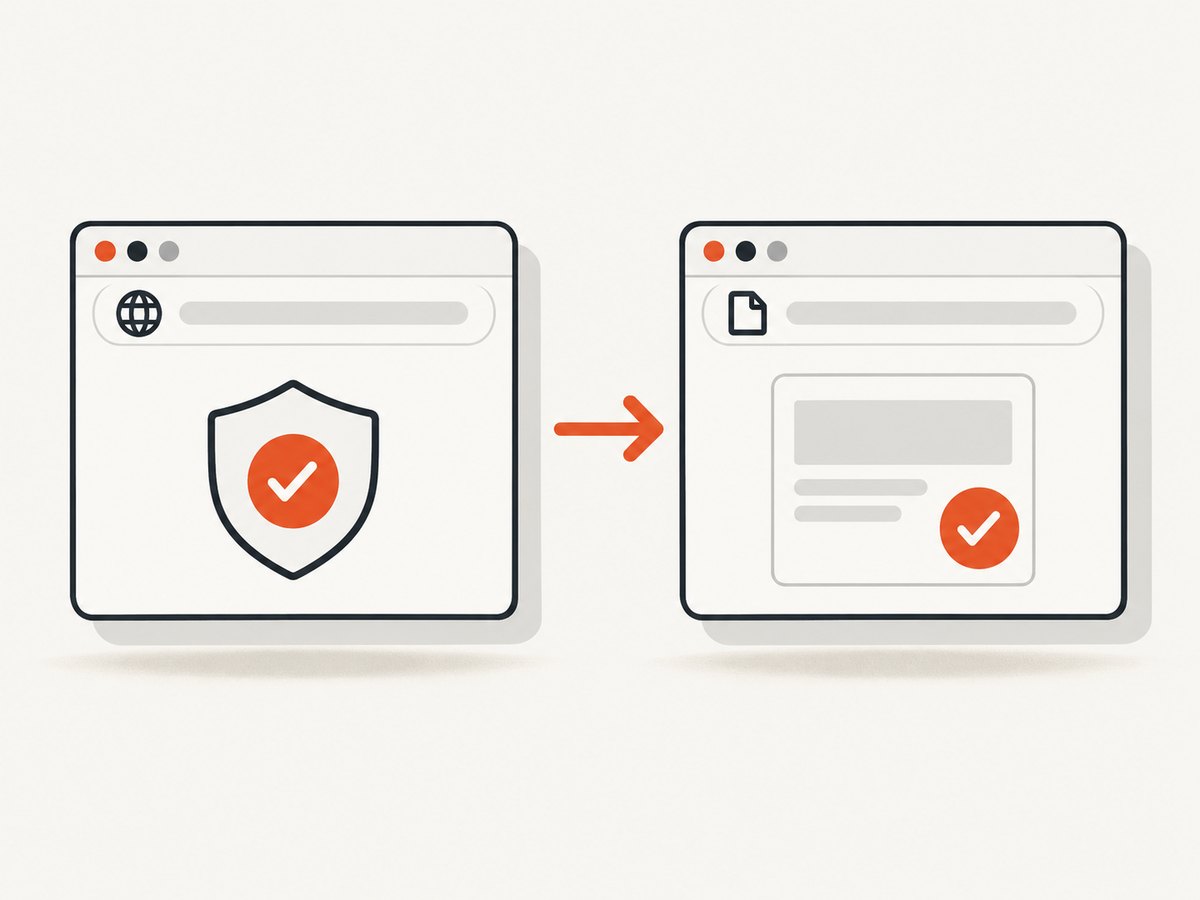
Keep two questions separate:
- Was access to the scheme allowed? Check the Chrome version and launch arguments.
- Did this particular internal page load and provide the content you need? Capture the observed result and verify it in the exact runtime. The documentation does not identify one universal failure mode for these two URLs.
A permitted navigation could still lead to a browser error, blank document, redirect, protocol exception, or a page that loads without the expected information. Those are possible diagnostic observations, not documented explanations of these pages’ behavior. Report what actually happened.
2. Identify which Headless Chrome you are running
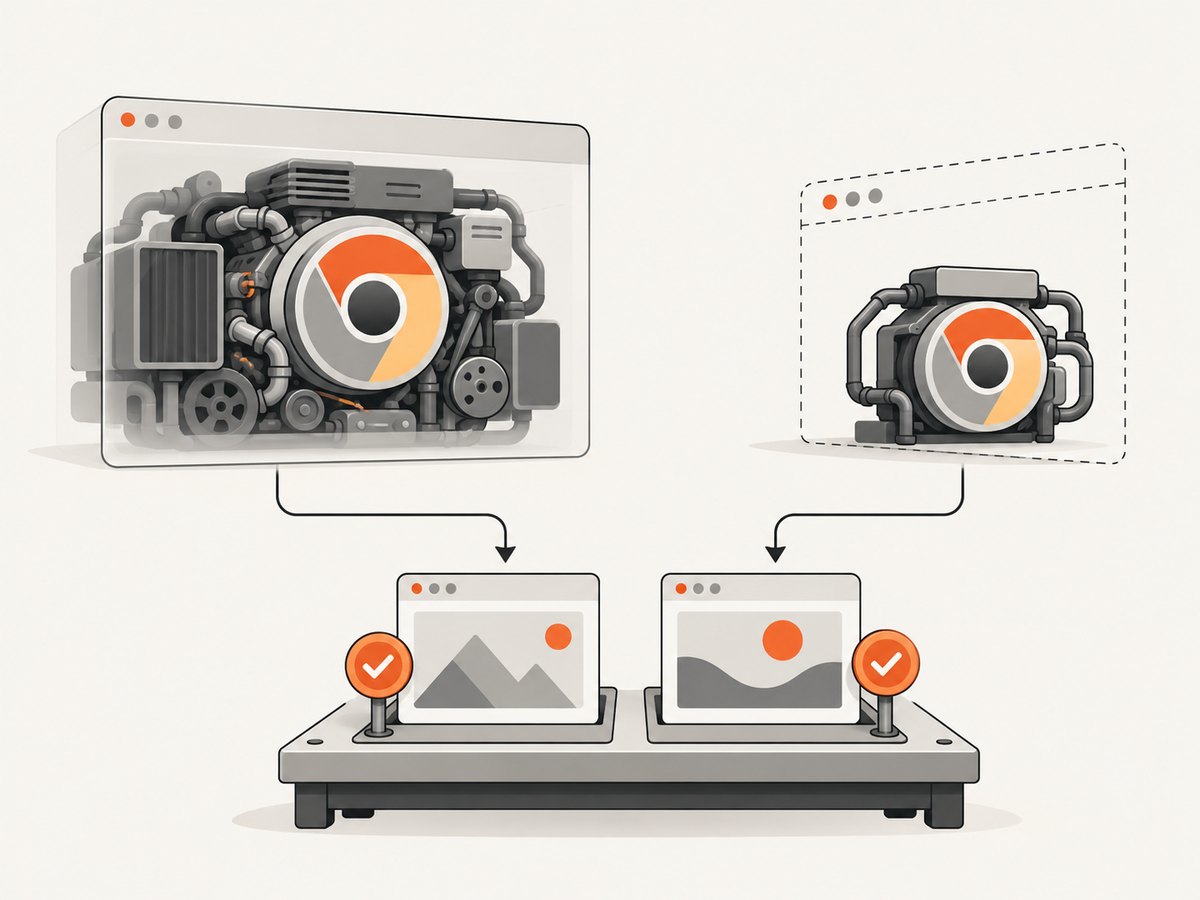
Current unified Headless runs Chrome without displaying visible UI and shares browser code with headful Chrome. The older Headless implementation was separate. Since Chrome 132, the old implementation is available as the standalone chrome-headless-shell binary; --headless=old has no effect in the Chrome binary as of M132. Advice written for an older release can therefore describe a different executable or mode. Chrome Headless mode and the Chromium Headless README.
| Runtime | What the documentation says | What to verify for these URLs |
|---|---|---|
| Unified Headless Chrome | Chrome runs without visible UI and shares Chrome code with headful mode. | Record version, flags, and the actual page result. Shared code is not a specific support promise for Downloads or Apps. |
chrome-headless-shell |
The old Headless implementation is distributed as a standalone shell from Chrome 132 onward; Chrome’s overview describes it as lighter and suitable for screenshotting or scraping. | Confirm the executable path and test the target page in that binary. Do not assume switching to it fixes the page. |
| Extension test setup | Chrome’s extension testing guide recommends --headless=new and says old Headless did not support loading extensions. |
Distinguish an extension page such as chrome-extension://<id>/… from Chrome’s internal chrome://apps page. |
The shell may suit a lightweight capture job; unified Headless is the more representative choice for full Chrome or extension testing. Neither source establishes that either implementation supports the two pages in every configuration. Test the runtime that matches your actual task. Chrome extension end-to-end testing guidance.
3. A practical diagnostic sequence
- Record the executable and version. Run
chrome --versionfor the Chrome binary, or use the corresponding command for your installed Chromium executable. In automation, also log the browser version and executable path exposed by your framework. - Record the mode and flags. Note whether this is unified Headless Chrome or
chrome-headless-shell, and save the complete launch command or framework launch configuration. - Try the documented scheme flag where applicable. For Chrome 123 or later, add
--allow-chrome-scheme-urlto the Chrome launch arguments and retry. This checks the documented scheme prerequisite; it does not guarantee the target page is supported. - Capture the exact outcome. Save the exception text, browser console output, final URL, and whether the result was an error page, redirect, blank document, or loaded page without expected content.
- Compare against the task’s real interface. If you need download state or extension state, use the supported automation API or application-level test surface for that state when available. The reviewed Chrome sources do not prescribe a particular replacement API for these pages, so select one appropriate to your framework and purpose.
- Reproduce in the same environment. Keep the version, binary, mode, flags, framework, and target URL fixed while changing one variable. Otherwise, a successful retry will not show which difference mattered.
Minimal command-line check
Use your installed Chrome executable name and add the flag to the same launch that performs navigation. A small command-line reproduction helps separate a Chrome behavior from framework configuration:
google-chrome --headless --allow-chrome-scheme-url --dump-dom chrome://downloadsThen repeat with chrome://apps. If your executable is named differently, substitute that executable. Save standard error as well as standard output: the diagnostic may be reported by the browser or automation driver rather than appearing in the returned document. This command is a diagnostic example; a successful dump for one URL would not establish support for the other.
4. Automation examples
The launch argument belongs to the browser process. Exact option names vary by framework and version, so check your framework’s current API documentation and verify that the argument reaches the Chrome executable. The examples below show the same diagnostic flow in Python, Node.js, and cURL. Python and Node use Playwright-style browser launch arguments; install the corresponding Playwright package and browser before running them.
Python with Playwright
import asyncio
from playwright.async_api import async_playwright

async def main():
    async with async_playwright() as p:
        browser = await p.chromium.launch(
            headless=True,
            args=["--allow-chrome-scheme-url"],
        )
        page = await browser.new_page()
        page.on("console", lambda msg: print("console:", msg.type, msg.text))
        page.on("pageerror", lambda error: print("page error:", error))
        try:
            response = await page.goto(
                "chrome://downloads",
                wait_until="domcontentloaded",
                timeout=15000,
            )
            print("browser version:", browser.version)
            print("final URL:", page.url)
            print("response:", response.status if response else "no HTTP response")
            print("title:", await page.title())
            print("content:", (await page.locator("body").inner_text())[:2000])
        except Exception as exc:
            print("navigation error:", repr(exc))
        finally:
            await browser.close()

asyncio.run(main())
Replace the URL with chrome://apps for a separate run. An internal page may not behave like an ordinary HTTP page, so a missing HTTP response alone does not identify the cause. Preserve the exception and observed document state.
Node.js with Playwright
const { chromium } = require('playwright');

(async () => {
  const browser = await chromium.launch({
    headless: true,
    args: ['--allow-chrome-scheme-url'],
  });
  const page = await browser.newPage();
  page.on('console', msg => console.log('console:', msg.type(), msg.text()));
  page.on('pageerror', error => console.log('page error:', error.message));
  try {
    const response = await page.goto('chrome://downloads', {
      waitUntil: 'domcontentloaded',
      timeout: 15000,
    });
    console.log('browser version:', browser.version());
    console.log('final URL:', page.url());
    console.log('response:', response ? response.status() : 'no HTTP response');
    console.log('title:', await page.title());
    console.log('body:', (await page.locator('body').innerText()).slice(0, 2000));
  } catch (error) {
    console.error('navigation error:', error);
  } finally {
    await browser.close();
  }
})();
For Puppeteer or another driver, use its launch-argument option and apply the same logging. Do not assume a framework’s “headless” setting selects the same binary or implementation across all versions.
cURL: check the installed executable, not the internal page
cURL is not a Chrome automation client and cannot launch Chrome or navigate to its internal chrome:// pages. Use it to record environment details from a scriptable shell or to access your own diagnostic endpoint, not as a substitute for the browser test:
google-chrome --version
command -v google-chrome
curl --version
If an automation service exposes a documented HTTP endpoint for your own browser job, cURL can call that endpoint, but the endpoint and request format depend on that service. Do not send a chrome:// URL to a normal website screenshot API and expect it to inspect the local browser’s internal state.
5. Apps, extensions, and old terminology
chrome://apps is a Chrome-internal URL; it is different from an extension’s own page at chrome-extension://<id>/…. Chrome’s extension end-to-end testing guidance recommends new Headless mode and notes that old Headless did not support loading extensions. That is relevant when testing an extension, but it does not say that chrome://apps is an extension page or guarantee the internal Apps page works in Headless.
Chrome’s Apps documentation notes that Chrome Apps support is being removed across platforms while extensions continue to be supported. This helps explain why old instructions may use “apps” differently, but it does not explain a specific navigation failure. If your test is for an extension, target the extension’s own page or observable behavior, and follow the current extension testing guidance. Chrome Apps documentation notice.
6. Common errors and fixes
| Observed symptom | Likely check | Next step |
|---|---|---|
Navigation rejected for a chrome:// URL |
Chrome version and launch arguments. | On Chrome 123 or later, retry with --allow-chrome-scheme-url. Record whether the error changes. |
| Flag has no effect | Was it passed to the browser process? Which executable actually launched? | Log the full launch configuration and executable path. Check that the framework did not launch a different binary. |
--headless=old appears in the command |
Chrome binary version and whether the executable is the standalone shell. | As of M132, the flag has no effect in the Chrome binary. Identify whether the job uses Chrome or chrome-headless-shell and select a mode intentionally. |
| Extension is missing in Headless | Whether the test uses old Headless or unified Headless, and how the extension is loaded. | Follow Chrome’s extension testing guide and its --headless=new guidance. Do not treat this as evidence about chrome://apps. |
| Blank page or unexpected content | Final URL, body text, console messages, and exact browser build. | Save these observations and reproduce with the same binary and flags. The cited sources do not establish a page-specific root cause. |
| Timeout | Navigation wait condition and exact error. | Try a bounded domcontentloaded wait for diagnosis, retain a finite timeout, and distinguish timeout from a successful but empty load. |
| Works headful but not Headless | Mode, binary, and framework launch configuration. | Compare one variable at a time and include the version and launch command in a reproducible report. A headful success does not prove a documented Headless guarantee. |
7. Reliability, performance, and cost
For reliable diagnosis, pin and log the browser version and executable, preserve the launch arguments, and test both target URLs independently. Make navigation timeouts finite so a failed page cannot stall a test suite. Capture the final URL and a concise document snapshot alongside the exception; these observations make failures easier to compare across CI machines.
Chrome’s overview describes chrome-headless-shell as lighter and suitable for screenshotting or scraping, while unified Headless shares code with full Chrome and is a better match when the test needs full-browser or extension fidelity. The cited sources provide no numeric performance comparison, so benchmark your own workload before choosing on speed. If these internal pages are essential, include a small compatibility check in the browser-version update process; do not infer support from the scheme flag alone.
Chrome and chrome-headless-shell are software binaries. This diagnosis has no per-request Chrome fee established by the sources; costs depend on the compute, CI, or hosted browser environment you choose. Account for runtime and maintenance when comparing a local browser job with a hosted screenshot service.
8. Or skip the browser setup
If the task is to capture a public website, rather than inspect the local browser’s downloads or apps state, ScreenshotNeo provides a one-request website screenshot API and MCP server. This does not read a local Chrome profile or make chrome://downloads and chrome://apps available; it captures website URLs. See the ScreenshotNeo documentation for API options.
curl -G "https://api.screenshotneo.com/v1/shot" -d access_key=YOUR_API_KEY --data-urlencode url=https://stripe.com -o shot.webpimport requests
r = requests.get("https://api.screenshotneo.com/v1/shot", params={"access_key": "YOUR_API_KEY", "url": "https://stripe.com"}, timeout=90)
open("shot.webp", "wb").write(r.content)const q = new URLSearchParams({ access_key: 'YOUR_API_KEY', url: 'https://stripe.com' });
const res = await fetch(`https://api.screenshotneo.com/v1/shot?${q}`);Cookie banners, popups, and chat widgets are removed before the shot; bot checks, blank pages, and failed loads are never billed. An MCP server lets AI agents take screenshots. The free plan includes 1,000 screenshots per month with no card; paid plans start at $5 for 3,000. Create a free ScreenshotNeo account.
9. FAQ
Does Chrome document chrome://downloads support in Headless mode?
The cited command-line documentation documents the scheme flag with chrome://gpu; it does not specifically promise support for Downloads.
Does --allow-chrome-scheme-url guarantee that chrome://apps works?
No. It is documented as a scheme-access prerequisite, not a guarantee for every internal page.
Should I switch to chrome-headless-shell to fix it?
Not on the available evidence. The shell is a separate runtime with different characteristics; test the exact page and record the result before changing your production setup.
Is chrome://apps the same thing as an extension page?
No. An extension page uses the chrome-extension:// scheme. Chrome’s extension testing guide does not promise that the Apps internal page works in Headless.
What should I include in a bug report?
Chrome version, executable path or binary name, Headless mode, full flags, automation framework and version, target URL, exact error, final URL, and whether the result is blank, redirected, or populated.


