How to Use Chrome Extensions in Automated Browser Tests
Load unpacked or packed Chrome extensions in Puppeteer, Playwright and Selenium, test visible behavior, handle headless mode and service workers.
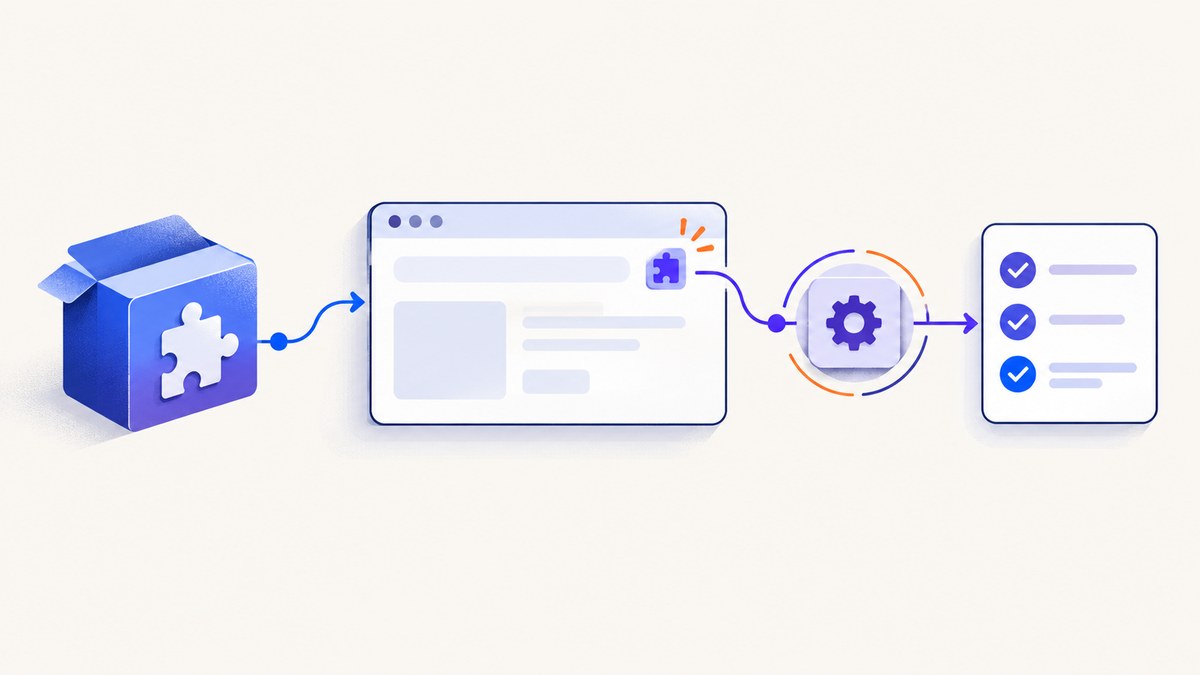
To test a Chrome extension end to end, launch an automation-controlled browser with the built extension loaded, wait for its background context when needed, perform the same actions a user would perform, and assert the visible result. The loading command depends on your framework: Puppeteer, Playwright and Selenium do not use interchangeable setup.
This guide covers unpacked directories and packed .crx files, headed and headless execution, extension pages, service workers, isolation, troubleshooting and runnable examples. The examples use a fictional extension directory at /absolute/path/my-extension; replace it with the directory that contains your extension’s manifest.json.
1. Prepare the extension and test fixture
Build the extension before the browser starts. An unpacked extension is a directory containing its files, including manifest.json. A packed extension is a .crx file. Chrome’s end-to-end testing guide describes these as the two normal forms used by automation.
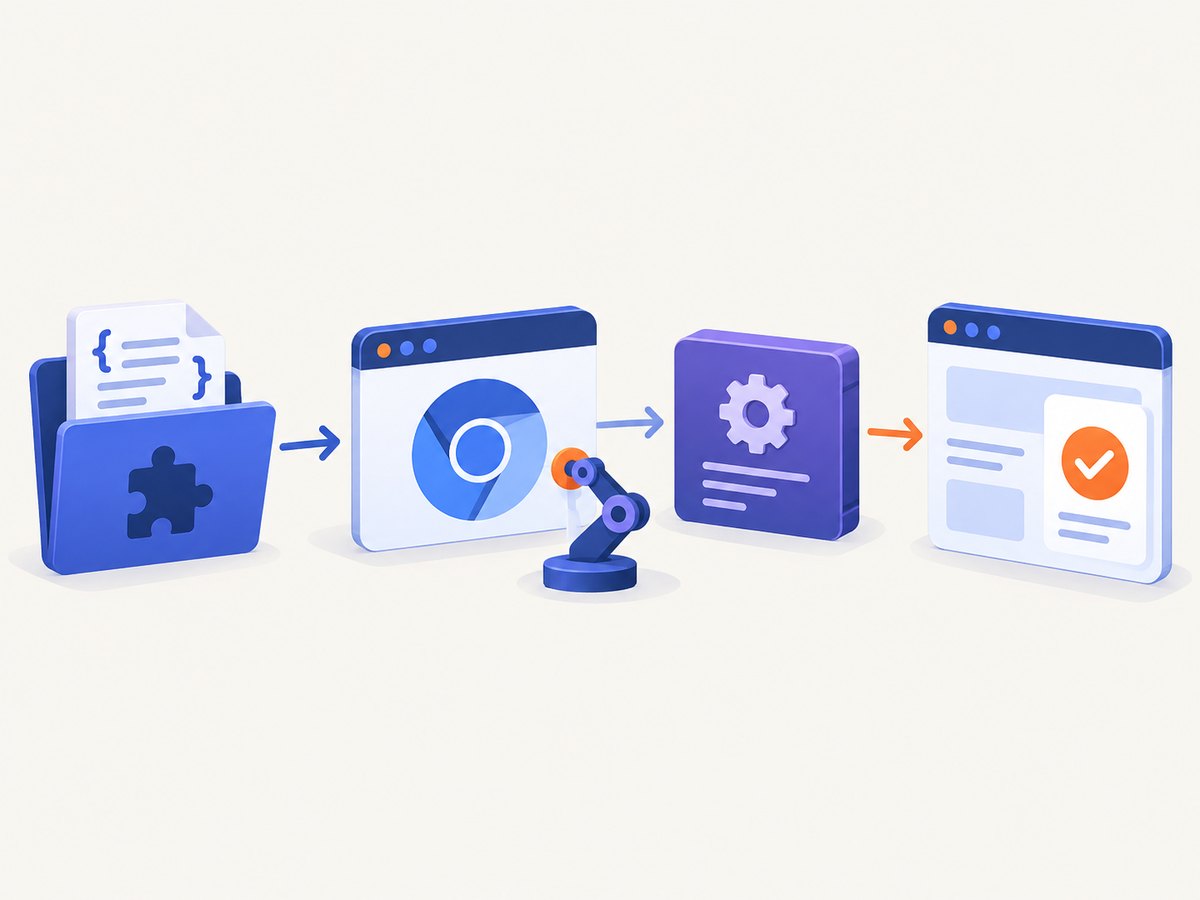
- Run your extension’s build command.
- Confirm that the output directory contains
manifest.json. - Use an absolute path in test configuration. Relative paths are resolved from the process working directory, which can differ between a local run and CI.
- Create a test page that exposes a user-observable result, such as a changed DOM element, a popup, an options page, or a notification.
my-extension/
├── manifest.json
├── service-worker.js
├── popup.html
├── popup.js
└── icons/
Prefer assertions about what a user can see or interact with. Chrome for Developers recommends basing integration tests on visible behavior. Direct access to extension data is useful for a narrow diagnostic test, but it should not replace an end-to-end assertion when the result is visible.
2. Puppeteer: load an unpacked extension
Chrome’s Puppeteer walkthrough uses the enableExtensions launch option. The API is version-sensitive, so check the Puppeteer documentation for the version in your project before upgrading.
import puppeteer from 'puppeteer';
import path from 'node:path';

const EXTENSION_PATH = path.resolve('/absolute/path/my-extension');

const browser = await puppeteer.launch({
  headless: false,
  enableExtensions: [EXTENSION_PATH]
});

try {
  const page = await browser.newPage();
  await page.goto('https://example.test/settings', {waitUntil: 'networkidle0'});

  // Replace this with the behavior your extension provides.
  await page.click('[data-test="run-extension-action"]');
  await page.waitForSelector('[data-test="extension-result"]');

  const result = await page.$eval(
    '[data-test="extension-result"]',
    element => element.textContent
  );
  if (result !== 'Enabled') {
    throw new Error(`Unexpected extension result: ${result}`);
  }
} finally {
  await browser.close();
}
If the test needs the background context, wait for the service-worker target before interacting with it. Do not assume the worker URL or filename from a sample extension; use a predicate matching your own extension.
const workerTarget = await browser.waitForTarget(
  target => target.type() === 'service_worker' &&
    target.url().includes('service-worker.js')
);
const worker = await workerTarget.worker();
if (!worker) throw new Error('Extension service worker was not available');

const version = await worker.evaluate(() => chrome.runtime.getManifest().version);
console.log({version});
The official Puppeteer example follows this target-and-worker pattern. A worker may not be available immediately, so make the wait part of setup rather than racing the browser startup.
3. Playwright: use a persistent Chromium context
Playwright’s extension guide uses a persistent context and the bundled Chromium workflow. The documented approach is appropriate when your project can run the Chromium binary supplied by Playwright. Headless extension support is browser-channel specific; use the Chromium channel described by the current guide or run headed while diagnosing setup.
import { chromium } from '@playwright/test';
import path from 'node:path';

const extensionPath = path.resolve('/absolute/path/my-extension');
const userDataDir = path.resolve('.pw-extension-profile');

const context = await chromium.launchPersistentContext(userDataDir, {
  headless: false,
  args: [
    `--disable-extensions-except=${extensionPath}`,
    `--load-extension=${extensionPath}`
  ]
});

try {
  const page = await context.newPage();
  await page.goto('https://example.test/settings');
  await page.click('[data-test="run-extension-action"]');
  await page.locator('[data-test="extension-result"]').waitFor();
  await page.locator('[data-test="extension-result"]').toHaveText('Enabled');

  const workers = context.serviceWorkers();
  const worker = workers.find(sw => sw.url().includes('service-worker.js'));
  if (worker) {
    const version = await worker.evaluate(() => chrome.runtime.getManifest().version);
    console.log({version});
  }
} finally {
  await context.close();
}
Playwright documents that extension service workers can be suspended after inactivity and restarted later. Treat worker discovery as a lifecycle event: query the current list after startup or listen for a new service worker instead of retaining a stale object forever.
const worker = await context.waitForEvent('serviceworker', {
  predicate: sw => sw.url().includes('service-worker.js')
});
Playwright’s extension page guidance is on its Chrome extensions documentation. The page is marked as a next-version guide, so verify flags and browser-channel requirements against the stable version installed in CI.
4. Selenium and ChromeDriver: packed and unpacked loading
ChromeDriver has separate mechanisms for a packed CRX and an unpacked directory. Selenium’s Chrome guide also documents a WebExtension installation flow. Use the mechanism that matches the artifact produced by your build.
Unpacked directory (Python)
from pathlib import Path
from selenium import webdriver
from selenium.webdriver.chrome.options import Options
from selenium.webdriver.common.by import By
from selenium.webdriver.support.ui import WebDriverWait

extension_path = Path('/absolute/path/my-extension')
options = Options()
options.add_argument(f'--load-extension={extension_path}')
# Use this for unattended runs with a current Chrome build:
# options.add_argument('--headless=new')

driver = webdriver.Chrome(options=options)
try:
    driver.get('https://example.test/settings')
    driver.find_element(By.CSS_SELECTOR, '[data-test="run-extension-action"]').click()
    WebDriverWait(driver, 10).until(
        lambda d: d.find_element(
            By.CSS_SELECTOR, '[data-test="extension-result"]'
        ).text == 'Enabled'
    )
finally:
    driver.quit()
Packed CRX (Java)
import java.io.File;
import org.openqa.selenium.By;
import org.openqa.selenium.WebDriver;
import org.openqa.selenium.chrome.ChromeDriver;
import org.openqa.selenium.chrome.ChromeOptions;

ChromeOptions options = new ChromeOptions();
options.addExtensions(new File("/absolute/path/my-extension.crx"));
WebDriver driver = new ChromeDriver(options);
try {
    driver.get("https://example.test/settings");
    driver.findElement(By.cssSelector("[data-test='run-extension-action']")).click();
} finally {
    driver.quit();
}
ChromeDriver and Chrome major versions must match. Chrome for Testing provides paired browser and driver binaries, which is useful for reproducible CI. Selenium notes that ChromeDriver attaches a debugger to service workers; this can prevent workers from stopping automatically. Do not interpret a worker that remains alive under Selenium as proof that production lifecycle behavior is identical.
5. Extension pages, IDs and service workers
Extension pages use URLs such as chrome-extension://<id>/index.html. If your test must open an options page or popup directly, first determine the extension ID from the browser context, then navigate to the page.
// Puppeteer: inspect targets to find the extension origin.
for (const target of browser.targets()) {
  if (target.url().startsWith('chrome-extension://')) {
    console.log(target.url());
  }
}
Chrome’s guide describes assigning a fixed extension ID as useful when tests need a stable origin or must open extension pages by URL. Keep that choice in test configuration rather than hard-coding an ID discovered from one developer machine.
Service workers have a lifecycle. Playwright describes suspension after 30 seconds of inactivity and later restart. Selenium’s debugger attachment can keep a worker from stopping. Puppeteer and Playwright also expose workers through targets or context events. Build helpers that reacquire the worker when a test crosses a lifecycle boundary.
6. Headless mode: what works and why it differs
Headless support depends on the mode, browser binary and framework. Chrome’s extension testing guide says to use --headless=new for unattended extension tests; the old headless mode does not support loading extensions. Puppeteer’s guide likewise points users toward the new headless mode outside development.
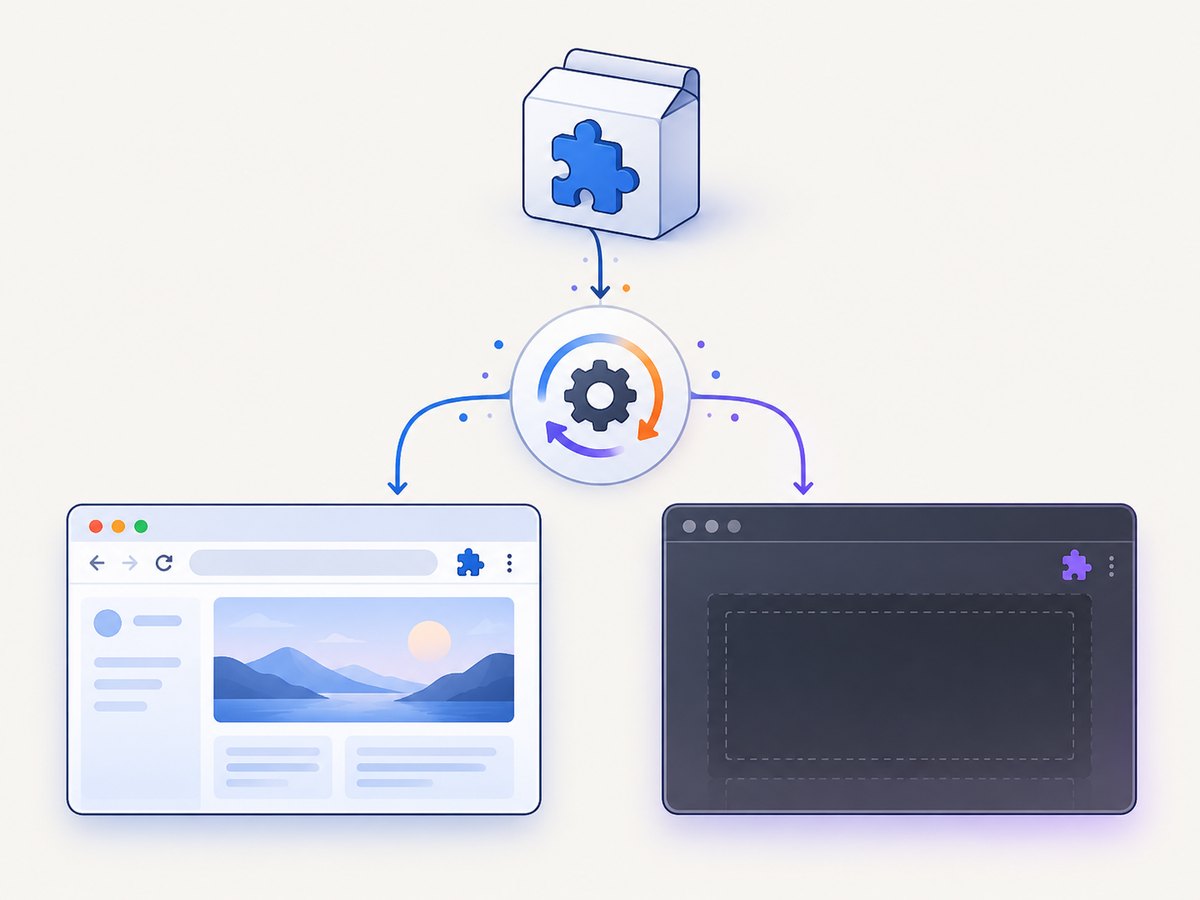
For Playwright, the extension guide describes using its Chromium channel for headless extension testing or running headed. A system Chrome or Edge binary may not accept the same flags in every release. Record the browser version, framework version and launch arguments in CI logs so a failed load can be reproduced.
# Selenium example for new Chrome headless
options.add_argument('--headless=new')
options.add_argument('--load-extension=/absolute/path/my-extension')
Start with headed mode while diagnosing. It lets you inspect the popup, extension pages and browser console. Once the visible flow works, switch to the documented headless mode for your framework and verify the same assertions.
7. Write assertions around user-visible behavior
A useful extension test answers what a user experiences:
- Does the content script change the intended page element?
- Does clicking the toolbar action open the expected popup?
- Does the options page save and display the setting?
- Does a permission or blocked-page state produce a clear message?
- Does the extension recover after navigation, reload and worker restart?
Use stable test attributes instead of CSS classes that exist only for styling. Wait for the result with an explicit timeout. If the extension makes a network request, control the test server response so the test checks extension behavior rather than an unrelated third-party outage.
Direct extension-context inspection still has a place. Use it to diagnose storage, alarms or message routing when no user-visible result can identify the fault. Keep that test separate from the primary user-flow test, because implementation-level assertions are more sensitive to refactoring.
8. Isolation and repeatability checklist
- Create a fresh browser context or profile for each test or tightly related test group.
- Close the page, context and browser in a
finallyblock. - Clear extension storage when a test intentionally shares a profile.
- Use a unique temporary user-data directory for parallel workers.
- Pin or reproduce the browser binary and driver versions in CI.
- Capture browser logs and screenshots on failure.
- Test reloads and new tabs, not only the first page in a fresh browser.
The Puppeteer tutorial warns that reusing one browser across many tests can weaken isolation and let one test affect another. A clean profile costs startup time but prevents state leakage from disguising defects.
9. Troubleshooting common failures
| Symptom | Likely cause | Fix |
|---|---|---|
| “Manifest file is missing” | The path points to a parent directory or source tree without the built manifest. | Pass the exact build output directory containing manifest.json. |
| Extension works headed but not headless | Old headless mode or unsupported browser channel. | Use Chrome’s --headless=new; for Playwright follow its bundled Chromium channel guidance. |
| No service worker target appears | Startup race, wrong URL predicate or a manifest using a different background configuration. | Wait after launch, inspect all targets, and match the actual worker URL. |
| Worker never suspends in Selenium | ChromeDriver’s debugger attachment can keep it alive. | Do not assert automatic shutdown in that test; validate restart behavior in a framework that reproduces it. |
| ChromeDriver session fails immediately | Chrome and ChromeDriver major versions differ. | Install matching versions or use paired Chrome for Testing binaries. |
| Popup test cannot find the popup | The popup is a separate extension page and may close when focus changes. | Listen for a new page or extension target, then interact before changing focus. |
| Tests pass alone but fail in a suite | Shared profile, storage or service-worker state. | Use a new context/profile and deterministic temporary directories per test. |
| Content script does not run on the test URL | Host permissions, match patterns or page security rules do not include the URL. | Use a fixture URL covered by the manifest and inspect extension errors in headed mode. |
10. Performance, reliability and cost
Extension tests spend time in browser startup, extension installation, page navigation and worker initialization. Reusing a browser can reduce startup overhead, but it increases isolation risk. A practical compromise is one fresh persistent context per test file or scenario group, with explicit cleanup and storage reset.
Reduce flakiness by waiting on a real condition rather than a fixed sleep: a selector, a page event, a service-worker event or a controlled network response. Keep fixture pages local when the behavior under test does not require an external site. For external pages, allow for redirects, consent dialogs and slow resources.
Parallel workers need separate user-data directories. Never let two workers mutate one extension profile. Store browser and driver versions with test artifacts so failures remain diagnosable after a CI image changes.
The direct cost is the compute time for browser processes and CI minutes. Packed and unpacked extension loading does not require a commercial screenshot service. If you also need screenshots for visual evidence, failure artifacts or page capture at scale, an API can remove browser setup from that separate workflow.
11. Or skip the browser setup
For a single clean page capture, ScreenshotNeo provides a GET endpoint that returns PNG, JPEG, WebP or PDF. See the ScreenshotNeo API documentation for the current parameters.
cURL
curl -G "https://api.screenshotneo.com/v1/shot" -d access_key=YOUR_API_KEY --data-urlencode url=https://stripe.com -o shot.webpPython
import requests
r = requests.get("https://api.screenshotneo.com/v1/shot", params={"access_key": "YOUR_API_KEY", "url": "https://stripe.com"}, timeout=90)
open("shot.webp", "wb").write(r.content)
Node.js
const q = new URLSearchParams({ access_key: 'YOUR_API_KEY', url: 'https://stripe.com' });
const res = await fetch(`https://api.screenshotneo.com/v1/shot?${q}`);
const data = new Uint8Array(await res.arrayBuffer());
await Bun.write('shot.webp', data);
Cookie and consent banners, newsletter popups and chat widgets are removed before the shot. Bot checks, blank pages and failed loads are never billed, and response headers identify the page verdict and whether it was billed. ScreenshotNeo also has an MCP server with take_screenshot, get_page_info and capture_pdf tools for Claude, Cursor and other MCP clients. The Free plan includes 1,000 screenshots each month without a card; paid plans start at $5 for 3,000.
Create a free ScreenshotNeo account and use the included 1,000 monthly screenshots to capture test evidence or automate page images.
12. Frequently asked questions
Can I load a CRX and an unpacked directory in the same test?
Use one loading mechanism per extension instance. ChromeDriver’s addExtensions is for a packed CRX; the load-extension argument is for an unpacked directory.
Should extension tests always run headless?
No. Develop and diagnose headed, then use the documented new headless mode for your framework and browser channel in CI.
Why does my extension ID change?
The ID can depend on the extension key and packaging. Configure a fixed key or test ID when stable extension URLs are required, as described in Chrome’s end-to-end testing guidance.
How do I test a service-worker restart?
Let the worker become idle where the framework permits it, then reacquire it through a target or service-worker event. Selenium’s debugger attachment can prevent normal stopping, so account for that limitation.
Is visual comparison enough?
Use visual evidence for rendering regressions, but keep functional assertions for actions, permissions, storage and navigation. A screenshot can show the result without proving that the extension handled the underlying state correctly.
13. Source links and version checks
Before publishing or upgrading, verify commands against the current primary documentation: Chrome end-to-end testing, Chrome’s Puppeteer walkthrough, ChromeDriver extension loading, Selenium Chrome support, Playwright Chrome extensions and Chrome automation and testing. Browser flags, framework APIs and headless behavior change over time; pin versions and re-check these pages when your CI image changes.


