Capture Full-Size Screenshots with a Chrome Shortcut
Capture an entire webpage in Chrome with DevTools, including content below the fold, plus fixes for lazy loading, long pages, and failed captures.

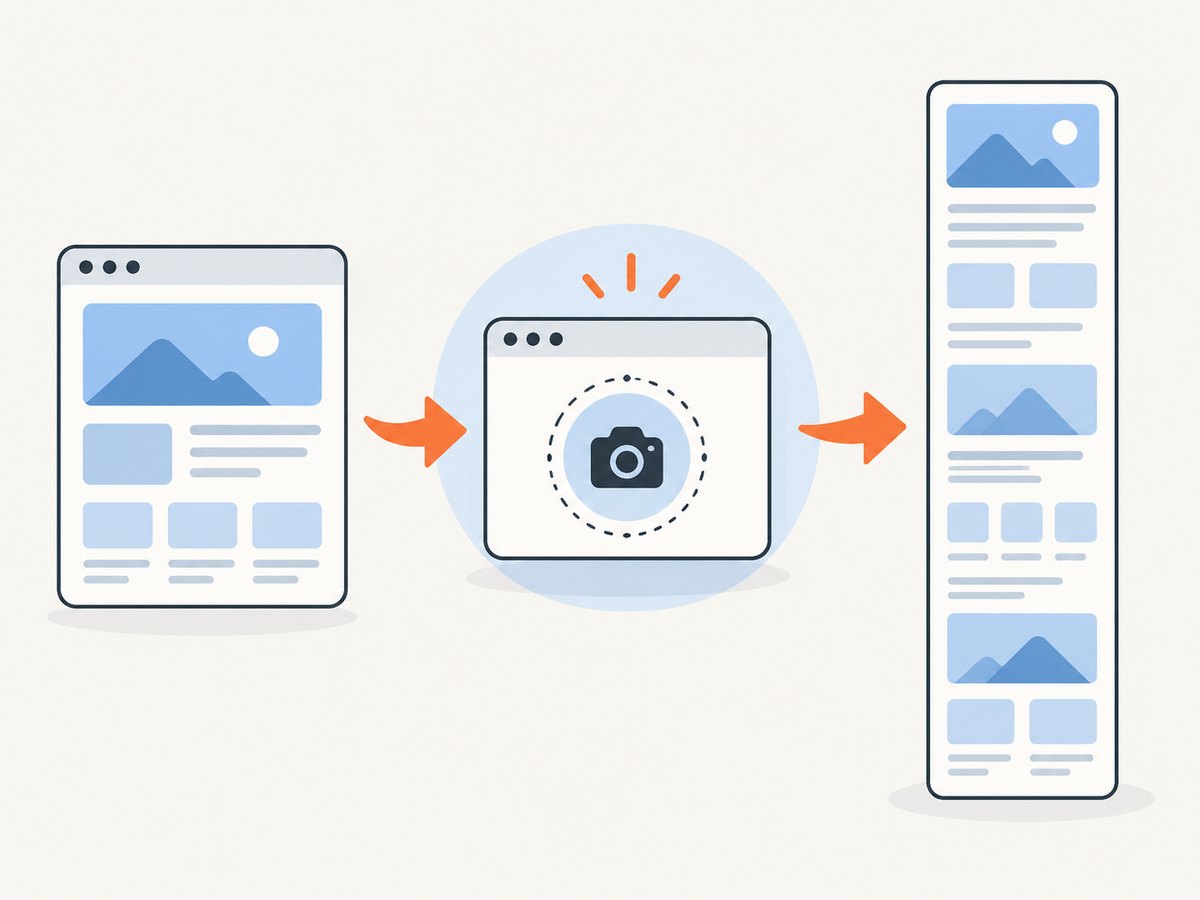
Chrome does not have a single dedicated key for a scrolling screenshot. The built-in shortcut sequence is:
- Open DevTools with F12 or Ctrl+Shift+I on Windows/Linux, or Command+Option+I on macOS.
- Open the DevTools Command Menu with Ctrl+Shift+P on Windows/Linux, or Command+Shift+P on macOS.
- Type
screenshot. - Select Capture full size screenshot.
Chrome saves an image of the whole document, including content below the visible viewport.
Use Chrome’s built-in full-page screenshot
Windows and Linux
- Open the page you want to capture.
- Press F12 or Ctrl+Shift+I.
- Press Ctrl+Shift+P to open the Command Menu.
- Enter
screenshot. - Choose Capture full size screenshot.
macOS
- Open the page in Chrome.
- Press Command+Option+I.
- Press Command+Shift+P.
- Enter
screenshotand choose Capture full size screenshot.
The resulting file is downloaded by Chrome, normally as a PNG. The command captures the full document rather than only the pixels currently visible.
Choose the right screenshot command
| Command | Captures | Use it for |
|---|---|---|
| Capture screenshot | Current viewport | What is visible without scrolling |
| Capture full size screenshot | Entire scrolling document | Long pages and below-the-fold content |
| Capture area screenshot | A selected rectangle | A chart, section, or region |
| Capture node screenshot | The inspected DOM element | A component, table, panel, or card |
To capture an element, inspect it in the Elements panel first, then run the Command Menu and choose Capture node screenshot. For a custom rectangle, choose Capture area screenshot and drag around the region. Chrome documents that area capture does not work while DevTools is undocked, so redock DevTools before using that command.
Make the full-page capture accurate
Wait for lazy content
Full-size capture is based on the document state when the command runs. If images, charts, or product cards load only after scrolling, wait until they appear before taking the screenshot. A page that uses infinite scrolling may not have a finite document height at all; scroll through it first or use a capture method that can wait for a known selector.
Stop animations when they matter
Animated banners, carousels, and video can produce inconsistent frames. Pause the animation, wait for a stable frame, or temporarily disable animation in the page’s own controls. A screenshot is a single instant, so moving content can differ between captures.
Check responsive layout
DevTools device emulation changes the viewport and device scale. Select the viewport size you need before running Capture full size screenshot. If the result wraps differently from the page you viewed normally, exit device emulation and capture again at the intended width.
Close overlays
Cookie dialogs, newsletter forms, chat bubbles, sticky headers, and login prompts are part of the rendered page. Dismiss them before capture when they obscure content. If a dialog returns after navigation or reload, capture only after it has finished appearing and can be closed.
Shortcut and capture troubleshooting
The Command Menu does not open
Make sure DevTools has focus. Click inside DevTools, then press the platform shortcut again. On macOS use Command+Shift+P; on Windows/Linux use Ctrl+Shift+P. Browser extensions or system shortcut managers can also intercept key combinations.
“Capture full size screenshot” is missing
Type screenshot into the Command Menu rather than searching the browser’s address bar. Confirm that DevTools is open and that Chrome is current. If you only need the visible area, Capture screenshot may still be available.
The image stops at the viewport
You probably selected Capture screenshot instead of Capture full size screenshot. Repeat the Command Menu search and select the full-size command explicitly.
Images or sections are blank
Wait for network requests and lazy-loaded assets to finish. Scroll through the page to trigger content that loads on visibility. A blocked third-party request, an expired login session, or a script error can also leave a section empty; fix the page state and capture again.
The page is cut off or the browser becomes unresponsive
Very long documents, huge images, and complex fixed-position effects require more memory to rasterize. Reduce unnecessary tabs, close other DevTools panels, and capture a smaller scope such as a node or area. For extremely long pages, split the document into sections or use an automated capture service that can wait, resize, and return the result without keeping a browser tab open.
The area command will not let me drag
Dock DevTools to the browser window. Chrome’s documented area-capture limitation prevents selection while DevTools is undocked.
The downloaded screenshot looks different from the page
Check viewport width, zoom, device emulation, fonts, logged-in state, geolocation, and color-scheme settings. Capture after the page reaches the same state you want to share. A page can also change between the time it loads and the time the screenshot is taken.
Extension shortcut option
A Chrome Web Store extension such as FullPageShot can capture the entire scrolling height as one PNG and provides a default Ctrl+Shift+Y shortcut on Windows/Linux or Command+Shift+Y on macOS. Its shortcut can be changed at chrome://extensions/shortcuts.
Before installing any extension, review its requested permissions, publisher history, update activity, and whether DevTools already solves the problem. An extension adds another component that can change behavior or require access to pages you visit.
Automating full-page screenshots
Chrome’s shortcut is convenient for occasional captures. Automation needs explicit controls for page readiness, viewport, authentication, cookies, lazy content, retries, file format, and output storage. A browser automation script can open a page, wait for a selector or network idle, and save an image, but it also means maintaining a browser runtime and handling failures.
For repeatable jobs, record these settings:
- Target URL and expected final URL after redirects.
- Viewport width, height, and device scale.
- Whether the capture is full-page, an element, or an area.
- Wait condition: selector, delay, or network idle.
- Cookies, headers, authorization, timezone, and geolocation.
- Whether ads, trackers, chat widgets, and consent dialogs should be blocked or removed.
- Output format and maximum acceptable image dimensions.
Or skip the browser setup
ScreenshotNeo provides a website screenshot API at https://api.screenshotneo.com/v1/shot. It can capture full pages with lazy images loaded, choose a viewport or device preset, use retina scale, wait for a selector, delay, or network idle, and return PNG, JPEG, WebP, or PDF. Cookie and consent banners, newsletter popups, and chat widgets are removed before the shot; each cleanup step can be enabled or disabled.

Bot checks, blank pages, timeouts, failed loads, and cache hits are not billed. The response identifies the result with X-Page-Verdict and X-Billed headers. ScreenshotNeo also supports custom CSS and JavaScript, element capture by CSS selector, click-before-capture actions, hidden selectors, request blocking, custom headers and cookies, authorization, timezone and geolocation, transparent backgrounds, image resizing, selectable cache TTLs, signed image links, asynchronous jobs with signed webhooks, bulk capture for up to 100 URLs per call, a usage API, and an OpenAPI specification. Its MCP server exposes take_screenshot, get_page_info, and capture_pdf to Claude, Cursor, and other MCP clients.
See the ScreenshotNeo documentation for all parameters.
cURL
curl -G "https://api.screenshotneo.com/v1/shot" \
  -d access_key=YOUR_API_KEY \
  --data-urlencode url=https://stripe.com \
  -o shot.webp
Python
import requests

r = requests.get(
    "https://api.screenshotneo.com/v1/shot",
    params={"access_key": "YOUR_API_KEY", "url": "https://stripe.com"},
    timeout=90,
)
r.raise_for_status()
open("shot.webp", "wb").write(r.content)
Node.js
const q = new URLSearchParams({
  access_key: 'YOUR_API_KEY',
  url: 'https://stripe.com'
});
const res = await fetch(`https://api.screenshotneo.com/v1/shot?${q}`);
if (!res.ok) throw new Error(`Screenshot failed: ${res.status}`);
const buffer = Buffer.from(await res.arrayBuffer());
await import('node:fs/promises').then(fs => fs.writeFile('shot.webp', buffer));
ScreenshotNeo has a free plan with 1,000 screenshots per month and no card. Paid plans start at $5 for 3,000 shots; every feature is available on every plan. Create a free ScreenshotNeo account.
Performance, reliability, and cost notes
- Browser shortcut: fastest for a one-off capture because no account or setup is required. Results depend on the current page state, local memory, fonts, extensions, and network.
- Extensions: add a reusable shortcut, but permissions and extension updates become part of your capture workflow.
- Automation: repeatable when you control waits and browser settings, but browser startup, dependencies, and page-specific failures add maintenance.
- ScreenshotNeo: use caching with a TTL when the same URL is captured repeatedly, and use asynchronous jobs or bulk capture for larger workloads. Failed loads, bot checks, blank pages, timeouts, and cache hits are not billed; inspect the verdict and billing headers in your pipeline.
FAQ
Is there a one-key Chrome shortcut for a full-page screenshot?
No dedicated one-key command appears in Chrome’s reviewed shortcut list. Use the DevTools shortcut followed by the Command Menu shortcut and Capture full size screenshot.
Does full-size capture include content below the fold?
Yes. It captures the whole document, including content that is not currently visible in the viewport.
Can I capture only one element?
Yes. Inspect the element and choose Capture node screenshot from the Command Menu.
What format does Chrome save?
Chrome’s built-in screenshot command normally downloads a PNG. Use an API or image conversion step when you need another format.
Why is a scrolling page incomplete?
Content may load only after scrolling, an infinite-scroll feed may not have a final height, or the page may have failed requests. Trigger the content first or use a capture workflow with explicit waits.


