Why Chrome Full-Size Screenshots Fail and How to Fix Them
Fix viewport-only and incomplete Chrome screenshots by checking the capture workflow, Chrome version, and page behavior. Includes DevTools and CDP steps.
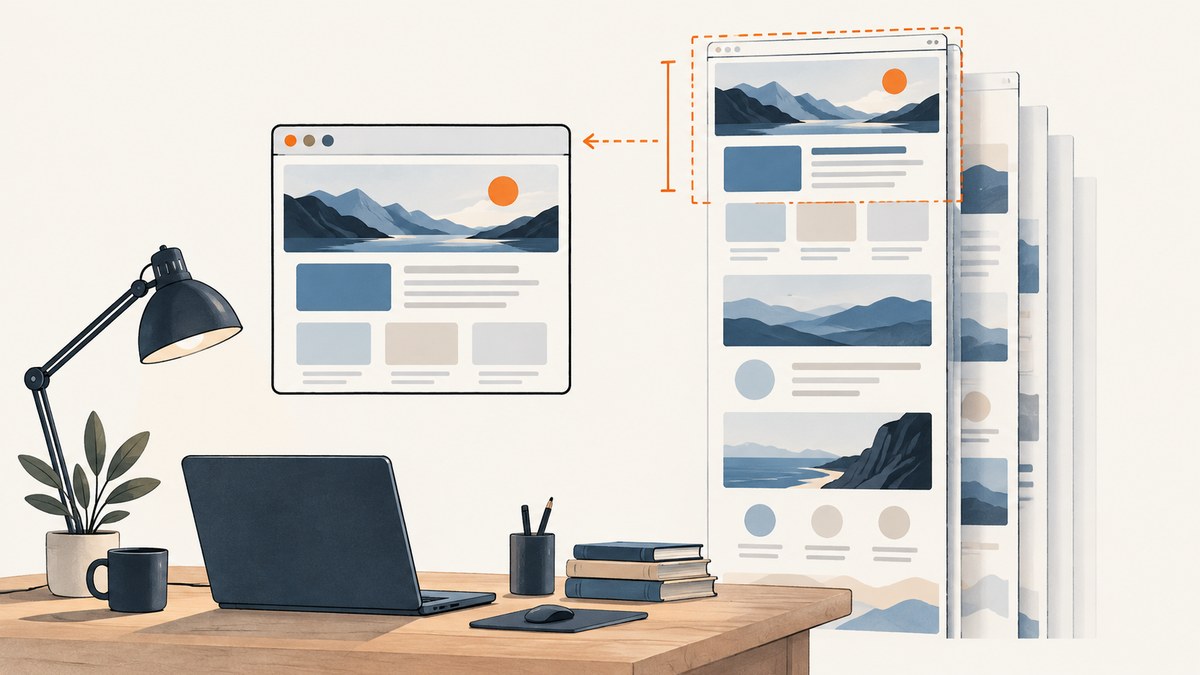
If a Chrome screenshot shows only the visible window, misses lower content, looks inconsistent, or leaves the page in a strange state, first identify how it was captured. DevTools’ ordinary screenshot command captures the viewport; its separate Capture a full size screenshot command captures beyond it. For automation, check the Chrome DevTools Protocol (CDP) call and its captureBeyondViewport setting. Then record your Chrome version and reproduce the problem on a simple page before blaming a particular page feature.
This guide covers the DevTools interface and a runnable CDP example, followed by a repeatable diagnosis process for page-specific and version-specific issues. Chrome’s documentation confirms the UI distinction and CDP parameter, but it does not give a universal cause list for every incomplete capture. Treat possible factors such as lazy content, frames, sticky elements, and very tall pages as leads to investigate, not established causes.
1. Choose the full-size capture command in DevTools
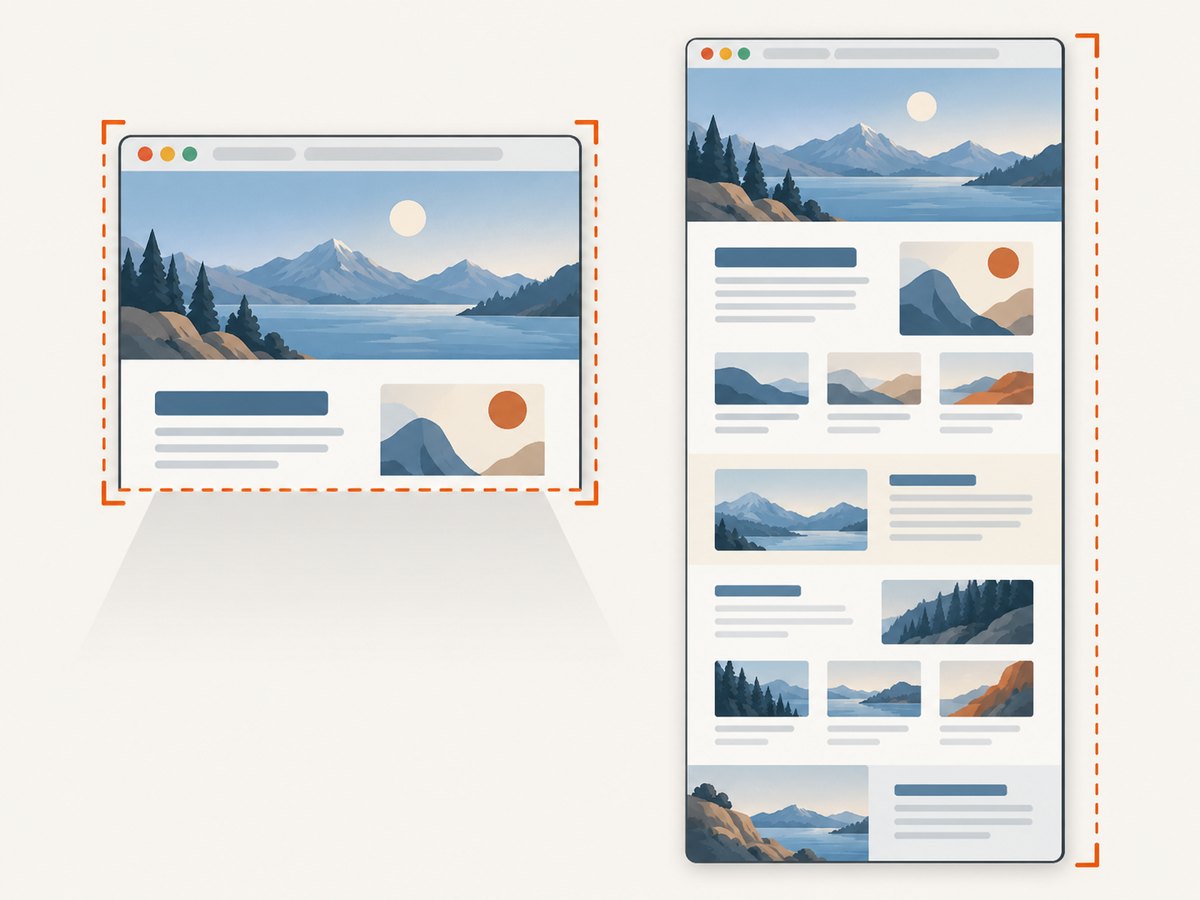
In Chrome DevTools, Device Mode has two different screenshot actions. Capture screenshot takes an image of the visible viewport. Capture a full size screenshot includes page content beyond that viewport. If your file is exactly the size of the visible browser area, confirm you used the second action. See the official Chrome Device Mode documentation.
- Open the page in Chrome and open DevTools.
- Turn on Device Mode using the device toolbar control.
- Open the Device Mode More options menu.
- Select Capture a full size screenshot.
- Open the saved file and check that it includes content below the initial viewport.
For a screenshot of just one element, use the Elements panel’s node screenshot capability. That is a different task from capturing the entire document. Chrome’s historical DevTools 89 release notes describe node screenshots capturing a full node, including below-the-fold content, and note a precision improvement at that time. That history is useful context, not a guarantee about every page or current Chrome build.
2. If you automate Chrome, inspect the CDP request
CDP’s Page.captureScreenshot method accepts captureBeyondViewport, which tells Chrome to capture beyond the viewport. The protocol reference documents its default as false. If your automation omits this option, do not assume that it requested a full-page image. Check the Page domain protocol reference and the protocol version supported by the Chrome build you are actually launching.
Here is a runnable Node.js example using the chrome-remote-interface package. It connects to an already running Chrome instance with remote debugging enabled, requests beyond-viewport capture, and writes the returned PNG data to disk.
const CDP = require('chrome-remote-interface');
const fs = require('node:fs/promises');

async function main() {
  const client = await CDP();
  const { Page, Runtime } = client;

  try {
    await Page.enable();
    await Page.navigate({ url: 'https://example.com' });
    await Page.loadEventFired();

    // The protocol documents captureBeyondViewport as false by default.
    const result = await Page.captureScreenshot({
      format: 'png',
      captureBeyondViewport: true
    });

    await fs.writeFile('full-page.png', Buffer.from(result.data, 'base64'));
    console.log('Saved full-page.png');
  } finally {
    await client.close();
  }
}

main().catch((error) => {
  console.error(error);
  process.exitCode = 1;
});
Install the dependency with npm install chrome-remote-interface. Start Chrome with remote debugging enabled in the environment where this script runs, then run the script. Keep the browser startup configuration and debugging endpoint private to your own environment; this example assumes the package can connect to the local Chrome debugging endpoint. For production automation, also decide how your caller waits for the page to become ready. A load event means the browser fired that event; it does not prove that every application-driven update or deferred asset has finished.
The CDP parameter addresses capture beyond the viewport. It does not promise that every dynamic page has finished rendering, nor does it establish why a specific page has missing content. Record the exact parameters, dimensions, Chrome build, and resulting image so another run can be compared.
3. Diagnose the failure one variable at a time
- Name the capture path. Record whether you used the DevTools UI or automation. In the UI, verify the full-size command. In automation, record the CDP method and arguments, especially
captureBeyondViewport. - Record the Chrome version and symptom. Say whether the output is viewport-only, has missing regions, looks visually inconsistent, or captures successfully but leaves the page or emulation state broken afterward.
- Repeat on a simple static page. Use a basic page with known content above and below the fold. If that works while the target does not, the result narrows the investigation toward page behavior or rendering state; it does not identify a specific cause by itself.
- Change one condition at a time. Compare the same target page and capture settings while varying one factor, such as waiting for a known selector, using a different viewport, or disabling a suspected page interaction. Keep notes so the result is reproducible.
- Check protocol support. The linked CDP page is a rolling “tot” reference. Confirm the target Chrome build supports the options you use rather than assuming all versions behave identically.
- Check the page after capture. If the viewport or device emulation appears broken, restore the expected emulation settings or reload. Compare the Chrome version and release notes before attributing the symptom to a known regression.
Potential page-specific leads include content loaded after the initial page event, lazy-loaded regions, fixed or sticky elements, frames, unusually tall documents, and resource limits. The available official sources do not establish these as a complete or universal list of Chrome failures. Test each suspected factor and describe it as a hypothesis until you can reproduce it.
4. Common symptoms, causes to check, and fixes
| Symptom | First thing to check | Practical next step |
|---|---|---|
| Image contains only the visible screen | Viewport capture was selected, or automation did not request beyond-viewport capture. | Use DevTools’ full-size command or inspect captureBeyondViewport in the CDP arguments. |
| Lower content is absent or stale | The capture may have happened before page content was ready; the exact cause is page-dependent. | Wait for a relevant selector or known application state, repeat, and compare with a static page. |
| Layout differs from what is expected | Viewport, device emulation, page state, and capture dimensions may differ from the intended setup. | Record dimensions and emulation settings, then reproduce with a controlled setup. |
| Capture works but the viewport is left in a bad state | Check Chrome version and whether the symptom matches a version-specific issue. | Restore device settings or reload; compare with the DevTools release notes for your version. |
| Automation rejects an option or behaves differently across machines | The target Chrome build’s protocol support may differ. | Check the build and its supported protocol; include the exact request and Chrome version in a bug report. |
| Very tall page capture fails or is impractical | Document height and available resources are useful variables to investigate; do not assume a universal height limit. | Reproduce with a shorter page and compare. If the full document is not required, consider capturing a specific element or dividing the work into meaningful sections. |
5. Account for Chrome version-specific behavior
Version matters because screenshot behavior can have regressions. Chrome DevTools 148 release notes report an Emulation fix for a long-standing issue where full-page screenshots could occasionally leave the viewport in a “leaked” or broken state. This confirms that particular version-specific regression; it does not show that every broken viewport after capture has the same cause. Check the Chrome DevTools 148 release notes alongside the exact symptom and version.
When reporting a failure, include the Chrome version, operating system, capture path, CDP parameters if applicable, page URL or a safe reproduction, viewport dimensions, whether the result is incomplete, and whether the viewport is affected afterward. A reproducible comparison across versions is more useful than a screenshot alone.
6. Performance, reliability, and cost considerations
Full-page capture produces more image content than a viewport capture, so document length and output dimensions are sensible variables when diagnosing slow or resource-heavy runs. The cited Chrome documentation does not publish a universal size limit or failure rate, so avoid assuming a fixed threshold. Measure the dimensions and duration in your own workload and keep the test page and browser build constant when comparing changes.
For reliability, make the capture state explicit: browser version, viewport, emulation mode, navigation readiness condition, and screenshot parameters. If a job fails, distinguish navigation failure, readiness timeout, protocol error, and image validation failure in your own logs. Retry only after collecting enough detail to tell whether the problem is transient or repeatable; otherwise repeated attempts can hide a consistent page-specific issue.
Running Chrome yourself means accounting for browser installation, process management, concurrency, and the compute and storage used by your workload. The cost depends on your infrastructure and capture volume; the cited Chrome sources provide no pricing figures. If setup and ongoing browser management are the main burden, a screenshot API can move that work behind a request. The next section gives one option and its stated pricing.
7. Or skip the browser setup
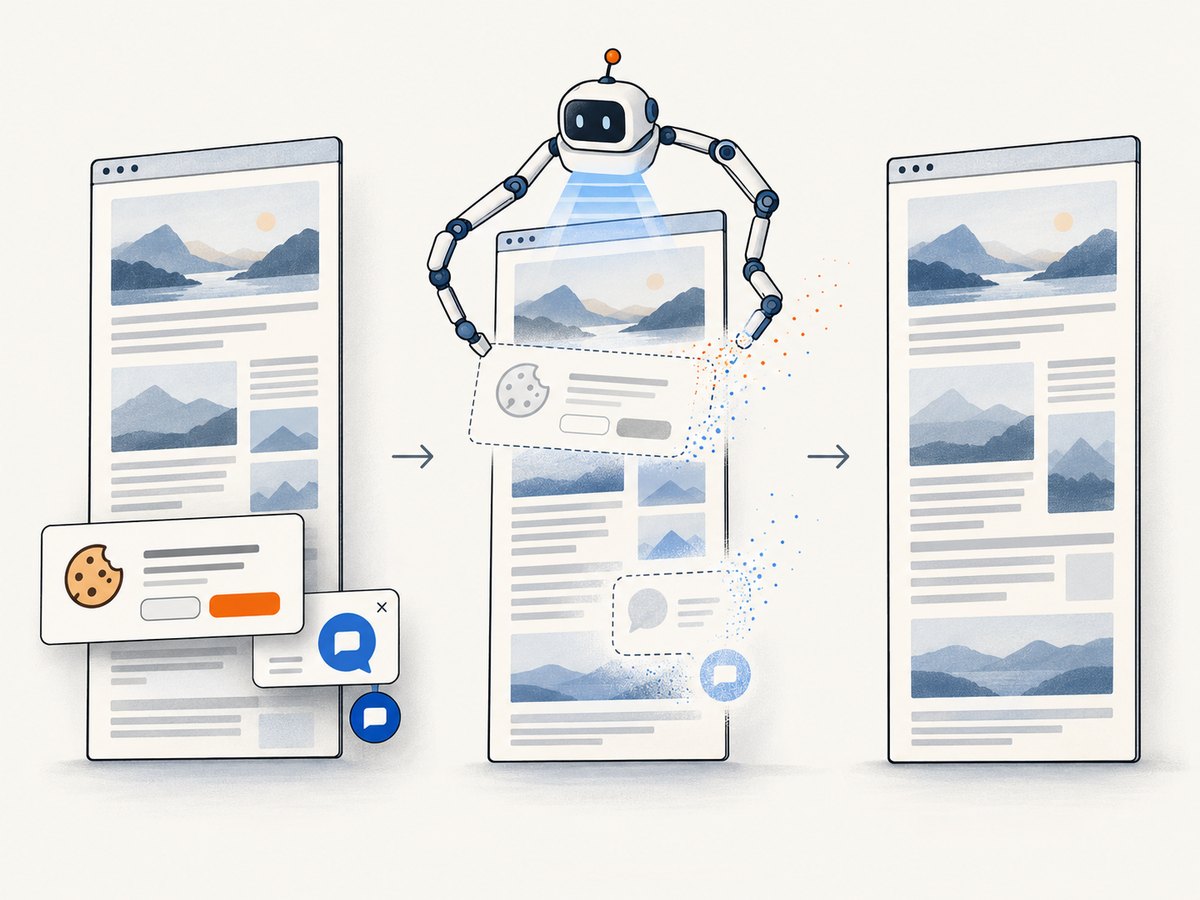
ScreenshotNeo is a website screenshot API and MCP server. One GET request with a URL returns a PNG, JPEG, WebP, or PDF. Its capture flow accepts cookie or consent banners like a visitor and removes 60+ known consent platforms, newsletter popups, and chat widgets; each step can be turned off. Bot checks or CAPTCHAs, blank pages, timeouts, failed loads, and cache hits are not billed as clean shots, and the response identifies outcomes with X-Page-Verdict and X-Billed headers. Its MCP server offers take_screenshot, get_page_info, and capture_pdf for Claude, Cursor, and other MCP clients.
For the DIY path, first make sure DevTools or CDP is configured for a full-page capture. If you instead want a managed request, this cURL example saves a WebP shot:
curl -G "https://api.screenshotneo.com/v1/shot" -d access_key=YOUR_API_KEY --data-urlencode url=https://stripe.com -o shot.webpThe same endpoint can be called from Python or Node.js. See the ScreenshotNeo API documentation for request options and setup.
import requests

r = requests.get(
    "https://api.screenshotneo.com/v1/shot",
    params={"access_key": "YOUR_API_KEY", "url": "https://stripe.com"},
    timeout=90,
)
open("shot.webp", "wb").write(r.content)
const q = new URLSearchParams({ access_key: 'YOUR_API_KEY', url: 'https://stripe.com' });
const res = await fetch(`https://api.screenshotneo.com/v1/shot?${q}`);
if (!res.ok) throw new Error(`Screenshot request failed: ${res.status}`);
const fs = await import('node:fs/promises');
await fs.writeFile('shot.webp', Buffer.from(await res.arrayBuffer()));ScreenshotNeo also supports full-page capture with lazy images loaded, element capture by CSS selector, device and viewport settings, retina scale, custom CSS and JavaScript, selector or delay waits, request blocking, cookies and headers, caching with a chosen TTL, async jobs, bulk capture of up to 100 URLs per call, and signed links for public image tags. It has 63 options; every feature is on every plan. The parameter names used by other screenshot APIs also work, which can make switching simpler.
- Cookie banners, popups, and chat widgets are removed before the shot.
- Bot checks, blank pages, and failed loads are never billed.
- An MCP server lets AI agents take screenshots.
- 1,000 screenshots a month are free with no card; paid plans start at $5 for 3,000. Other monthly plans are Growth $15 for 15,000, Pro $39 for 60,000, Scale $99 for 250,000, and Business $249 for 1,000,000. Yearly billing gives two months free.
Create a free ScreenshotNeo account for 1,000 screenshots a month with no card required.
8. Frequently asked questions
Does full-size mean full-page?
In the DevTools Device Mode workflow, the command is named Capture a full size screenshot and is distinct from the viewport-only screenshot. For automation, check that the method and parameters request beyond-viewport capture.
Why does my script work on one Chrome version but not another?
Chrome and its supported protocol can vary by build. Record the exact version, inspect the target build’s supported protocol, and compare a controlled reproduction. A rolling protocol reference alone does not establish support in every installed version.
Can I assume a blank area means Chrome failed?
No. The image alone may not distinguish a capture problem from page content that had not rendered or loaded as expected. Reproduce on a static page and inspect the target page’s state at capture time.
Did Chrome fix every full-page screenshot problem in version 148?
No. The release notes describe a specific Emulation fix for a viewport-state regression. They do not claim to fix every incomplete capture or identify the cause of other symptoms.


