Why Chrome Headless Fails to Load Iframe JSON-LD Content
Headless Chrome may finish navigation before an iframe’s JSON-LD exists. Find the right frame, wait for its data, and inspect the browser’s requests and errors.
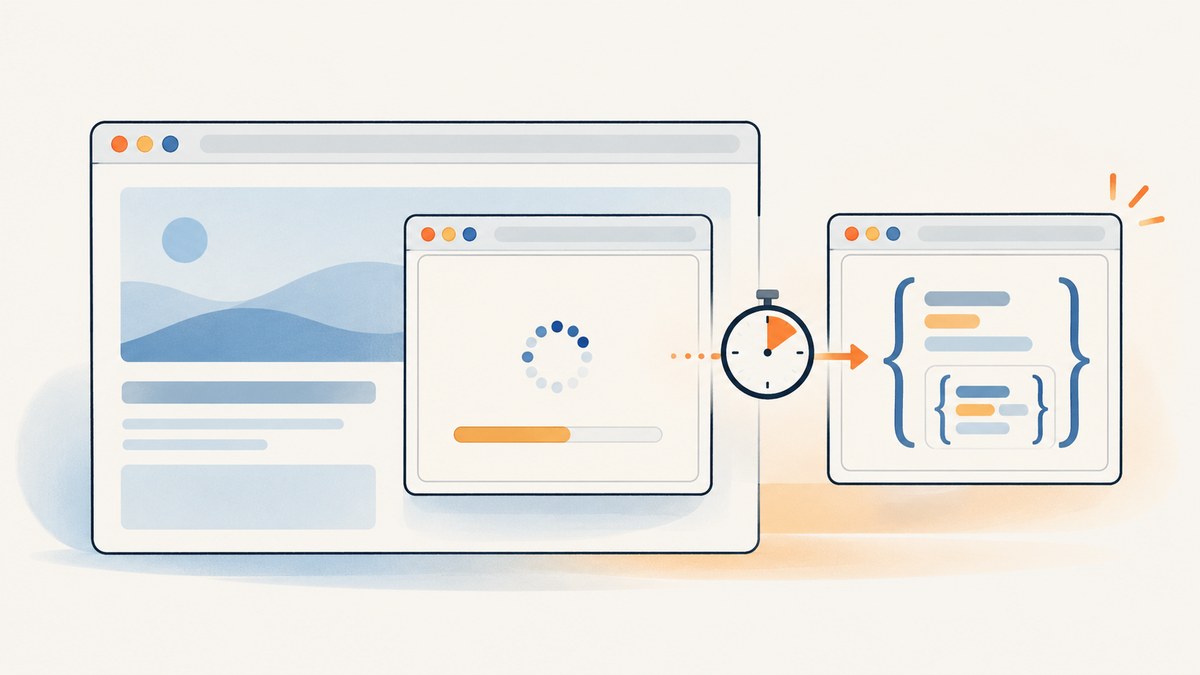
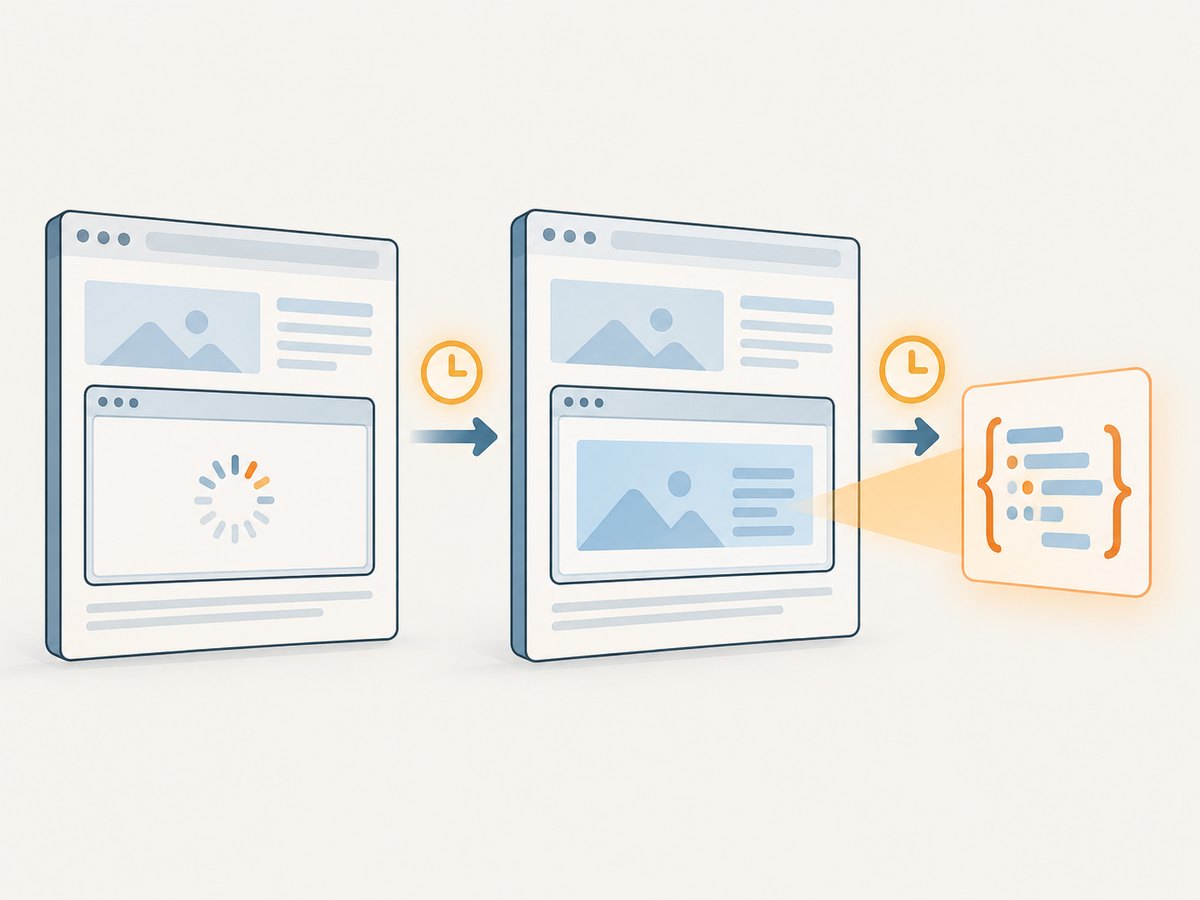
Chrome Headless usually appears to “miss” iframe JSON-LD because a script waits for top-level navigation completion, then reads the top-level document before the iframe has loaded or before JavaScript has inserted the JSON-LD. Wait for the specific frame and for a concrete condition inside that frame, then read its script[type="application/ld+json"] element. If that still fails, inspect the frame URL, request failures, console errors, and exact Chrome binary/version; without the target URL and trace, no single cause can be confirmed.
document.readyState === "complete" describes the top-level document’s loading lifecycle. It does not guarantee that asynchronous work has populated another browsing context. Selenium explicitly documents that JavaScript can change a page after the ready state is reached. Selenium waiting strategies; Puppeteer offers frame-specific waits such as Page.waitForFrame and Frame.waitForFunction.
1. Confirm where the JSON-LD lives
Start by identifying whether the data is in the initial response, the rendered top-level DOM, or a child frame. “JSON-LD on the page” can mean different documents: a script[type="application/ld+json"] in the outer document, a script in an iframe, or JSON returned by a request that page code later uses to create a script. A selector evaluated against page or document only searches that document; it does not recursively search child-frame documents.
- Record the exact page URL and the iframe’s expected URL or a stable part of it. If the page has multiple frames, prefer an expected URL, frame name, or iframe selector rather than taking the first child frame.
- Inspect the initial HTML response and the browser-rendered DOM. If the initial response lacks the frame or script, that may be expected for a JavaScript-rendered page.
- Inspect the selected frame’s URL and lifecycle. Confirm it is attached and has not navigated or been replaced while your code was waiting.
- Inside the target frame, wait for the actual JSON-LD script or for a parsed-data predicate that matches the next operation.
- Only then extract and parse the script text. Validate the resulting JSON separately from finding the script element.
Do not assume a cross-origin problem merely because an iframe is involved. Automation libraries can evaluate in a frame context, but the actual frame topology, sandboxing, navigation and browser policy must be inspected on the target page.
2. Runnable Puppeteer example (Node.js)
This example waits for a frame whose URL matches a known fragment, waits inside that frame for a JSON-LD script, and parses its text. Replace the two example URLs and the frame URL fragment with values from the page under investigation.
import puppeteer from 'puppeteer';

const targetUrl = 'https://example.com/page';
const frameUrlPart = '/embedded-content';

const browser = await puppeteer.launch({
  headless: true, // use headless: false for a controlled headful comparison
});
try {
  const page = await browser.newPage();

  page.on('console', message => console.log('PAGE CONSOLE:', message.type(), message.text()));
  page.on('pageerror', error => console.error('PAGE ERROR:', error.message));
  page.on('requestfailed', request => {
    console.error('REQUEST FAILED:', request.url(), request.failure()?.errorText);
  });
  page.on('response', response => {
    if (response.status() >= 400) {
      console.error('HTTP ERROR:', response.status(), response.url());
    }
  });

  await page.goto(targetUrl, { waitUntil: 'domcontentloaded', timeout: 45000 });

  const frame = await page.waitForFrame(
    candidate => candidate.url().includes(frameUrlPart),
    { timeout: 20000 },
  );

  await frame.waitForFunction(
    () => [...document.querySelectorAll('script[type="application/ld+json"]')]
      .some(script => script.textContent?.trim()),
    { timeout: 20000 },
  );

  const jsonLdTexts = await frame.$$eval(
    'script[type="application/ld+json"]',
    scripts => scripts.map(script => script.textContent.trim()).filter(Boolean),
  );

  const jsonLd = jsonLdTexts.map((text, index) => {
    try {
      return JSON.parse(text);
    } catch (error) {
      throw new Error(`Invalid JSON-LD script #${index + 1}: ${error.message}`);
    }
  });

  console.log(JSON.stringify({
    topLevelUrl: page.url(),
    frameUrl: frame.url(),
    jsonLd,
  }, null, 2));
} finally {
  await browser.close();
}
domcontentloaded keeps the initial navigation wait distinct from the frame/data waits. You can use waitUntil: 'load' if your next step requires the main document’s load event, but neither event should substitute for the frame’s data condition. Puppeteer’s function wait accepts a timeout and polling behavior; DOM-backed conditions usually work well with the default animation-frame polling, while a mutation polling mode can be useful for DOM changes. See Puppeteer’s wait options.
When the frame URL is not stable
Use the iframe element’s stable attributes and verify its content frame instead of matching a transient URL. With Puppeteer, enumerate page.frames() and log each frame.url() during diagnosis. For a frame that appears after startup, use page.waitForFrame(predicate). If the target frame is nested, identify the parent and child separately. Treat a frame navigation as a lifecycle change and reacquire the matching frame if the original one is detached.
3. Runnable Selenium example (Python)
Selenium’s navigation waits do not mean that client-side rendering has ended. Use an explicit wait to locate the iframe, switch into it, and wait for the JSON-LD script. This example uses Chrome’s headless mode and prints each matching script as parsed JSON.
import json
from selenium import webdriver
from selenium.webdriver.chrome.options import Options
from selenium.webdriver.common.by import By
from selenium.webdriver.support import expected_conditions as EC
from selenium.webdriver.support.ui import WebDriverWait

TARGET_URL = "https://example.com/page"
FRAME_SELECTOR = "iframe[data-content]"
TIMEOUT = 25

options = Options()
options.add_argument("--headless")
driver = webdriver.Chrome(options=options)

try:
    driver.get(TARGET_URL)
    wait = WebDriverWait(driver, TIMEOUT)

    frame_element = wait.until(
        EC.presence_of_element_located((By.CSS_SELECTOR, FRAME_SELECTOR))
    )
    wait.until(EC.frame_to_be_available_and_switch_to_it(frame_element))

    scripts = wait.until(lambda d: d.find_elements(
        By.CSS_SELECTOR, 'script[type="application/ld+json"]'
    ))
    wait.until(lambda d: any(
        script.get_attribute("textContent").strip() for script in scripts
    ))

    scripts = driver.find_elements(
        By.CSS_SELECTOR, 'script[type="application/ld+json"]'
    )
    results = []
    for index, script in enumerate(scripts, start=1):
        text = script.get_attribute("textContent").strip()
        if text:
            try:
                results.append(json.loads(text))
            except json.JSONDecodeError as exc:
                raise RuntimeError(
                    f"JSON-LD script #{index} is not valid JSON: {exc}"
                ) from exc

    print(json.dumps(results, indent=2))
finally:
    driver.quit()
To return to the top-level document after reading the iframe, call driver.switch_to.default_content(). For nested frames, switch one level at a time and wait for each frame to become available. If several iframes match, select the intended one using a stable attribute or inspect each candidate’s src before switching. Selenium wait conditions are documented at Waiting Strategies.
4. Minimal Chrome command-line diagnostics
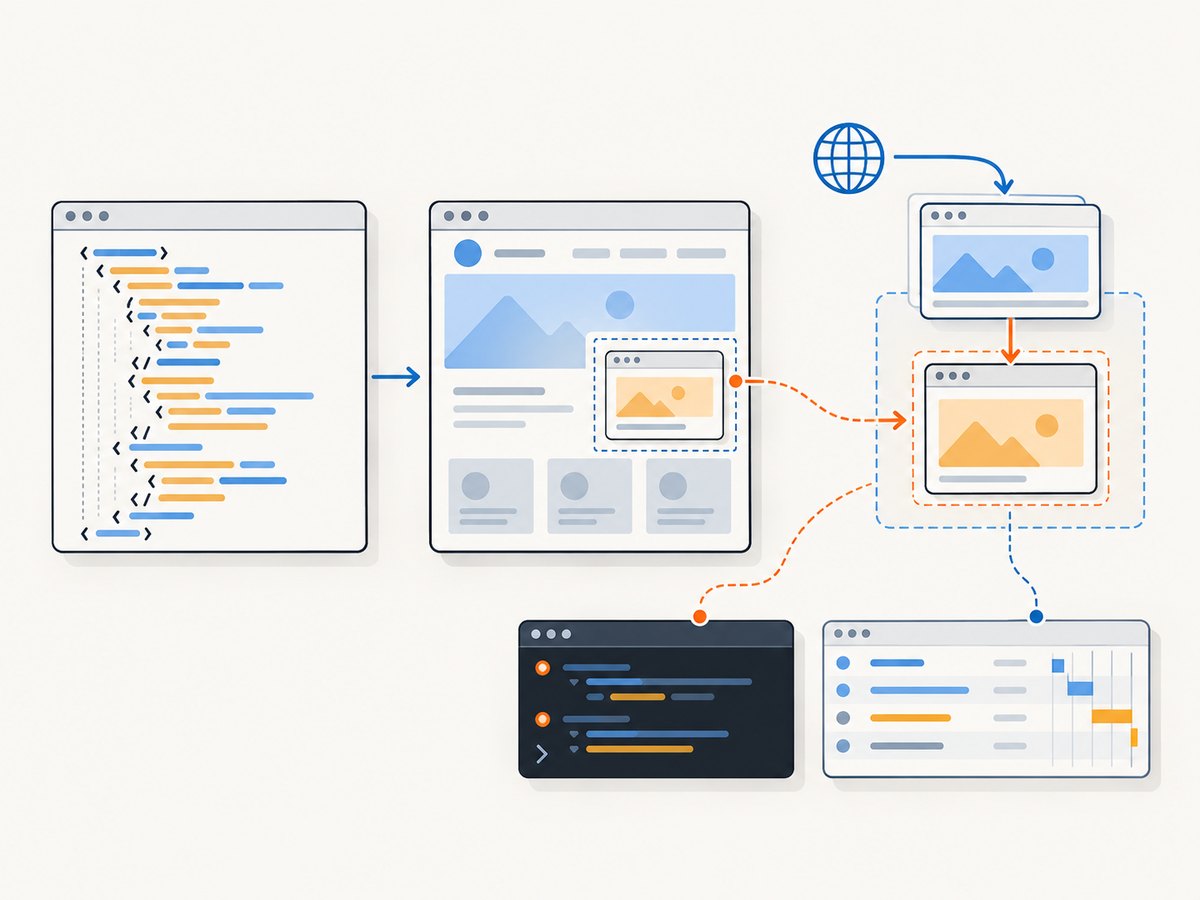
First compare the HTTP response with the DOM Chrome produces after script execution. --dump-dom serializes the rendered top-level DOM; it is not equivalent to downloading the source with cURL. A top-level dump does not necessarily expose a child frame’s separate document, so use browser automation to inspect that frame.
# Initial response HTML (does not execute page JavaScript)
curl -L --fail --show-error 'https://example.com/page' -o response.html

# Chrome-rendered top-level DOM (executes scripts before serializing)
chrome --headless --dump-dom 'https://example.com/page' > rendered.html

# Record the exact browser executable/version used for both runs
which chrome
chrome --version
Chrome documents that --dump-dom parses the HTML, executes scripts that alter the DOM, then serializes the resulting DOM. See Chrome Headless command-line reference. Use cURL only as a comparison of the server response; it cannot evaluate an iframe’s JavaScript or inspect its live DOM.
5. Diagnose the failure by evidence
| Observation | Likely interpretation | Next check |
|---|---|---|
Frame is absent from page.frames() and no iframe element appears |
The outer page may not have inserted it, or the outer script/request may have failed. | Check top-level console errors, response status, and the request that should create the frame. |
| Iframe element exists, but no matching frame appears | Its navigation may be pending, blocked, invalid, or still using an initial/about:blank document. | Inspect src, frame URL changes, request failures, and relevant response headers/status. |
| Frame exists but its URL is not the expected one | The selector may have found the wrong frame, or the site may redirect/use a different endpoint. | Log all frame URLs and identify the intended iframe using stable page-specific evidence. |
| Frame loads, but the script is missing | The JSON-LD may be added later, rendered in another frame, returned by a failed request, or absent for that page. | Wait for the actual data condition and inspect frame console/network events. |
| Script exists but JSON parsing fails | The script text may be malformed, empty, templated, or contain more than one JSON-LD representation. | Save the exact text, report the parse location, and validate each script independently. |
| Headful works, headless fails | Mode is one variable; the comparison may also differ in binary, version, arguments, profile, cookies, or network. | Repeat with the same executable, version, arguments, URL, and clean/known profile; compare requests and errors. |
In Chrome DevTools, inspect the Network panel for the iframe document and data requests, including status, response, initiator and timing; the panel reports failed requests and CORS errors. Inspect Console output at the same time. Puppeteer’s listeners in the example capture page console messages, uncaught page errors, failed requests and HTTP error responses. A wait timeout tells you the desired condition was not observed before the deadline; it does not tell you why.
6. Headless mode, versions, and environment
Current Chrome Headless is unified with regular Chrome. Chrome 132.0.6793.0 and later no longer include the old Headless implementation inside the Chrome binary; that implementation is available separately as chrome-headless-shell. Puppeteer distinguishes headless: true (current Chrome Headless), headless: 'shell' (Headless Shell), and headless: false (visible Chrome). See Chrome Headless mode.
Record these values for every reproduction: executable path, browser version, automation-library version, headless setting, launch arguments, operating system/container image, proxy/network settings, viewport, cookies/profile state, and target URL. If only Headless appears to fail, compare headful and headless runs with the same binary and configuration. A difference between modes is a useful clue, not proof that Headless itself caused the missing data.
7. Common errors and fixes
| Error or symptom | Cause to check | Fix |
|---|---|---|
| “No element found” for a JSON-LD selector | Selector was run in the top document, before the frame/data existed, or against the wrong frame. | Wait for the intended frame, switch/evaluate in that frame, then wait for the script. |
| Puppeteer frame wait times out | Predicate does not match the actual URL, frame never attaches, or it is replaced during navigation. | Log all frame URLs and attach/detach/navigation events; loosen only the predicate evidence supports, then reacquire the frame. |
| Selenium reports stale element | The page replaced the iframe or script node after the reference was captured. | Wait for the frame again and re-query script elements after readiness; avoid retaining stale nodes across navigation. |
| Wait times out despite a successful top-level load | The wait targets a data condition not yet met, or requests/scripts failed. | Increase timeout only after checking timing; inspect network and console, and make the wait predicate match the actual schema/content. |
| JSON parser error | The selected script is empty or not valid JSON, or a different script type was selected. | Print the exact script text and parse each matching JSON-LD element separately; do not silently discard malformed data. |
| Differences between local and CI | Different Chrome builds, dependencies, proxy/DNS, certificates, resource blocking, or cookies. | Pin and log the browser, use equivalent network/profile conditions, and compare failed requests and console output. |
| “Old Headless” flag no longer behaves as expected | Old Headless was removed from the Chrome binary starting at version 132. | Use current --headless/headless: true, or intentionally run the separate chrome-headless-shell binary. |
8. Performance, reliability, and cost
Waiting for a specific frame and data predicate is generally more efficient and dependable than sleeping for a large fixed duration: it can proceed as soon as the condition is true and still has a bounded timeout. Choose a timeout that reflects the target and your job’s latency budget, and log the elapsed time and last observed frame state on failure. Avoid treating network idle as a universal readiness signal: analytics, polling, streaming, or long-lived requests may keep a page active, while a quiet network does not prove the desired JSON-LD exists.
Browser startup, navigation, scripts, and third-party requests dominate work for a one-off capture. For a batch worker, reuse a browser process where appropriate, create isolated pages/contexts for jobs, close pages, and cap concurrency to the machine’s memory and network capacity. Do not disable security features or ignore certificate failures to make a page appear to load; that can change the behavior being diagnosed. For reproducibility, preserve the failed URL, frame URLs, script count/text when safe, browser versions, relevant response statuses, console errors, and a trace or HAR where available.
Self-hosted automation cost depends on compute, browser memory, network egress, retries, and how long waits hold workers; there is no single cost figure implied by this diagnosis. A retry is useful for transient infrastructure failures, but retry only after recording the first failure and keep a bounded retry policy. For screenshot-only workflows, an API may remove browser deployment and upkeep from the job.
9. Or skip the browser setup
ScreenshotNeo is a website screenshot API and MCP server for developers. If the task is to capture a page rather than debug its frame’s structured data, call its screenshot endpoint directly; see the ScreenshotNeo API documentation for request options.
curl -G "https://api.screenshotneo.com/v1/shot" -d access_key=YOUR_API_KEY --data-urlencode url=https://example.com/page -o shot.webpimport requests
r = requests.get("https://api.screenshotneo.com/v1/shot", params={"access_key": "YOUR_API_KEY", "url": "https://example.com/page"}, timeout=90)
open("shot.webp", "wb").write(r.content)const q = new URLSearchParams({ access_key: 'YOUR_API_KEY', url: 'https://example.com/page' });
const res = await fetch(`https://api.screenshotneo.com/v1/shot?${q}`);In this how-to, it can replace the browser setup for the screenshot step: cookie banners, popups and chat widgets are removed before the shot; bot checks, blank pages and failed loads are never billed; an MCP server lets AI agents take screenshots; 1,000 screenshots a month are free with no card and paid plans start at $5 for 3,000. ScreenshotNeo returns image formats or PDF and offers options such as full-page capture, element capture, device/viewport settings, custom CSS/JavaScript, waits, caching, async jobs and bulk capture. It does not extract or validate iframe JSON-LD, so keep the browser workflow above when structured data is the output you need.
Sign up for ScreenshotNeo’s free plan: 1,000 screenshots per month, no card required.
10. FAQ
Can cURL retrieve JSON-LD from an iframe?
It can retrieve the iframe’s HTTP response if you know its URL, but it does not run the page’s JavaScript or discover a dynamically assigned iframe URL. Use a browser when the page constructs or populates the frame at runtime.
Does a cross-origin iframe prevent automation from reading it?
Do not infer that from the symptom alone. Identify the frame and test evaluation in that frame with your actual browser and automation setup; record the frame URL and any browser error before deciding which access boundary applies.
Should I wait for networkidle?
Only if that state matches the site’s behavior. A concrete condition in the target frame is stronger evidence that the JSON-LD you need is ready.
Can ScreenshotNeo return the iframe’s JSON-LD?
No. ScreenshotNeo’s API is for visual screenshots and PDFs; use Puppeteer or Selenium when you need to inspect or parse structured data.


