How to Start Chrome Headless in Incognito Mode
Launch Chrome without a visible window and in an isolated Incognito context on Linux, macOS, and Windows, with flags for screenshots, PDFs, debugging, and automation.
Direct answer: start Chrome with both switches on the same command:
chrome --headless --incognito https://example.comThe executable may be named google-chrome, chrome, chromium, or another installed Chrome/Chromium binary. --headless runs without a visible user interface, while --incognito launches the browser directly in an Incognito browsing context. Replace the URL with the page you need to inspect, render, dump, or capture.
Chrome’s current unified Headless mode is the best default. Use --headless=new when a pinned automation environment requires the explicit newer implementation. Do not depend on --headless=old: the old Headless implementation was removed from the Chrome binary in M132 and is now distributed separately as chrome-headless-shell.
Launch commands by operating system
Linux
# Google Chrome
 google-chrome --headless --incognito https://example.com

# Chromium, if that is the installed binary
 chromium --headless --incognito https://example.com
On servers, the binary may be installed at a versioned path such as /usr/bin/google-chrome-stable. Find the executable with command -v google-chrome, command -v chromium, or your distribution’s package tools.
macOS
open -a "Google Chrome" --args --headless --incognito https://example.comThe open command asks macOS to launch the installed application and passes the remaining arguments to Chrome. If several Chrome installations exist, use the application path explicitly or invoke the binary inside the application bundle.
Windows Command Prompt
start chrome --headless --incognito https://example.comIf chrome is not on PATH, use the full path to chrome.exe, commonly under your local AppData or Program Files directory. In PowerShell, quote the executable path and use the call operator when needed:
& "C:\Program Files\Google\Chrome\Application\chrome.exe" --headless --incognito https://example.comChoosing the Headless implementation
Chrome 112 introduced the newer Headless architecture. The explicit form is:
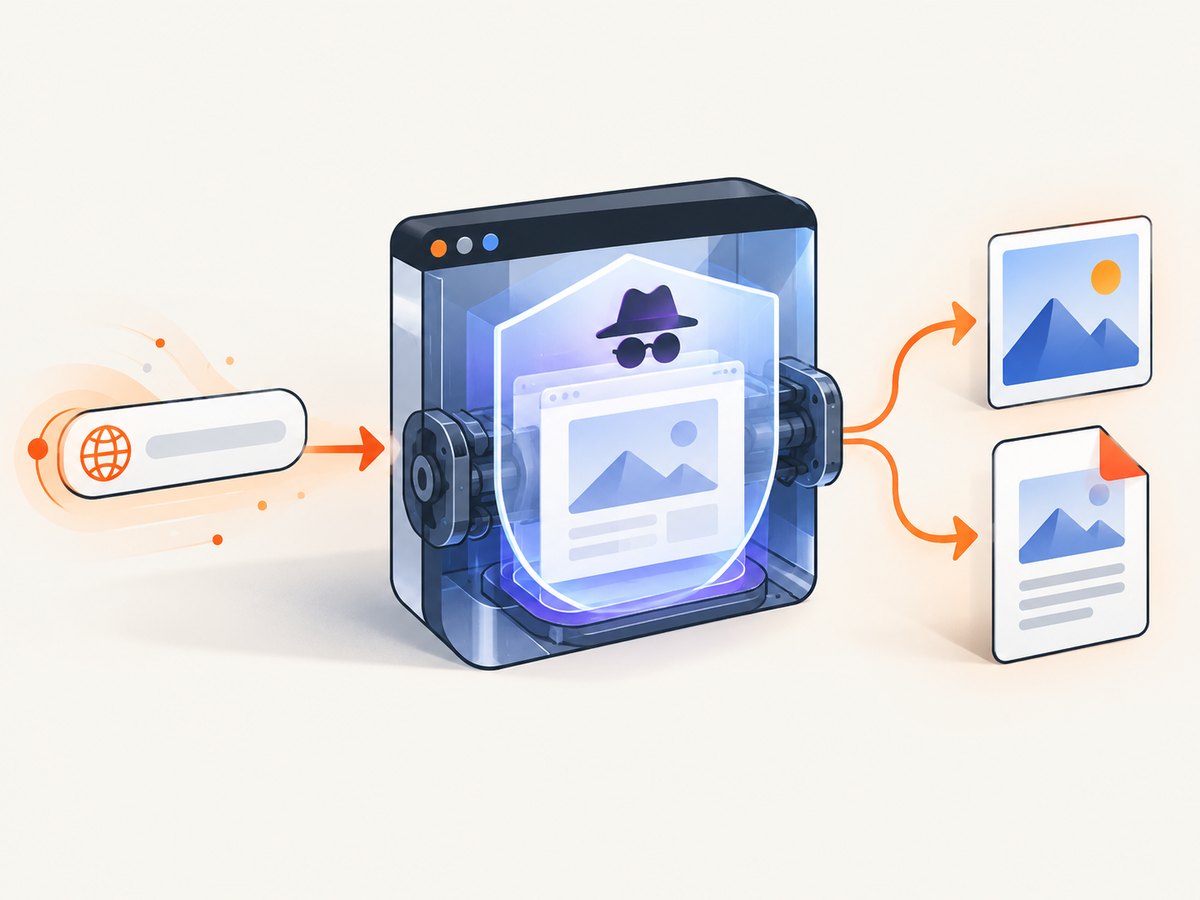
google-chrome --headless=new --incognito https://example.comFor a current Chrome installation, plain --headless selects the supported unified implementation. Keep --headless=new in a pinned CI image when you want the command to document that choice or when an automation framework expects it. Check the browser version before diagnosing differences:
google-chrome --version
chromium --version
Headless and Incognito solve different problems. Headless removes the visible window; Incognito creates a private browsing context for that launched process. Incognito does not make traffic anonymous, hide requests from a website or network operator, or replace a security boundary. Treat it as profile isolation and reduced local persistence, not as an anonymity feature.
Useful unattended operations
Headless Chrome can perform several command-line tasks after page scripts run. Add the operation to the launch command and choose an output path where the command supports one.
Inspect the rendered DOM
google-chrome --headless --incognito --dump-dom https://example.com--dump-dom serializes the document after scripts have run and prints it to standard output. Redirect it when you need an artifact:
google-chrome --headless --incognito --dump-dom https://example.com > page.htmlCapture a screenshot
google-chrome --headless --incognito --screenshot=shot.png \
  --window-size=1440,900 https://example.com
--window-size=width,height controls the initial viewport. A screenshot command captures the page at the point Chrome considers it ready; pages with late-loading content may need a virtual-time budget or an automation library that waits for a selector.
Print a PDF
google-chrome --headless --incognito --print-to-pdf=page.pdf \
  --no-pdf-header-footer https://example.com
--no-pdf-header-footer removes Chrome’s print metadata headers and footers. PDF pagination still follows print CSS and the page’s layout, so verify long documents rather than assuming a single viewport screenshot and a PDF have identical dimensions.
Control waiting time
google-chrome --headless --incognito --timeout=15000 \
  --virtual-time-budget=5000 --screenshot=shot.png https://example.com
--timeout limits how long capture commands wait for loading. --virtual-time-budget advances page timers so animations, delayed rendering, and JavaScript scheduled with timers can settle deterministically. These flags do not guarantee that every network request has completed; pages driven by streaming or polling may require application-level waits.
Inspect an invisible browser with DevTools
google-chrome --headless --incognito \
  --remote-debugging-port=0 https://example.com
Port 0 asks Chrome to select a free port and print a unique WebSocket endpoint. From another Chrome instance, open chrome://inspect to discover and inspect the running target. This is useful when a command exits unexpectedly, a page is blank, or a script behaves differently in Headless mode.
The --allow-chrome-scheme-url flag permits chrome:// URLs and is available from Chrome 123. Use it only when you explicitly need to diagnose an internal Chrome page.
Automating Incognito Headless Chrome
For one command, the CLI is enough. For repeatable interactions such as clicking, waiting for a selector, setting cookies, or taking several screenshots, use a browser automation library that launches Chromium with the same arguments. The key rules remain: pass --headless (or --headless=new) and --incognito, create a context, and close the browser when finished.
Example with Playwright
import { chromium } from 'playwright';

const browser = await chromium.launch({
  headless: true,
  args: ['--incognito']
});
const context = await browser.newContext();
const page = await context.newPage();
await page.goto('https://example.com', { waitUntil: 'networkidle' });
await page.screenshot({ path: 'shot.png', fullPage: true });
await browser.close();
Playwright’s browser context already provides isolation. Keeping the --incognito argument documents the Chrome launch requirement, while the context gives your script a clean cookie and storage container for each run.
Example with Puppeteer
import puppeteer from 'puppeteer';

const browser = await puppeteer.launch({
  headless: true,
  args: ['--incognito']
});
const page = await browser.newPage();
await page.goto('https://example.com', { waitUntil: 'networkidle0' });
await page.screenshot({ path: 'shot.png', fullPage: true });
await browser.close();
If your framework manages its own Chromium binary, confirm which version it downloaded. A system Chrome command and a bundled browser can differ in supported flags, default viewport, sandbox behavior, and rendering.
Incognito, profiles, and repeatable runs
Incognito is a browsing mode inside a Chrome process, not a replacement for every profile option. For parallel jobs, give each process its own temporary user-data directory or use isolated automation contexts. Reusing one persistent profile can leak cookies, local storage, service-worker state, extensions, or permissions between jobs even when a later tab is opened in Incognito.
In CI, keep the browser process lifetime short, close all pages, and remove temporary profiles after the job. Avoid copying a personal profile into a build image. If the target site requires authentication, pass test credentials through your secret store and create the session at runtime; do not bake cookies into source control.
Common errors and fixes
| Symptom | Likely cause | Fix |
|---|---|---|
command not found |
Chrome is not on PATH or the binary has another name. |
Run command -v google-chrome or command -v chromium; use the discovered full path. |
| Chrome opens a visible window | The flag was omitted, misspelled, or consumed by a wrapper. | Confirm the exact argument is --headless or --headless=new. Print the final argument list from your automation script. |
| Incognito was not used | --incognito was passed after a wrapper’s URL delimiter or to the wrong process. |
Put both flags in Chrome’s launch argument list before the URL, and inspect the process command line. |
| Blank screenshot | The page needs more time, blocks automation, or renders after a delayed request. | Try --timeout, --virtual-time-budget, a larger viewport, or DevTools inspection. In an automation library, wait for a meaningful selector. |
| Screenshot differs from desktop Chrome | Viewport, device scale, fonts, browser version, or media settings differ. | Pin the browser version, set viewport and scale explicitly, install required fonts, and compare with a headed run. |
| PDF has unwanted headers | Chrome print metadata is enabled. | Add --no-pdf-header-footer and check the page’s print CSS. |
| DevTools cannot connect | The process exited, the selected port is inaccessible, or the endpoint was not copied. | Use --remote-debugging-port=0, keep the process alive, and copy the WebSocket URL printed by Chrome. |
| Sandbox error in a container | The container lacks the kernel permissions Chrome’s sandbox expects. | Fix the container security configuration and run with a supported user. Only consider --no-sandbox after reviewing the security implications of your environment. |
Reliability and performance checklist
- Pin Chrome and the automation package in CI so rendering changes are intentional.
- Set an explicit viewport with
--window-sizeor your library’s viewport option. - Wait for a page condition that represents useful content instead of relying only on a fixed delay.
- Use a timeout that fits your workload and record the URL, browser version, and flags when a job fails.
- Limit parallel processes to the CPU and memory available; each browser process can consume substantially more resources than a simple HTTP request.
- Cache stable assets or reuse a browser process when safe, but isolate user data between tenants and jobs.
- Capture console output, page errors, exit codes, and DevTools logs for difficult failures.
- Test pages with consent banners, bot checks, lazy images, cross-origin frames, downloads, and authenticated routes because each can change capture behavior.
Incognito does not make a page faster by itself. It can make runs more consistent by starting without an existing profile’s extensions, cookies, and storage, but a clean context may also require the site to perform login, consent, or setup work again.
Or skip the browser setup
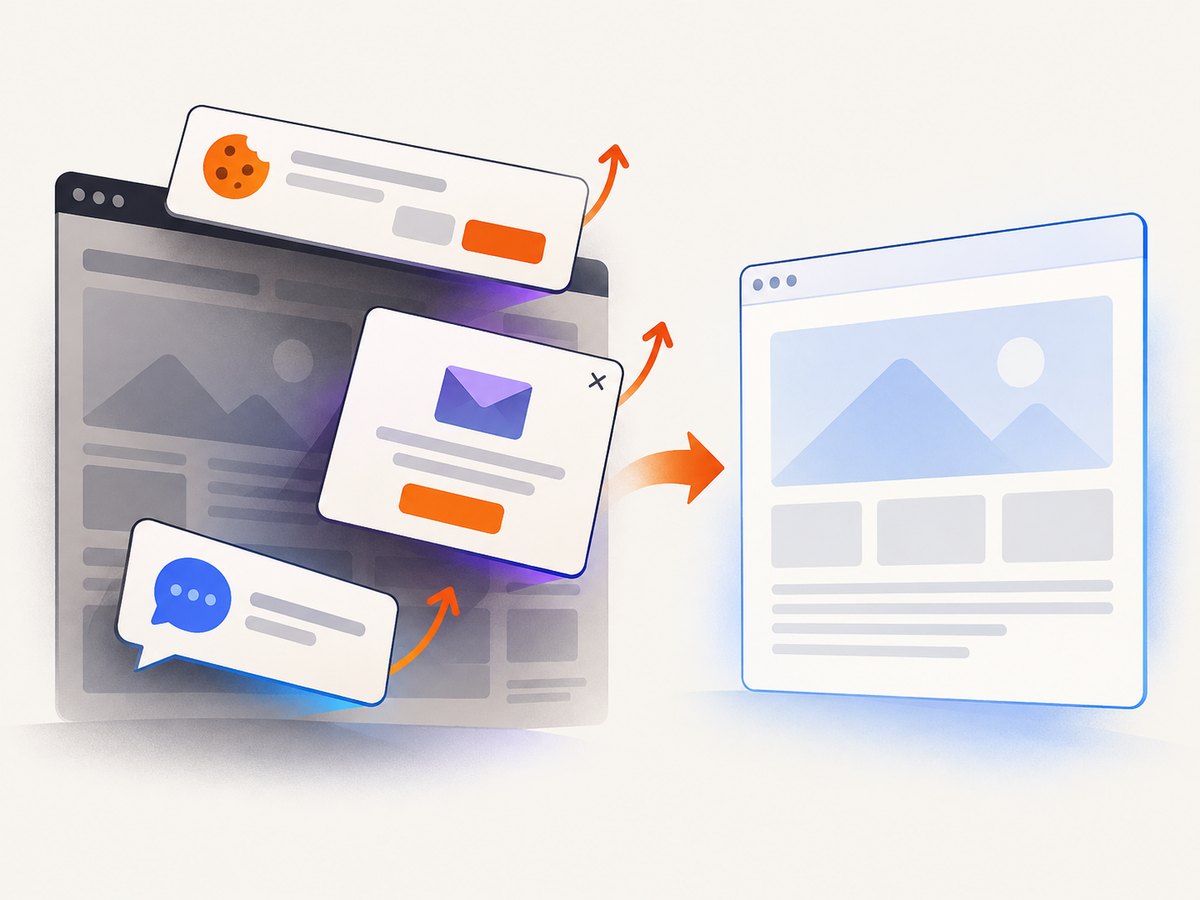
If your goal is a dependable website image or PDF rather than maintaining Chrome processes, ScreenshotNeo provides a single screenshot API request. It accepts a URL and returns PNG, JPEG, WebP, or PDF. Before capture it accepts cookie and consent banners and removes more than 60 known consent platforms, newsletter popups, and chat widgets; each cleanup step can be turned off.
Only clean shots are billed. Bot checks or CAPTCHAs, blank pages, timeouts, failed loads, and cache hits cost nothing, and the response identifies the result with X-Page-Verdict and X-Billed headers. ScreenshotNeo also has an MCP server with take_screenshot, get_page_info, and capture_pdf tools for Claude, Cursor, and other MCP clients.
See the ScreenshotNeo API documentation for all options, including full-page capture with lazy images, CSS element capture, dark mode, device presets, retina scale, PDF paper and margin controls, custom CSS and JavaScript, clicks, selector waits, network-idle waits, request blocking, headers, cookies, user agents, authorization, timezone, geolocation, transparent backgrounds, resizing, caching, signed links, asynchronous jobs, bulk capture, usage data, and the OpenAPI specification.
cURL
curl -G "https://api.screenshotneo.com/v1/shot" \
  -d access_key=YOUR_API_KEY \
  --data-urlencode url=https://stripe.com \
  -o shot.webp
Python
import requests

r = requests.get(
    "https://api.screenshotneo.com/v1/shot",
    params={"access_key": "YOUR_API_KEY", "url": "https://stripe.com"},
    timeout=90,
)
r.raise_for_status()
open("shot.webp", "wb").write(r.content)
Node.js
const q = new URLSearchParams({
  access_key: 'YOUR_API_KEY',
  url: 'https://stripe.com'
});
const res = await fetch(`https://api.screenshotneo.com/v1/shot?${q}`);
if (!res.ok) throw new Error(`HTTP ${res.status}`);
const data = Buffer.from(await res.arrayBuffer());
await import('node:fs/promises').then(fs => fs.writeFile('shot.webp', data));
Free usage includes 1,000 shots each month with no card. Paid plans start at $5 for 3,000 shots; every feature is available on every plan, and yearly billing gives two months free. Create a free ScreenshotNeo account to try the API.
FAQ
Does Headless automatically mean Incognito?
No. Add --incognito explicitly, or create an isolated context in your automation library.
Should I use --headless=new?
Use plain --headless for current Chrome. Use --headless=new when you need to state the newer implementation explicitly in a pinned environment.
Can Incognito hide my IP address?
No. Incognito is a local browsing context and should not be described as anonymity.
Can Chrome Headless capture PDFs and screenshots without automation code?
Yes. Use --screenshot or --print-to-pdf, with timing and viewport flags when the page needs them.
When should I use an API instead of managing Chrome?
Use an API when you need repeatable captures at scale, cleanup of consent and chat overlays, billing visibility for failed pages, or an integration for AI agents through MCP.


