Can You Run Google Chrome in Headless Mode With Extensions?
Yes. Chrome’s unified Headless mode supports extensions. Here’s how to load one with Puppeteer, handle extension pages and popups, and diagnose common failures.
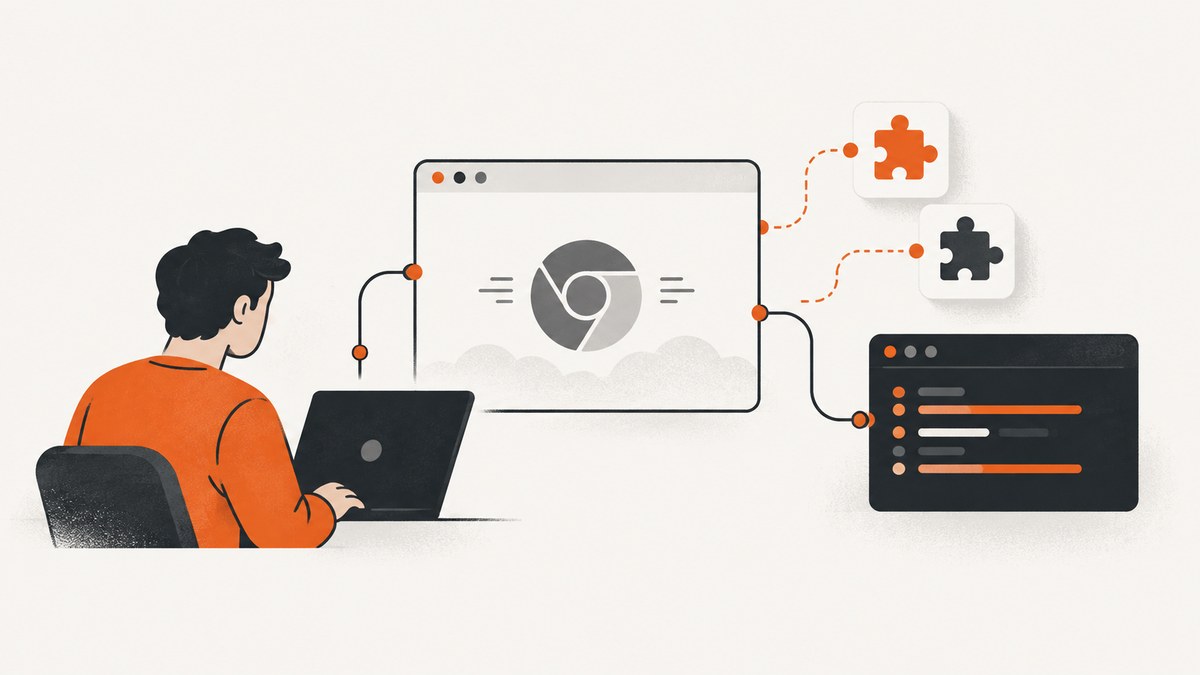
Yes. Chrome can load extensions in its unified Headless mode. Start Chrome with --headless=new, or use --headless in Chrome 132 and later. The old Headless implementation does not support extensions. The key is to launch the regular Chrome browser in its current Headless mode and use an automation library that can load your unpacked extension.
For example, with Puppeteer, enable extensions and set headless: 'new'. Then open a page, exercise the extension through user-visible behavior, and close the browser when the test finishes. This guide walks through setup, complete examples, extension pages and popups, common failures, and the practical limits of headless extension testing.
1. Understand which Headless mode supports extensions
Chrome’s current Headless mode uses the same browser implementation as regular Chrome. It runs without displaying a browser window, while retaining browser functionality such as extensions. The former Headless implementation was separate and did not support loading extensions. Chrome introduced the unified mode in Chrome 112. Since Chrome 132, --headless and --headless=new both select the unified mode; --headless=old no longer launches that implementation from the Chrome binary. [Chrome’s extension end-to-end testing guide; Chrome’s Headless migration note]
| Invocation | What it means | Extension support |
|---|---|---|
--headless=new |
Explicitly selects unified Headless mode | Yes |
--headless |
Unified mode in Chrome 132 and later | Yes |
--headless=old |
Former mode, removed from Chrome binary in 132 | No |
chrome-headless-shell |
Separate binary retaining old Headless behavior | Not the right choice for extension tests |
Chrome’s extension guide uses --headless=new in its testing instructions. That page’s note that Headless defaults to “old” predates Chrome 132; for current versions, plain --headless also selects the new mode. Keeping --headless=new in an explicit test configuration makes the requirement clear to readers and maintainers, though you should still verify the Chrome version installed in CI.
2. Load an unpacked extension with Puppeteer
The example below assumes a Manifest V3 extension has already been built into the directory ./extension, with its manifest.json at the root. Install Puppeteer in your project, then save this as test-extension.mjs and run it with Node.js. Puppeteer’s extension support and launch options have evolved, so use a current Puppeteer version and consult its current documentation if your installed version rejects an option. Chrome’s official Puppeteer extension tutorial demonstrates the extension-enabled launch pattern. [Chrome extension testing with Puppeteer]
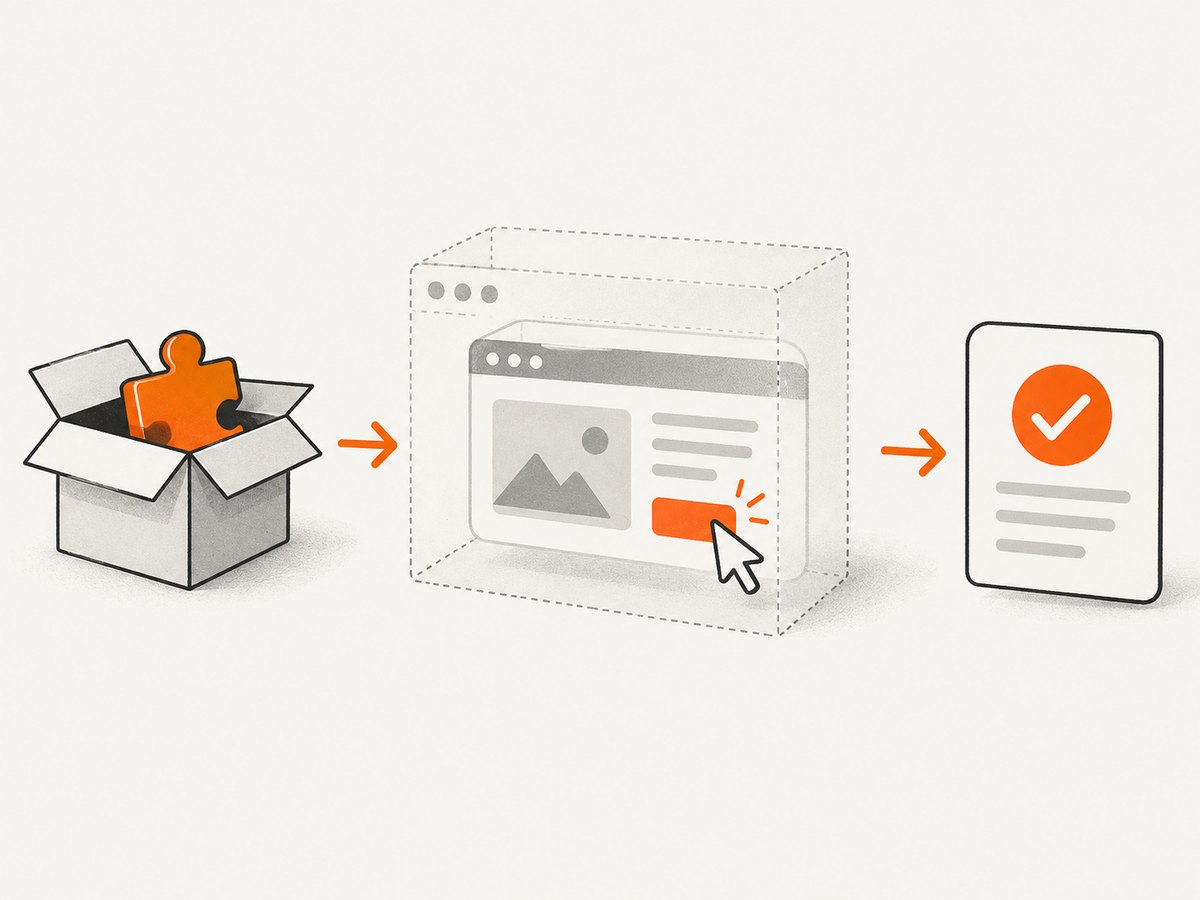
npm install puppeteer
// test-extension.mjs
import puppeteer from 'puppeteer';
import path from 'node:path';
import { fileURLToPath } from 'node:url';

const here = path.dirname(fileURLToPath(import.meta.url));
const extensionPath = path.join(here, 'extension');
let browser;

try {
  browser = await puppeteer.launch({
    headless: 'new',
    enableExtensions: [extensionPath],
  });

  const page = await browser.newPage();
  await page.goto('https://example.com', { waitUntil: 'domcontentloaded' });
  console.log('Page title:', await page.title());

  // Replace this with an assertion for an effect a user can observe.
  await page.screenshot({ path: 'extension-test.png' });
} finally {
  if (browser) await browser.close();
}
The exact extension-loading option depends on the Puppeteer release you use. Chrome’s official tutorial currently shows enableExtensions with an extension path. If your installed release uses a different documented launch API, update the example to match that release rather than assuming every automation library accepts the same option. Pin compatible browser and automation versions in CI so a dependency update does not silently change launch behavior.
For a direct Chrome launch, the essential browser flag is --headless=new; the automation tool must also provide the extension directory using its supported mechanism. Chrome’s guide covers Puppeteer, Playwright, Selenium, and WebDriverIO, but the exact extension-loading syntax is library-specific. [Chrome’s library guidance]
3. Choose a test approach for your extension
Test user-visible behavior first
An end-to-end test should verify what a user can observe: a content script changes a page, a command causes an action, or a popup displays expected content. These tests are less coupled to internal implementation details than tests that reach directly into extension storage or service-worker state. Chrome recommends basing integration tests on visible behavior where possible. [Chrome extension end-to-end testing]
Open an extension page by its URL
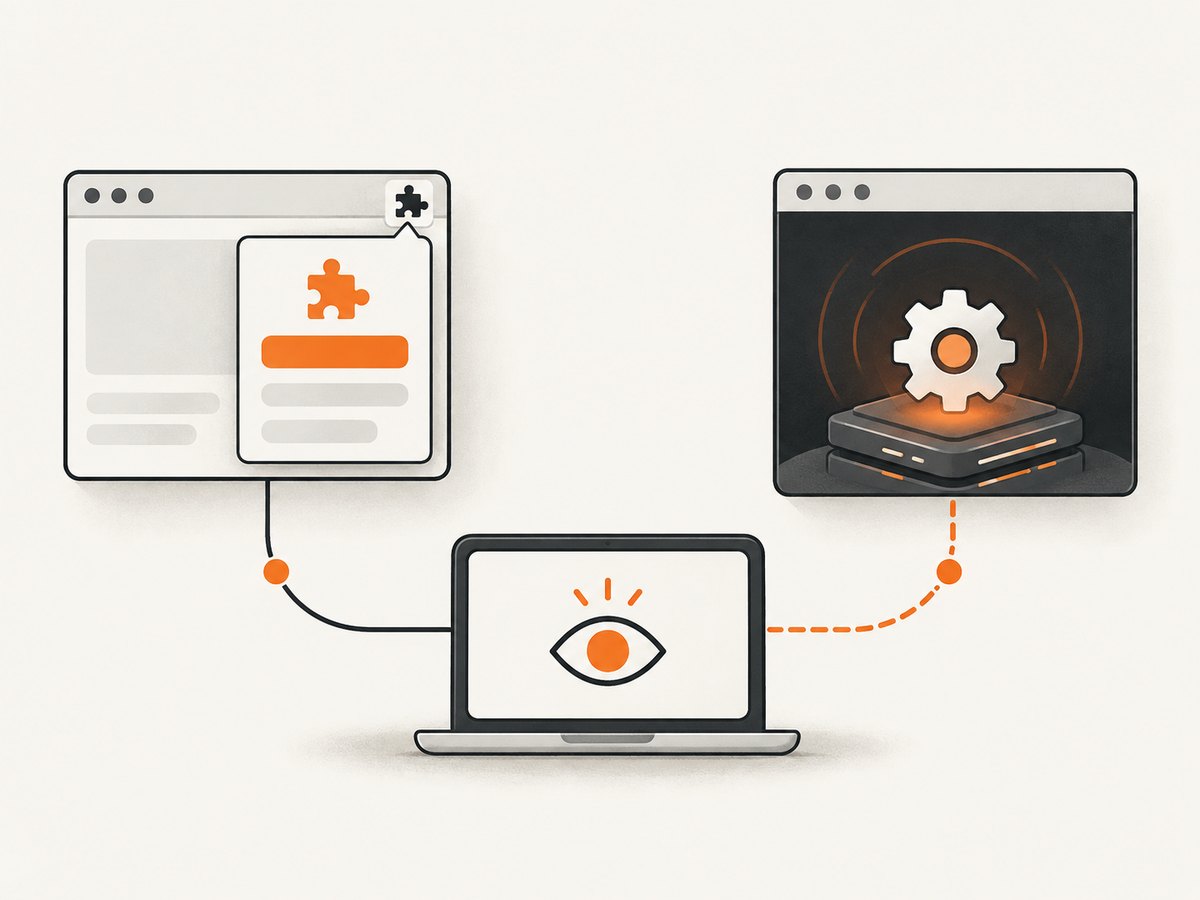
Once the extension is loaded, its pages use the chrome-extension:// scheme. Navigate using the automation library’s ordinary page navigation method and substitute the extension ID and actual page path:
const extensionId = 'YOUR_EXTENSION_ID';
const extensionPage = await browser.newPage();
await extensionPage.goto(
  `chrome-extension://${extensionId}/options.html`,
  { waitUntil: 'domcontentloaded' },
);
For repeatable tests, a fixed extension ID can be useful when tests need to construct extension URLs or allowlist the extension origin. Chrome documents how to set a consistent ID; do not copy a made-up ID into your project. [Chrome’s extension testing guide]
Handle the action popup explicitly
A toolbar action popup is not just another website tab. Some automation libraries can open it through the extension action API and expose its context. If your chosen library cannot, Chrome recommends navigating to the popup’s URL in a new tab as an alternative. A popup that expects an active tab may need a test-friendly way to receive a tab ID; otherwise, it may behave differently when opened directly.
const popupPage = await browser.newPage();
await popupPage.goto(
  `chrome-extension://${extensionId}/popup.html`,
  { waitUntil: 'domcontentloaded' },
);
This fallback tests the popup document, but does not necessarily reproduce every aspect of clicking the toolbar button. If the real action-opening behavior is important, use the library’s supported popup-opening API and assert the resulting interaction.
Inspect service-worker state only when needed
Manifest V3 background logic runs in a service worker. Some tools can discover and evaluate that worker; other tools may require opening an extension page and checking state through the extension’s APIs. Prefer an observable page or popup outcome for integration tests, and reserve direct worker inspection for cases where it adds useful coverage.
There is a lifecycle caveat: Chrome’s guide says ChromeDriver attaches a debugger to service workers, which can prevent them from terminating automatically as they would in ordinary use. A test that relies on a worker stopping may therefore behave differently under Selenium than it does for a user. Treat worker-lifecycle checks as a separate test concern and verify what your driver attaches to. [Chrome’s service-worker testing notes]
4. Selenium and other automation libraries
Selenium can load extensions through Chrome’s ChromeOptions; Chrome’s extension guide points Selenium users to that mechanism. The browser must still run in the unified Headless mode. Exact method names and supported packaging formats vary with Selenium and ChromeDriver versions, so follow the documentation for your installed version. The important checks are that the extension is actually loaded and that the browser launch includes the Headless mode that supports extensions.
Playwright and WebDriverIO are also listed by Chrome as extension-testing options. Do not assume that a Puppeteer launch option such as enableExtensions can be copied unchanged into either library. Check how the library configures its browser channel or executable, how it loads unpacked extensions, and how it exposes popup and service-worker contexts. The three useful comparison questions are:
- How does this tool load the extension directory and select Chrome?
- How do I open or observe the popup and extension pages?
- Does the driver’s debugger attachment affect service-worker termination?
5. Make the test reliable in CI
- Use the intended browser binary. Confirm that CI starts Chrome, not
chrome-headless-shellor a wrapper that selects a different browser. - Make Headless mode explicit. Set
--headless=newthrough the library’s supported configuration when you need extension support across mixed Chrome versions. - Use a built extension. Ensure the configured directory contains a valid manifest and the files referenced by it. Build steps should complete before browser launch.
- Wait for meaningful conditions. Prefer a selector, extension page state, or visible effect over a fixed sleep. A delay can be too short on a slow runner and waste time on a fast one.
- Close the browser in cleanup. Put cleanup in a
finallyblock or your test framework’s teardown hook so failures do not leave browser processes behind. - Keep test state isolated. Separate browser contexts or profiles where your library supports them. Reusing one browser can make tests interfere with one another; Chrome’s Puppeteer guide cautions that browser reuse can reduce isolation.
- Keep the extension testable. Stable extension IDs, predictable test data, and explicit popup inputs can reduce dependence on incidental browser state.
Headless mode removes the visible browser window; it does not remove the need to manage timing, network dependencies, or state. A page may load slowly, a service worker may wake later than expected, and third-party page content can change. Make assertions around the behavior under your control and report enough context to distinguish an extension failure from an unavailable test page.
6. Troubleshooting
| Symptom | Likely cause | What to do |
|---|---|---|
| Extension is missing in Headless Chrome | The process uses old Headless behavior, the extension path is wrong, or the library did not load it. | Use unified Headless mode (--headless=new), confirm the actual Chrome binary, and verify the library’s documented extension-loading option and directory. |
--headless=old prints an error |
Chrome 132 removed the old implementation from the Chrome binary. | Use --headless=new or plain --headless on Chrome 132 and later. Do not select the old shell for an extension test. |
| Launch option is rejected | The option belongs to a different automation library or version. | Check the installed library version and use its own API for loading extensions. Avoid mixing Puppeteer, Playwright, Selenium, and WebDriverIO configuration examples. |
chrome-extension:// page does not open |
The extension failed to load, the ID is incorrect, or the path does not exist in the built extension. | Check the browser launch, manifest, extension ID, and page filename. Navigate only after the extension is loaded. |
| Popup works by click but fails in a new tab | The popup assumes toolbar context or an active tab. | Use the automation library’s popup API if available, or provide an explicit tab ID/test path as Chrome suggests. |
| Service worker never seems to stop | ChromeDriver’s debugger attachment can keep a worker alive. | Do not treat Selenium’s worker lifecycle as identical to ordinary browsing. Test user-facing behavior separately from worker termination. |
| Test passes locally but fails in CI | Browser versions, binaries, extension build output, timing, or network conditions differ. | Log the Chrome and automation versions, confirm the launched binary and extension path, and wait for a specific condition rather than relying on a short delay. |
7. Performance, reliability, and cost
Headless mode is useful when a machine has no display, but it does not make a test independent of a browser. You still need a compatible Chrome binary, an extension build, and an automation runtime. Puppeteer’s Chrome tutorial says its new Headless mode has been the default since Puppeteer 22; check your installed version when defaults matter rather than relying on that historical version note. [Chrome’s Headless automation article]
For throughput, avoid adding a new browser process for every tiny operation if startup becomes a measured bottleneck, but keep tests isolated: Chrome’s Puppeteer guide notes that reusing a browser can allow one test to affect another. A sensible approach is to group related steps within a test, create fresh pages or contexts where supported, and measure your own CI workload before increasing concurrency. More parallel browsers also use more machine resources, and no universal speed gain applies across projects.
Reliability usually depends more on deterministic test setup than on the Headless flag. Use a known Chrome version, build the extension once per run, wait for explicit state, and capture useful logs or screenshots when an assertion fails. If the page under test depends on an external service, account for network failures separately from extension regressions.
There is no special Chrome fee described in the setup above; operational cost comes from the machines and CI time you use to run tests. Keep suites focused: unit tests can cover isolated logic, while Headless end-to-end tests cover browser integration and user-visible flows. Chrome’s extension documentation distinguishes unit testing from end-to-end testing and recommends end-to-end coverage to ensure an extension works as expected. [Chrome unit-testing guide]
8. Or skip the browser setup
If your goal is a screenshot of a website rather than testing an extension’s behavior, ScreenshotNeo is a website screenshot API and MCP server from Yorker Media. One GET request returns a PNG, JPEG, WebP, or PDF. The call below captures a page without you managing a browser process. See the ScreenshotNeo API documentation for request options.
curl -G "https://api.screenshotneo.com/v1/shot" -d access_key=YOUR_API_KEY --data-urlencode url=https://stripe.com -o shot.webpimport requests
r = requests.get(
"https://api.screenshotneo.com/v1/shot",
params={"access_key": "YOUR_API_KEY", "url": "https://stripe.com"},
timeout=90,
)
open("shot.webp", "wb").write(r.content)const q = new URLSearchParams({ access_key: 'YOUR_API_KEY', url: 'https://stripe.com' });
const res = await fetch(`https://api.screenshotneo.com/v1/shot?${q}`);
ScreenshotNeo accepts cookie and consent banners like a visitor and removes more than 60 known consent platforms, newsletter popups, and chat widgets before capture; each step can be turned off. Bot checks, blank pages, failed loads, timeouts, and cache hits are not billed, and response headers identify the page verdict and billing status. Its MCP server provides take_screenshot, get_page_info, and capture_pdf tools for Claude, Cursor, and other MCP clients. The Free plan includes 1,000 shots per month with no card; paid plans start at $5 for 3,000 shots. This captures website output; it does not run your extension’s end-to-end test.
Sign up for 1,000 free screenshots a month, with no card.
9. Frequently asked questions
Does Headless Chrome load Chrome Web Store extensions?
The Headless mode supports extensions, but the setup in this guide loads an unpacked extension directory through an automation tool. Follow the tool’s documented workflow for the extension package you intend to test.
Can I test extension UI without showing a browser window?
Yes. Navigate to an extension page or popup URL in the Headless browser. For toolbar-specific behavior, use the automation library’s popup support when available.
Should I use --headless=new or --headless?
Use --headless=new to make the unified mode explicit. Chrome 132 and later also use unified mode for plain --headless.
Is Headless extension testing a replacement for manual testing?
It covers automated flows on your chosen browser and test environment. If a behavior depends on visible browser chrome, a particular operating system, or user interaction not represented in your automated test, verify that behavior in the environment where users encounter it.
Can I take a screenshot of a page changed by my extension?
Yes. Capture the page after the extension’s visible change has occurred. A screenshot API can capture website output, but extension behavior itself needs a browser test with the extension loaded.
10. Quick checklist
- Build the extension and confirm its manifest is in the directory you will load.
- Launch Chrome’s unified Headless mode with
--headless=newor the automation library’s equivalent. - Load the extension using the API supported by your specific library and version.
- Test visible behavior first; open extension pages and popups deliberately.
- Account for ChromeDriver’s service-worker debugger behavior when using Selenium.
- Pin or log browser and automation versions, clean up browser processes, and make CI waits condition-based.
Chrome Headless can run extensions, provided it is the unified implementation and your automation library loads the extension correctly. For extension integration, verify the behavior a user sees; for a standalone website screenshot, ScreenshotNeo offers a direct API and an MCP option for AI agents.


