How to Remove the URL Footer and Improve PDF Resolution With Chrome Headless CLI
Remove Chrome Headless PDF URL footers and improve output fidelity with print settings, page sizing, timing controls, and troubleshooting.
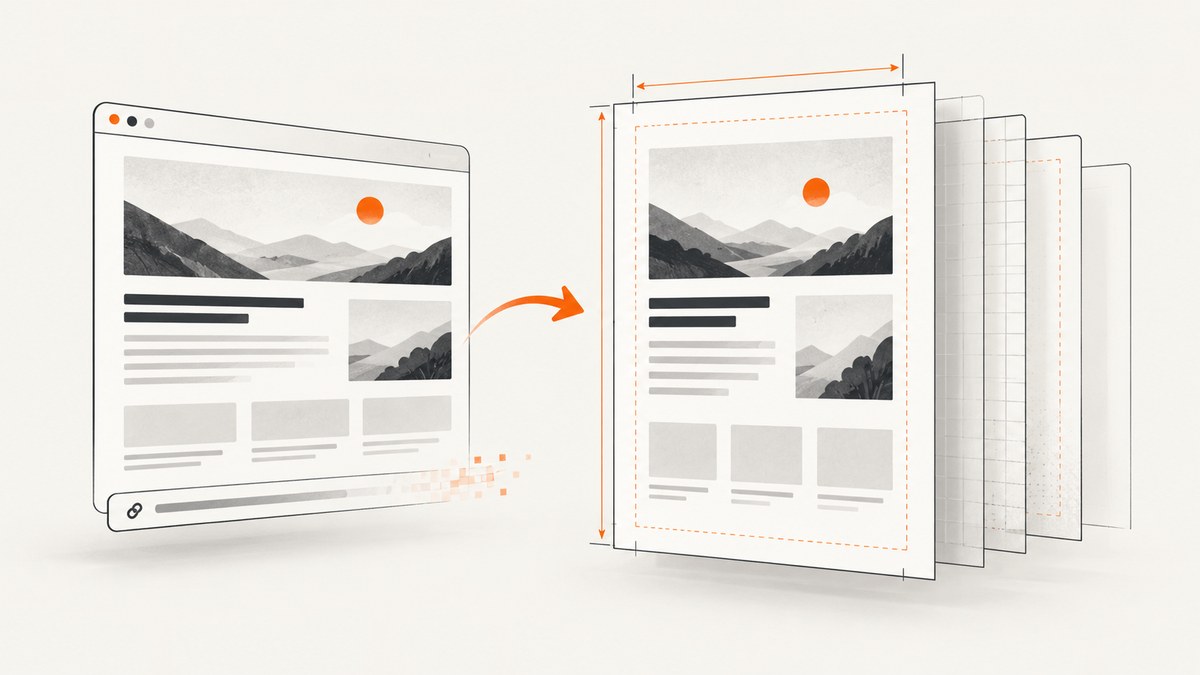
Use this command to remove Chrome’s generated URL, date, and page-number footer:
chrome --headless --print-to-pdf --no-pdf-header-footer https://example.com/Chrome writes output.pdf by default. On older Chrome versions, the historical switch was --print-to-pdf-no-header. The current documented switch is --no-pdf-header-footer.Chrome Headless command-line reference
What the command changes
| Option | Effect |
|---|---|
--headless |
Runs Chrome without a visible window. |
--print-to-pdf |
Prints the page to a PDF file. |
--no-pdf-header-footer |
Removes Chrome’s automatic print header and footer, including the URL and page number. |
| URL | The page to load and print. |
Choose the output path
Pass a filename to --print-to-pdf when you do not want the default output.pdf:
chrome --headless \
  --print-to-pdf=/tmp/report.pdf \
  --no-pdf-header-footer \
  https://example.com/
Use an absolute path in automation so the output location is unambiguous. Make sure the Chrome process can write to that directory.
Improve PDF fidelity and apparent resolution
Chrome’s headless PDF output is controlled mainly by print layout and rendering parameters. There is no documented command-line DPI switch that independently increases PDF resolution. The practical controls are scale, paper dimensions, CSS page size, margins, backgrounds, orientation, and load timing.
Scale is geometry, not a DPI setting
The DevTools Page.printToPDF protocol uses scale: 1 by default. Chromium’s own tests show that setting scale to 2 doubles measured rendered element width, so scale changes layout geometry. It can increase effective detail when the page has room, but it can also cause clipping, extra pages, or different pagination.Page.printToPDF protocol
Start at 1. Increase it only after checking page breaks and the final physical size.
Set paper dimensions explicitly
The protocol defaults to 8.5 by 11 inches. Set paperWidth and paperHeight when the document uses A4, a label, a receipt, or another non-Letter format. Explicit dimensions prevent an unintended fit-to-paper transformation.
Let print CSS control the page
Define the intended size in print CSS:
@media print {
  @page {
    size: A4 portrait;
    margin: 12mm;
  }

  .screen-only {
    display: none;
  }
}
When using a DevTools client, set preferCSSPageSize: true so the CSS @page size takes precedence. Otherwise Chromium scales content to fit the requested paper size.
Control margins to avoid clipping
The protocol margins default to approximately 1 cm (0.4 inch). Set all four margins explicitly when content is close to an edge:
marginTop: 0.35,
marginBottom: 0.35,
marginLeft: 0.35,
marginRight: 0.35
Reducing margins creates more usable area, but a zero margin can clip content that relies on printer-safe space.
Preserve backgrounds
printBackground defaults to false. Set it to true when colored sections, background images, or shaded tables carry meaning. Without it, the PDF can look washed out even when text remains sharp.
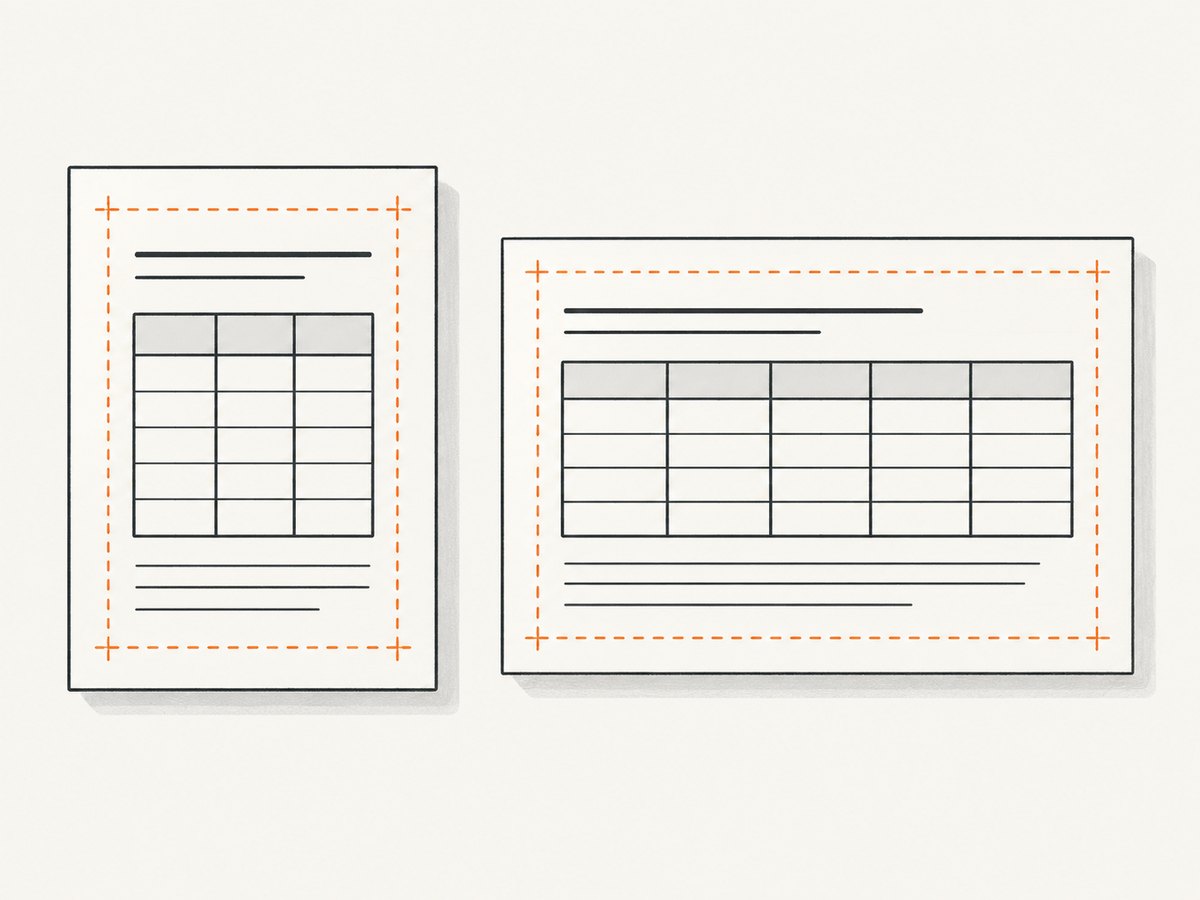
Use landscape for wide content
Set landscape: true for wide tables, diagrams, or dashboards. Chromium’s tests verify that this swaps page width and height.
Print with the DevTools Protocol
The CLI is ideal for the common case. Use Page.printToPDF when you need explicit page size, scale, margins, backgrounds, orientation, or CSS-page-size precedence.
Recommended print configuration
{
  "displayHeaderFooter": false,
  "printBackground": true,
  "scale": 1,
  "paperWidth": 8.27,
  "paperHeight": 11.69,
  "marginTop": 0.35,
  "marginBottom": 0.35,
  "marginLeft": 0.35,
  "marginRight": 0.35,
  "preferCSSPageSize": true
}
This example targets A4 portrait, keeps backgrounds, disables protocol templates, and lets @page CSS control the paper size. Validate the resulting PDF at its intended viewing or print size; these settings do not guarantee a particular DPI.
Header and footer behavior
displayHeaderFooter defaults to false. If you enable custom templates, headerTemplate and footerTemplate accept HTML and can expose the date, title, url, pageNumber, and totalPages values through CSS classes. Leave the setting disabled when the URL must not appear.
Wait for pages that load late
Pages with delayed JavaScript, fonts, images, or API calls can print before they are complete. The CLI provides two timing controls:
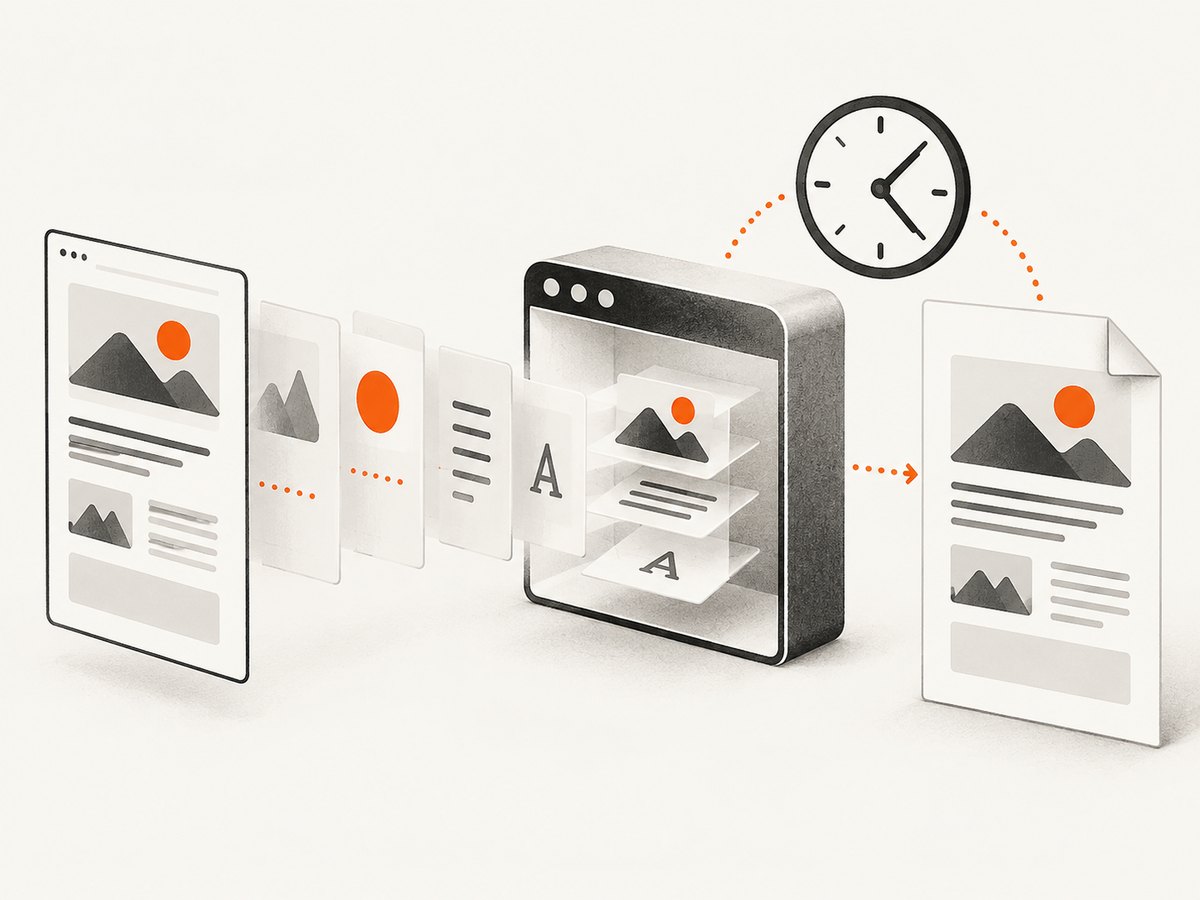
chrome --headless \
  --print-to-pdf=/tmp/complete.pdf \
  --no-pdf-header-footer \
  --timeout=5000 \
  --virtual-time-budget=42000 \
https://example.com/--timeout=5000sets the maximum wait in milliseconds before capture, even if loading continues.--virtual-time-budget=42000lets timer-driven content advance for up to 42 seconds of virtual time.
Use the smallest values that consistently include the required content. A long budget can make batch jobs slow, while a short timeout can produce missing images or an incomplete application shell.
Repeatable capture checklist
- Confirm the page renders correctly in normal Chrome.
- Add print CSS with an explicit
@pagesize and intentional margins. - Run with
--no-pdf-header-footer. - Set
--timeoutfor network-loaded resources. - Use
--virtual-time-budgetfor timer-driven content. - Inspect page breaks, backgrounds, fonts, and image sharpness.
- For complex layouts, switch to
Page.printToPDFand set every relevant parameter explicitly.
Troubleshooting
| Symptom | Likely cause | Fix |
|---|---|---|
| URL, date, or page number still appears | The no-footer flag was omitted, misspelled, or unsupported by an old build. | Use --no-pdf-header-footer; try --print-to-pdf-no-header only with older Chrome versions. |
| PDF is blank or partly empty | The page had not finished loading. | Increase --timeout; for timers, add --virtual-time-budget. |
| Images or colors are missing | Print backgrounds are disabled or resources are late. | Set printBackground: true in the protocol and wait for resources. |
| Content is clipped | Scale or margins leave too little printable area. | Lower scale, increase margins, or set paper dimensions explicitly. |
| Unexpected extra pages | Scale, margins, or CSS page size changed pagination. | Check @page, use preferCSSPageSize, and return scale to 1. |
| Wide table is unreadable | Portrait paper forces excessive shrinking. | Use landscape and an appropriate paper width. |
| CLI cannot write the PDF | The destination directory does not exist or is not writable. | Use an existing absolute path and verify filesystem permissions. |
| Fonts look different | The headless environment lacks the webfont or captured before it loaded. | Install required fonts in the runtime and increase the wait time. |
Performance, reliability, and cost
Performance
Capture time is dominated by page loading, JavaScript execution, fonts, images, and the timeout budget. Larger virtual-time budgets improve completeness for timer-driven apps but increase worst-case latency. Landscape, margins, and scale affect pagination and rendering work, so keep the configuration stable for repeatable jobs.
Reliability
Use a deterministic URL, fixed print CSS, explicit paper dimensions, and a readiness condition you control. Save stderr and the generated PDF for failed jobs. For batch work, treat a successful Chrome process as transport success and still inspect the PDF for missing content.
Cost
Chrome Headless itself has no per-capture API charge, but you pay for the machine, browser startup, storage, and engineering time. A hosted screenshot API can be simpler when you need retries, bulk capture, consent handling, or asynchronous jobs.
Or skip the browser setup
ScreenshotNeo provides a website screenshot API and MCP server. One GET request returns a PNG, JPEG, WebP, or PDF, while its capture pipeline accepts consent banners and removes more than 60 known consent platforms, newsletter popups, and chat widgets before the shot. Bot checks, blank pages, timeouts, failed loads, and cache hits are not billed, and the response identifies the result with X-Page-Verdict and X-Billed headers. AI agents can use the MCP tools take_screenshot, get_page_info, and capture_pdf.
See the ScreenshotNeo API documentation for PDF options and the full configuration. A basic request looks like this:
curl -G "https://api.screenshotneo.com/v1/shot" -d access_key=YOUR_API_KEY --data-urlencode url=https://stripe.com -o shot.webpimport requests
r = requests.get("https://api.screenshotneo.com/v1/shot", params={"access_key": "YOUR_API_KEY", "url": "https://stripe.com"}, timeout=90)
open("shot.webp", "wb").write(r.content)const q = new URLSearchParams({ access_key: 'YOUR_API_KEY', url: 'https://stripe.com' });
const res = await fetch(`https://api.screenshotneo.com/v1/shot?${q}`);Free usage includes 1,000 screenshots per month with no card. Paid plans start at $5 for 3,000 shots, and every feature is available on every plan. Create a free ScreenshotNeo account.
FAQ
Does removing the footer reduce PDF quality?
No. The footer switch controls Chrome’s generated print decorations. Fidelity is controlled by layout, resources, scale, page dimensions, margins, and backgrounds.
Can I set a true DPI value with the CLI?
There is no documented CLI DPI flag for this workflow. Use explicit print settings and validate the PDF at its intended physical size.
Should I increase scale to 2?
Only when the layout has room and your output needs more effective detail. Because scale changes geometry, verify clipping and pagination after changing it.
Why does my CSS paper size seem ignored?
When using the DevTools protocol, set preferCSSPageSize: true. Otherwise Chromium fits content to the requested paper dimensions.
When is the CLI enough?
The CLI is enough for removing automatic headers and footers and producing a straightforward PDF. Use the protocol when you need precise paper, margin, background, orientation, scale, or CSS-page-size controls.


