How to Add a Delay Before Taking a Chrome Headless Screenshot
Use Chrome’s millisecond timeout, virtual time, or a readiness signal to capture pages after they finish rendering.

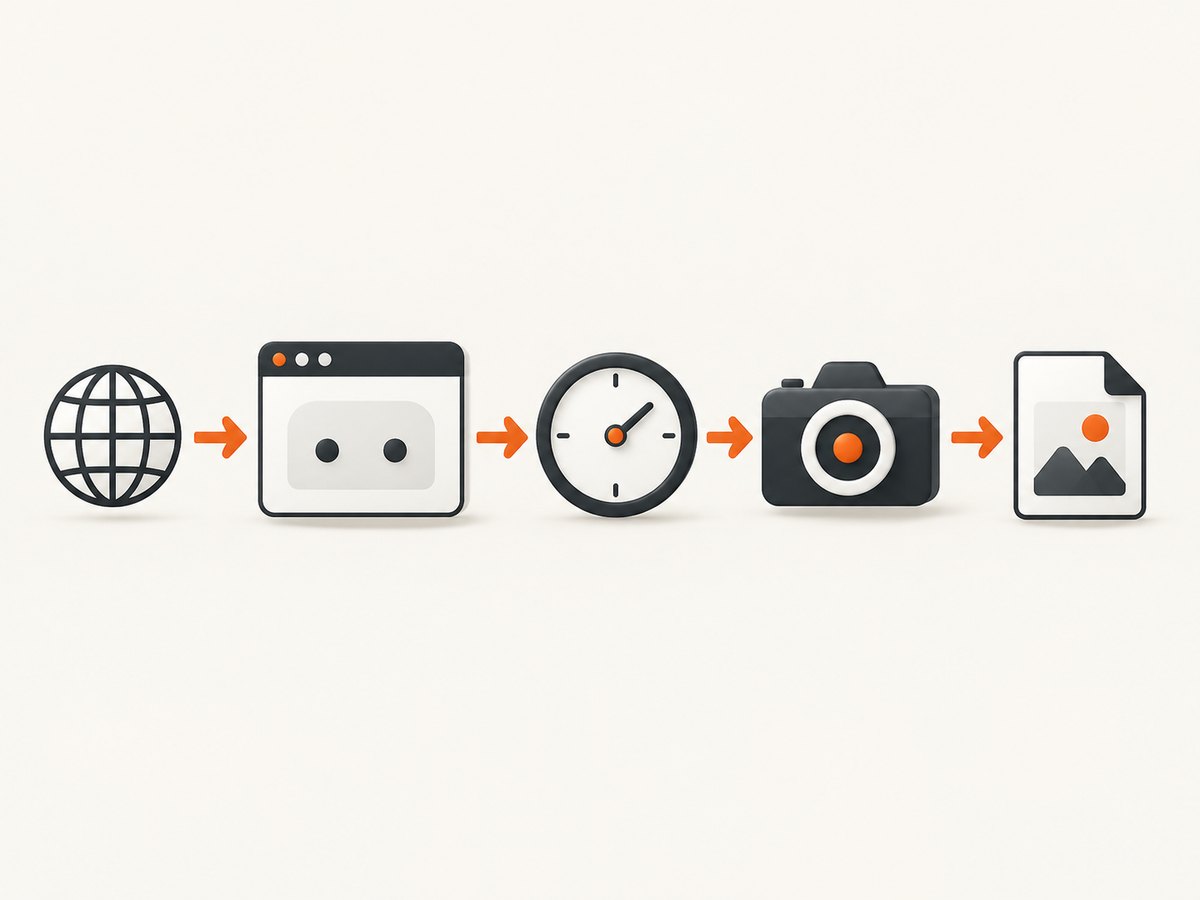
To make Chrome Headless wait before taking a screenshot, pass --timeout=<milliseconds>. A five-second delay looks like this:
chrome --headless --screenshot --timeout=5000 https://example.com/The value is in milliseconds. Chrome waits in real time, for up to the duration you specify, before capturing. If you omit both --timeout and --virtual-time-budget, Chrome’s documented behavior is to capture as soon as the page is loaded. See the Chrome Headless documentation for the command-line behavior.
A fixed delay is useful when a page needs time for animations, client-side rendering, or delayed assets. It does not prove that every page-specific operation has finished. When possible, wait for a meaningful selector or application state in an automation script.
1. Use --timeout for real elapsed time
--timeout applies to Headless --screenshot, --dump-dom, and --print-to-pdf. The number is a maximum real-time wait in milliseconds.
# Wait 1 second
chrome --headless --screenshot --timeout=1000 https://example.com/ -o one-second.png

# Wait 5 seconds
chrome --headless --screenshot --timeout=5000 https://example.com/ -o five-second.png

# Wait 15 seconds
chrome --headless --screenshot --timeout=15000 https://example.com/ -o fifteen-second.png
Use a value that matches the work your page actually performs. A page with a short loading animation may need a few hundred milliseconds; a dashboard that fetches data after startup may need longer. There is no universal delay that guarantees readiness for every site.
Milliseconds and shell quoting
The option accepts an integer number of milliseconds. 5000 means five seconds, 250 means a quarter second, and 60000 means one minute. Keep the URL as the final argument, and quote URLs containing characters that your shell could interpret.
chrome --headless --screenshot --timeout=2500 \
  'https://example.com/products?sort=latest&view=grid' \
  -o products.png
On systems where the executable is named google-chrome or chromium, substitute that command name. The flag syntax remains the same.
2. Understand --timeout versus virtual time
Chrome also exposes --virtual-time-budget=<milliseconds>. It advances page timers as though the specified amount of time passed, allowing timer-driven code such as setTimeout and setInterval to run quickly. Chrome for Developers describes virtual time as a fast-forward for time-dependent code.
chrome --headless --screenshot \
  --virtual-time-budget=5000 \
  https://example.com/ -o virtual-time.png
These options answer different questions:
| Need | Use | What it does |
|---|---|---|
| Wait for real loading, rendering, or animation time | --timeout=5000 |
Pauses the process for up to five real seconds before capture. |
| Run timer-based page code quickly | --virtual-time-budget=5000 |
Advances JavaScript timers while Chrome runs page code. |
| Wait for a known application state | Automation script | Checks a selector or condition, then calls the screenshot API. |
Virtual time is not a general replacement for real waiting. A page that depends on an external request, a remote data service, a video clock, or real user interaction still depends on those events. Use real elapsed waiting for those cases, or script a readiness condition.
3. A reliable command-line workflow
- Confirm the Chrome executable:
chrome --version,google-chrome --version, orchromium --version. - Run a capture without a delay to establish a baseline.
- Add a small
--timeout, such as1000, and compare the output. - Increase the value only when the page still shows an incomplete state.
- Save output to a named file with
-oso repeated runs are easy to compare.
chrome --headless --screenshot \
  --window-size=1440,900 \
  --timeout=3000 \
  'https://example.com/' \
  -o example-3s.png
The delay does not change the viewport, device scale, user agent, cookies, or network conditions. Configure those independently when your capture needs them, and verify the flags supported by the Chrome version installed in your environment.
When a fixed delay is appropriate
- A CSS or JavaScript animation must reach a stable frame.
- A client-rendered page paints its initial content shortly after navigation.
- A delayed banner or chart is expected and you intentionally want it visible.
- You are taking occasional manual or batch captures where a conservative wait is acceptable.
When a fixed delay is a weak signal
- The page loads data at unpredictable times.
- Several independent requests determine whether the page is complete.
- The target element appears only after a user action.
- You need reproducible captures across variable network conditions.
For these cases, use an automation library and wait for a selector, a network condition, or an application-defined readiness flag.
4. Wait in Puppeteer
Puppeteer lets you control navigation, waiting, and capture in one script. Its page.screenshot() API writes the image after your wait completes.
import puppeteer from 'puppeteer';

const browser = await puppeteer.launch({ headless: true });
try {
  const page = await browser.newPage();
  await page.goto('https://example.com/', { waitUntil: 'networkidle2' });

  // Fixed real-time delay: five seconds.
  await new Promise(resolve => setTimeout(resolve, 5000));

  await page.screenshot({ path: 'example-puppeteer.png', fullPage: true });
} finally {
  await browser.close();
}
A selector-based wait is usually more meaningful than an arbitrary sleep when the page exposes a stable target:
await page.goto('https://example.com/dashboard', { waitUntil: 'domcontentloaded' });
await page.waitForSelector('[data-dashboard-ready]', { visible: true, timeout: 30000 });
await page.screenshot({ path: 'dashboard.png', fullPage: true });
Keep a timeout on the readiness wait. Without one, a missing selector can leave a worker hanging indefinitely. If your page has an application state object, you can also poll for a specific value before calling screenshot().
5. Wait in Playwright
Playwright’s Page API provides screenshot capture and a waitForTimeout method. Check the documentation for the Playwright version in your project before relying on fixed sleeps.
import { chromium } from 'playwright';

const browser = await chromium.launch({ headless: true });
try {
  const page = await browser.newPage({ viewport: { width: 1440, height: 900 } });
  await page.goto('https://example.com/', { waitUntil: 'networkidle' });
  await page.waitForTimeout(5000);
  await page.screenshot({ path: 'example-playwright.png', fullPage: true });
} finally {
  await browser.close();
}
For a page-specific signal:
await page.goto('https://example.com/app', { waitUntil: 'domcontentloaded' });
await page.locator('[data-test="results"]').waitFor({ state: 'visible', timeout: 30000 });
await page.screenshot({ path: 'results.png', fullPage: true });
A selector wait can still succeed before images inside the element finish loading. If image completeness matters, wait for the page’s own ready state or inspect the relevant image elements before capture.
6. Use shot-scraper’s --wait option
The shot-scraper CLI documents a --wait INTEGER option. It also uses milliseconds:
shot-scraper https://example.com/ \
  --wait 5000 \
  -o example-shot-scraper.png
This is convenient when you want a command-line workflow without writing a browser script. For conditional readiness, move to an automation library where you can inspect the DOM and handle errors explicitly.
7. Make delayed captures repeatable
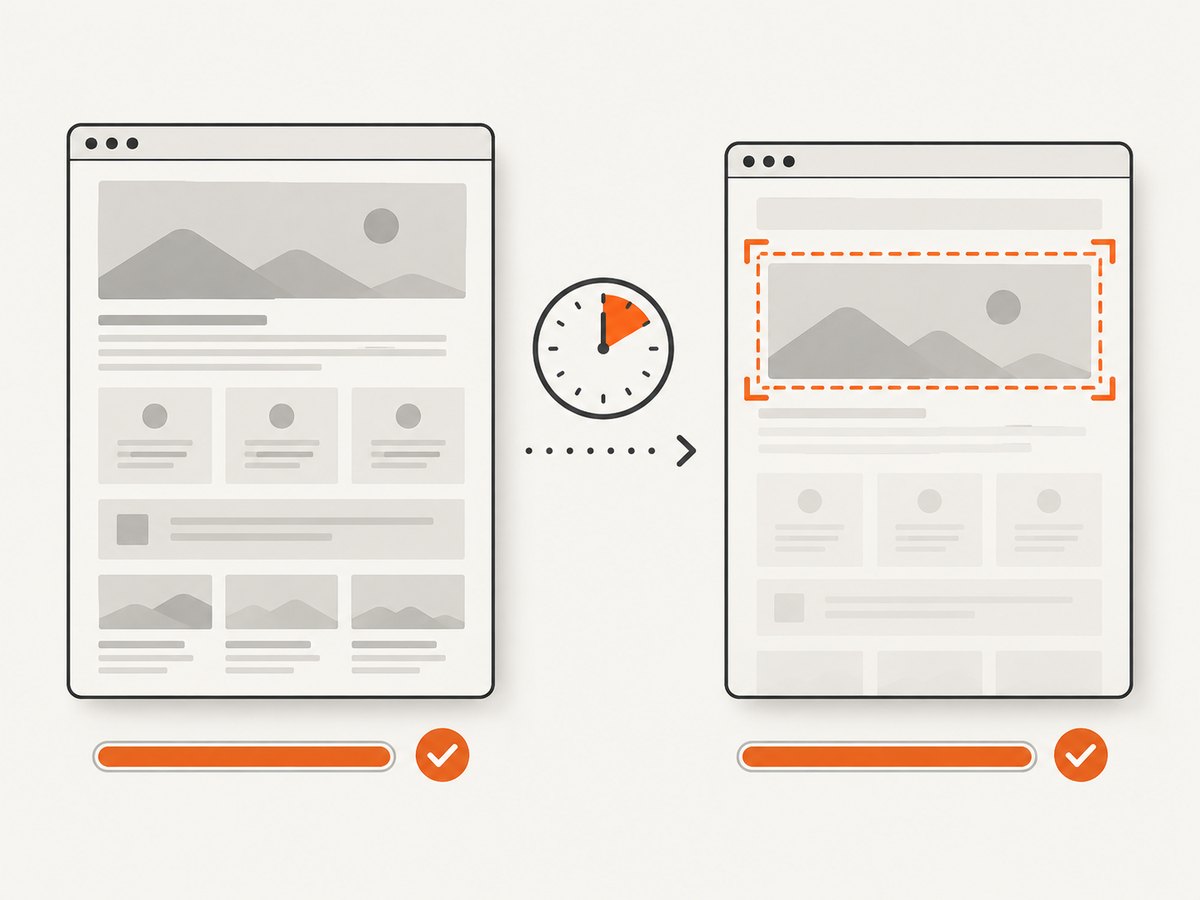
Reliability comes from defining what “ready” means, then enforcing it consistently.
- Set the viewport explicitly. Responsive layouts can move content when the width changes.
- Choose a navigation policy.
domcontentloaded,load, and network-idle policies represent different milestones. - Wait for the target state. Prefer a selector or application flag over a large blind delay.
- Bound every wait. Set navigation, selector, and overall job timeouts.
- Capture diagnostics on failure. Save the page URL, error, console messages, and a fallback screenshot when possible.
- Control animations when comparing images. Disable or freeze transitions with page CSS if visual diffs require stable frames.
A fixed delay can make a capture slower without making it more correct. Conversely, a short delay can produce a screenshot before a late component appears. Measure the page’s readiness behavior in the environment where the capture runs, then choose the smallest delay that meets the requirement.
8. Common errors and fixes
| Symptom | Likely cause | Fix |
|---|---|---|
| Screenshot is taken before content appears | No delay or a delay shorter than the page’s render work | Increase --timeout, or wait for a target selector in Puppeteer or Playwright. |
| Virtual-time capture still lacks remote data | Virtual time advances timers but does not guarantee external network responses | Use real elapsed waiting or wait for the data-rendered state. |
| Command reports an unknown flag | Different executable or an older/version-specific build | Check chrome --help and the exact Chrome version; use a scripted browser API if needed. |
| Page never reaches the expected state | JavaScript error, blocked request, authentication requirement, or incorrect selector | Open the page in a visible browser, inspect console and network errors, verify credentials, and confirm the selector. |
| Capture hangs in CI | A wait has no upper bound, or the browser cannot start in the runner | Add navigation and condition timeouts, close the browser in a finally block, and verify CI sandbox settings. |
| Screenshot differs between runs | Animations, rotating content, ads, time zones, or changing data | Disable animations, control locale and viewport, and capture after a deterministic readiness signal. |
| Images are blank or incomplete | Lazy loading has not been triggered, or image requests are still pending | Scroll or use the site’s image-ready signal, then wait for image completion before capture. |
9. Performance, reliability, and cost considerations
Every real-time delay adds wall-clock latency to a capture. In a batch job, a five-second wait multiplied across many URLs can dominate total runtime. Prefer a readiness condition that finishes as soon as the required state exists, while retaining a maximum timeout as a safety limit.
Virtual time can reduce waiting for timer-driven pages, but it can also change behavior that depends on actual elapsed time. Treat it as a page-specific optimization, not a universal speed setting. For reproducible output, keep browser version, viewport, timezone, locale, authentication, and network policy stable.
Chrome itself does not charge per screenshot. Your operational costs come from compute time, browser concurrency, storage, bandwidth, and any third-party service used to load the page. Reusing a browser process can reduce startup overhead, but isolate pages and clean up resources so one failed capture does not poison later jobs.
10. Or skip the browser setup
ScreenshotNeo provides a website screenshot API when you want one HTTP request instead of managing Chrome, Puppeteer, or Playwright. Its API accepts a URL and returns PNG, JPEG, WebP, or PDF. The service includes wait controls for a selector, a delay, or network idle, along with full-page capture and lazy-image loading.
Here is a direct request using the delay option supported by ScreenshotNeo. See the ScreenshotNeo API documentation for the complete parameter list and current option names.
curl -G "https://api.screenshotneo.com/v1/shot" \
  -d access_key=YOUR_API_KEY \
  --data-urlencode url=https://stripe.com \
  -o shot.webp
import requests
r = requests.get(
"https://api.screenshotneo.com/v1/shot",
params={"access_key": "YOUR_API_KEY", "url": "https://stripe.com"},
timeout=90,
)
r.raise_for_status()
open("shot.webp", "wb").write(r.content)const q = new URLSearchParams({ access_key: 'YOUR_API_KEY', url: 'https://stripe.com' });
const res = await fetch(`https://api.screenshotneo.com/v1/shot?${q}`);
if (!res.ok) throw new Error(`Screenshot failed: ${res.status}`);
const image = Buffer.from(await res.arrayBuffer());
await import('node:fs/promises').then(fs => fs.writeFile('shot.webp', image));For delayed rendering, add the documented delay parameter to the query in your request. You can also wait for a selector or network idle instead of guessing a duration. ScreenshotNeo supports custom CSS and JavaScript, click actions, hidden selectors, device presets, arbitrary viewports, retina scale, custom headers and cookies, user agents, authorization, timezone, geolocation, request blocking, caching with a chosen TTL, signed links, asynchronous jobs with signed webhooks, bulk capture of up to 100 URLs per call, usage reporting, and an OpenAPI specification.
Its clean-shot pipeline accepts consent banners and removes more than 60 known consent platforms, newsletter popups, and chat widgets before capture; each step can be disabled. Bot checks or CAPTCHAs, blank pages, timeouts, failed loads, and cache hits are not billed, and the response identifies the result with X-Page-Verdict and X-Billed headers. An MCP server exposes take_screenshot, get_page_info, and capture_pdf for Claude, Cursor, and other MCP clients.
The Free plan includes 1,000 shots per month with no card. Paid plans start at $5 for 3,000 shots; every feature is available on every plan, and yearly billing provides two months free.
Create a free ScreenshotNeo account and start with 1,000 screenshots a month at no charge.
11. FAQ
Does --timeout=5000 wait exactly five seconds?
It requests up to five seconds of real elapsed waiting before capture. Navigation and page behavior still affect when the process can complete.
Should I use timeout or virtual time?
Use --timeout when actual loading or rendering time matters. Use virtual time for timer-driven page code that can safely run with simulated time. External requests and real-time behavior usually need real waiting or a readiness check.
Can Chrome wait for a CSS selector from the command line?
The simple Headless command-line delay is time-based. For selector-based readiness, use Puppeteer, Playwright, or another automation layer that can inspect the DOM.
What is a good delay value?
Start with the smallest value that covers the page’s required work, then replace it with a page-specific readiness condition when the page is variable or production reliability matters.
Will a delay make lazy-loaded images appear?
Not necessarily. Lazy loading may depend on scrolling or an intersection event, so trigger the loading behavior and wait for the images themselves when they are part of the required output.