Why Chrome Headless Uses the Wrong Profile and How to Fix It
Chrome Headless usually uses the wrong profile because its user-data parent, executable, or process differs. Learn deterministic fixes for CLI, Puppeteer, Selenium, and CI.
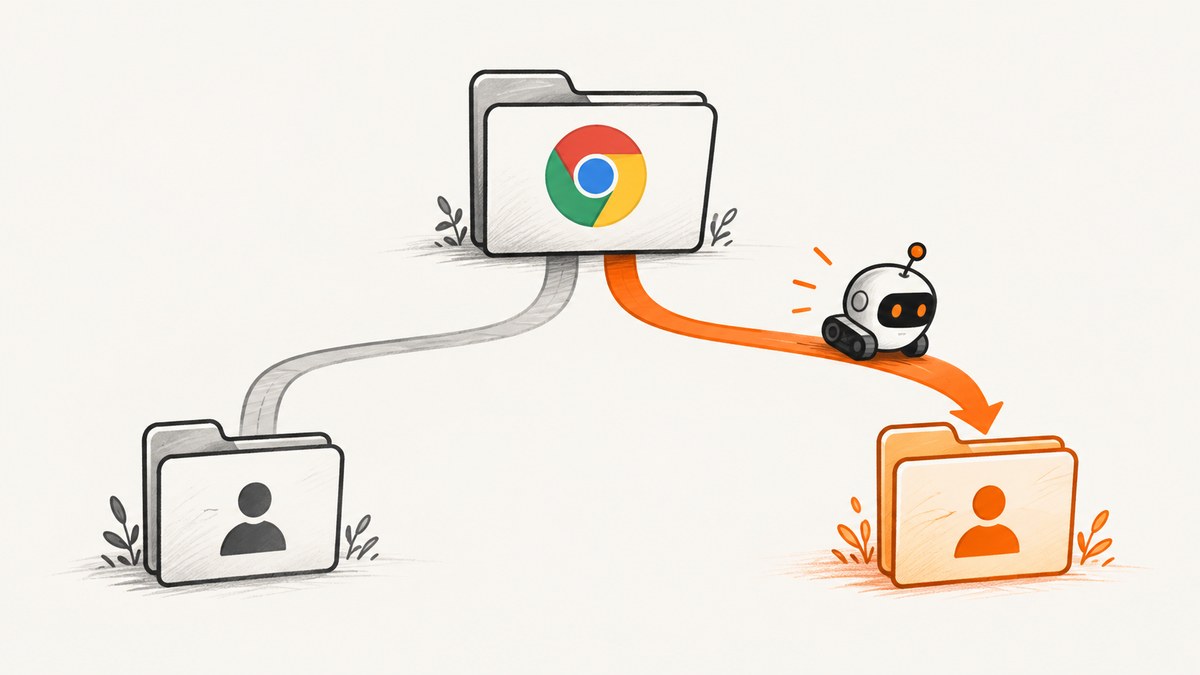
Direct answer: Chrome Headless does not have a special profile system. It uses whichever Chrome user-data directory and profile the launched browser selects. The most common error is passing a profile directory such as .../User Data/Profile 1 as --user-data-dir. The flag expects the parent directory, .../User Data, which contains Default, Profile 1, and Chrome’s per-installation state.
Headless also may be launching a different Chrome channel, executable, operating-system account, framework-created temporary directory, or concurrent process. Fix the path and executable first, then control concurrency. Modern Headless shares Chrome’s main code path with headful Chrome; it runs without visible UI but does not inherently discard profile data. Chrome’s Headless documentation describes this unified behavior.
How Chrome profile paths are organized
Chrome separates the user-data directory from an individual profile. Chromium’s User Data Directory documentation says the parent contains history, bookmarks, cookies, and other local state. Profiles are subdirectories within it, commonly named Default and Profile 1.
| Path or setting | What it means | What to pass |
|---|---|---|
/home/alice/.config/google-chrome |
User-data directory (parent) | --user-data-dir=/home/alice/.config/google-chrome |
/home/alice/.config/google-chrome/Profile 1 |
One profile inside that parent | Usually do not pass as --user-data-dir |
Default or Profile 1 |
Profile directory name | Use --profile-directory=Profile 1 when needed |
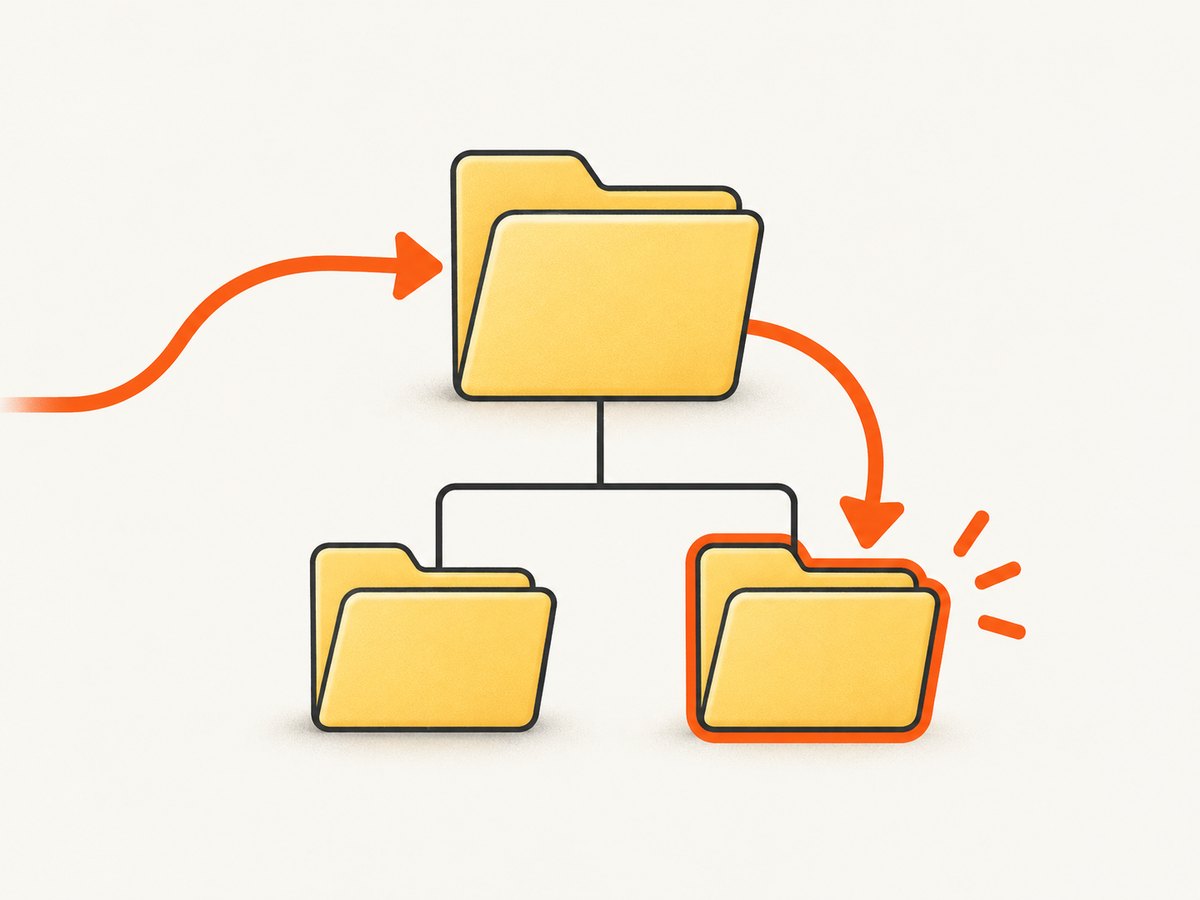
The path shown as Profile Path on chrome://version is the child profile directory. Its parent is the value normally required for --user-data-dir. If you pass the child as the parent, Chrome can create a new nested layout and appear to ignore your cookies or extensions.
Diagnose the mismatch deterministically
- Inspect the working browser. Open the profile that has the expected cookies and extensions, visit
chrome://version, and copy Profile Path. - Derive the parent. Remove the final
/Defaultor/Profile 1component. That parent is the candidate user-data directory. - Identify the executable. Log the exact binary used by automation. Stable, Beta, Dev, Canary, Chromium, and Chrome for Testing can use different defaults and profile roots.
- Log the final arguments. Puppeteer, Selenium, containers, and test runners may add a temporary
--user-data-dir. The argument visible in your source code may not be the final command line. - Check ownership. A running Chrome process can lock a persistent directory. Close visible Chrome before testing, or use a separate automation directory.
- Confirm the operating-system account. A service account, container user, or CI runner has a different home directory and therefore different default paths.
Chromium’s documentation also notes that channel and platform defaults differ, and that on Linux --user-data-dir takes precedence over CHROME_USER_DATA_DIR. Treat every path as explicit in production automation.
Fix the command-line launch
Use the parent directory when you want an existing profile tree:
google-chrome \
  --headless \
  --user-data-dir="/absolute/path/to/Chrome/User Data"
If you specifically need Profile 1 inside that parent, add the profile selector:
google-chrome \
  --headless \
  --user-data-dir="/absolute/path/to/Chrome/User Data" \
  --profile-directory="Profile 1"
For repeatable tests, a clean directory is usually safer:
google-chrome \
  --headless \
  --user-data-dir="/tmp/chrome-automation-profile"
Chrome initializes an empty directory with the required profile files. The Chromium profile guide recommends a separate folder for development and testing. Use an absolute path, ensure the automation user can read and write it, and remove temporary directories after the browser exits.
Puppeteer: select a persistent or isolated profile
import puppeteer from 'puppeteer';

const browser = await puppeteer.launch({
  headless: true,
  userDataDir: '/absolute/path/to/automation-profile',
  executablePath: '/usr/bin/google-chrome'
});

const page = await browser.newPage();
await page.goto('https://example.com', {waitUntil: 'networkidle2'});
console.log(await page.title());
await browser.close();
userDataDir should be the parent you intend to reuse, or a purpose-built empty directory. If you need a particular child profile, pass Chrome’s profile argument through args:
const browser = await puppeteer.launch({
  headless: true,
  userDataDir: '/absolute/path/to/Chrome/User Data',
  args: ['--profile-directory=Profile 1']
});
Do not point two concurrent Puppeteer browsers at one persistent directory. Generate one directory per job, wait for browser.close(), and delete it only after all child processes have stopped. A copied profile is safer than using your daily profile because automation can change cookies, cache, local storage, extensions, and settings.
Selenium: set ChromeOptions correctly
import org.openqa.selenium.WebDriver;
import org.openqa.selenium.chrome.ChromeDriver;
import org.openqa.selenium.chrome.ChromeOptions;

public class HeadlessProfile {
  public static void main(String[] args) {
    ChromeOptions options = new ChromeOptions();
    options.addArguments("--headless=new");
    options.addArguments("--user-data-dir=/absolute/path/to/automation-profile");
    options.addArguments("--window-size=1440,900");

    WebDriver driver = new ChromeDriver(options);
    try {
      driver.get("https://example.com");
      System.out.println(driver.getTitle());
    } finally {
      driver.quit();
    }
  }
}
Selenium documents both --headless=new and --user-data-dir=... as common Chrome arguments. Chrome and ChromeDriver major versions must match; a stale driver can fail before profile selection is even reached. Verify the versions of the exact Chrome binary and driver installed on the machine.
Remote debugging and chrome-devtools-mcp
Close existing Chrome instances, start the intended binary with a dedicated directory, and then connect your client to the matching port:
/usr/bin/google-chrome \
  --remote-debugging-port=9222 \
  --user-data-dir=/tmp/chrome-profile-stable
The chrome-devtools-mcp documentation explains that its persistent profile is reused between runs, only one browser can use it at a time, and --isolated creates a temporary directory. Remote debugging should use a non-default directory so it does not collide with an already-running desktop browser. Keep the debugging port bound to a trusted interface and avoid exposing it publicly.
Profile selection in containers and CI
- Set an explicit writable directory such as
/work/chrome-profileor a per-job temporary path. - Run Chrome as the same user that owns the directory, or fix ownership before launch.
- Do not assume
/home/your-name/.config/google-chromeexists in a container. - Pin the Chrome channel and binary path. A system package and a Chrome for Testing download may have different defaults.
- Use one profile directory per worker. A Kubernetes replica, CI matrix job, or test shard must not share a mounted persistent profile.
- Persist only the state you need. Reusing an entire desktop profile can include sensitive cookies and extensions.
Common errors and fixes
| Symptom | Likely cause | Fix |
|---|---|---|
| Cookies or extensions are missing | Wrong parent, wrong channel, or temporary launcher directory | Compare chrome://version with the logged executable and final --user-data-dir. |
A new Default appears inside Profile 1 |
Child profile was supplied as the user-data parent | Pass the parent and optionally add --profile-directory=Profile 1. |
Profile in use or startup failure |
Another Chrome process owns the directory | Close it, use a unique directory, or serialize access. |
| Headless works locally but not in CI | Different OS user, channel, home directory, or permissions | Print whoami, executable path, directory permissions, and all Chrome arguments. |
| Selenium cannot create a session | ChromeDriver major version does not match Chrome | Install a matching driver and verify both versions. |
| Changes disappear after each run | Framework uses an ephemeral directory | Set an explicit persistent userDataDir, or intentionally save and restore only required state. |
| Two tests interfere with one another | Shared persistent directory | Allocate a unique directory per test worker and clean it up after shutdown. |
Persistence, concurrency, security, and reliability
Persistent versus clean state
A persistent profile preserves cookies, local storage, permissions, cache, and extensions. It is useful for workflows that require a logged-in session, but it makes tests order-dependent and can contain secrets. A clean temporary profile improves repeatability and avoids stale state. Choose deliberately rather than relying on a launcher default.
Concurrency
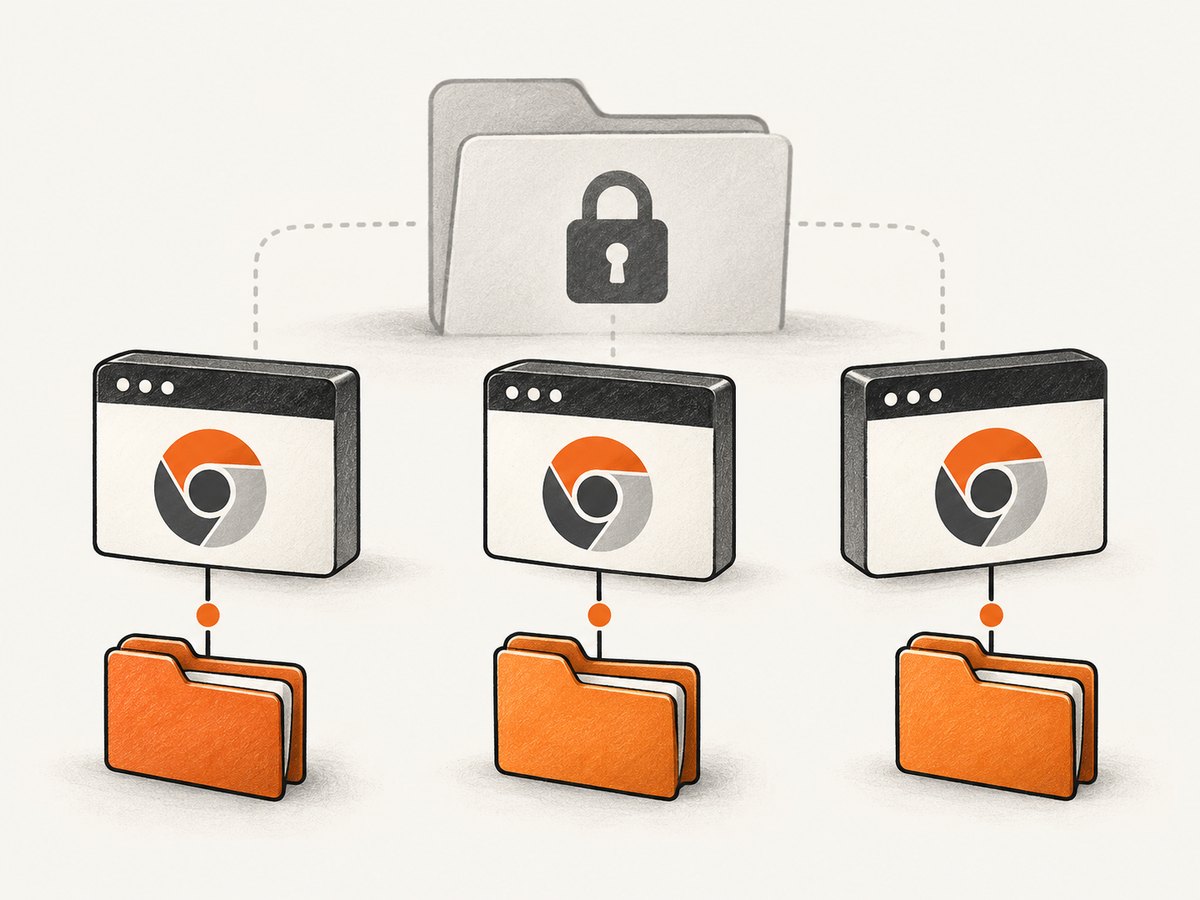
Chrome profile data is stateful. One directory per process is the reliable rule. For parallel work, create directories with a job identifier or operating-system temporary-directory API. Do not “solve” locking errors by deleting files from a profile that another Chrome process may still be using.
Performance
A warm persistent profile can avoid first-run initialization and may retain cache, but large caches and extensions can slow startup. Clean profiles cost startup time while making results more consistent. Disable unnecessary extensions, use a fixed viewport, and wait for a specific selector or network condition instead of arbitrary long sleeps.
Security
Profile directories contain cookies and other local state. Restrict filesystem permissions, avoid committing them to source control, and never upload them to logs or artifacts. Remote debugging exposes powerful browser control; bind it privately and close the process when finished.
Or skip the browser setup
If your goal is a clean website screenshot rather than browser-profile debugging, ScreenshotNeo provides a single GET request. Its capture service accepts consent banners before the shot and removes more than 60 known consent platforms, newsletter popups, and chat widgets; each cleanup step can be disabled. Bot checks, blank pages, timeouts, failed loads, and cache hits are not billed, and response headers identify the page verdict and billing result.
See the ScreenshotNeo API documentation for all options, including full-page and element capture, device presets, dark mode, retina scale, custom CSS and JavaScript, clicks, waits, blocked resources, headers, cookies, user agents, authorization, timezone, geolocation, transparent backgrounds, resizing, TTL caching, signed links, asynchronous jobs, webhooks, bulk capture, usage, and PDF output.
cURL
curl -G "https://api.screenshotneo.com/v1/shot" \
  -d access_key=YOUR_API_KEY \
  --data-urlencode url=https://stripe.com \
  -o shot.webp
Python
import requests

r = requests.get(
    "https://api.screenshotneo.com/v1/shot",
    params={"access_key": "YOUR_API_KEY", "url": "https://stripe.com"},
    timeout=90,
)
r.raise_for_status()
open("shot.webp", "wb").write(r.content)
Node.js
const q = new URLSearchParams({
  access_key: 'YOUR_API_KEY',
  url: 'https://stripe.com'
});
const res = await fetch(`https://api.screenshotneo.com/v1/shot?${q}`);
if (!res.ok) throw new Error(`HTTP ${res.status}`);
const data = Buffer.from(await res.arrayBuffer());
require('fs').writeFileSync('shot.webp', data);
ScreenshotNeo also offers an MCP server with take_screenshot, get_page_info, and capture_pdf tools for Claude, Cursor, and other MCP clients. There are 1,000 screenshots per month free with no card; paid plans start at $5 for 3,000 shots. Create a free ScreenshotNeo account.
Operational checklist
- Copy Profile Path from
chrome://version. - Pass its parent as
--user-data-dir. - Use
--profile-directoryonly to select a child such asProfile 1. - Pin the executable and Chrome channel.
- Log final launch arguments in CI.
- Use one profile directory per concurrent process.
- Prefer a copied or clean profile over a daily profile.
- Match ChromeDriver’s major version to Chrome.
- Keep remote debugging private.
FAQ
Does --headless always use the Default profile?
No. It uses the profile selected by the user-data directory, profile argument, executable defaults, and existing state. If no explicit directory is supplied, the launcher or operating system determines the location.
Can I pass Profile 1 directly?
Use its parent with --user-data-dir and select Profile 1 with --profile-directory. Passing the child as the parent can create an unexpected nested profile.
Why does a profile work headful but not headless?
Usually the two launches differ in executable, user, arguments, or directory ownership. Compare the complete command lines and run each mode with an explicit directory.
Should automation reuse my personal Chrome profile?
Only when the workflow requires its state and you understand the security and concurrency risks. A dedicated copied or clean profile is easier to reproduce and protect.


