Chrome HTML Documents vs. PDFs: Key Differences
A “Chrome HTML Document” label can be misleading. Learn how HTML and PDF differ, how to identify your file, and when to use each format.
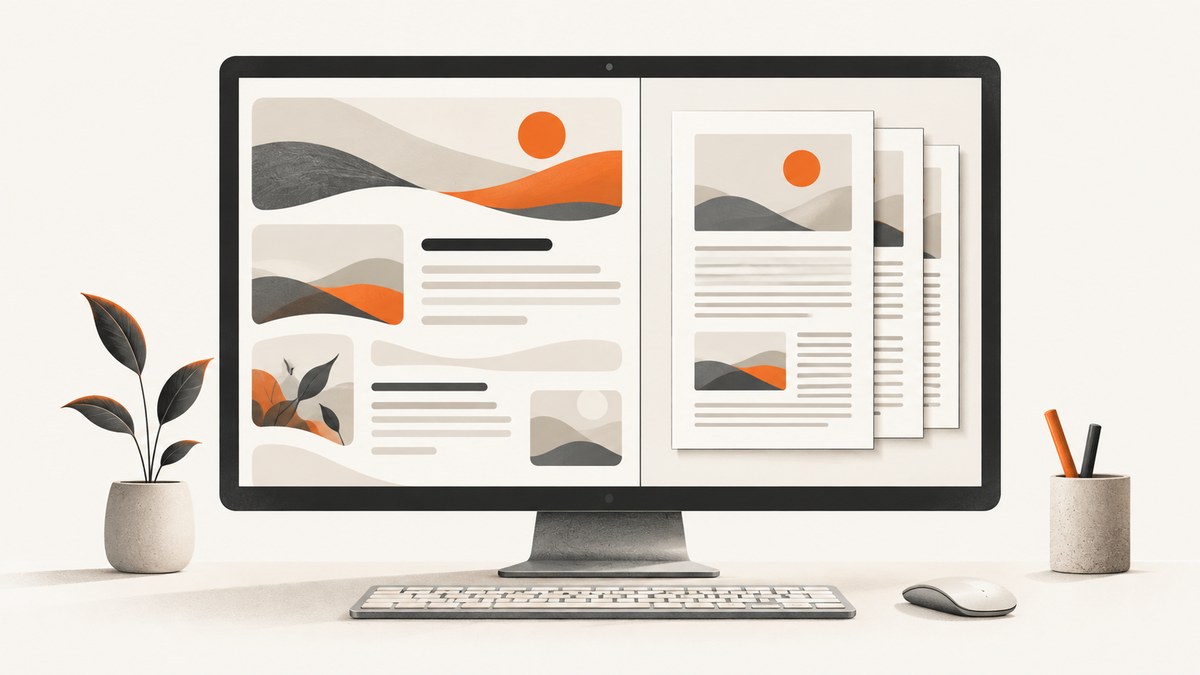
A Chrome HTML Document label does not necessarily mean a file contains HTML. On Windows, it can describe a file association with Chrome. If the filename ends in .pdf, it is a PDF even if Windows shows a Chrome icon or Chrome-associated type description. Check the extension and file properties before changing or converting anything. Microsoft Q&A illustrates this label on PDFs associated with Chrome; it is an example, not authoritative guidance for current Windows menus.
HTML and PDF serve different purposes. HTML is structured content a browser parses and renders with CSS, JavaScript, and other resources. Its layout can adapt to the viewing space and support browser interaction. PDF represents a document as pages, making it useful when stable pagination and print presentation matter. PDFs can also have links, forms, and accessibility structure. Neither format is automatically accessible: that depends on how it is authored.
This guide explains how to tell the formats apart, choose one, print a web page to PDF, and capture a page as an image or PDF when that is the actual goal.
1. What “Chrome HTML Document” means
File type labels and icons commonly reflect which application Windows associates with a file. They are not a reliable inspection of its contents. Chromium registers “Chrome HTML Document” as a Windows association description, and a PDF associated with Chrome may consequently appear with Chrome branding. Chromium’s source documents the association string.
Use the extension as the first clue:
.pdf: the file is identified as a PDF, regardless of the icon or displayed app association..htmlor.htm: the filename indicates an HTML document.
To check in Windows, show file name extensions in File Explorer if they are hidden, then inspect the complete name. You can also open the file’s Properties and examine its name and type. Windows interface wording varies by version, so use the instructions for the Windows release in front of you. Do not rename an unknown file just to change its icon: changing the extension does not convert the underlying format.
2. HTML and PDF: the practical differences
| Question | HTML | |
|---|---|---|
| How is it displayed? | A browser parses structured markup into a document model and combines it with styles, scripts, and media to render the page. | A page-oriented document is displayed by a PDF viewer or compatible application. |
| Does the layout adapt? | Usually. Responsive CSS and available screen space can change line wrapping and layout. | Generally fixed to pages. Tagged PDFs can support reflow in capable software. |
| Can it be interactive? | Yes. Browser scripts and APIs can power rich interactions. | It can contain links and forms. PDF JavaScript operates in a more limited environment than HTML’s DOM in Chromium. |
| Is it suited to printing? | It can be, especially with print-specific CSS, but printed output may differ from the screen. | Its page-oriented presentation is useful when a stable printable artifact is needed. |
| Can it be accessible? | Yes, when the HTML has useful semantics and structure. | Yes, when logical structure, tags, and reading order are represented correctly. |
HTML describes structured content. A browser parses it, builds a Document Object Model (DOM), and uses CSS and other resources to render the result; JavaScript may change the DOM as the page runs. MDN explains the browser rendering process, and the WHATWG HTML Standard defines the format.
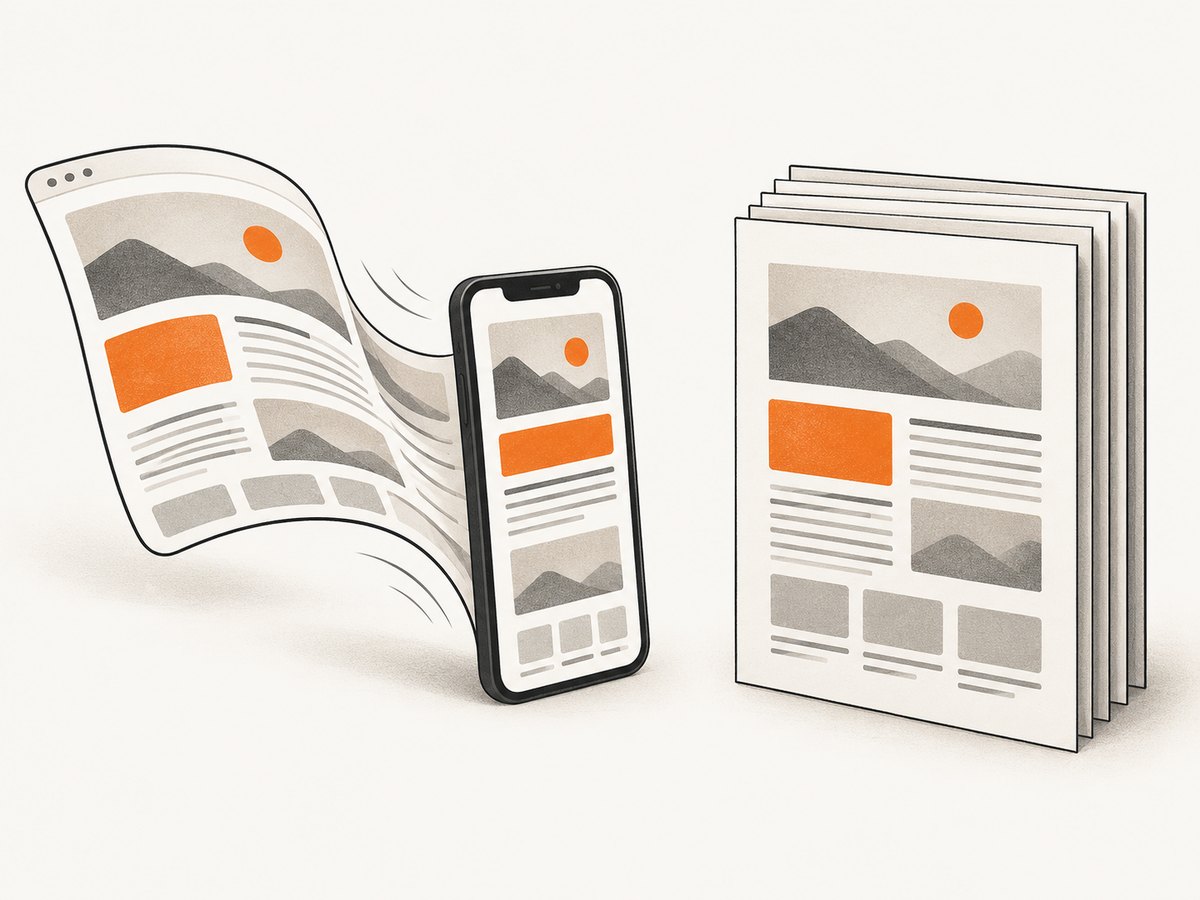
PDF is designed to represent documents independently of the software, hardware, operating system, and output device used to create, display, or print them. W3C’s PDF Technology Notes describe the format and explain how tagged PDF structure can help with extraction, reflow, and assistive technology. Tagged structure is a capability, not a guarantee that a particular PDF is well structured.
3. How to identify and open the file safely
- Reveal the full filename. If Windows hides extensions, enable their display in File Explorer.
- Read the ending. Treat
.pdfas a PDF and.htmlor.htmas HTML. If there is no recognizable extension, do not infer format from the icon alone. - Check Properties. Confirm the full name and file information. A listed application or type association tells you how Windows may open it; it does not alone establish the document’s contents.
- Open with an appropriate viewer. Chrome can display PDFs as well as HTML pages. An HTML file may need its related assets, such as stylesheets, scripts, and images, to look or work as intended.
Chrome’s PDF viewer can open, search, highlight, annotate, draw on, fill, and sign PDFs. Google says scanned PDFs opened in Chrome can be processed with on-device OCR so text becomes searchable and selectable; available features can vary by version and platform. See Google’s Chrome PDF help.
4. Choose the format for the job
Choose HTML for a live, responsive page
Use HTML when the content should adapt to different screen sizes, stay connected to a website, or provide browser-based interaction. It is often the natural choice for product documentation, articles, dashboards, and pages whose content or behavior changes. Keep in mind that a standalone HTML file may depend on external resources or scripts; sharing that file alone may not preserve the complete experience.

Choose PDF for a paginated artifact
Use PDF when readers need a page-oriented document for printing, offline sharing, or form completion. A PDF helps preserve pagination, but its appearance can still depend on the viewer, fonts, and authoring quality. For accessible output, ensure the document has meaningful tags and reading order; visual polish alone does not make it usable with assistive technology.
Print a web page to PDF when you need a snapshot of its content
Printing a page to PDF is not necessarily a pixel-identical copy of the screen. A site can use print-specific styles to remove navigation, change layout, and set paper size, orientation, or margins. MDN’s print CSS guidance describes these controls. Review the generated pages for cut-off content, awkward page breaks, and missing backgrounds before sharing.
5. Capture a web page as a PDF or screenshot
When the source is a web page and you need a shareable PDF, use Chrome’s print flow: open the page, choose Print, select a PDF destination, set paper and layout options, review the preview, and save. Exact labels and available options depend on the operating system and Chrome version. The resulting PDF follows print layout rules, so inspect it instead of assuming it matches the screen.
For repeatable automated PDF generation with Chromium, one option is Playwright. The following Node.js example opens a page and writes a PDF. Install Playwright and its Chromium browser first, then save this as page-to-pdf.mjs and run it with Node.js. The page must be reachable from the machine running the script.
import { chromium } from 'playwright';

const browser = await chromium.launch({ headless: true });
try {
  const page = await browser.newPage();
  await page.goto('https://example.com', { waitUntil: 'networkidle' });
  await page.pdf({
    path: 'page.pdf',
    format: 'A4',
    printBackground: true,
    margin: { top: '12mm', right: '12mm', bottom: '12mm', left: '12mm' }
  });
} finally {
  await browser.close();
}
Choose a wait condition that fits the site. A page that continually polls or streams may never become idle; a page that adds content after initial load may need an explicit selector or delay. Consider authentication, consent prompts, and the page’s terms before automating access. If you only need a screenshot rather than a paginated document, use a screenshot capture method; PDF print settings and image viewport settings solve different problems.
Or skip the browser setup
ScreenshotNeo is a website screenshot API and MCP server. One GET request can return a PNG, JPEG, WebP, or PDF. See the ScreenshotNeo API documentation for the API and options.
curl -G "https://api.screenshotneo.com/v1/shot" \
  -d access_key=YOUR_API_KEY \
  --data-urlencode url=https://example.com \
  -o page.webp
ScreenshotNeo removes cookie banners, newsletter popups, and chat widgets before capture; each of those steps can be turned off. Bot checks, blank pages, and failed loads are never billed, and response headers report the page verdict and billing status. Its MCP server lets AI agents use take_screenshot, get_page_info, and capture_pdf. The Free plan includes 1,000 screenshots per month without a card; paid plans start at $5 for 3,000. Sign up for 1,000 free screenshots a month, no card required.
6. Accessibility: structure matters in both formats
HTML can expose meaningful structure through headings, landmarks, links, and other semantic elements. That structure contributes to the browser’s accessibility tree when authored properly. A page that only looks organized, but uses inappropriate markup, can be harder to navigate with assistive technology.
PDF can carry a logical structure hierarchy and reading order through tags. That can help people navigate, extract text, and use assistive technology, but the tags must reflect the document’s meaning. A conversion can preserve visual appearance while losing headings, link semantics, or reading order. Check the generated document with accessibility tools and, where possible, assistive technology. W3C’s PDF notes discuss tagged structure and accessibility considerations.
7. Performance, reliability, and cost considerations
There is no universal performance winner between HTML and PDF. HTML rendering depends on the document, scripts, stylesheets, media, network access, and browser. A PDF may be convenient to distribute as one file, but large embedded images or fonts can make it slower to transfer or open. These are implementation-dependent trade-offs, not format-level timing guarantees.
For automated PDF generation, reliability depends on waiting for the right page state, handling navigation failures, and closing browser processes even when capture fails. Avoid treating network idle as proof that every image or delayed widget has finished: sites can load content later or keep requests open. If the generated PDF matters, check page count, expected text, margins, and whether important content is missing.
Cost depends on your infrastructure and workflow. A local browser process uses your compute and requires browser installation and maintenance. A hosted capture API trades that setup for per-plan usage limits and service behavior. For ScreenshotNeo, the published plans are Free: 1,000 shots/month; Starter: $5 for 3,000; Growth: $15 for 15,000; Pro: $39 for 60,000; Scale: $99 for 250,000; and Business: $249 for 1,000,000. Yearly billing gives two months free, and every feature is available on every plan. Base your choice on expected volume and which capture controls you need.
8. Troubleshooting common problems
| Symptom | Likely cause | What to do |
|---|---|---|
| A PDF is labeled “Chrome HTML Document.” | Windows associates the file with Chrome, or the displayed type is an application label. | Show extensions and inspect the full filename or Properties. If it ends in .pdf, handle it as a PDF. |
| The icon changed, but the document did not. | The default application association changed. | Choose the preferred app for opening the file. Changing the app association does not convert the format. |
| An HTML file looks unstyled or incomplete. | Related CSS, images, scripts, or network resources are missing or unavailable. | Open the original page online if possible, or keep the HTML file with its required resources and paths. |
| A PDF export differs from the browser view. | Print CSS, page size, margins, or page breaks changed the layout. | Inspect print preview, check the page rules, and adjust paper and margins for the intended output. |
| PDF text cannot be selected. | The PDF may contain page images rather than text, or its text structure may be absent. | For a scan, use an OCR-capable viewer; Google says Chrome performs on-device OCR for scanned PDFs. Verify the recognized text before relying on it. |
| Generated PDF content is missing. | Capture happened before delayed content loaded, or the page failed to load a resource. | Wait for a meaningful selector or known page state, inspect load errors, and verify the output. |
| Content is clipped or split badly across pages. | Print layout and page breaks do not fit the chosen paper size. | Review print CSS and margins; use page break rules where appropriate, then inspect the revised pages. |
9. Frequently asked questions
Is a Chrome HTML Document always an HTML file?
No. The Windows label can reflect Chrome’s file association. Inspect the full extension; a filename ending in .pdf is a PDF.
Can I open a PDF in Chrome?
Yes. Chrome has a PDF viewer with tools for reading and working with PDFs. Opening it in Chrome does not turn it into HTML.
Can a PDF reflow like a web page?
PDF layout is generally page-based, though tagged PDF can support reflow in capable software. Do not assume every PDF has the tags needed for it.
Which should I send to someone?
Send HTML when the recipient needs the live, responsive page and its interactions. Send PDF when a paginated artifact is more useful for printing, offline sharing, or forms. Check that the recipient can access any resources the HTML depends on.
Does converting HTML to PDF make it accessible?
No. Accessibility depends on the structure and reading order represented in the resulting PDF, as well as the source and conversion process. Validate the output.
In short: trust the extension and file properties over the icon, use HTML for adaptable web content, and use PDF for paginated documents. Choose based on how the document will be read, printed, shared, and navigated.


