Why Website Images Fail to Load in Chrome and How to Fix Them
Find out why images fail in Chrome, isolate the cause, and fix browser, network, security, and website configuration problems step by step.
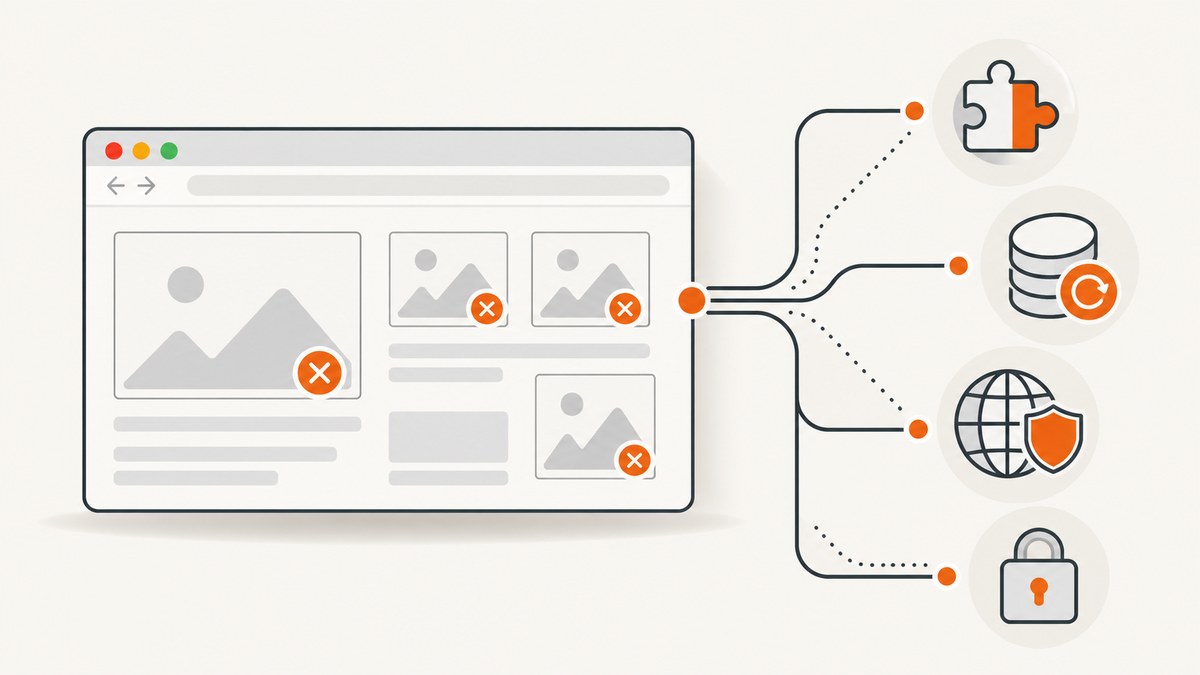
Images that fail in Chrome usually have one of four causes: a browser profile or extension problem, stale site data or permissions, a network or security filter, or an error in the website’s image URL or security policy. Start by checking whether one site fails or many, then open the page in Incognito. That quick comparison tells you whether to focus on Chrome’s profile or on the network and website.
This guide walks through a reversible troubleshooting sequence for readers, then covers the checks a site owner should make in DevTools. It also explains what broken-image icons, blank areas, and “blocked” console messages mean.
1. Establish the scope before changing settings
First reload the page and verify the image URL or page address. Then open a second, unrelated website that contains images.
| What you observe | Most useful next step |
|---|---|
| Only one image or one website fails | Inspect that site’s URL, permissions, cookies, redirects, and console errors. |
| Several websites fail | Check extensions, network access, VPN or filtering software, firewall and antivirus rules, and device memory. |
| Images work in Incognito but not a normal window | Investigate extensions and profile data such as cached files and cookies. |
| Images fail in both modes and in another browser | Investigate the network, security software, DNS or the website’s server. |
Record the failed image URL and, if possible, its HTTP status before making changes. This preserves evidence for a site owner or administrator.
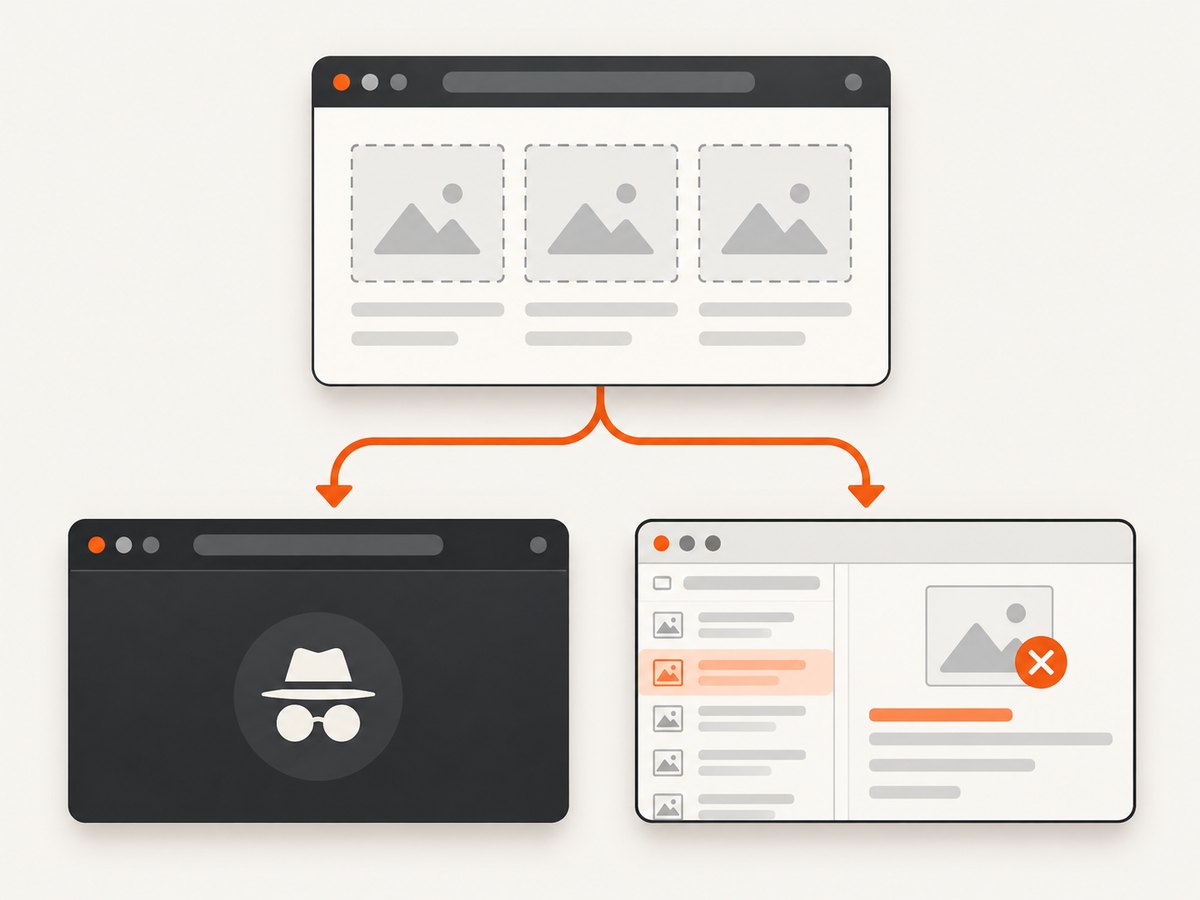
2. Use Incognito as the fastest isolation test
- Open Chrome’s menu, choose New Incognito window, and visit the same page.
- Compare the exact images, not just whether the page appears complete.
- If the images load in Incognito, return to the normal window and continue with extensions and site data.
Incognito starts a separate browsing session with most extensions disabled unless you explicitly allow them. It does not prove that the website is healthy: a site can behave differently because cookies, authentication, or consent state are different. Treat the result as an isolation test.
3. Disable extensions systematically
An extension that filters advertisements, trackers, scripts, images, or requests can remove an image request before Chrome sends it. Privacy tools, corporate security extensions, download helpers, and accessibility tools can all affect page resources.
- Open
chrome://extensions. - Turn off extensions temporarily, especially blockers and security tools.
- Reload the affected page.
- If images return, re-enable extensions one at a time and reload after each change.
Google’s troubleshooting guidance recommends re-enabling extensions individually to identify the one causing a loading problem. See Google Chrome Help’s loading and connection troubleshooting.
Once you identify the extension, check its per-site allowlist or filtering rules. Keeping every extension disabled is not a useful permanent fix; changing the rule for the affected domain is usually more precise.
4. Clear cached files, cookies, and site data
A stale cached image, expired redirect, corrupted service-worker response, or old consent cookie can make one site appear to have missing images. Clear data for the affected site first so you do not disrupt unrelated sessions.
- Open the affected page.
- Choose the site controls icon next to the address, then open site settings or cookies and site data.
- Remove the site’s stored data, close the tab, and open it again.
You can also use Chrome’s clear-browsing-data flow and select cached images and files plus cookies and other site data. Clearing cookies signs you out and can change preferences. If the problem returns immediately, note whether a service worker or a consent system restores the same state.
5. Check JavaScript and site permissions
Many modern pages build image URLs, request signed assets, or lazy-load images with JavaScript. If JavaScript is blocked, the page may render containers without ever requesting the image.
- Open the site controls icon beside the address.
- Open Site settings.
- Confirm that JavaScript is allowed.
- Review permissions for images, pop-ups, redirects, and sound when the site depends on them.
- Reload the page.
Third-party cookies can affect embedded image galleries, content delivery systems, and authenticated media. Chrome documents site-level permissions and cookie behavior in its privacy and security settings guidance. If a gallery is embedded from another origin, test whether allowing the required third-party cookies changes the result.
6. Check the network, firewall, and security software
When multiple sites fail, move beyond Chrome’s profile. A VPN, DNS filter, parental-control service, antivirus web shield, corporate proxy, or firewall can block image hosts while allowing the page’s HTML to load.
- Temporarily disconnect from a VPN and reload.
- Try another network, such as a phone hotspot. If that works, compare DNS, proxy, and filtering settings on the original network.
- Review antivirus or firewall web-protection logs for the image hostname.
- Check whether a company proxy requires authentication.
- Close unused applications and tabs if the device is low on memory.
Only change one layer at a time and restore any temporary security setting after the test. Chrome’s troubleshooting documentation lists network configuration, firewall or antivirus software, and available memory among common causes of loading failures.
7. Read the Console and Network panel
For a precise diagnosis, open DevTools with Ctrl+Shift+I (Windows/Linux) or Cmd+Option+I (macOS).
- Open the Console tab and reload with DevTools open.
- Open the Network tab, filter by
Img, and reload. - Click a failed request and record its URL, status, response headers, and initiator.
| Symptom | Likely meaning |
|---|---|
404 |
The path or filename is wrong, the asset was moved, or case differs on a case-sensitive server. |
403 |
Authentication, hotlink protection, an origin rule, or a signed URL denied access. |
401 |
The image requires credentials that the browser request did not send. |
5xx |
The image server, CDN, or upstream service failed. |
(blocked:mixed-content) |
An HTTPS page requested an HTTP resource. |
net::ERR_BLOCKED_BY_CLIENT |
An extension or local filtering rule blocked the request. |
| Successful status but blank rendering | The response may not be an image, may be corrupted, or may be blocked by a policy or rendering issue. |
Use the response headers to confirm an appropriate image content type such as image/png, image/jpeg, or image/webp. A server returning an HTML error page with status 200 can still produce a broken image.
8. Site-owner fix: remove mixed content
Mixed content occurs when an HTTPS page requests an image over HTTP. Browsers may block the request or attempt an automatic upgrade that still fails if the HTTP host does not serve HTTPS correctly.
Change absolute URLs such as http://cdn.example.com/photo.jpg to https://cdn.example.com/photo.jpg, or use a same-origin relative URL such as /images/photo.jpg. Verify the HTTPS certificate, redirect chain, and CDN configuration. MDN states that the best strategy for avoiding mixed-content problems is to serve all content over HTTPS; see MDN’s mixed-content documentation.
9. Site-owner fix: review Content Security Policy
A Content Security Policy (CSP) can allow the page itself while blocking image origins. Inspect the console message and the response header or meta tag. Check img-src first, then the inherited default-src directive.
Content-Security-Policy: default-src 'self'; img-src 'self' https://images.example-cdn.com data:;Add only the image origins you actually use. A policy with upgrade-insecure-requests can upgrade insecure URLs, but it does not replace an img-src permission for an unapproved origin. See MDN’s Content Security Policy reference.
10. Site-owner asset and server checklist
- Open the image URL directly in a new tab and with a command-line client.
- Confirm redirects end at a reachable HTTPS URL.
- Confirm the response status is successful and the content type is an image.
- Check authentication headers, signed URL expiry, and clock skew.
- Check CDN permissions, hotlink protection, referrer rules, and rate limits.
- Check filename case and URL encoding.
- Verify lazy-loading code eventually assigns
srcorsrcset. - Check service-worker caches and purge stale entries after deployment.
- Inspect image dimensions and file integrity; a zero-byte or truncated file will not render.
11. A repeatable diagnostic workflow
- Reload and test a second website.
- Test the affected page in Incognito.
- If Incognito works, disable extensions and clear site data.
- Confirm JavaScript and site permissions.
- If several sites fail, test another network and inspect VPN, firewall, antivirus, proxy, DNS, and memory.
- Use DevTools to capture the exact failed URL and HTTP status.
- For site owners, fix HTTPS, CSP, authentication, redirects, CDN rules, and asset paths.
- Retest in a normal window and in Incognito after each change.
12. Capture a page without maintaining a browser setup
When you need a reliable reference image for a report, regression check, or documentation page, a screenshot API can isolate capture from a developer’s local Chrome profile. ScreenshotNeo is a website screenshot API and MCP server. It accepts one GET request and returns PNG, JPEG, WebP, or PDF.
Or skip the browser setup
Use the API endpoint shown in the ScreenshotNeo documentation:
curl -G "https://api.screenshotneo.com/v1/shot" -d access_key=YOUR_API_KEY --data-urlencode url=https://stripe.com -o shot.webpimport requests
r = requests.get("https://api.screenshotneo.com/v1/shot", params={"access_key": "YOUR_API_KEY", "url": "https://stripe.com"}, timeout=90)
open("shot.webp", "wb").write(r.content)const fs = require('node:fs');
const q = new URLSearchParams({ access_key: 'YOUR_API_KEY', url: 'https://stripe.com' });
const res = await fetch(`https://api.screenshotneo.com/v1/shot?${q}`);
if (!res.ok) throw new Error(`HTTP ${res.status}`);
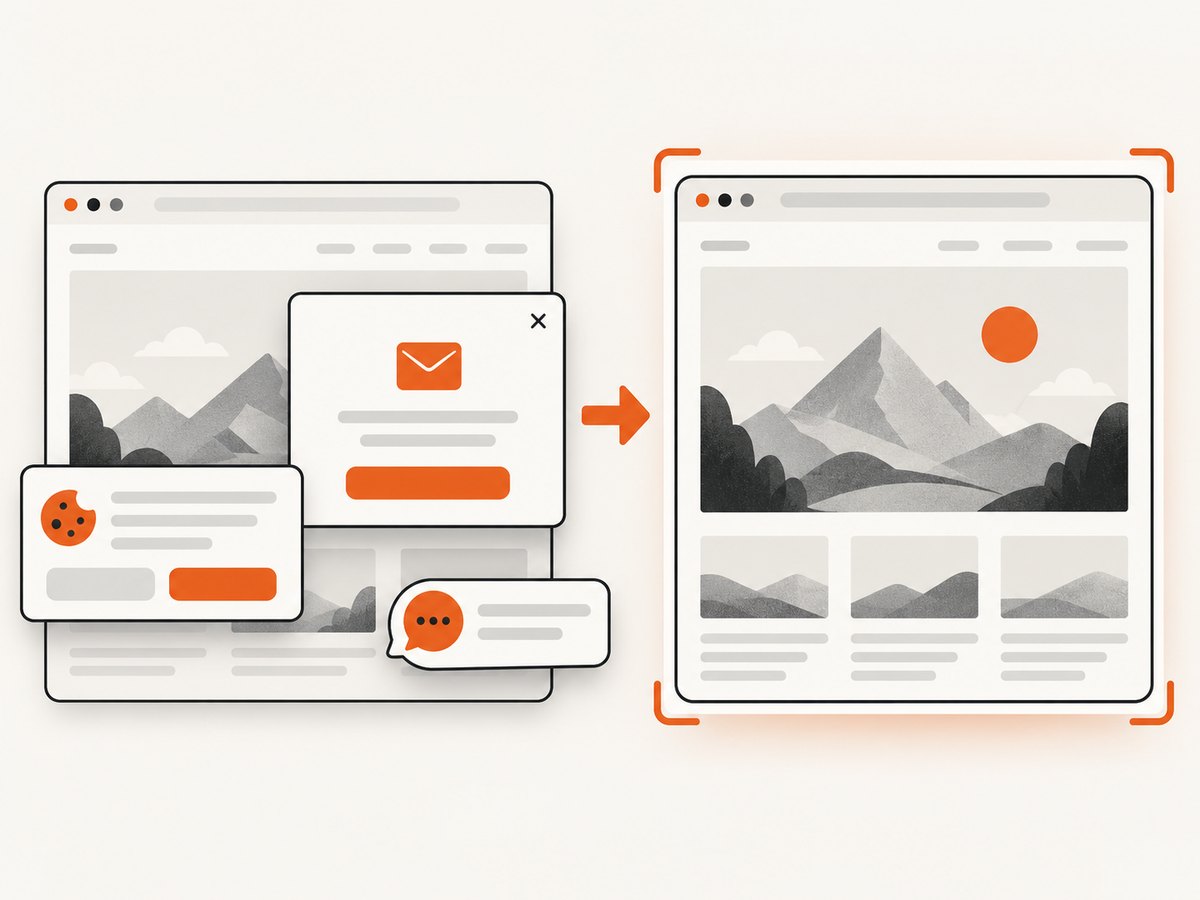
fs.writeFileSync('shot.webp', Buffer.from(await res.arrayBuffer()));Before capture, ScreenshotNeo accepts cookie and consent banners and removes more than 60 known consent platforms, newsletter popups, and chat widgets. Each cleanup step can be turned off. Bot checks or CAPTCHAs, blank pages, timeouts, failed loads, and cache hits cost nothing, and each response reports the result through X-Page-Verdict and X-Billed headers.
For difficult pages, options include full-page capture with lazy images loaded, CSS-selector element capture, dark mode, device presets or a custom viewport, retina scale, custom CSS and JavaScript, clicks, hidden selectors, waits for a selector, delay or network idle, blocked ads and requests, custom headers and cookies, a user agent, Authorization, timezone, geolocation, transparent backgrounds, resizing, and a chosen cache TTL. PDF output supports paper size, margins, landscape mode, and page ranges. Async jobs, signed webhooks, signed public image links, bulk capture of up to 100 URLs per call, a usage API, and an OpenAPI spec are also available. Parameter names used by other screenshot APIs work as well, which helps when switching.
An MCP server provides take_screenshot, get_page_info, and capture_pdf tools for Claude, Cursor, and other MCP clients, so an AI agent can inspect a page without your local browser configuration. Free usage includes 1,000 screenshots per month with no card; paid plans start at $5 for 3,000 shots. Create a free ScreenshotNeo account.
13. Performance, reliability, and cost considerations
- For local diagnosis: Incognito and DevTools are immediate and free, but results depend on the current machine, profile, network, and login state.
- For repeatable captures: Use a fixed viewport, explicit waits, and a chosen cache TTL. Full-page lazy-image loading can take longer than a viewport shot.
- For many URLs: Bulk capture can send up to 100 URLs per call; async jobs and signed webhooks keep long captures out of a request timeout.
- For billing: ScreenshotNeo bills only clean shots. Failed loads, bot checks, blank pages, timeouts, and cache hits are not billed, and the response headers identify the verdict.
- For planning: The Free plan includes 1,000 shots monthly; Starter is $5 for 3,000, Growth $15 for 15,000, Pro $39 for 60,000, Scale $99 for 250,000, and Business $249 for 1,000,000. Yearly billing gives two months free, and every feature is on every plan.
FAQ
Why do images work in Incognito but not normal Chrome?
An extension or stored profile data is the leading explanation. Disable extensions one by one, then clear the affected site’s data.
Why are only images from one CDN missing?
Check that CDN’s status, redirects, certificate, authentication, hotlink rules, and the page’s CSP img-src directive.
Can clearing the cache fix a server-side 404?
No. It can remove stale browser data, but a 404 means the requested path is not available at the server or CDN.
Why does a page show empty image space instead of a broken icon?
Lazy-loading JavaScript, CSS, a blocked request, or an image with a zero or hidden layout can leave an empty container. DevTools Network and Console reveal which case applies.
What evidence should I send a website owner?
Send the page URL, failed image URL, timestamp, browser version, whether Incognito worked, and the Network status or Console error. This is usually enough to distinguish a browser-profile problem from a site defect.


