Why Website Images Aren’t Showing in Chrome and How to Fix It
Find out why images are missing in Chrome and work through a practical checklist, from extensions and cache to mixed content and failed requests.

If website images aren’t showing in Chrome, first open the same page in an Incognito window and reload it. If the images appear there, an extension, stored site data, or a profile setting is a likely cause. If they are still missing, check the image requests in DevTools and compare the page in another browser: that helps separate a Chrome problem from a network or website problem.
Use this guide to narrow down the cause before changing settings. It covers broken-image icons, blank image areas, images missing on just one site, and cases where a request succeeds but the page still does not display the image.
1. Identify the scope of the problem
Before clearing data or changing settings, note where the failure happens. These four comparisons point to different causes:

| What you observe | Most useful next check |
|---|---|
| One website fails; other sites show images | Check that site’s permissions, image URLs, and DevTools request results. |
| Many sites fail in a normal window, but work in Incognito | Disable extensions and investigate profile data or settings. |
| The same page fails in Chrome and another browser | Check the network or the website; the problem is less likely to be Chrome alone. |
| Image requests succeed, but images are invisible or misplaced | Inspect the page’s JavaScript, CSS, and rendering rather than treating it as a download failure. |
Also distinguish a broken-image icon from an empty space. A broken icon often means the browser could not load or decode the requested image. An empty space may be deliberate layout, an image that has not loaded yet, or content that depends on JavaScript or scrolling.
2. Try the quick fixes first
- Reload and check the address. Confirm the page URL is correct, then reload. If the site uses a page-specific link, try its home page and navigate back to the affected content.
- Open the same URL in Incognito. Use the Chrome menu to open a new Incognito window, or press
Ctrl+Shift+Non Windows/Linux or⌘+Shift+Non Mac. If it works there, focus on extensions and profile state. Incognito is a diagnostic comparison, not proof that the site itself is fixed. - Disable extensions one at a time. Ad blockers, privacy extensions, script controls, and other page modifiers can prevent requests or change page content. Open Chrome’s Extensions manager, turn off likely candidates, reload, and re-enable extensions individually until the conflict returns. Google’s image troubleshooting flow recommends checking toolbars and extensions as part of diagnosis.
- Clear cached images and files and site data. Stale local data can interfere with reloading a site. In Chrome’s clear browsing data controls, choose an appropriate time range and cached images/files. Clearing cookies or site data may sign you out or reset site preferences, so use it when the simpler checks have not helped. Reload the page afterward.
- Check JavaScript and site permissions. Some pages create or load images with scripts. Review Chrome’s JavaScript setting and the affected site’s permissions. If a setting is blocked for that site, allow it only if you trust the site, then reload.
These steps align with Google’s recommended image troubleshooting sequence: test private browsing, check extensions and cached data, and make sure JavaScript is enabled.
3. Check whether Chrome is blocking insecure image content
A page can load over HTTPS while requesting an image over HTTP. This is mixed content. Chrome’s site settings explain that secure pages can embed content from other sites, including images, and that secure sites block insecure content by default. A blocked image can therefore disappear while the rest of the page looks normal.
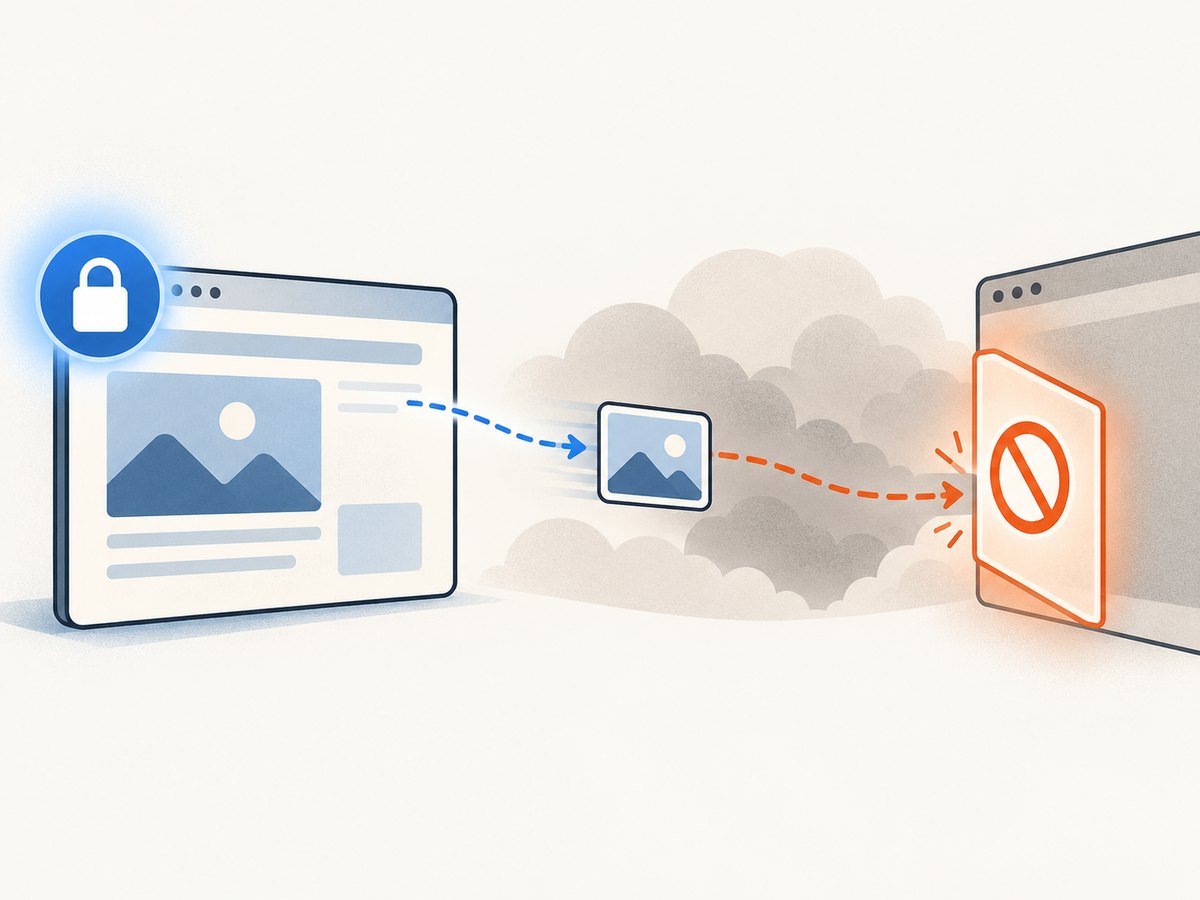
To investigate, open the affected page and inspect its site information or site settings. Chrome’s site permissions guide describes the Insecure content control. Review it only for a site you trust. Allowing insecure content weakens the protection HTTPS provides; it is generally better for the site owner to serve the image securely. If you are just visiting, report the broken image to the website rather than broadly changing browser security settings.
4. Diagnose the image request in DevTools
For a developer or a persistent problem, DevTools can show whether Chrome tried to fetch the image, whether the request was blocked or failed, and what response came back.
- Open the affected page, then open DevTools with
F12orCtrl+Shift+I(⌘+Option+Ion Mac). - Select Network. Enable Preserve log if you expect navigation or reloads to clear the list. Filter by Img if available.
- Reload the page with the Network panel open. Find the missing image request by filename, URL, or its type.
- Inspect the request’s status, URL, response headers, and any blocked or failed indication. A blocked request points toward browser policy, an extension, or request controls. A failed request can point toward DNS, connectivity, TLS, or a server response. A successful response shifts attention toward decoding, CSS visibility, or page logic.
- Click the image element in the Elements panel, if present. Check its
srcorsrcset, computed dimensions, and whether CSS hides it. If the element is absent, inspect the page’s scripts and console errors.
Chrome DevTools documents how to inspect network activity, including requests that are blocked or throttled. If the request URL is malformed, points to a missing resource, or returns an error, the website may need a code or server fix.
What the request result suggests
| Network result | Likely direction |
|---|---|
| No image request appears | The page may not create the image, it may be lazy-loaded, or a script/extension may prevent the request. Scroll to the image and check the Console. |
| Request is marked blocked | Inspect the reason, site security settings, extension behavior, and any request blocking or throttling rules. |
| Request fails or returns an error | Check the URL, network connection, redirects, server logs, and whether the resource exists. |
| Successful response, image still missing | Check content type and image validity, then inspect element dimensions, CSS visibility, and decoding or JavaScript errors. |
5. Compare with another browser and check the network
Open the same exact URL in another browser. If images work there, the issue is more likely specific to Chrome’s profile, extensions, settings, or rendering. If they fail there too, look at the site or network. Google’s guidance similarly recommends another browser to tell whether a page problem is Chrome-specific; see Fix Chrome if it crashes or won’t open.
If several browsers or devices on the same connection have trouble, try another network if one is available. Restarting a modem or router can help with broader connection problems, but it will not fix a missing file or broken image URL on the website. If just one site is affected across browsers, contact that site and include the page URL, the affected image location, and the approximate time of failure.
6. Escalate Chrome-specific problems
If images still fail only in Chrome after Incognito, extension, data, permission, and cross-browser checks, try these in order:
- Reduce memory pressure. Close tabs and apps you do not need, then reload. Chrome may struggle to load a page when the computer is short on memory.
- Restart Chrome and the computer. This clears temporary browser and system state.
- Temporarily disable hardware acceleration. In Chrome Settings, open System, turn off “Use hardware acceleration when available,” and relaunch Chrome. If it changes the symptom, update graphics drivers or investigate the graphics configuration. You can turn acceleration back on if it makes no difference.
- Check for unwanted software and managed settings. Security software or a work/school policy can affect requests. If Chrome is managed, ask the administrator before changing a policy-controlled setting.
- Reset or reinstall only as a last resort. A new profile can help determine whether the existing profile is damaged. Back up or sync important data and understand what will be removed before resetting or reinstalling.
Google lists memory pressure, extensions, another-browser comparison, and hardware acceleration among its troubleshooting paths in the Chrome help guidance.
7. If you build or maintain the website
When visitors report missing images, collect the exact page URL, browser version, time, and whether the image fails for other visitors. In DevTools, preserve the Network log and inspect the request URL, status, redirect chain, and response content type. Check server or CDN logs for that resource at the same time.
- Verify the image file exists at the requested path and capitalization matches; some hosting systems treat case differences as distinct filenames.
- Check redirects, authorization requirements, hotlink protection, and CDN rules. A URL that works for a logged-in developer may fail for an anonymous visitor.
- Serve page and image resources over HTTPS. Avoid relying on visitors to weaken browser protections for mixed content.
- For responsive images, inspect
srcsetandsizes; for lazy loading, scroll the target into view and confirm the page assigns a valid URL. - Check CSS for zero dimensions,
display:none, opacity, overlays, or clipping. A downloaded image can be invisible because of presentation rather than transport. - Look for JavaScript exceptions and content security policy errors. The Console and Network panels help distinguish page logic from delivery failures.
8. Troubleshooting table
| Symptom | Likely cause | Fix or next check |
|---|---|---|
| Images appear in Incognito only | Extension or profile state | Disable extensions individually; then clear relevant cache/site data. |
| Only one site has missing images | Site permissions, mixed content, bad URL, or site outage | Inspect the image request; check the site’s security setting and report persistent failures. |
| Images fail in all browsers on one connection | Network or website issue | Try another network/device and check the site with its owner. |
| Request says blocked | Browser policy, extension, or request controls | Read the blocked reason in DevTools; test without extensions and review trusted-site permissions. |
| Request succeeds but image is invisible | CSS, invalid image data, or page script | Check the response and element dimensions/styles, then inspect Console errors. |
| Images fail intermittently on heavy pages | Memory pressure or unstable network | Close tabs/apps, reload, and inspect whether requests time out or return errors. |
| Only HTTP image URLs fail on HTTPS pages | Mixed content handling | Serve images over HTTPS; do not loosen security for sites you do not trust. |
9. Or skip the browser setup
If you need a clean screenshot of a page for documentation, review, or an automated workflow, ScreenshotNeo is a website screenshot API and MCP server from Yorker Media. Its API can return a screenshot or PDF with one GET request. See the ScreenshotNeo API documentation for request options.
cURL
curl -G "https://api.screenshotneo.com/v1/shot" -d access_key=YOUR_API_KEY --data-urlencode url=https://stripe.com -o shot.webpPython
import requests

r = requests.get(
    "https://api.screenshotneo.com/v1/shot",
    params={"access_key": "YOUR_API_KEY", "url": "https://stripe.com"},
    timeout=90,
)
r.raise_for_status()
open("shot.webp", "wb").write(r.content)
Node.js
const q = new URLSearchParams({ access_key: 'YOUR_API_KEY', url: 'https://stripe.com' });
const res = await fetch(`https://api.screenshotneo.com/v1/shot?${q}`);
if (!res.ok) throw new Error(`Screenshot request failed: ${res.status}`);
const image = Buffer.from(await res.arrayBuffer());
await import('node:fs/promises').then(fs => fs.writeFile('shot.webp', image));
Cookie banners, newsletter popups, and chat widgets are removed before the shot; each cleanup step can be turned off. Bot checks, blank pages, failed loads, timeouts, and cache hits are never billed, and response headers say which outcome occurred. ScreenshotNeo also offers an MCP server so AI agents can take screenshots. The free plan includes 1,000 screenshots a month with no card; paid plans start at $5 for 3,000 shots. Create a free ScreenshotNeo account.
10. Performance, reliability, and cost notes
For browser troubleshooting, change one variable at a time and reload the same URL. This makes the result interpretable and avoids clearing data or disabling protections without knowing whether it helped. DevTools can add overhead to a page, so close it after collecting the evidence. A successful request in one moment also does not guarantee the site is consistently healthy; compare timestamps and repeat only when the failure is intermittent.
Most diagnostic steps here use Chrome’s built-in controls and DevTools. Network or site fixes may require help from the site owner or administrator. If you use a screenshot API for recurring captures, cost depends on the service’s plan and billing rules; ScreenshotNeo’s stated plans include 1,000 monthly free shots, then paid tiers from $5 for 3,000. Check its docs for options such as capture size, wait conditions, caching, and output formats before automating a large workload.
FAQ
Why are images missing on just one website?
The site may have broken image URLs, a delivery issue, a permission or mixed-content problem, or scripts that are not creating the images. Inspect one missing image in DevTools and compare the same page in another browser.
Does Incognito guarantee Chrome has no extensions?
No. Extensions can be allowed to run in Incognito. Check the extension’s settings or disable it temporarily for a reliable comparison.
Should I allow insecure content to restore images?
Only consider a site-specific exception for a site you trust, and understand the security tradeoff. The durable fix is for the site to serve its images securely.
Why does a screenshot differ from what I see in Chrome?
Pages can vary with timing, viewport, scripts, lazy loading, cookies, and overlays. When capturing a page programmatically, choose suitable wait conditions and viewport settings, and investigate whether a missing image is a site delivery issue or a rendering difference.


