How to Save a Landscape PDF with Chrome’s Command-Line Flags
Chrome can print PDFs from Headless, but no documented --landscape flag exists. Use print CSS or DevTools for reliable landscape output.
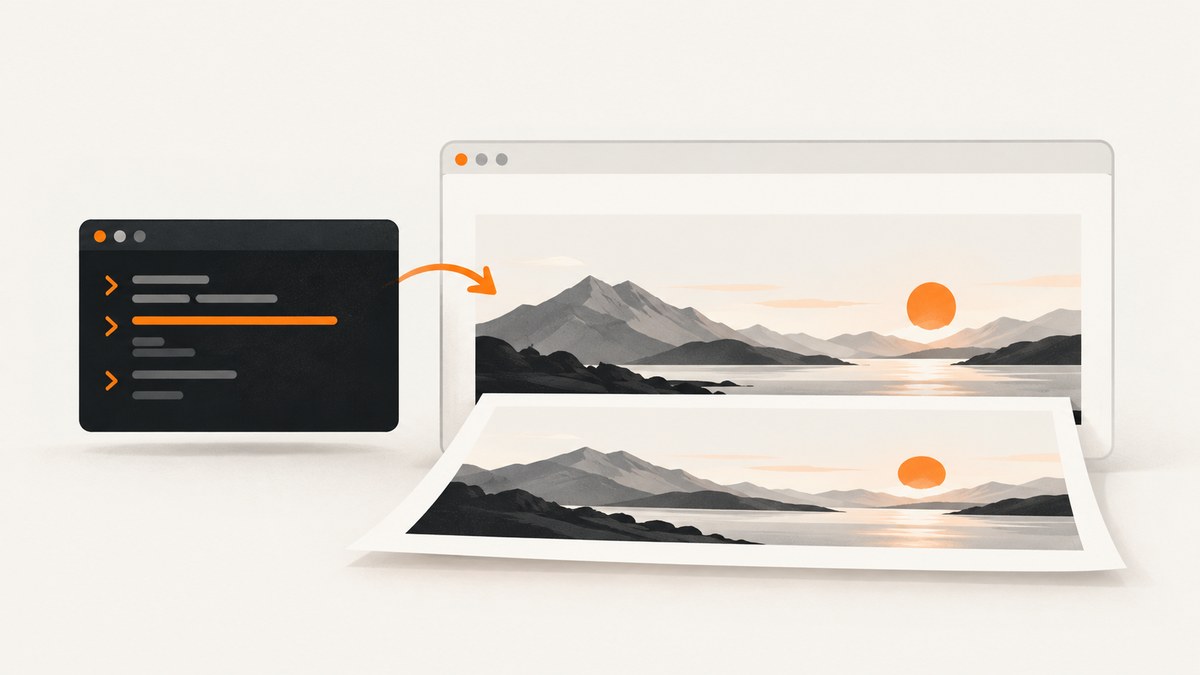
Short answer: Chrome’s documented Headless command-line interface can create a PDF with --print-to-pdf, but it does not document a --landscape flag. If you need guaranteed landscape output, use print CSS when you control the page or call the DevTools print-to-PDF API with landscape: true. The CLI still handles many unattended exports well.
This guide shows the exact commands, explains why viewport flags do not rotate paper, and gives a repeatable automation path. It also covers timing, headers and footers, authentication, failure diagnosis, and a hosted option when maintaining Chrome is not worth the effort.
1. What Chrome’s command line can and cannot do
Chrome for Developers documents --print-to-pdf as a Headless flag that saves the target page as output.pdf in the current working directory. The same reference documents --no-pdf-header-footer for removing the printed date, time, URL and page number. It does not document a command-line switch that sets paper orientation. See the Chrome Headless command-line reference.
That distinction matters because flags such as --window-size=1600,900 change the browser viewport used to render the page; they do not prove that the PDF media is landscape. A wide viewport can still produce portrait pages. Likewise, --timeout and --virtual-time-budget affect when Chrome prints, not the page orientation.
| Goal | Supported route | What to verify |
|---|---|---|
| Create a basic PDF | --print-to-pdf |
output.pdf appears in the working directory |
| Remove browser print chrome | --no-pdf-header-footer |
No date, URL or page number header/footer |
| Set orientation in code | DevTools Protocol print parameter landscape: true |
Page width is greater than page height |
| Set orientation in a page you own | @page { size: landscape; } |
Inspect the resulting PDF on your Chrome version |
2. Basic landscape attempt from the shell
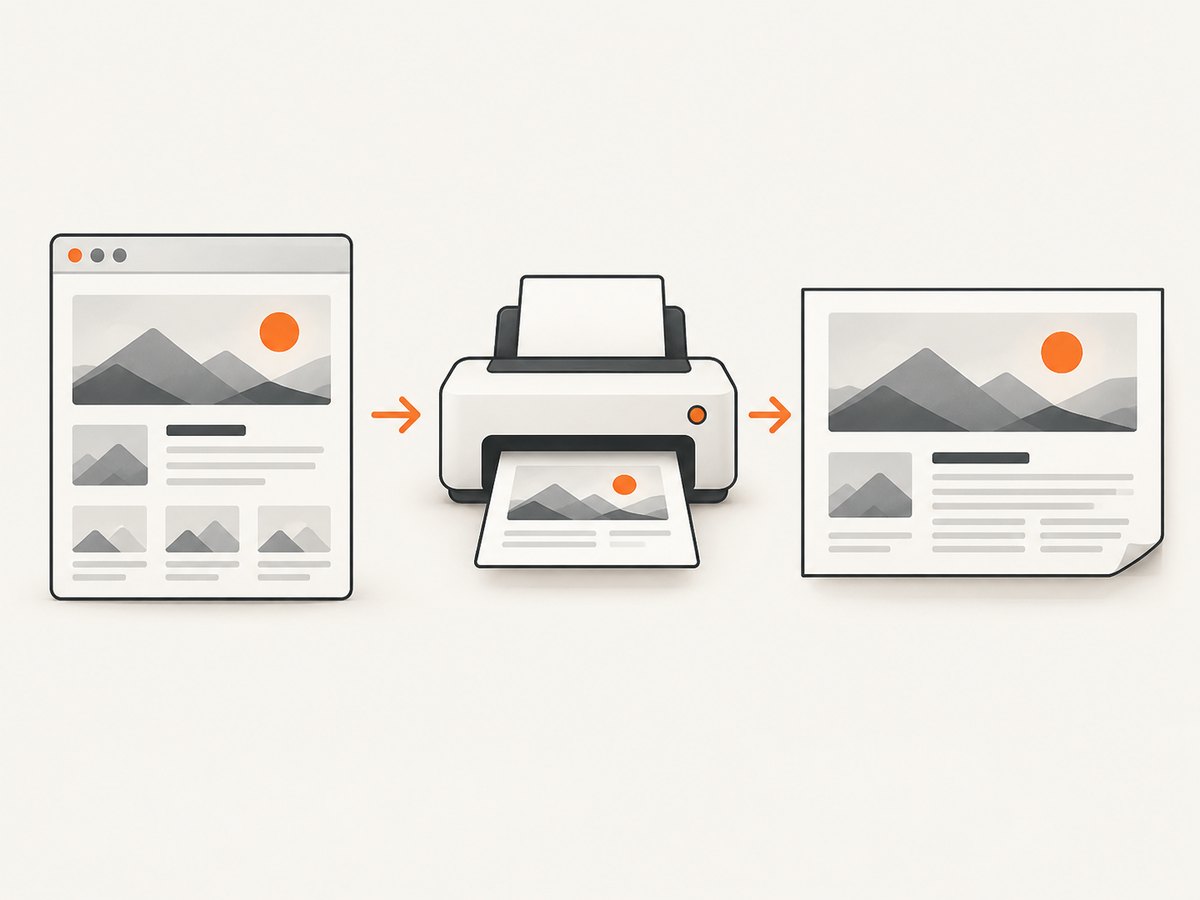
Start with the documented command. Run it from a writable directory so the default file is easy to find:
mkdir -p pdf-output
cd pdf-output
chrome --headless --print-to-pdf https://example.com/
On systems where the executable is named differently, substitute google-chrome, chromium or the full path to your installation. The result is output.pdf. To suppress the default header and footer:
chrome --headless --print-to-pdf --no-pdf-header-footer https://example.com/Do not append --landscape and assume it is supported. An unknown or ignored switch can leave you with a portrait document while your script reports success. If orientation is a requirement, measure the PDF after creation or use the print API shown below.
Choose an explicit output location
Chrome’s documented example uses the default name. In automation, isolate each run in its own directory and rename the result after the process exits:
work=$(mktemp -d)
chrome --headless --print-to-pdf --no-pdf-header-footer https://example.com/ >"$work/chrome.log" 2>&1
if [ -f "$work/output.pdf" ]; then
  mv "$work/output.pdf" ./example-landscape.pdf
else
  echo "Chrome did not create output.pdf" >&2
  exit 1
fi
The command above does not force landscape; the filename is only an operational convenience. Use a PDF inspection step such as pdfinfo and check that the reported page size has width greater than height.
3. Make the page landscape with print CSS
If you own the HTML, put the orientation in the print stylesheet:
<style>
@media print {
  @page { size: landscape; margin: 12mm; }
  body { margin: 0; }
  .screen-only { display: none !important; }
}
</style>
Then run the same --print-to-pdf command. This is page-side behavior, not a documented CLI guarantee. Framework styles, nested print rules, and browser-version differences can change the final result, so inspect a representative PDF. Keep important content inside the printable area and use print-specific widths instead of relying on a very wide screen layout.
CSS details that prevent clipped pages
- Use physical margins in
mmorinand leave room for printer-safe areas. - Prefer fixed column widths that fit the landscape content box; avoid a single unbroken flex row.
- Add
break-inside: avoidto cards and table rows where splitting would be confusing. - Use
overflow-wrap: anywherefor long URLs and IDs. - Hide navigation, cookie notices and interactive controls in print media.
- Check backgrounds and colors with the print settings of the route you use; headless output can differ from an interactive print preview.
4. Reliable orientation with the DevTools print API
Chromium’s DevTools Protocol test passes a landscape boolean to the print-to-PDF command and verifies that the rendered page is wider than it is tall. That is evidence for the protocol parameter, not for a Chrome command-line flag. The pinned test is in Chromium’s devtools_printtopdf_browsertest.cc.
One practical implementation is Puppeteer, which drives Chrome and exposes the print option:
import puppeteer from 'puppeteer';

const browser = await puppeteer.launch({headless: 'new'});
try {
  const page = await browser.newPage();
  await page.goto('https://example.com/', {waitUntil: 'networkidle2', timeout: 90000});
  await page.pdf({
    path: 'example-landscape.pdf',
    format: 'A4',
    landscape: true,
    printBackground: true,
    displayHeaderFooter: false,
    margin: {top: '12mm', right: '12mm', bottom: '12mm', left: '12mm'}
  });
} finally {
  await browser.close();
}
Set preferCSSPageSize: true when the document’s @page rule should win. Otherwise, the API’s format, margins and orientation define the paper box. Pin a Chrome and Puppeteer version in CI, and validate the generated dimensions after upgrades.
Direct DevTools Protocol flow
If you already manage a Chrome debugging session, call the Page.printToPDF command over the DevTools Protocol. The important fields are landscape: true, printBackground: true, margins, and optionally pageRanges. The protocol returns base64 PDF data; decode it to a file and inspect the page size. The exact transport (WebSocket, client library and launch flags) varies by your automation stack, so use its current API documentation rather than copying an old endpoint.
5. Timing, dynamic pages and authenticated content
A PDF is a snapshot. Single-page applications may still be rendering when Chrome prints. The CLI reference documents --timeout=5000 as a maximum wait example and --virtual-time-budget for fast-forwarding time-dependent scripts. Neither proves that a specific site’s data, fonts or lazy images are ready.
For repeatable output:
- Wait for navigation plus the application’s own ready signal (for example, a dashboard element).
- Wait for fonts and images, or use a network-idle condition with a bounded timeout.
- Freeze animations and transitions in print CSS.
- Use a final short delay only as a safety margin, not as the primary readiness test.
- Capture a diagnostic screenshot or HTML log when a run fails.
For pages requiring login, launch a controlled profile or inject cookies and headers through your automation library. Never put credentials in a URL that can appear in shell history or logs. Redact tokens in CI output and delete temporary profiles after the run.
6. Troubleshooting checklist
| Symptom | Likely cause | Fix |
|---|---|---|
--landscape has no effect |
It is not a documented Headless CLI option. | Use print CSS or a print API with landscape: true; then inspect dimensions. |
| PDF is portrait despite a wide page | Viewport width was mistaken for paper orientation. | Set the print parameter or @page size and remove assumptions about --window-size. |
| Output file is missing | Wrong working directory, unwritable directory, crash or navigation failure. | Use an absolute working directory, capture stderr, check the exit code and look for output.pdf. |
| Header or URL appears | Header/footer suppression was omitted or spelling differs on an older Chrome. | Try --no-pdf-header-footer; older releases may use --print-to-pdf-no-header. |
| Blank or partial PDF | App content was not ready, blocked, or timed out. | Wait for a selector, extend the bounded timeout, check console/network errors and authenticate correctly. |
| Text or images are clipped | Content exceeds the landscape content box or a print rule forces overflow. | Reduce margins/column widths, add wrapping and break rules, and test long data. |
| Fonts differ from local output | Fonts were not installed or loaded before print. | Bundle or install the font, wait for document.fonts.ready, and avoid relying on a developer laptop. |
| Pages vary between runs | Animations, ads, live data or responsive breakpoints changed. | Freeze motion, block nonessential resources in automation, set a fixed viewport and record the input version. |
7. Performance, reliability and cost
Launching a new browser for every URL is simple but expensive in time and memory. A long-running worker can reuse one browser and create an isolated page or context per job. Bound navigation, selector waits and total job duration so a broken origin cannot exhaust workers. Limit concurrency to what the host can handle; more tabs can increase memory pressure and make layout timing less predictable.
Cache stable assets where policy permits, but do not cache personalized responses across users. Record the URL, Chrome version, viewport, CSS revision, wait condition and PDF byte size alongside each artifact. For critical documents, keep a checksum and a small set of visual regression samples. Treat a zero exit code as process success only; verify that the file exists, is parseable and has the expected orientation and page count.
The local CLI has no per-page service charge, but you pay for your own compute, browser maintenance, storage and engineering time. A hosted capture API can be cheaper operationally when you need bursts, many sites or consistent cleanup of consent UI.
8. Or skip the browser setup
ScreenshotNeo is a website screenshot API and MCP server. Its PDF endpoint accepts the same URL request pattern as the image API, so you can generate a PDF without packaging Chrome, fonts or a worker fleet. See the ScreenshotNeo documentation for the current request options.
cURL:
curl -G "https://api.screenshotneo.com/v1/shot" -d access_key=YOUR_API_KEY --data-urlencode url=https://stripe.com -o shot.webpPython:
import requests; r = requests.get("https://api.screenshotneo.com/v1/shot", params={"access_key": "YOUR_API_KEY", "url": "https://stripe.com"}, timeout=90); open("shot.webp", "wb").write(r.content)Node.js:
const q = new URLSearchParams({ access_key: 'YOUR_API_KEY', url: 'https://stripe.com' }); const res = await fetch(`https://api.screenshotneo.com/v1/shot?${q}`);For a PDF, request the PDF output option described in the docs and save the response with a .pdf extension. ScreenshotNeo can set paper size, margins, landscape mode and page ranges, and it supports full-page capture, custom CSS and JavaScript, waits, headers, cookies, user agents, timezone and geolocation. It can also capture one CSS-selected element, hide selectors, block ads/trackers/requests/resource types, resize images, cache with a chosen TTL, create signed links, run async jobs with signed webhooks, capture up to 100 URLs per bulk call and expose usage data.
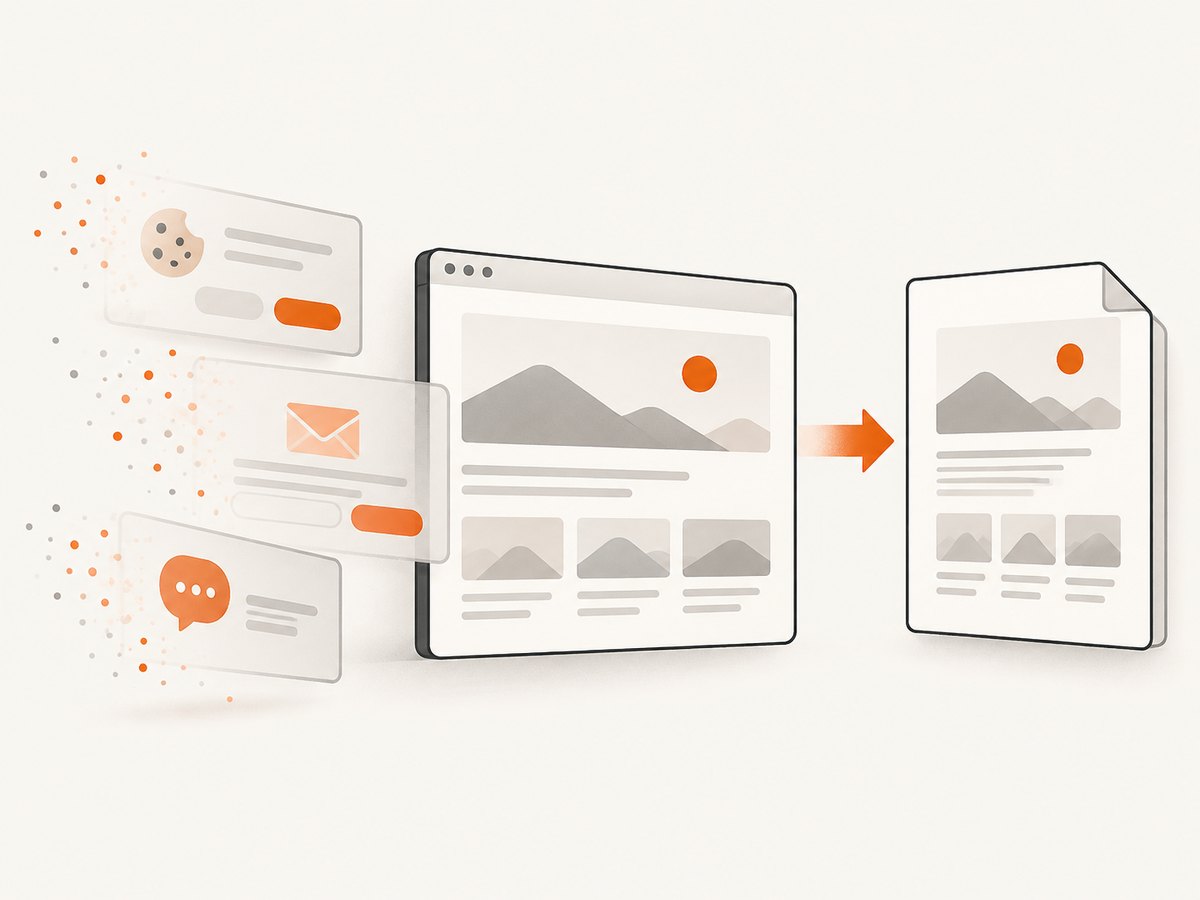
The cleanup behavior is useful for documents assembled from public pages: it accepts cookie or consent banners like a visitor and removes more than 60 known consent platforms, newsletter popups and chat widgets. Each cleanup step can be disabled. Bot checks or CAPTCHAs, blank pages, timeouts, failed loads and cache hits are not billed; response headers identify the page verdict and whether the request was billed.
An MCP server provides take_screenshot, get_page_info and capture_pdf tools for Claude, Cursor and other MCP clients. Free usage is 1,000 shots per month with no card; paid plans start at $5 for 3,000 shots, and every feature is on every plan. Start with the free ScreenshotNeo account.
9. A production decision checklist
- Do you control the page? If yes, add and verify
@page { size: landscape; }. - Do you need an explicit programmatic guarantee? Use a print API with
landscape: true. - Are headers, cookies, popups or bot checks involved? Plan cleanup and authentication before printing.
- Can you verify output? Check file existence, parseability, dimensions and page count.
- Is browser operations work the bottleneck? Compare your compute and maintenance cost with a hosted capture service.
10. FAQ
Can I use --window-size to make the PDF landscape?
No. It changes the viewport. Orientation belongs to print CSS or the print API.
What is Chrome’s default PDF filename?
The documented default is output.pdf in the current working directory.
Will --virtual-time-budget wait for API data?
It advances virtual time for scripts; it does not guarantee that a particular network request or application state is complete. Use an explicit ready condition.
Which route is easiest for many unrelated sites?
A hosted capture API avoids browser installation and profile management. ScreenshotNeo adds consent and popup cleanup, verdict headers and an MCP server for agent workflows.
How do I prove a PDF is landscape in CI?
Parse the PDF and assert that each target page has width greater than height. Keep a sample artifact when the assertion fails.


